Enter a manual value
When a measurement is wrong or its device is out of service, for example a flow meter being calibrated, you can hold a value entered by hand instead. The signal then keeps that value until you switch it back to automatic; its source is ignored. Alarms, trends and lists use the manual value and mark it as manual.
A manual value hides what the plant really does. Use it only for as long as needed, give a reason, and switch back to automatic as soon as the source is valid again.
Before you begin
- You are signed in with your own account, and your profile has the Signal run mode permission. The default operator profile does not have it; shift supervisors and maintenance do.
Steps
1. Open the signal menu
On the run screen, right-click a value or an object bound to the signal. If the object shows several signals, choose the signal first under Select a signal. The menu shows the signal path, Signal details and Manual value….
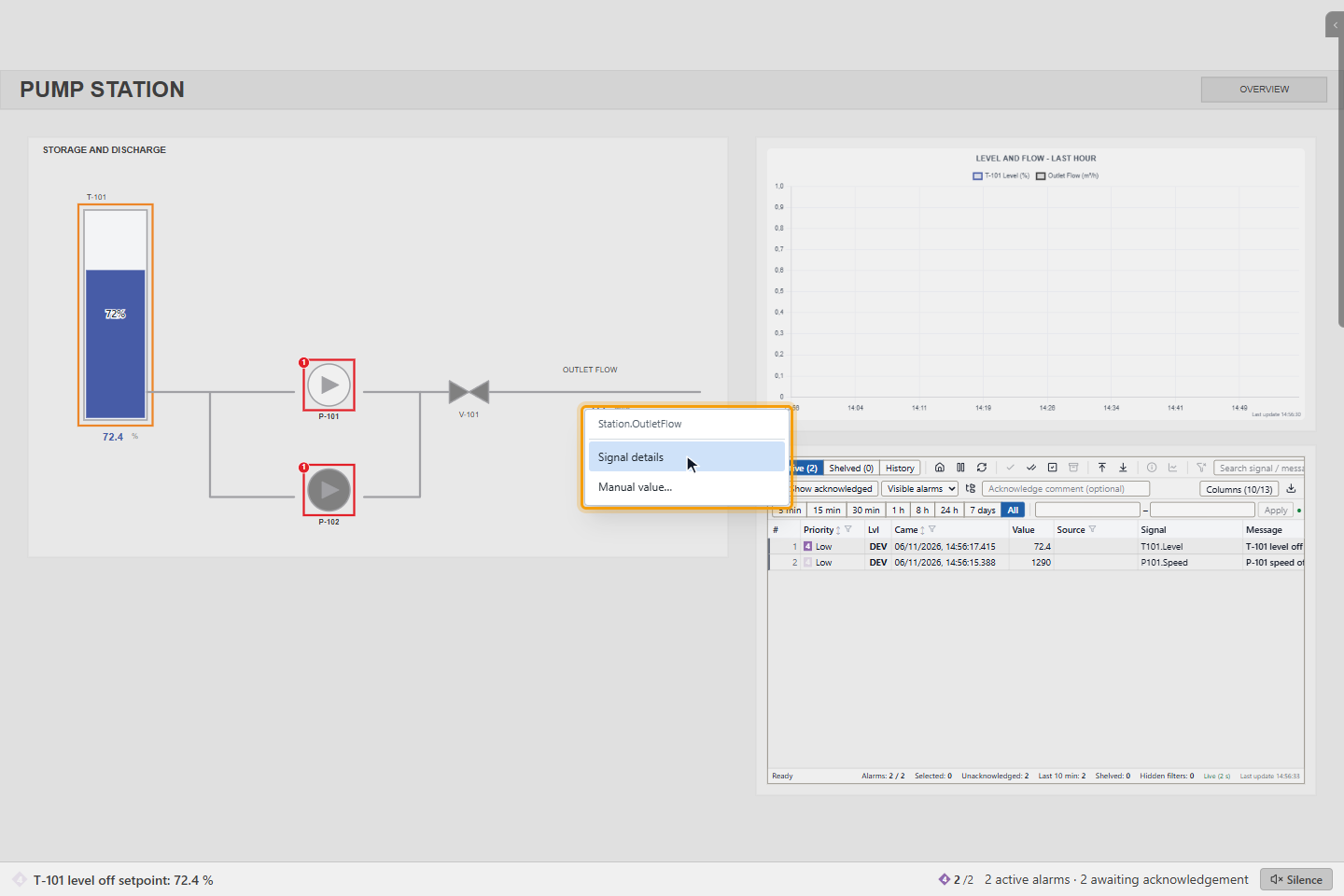
If Manual value… is grey, its tooltip says why, for example You are not permitted to enter manual values or Manual value is not allowed for this signal.
2. Enter the manual value
Click Manual value…. In the window Mode — <signal>, choose Manual [SCADA], enter the Value and, if you like, a Reason (recorded in the event log), and click OK.
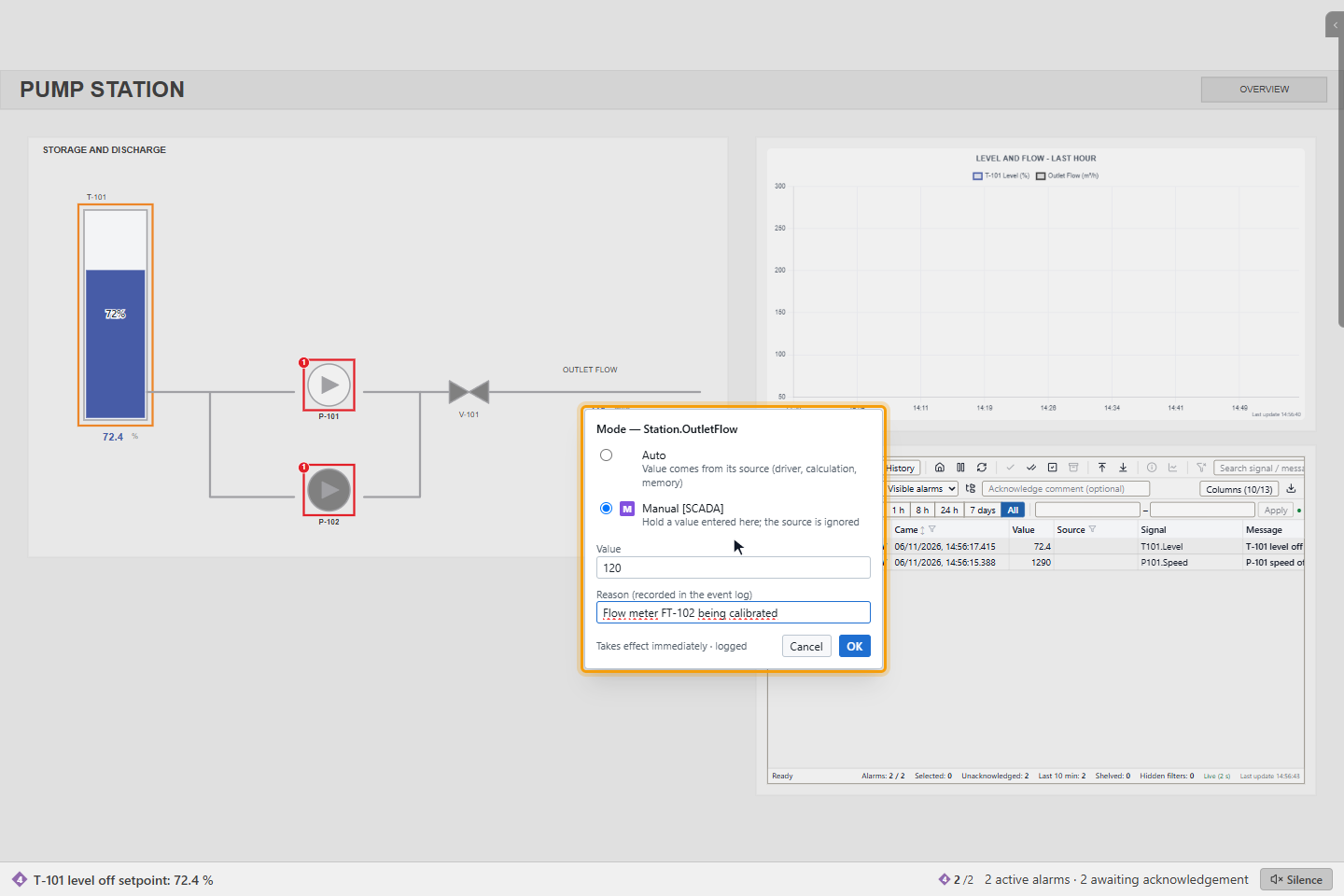
| Mode | Meaning |
|---|---|
| Auto | The value comes from its source (driver, calculation, memory) |
| Manual [SCADA] | The value entered here is held; the source is ignored |
| Simulated | A test value is generated; alarms and history are marked as simulated (only where the signal allows it) |
The change applies at once. The event list records it as Operating mode with the new mode, your name, the value and the reason.
3. Recognise the manual value
A purple mark at the top left of the object shows a manual value entered in SCADA; its tooltip is Manual value (SCADA): followed by the signal. Lists show the same mark as a filled M next to the value. An outlined mark means a manual value set in the field (on the device), a dashed one a simulated value.
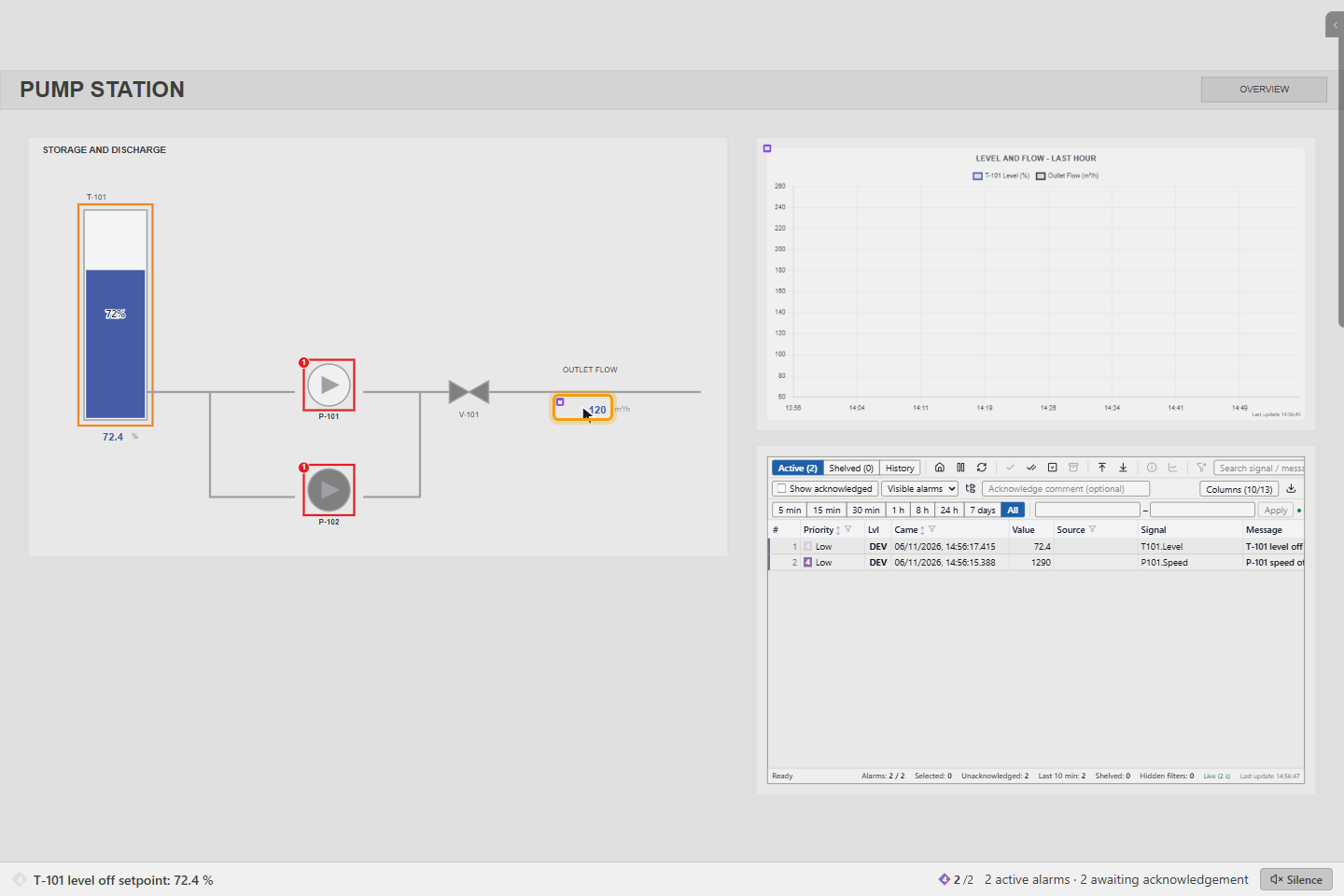
The event list shows who set the manual value, when, the value and the reason.
4. Return to automatic
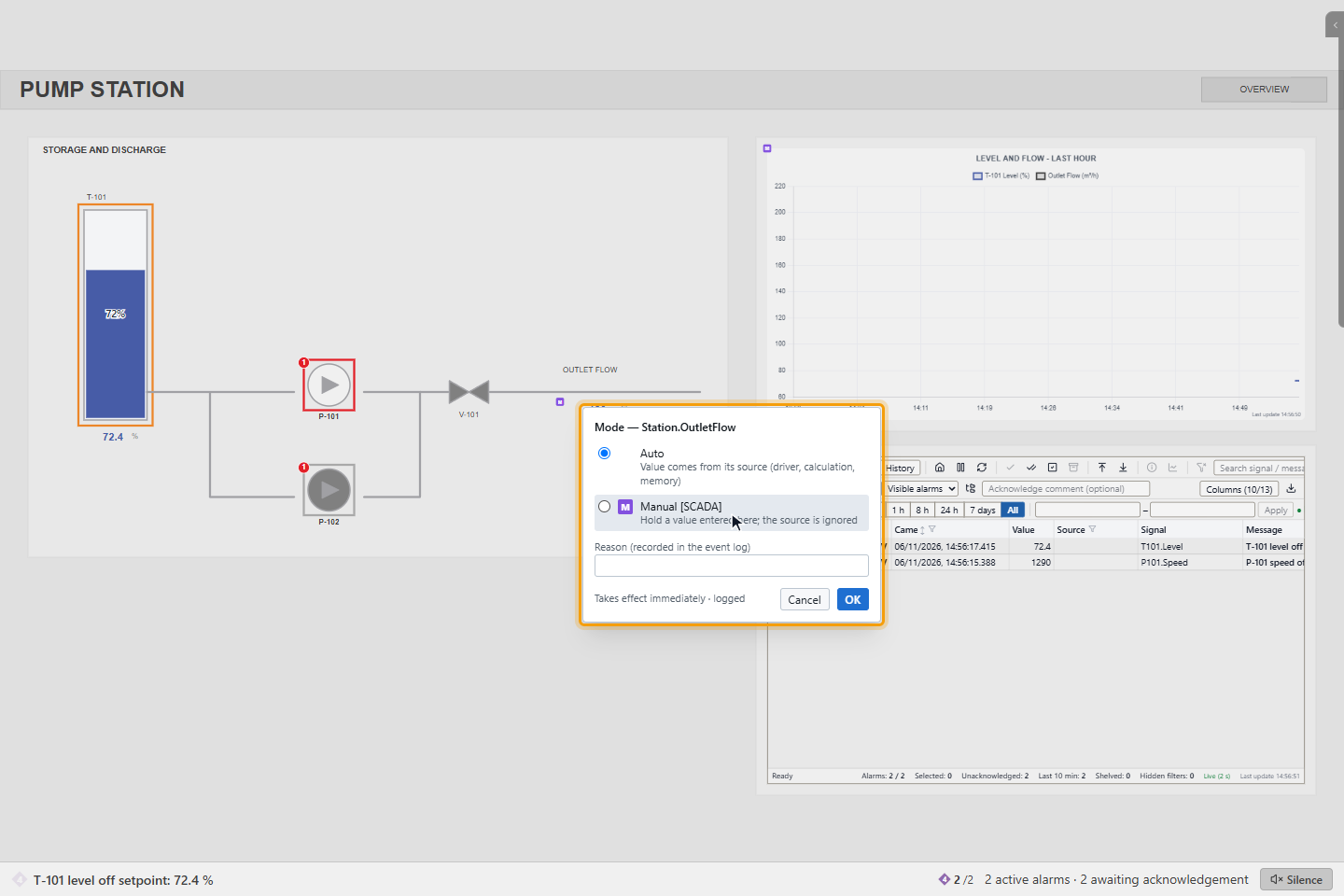
Right-click the value again, click Manual value…, choose Auto and click OK. The signal takes the value of its source again.
Good to know
- Alarms are evaluated on the manual value, so a manual value can raise or clear alarms.
- The manual value survives a restart of the gateway and of the driver; it stays until someone returns the signal to automatic.
- If your profile is limited by responsibility zones, you need control rights for the signal's zone.