Theme, blinking and session
The session menu of the run screen holds your personal display choices and your session: the theme of the controls, the blinking of objects, switching user and signing out.
Before you begin
- You are signed in. Without a sign-in the menu only offers Login.
Steps
1. Open the session menu
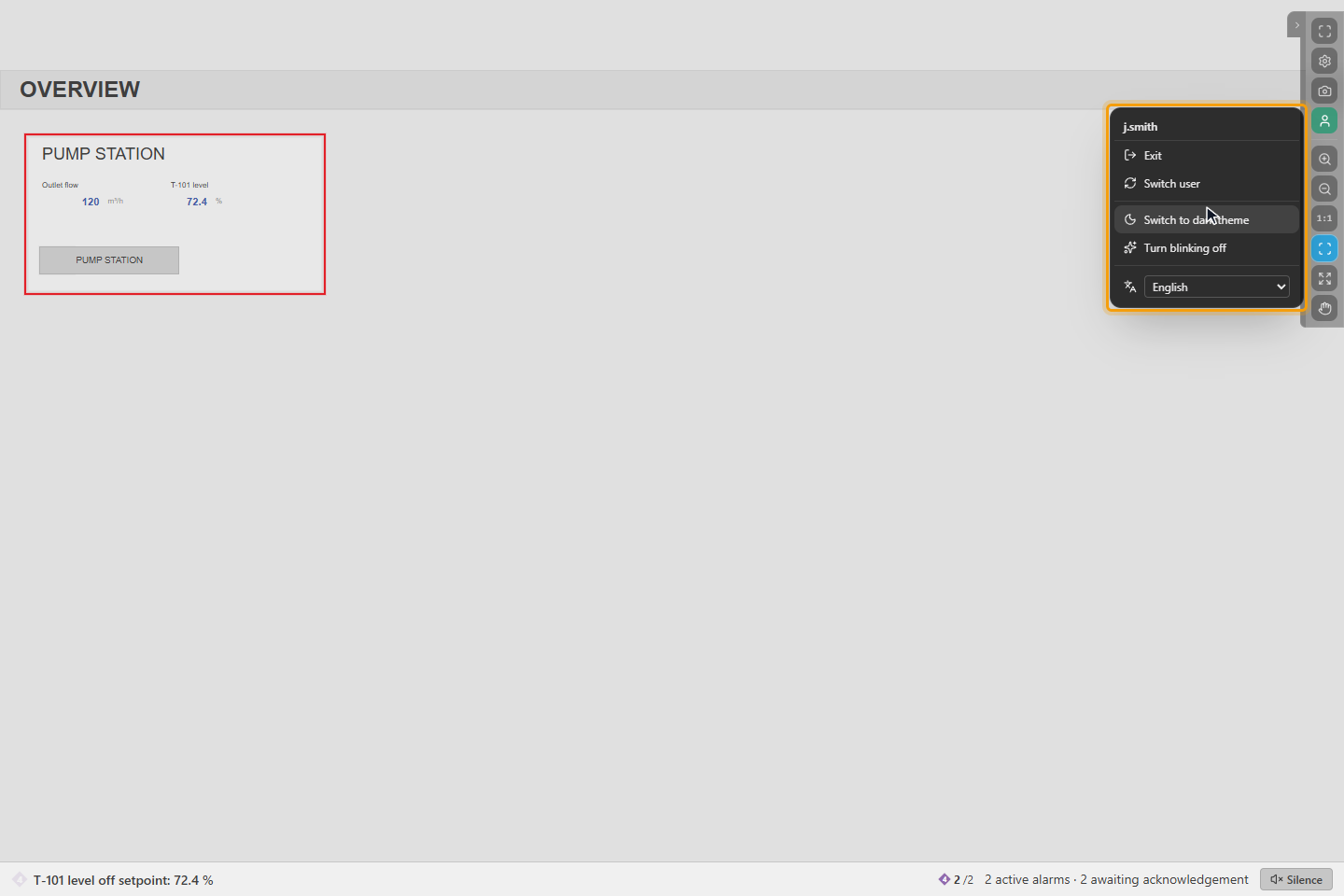
Move the mouse to the top right corner of the screen to show the control rail and click the user icon. The menu shows your user name, Exit (sign out), Switch user, the theme item, the blinking item and the list of interface languages. A language you choose applies at once; while you are signed in it is saved in your user profile, otherwise this browser remembers it.
2. Switch the theme
Click Switch to dark theme or Switch to light theme. The theme changes the windows and lists of the run screen; the colors of the pages are set by the designer and stay the same. The control rail and the session menu are dark in both themes.
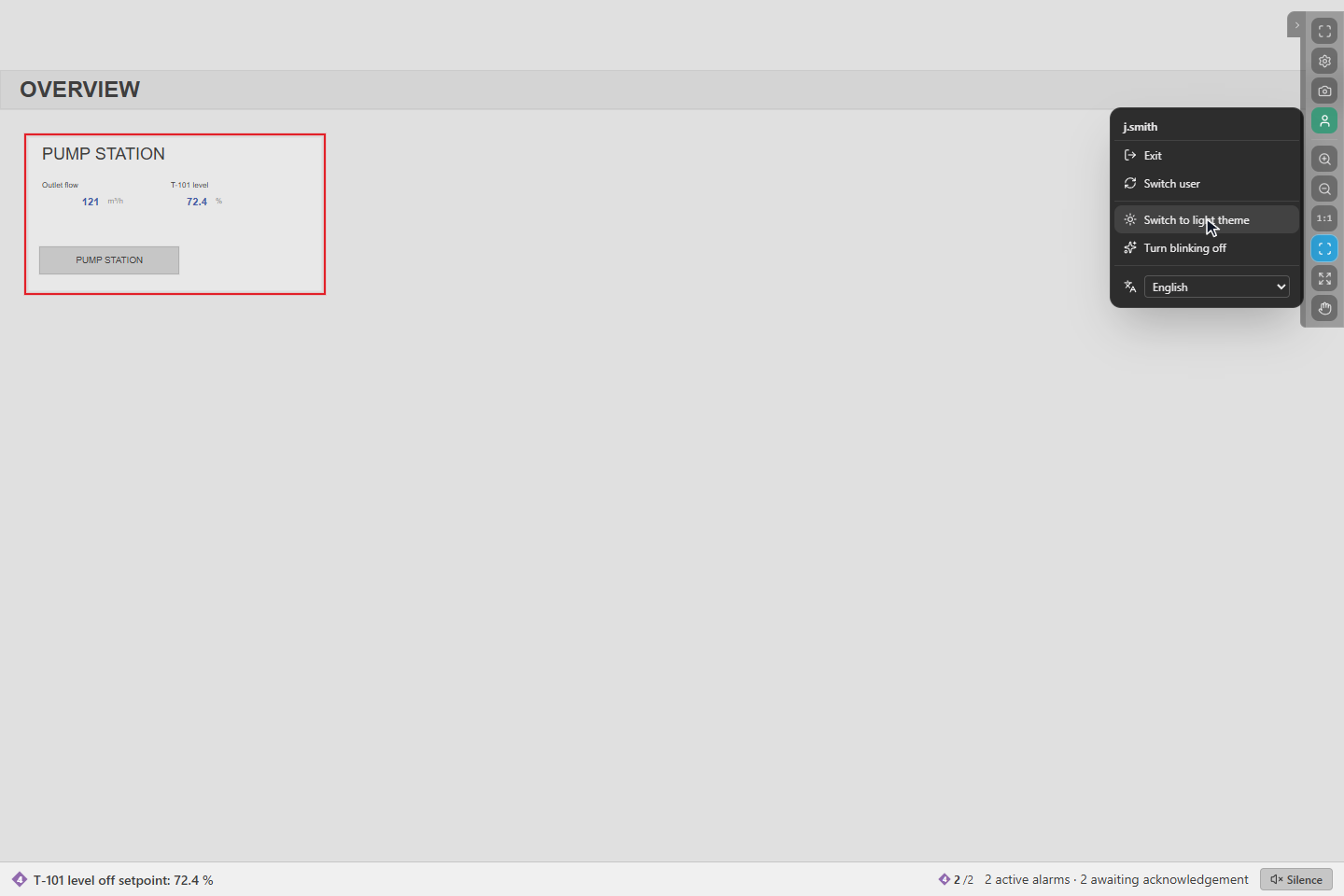
Turn blinking off stops the blinking of objects on your pages; the states themselves and the acknowledgement of alarms are not affected. Turn blinking on brings it back.
3. The idle warning
If you do not use the screen for the idle time of your project, YTCC warns before signing you out: Session idle — The session of <user> will close due to inactivity. with a countdown. Click Stay logged in (or press Enter) to continue, or Log out now. Without an answer you are signed out when the countdown ends.
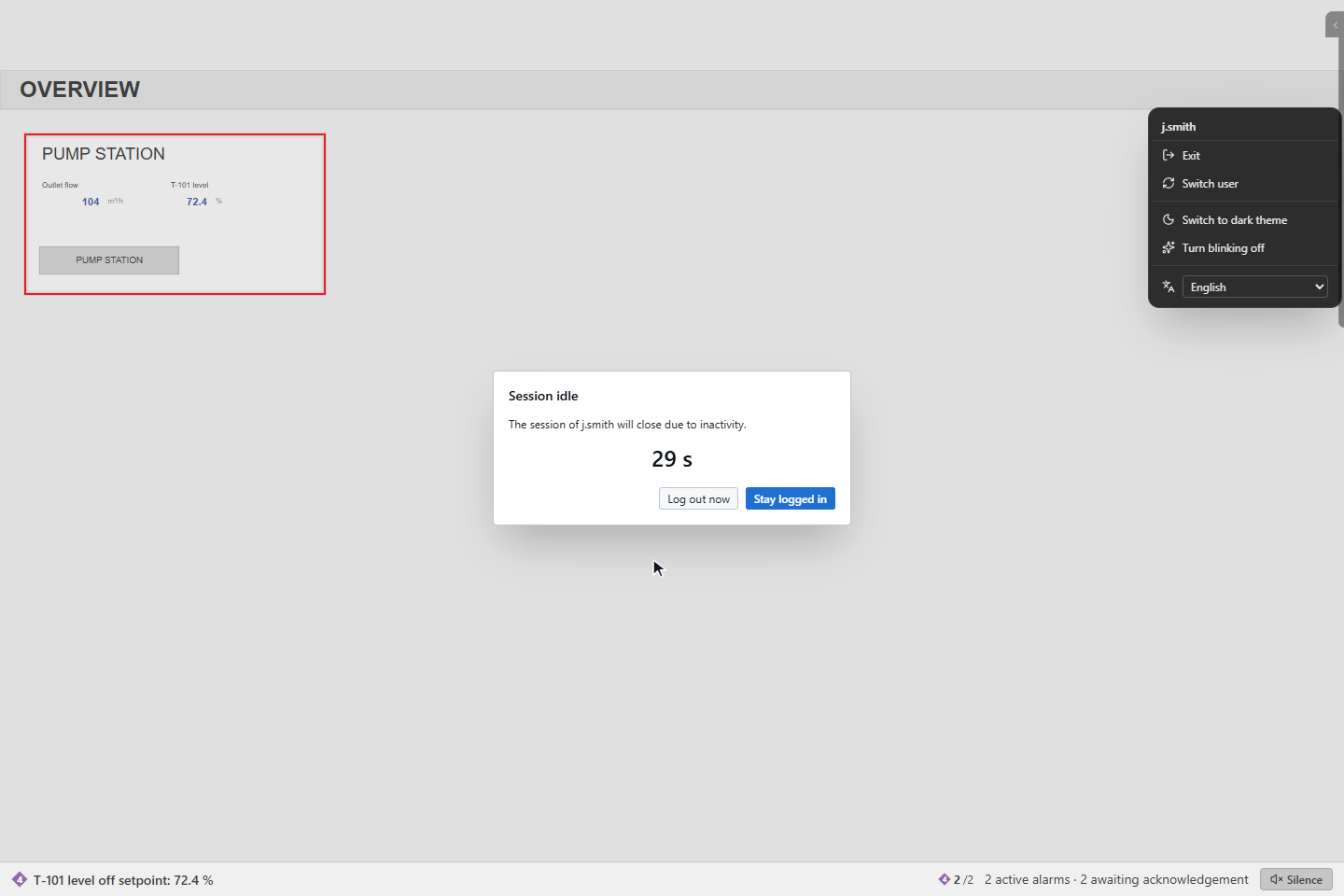
Any use of the screen, a mouse movement or a key, restarts the idle time.
Where your choices are kept
- With user login on, the theme and the blinking choice are stored with your user on the server and follow you to other stations.
- Without login the theme is kept in the browser of the station.
Theme fixed for a station
For a control room with a fixed lighting the administrator can fix the theme of stations by their network address. The theme item is then grey with a lock and Theme fixed; its tooltip names the rule. The order is: the station rule, then your own choice, then the default theme of the project. The rules are set in the project settings of the screen editor.
Good to know
- The idle time is a setting of the login policy: Idle timeout (minutes, 0 = none), 30 minutes by default, and Logout warning (seconds before, 0 = none), 60 seconds by default, at most half the idle time. Stations that sign in automatically are not signed out for being idle.