Move between screens and adjust the view
The project's screens are linked with buttons. This page shows how to move between them and how to change the size of the page.
Before you begin
- You are signed in. See Open the runtime screen and sign in.
Steps
1. Go to another screen
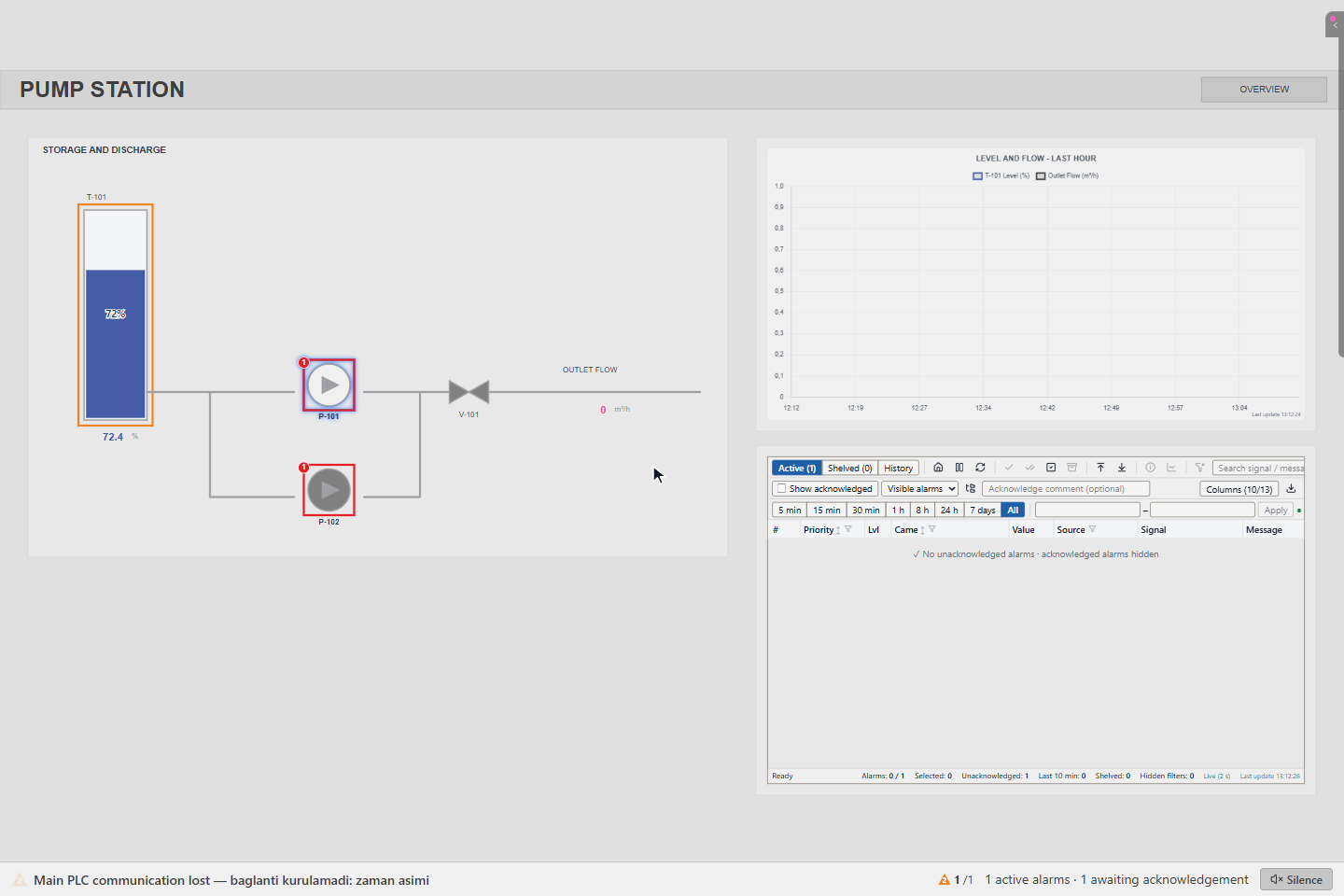
Click a button that leads to another screen, here PUMP STATION on the overview. The PUMP STATION page opens with the tank, the pumps, the valve, a trend and the alarm list.
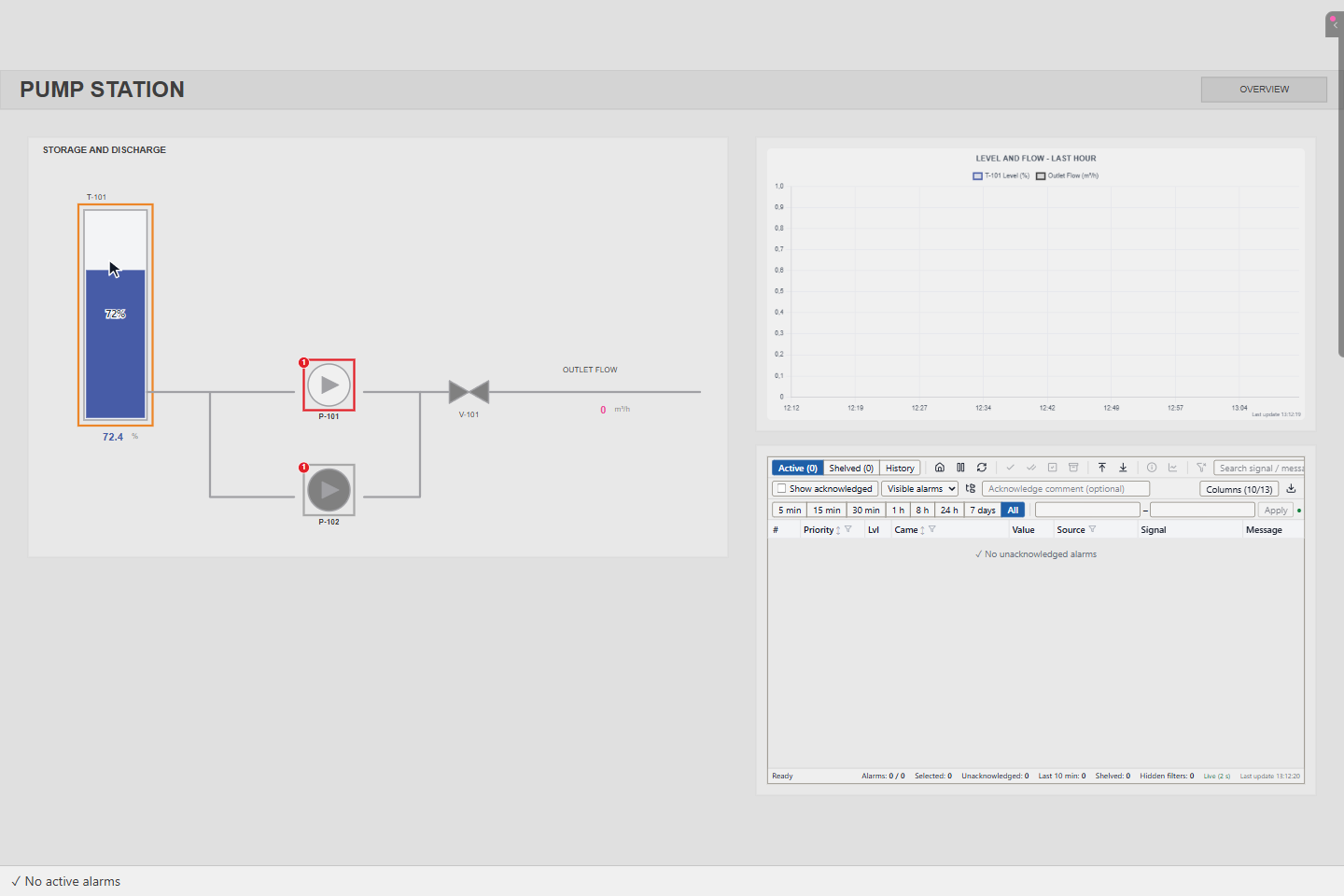
Which buttons exist and where they lead is decided by your project. Use the buttons on the page to move between screens.
2. Open a popup
Some objects open a popup when you click them. Click the pump P-101: the Pump Command popup shows its state, here RUNNING, and the START and STOP buttons.
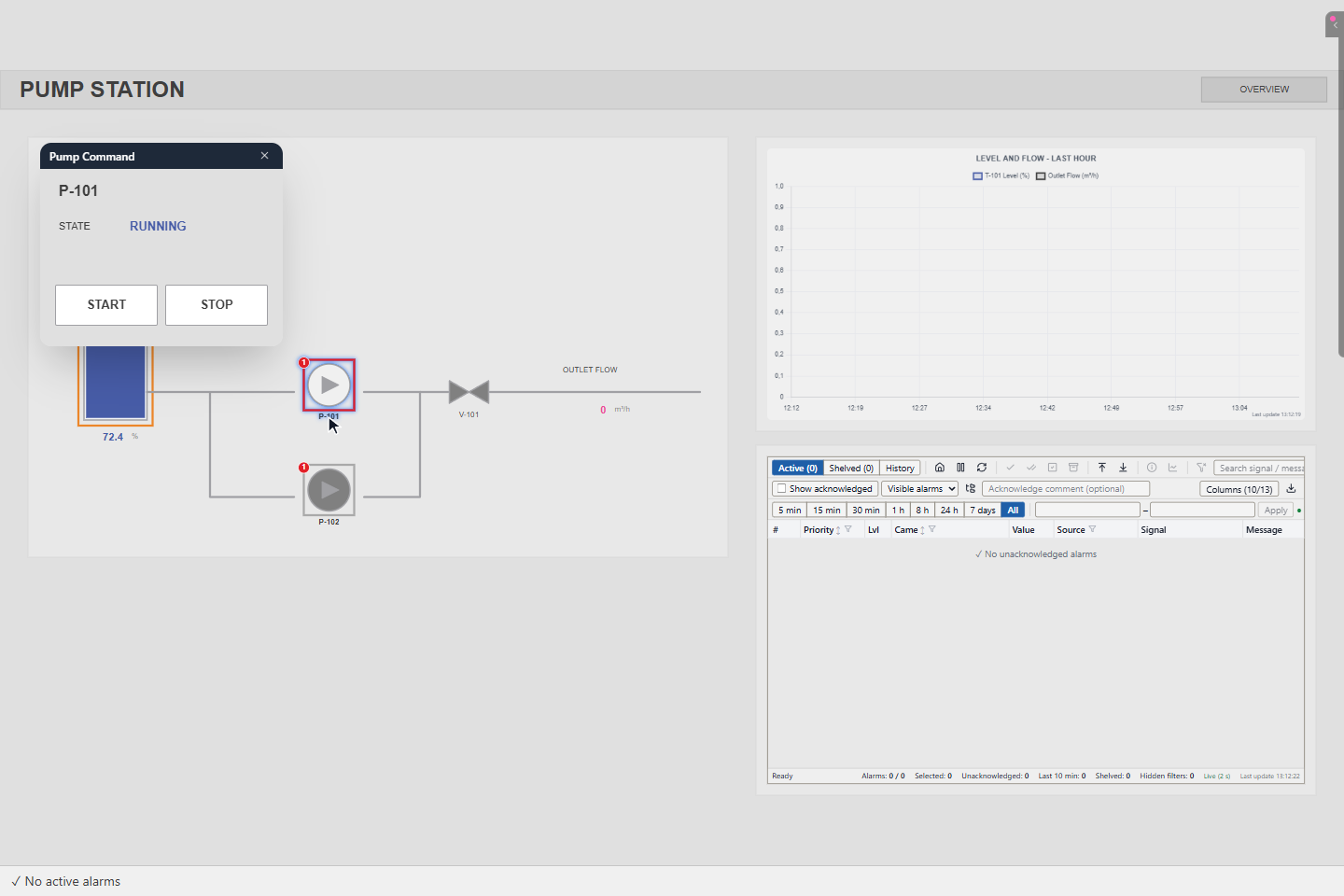
You can drag a popup by its title bar. The popup opens at the same place next time.
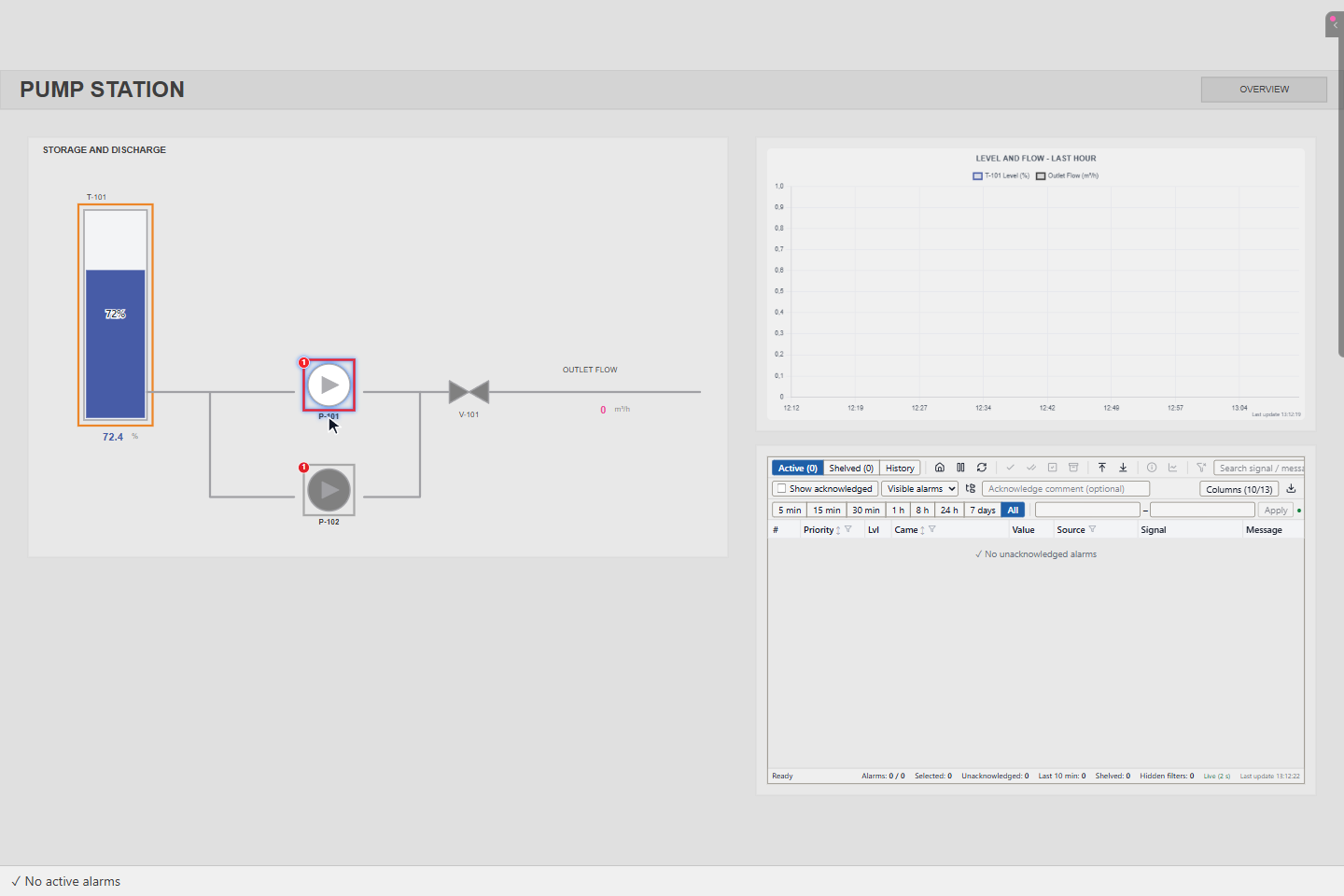
3. Close the popup
Press Esc or click × in the title bar.
4. Zoom in and out
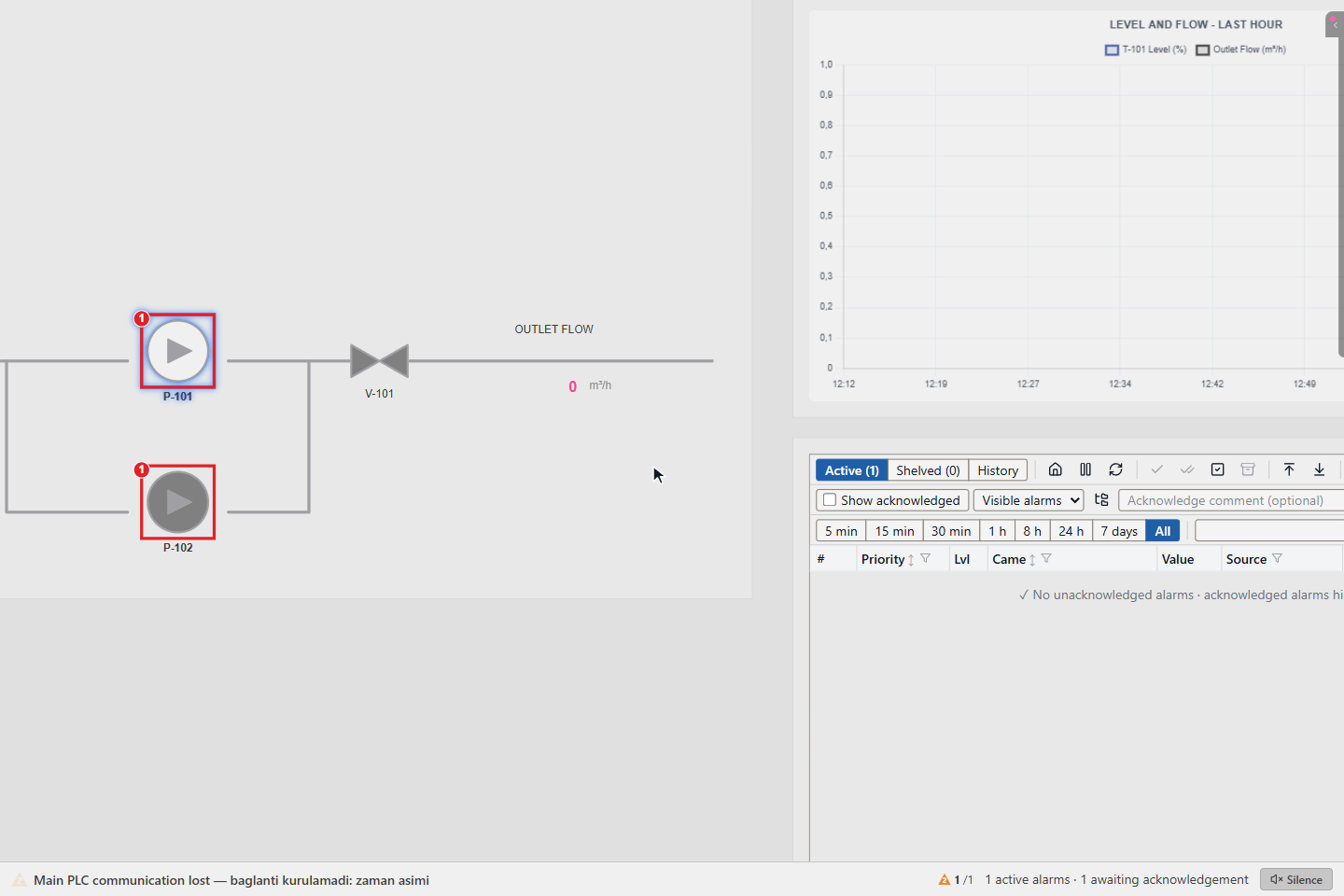
To see a part of the page larger, zoom in:
- hold Space and turn the mouse wheel, or
- press Ctrl+= to zoom in and Ctrl+- to zoom out, or
- use Zoom in and Zoom out on the control rail at the right edge.
Hold Space and drag to move the zoomed page.
5. Fit the screen
To see the whole page again, press Shift+0 or Space+1, or click Fit to page on the rail. Other choices:
| Choice | Keys | Result |
|---|---|---|
| Fit to page | Shift+0, Space+1 | The whole page, keeping its proportions |
| Fill screen | Space+2 | The page stretched to the screen |
| 1:1 | Ctrl+0, Space+0 | Actual size, from the top-left corner |
The zoom applies to the current page only. When you change page, the next page opens at its normal size.
6. Go back to the overview
Click OVERVIEW at the top right of the page.
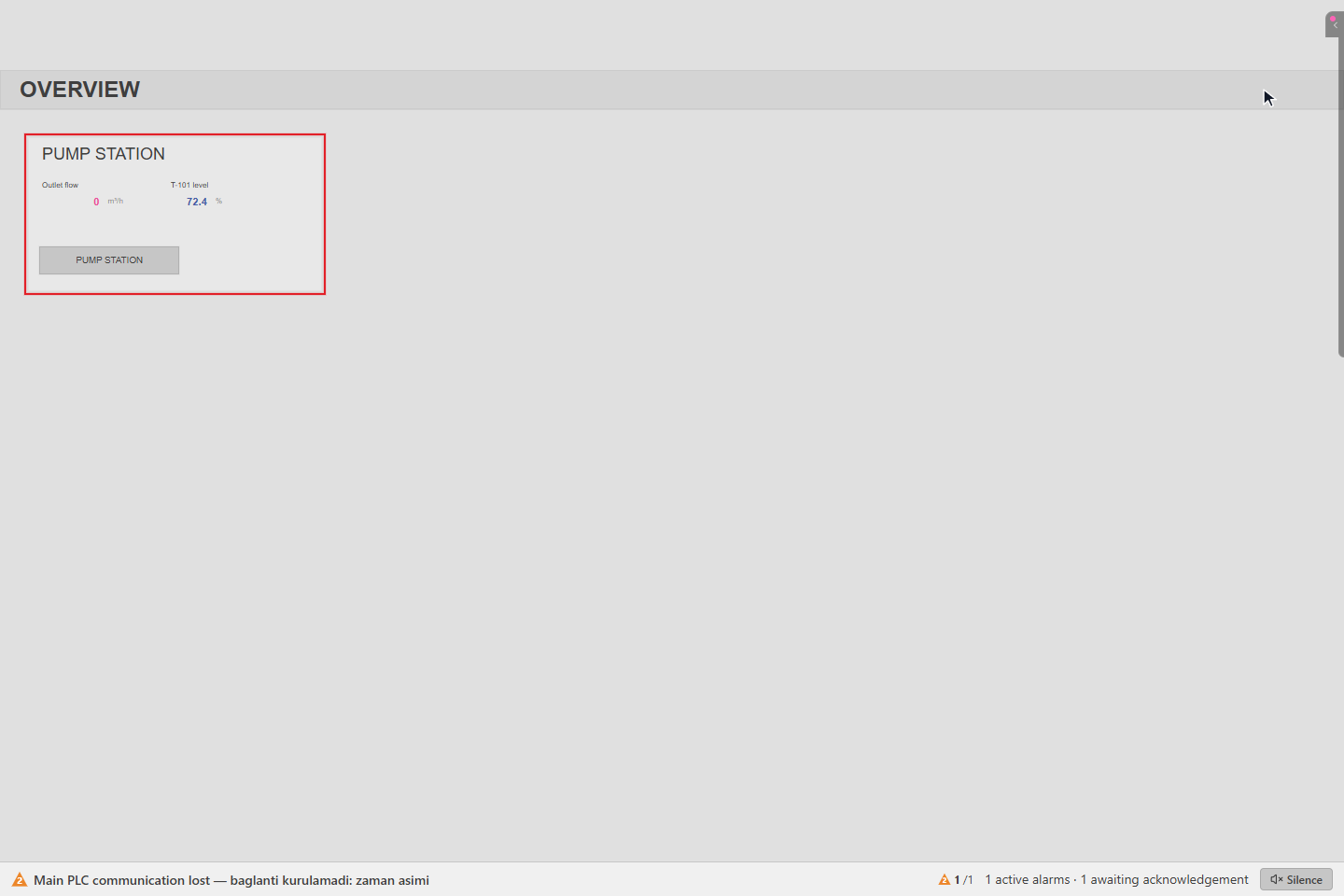
Result
You can move between the screens of your project and see every part of them.