Send commands
A command changes something in the plant, for example starts a pump. YTCC always asks before a value goes to a field device, and it never sends a command later: a command either goes now or is rejected.
Before you begin
- You are signed in with your own account, and your user may write signals. When nobody is signed in, or the screen signed in automatically for watching only, the command buttons are grey and say Sign in to send commands. See Open the runtime screen and sign in.
Steps
1. Open the command window
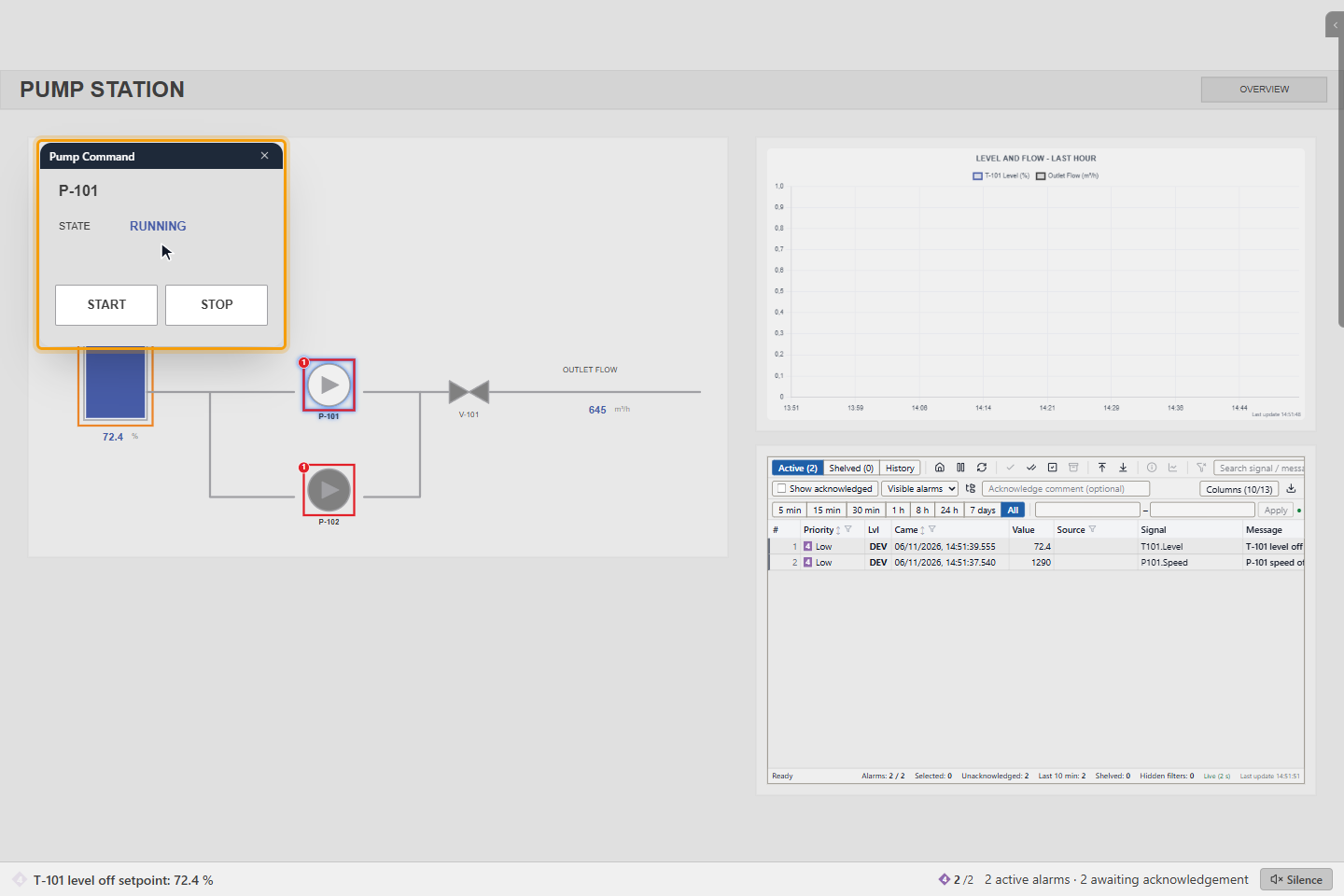
Click the equipment, here pump P-101. Its command window opens, here Pump Command with the state RUNNING and the START and STOP buttons. Which buttons a window has depends on how your project engineer drew it.
2. Send a command and confirm it
Click START. A question asks you to confirm, here Start the pump?. Click Yes to send the command, or Cancel to send nothing.
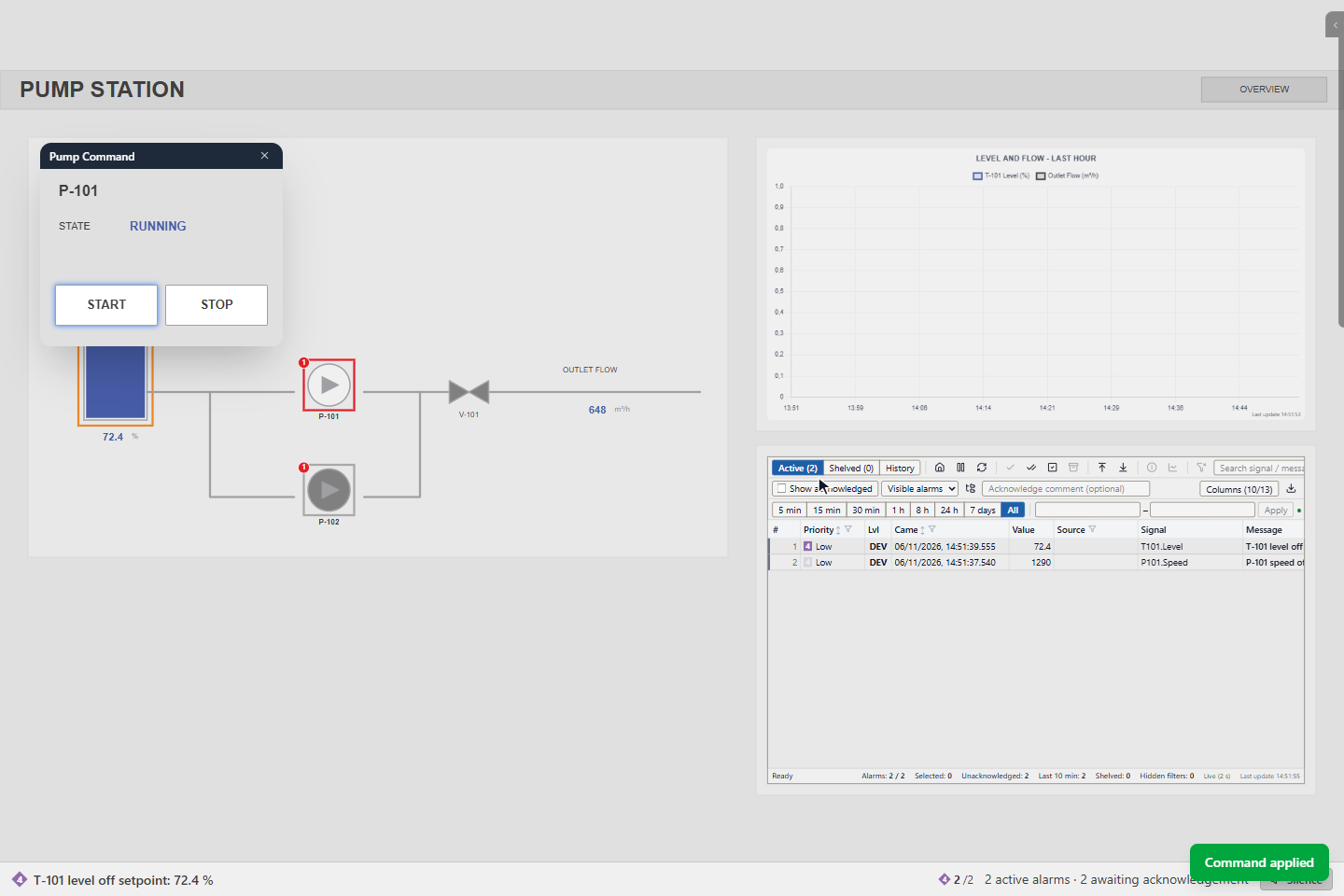
The result appears at the bottom right of the screen: Command applied when the device took it.
The message stays for 5 seconds, or for 8 seconds when it is a warning or an error.
When the project engineer did not write a question of their own, YTCC asks with the window Command confirmation: the description of the signal, or its full path when it has no description, and Send the command? The buttons are Cancel and Send. The default button is Cancel, so pressing Enter by accident sends nothing. Signals that stay inside YTCC and do not go to a device are not asked. In a command popup that the project engineer built as the confirmation itself, the button sends the command without this window.
3. Send a critical command
Some commands, such as stopping a pump, a main valve or a breaker, are marked as critical by your project engineer. After you confirm, the window Critical command — four-eyes approval opens with the signal and the values, here P101.Stop: 0 → 1:
- Reason: why you send the command, here Planned stop for seal inspection (up to 500 characters).
- Second user: another user with the permission to approve commands types their own Username and Password. You cannot approve your own command.
Click Approve and send. For a critical command that needs only a reason, the window Critical command — reason asks for the reason alone.
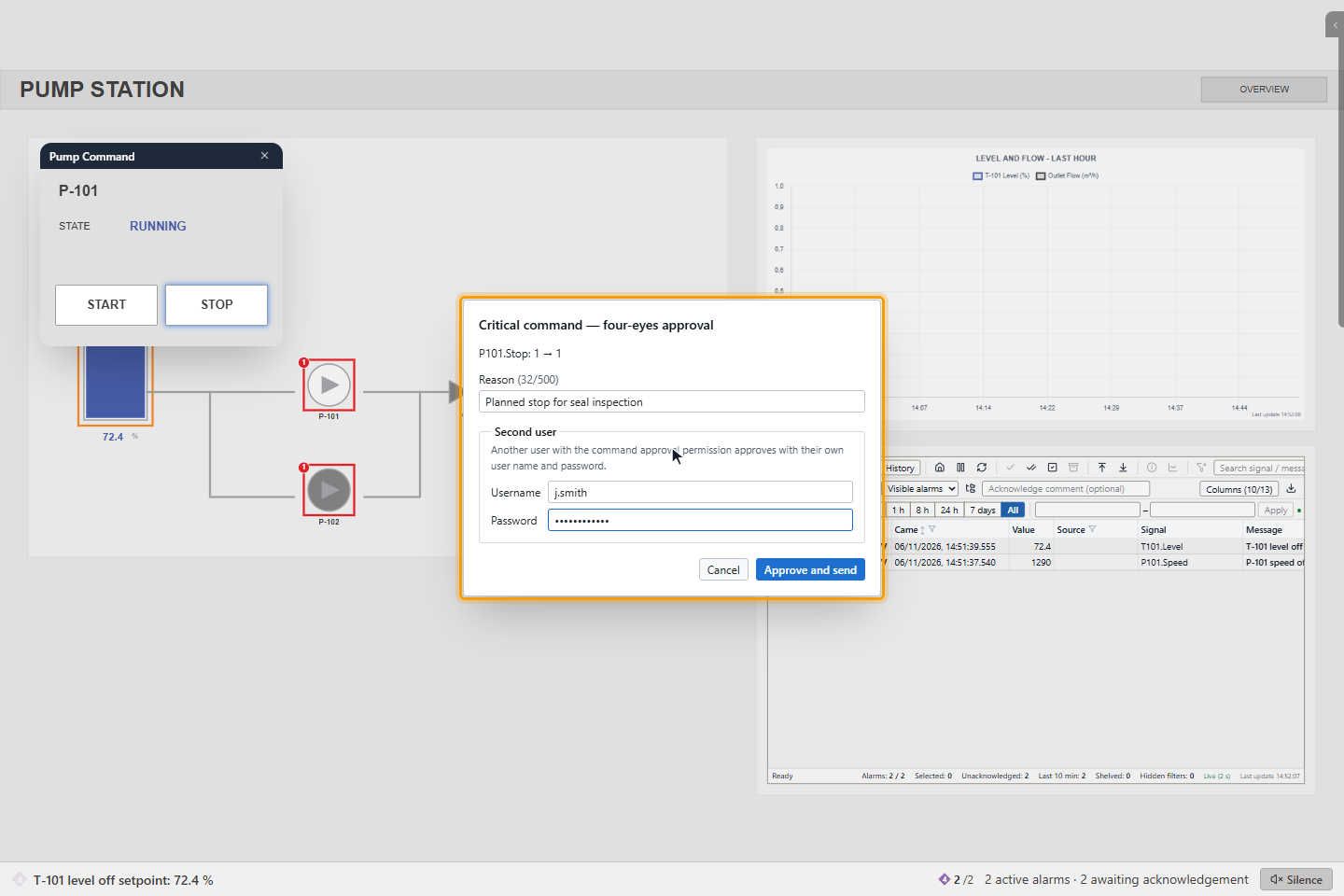
The approval is valid once, for this signal, this value and this operator, for five minutes. The reason and the user who approved are written to the command log and the event list.
4. Use a Toggle Button
A screen can have a Toggle Button, which shows an on/off signal and changes it. The button says what the signal is now, here OFF; your project engineer chooses the texts and colors. Click it to send the opposite value. For a signal that goes to a device, Command confirmation asks first, as in step 2. Click Send.
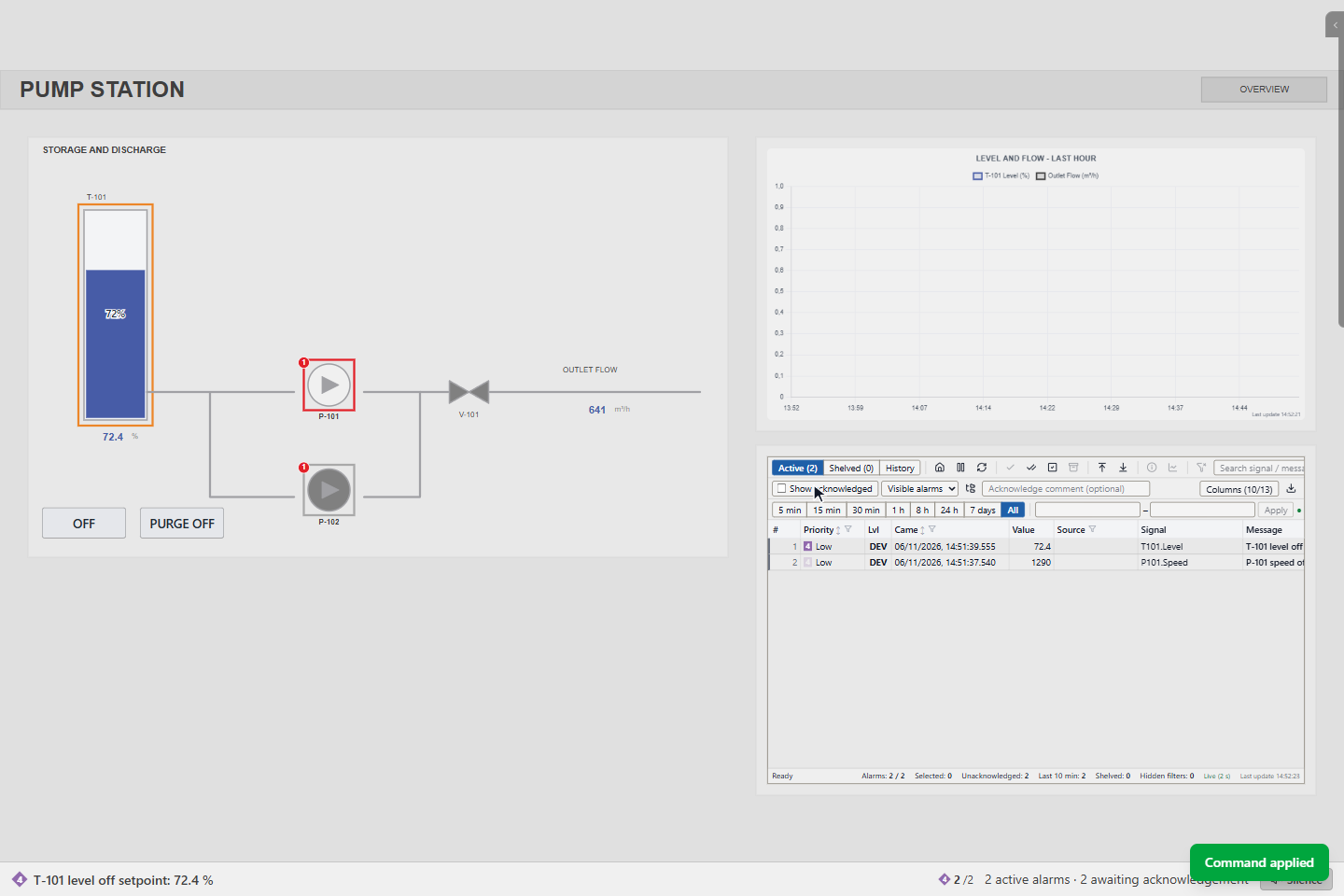
The button shows the value of the signal, so a click alone does not change it. A Switch works the same way.
- While the confirmation window is open, the button keeps the old state and is faded, and another click sends nothing. Cancel sends nothing, and the state stays as it was.
- After Send, the button changes when the new value arrives from the device. If you click it again before that, YTCC asks again and sends the same value.
- A grey button with — means that the value of the signal has not arrived, so the state is unknown. The button still works: a click sends the on value after you confirm it.
- A button that is not connected to a signal changes as soon as you click it, without asking, because no command goes out.
5. When a command is rejected
If the device does not communicate, the command is rejected at once and is not sent later. Here Main PLC has stopped communicating, and START shows Command rejected: No device communication.
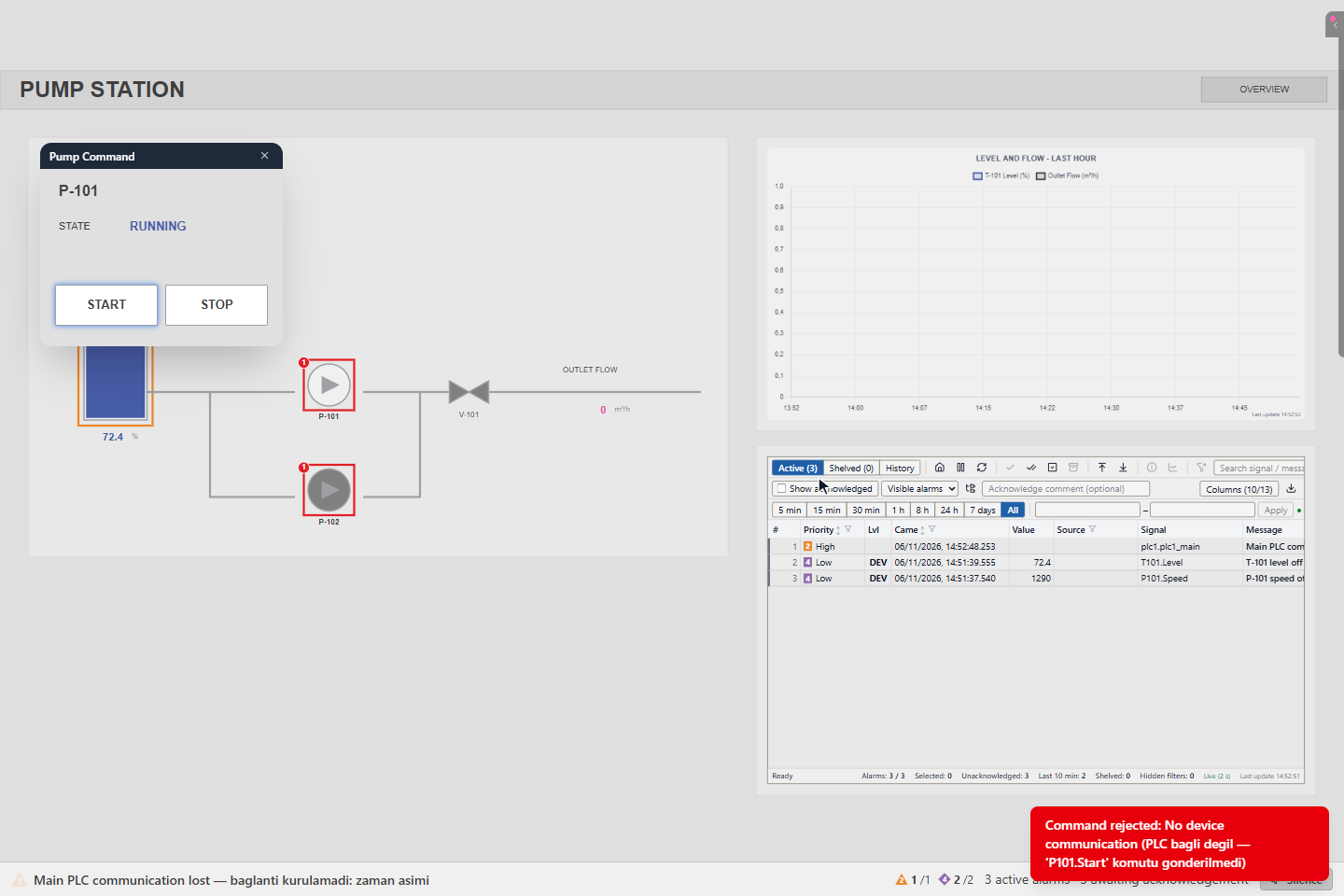
Your project engineer can also make a failed command raise an alarm, as here Command failed: P101.Start ← true. Other reasons for a rejection:
| Message | Meaning |
|---|---|
| Previous command in progress | The last command to this signal has not finished yet. Wait and try again. |
| Command expired, not applied | The command reached the device too late (after 2 seconds) and was not carried out. |
| Cancelled — not sent | You clicked Cancel. |
| Value out of range | The value is outside the limits of the signal. For a signal with a fixed set of values, the message lists them, for example (2.5 is not a valid value for this signal (allowed: 1, 2)). |
| The user who sends the command cannot approve it — another user must approve | A second person must approve the critical command. |
| Incorrect user name or password | The second user's sign-in failed. |
Result
You sent a command, confirmed it, and know from the result whether the device carried it out.
Good to know
- If a value is outside the write limit of the signal, YTCC asks Write limit: n requested; the write limit allows m — send m instead?
- You can also send a command from the signal details of a writable signal. See Look at the details of a signal.
- Every command is logged with the user, the value, the result and, for critical commands, the reason and the approver.