Shelve alarms
Shelving hides an alarm that you already know about, for example from a faulty sensor, so that it does not hide new alarms. YTCC keeps evaluating and recording a shelved alarm, but the alarm list, the alarm bar and the horn leave it out until the shelving ends.
Before you begin
- You are signed in with a user that may acknowledge alarms; shelving needs the same permission. See Open the runtime screen and sign in.
- You can read the alarm list. See Read the alarm list and the alarm bar.
Steps
1. Shelve an alarm
Click the row, here T-101 level off setpoint, to select it. Then click Shelve selected (1), the box button in the toolbar. The window Shelve — 1 alarm opens:
- Duration: 15 min, 30 min, 1 h (the default), 2 h, 4 h, 8 h, 12 h, 24 h or Until manually unshelved. Longest duration shows the limit that the server allows, by default 24 hours.
- Reason (required): why you shelve it, here Level sensor faulty, maintenance called. Shelve stays grey until you type a reason.
Click Shelve.
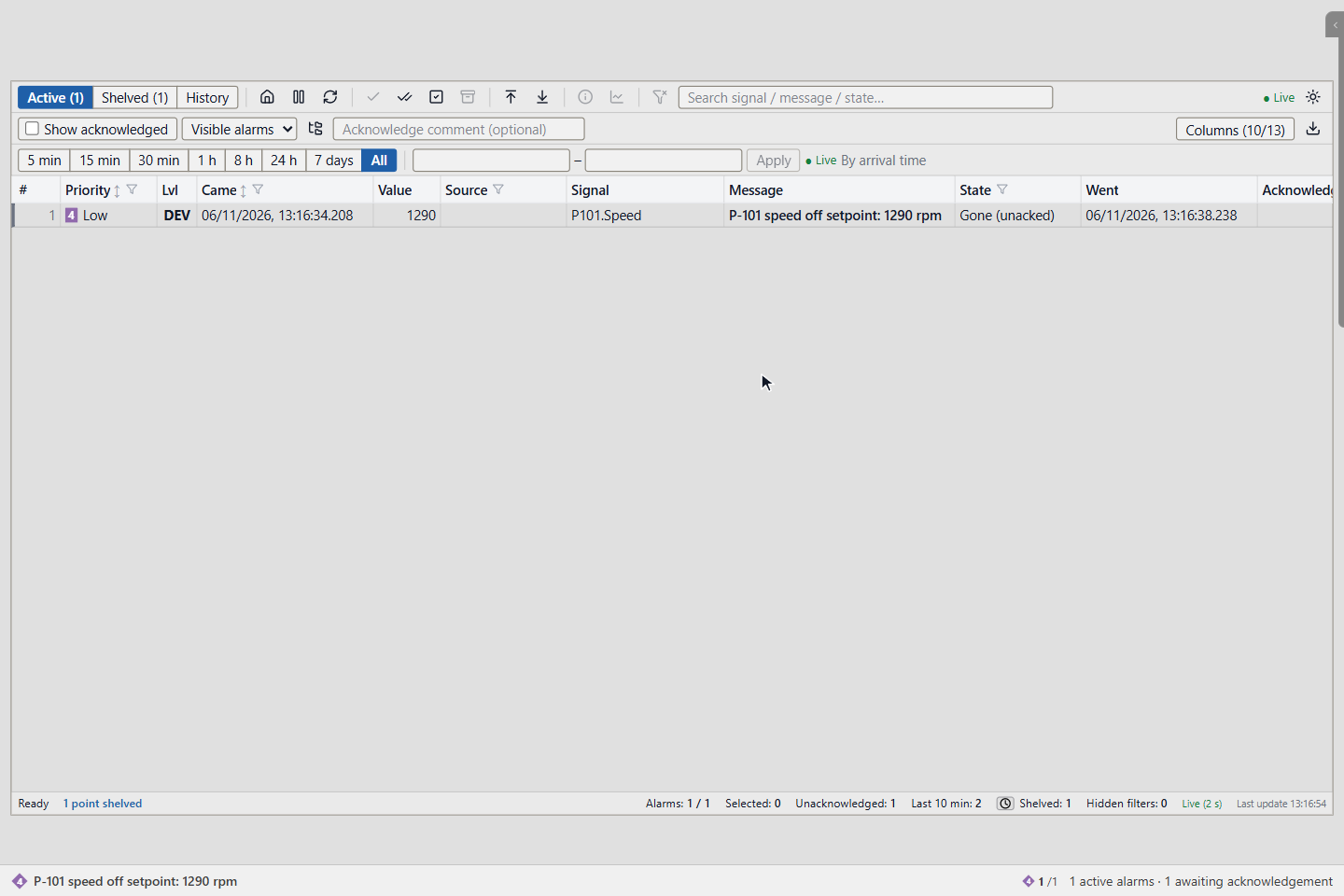
The alarm leaves the list and the counters; the alarm bar now counts one active alarm. Shelved (1) in the toolbar and Shelved: 1 in the status bar count the shelved points.
Shelving applies to the point: while the point is shelved, new alarms of the same point are hidden too. An acknowledgement that the alarm was waiting for is given by the system in your name.
2. See what is shelved
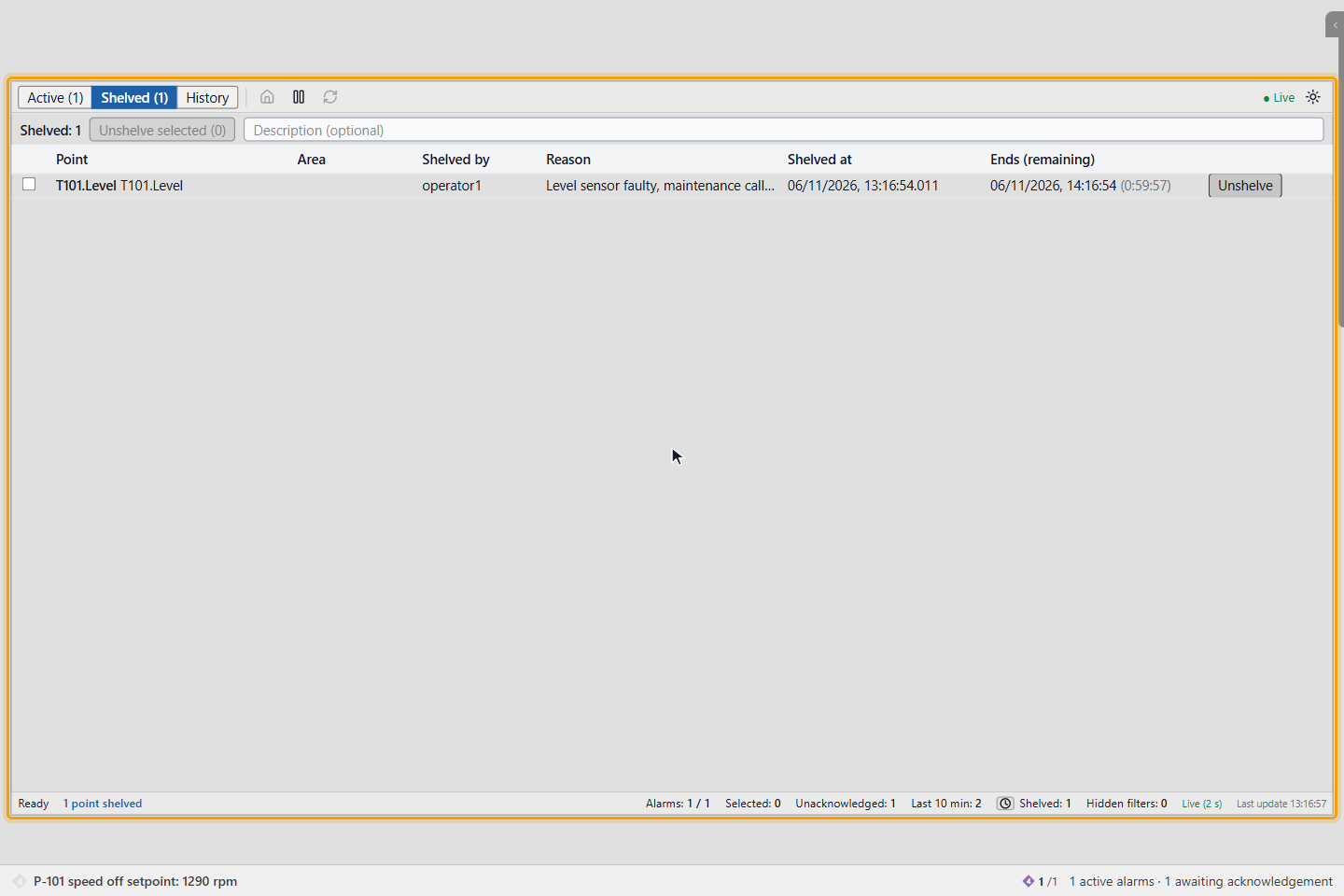
Click Shelved. Each row shows the Point, its Area, who shelved it (Shelved by), the Reason, when it was shelved (Shelved at) and when the shelving ends, with the time left (Ends (remaining)). When the time is over, the alarm comes back by itself.
3. Show shelved alarms in the list
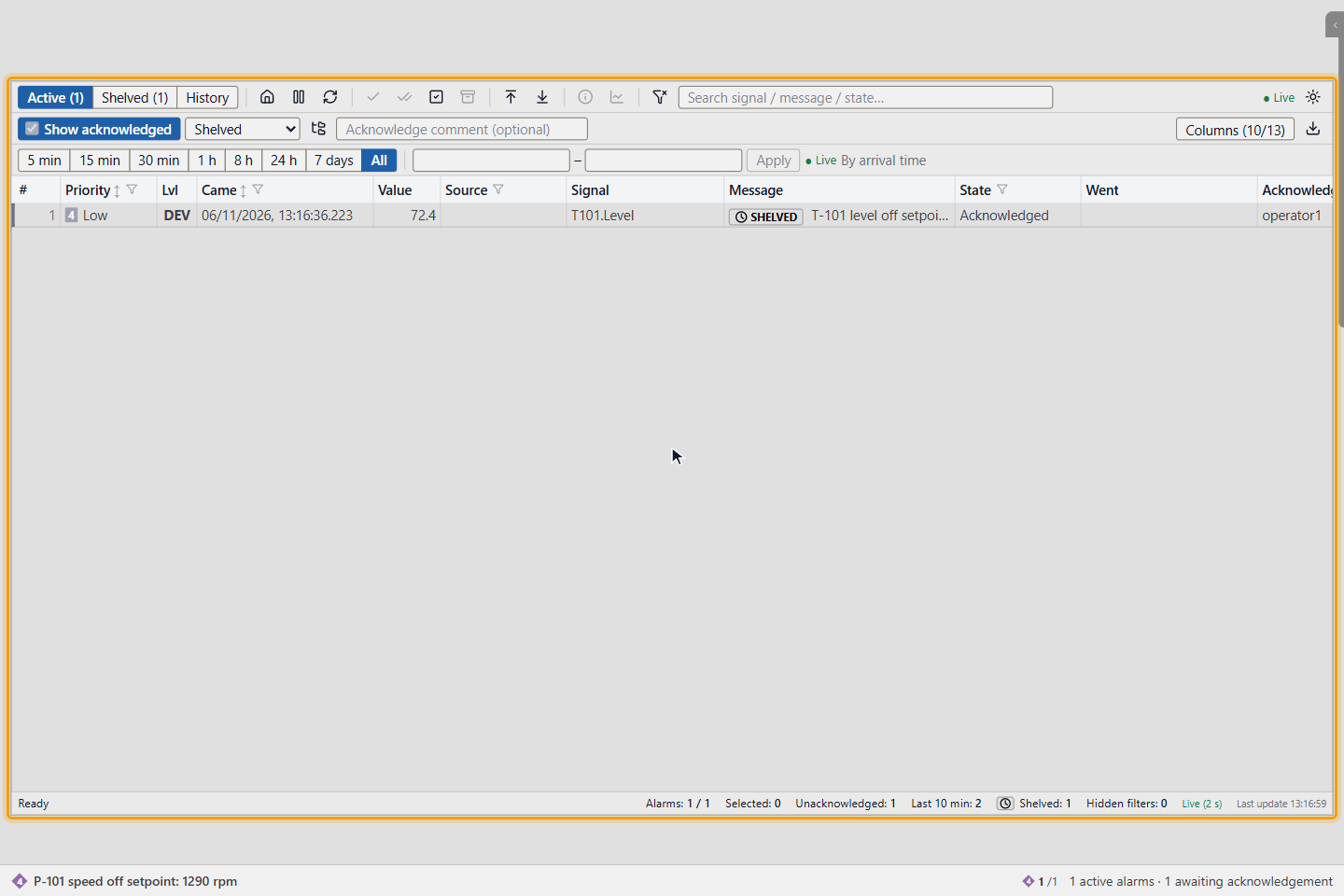
In the Active tab, choose Shelved in the list view box, which shows Visible alarms by default. The list then shows the shelved alarms with the mark SHELVED. All hidden shows every hidden alarm: shelved, out of service and suppressed. These views list all states, so Show acknowledged cannot be changed. Hidden alarms do not blink and cannot be acknowledged from here. Choose Visible alarms to go back.
4. Alarms that cannot be shelved
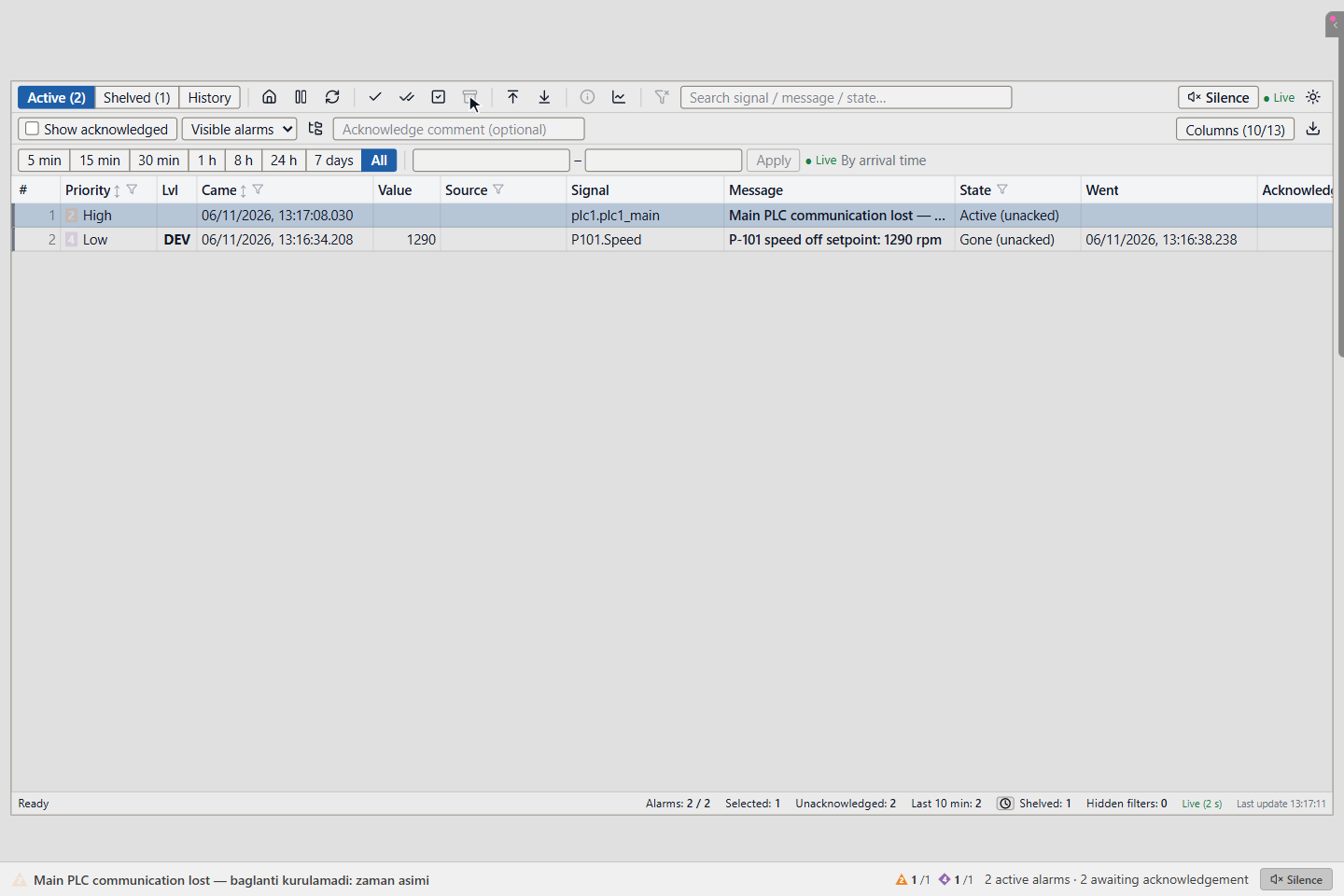
Alarms created by YTCC itself, such as the communication alarm of a device, a driver alarm or a failed command, cannot be shelved. When you select one, Shelve selected does not count it and stays grey. Acknowledge such alarms instead; see Acknowledge alarms.
5. Unshelve an alarm
In Shelved, click Unshelve at the end of the row. To unshelve several points, tick them and click Unshelve selected (n); you can type a comment in Description (optional) first. The tab shows No shelved alarms when nothing is left.
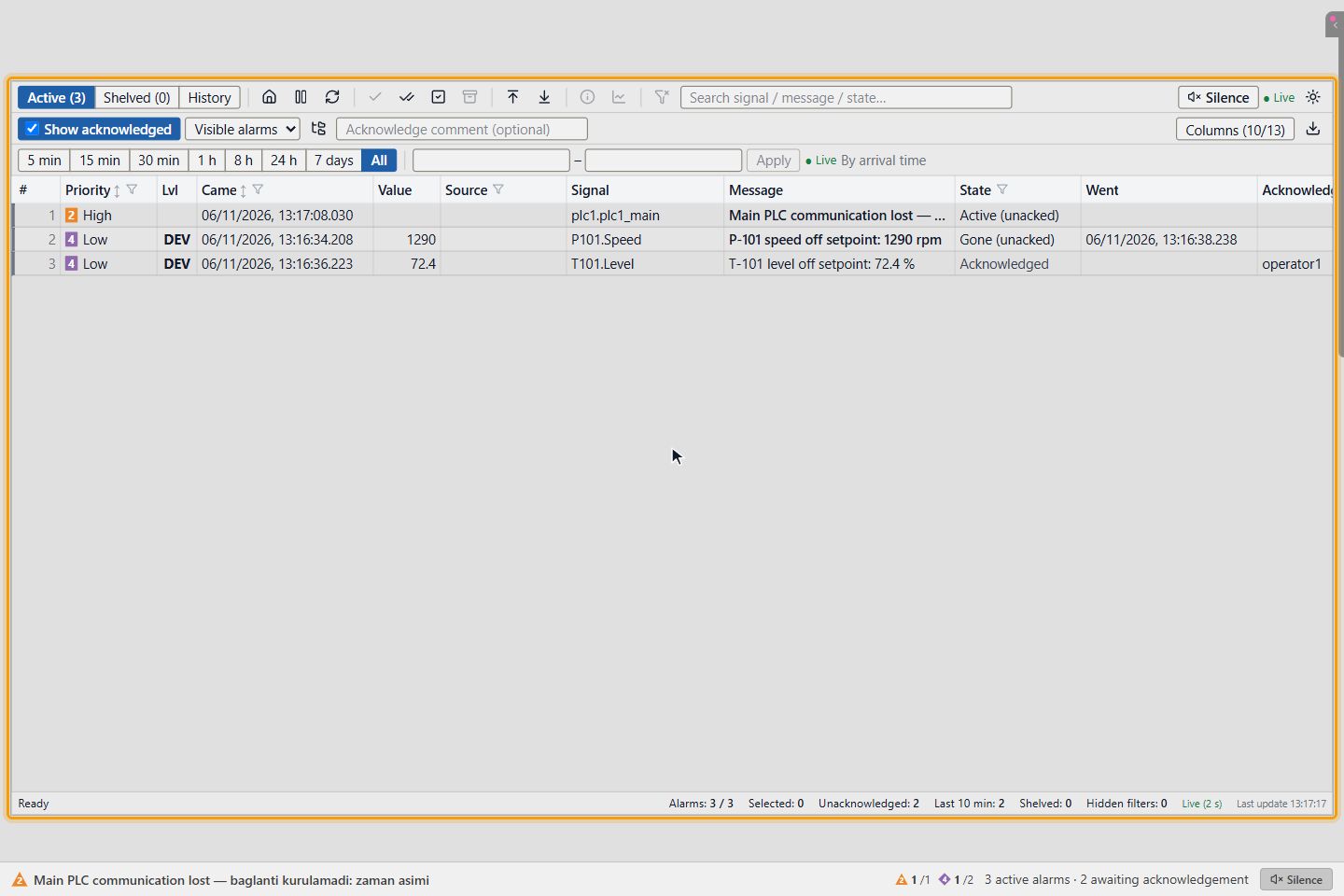
If the condition is still present, the alarm comes back to the Active tab. Here it comes back as Acknowledged, because the shelving acknowledged it. Turn on Show acknowledged to see it, as here.
Result
The alarm is shelved for a limited time with a reason, and the shelving ends by itself or when you unshelve it. The alarm history keeps who shelved and unshelved what, with the reason; see Acknowledge alarms.
Good to know
- Shelve only an alarm that you know the cause of, and choose the shortest time that is enough. Until manually unshelved keeps the alarm hidden until someone unshelves it.
- A new alarm that comes while the point is shelved waits for acknowledgement. If the condition is still present when the shelving ends, the alarm appears in the list and the horn sounds.
- Your project engineer can also take an alarm out of service or suppress it while another signal is set. These alarms are hidden in the same way and appear under Out of service and Suppressed.