Switching programs
A switching program is a sequence of operations prepared in advance, for example the isolation of a feeder: open the breaker, open the disconnector, confirm on site. It is recorded on the diagram, simulated against the interlocks, approved by a second person and then run by the server, one step after another.
A switching program does not replace your switching instructions and the work permit procedure. Check the program before you approve or run it. Every command step goes through the same interlocks as a single command, and a program can never override an interlock.
Before you begin
- You are signed in with your own account with the Field writes permission. The approver needs Approve commands (four eyes).
- The page with the single-line diagram is open on the run screen.
Steps
1. Open the switching programs
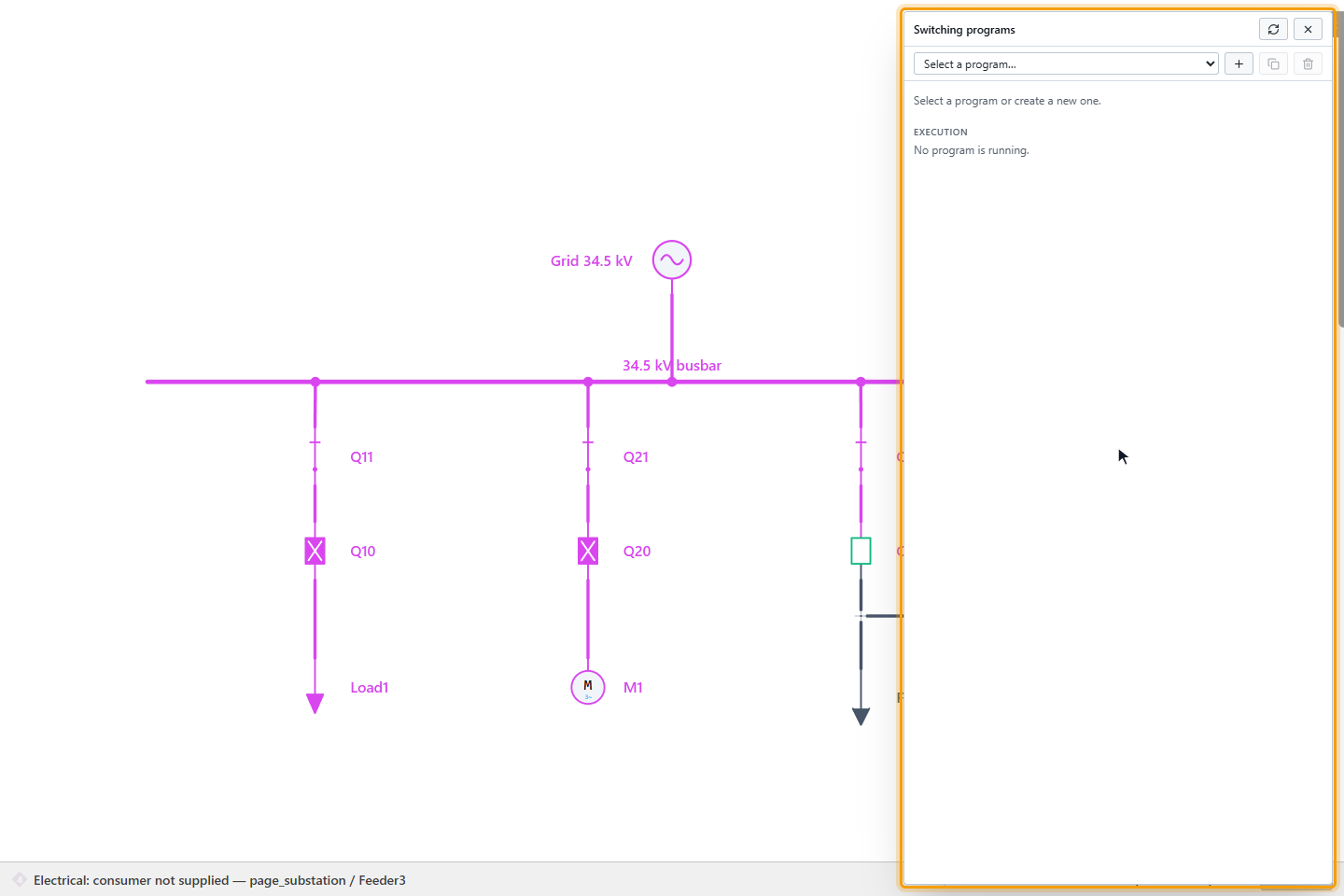
Move the mouse to the top right corner of the screen to show the control rail, click Settings and then Switching programs. The panel lists the programs of the project (Select a program…) and the programs that are running (Execution). You can move the panel.
2. Create a program
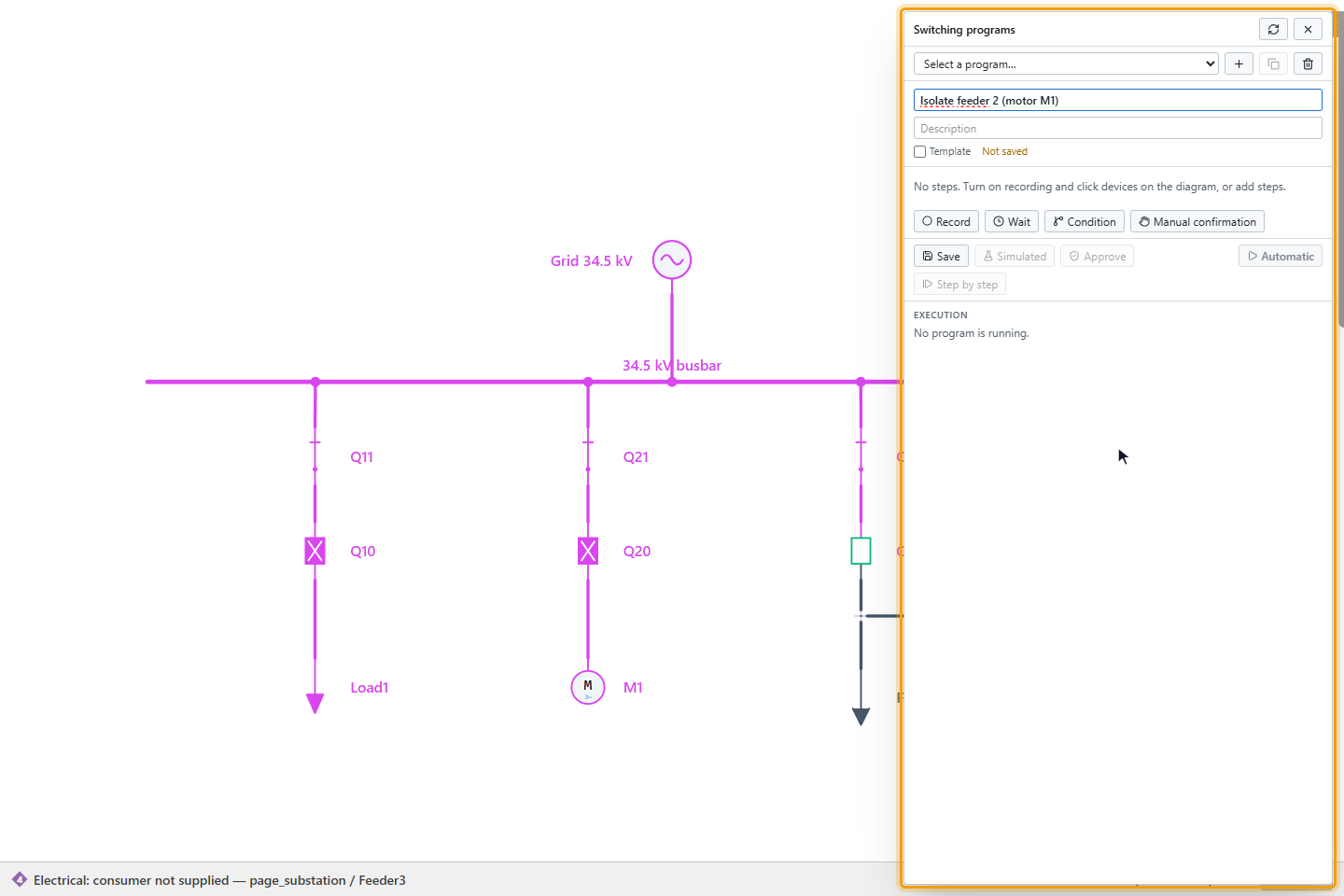
Click New (+) and enter a name and, optionally, a description. Copy creates a program from a template; Template marks a program as a template.
3. Record the steps
Click Record and click the devices on the diagram in the order of the operations: each click adds a command step with the opposite of the device's current position, for example Open for a closed breaker. Shift+click records the earthing blade or the second position. Esc ends the recording. Change the action of a step, for example Open, in its list if needed.
Add other steps with the buttons:
| Step | Use |
|---|---|
| Wait | Wait 0–3600 seconds |
| Condition | Wait until an expression is true, for example a position, with a timeout (30 s by default) |
| Manual confirmation | Stop until an operator confirms, for example "Check on site that Q21 is open and lock it" |
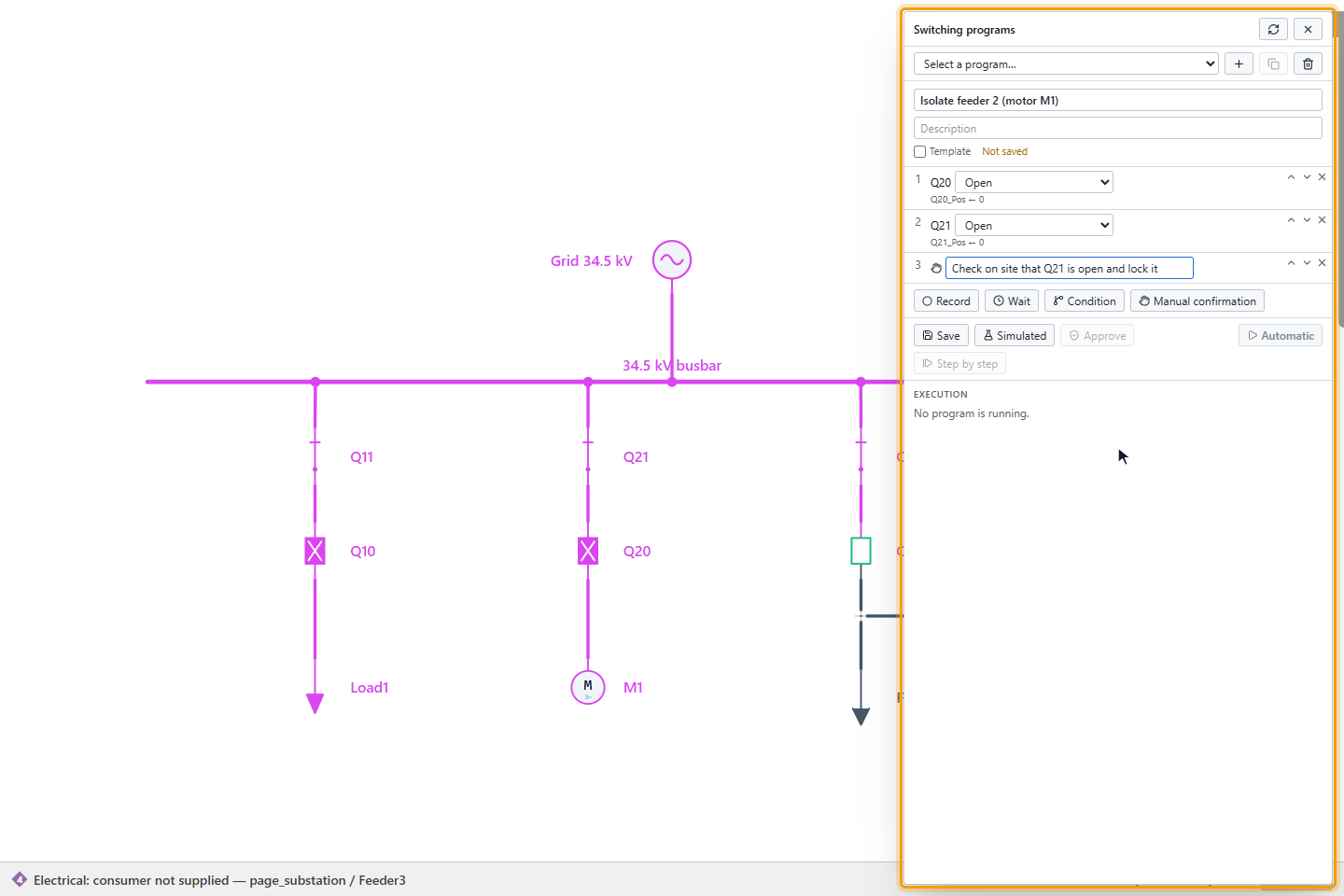
Use the arrows to reorder steps and Delete step to remove one. A device without a command signal cannot be recorded. A program can have up to 500 steps.
4. Save and simulate
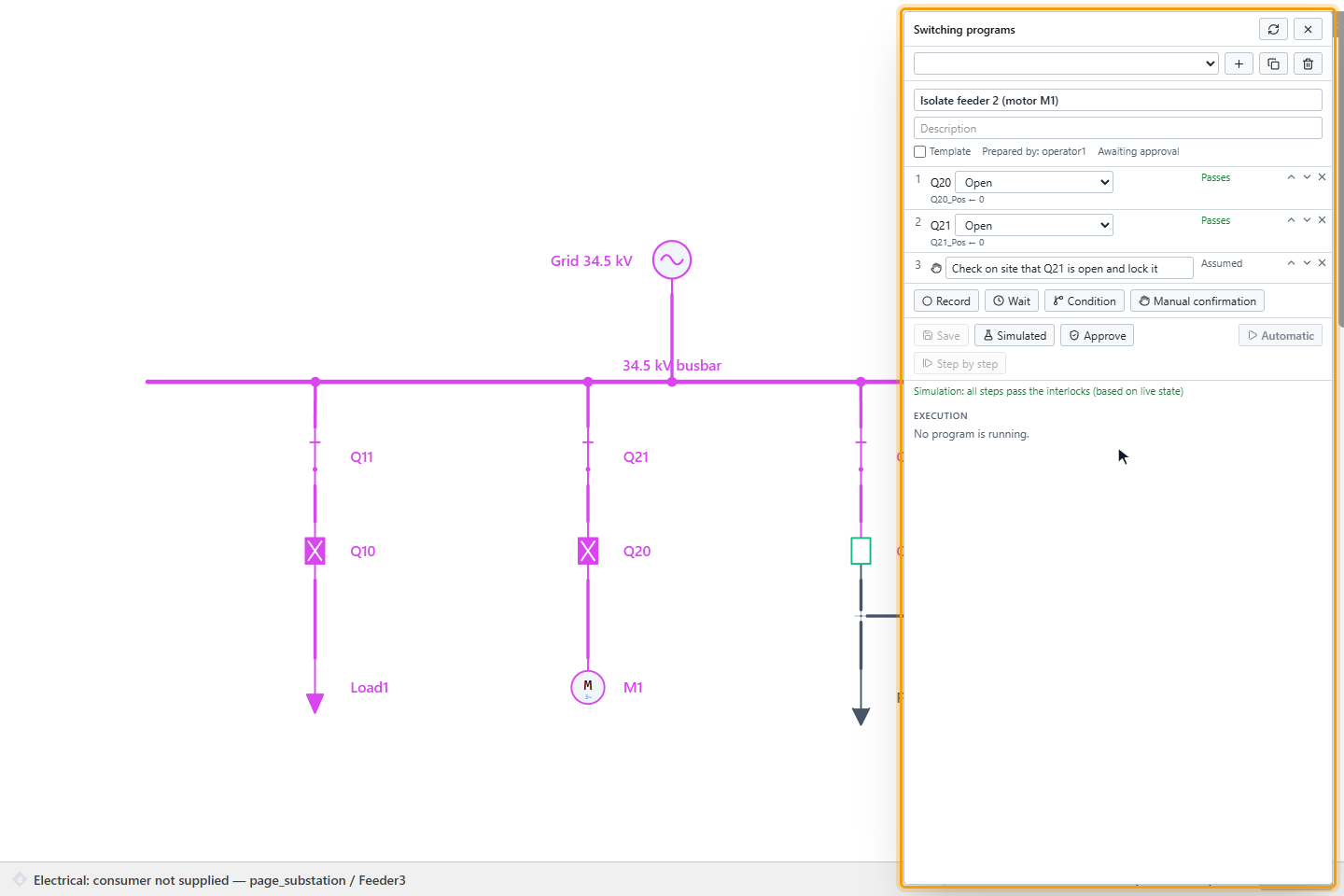
Click Save. Then click Simulated: the program is checked against the interlocks with the live state of the network, step by step. Each step shows Passes, Lock (with the violations in its tooltip), Not checked or Assumed (conditions and manual confirmations are assumed satisfied). The simulation stops at the first failing step.
5. Have the program approved
Click Approve. In the four-eyes window, enter the reason; the second user, for example the shift supervisor, enters their user name and password and clicks Approve and send. The approver must be another user than the one who prepared the program.
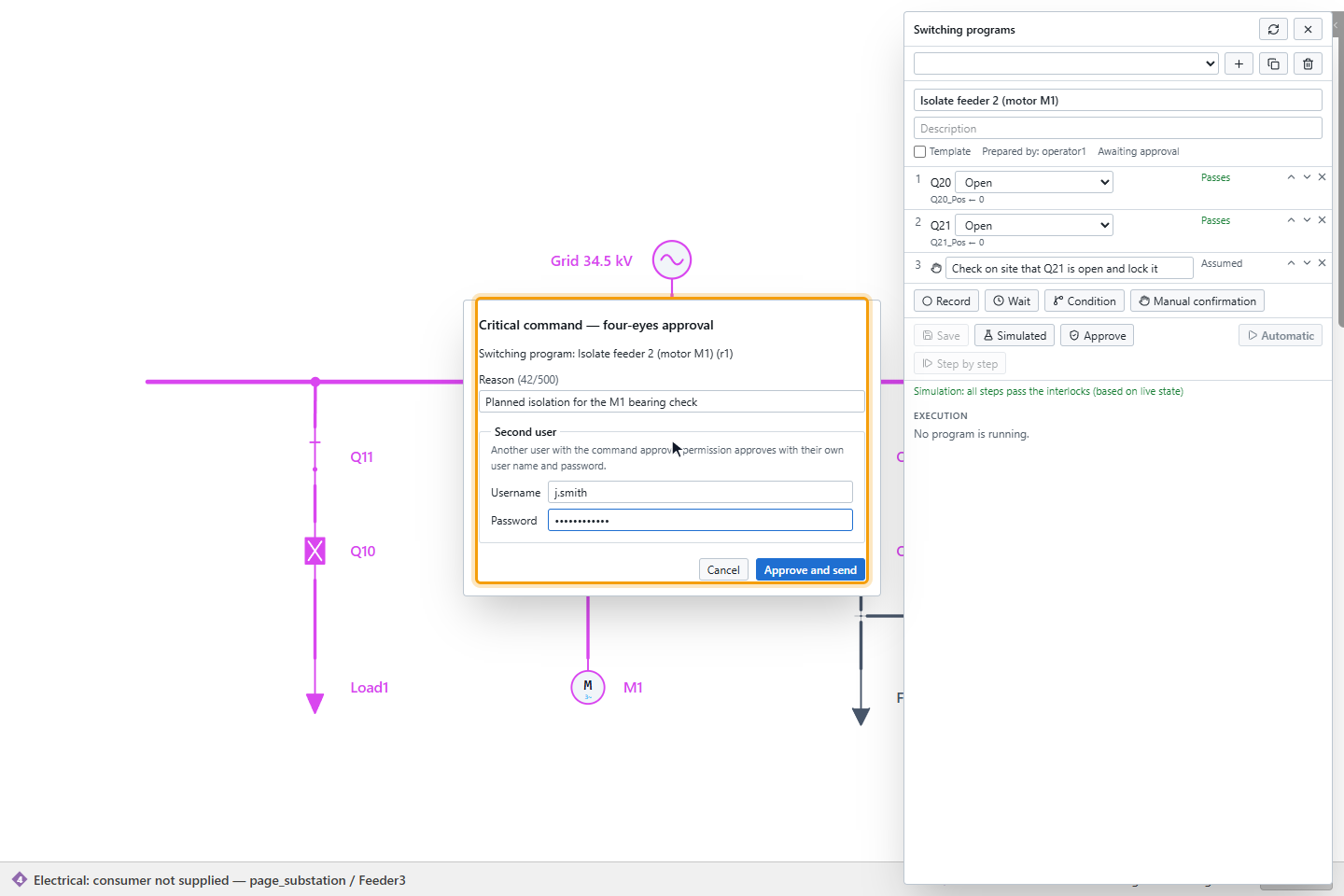
The program shows Approved by: with the approver and time. Every change to a program raises its revision and removes the approval: an edited program must be approved again.
6. Run the program
Click Automatic to let the server run the steps one after another, or Step by step to start each step with Next step. Only approved programs can be run. The Execution section shows each step with its result (OK, Sent (no readback), Failed) and the user who ran it; the diagram follows the positions.
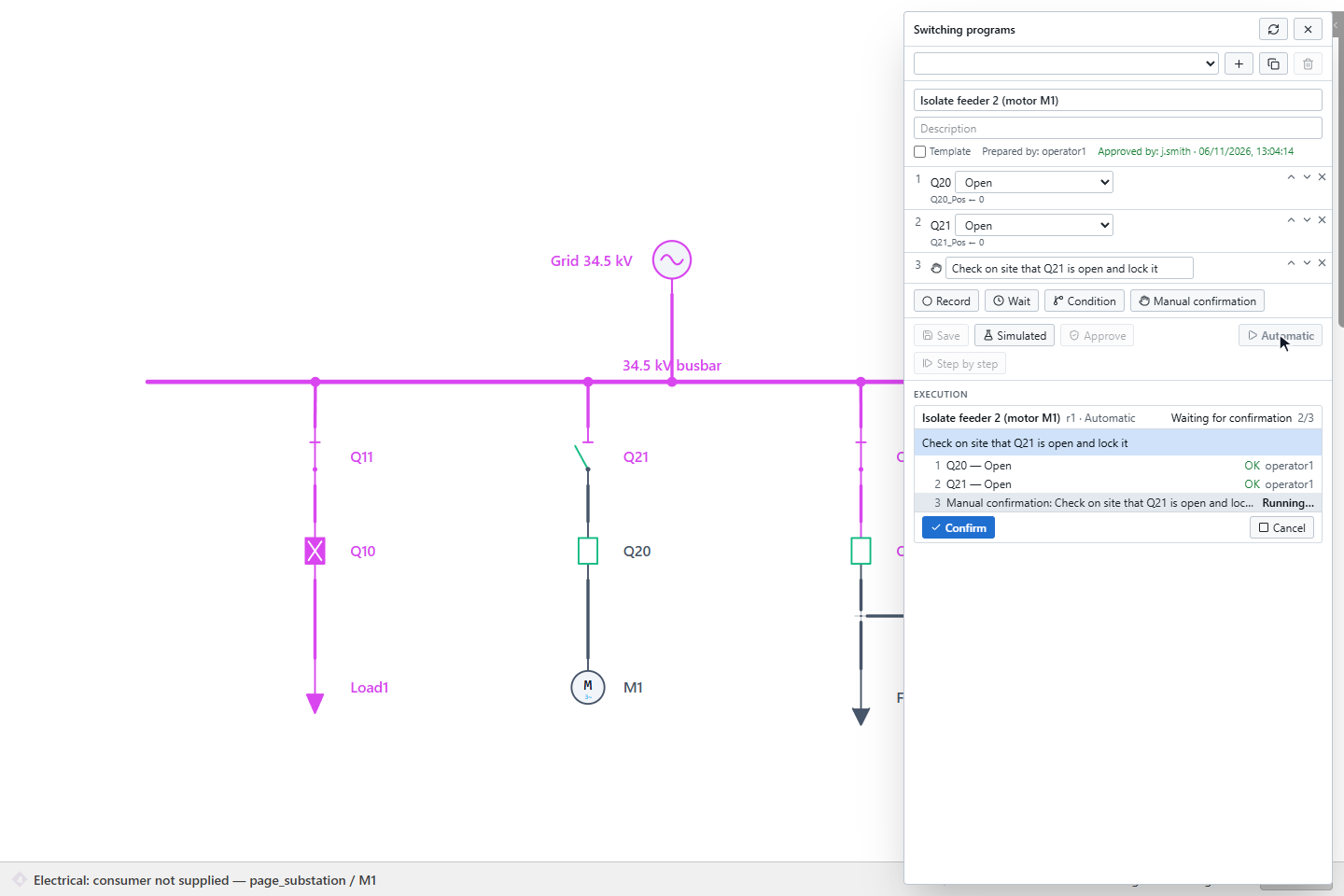
At a manual confirmation step the program waits (Waiting for confirmation) until you click Confirm. During the run you can Pause, Continue, and Cancel the program. When a step fails, the program stops (Stopped (step failed)): remove the cause and click Retry, or Cancel. No step is skipped silently.
7. Check the result
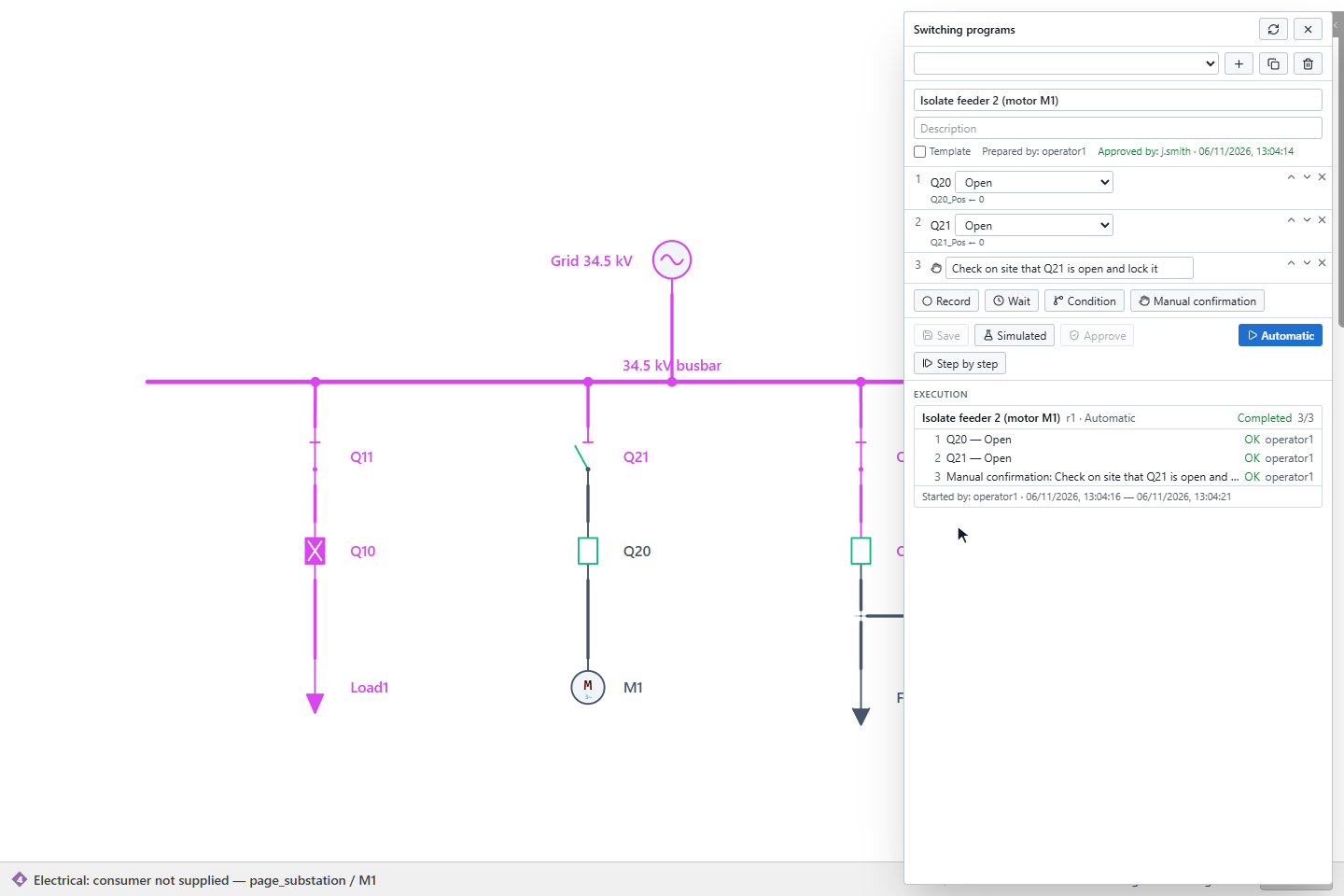
When all steps are done, the run shows Completed with the start and end time.
Good to know
- The program runs on the server: it continues if you close the panel or the browser. Open the panel again to follow it. A restart of the server stops a running program; it does not resume.
- Every command step is an ordinary command with all its checks (permissions, responsibility area, interlocks, communication) and its own entry in the command log. A step whose signal needs a second user's approval stops and asks for it when you continue.
- A program cannot override an interlock. A blocked step stops the program.
- The event list records approval, start, each step, pause, continue, confirmation, cancel and completion.
- Up to 16 programs can run in a project at the same time.