Take and hand over control of a zone
In a project with responsibility zones and exclusive control, only one operator controls a zone at a time, for example the pumping station. You take control of a zone before you operate it, and you hand it over when you are done or when a colleague needs it. How zones work is explained in Responsibility zones.
Before you begin
- The project has zones with Exclusive control on, and your profile may control the zone. If the project has no zones, the Responsibility zones button is not shown and nothing on this page applies.
Steps
1. Send a command to a zone you do not control
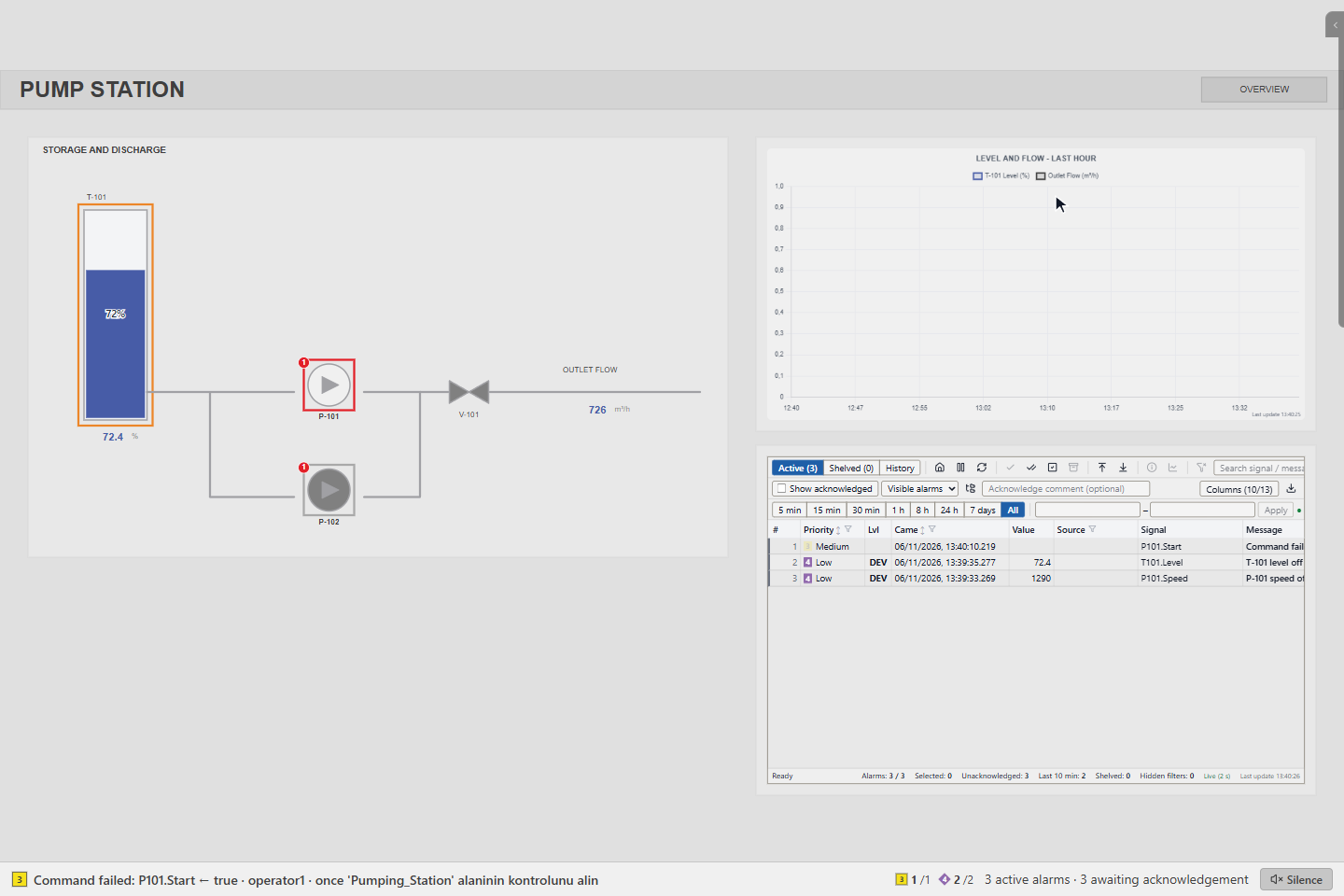
Send the command as usual, here START for pump P-101. If nobody controls the zone, YTCC asks You do not have control of this zone. Take control and send the command?, with the zone name as the title.
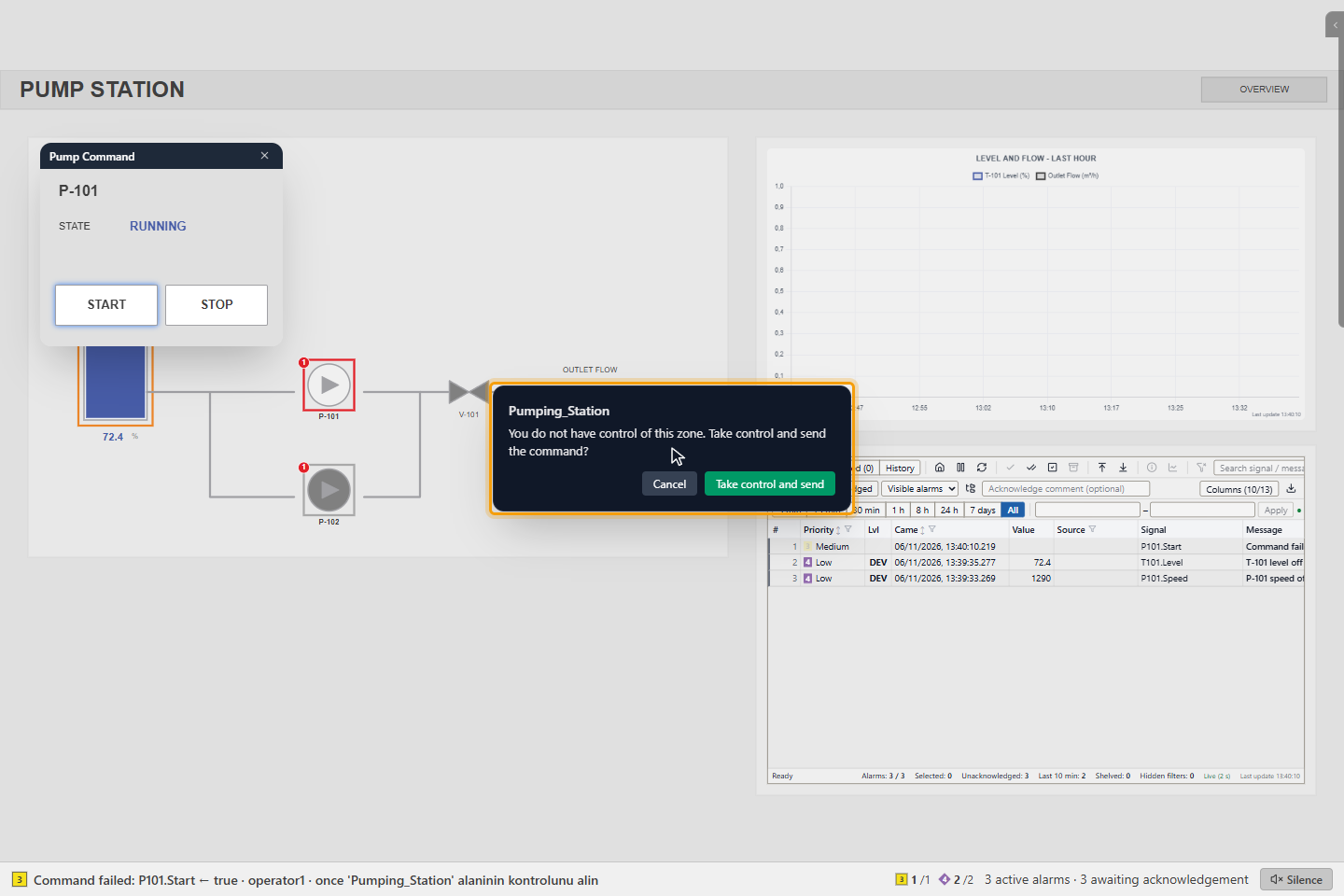
If another user controls the zone, the window shows Zone is held by another user with the owner and Request control; the command is not sent.
2. Take control
Click Take control and send. You become the owner of the zone and the command is sent. Cancel sends nothing.
To see the zones, move the mouse to the top right corner of the screen and click Responsibility zones (the map pin icon). The panel lists every zone with its description, the owner and how long the owner has held it. While you own zones the button is green and shows how many.
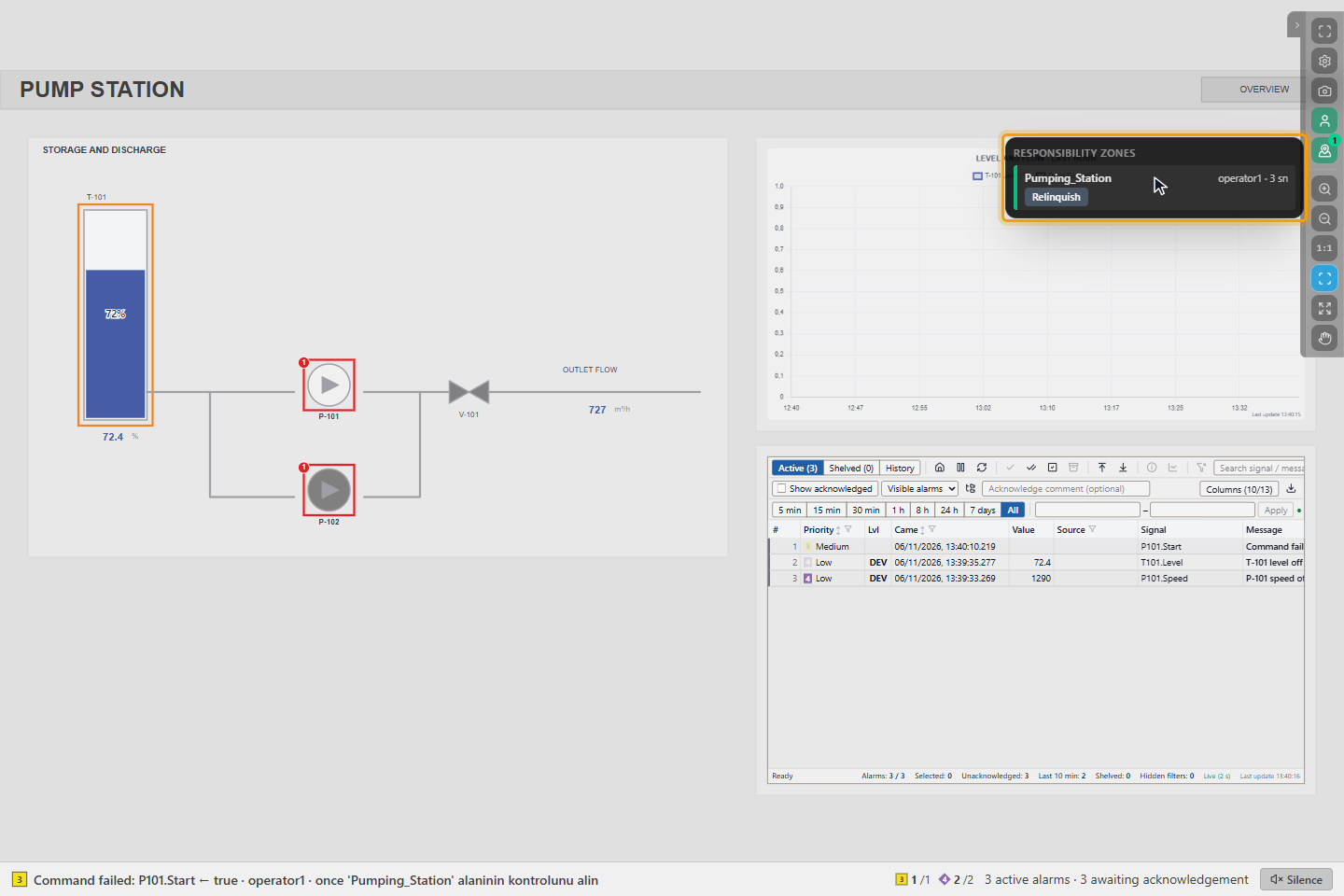
You can also take an unowned zone in advance with Take in the panel.
3. A colleague requests control
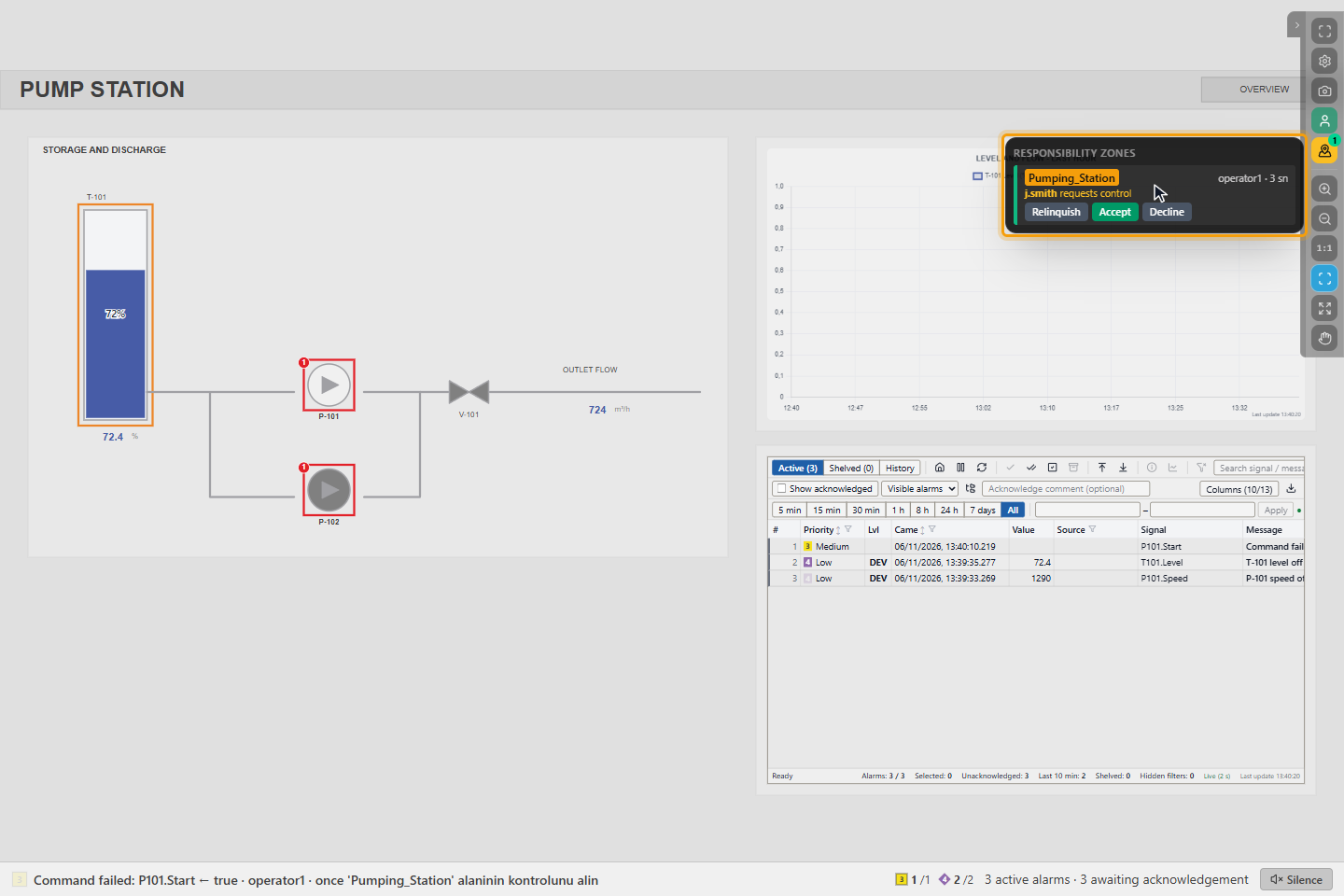
When another operator clicks Request for your zone, your button blinks, the panel opens by itself and shows <user> requests control with Accept and Decline.
4. Answer the request
Click Accept to hand the zone over: the other operator becomes the owner. Click Decline to keep it, for example while a switching sequence is in progress. If you do not answer, the request lapses after the request timeout of the project (30 seconds by default) and you keep the zone.
5. Relinquish control
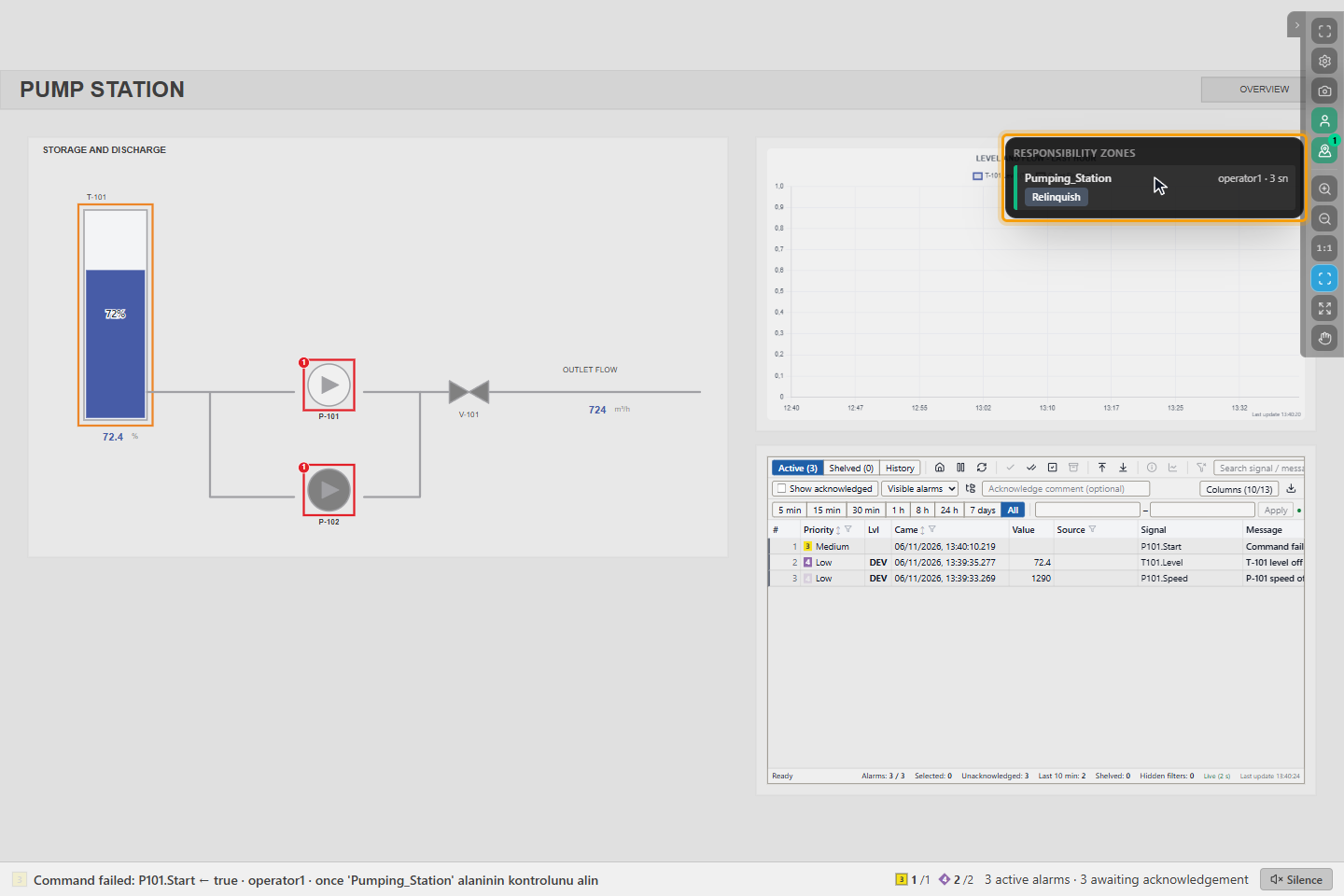
At the end of your work click Relinquish. The panel closes; the zone is now Unowned and anyone allowed can take it.
Good to know
- A user with the Take over control permission sees Force take for a zone owned by someone else and becomes the owner at once; the previous owner is informed.
- If your session ends, for example when the browser closes or the connection is lost, your zones are released after the release time of the project (60 seconds by default). If you come back in time, you keep them.
- Every take, request, answer and relinquish is written to the event list as Area control.
- The designer can also place a zone list on a page; it has the same buttons as the panel.