Read values and states
A value on the screen is only useful if you can trust it. YTCC shows clearly when a value is not live. This page explains the marks you may see.
Normal values
A live value is drawn in its normal colors. The colors follow your project's style: process colors show the state of the plant, and alarm colors are used only for alarms.
Waiting: "…"
When a screen opens, the values arrive within a moment. Until a value arrives, its object is drawn faded and its text shows …. Waiting is not a fault.
Unknown: "?"
If a value does not arrive within a few seconds (10 seconds by default), the text shows ? and a small ? appears in the corner of the object. The signal may not exist or may not be sending values. Inform your project engineer.
Invalid value
If the device reports a bad value, for example a sensor fault, the object shows the invalid look that your project defines, often a grey or special color. Do not use the value.
Communication lost: pink
When the connection to a device is lost, the colors that depend on that device turn pink (the default "communication lost" color); your project may draw a frame in that color around the object instead. Pink is not an alarm color, so you can tell old data from an alarm. A dot appears on the handle of the control rail at the right edge, pink while the last known values are shown. Open the rail and click the button with the tooltip Showing last known values to switch between showing the last known values and showing ? instead.
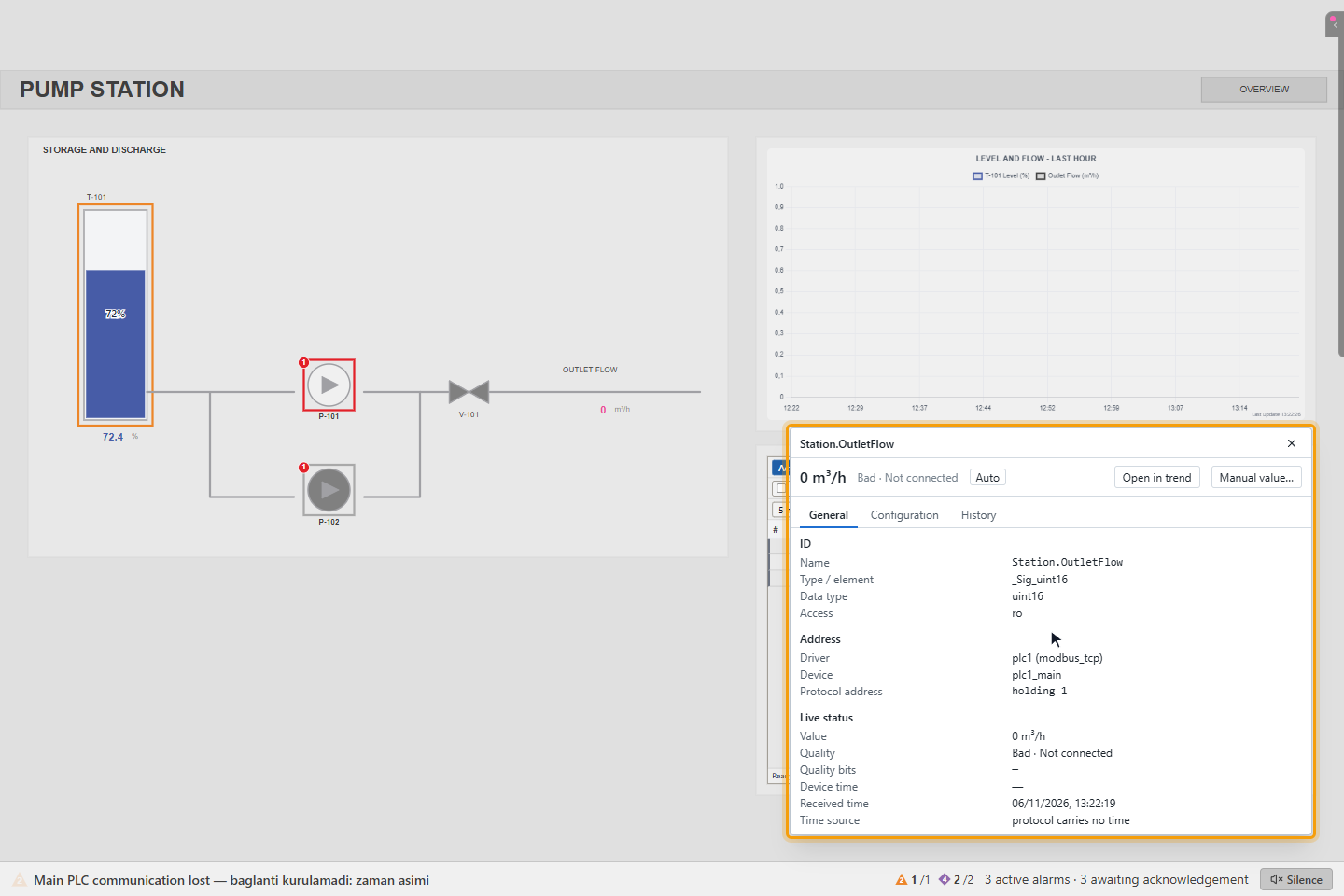
A communication alarm also comes in the alarm list. See Read the alarm list and the alarm bar.
The number in a pink object is not current. Do not read it as the real value; check the device.
If the connection to the server is lost, the objects show communication lost as well and a banner appears at the top of the screen. See A tour of the runtime screen.
Manual and simulated values: M and S
A small purple badge in the top-left corner of an object tells you that a value is not coming from the field:
| Badge | Meaning |
|---|---|
| Filled M | The value was entered by hand in YTCC. The field value is ignored. |
| Framed M | The value is set by hand in the field, in the controller. |
| Dashed S | The value is simulated. It is not a real value. |
The badge never blinks and cannot be hidden. Ask your project engineer before you rely on a manual or simulated value.
Last update
Some screens show Last update with a time. It tells you when the data of that part of the screen was last refreshed. If the time turns amber and bold, the refresh is late: Data overdue — refresh failing.