Open the runtime screen and sign in
The runtime screen is where you watch and operate the plant. This page shows how to open it and sign in.
Before you begin
- You have a user name and password. Ask your project engineer if you do not.
- The project is running. If it is not, ask your project engineer.
Steps
1. Open the runtime screen
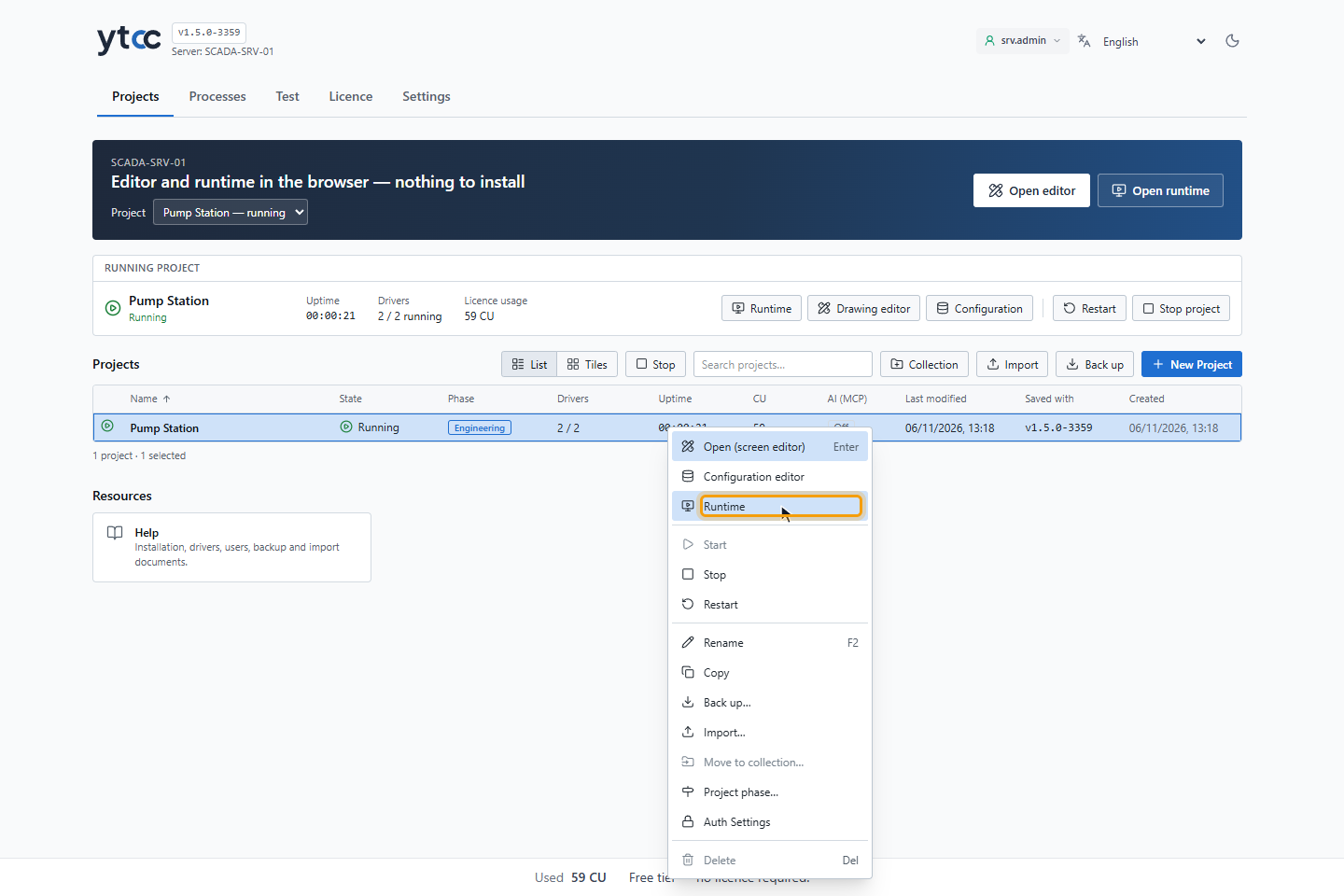
On the YTCC home page, right-click the project and choose Runtime. The runtime screen opens in a new browser tab.
Your control room may also have a shortcut that opens the runtime screen directly.
2. Sign in
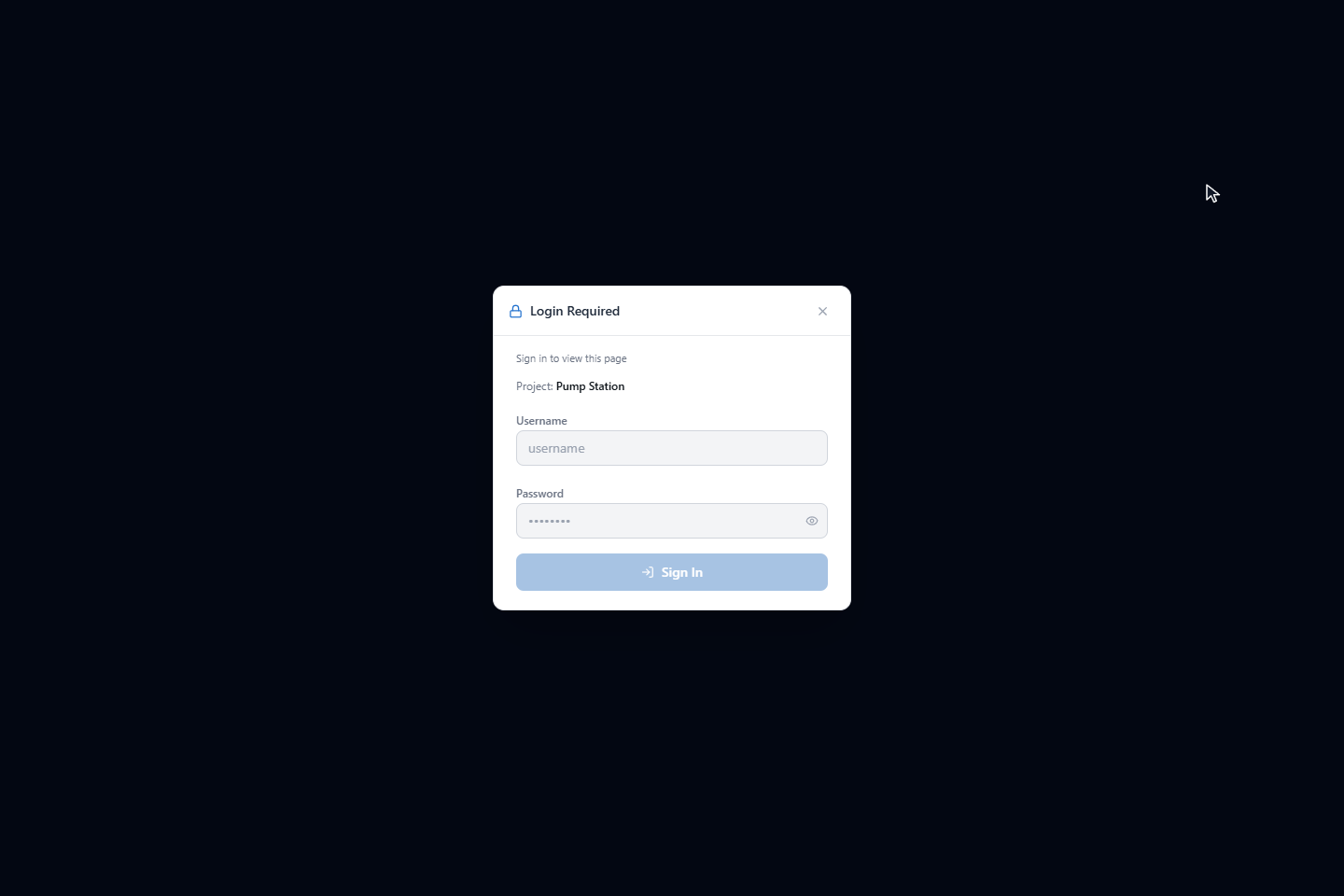
The runtime screen asks you to sign in before it shows anything. Enter your user name and password and click the sign-in button.
If the screen opens without asking, the browser is still signed in with the system administrator account (root) of your project engineer. Do not work with it: open the session menu (step 3), click Switch user and sign in with your own account.
The sign-in window follows the language of the runtime screen: the language chosen in this browser, otherwise the project's Operator language, otherwise English. In English it reads Login Required, with Username, Password and Sign In.
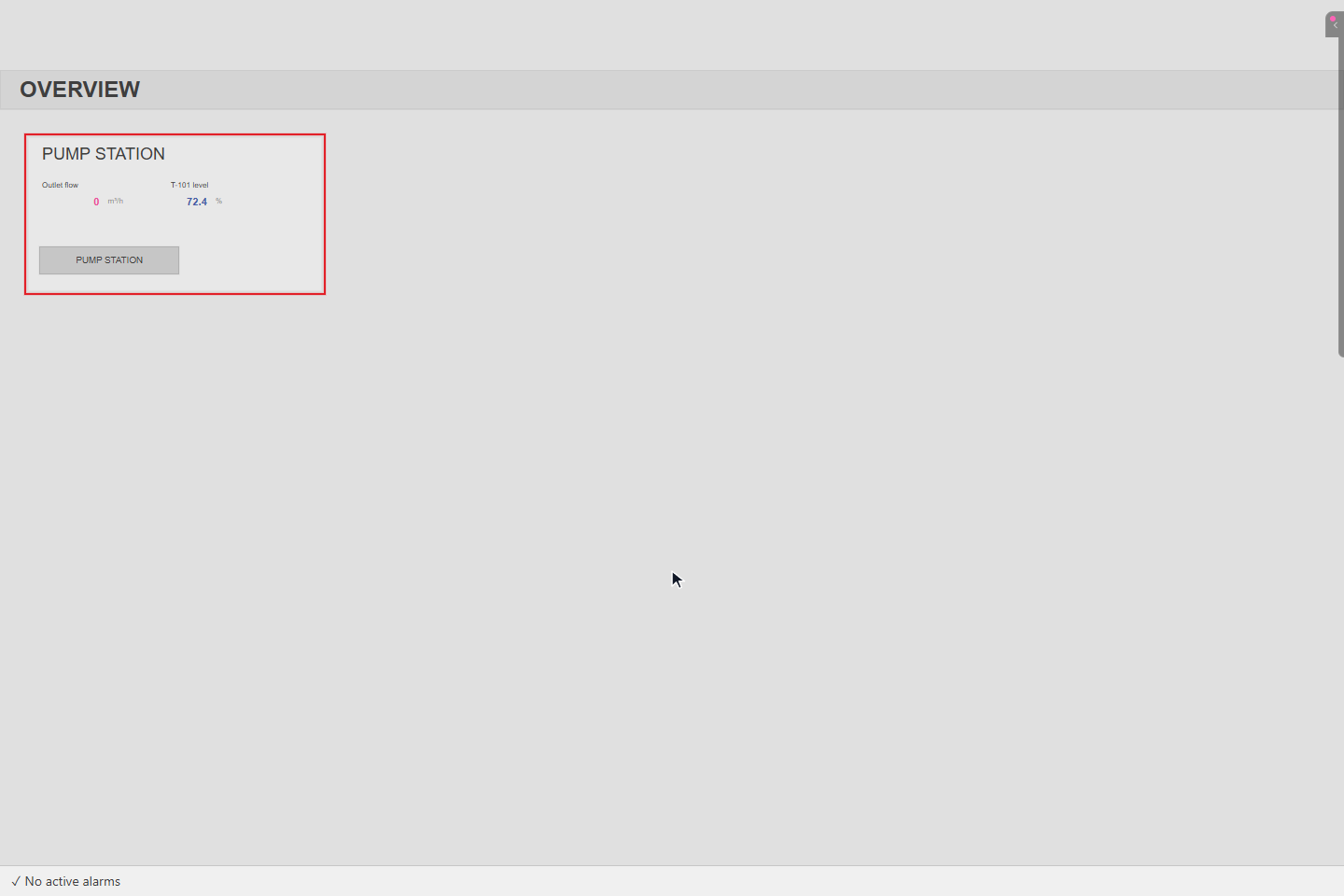
After you sign in, the screen opens the start page of the project, here OVERVIEW, in your own language.
If the sign-in fails, check the user name and password. After several wrong passwords your account is locked for a while; ask your project engineer.
3. Check who is signed in
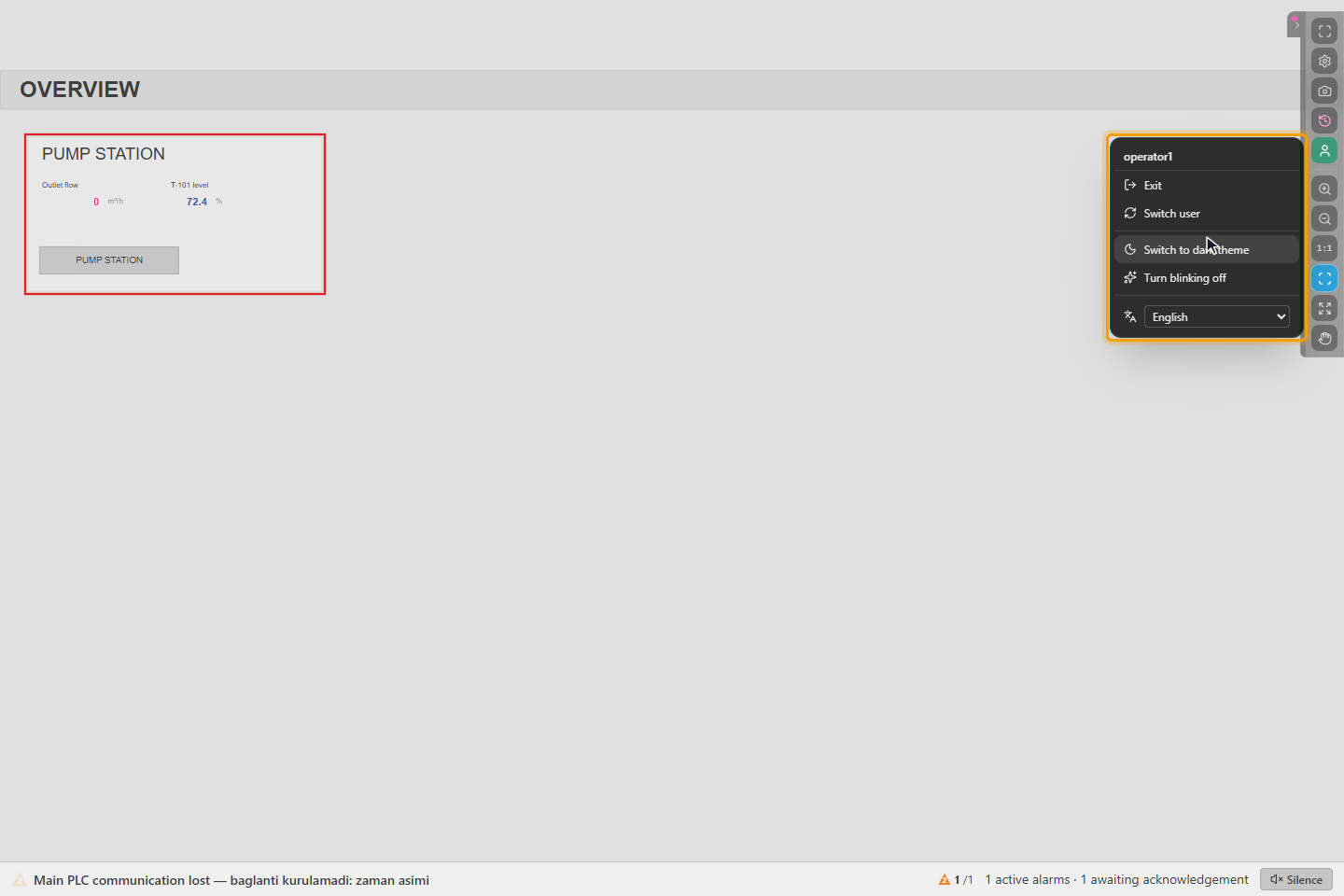
Move the mouse to the right edge of the screen. The control rail slides out. The person button shows your user name when you point at it; it is green while you are signed in. Click it to open the session menu:
| Item | What it does |
|---|---|
| Exit | Signs you out. |
| Switch user | Signs you out and asks the next person to sign in. |
| Switch to dark theme / Switch to light theme | Changes the colors of the screen for you. |
| Turn blinking off / Turn blinking on | Stops or starts the blinking of objects on the pages. Alarms still wait for acknowledgement. |
| Language list, here English | Changes the interface language for you. |
4. Sign out
At the end of your shift, click Exit in the session menu, or Switch user when the next operator takes over. The sign-in window appears again.
If nobody uses the screen for a while, YTCC signs you out by itself. A countdown appears first; move the mouse or press a key to stay signed in.
Result
You are signed in, and everything you do on the screen is recorded with your name.