Manage the YTCC processes
YTCC runs as a set of processes under its process manager: the core processes of the installation (message bus, live data server, project server, project bridge, web interface) and the drivers and services of the project that runs. The YTCC Windows service starts and stops all of them; the Processes tab of the home page shows them and controls the processes of the project. See How YTCC works for what each process does.
Before you begin
- Sign in on the home page as root. Without a sign-in the Processes tab shows Error: session required instead of the process table.
- A project runs, so that its drivers and services are listed; see Start, stop and restart a project.
Steps
1. Open the Processes tab
On the home page, click Processes. Below the resource cards, the table lists every process and refreshes every 2 seconds. The columns are Name, PID, IP, Port, Communication, State, CPU, Memory, Restarts, Uptime and Operations.
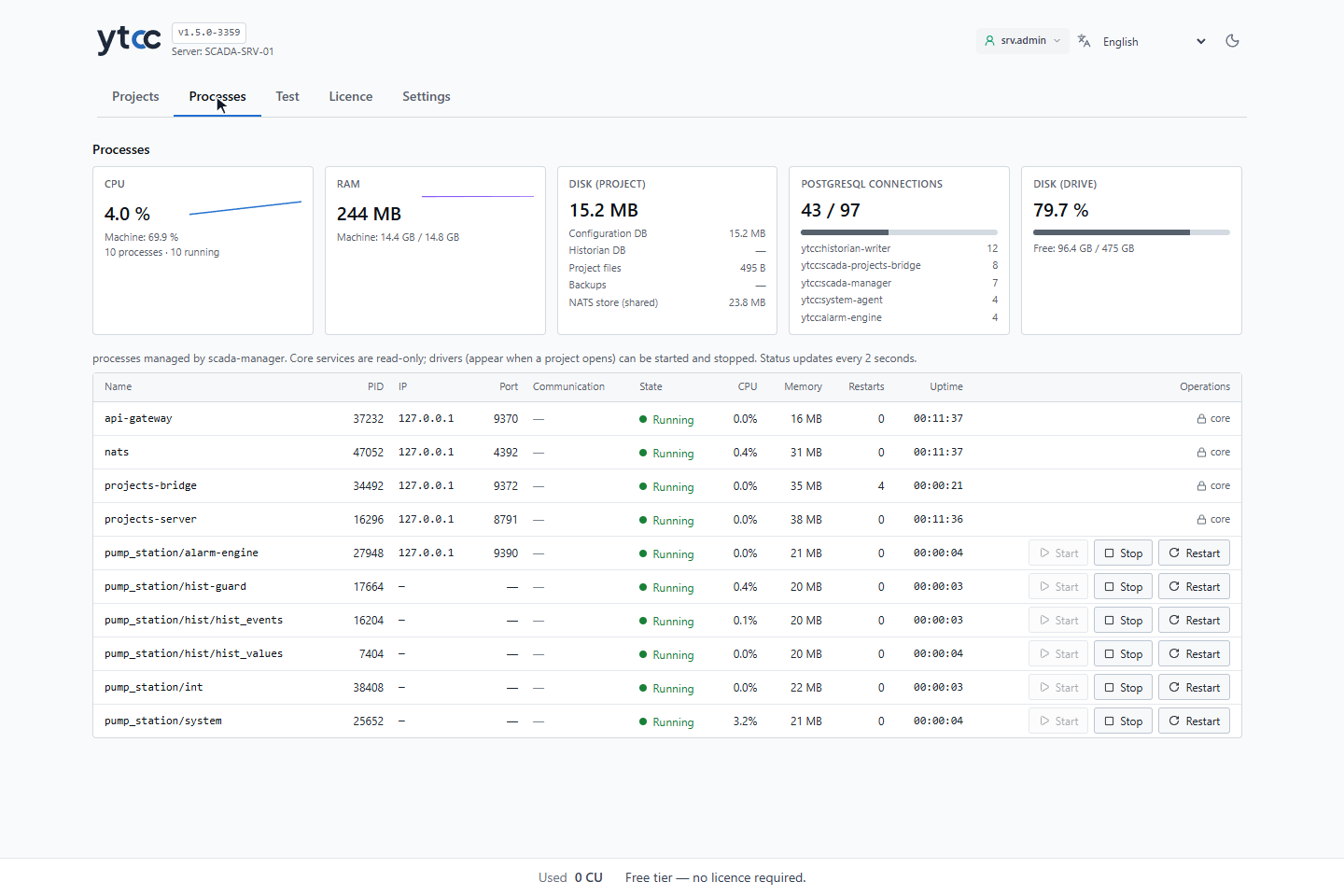
- State is Running, Starting, Restarting, Stopped, Crashed, Failed or Blocked.
- Restarts shows how many times the process manager has restarted the process since it started.
- Communication shows for a driver whether it communicates with its devices, for example No communication; a
service of the project that does not talk to devices shows —, also the internal signals (
<project>/int) and the server scripts (<project>/script/<name>). - The core processes are marked core: they are not controlled from this tab. Stop or restart them with the YTCC service (see The YTCC service).
2. Restart a driver
In the row of a driver, for example pump_station/int, click Restart. The row shows Restarting, then
Running again, and Restarts counts one more. A restart interrupts the communication of this driver for a few
seconds; the other drivers keep running.
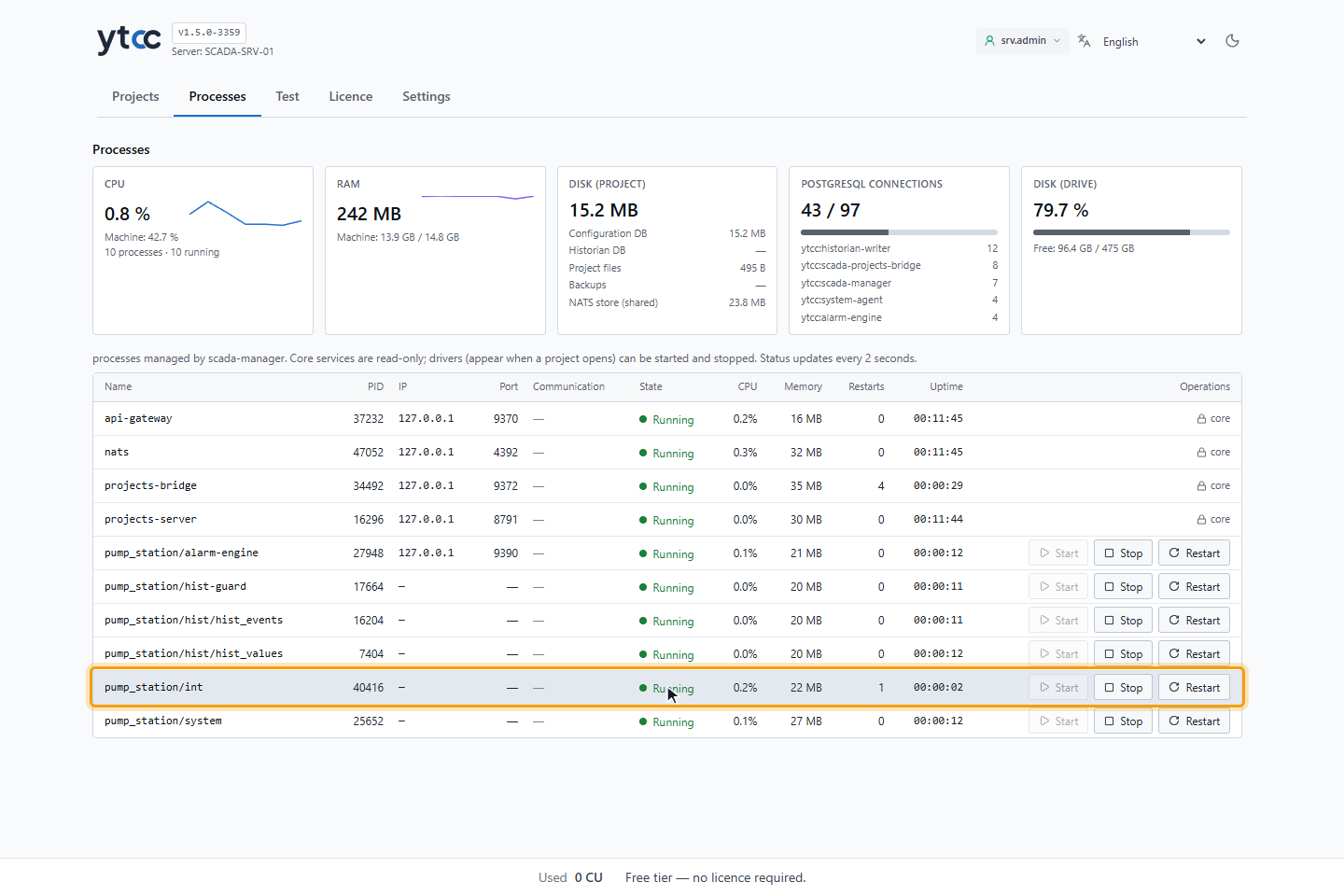
Stop stops the process of the project until you click Start or the project is started again; Start is available only while the process does not run. Stopping a driver stops the communication with its devices: its signals show the communication loss and its communication alarm comes. To stop the whole project, stop it on the Projects tab instead.
Result
You know which processes run, how often they were restarted, and how to restart one driver without stopping the project.
The YTCC service
The YTCC Windows service, YTCC v15 for the line 1.5, starts the process manager when Windows starts, and with it
all core processes and the project that ran last. To stop or start everything, select the service in Services
(Windows key, type services) and click Stop or Start; this needs administrator rights. See
Start YTCC with Windows.
When a process stops unexpectedly
The process manager restarts a stopped process. It waits 1 second before the first restart, then 2, 5, 10 and 30 seconds, and then tries every 30 seconds without a limit. A process that runs for 60 seconds without problems starts the count again. The Restarts column shows how often this has happened.
A YTCC program that stops because its version does not match the project data is not restarted. Its state becomes Failed. Upgrade the project with Upgrade… on the home page (see Databases and schema upgrade).
When the process manager starts, it also stops driver, alarm and history processes of this installation that were left running without a process manager, for example after a crash of the process manager.
Only one project runs on the computer at a time, in whichever version line; see One project per computer.
Good to know
- The same processes are listed by
scada-manager statusin a command prompt on the server; the command line can also stop and restart the core processes one by one. See scada-manager commands.