Group, lock, order and layers
A page with many objects stays manageable when objects that belong together are grouped, finished parts are locked, and optional content, such as dimensions or maintenance information, is on layers that can be hidden.
Before you begin
- The page has the objects to organise.
Steps
1. Group objects
Select the objects and choose Group in the context menu, or press Ctrl+G. The group gets a name, here Group 1, and moves, aligns and copies as one object; a click on a member selects the whole group.
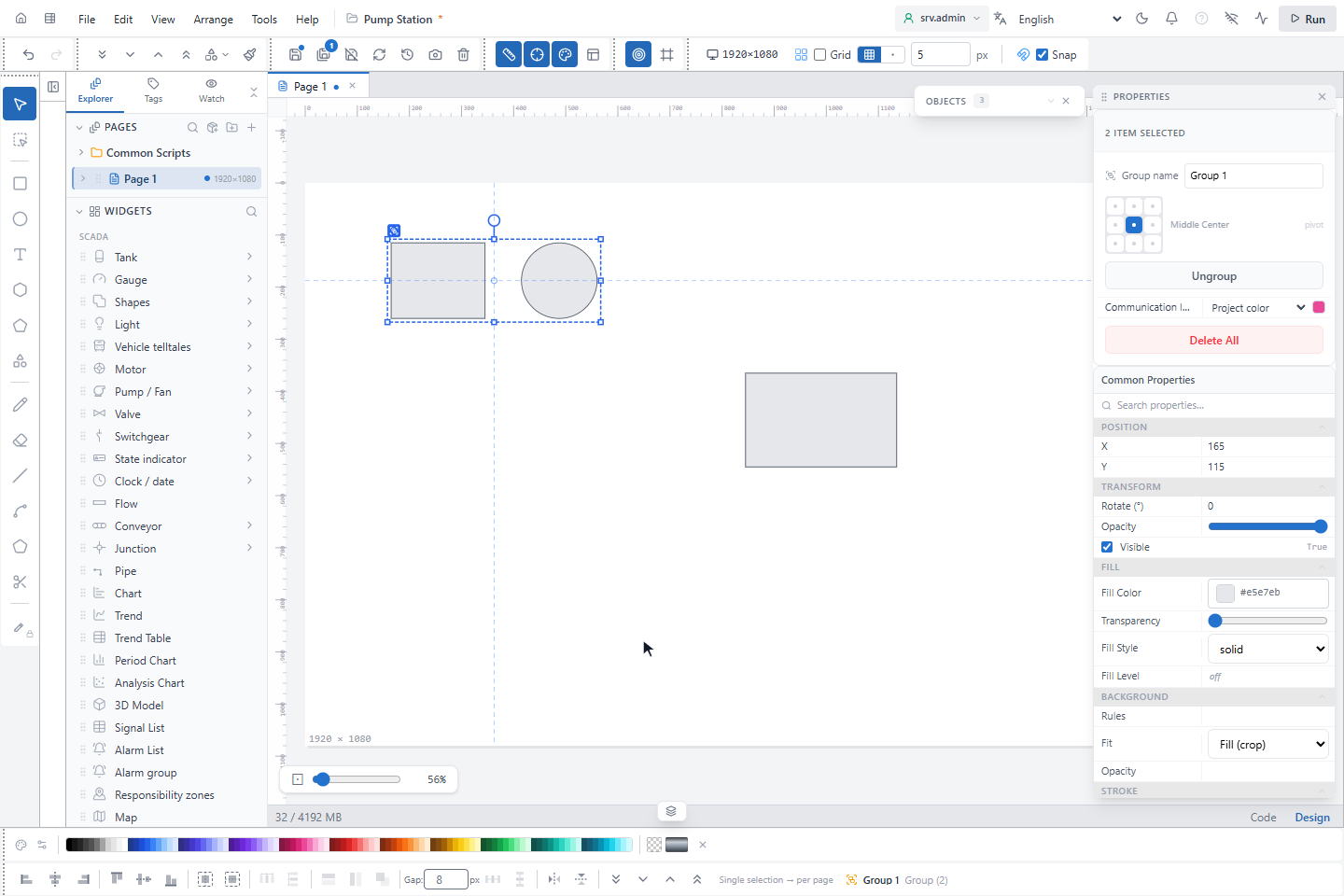
Ungroup (Ctrl+U) separates the objects again.
2. Use the context menu
Right-click an object or the selection. Besides copy, paste and duplicate, the menu has:
| Item | Effect |
|---|---|
| Lock / Unlock | Locked objects cannot be selected or changed on the page |
| Bring to Front (Ctrl+Shift+]), Forward (Ctrl+]) | Draw the object above others |
| Backward (Ctrl+[), Send to Back (Ctrl+Shift+[) | Draw the object below others |
| Group (Ctrl+G), Ungroup (Ctrl+U) | See above |
| Assign to Layer | Put the objects on a layer |
| Shape Operations | See Combine and cut shapes |
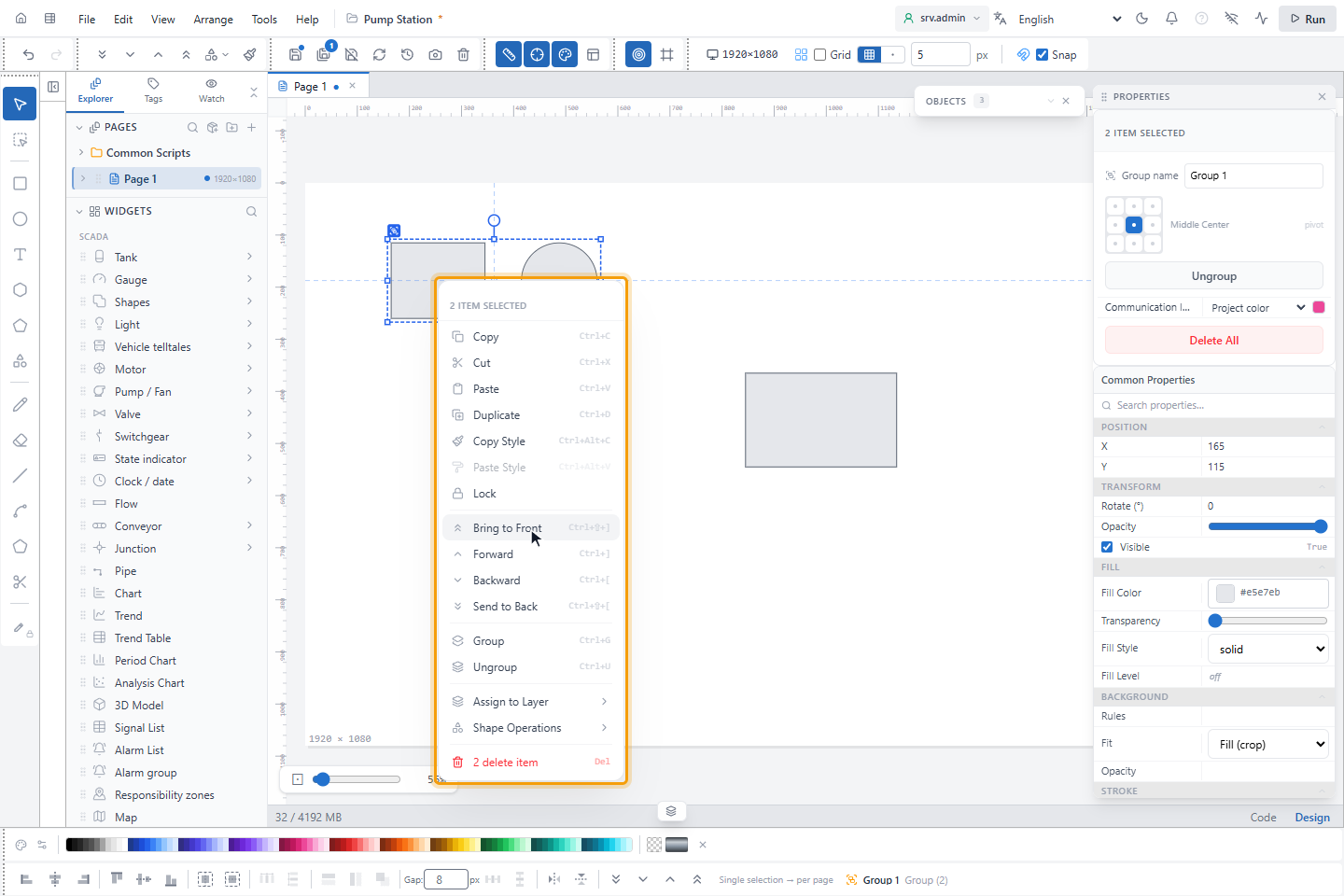
A locked object is unlocked with Unlock in its context menu or with the lock in the Objects panel.
3. Assign to a new layer
Right-click the object, point to Assign to Layer and choose Assign to new layer, or an existing layer. Default takes the object off its layer.
4. Hide a layer
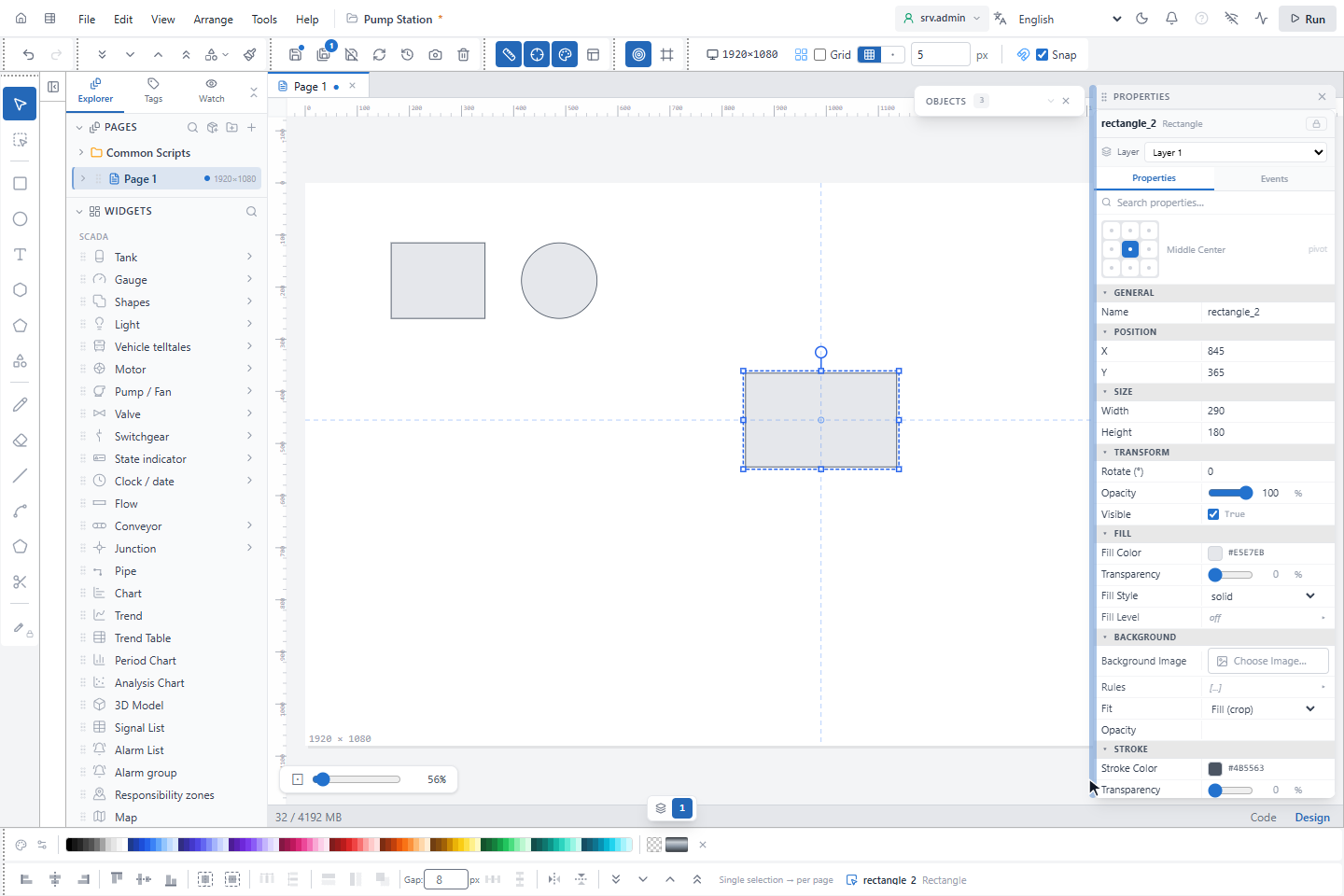
The layer bar at the bottom of the page has one numbered button per layer; its tooltip shows the name and the number of objects of the layer. Click it to hide or show the layer's objects. In the editor this is saved with the page; objects on a hidden layer cannot be selected.
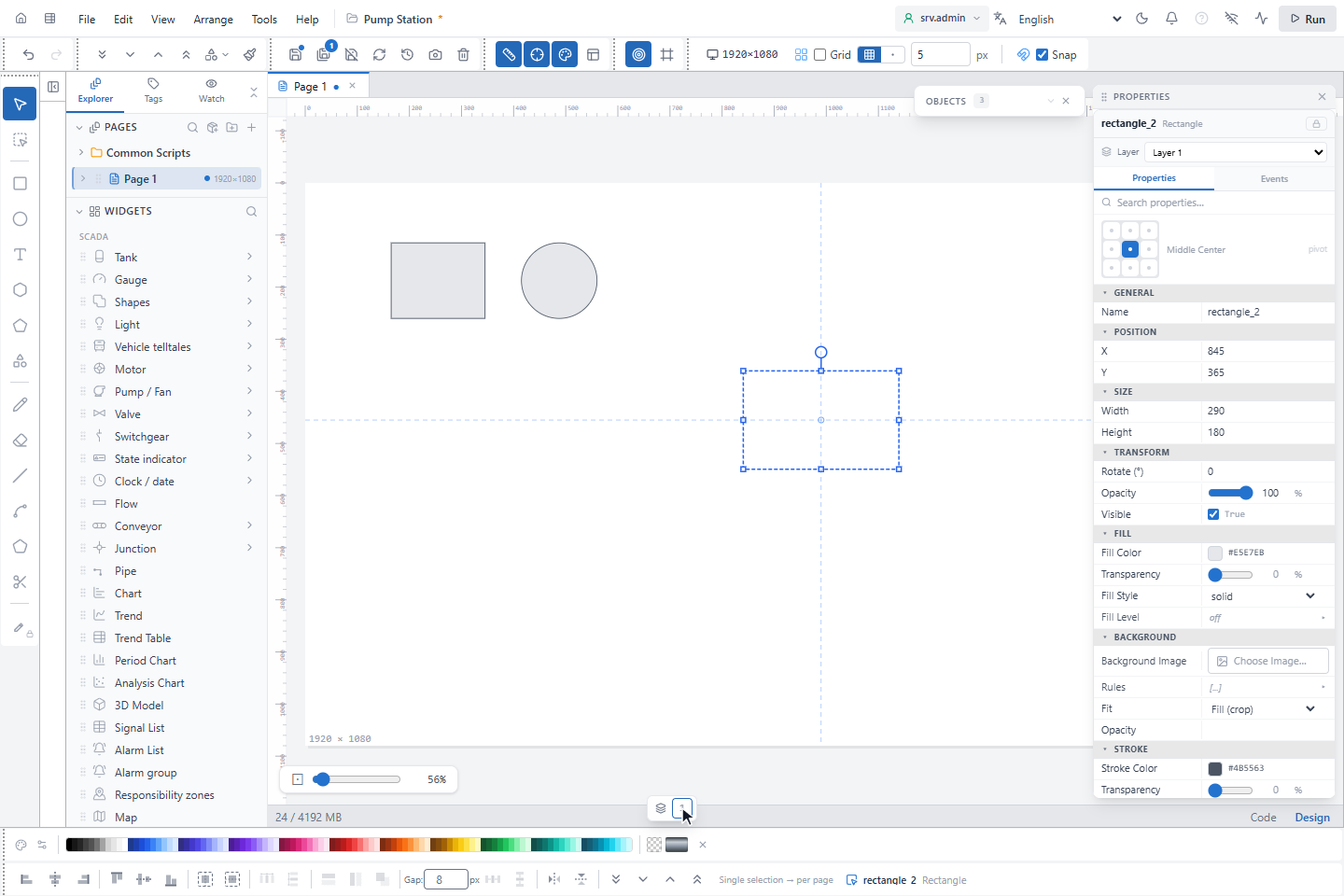
On the run screen operators can also hide and show layers with the same bar; this is only for their station and is not saved.
5. Name and color layers
Click Layer Settings at the left of the layer bar. The window lists the layers with their number, visibility, name and color; New adds a layer, the pencil renames it, and the bin deletes it. Objects of a deleted layer return to Default, they are not deleted.
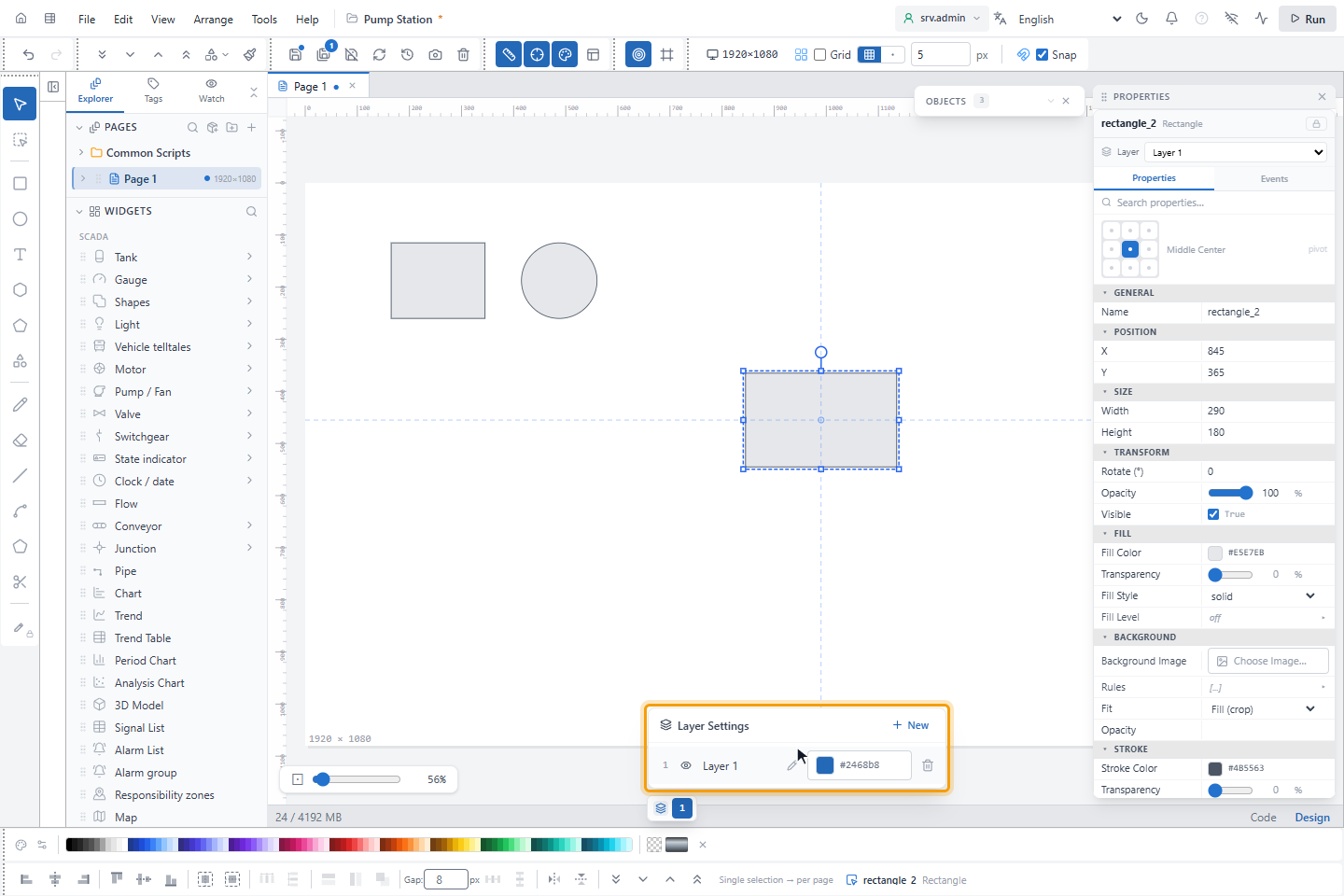
Objects panel and layers
The Objects panel lists every object of the page, frontmost first, with buttons to hide and lock each one. It is a list of objects; layers are groups of objects that you switch together and that operators can switch too.
Good to know
- Layers belong to a page; symbols, popups and layouts have no layers.