Licence and Capacity Unit
The YTCC licence is measured in Capacity Units (CU): CU = power tags × 3 + protocol families × 50. This page shows how to read the licence state of a server, obtain and load a licence file, and release it again.
All features and protocols are included. The licence never stops the running system: without a licence, or above it, YTCC keeps collecting data, sending commands, raising alarms and recording history.
Before you begin
- The YTCC interface is open on the home page. See The home page.
- Reading the Licence tab needs no sign-in. Downloading a request file or a usage report, loading a licence file and releasing a licence need a server administrator session. See First start and server administrators.
Steps
1. Read the licence status
Click the Licence tab on the home page. The tab opens with the Licence status card. Its badge shows the state: Free tier, Licensed, Unlimited, Unverified or Unlicensed. The sentence under the badge says what the state means, here Free tier — no licence required.
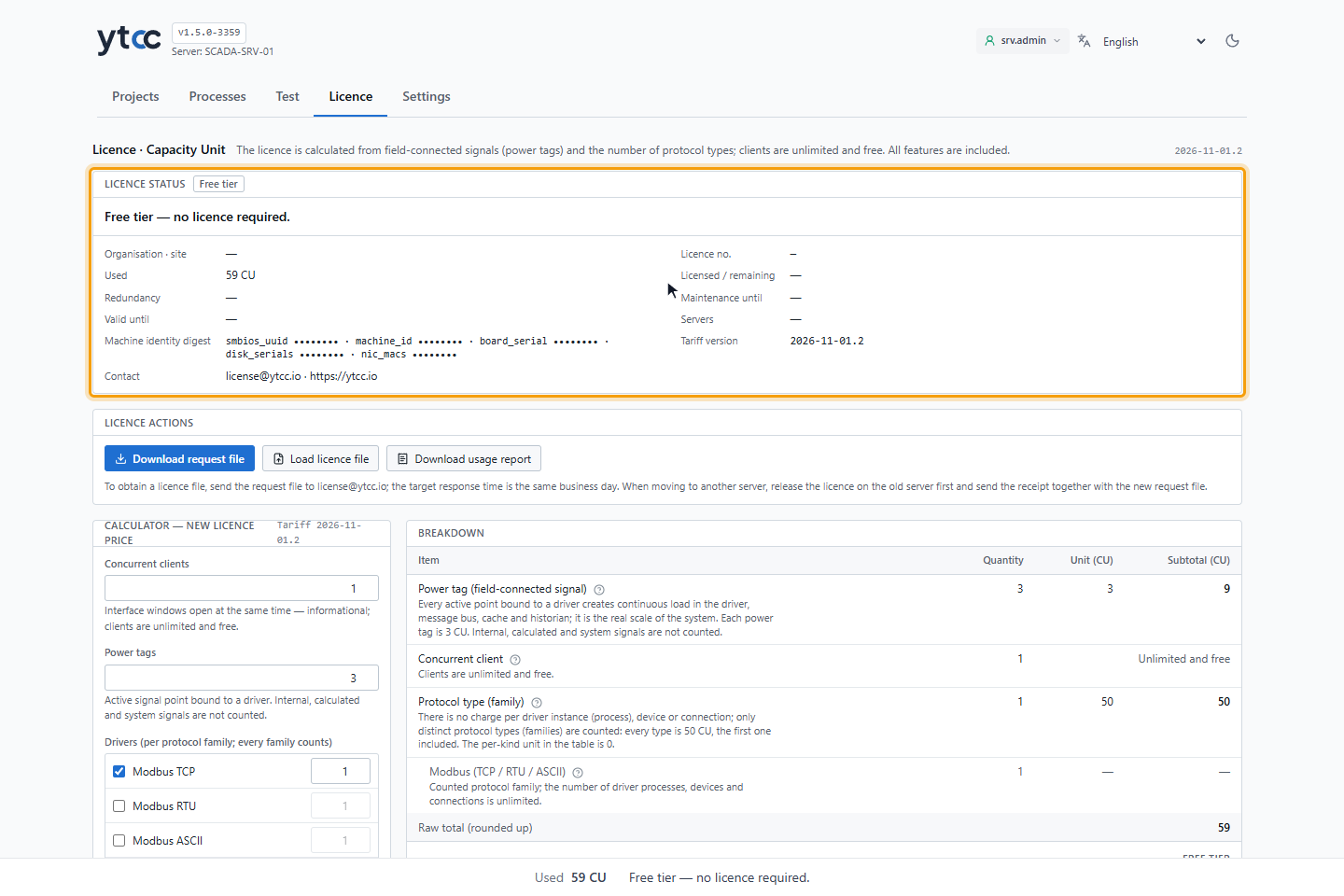
| Field | Meaning |
|---|---|
| Organisation · site | The owner of the licence and the project or site name in it. |
| Licence no. | The licence identifier and its revision. |
| Used | The CU that the running projects use now. |
| Licensed / remaining | The licensed CU and what is left. Above the licence, Overrun and the CU over it follow. |
| Maintenance until | The maintenance end date of the licence. |
| Valid until | The end date of a time-limited licence, or Perpetual. |
| Servers | Whether the licence matches this server: this server, matched or another server or not matched, with the number of matching machine identity items. |
| Machine identity digest | A short digest of this server's identity. It shows Visible after signing in as a server administrator without a server administrator session. The images in this guide hide its values. |
| Tariff version | The tariff of the licence, or the current tariff without a licence. |
| Contact | license@ytcc.io and https://ytcc.io. |
2. Work out a licence with the calculator
Calculator — new licence price works out the licence for any numbers you type, for example for a planned extension. It always uses the current tariff, shown as Tariff next to the heading.
- Concurrent clients: interface windows open at the same time. This value is informational; clients are unlimited and free.
- Power tags: active signal points bound to a driver.
- Drivers (per protocol family; every family counts): tick the protocols you use. The number next to a protocol does not change the price; driver processes within a family are unlimited.
When the tab opens, the calculator is filled with the current usage of the server. Load current usage fills it again and Reset clears it. Breakdown lists every item with Quantity, Unit (CU) and Subtotal (CU), and Raw total (rounded up) is the sum. The sentence under the table says which rule applies. The large number on the right is Free tier, Required licence or Unlimited usage, with the price under it.
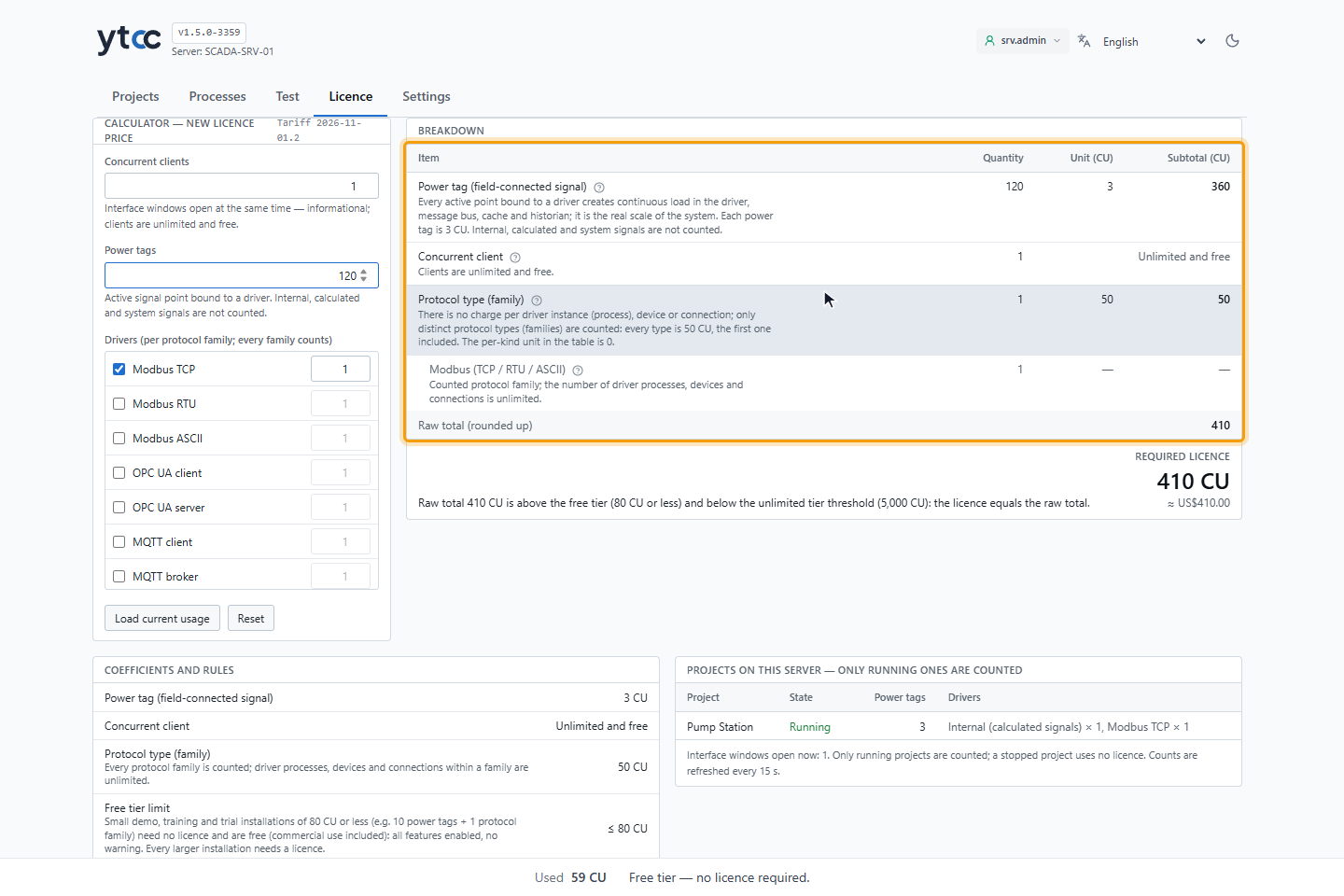
Coefficients and rules under the calculator shows the values of the tariff with their reasons, and the Not counted list.
3. See what the server uses
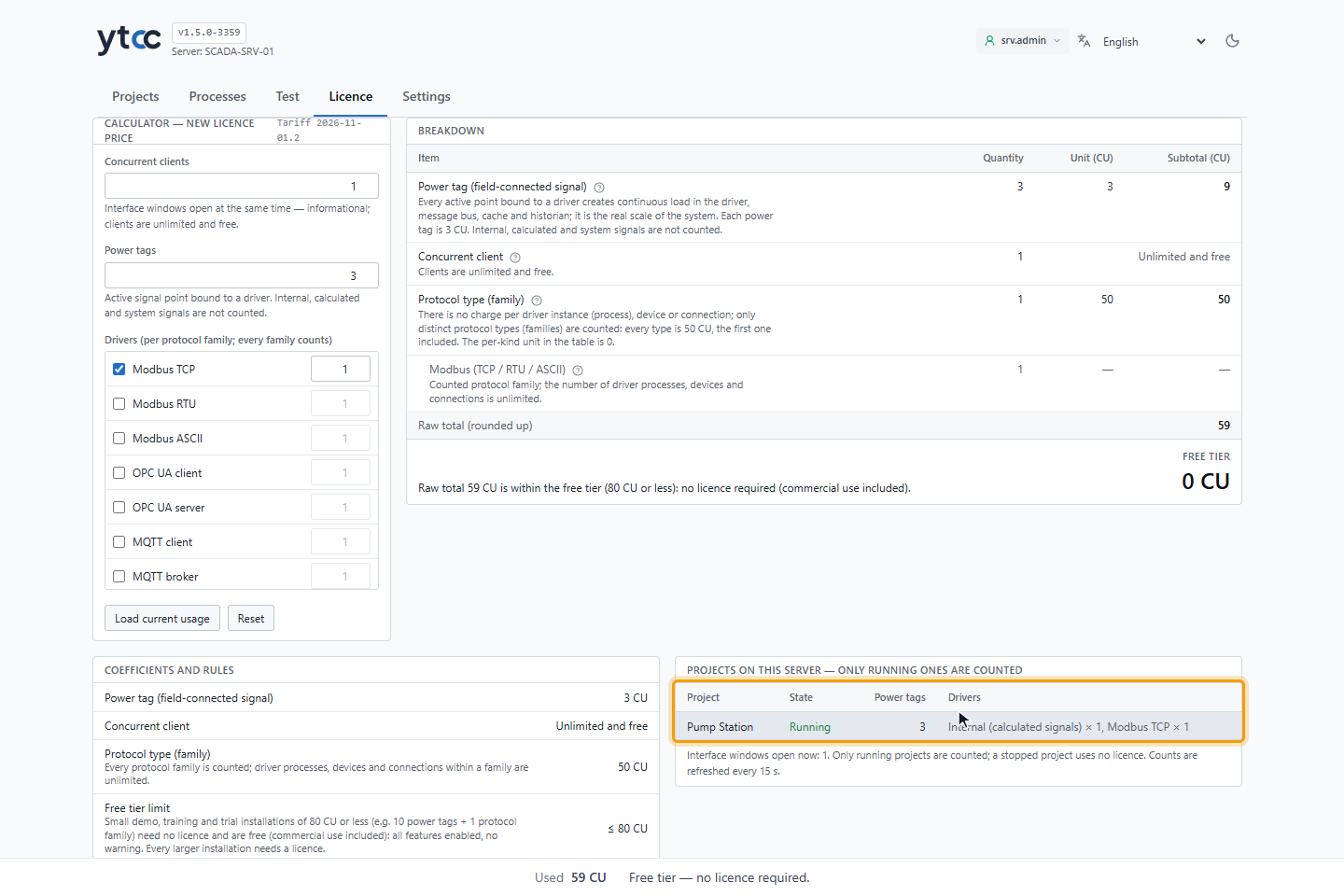
Projects on this server — only running ones are counted lists the projects with their State, Power tags and Drivers. Stopped projects are dimmed and use no licence. A project that could not be counted shows not measured; point at it to see the reason. The lines under the table give the interface windows open now and say that the counts are refreshed every 15 seconds.
4. Download the request file
Click Download request file under Licence actions. In the Licence request file window, type Organisation (legal entity) and Project / site name, and optionally Requested CU. Read the Licence agreement in the window and tick I have read and accept the licence agreement. The acceptance is recorded on the server with the time and the agreement digest.
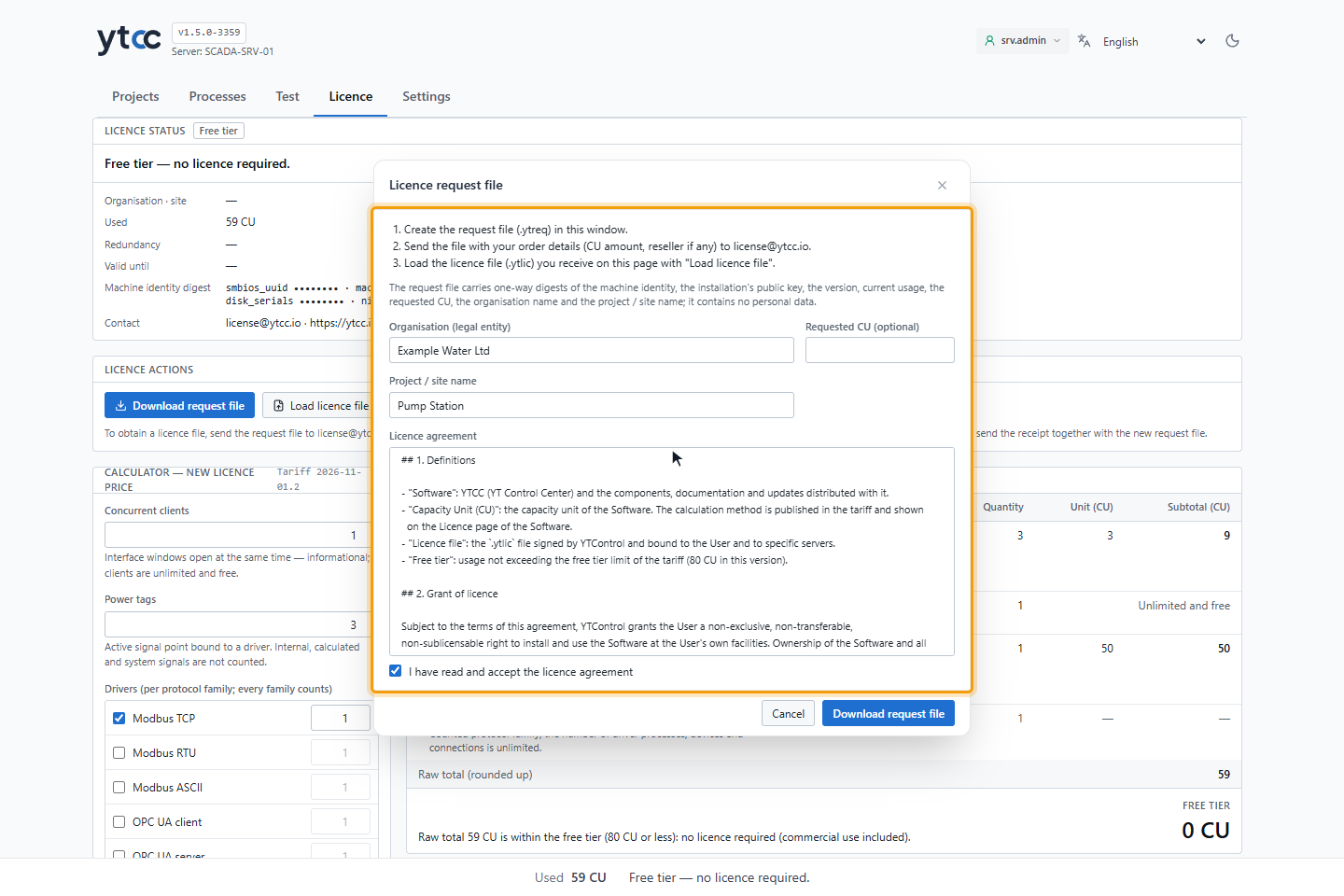
Click Download request file in the window. The browser saves <server name>.ytreq, and the tab says
Request file downloaded. Send the file with your order details (CU amount, reseller if any) to license@ytcc.io. The
target response time is the same business day. The file carries one-way digests of the machine identity, the
installation's public key, the version, current usage, the requested CU, the organisation name and the project or site
name. It contains no personal data.
Each new request file replaces the previous one. Load the licence that was issued for the latest request.
5. Load the licence file
When you receive the .ytlic file, click Load licence file and choose it. The Load licence file window shows the
file before anything changes: File, Type, Signature, Licence no., Organisation · site, CU,
Maintenance until, Valid until and This server. This server must read Machine identity matches.
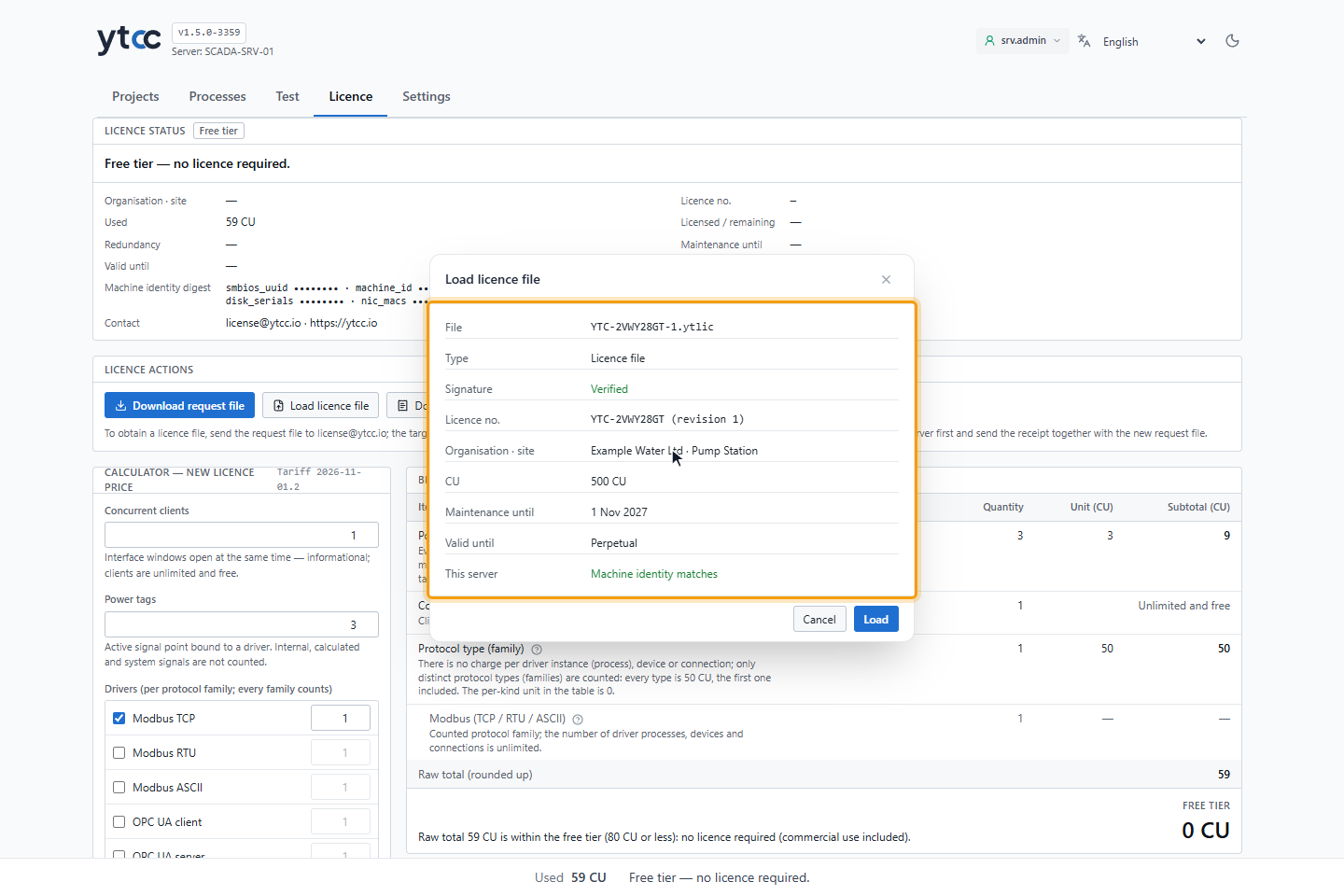
Click Load. The button is enabled only for a licence file with a verified signature. The tab says Licence loaded. The running system uses the licence immediately; no restart is needed.
6. Check the licensed state
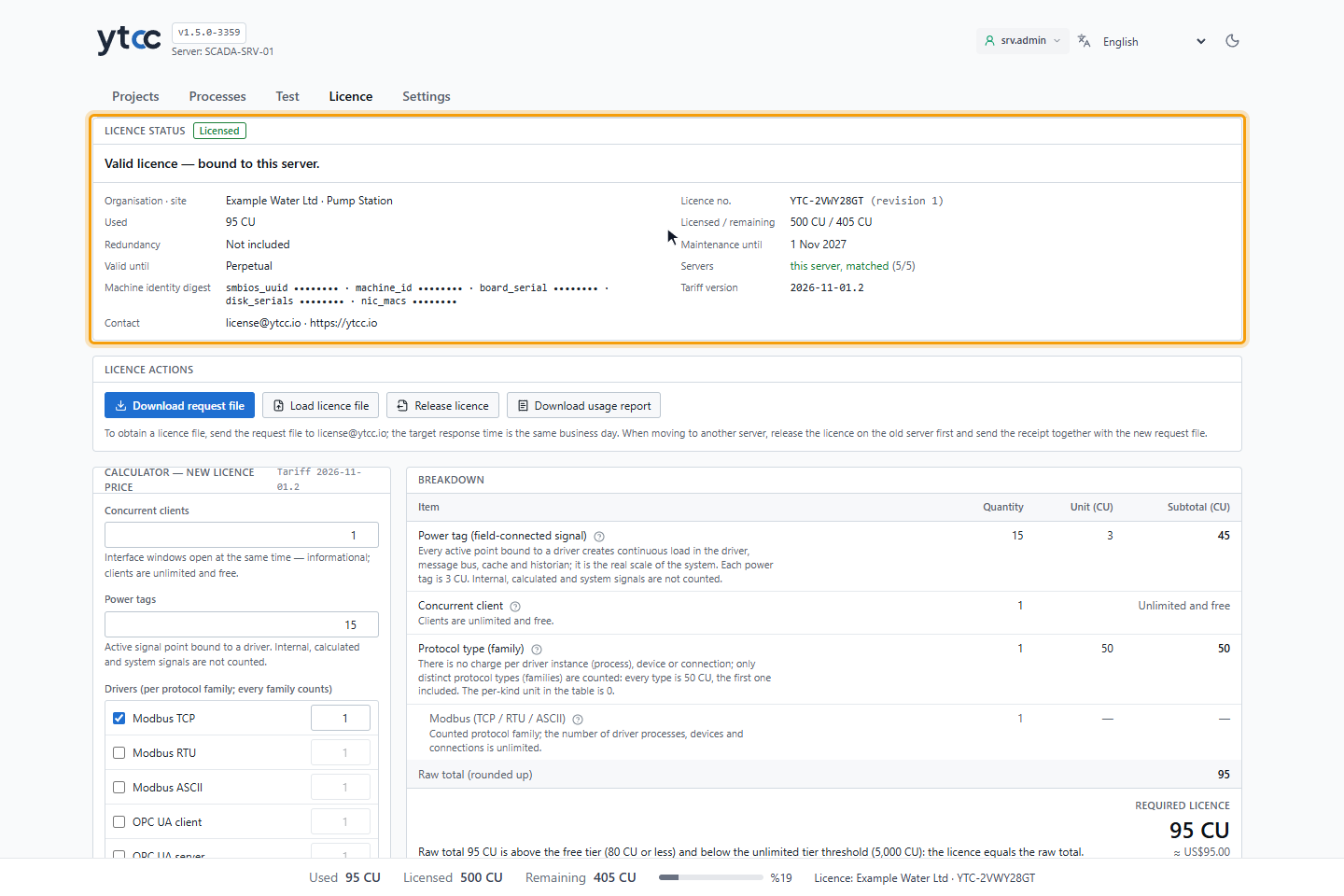
The badge now shows Licensed and the sentence Valid licence — bound to this server. The strip at the bottom of the tab shows Used, Licensed, Remaining, a bar with the used percentage and the licence owner. On the other tabs of the home page, click the owner in the strip to come back to the Licence tab.
7. Read an overrun
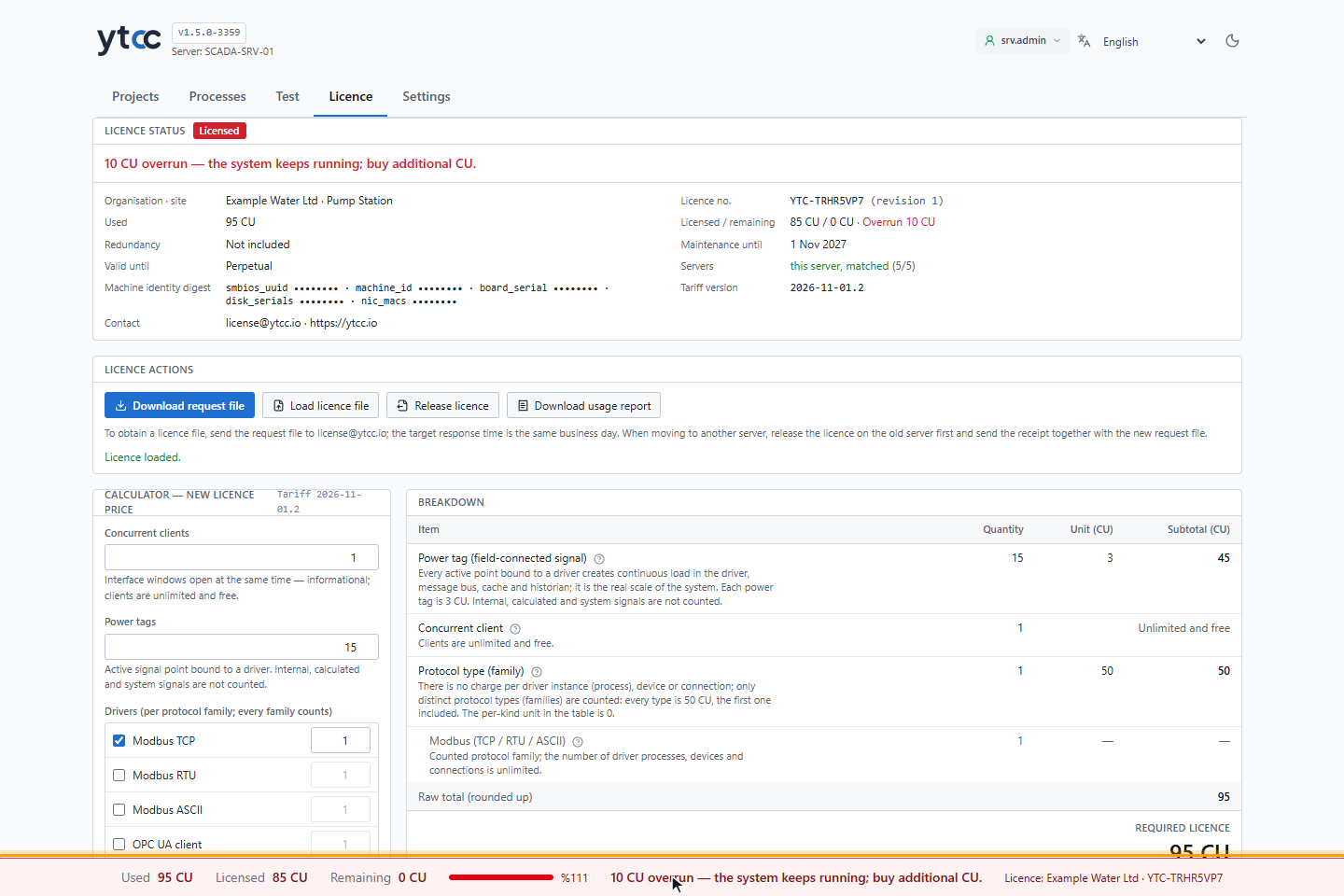
When the usage grows past the licensed CU, the strip turns red with N CU overrun — the system keeps running; buy additional CU. The card adds Overrun to Licensed / remaining. Nothing stops and nothing is locked. Download a new request file, order the additional CU, and load the new licence file with steps 4 and 5; it replaces the old one.
8. See what the operator sees
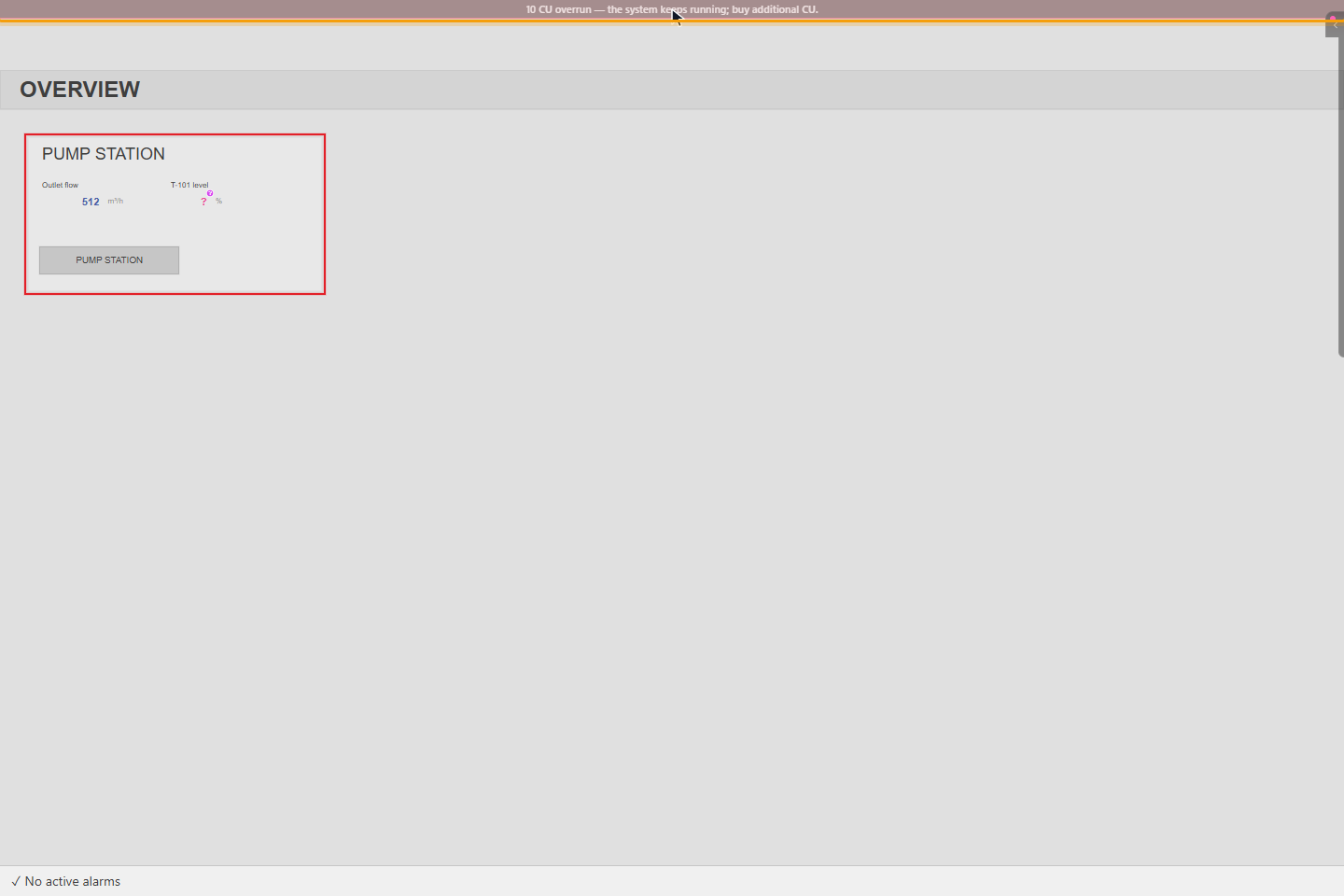
During an overrun, on an unlicensed server and with an unverified licence, the runtime screen shows a dark red line across its top edge with the same sentence. The line cannot be closed, and its brightness changes slowly. It does not block clicks. The state is read again every minute. In the other states the runtime screen shows nothing about the licence.
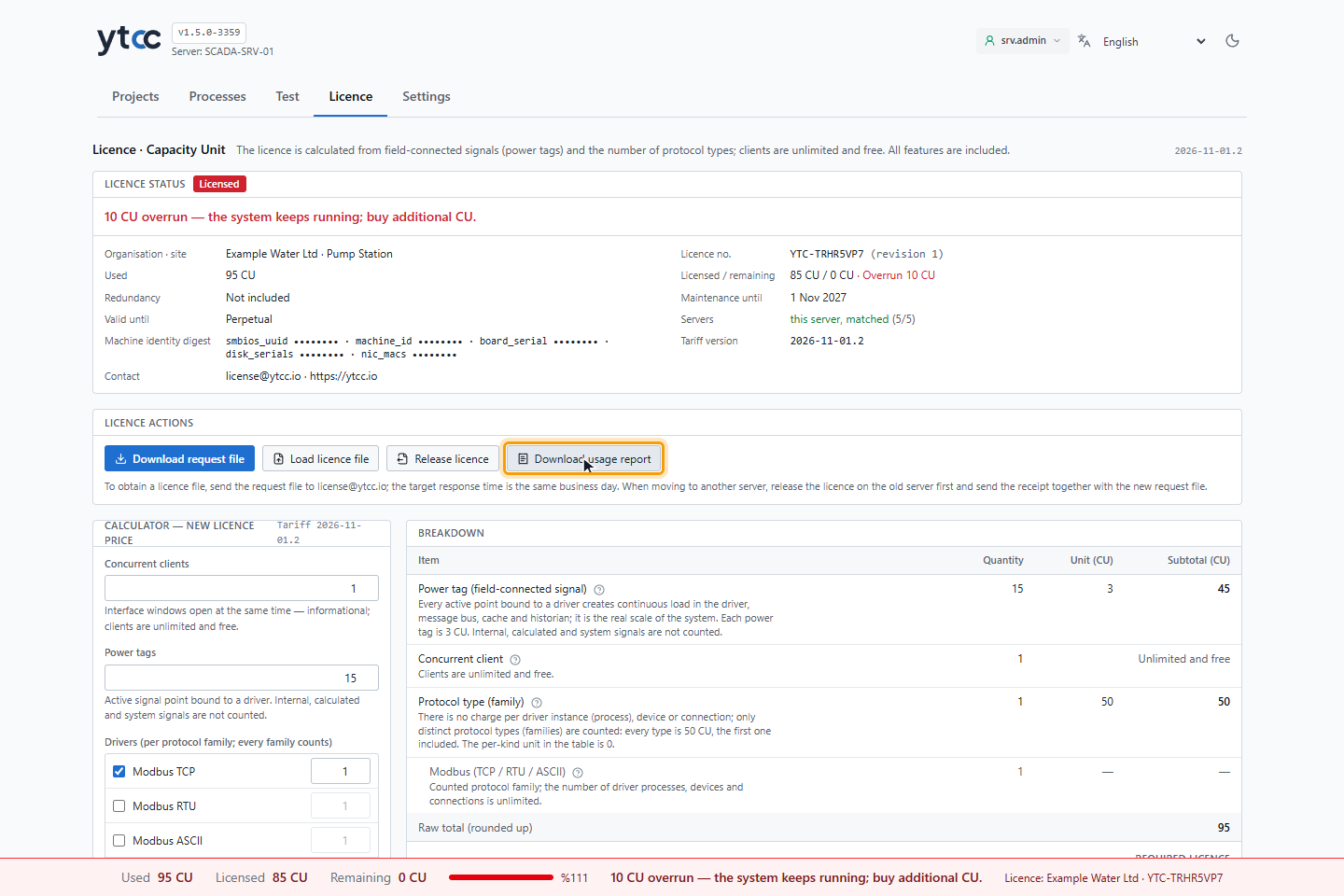
9. Download the usage report (when asked)
If YTControl asks for a usage report, click Download usage report under Licence actions. The browser saves the
signed report as <server name>-usage.txt. It holds the licence number, the current usage, the peak usage of the period
and the licence state. It contains no process data. The licence agreement gives 30 days to send it after a request.
10. Release the licence (when moving to another server)
Click Release licence. The window says that the licence is removed from this server and a signed release receipt is
downloaded. The server keeps running without the licence, and this licence file will not be accepted on this server again.
Click Release and download receipt. The browser saves <licence no.>.ytrel, and the tab says
Licence released; receipt downloaded.
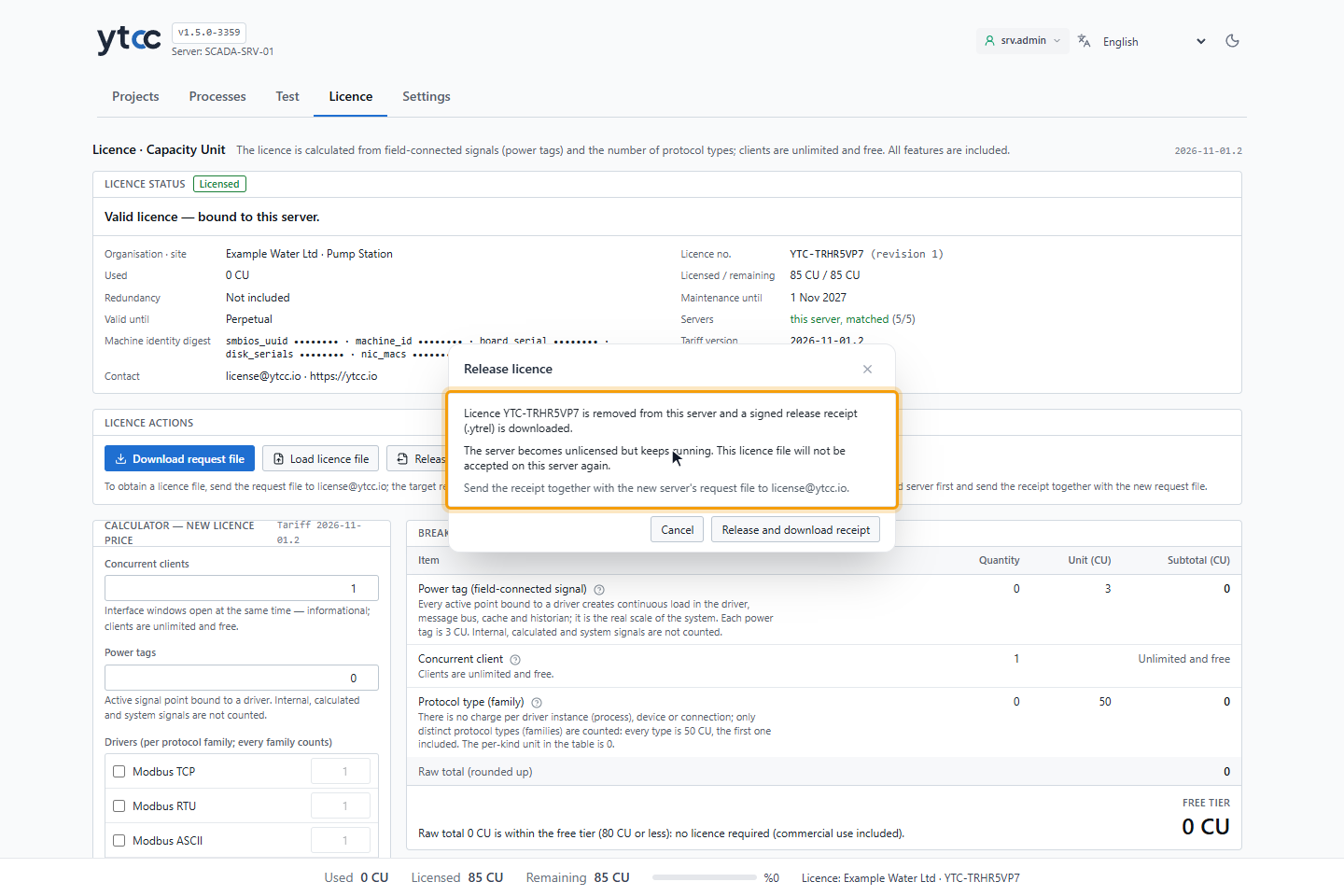
Send the receipt together with the new server's request file to license@ytcc.io.
Result
The Licence tab shows the state of the server. To confirm it on the server itself, run scada-manager license status.
How the CU are calculated
CU = power tags × 3 + protocol families × 50
| Usage | Tier | Price |
|---|---|---|
| Up to 80 CU | Free tier. No licence file and no registration. Commercial use is included. | 0 |
| 81 to 4,999 CU | Licensed. A licence file for the CU you buy. | 1 USD per CU |
| 5,000 CU or more | Unlimited. Counting stops: tags, clients and drivers are unlimited. | 5,000 USD |
These are the values of tariff version 2026-11-01.2. The tab shows the version in use at its top right. A licence keeps
the tariff it was issued with; a new licence is priced with the current tariff. When the two differ, the note under the
project table names the tariff of the usage measurement.
Examples
| Power tags | Protocol families | CU | Licence | Price |
|---|---|---|---|---|
| 10 | 1 | 30 + 50 = 80 | Free tier | 0 |
| 11 | 1 | 33 + 50 = 83 | 83 CU | 83 USD |
| 500 | 2 | 1,500 + 100 = 1,600 | 1,600 CU | 1,600 USD |
| 1,650 | 1 | 4,950 + 50 = 5,000 | Unlimited | 5,000 USD |
| 20,000 | 3 | 60,000 + 150 = 60,150 | Unlimited | 5,000 USD |
What is counted
Only running projects are counted. A stopped project uses no licence; its share is added when it starts.
- Power tag: an active signal point that has an active binding to an active driver instance that is not the internal driver. When the binding names a device, the device must be active too. A point that is read from several sources is counted once.
- Protocol family: one per protocol, however many driver processes, devices and connections use it. A family used by several running projects counts once in the server total.
| Family | Driver types |
|---|---|
| Modbus | Modbus TCP, Modbus RTU, Modbus ASCII |
| OPC UA | OPC UA client, OPC UA server |
| MQTT | MQTT client, MQTT broker |
| IEC 60870-5 | IEC 60870-5-101, IEC 60870-5-104 |
| One family each | IEC 61850, DNP3, S7, BACnet, EtherNet/IP, ADS, SNMP, CAN, OCPP, NTCIP, SECS, S-Bus, RK 512, COMDRV, TLS gateway |
Not counted
The Not counted list on the tab gives the reason for each: internal signals, alarm definitions, historian, scan rate, features and protocols, client sessions and user accounts, and driver processes, devices and connections. The internal and simulator drivers do not count as a protocol family.
Project shares
The CU column of the project list and Licence usage in the running project panel show each project on its own, with its own power tags and families. See The home page.
Licence states
| State | Home page strip | Runtime screen | Editors |
|---|---|---|---|
| Free tier | Used and Free tier — no licence required. | Nothing | Nothing |
| Licensed | Used, Licensed, Remaining, the bar and the owner | Nothing | Nothing |
| Licensed, 90 % or more used | The same in amber, with Approaching the licence limit. | Nothing | Nothing |
| Unlimited | Used, Licence Unlimited usage and the owner | Nothing | Nothing |
| Licensed, overrun | Red, N CU overrun — the system keeps running; buy additional CU. | Line with the same sentence | Nothing |
| Unlicensed | Red, Unlicensed use — licence required: N CU and the days left until the design lock | Line with the same sentence | Nothing until the design lock |
| Unverified | Red, Unverified licence — the machine identity does not match the licence. Re-activate within N days. | Line with the same sentence | Nothing until the design lock |
| Design lock | The lock sentence in red | Line with Design lock active added | Save and Apply disabled, with a red lock icon |
The strip is on every home page tab. It refreshes every 30 seconds, every 10 seconds on the Licence tab, and at once when a project starts or stops. It cannot be closed and blocks nothing. About also shows Licence status, Licence holder, Licence no., Maintenance until and Tariff version.
The card gives the reason of the Unlicensed state:
| Reason | When |
|---|---|
| No licence file is installed. | Usage is above 80 CU and no licence was loaded. |
| The time-limited licence has expired. | Valid until has passed. |
| This licence was released on this server. | The licence was released and usage is above 80 CU. |
| The machine identity could not be verified for 30 days. | The Unverified period ended. |
| The licence file is invalid | The installed file failed the check; the reason follows. |
| A newer revision of this licence was installed; the old file is no longer valid. | An older revision was put back. |
| The key that signed the licence has been revoked; request a new licence file. | The signing key is no longer accepted. |
Three more notes can appear on the card and the strip. Version outside maintenance — released after the licence's maintenance end date; the system runs fully. The system clock may have been set back; licence periods are counted from the latest known time. Some projects could not be measured; the total may be incomplete. With a licence whose installation key differs from this server's, the card says The installation key differs from the one in the licence; send a new request file at the next renewal.
Design lock
After 90 days of uninterrupted use above 80 CU without a valid licence, design changes can no longer be saved. While the count runs, the strip says Design is locked after 90 days of uninterrupted unlicensed use: N days left. The lock also applies in the Unverified state when the 90 days have passed.
| Stops | Keeps working |
|---|---|
| Save and Save All in the screen editor | Data collection, commands, alarms and history |
| Apply in the configuration editor | Starting and stopping projects |
| Creating, copying and renaming projects | Reading and exporting; backups |
| Collections, assets and maps | Deleting a project |
| Importing a package or a backup on the home page | Sign-in and user management |
| Design writes through AI access (MCP) | Trend profiles, table layouts and runtime view settings |
| The Licence tab |
In the editors, the red lock icon opens the Licence tab in a new browser tab; open changes stay in the editor. A blocked save says Unlicensed use has exceeded 90 days — design changes cannot be saved. and names the CU required.
Loading a valid licence lifts the lock at once. So does getting usage down to 80 CU or less, by stopping projects or removing
power tags. The 90-day count returns to zero only after usage has stayed at 80 CU or less for 7 days. Deleting state.json
does not reset the count.
To restore a backup while the lock is active, stop YTCC and run scada-manager import on the server; see
scada-manager commands.
Machine identity
A licence file is bound to one server through one-way digests of up to five identity items: SMBIOS UUID, machine ID, board serial, disk serials and network adapter addresses. Each server needs its own licence.
Small hardware changes do not break the match. When at least three items can be read, one of them may differ. If an item bound in the licence cannot be read on the server, one item may differ only when at least three others match; otherwise all the readable items must match. The match always needs at least two items and at least one of the SMBIOS UUID, machine ID or board serial. For disks and network adapters, half of the listed ones are enough.
When the identity no longer matches, the state becomes Unverified for 30 days. The system keeps running. Download a new request file and load the new licence to return to Licensed. After 30 days the server counts as Unlicensed.
Move a licence to another server
- On the old server, release the licence (step 10).
- On the new server, download a request file (step 4).
- Send both the receipt and the request file to
license@ytcc.io. - Load the new licence file on the new server (step 5).
YTControl transfers a licence up to twice in 12 months. If the old server is lost and cannot release the licence, send the request file with an explanation.
Maintenance
Maintenance is optional and costs 15 % of the licence price per year, fixed at purchase. Versions released before the Maintenance until date can be used indefinitely. A later version also runs fully and shows only the note about the version being outside maintenance.
Files on the server
The files are in the config/license folder of the installation, for example C:\YTCC\config\license.
| File | What it is |
|---|---|
license.ytlic | The installed licence file. Load it with Load licence file or scada-manager license activate. |
state.json | The licence state and the day counts. |
install.key | The key of this installation. Request files, receipts and usage reports are signed with it. |
A [license] section in config/license.toml has no effect. If one exists, the card says The legacy licence setting
(N CU) is ignored; a signed licence file is required.
Command line
scada-manager license does the same work on the server, also while the system is stopped; only usage-report needs the
running system. See scada-manager commands.
| Command | What it does |
|---|---|
scada-manager license status | Shows the licence state. |
scada-manager license request | Writes a request file. |
scada-manager license activate <file> | Installs a licence file. |
scada-manager license release | Releases the licence and writes the receipt. |
scada-manager license usage-report | Writes the usage report. |
scada-manager license inspect <file> | Shows what a .ytreq, .ytlic, .ytrel or usage report file contains. |
Troubleshooting
| Message | Cause and fix |
|---|---|
| The licence file does not match this server's latest request file; load the licence issued for the latest request. | A newer request file was downloaded after the one the licence was issued for. Send the latest request file and load the licence issued for it. |
| The licence file was not issued for this server (machine identity does not match). | The file belongs to another server. Download a request file on this server. |
| This licence was released on this server; request a new licence file. | A released licence is not accepted again. Request a new licence file. |
| A newer revision of this licence is already installed; the old file is not accepted. | Use the latest file you received. |
| The licence file could not be verified; it is damaged or has been modified. | Use the original file you received; a change of any kind breaks the signature. |
| This is not a YTCC licence file. | The chosen file is of another kind. Choose the .ytlic file. |
| The file is too large (limit 64 KiB); use the original licence file. | The chosen file is not the licence you received. |
| The server did not respond within 30 seconds; try again. | The licence service did not answer. Try again, and check with scada-manager status if it repeats. |
| Sign in as a server administrator. under Licence actions | The buttons are disabled without a session. Click Sign in. |