Combine and cut shapes
Complex outlines, such as a tank with a cut-out or a building plan, are easier to build from simple shapes. The shape operations combine or cut the selected shapes into new custom shapes.
| Operation | Result | Needs |
|---|---|---|
| Union | One shape along the outer outline | 2 or more shapes |
| Combine | One shape; overlapping areas become holes | 2 or more shapes |
| Fragment | Every region becomes a separate shape | 1 or more |
| Intersect | Only the area the shapes have in common | 2 or more shapes |
| Subtract | The other shapes are cut out of the first selected one | 2 or more shapes |
| Join | Lines that touch end to end become one path | 2 or more lines |
| Trim | Paths are split where they cross | 1 or more |
| Offset… | Outlines on both sides at an equal distance; the originals stay | 1 or more |
Rectangles, circles, pentagons, hexagons, polygons and custom shapes take part as areas; lines, polylines, pen strokes and arrows as lines. Other objects and groups cannot be used; ungroup first.
Before you begin
- The page has the shapes to combine.
Steps
1. Select the shapes
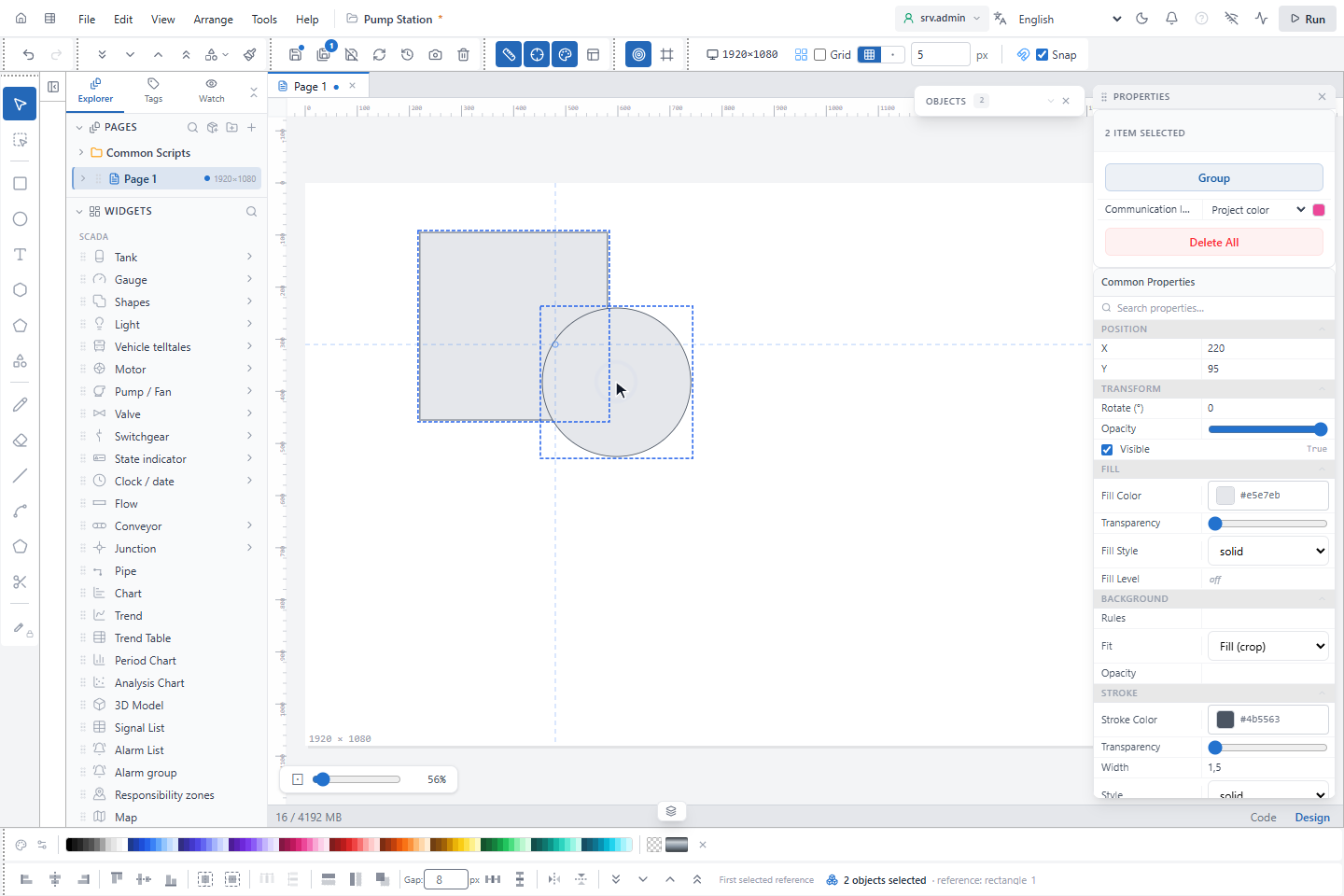
Select the shapes, the one that keeps its style first, here the rectangle, then the circle with Shift.
2. Open Shape Operations
Click Shape Operations in the toolbar (or in the context menu). The menu shows the operations; operations that are not possible for the selection are grey, and their tooltip says why, for example Select at least two shapes.
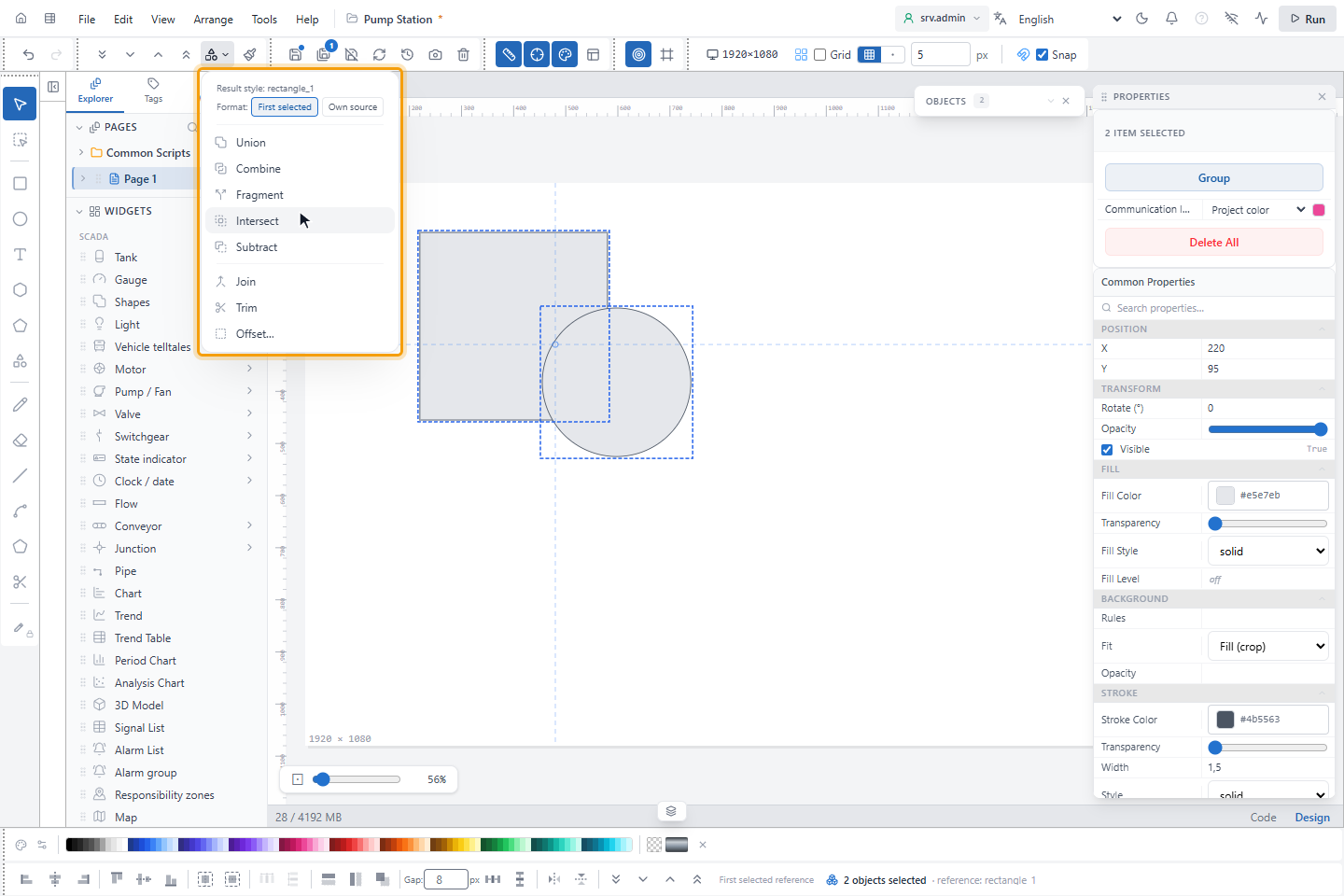
Result style says whose style the result takes; Format decides for Fragment and Union whether all pieces take the style of the first selected shape (First selected) or each keeps its own (Own source).
3. Subtract
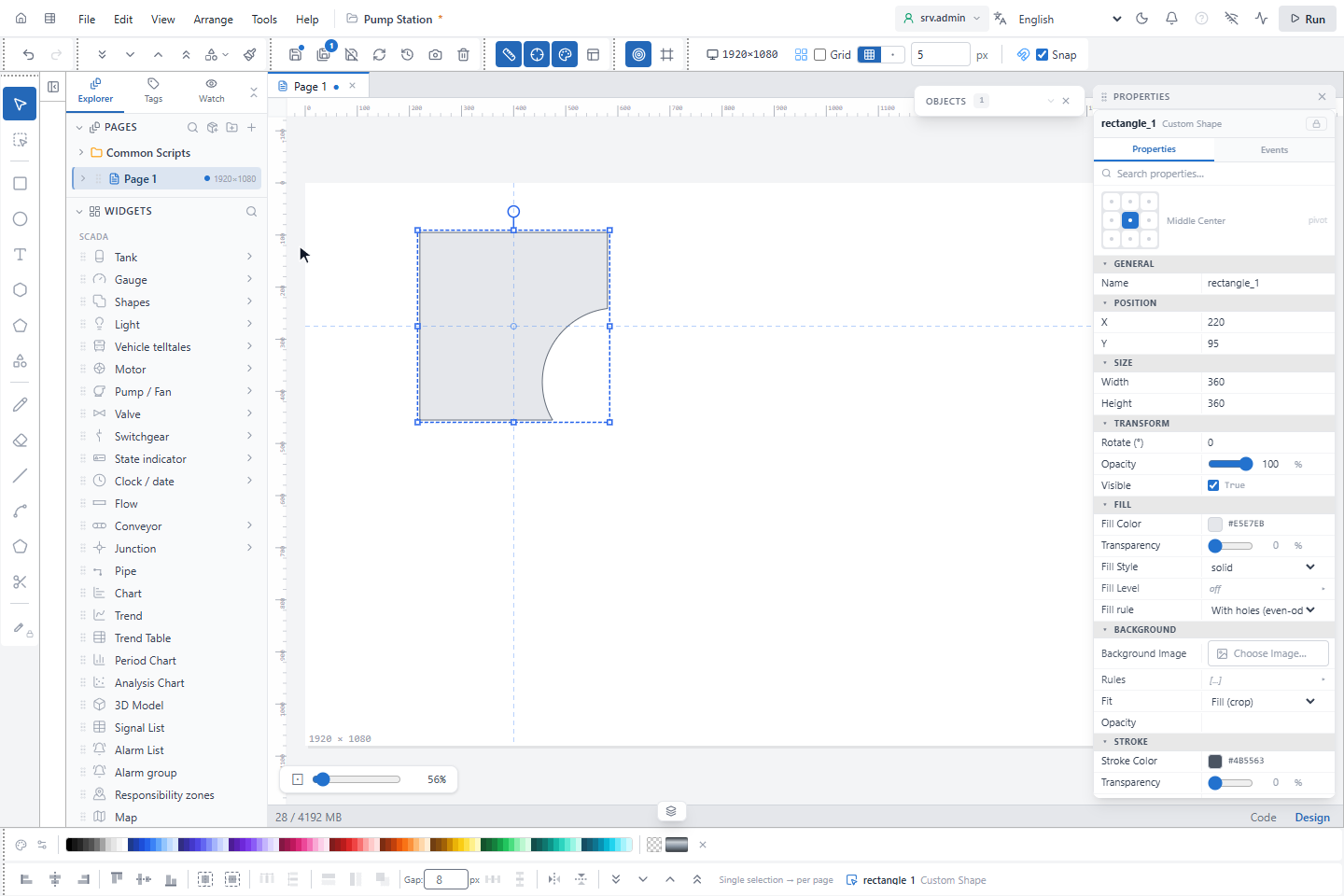
Click Subtract. The circle is cut out of the rectangle. The result is one custom shape that keeps the name, the actions and the scripts of the first selected shape, here rectangle_1; the original shapes are removed. The whole operation is one undo step.
4. Offset
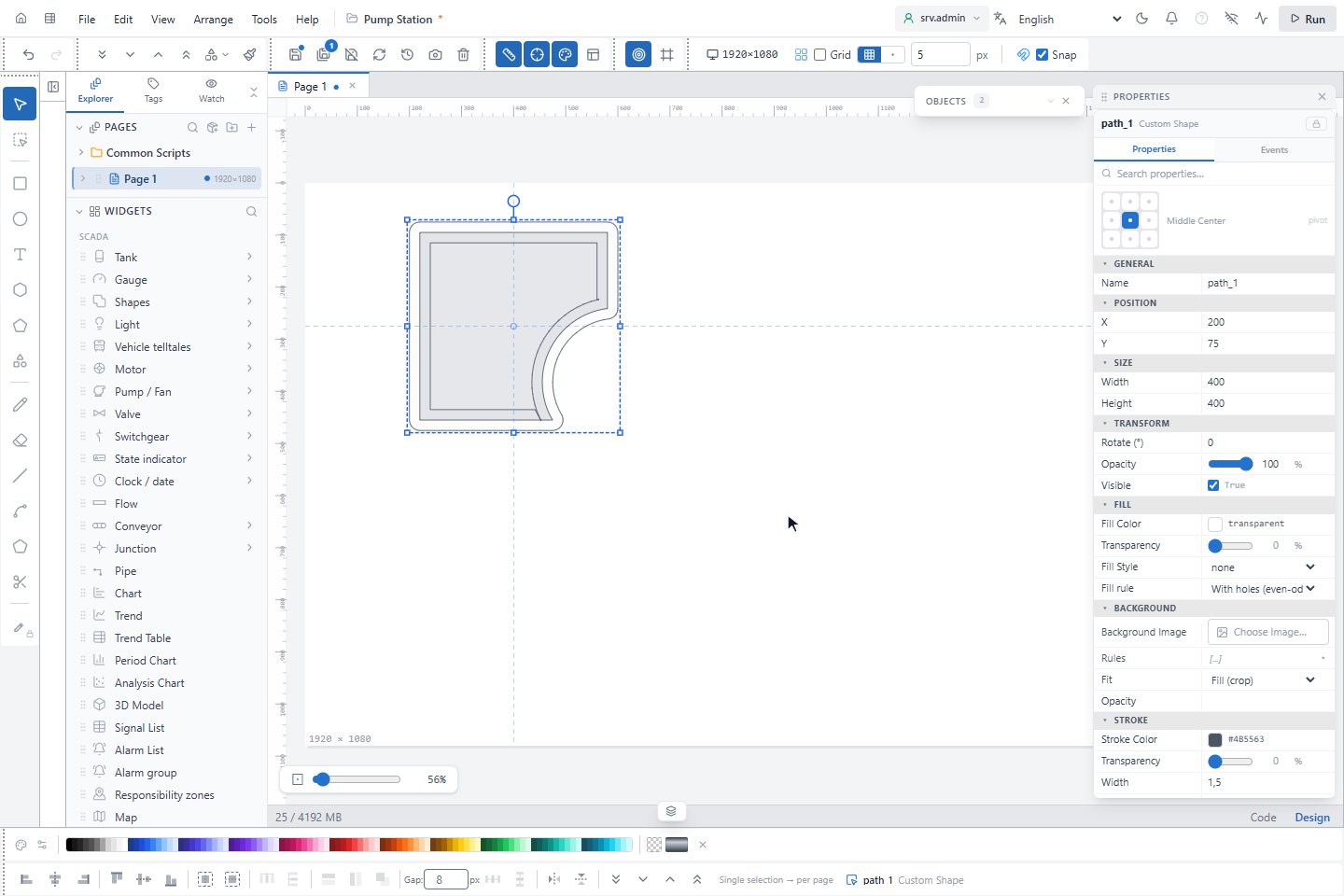
Choose Shape Operations › Offset…, enter the Distance (px), here 20, and click Apply. Outlines are drawn on both sides of the shape at that distance; the shape itself stays.
Good to know
- Results of operations with several pieces, such as Fragment, are named
path_1,path_2… - If the shapes do not overlap, Intersect reports Selected shapes do not intersect and nothing changes.
- The first operation after opening the editor can take a moment while the geometry engine loads.