Grid, rulers, canvas and zoom
The toolbar of the screen editor controls how the page is shown while you draw: a grid to line objects up, rulers, a cross through the selection, the size of the page and the zoom. Grid and canvas size are stored with each page.
Before you begin
- A page is open in the screen editor.
Steps
1. Show the grid
Tick Grid in the toolbar to show the grid of this page, choose Line grid or Dotted grid, and enter the spacing in px (1 to 200, 5 by default), here 20. With Snap ticked, drawing and moving snap to the grid in that step.
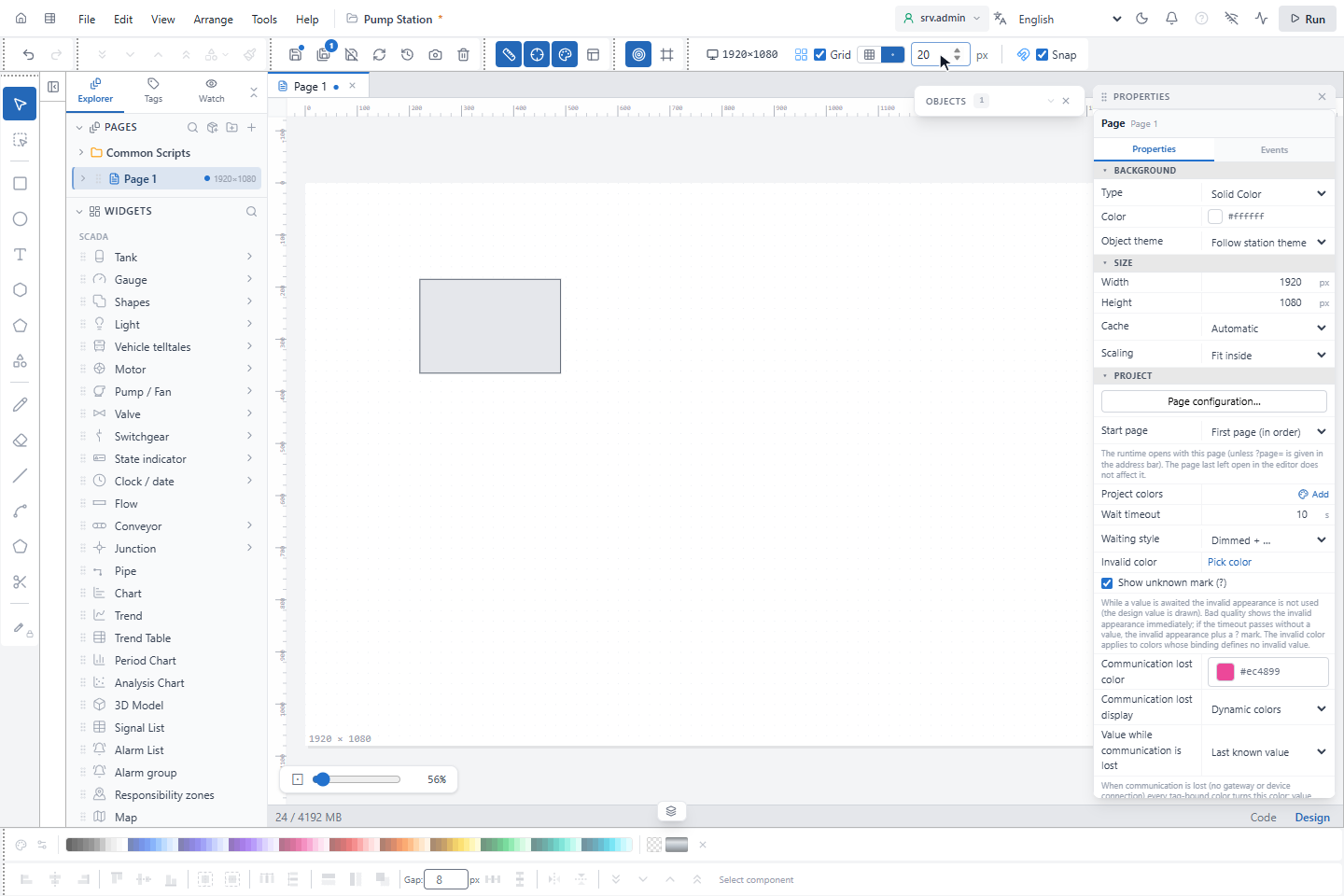
Other display helps in the toolbar:
| Button | Effect |
|---|---|
| Ruler | Rulers along the top and the left of the page (on by default) |
| Center Axes | A dashed cross through the centre of the selection over the whole page (on by default) |
| Snap to Objects | Guide lines to the edges and centres of other objects while you drag (on by default) |
| Keep objects inside the page | Drawing, moving and pasting stay on the page; when off, the area around the page is a free workspace that the run screen does not show |
| Color strip | Shows or hides the color strip at the bottom |
2. Set the canvas size
Click Canvas Size (the button shows the size, for example 1920×1080). Choose a preset, HMI 800×600, Desktop 1920×1080, Tablet 1024×768 or Mobile 390×844, or enter a Custom size (width 100 to 7680, height 100 to 4320) and confirm with ✓. The size applies to the open page only.
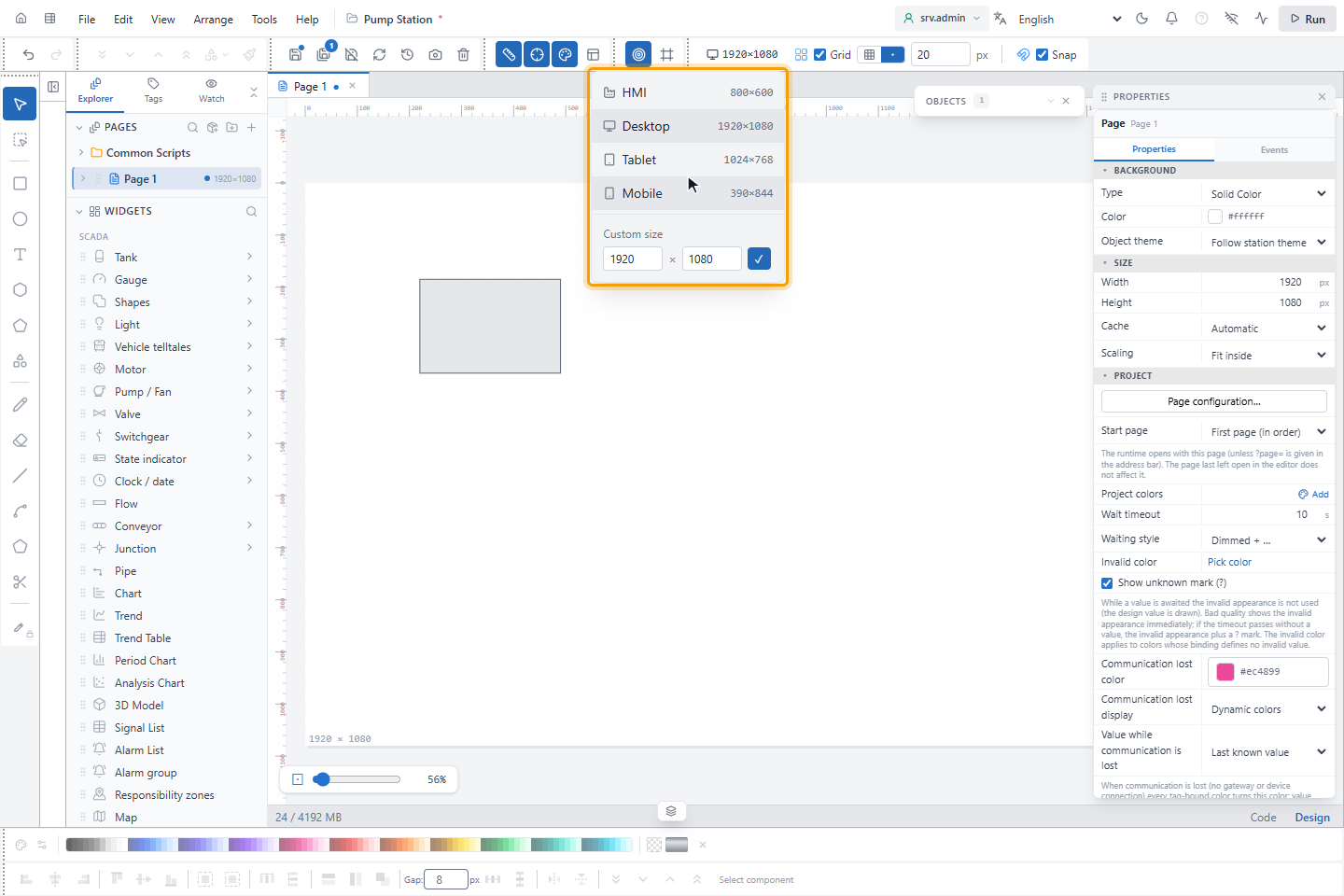
The size of a new project's pages comes from its Priority Device; see Create your first project.
3. Zoom
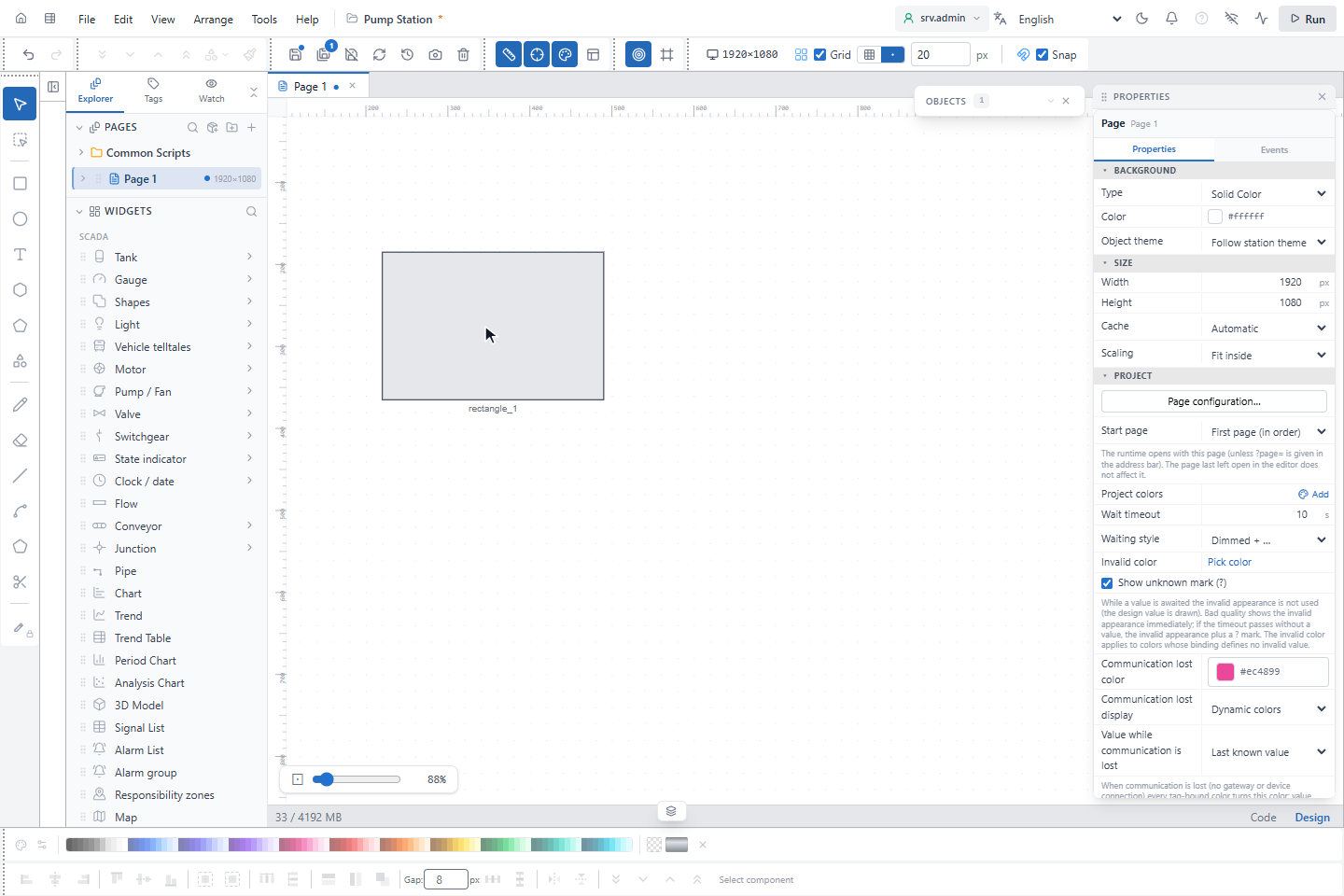
Turn the mouse wheel over the page to zoom around the cursor (10 to 800 %). The slider at the bottom left shows the zoom; Fit to page (⊡) shows the whole page again.
| Keys | Effect |
|---|---|
| Ctrl+=, Ctrl+- | Zoom in, zoom out |
| Ctrl+0 | Fit to page |
| Space + drag, middle mouse button + drag | Move the view |
How pages fit the screen at run time
By default a page keeps its proportions and fits the window of the run screen. The Scaling setting of the page changes this, for example to Shrink only for a page that should never be enlarged; see Pages and page properties. Operators can change their own view with Space+0 (1:1), Space+1 (fit) and Space+2 (stretch); see Navigate and change the view.
Good to know
- Grid display, style and spacing belong to the page; the Snap setting applies to the whole editor.