Backup and restore
YTCC has three separate kinds of backup. A project backup saves the configuration, screens and users of one project in a zip file; you take it on the home page while the project runs. The history database is not part of it and is backed up separately with the PostgreSQL tools. The screen editor also keeps automatic backups of the screens before each save.
Before you begin
- Sign in on the home page as root, the server administrator. Taking and importing a project backup needs this account; without a session, YTCC opens the sign-in window with Sign in with a server administrator account to back up a project. and continues after the sign-in.
- Field monitoring does not stop while a backup is taken. An import stops only the project it overwrites.
Steps
1. Back up a project
On the Projects tab, right-click the project and choose Back up…. To back up several projects, select them and click Back up in the toolbar; the windows then open one after the other.
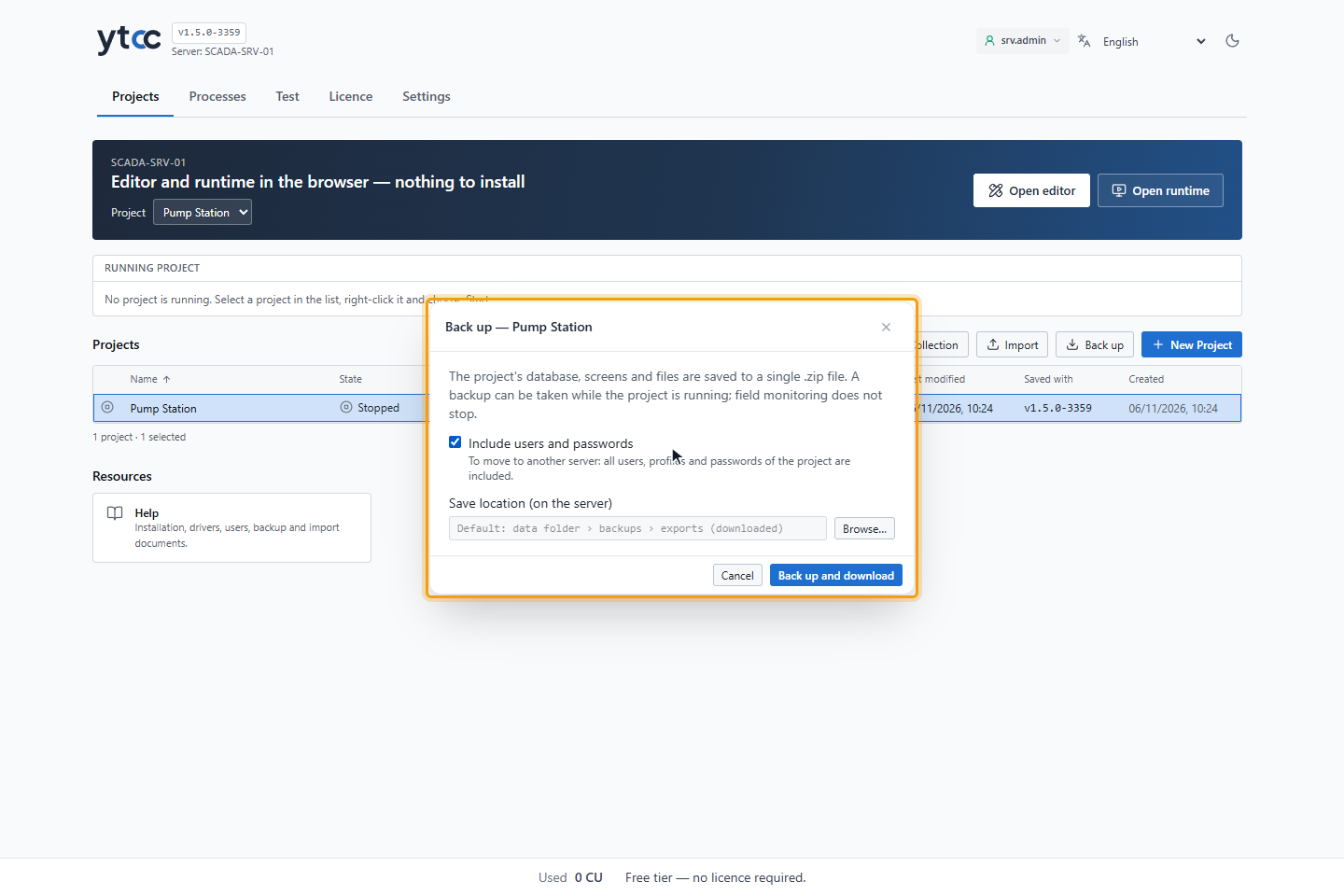
In the Back up window:
- Keep Include users and passwords selected for a full backup that moves the project to another server, with all its users, profiles and passwords. Clear it to make a sample package to give to others: users, passwords, the audit log and old backups are left out.
- Optionally, choose a folder on the server under Save location (on the server): type the full path of an existing folder, or click Browse… and pick it in the Choose save location window (double-click opens a folder). Leave the field empty to use the default, backups › exports in the data folder. A backup saved in a folder you chose is not downloaded; it stays on the server. The browser remembers your last choice.
2. Take the backup and download it
Click Back up and download. The window shows Taking backup… may take a few minutes for a large project. When it
is done, the browser downloads the file, and the window shows Backup downloaded: with the file name and size, and
that a copy is also kept on the server, in the data folder under backups\exports. Click Close.
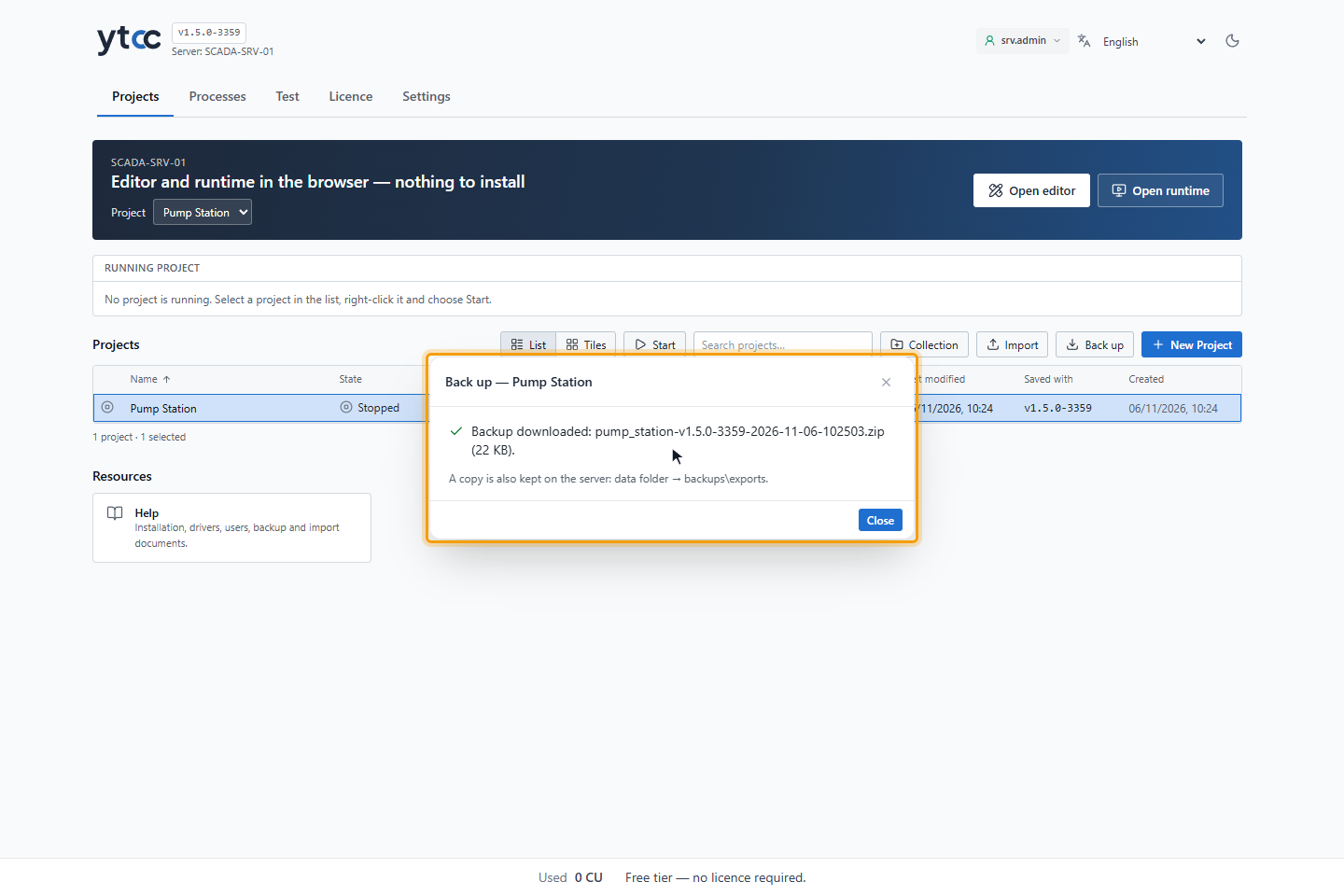
The file name is <project>-<version>-<date>-<time>.zip. Keep the downloaded file somewhere off the server.
3. Restore a project backup
On the Projects tab, click Import in the toolbar and choose the .zip file, or drag it onto the project list.
To restore the backup of one project, you can also right-click that project, choose Import… and choose the file.
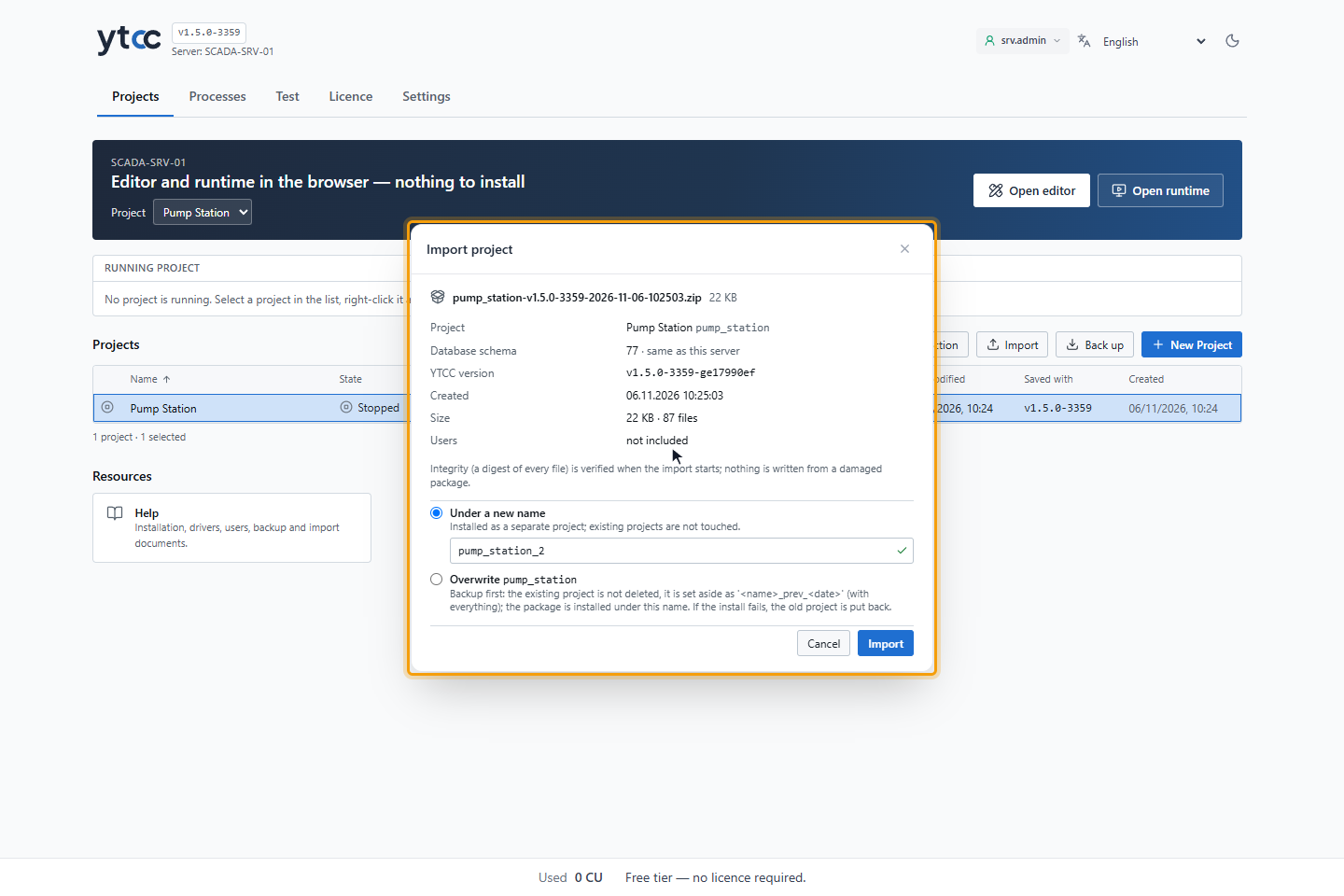
The Import project window shows the summary of the backup; choose Under a new name or Overwrite and click
Import. The details are in Import a project package from the home page.
4. Restore an earlier state of the screens (optional)
Before each save, the screen editor keeps a copy of the previous state of the project. The last 10 are kept. In the screen editor toolbar, click Backups (restore), choose a backup in the Backups window and click Restore. Confirm: the current state is backed up first, then the chosen backup is loaded and saved.
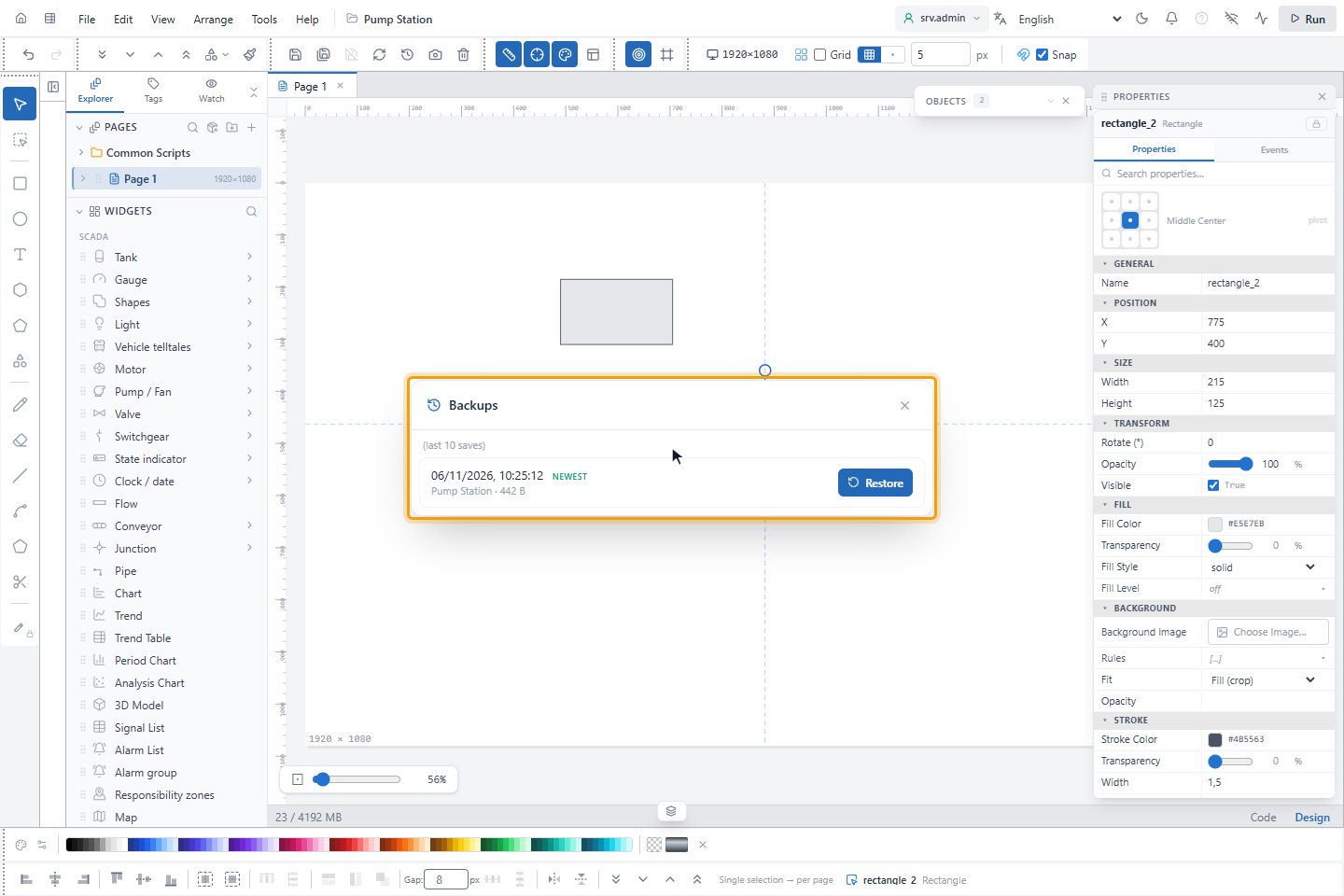
These backups cover the screens only, not the configuration in the project database.
Result
You have a zip file per project, stored off the server, and you know how to restore it. Back up the history databases as well (see Back up the history database).
What a project backup contains
The zip file contains the project database, the project folder with screens and images, the editor's automatic backups, users, profiles, passwords and authentication settings, the authentication audit log, the shared images the project uses and its collection entry.
It does not contain the history and alarm records, open sessions, the server administrator account, the list of
server administrators, the apps\projects-server\.env file of the installation, or the driver key and certificate
files in the project's secrets folder. Keep copies of the secrets folder and .env in a safe place yourself.
Back up a project from the home page
With the default location, a copy of each backup stays on the server, in backups\exports in the data folder of the
projects server. After each new backup, YTCC keeps the 10 newest of these copies per project and deletes the older
ones, because a full backup contains the password hashes of the users. Backups in a folder you chose are not deleted.
For a lasting archive, keep the downloaded file. The number of copies kept is a setting of the installation; see
scada-manager commands.
Every backup and every download of a backup is written to the audit log of the server account, with the account and the client address; see Audit logs.
Import a project package from the home page
The home page imports a project package, or a project backup, while YTCC runs. The other projects keep running during the import.
-
Sign in with the server administrator account (see First start and server administrators). Without a session, YTCC asks you to sign in when the upload starts.
-
On the Projects tab, drag the
.zipfile onto the project list, or click Import in the toolbar and choose the file. While you drag, the list shows Drop the project package. Drop one file at a time; only.zipfiles are accepted. To restore the backup of one project, you can also right-click that project, choose Import… and choose the file. -
The Import project window uploads the package and shows its summary: Project, Database schema, YTCC version, Created, Size and Users (included or not included).
-
Choose how to import:
- Under a new name: the package is installed as a separate project and existing projects are not touched. The
window suggests the package's name, or the name with
_2,_3… when it is taken. The name may contain lowercase letters, digits and underscores, starts with a letter and has at most 51 characters. If the name is still in use on the server when the import starts, for example by a database that is not in the project list, the server does not refuse: it adds_and a two-digit number, for examplepump_station_37, and imports under that name. If the project in the package is already registered on this server, the copy gets a new identity by itself. - Overwrite: replaces the project that has the package's name. This option is available only when such a project exists. If that project runs, tick the confirmation that it will be stopped.
With Import… on a project, Overwrite is selected when the package belongs to that project. When it belongs to another project, the window says The package belongs to project '…'; it cannot overwrite '…'. It will be installed under a new name., and only Under a new name is available.
- Under a new name: the package is installed as a separate project and existing projects are not touched. The
window suggests the package's name, or the name with
-
Click Import (or Overwrite). The window shows the step that runs on the server, for example Installing database and files…, and then Imported.
-
Click Open project to open the project, or Close.
Database schema tells whether the package fits this server: same as this server, upgraded to a newer
version on import, or newer than this server. A package from a newer YTCC version cannot be imported; update YTCC
first. Integrity (a digest of every file) is verified when the import starts; nothing is written from a damaged
package. An installation package made for delivery, with project backups in its projects folder, can also be chosen:
if it holds one project, that project's backup is imported; if it holds several, the import is refused with a message
that names them.
Overwrite does not delete the old project. YTCC stops it if needed, renames it to
<name>_prev_<YYYYMMDD_HHMM> with everything it has (database, users, history) and installs the package under the
original name. If the install fails, the old project gets its name back. When the import is done, the window gives the
new name after The old project is set aside as:. Delete the set-aside project from the project list once you no
longer need it. If the project to overwrite has user login turned on, overwriting needs a user of that project with the
permission to manage users; YTCC asks you to sign in as one.
| Limit | Value |
|---|---|
| Package size | 2048 MB |
| Imports at the same time | One. A second import is refused with Another import is in progress; try again when it finishes |
| Uploaded package that is not imported | Deleted after 24 hours |
The start and the result of every import from the home page are written to the audit log of the server account.
Content packages
A content package is a project package that new projects can start from: a sample project or a customer template.
YTCC lists the .zip files in the templates folder of the installation, for example C:\ytcc\v15\templates, and in
the templates folder of the projects server's data folder.
-
Back up the project as in step 1, with Include users and passwords cleared, and choose the
templatesfolder of the installation under Save location (on the server). The folder must exist; create it in Windows Explorer if needed, as administrator. -
Optionally, put a JSON file with the same name next to it, for example
pump-demo.jsonnext topump-demo.zip:{ "title": "Pump station demo", "kind": "sample", "description": "Two pumps, alarms and trend pages." }kindissampleorcustomer. Without the JSON file, the package is listed as a sample under its file name.
The packages appear under Content in the New Project form, grouped into Example and Customer template. A project made from one gets the package's screens and configuration, and the users, roles and passwords the package contains. Each project made from a package is a copy with a new identity, so the same package can be used for several projects. The quick start that YTCC offers at the first sign-in installs a sample package; with several, you choose one. A setup program that carries sample packages imports them during a new installation (see Install with the setup program). A package that cannot be read is not listed.
Back up the history database
The history database, scada_hist_<project> (scada_v15_hist_<project> in the line v15), is a separate PostgreSQL
database. Back it up with the PostgreSQL tools, in a command prompt opened as
administrator on the server, for example:
& "C:\Program Files\PostgreSQL\18\bin\pg_dump.exe" -Fc -U postgres -f D:\backup\pump_station-history.dump scada_v15_hist_pump_station
pgAdmin, installed with PostgreSQL, does the same with Backup… on the database. The name of each project's history
database is shown by scada-manager version --json (see scada-manager commands).
Good to know
- The command line can take and import the same project backups, for example for a scheduled backup task; see
scada-manager commands. If an import from the command line was interrupted,
scada-manager import --cleanup <project>removes its leftovers. - When the disk runs out of space, the disk protection deletes old backups; see Disk and history protection.