Copy, paste and format objects
Repeating objects and their look is a large part of building screens. The screen editor pastes where you point, carries images along between projects, and transfers styles from one object to others without touching their data.
| Keys | Action |
|---|---|
| Ctrl+C, Ctrl+X, Ctrl+V | Copy, cut, paste |
| Ctrl+D | Duplicate |
| Ctrl + drag | Drag a copy |
| Ctrl+Alt+C, Ctrl+Alt+V | Copy Style, Paste Style |
Before you begin
- The page has the objects to copy or format.
Steps
1. Copy and paste at the cursor
Select an object, press Ctrl+C, point where the copy should go and press Ctrl+V. The copy is centred on the cursor and gets a new name. Without the cursor on the page, the copy is placed slightly offset from the original.
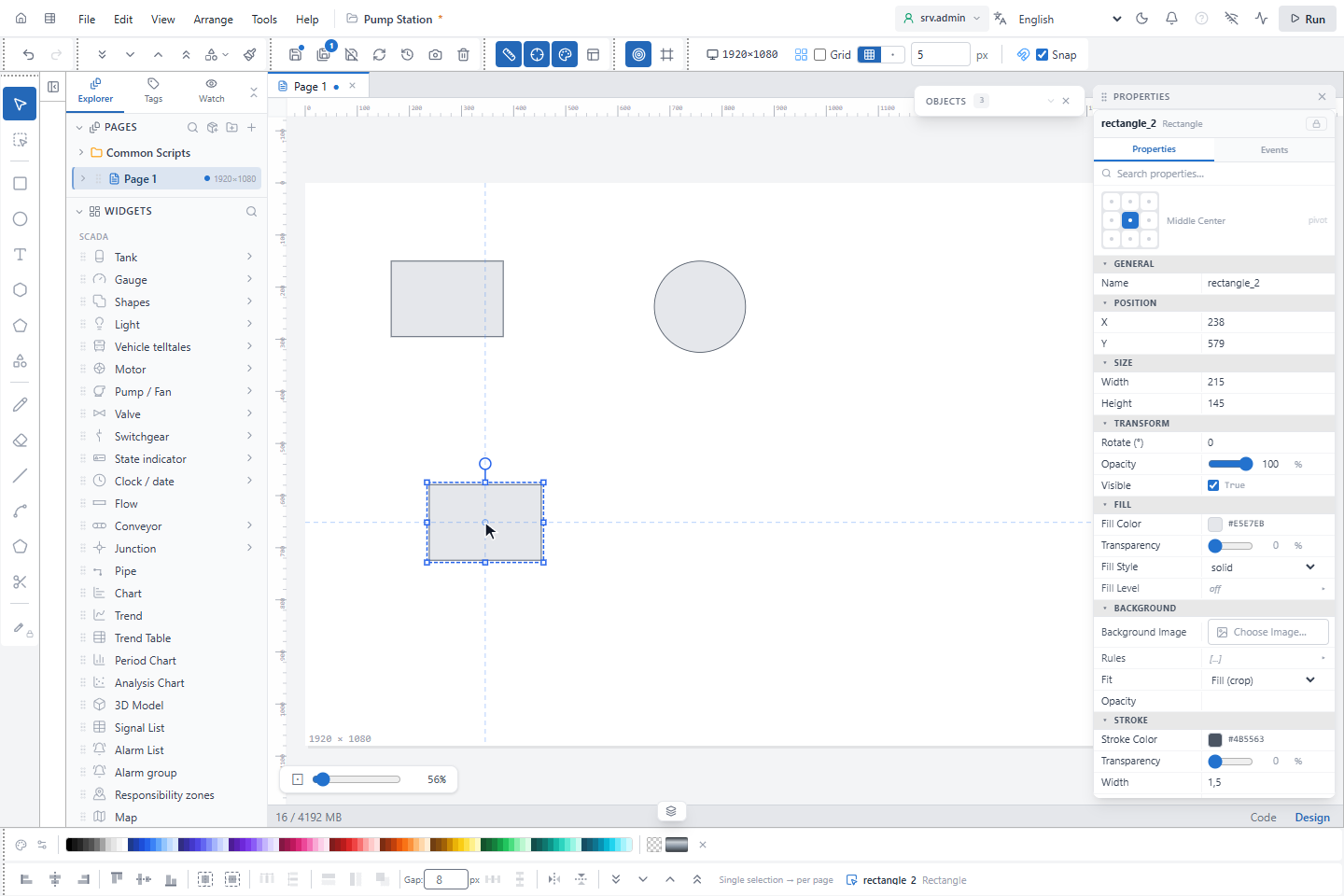
Pasting into another project also copies the images used by the objects into that project, and project colors are matched to the colors of the target project.
2. Color with the color strip
Select an object and click a color in the strip at the bottom: it becomes the fill. Shift+click sets the border or line color. Objects without a fill, such as lines, take the line color.
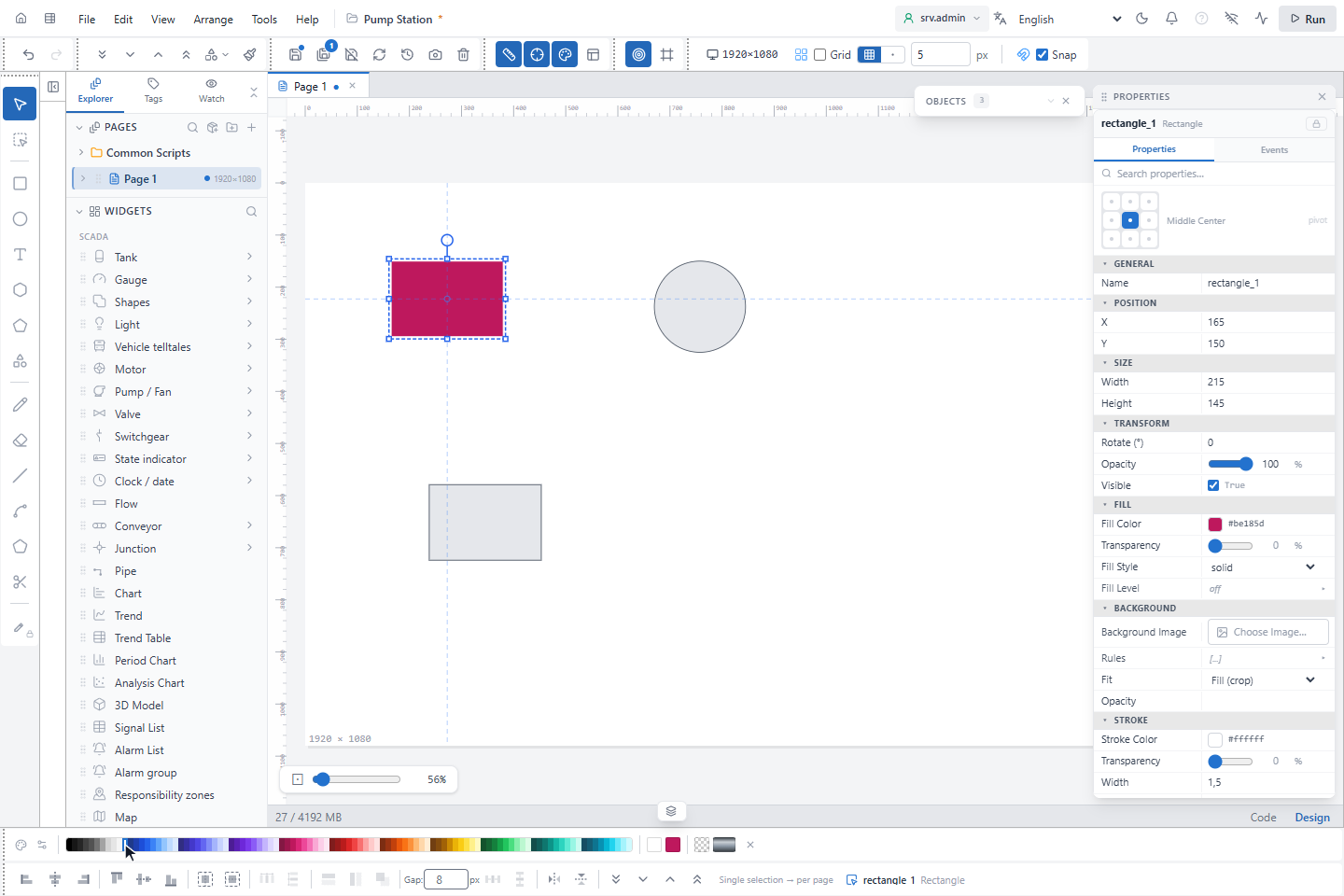
The strip starts with the project colors (Edit project colors manages them), then tone ramps, recently used colors, Transparent and Gradient presets; Hide color strip closes it.
3. Use the Format Painter
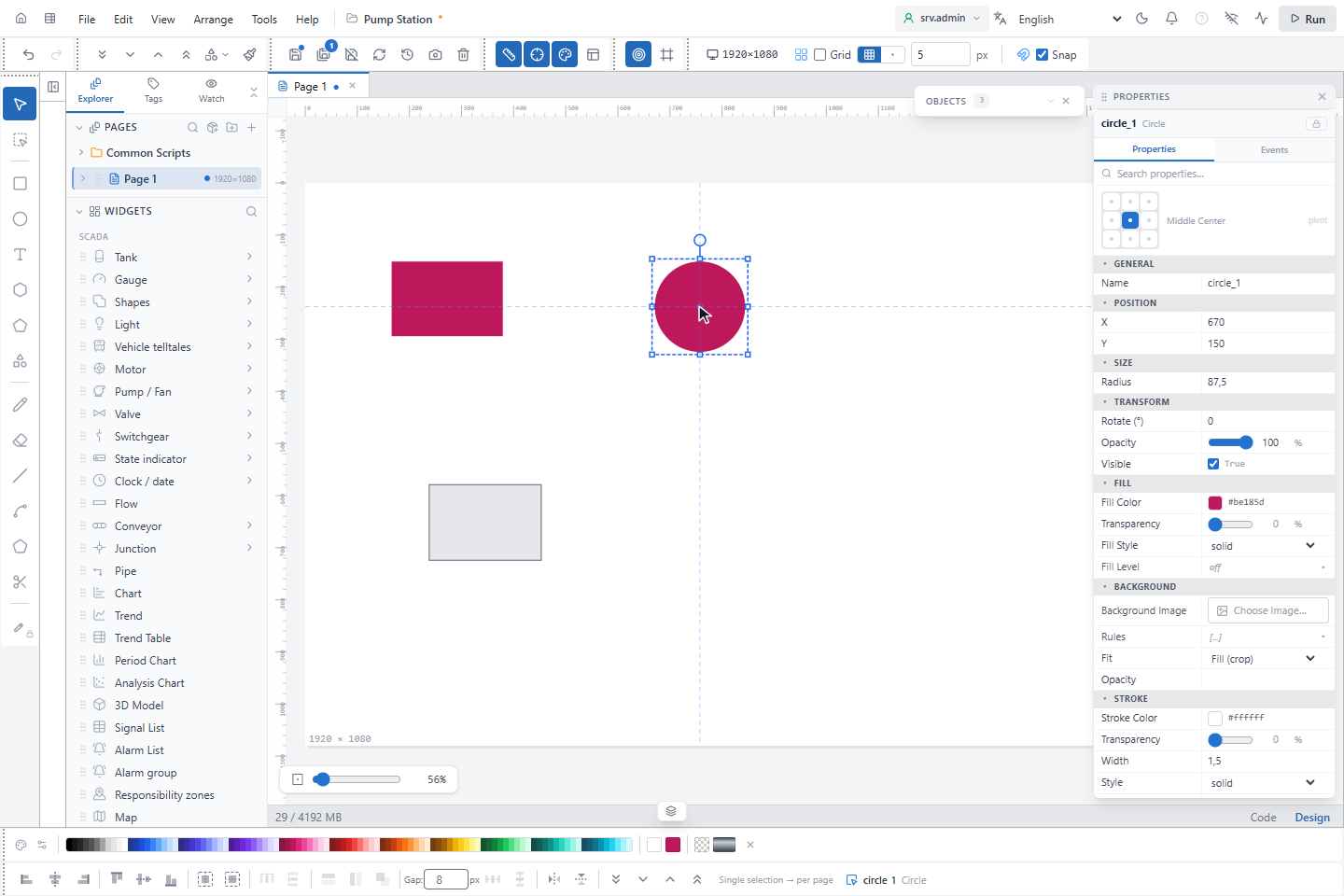
Select the object whose look you want to copy and click Format Painter in the toolbar, then click the object to format. A single click formats one object; a double-click on the button keeps the painter on until you press Esc.
4. Copy and paste the style
Copy Style and Paste Style in the context menu (Ctrl+Alt+C / V) do the same for several objects at once: Paste Style applies the copied style to all selected objects.
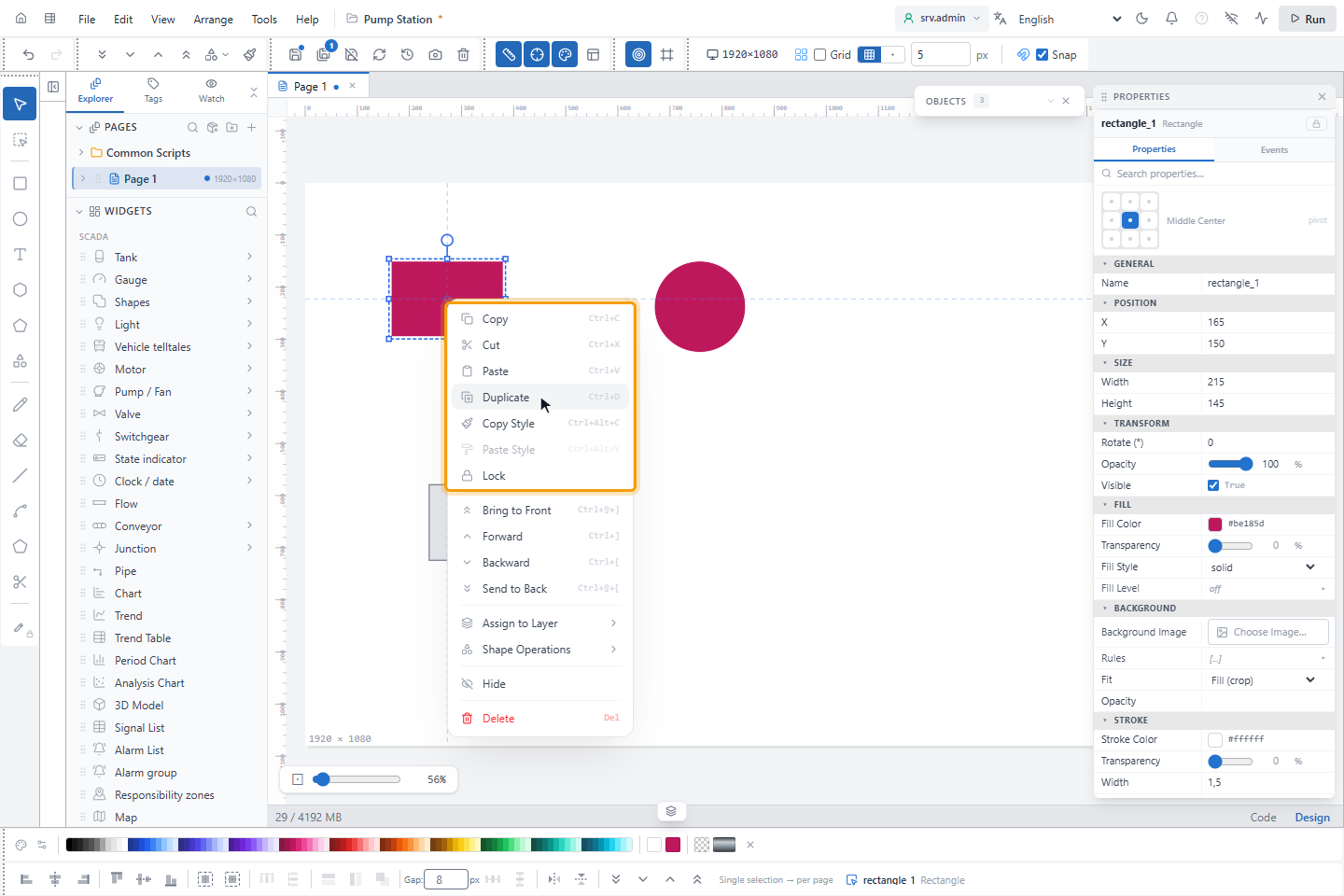
The style covers fill, border, font, appearance, ends, shadow, glow, corners and opacity, also between different types, for example the line color of a line to the border of a rectangle. Position, size, name, text, signal bindings, events and animations are not copied; a color bound to a signal is copied as its design value.
Good to know
- Ctrl+D goes through the clipboard: it replaces what you copied before. Ctrl + drag does not.
- Locked objects are not changed by Paste Style.