Connect an AI assistant
An AI assistant connects to the AI server of YTCC on the same computer, at http://127.0.0.1:8774/mcp, with an access
key. The Client connection section of the AI access (MCP) view gives everything needed for Claude Desktop,
Claude Code and other MCP clients.
Before you begin
- AI access is on in the project and you have an access key; see Turn AI access on and create a key. Keep the key at hand: it is shown only in the browser tab where it was created.
- The assistant runs on the YTCC server itself. The AI server does not accept connections from other computers.
Steps
1. Open the client connection
In the AI access (MCP) view, open Client connection and click the row of your key in the key list. The section shows the selected key, masked, the Connection name and the settings for each kind of client.
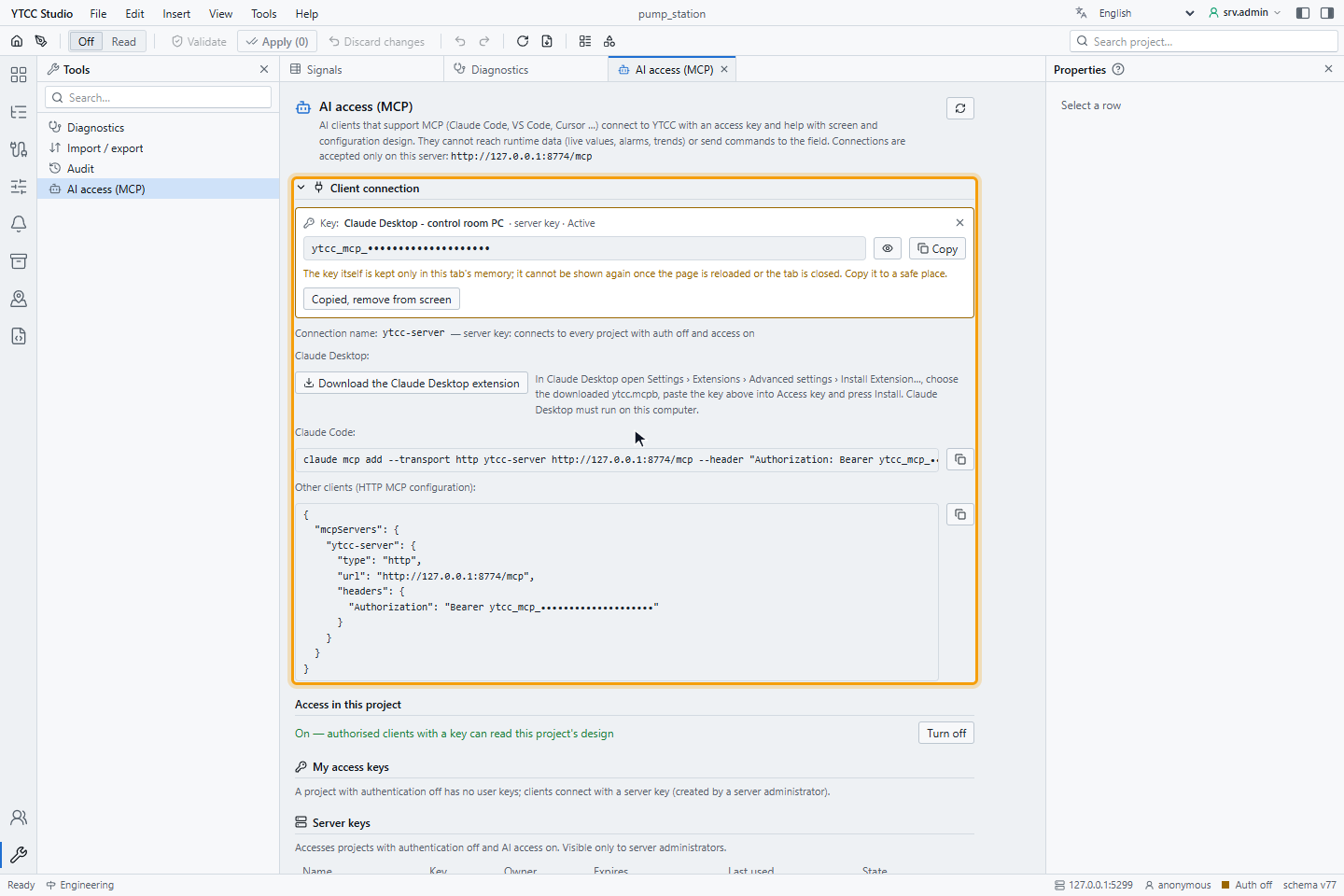
The connection name is the name under which the project appears in the assistant: ytcc-<project> for a project key,
for example ytcc-pump-station, and ytcc-server for a server key. On one computer, add each project under its own
name.
2. Connect Claude Desktop
- Click Download the Claude Desktop extension. The browser saves the file
ytcc.mcpb. If the server cannot supply the file, the reason is shown in red below the instructions. - In Claude Desktop, open Settings › Extensions › Advanced settings › Install Extension… and choose the file.
- Paste the access key into Access key and click Install.
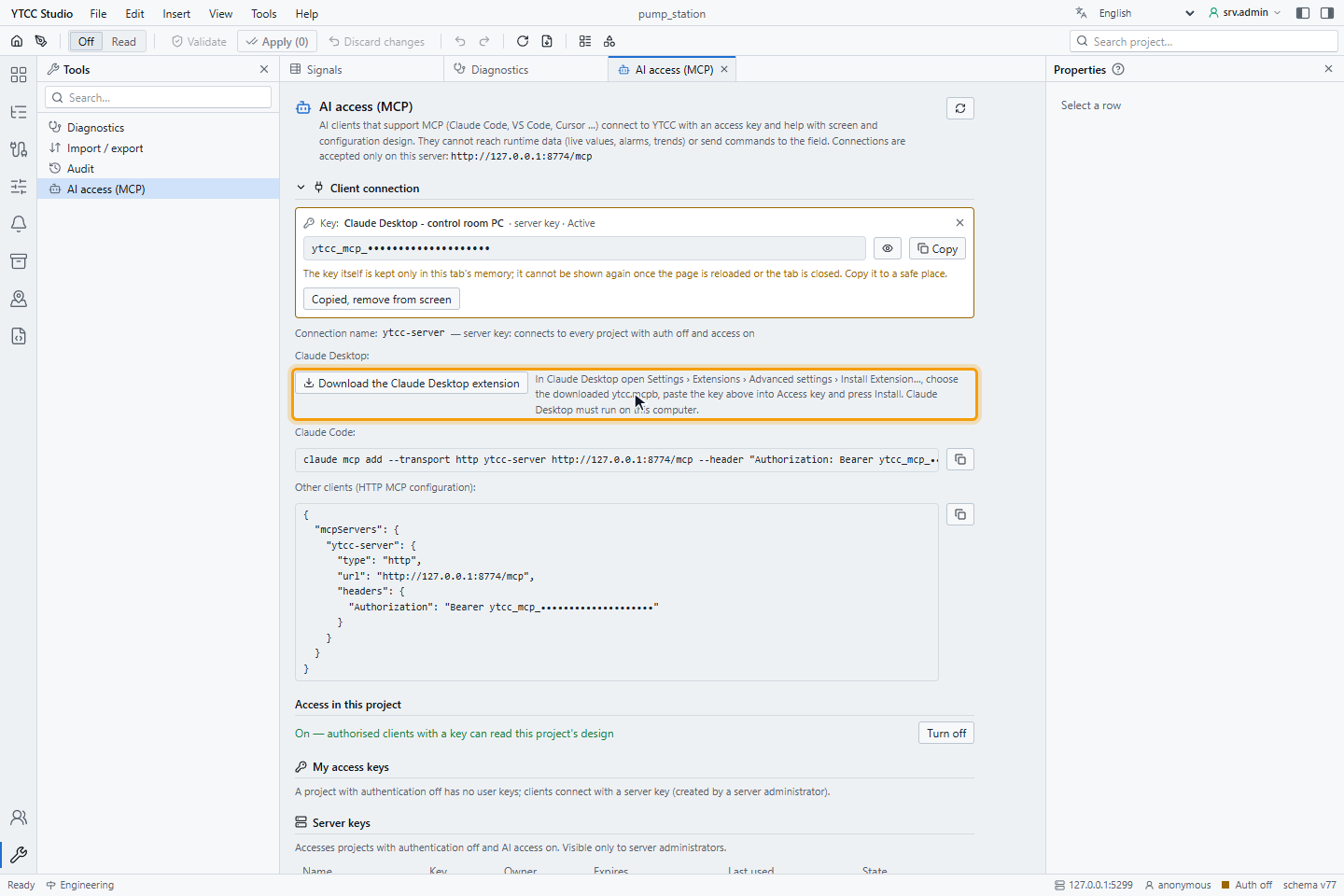
The file contains no key and is the same for every user; the key is entered only in Claude Desktop, which keeps it as a
sensitive setting. The second field of the extension, YTCC AI server address, is http://127.0.0.1:8774/mcp by
default. Change it only when this installation uses a suggested port block; the AI server then listens on the fifth
port of the block, for example http://127.0.0.1:8874/mcp (see
Install versions side by side).
3. Connect Claude Code or another client
For Claude Code, copy the command of the section and run it in the terminal where you use Claude Code:
claude mcp add --transport http ytcc-pump-station http://127.0.0.1:8774/mcp --header "Authorization: Bearer <KEY>"
For VS Code, Cursor and other clients that support MCP over HTTP, copy the JSON under Other clients (HTTP MCP configuration) into the MCP settings of the client:
{
  "mcpServers": {
    "ytcc-pump-station": {
      "type": "http",
      "url": "http://127.0.0.1:8774/mcp",
      "headers": { "Authorization": "Bearer <KEY>" }
    }
  }
}
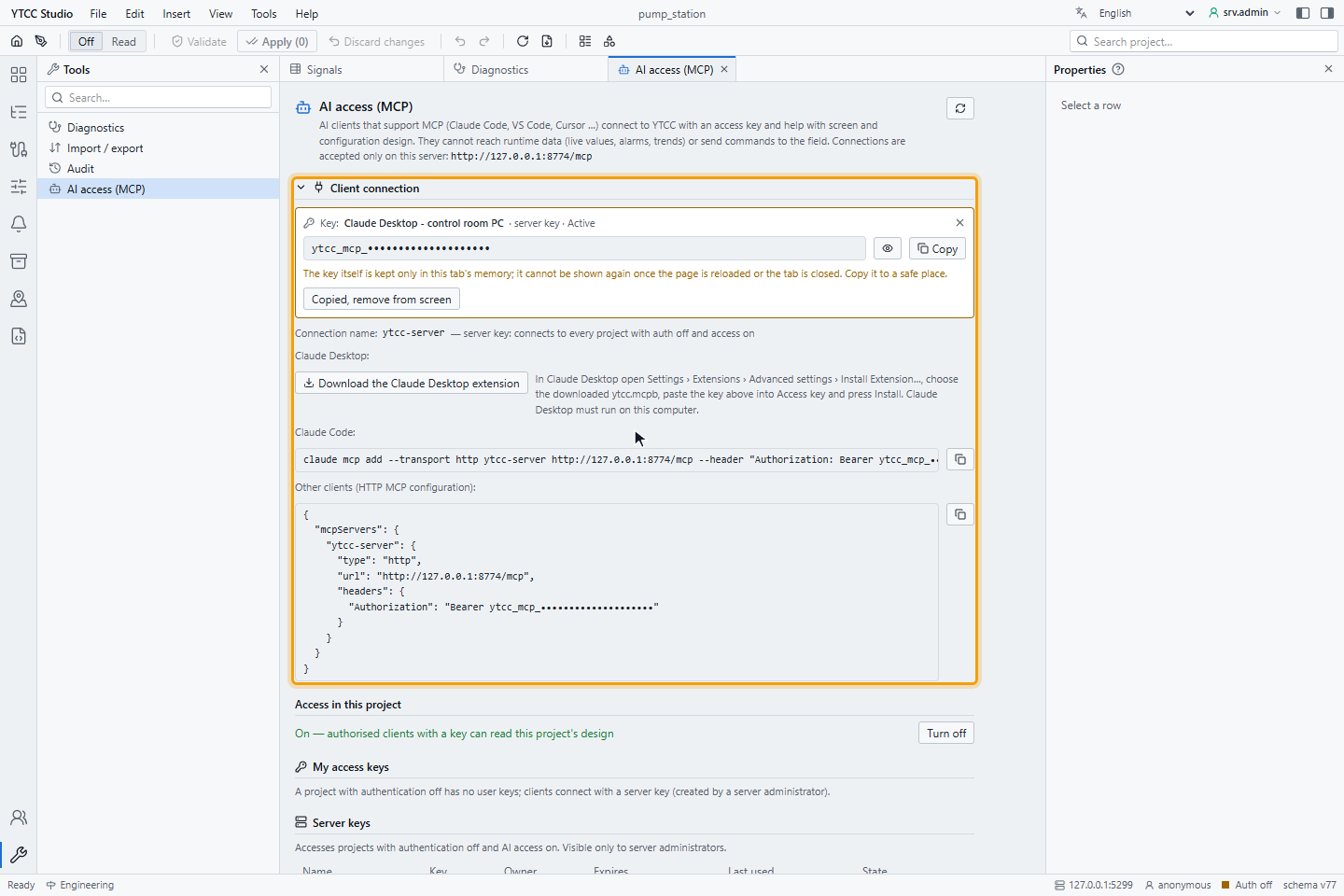
While the key is masked, the command and the JSON show it masked too, for example ytcc_mcp_••••abcd; with no key
selected they show <KEY>. The copy buttons copy the text with the real key while it is still in the tab; otherwise put
the key in by hand.
Check the connection
Ask the assistant to list the YTCC projects. It answers with the projects it can reach: with a server key, every project without user login that has AI access on; with a user key, the project of the key. The Last used column of the key shows the time of the last request.
Result
The assistant is connected and can read the design of the project. Ask it for a screen, or see What the assistant can do.
Troubleshooting
The AI server answers a refused request with an error code. The table gives each code with its cause.
| Code | Cause | Solution |
|---|---|---|
| The client sends no key | The Authorization header is missing. | Check the Authorization header in the client settings. |
mcp_key_invalid, mcp_key_expired | The key was mistyped, regenerated or has expired. | Create or regenerate the key and update the client. |
mcp_project_denied | Access is off, or the key belongs to another project. | Turn access on, or use a key of this project. |
mcp_session_invalid | The key was revoked, has expired or access was turned off during the session. | Turn access on again or use a valid key. |
mcp_phase_commissioned | The project is in the Commissioned phase. | Change the phase to Engineering with Project phase… if changes are intended. |
mcp_not_allowed | The assistant tried something outside design, such as scripts or users. | Do it in the editor yourself. |
rate_limited | More than 120 requests, or 60 changes, in one minute. | Wait a minute. |
upstream_unavailable | YTCC or its project server is not running. | Check that the YTCC service runs; see the Processes tab of the home page. |
| The client cannot connect at all | The assistant runs on another computer, or the address has the wrong port. | Run the assistant on the YTCC server and check the port. |
Good to know
A key is turned into a session of five minutes for each project; revoking a key or turning access off applies to the next request.