Popups
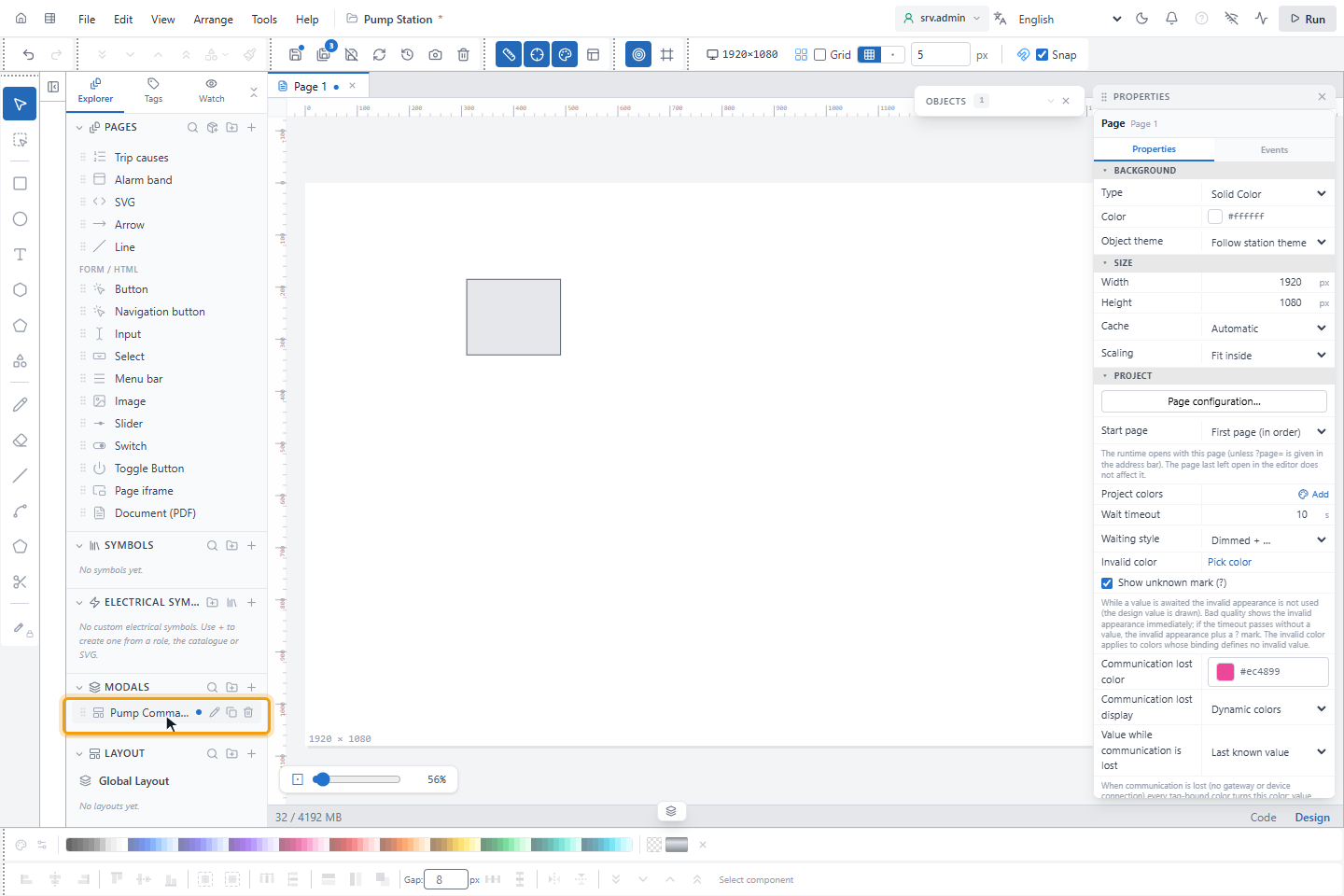
A popup is a small window that opens over the page, for example a command window for one pump. The editor lists popups under MODALS. Like a symbol, one popup can serve many objects when you give it parameters.
Before you begin
- The project is open in the screen editor, and the page has the object that will open the popup, for example a button. See A tour of the screen editor.
Steps
1. Create the popup
Click New item (+) in the MODALS header. A name box opens with New Modal in it. Type the name, for
example Pump Command, and press Enter. A new popup is 480 × 320 px.
2. Draw the popup content
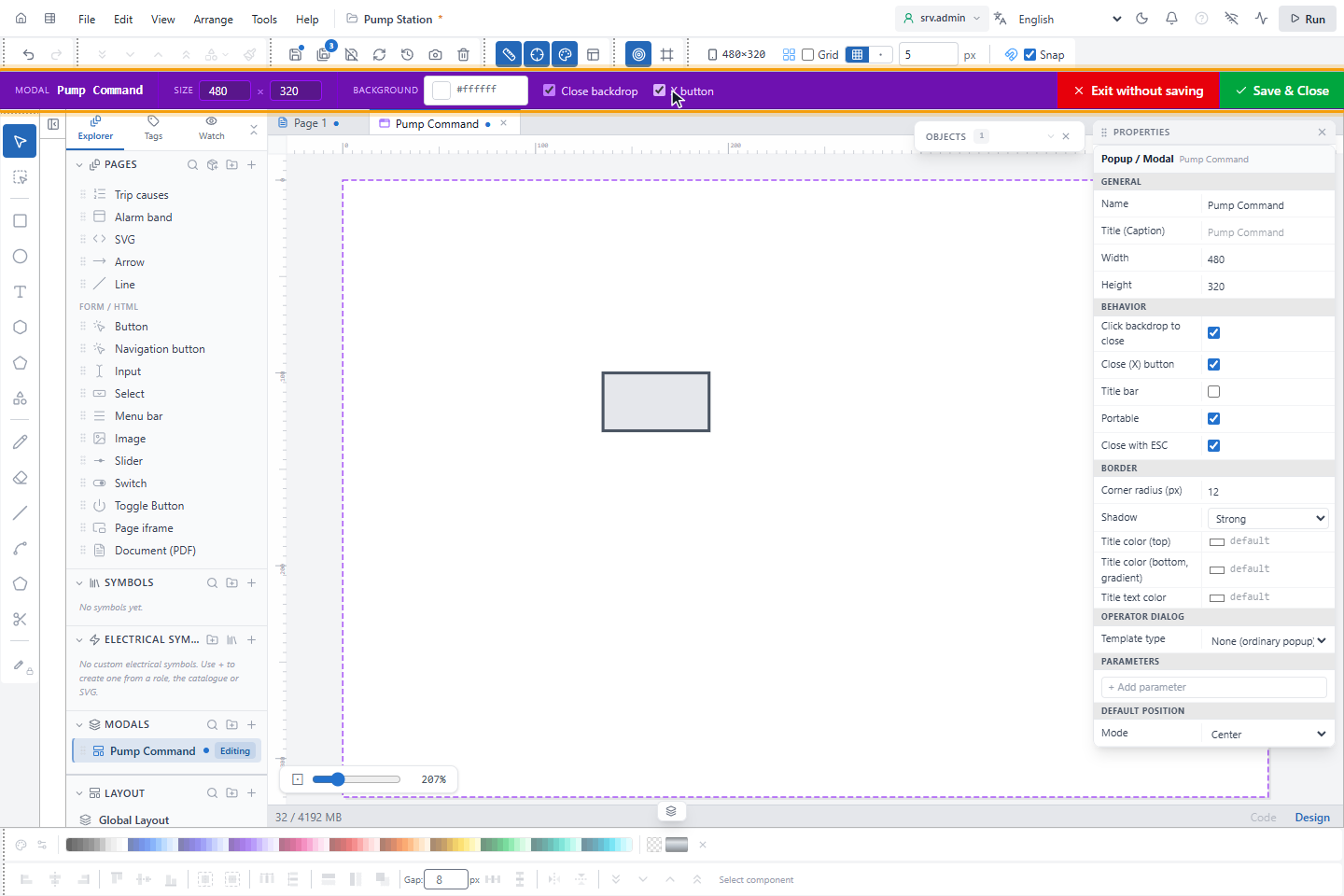
Double-click the popup in MODALS to edit it. A purple bar at the top holds its Size, background and the Save & Close and Exit without saving buttons. Draw the content with the usual tools.
3. Set how the popup behaves
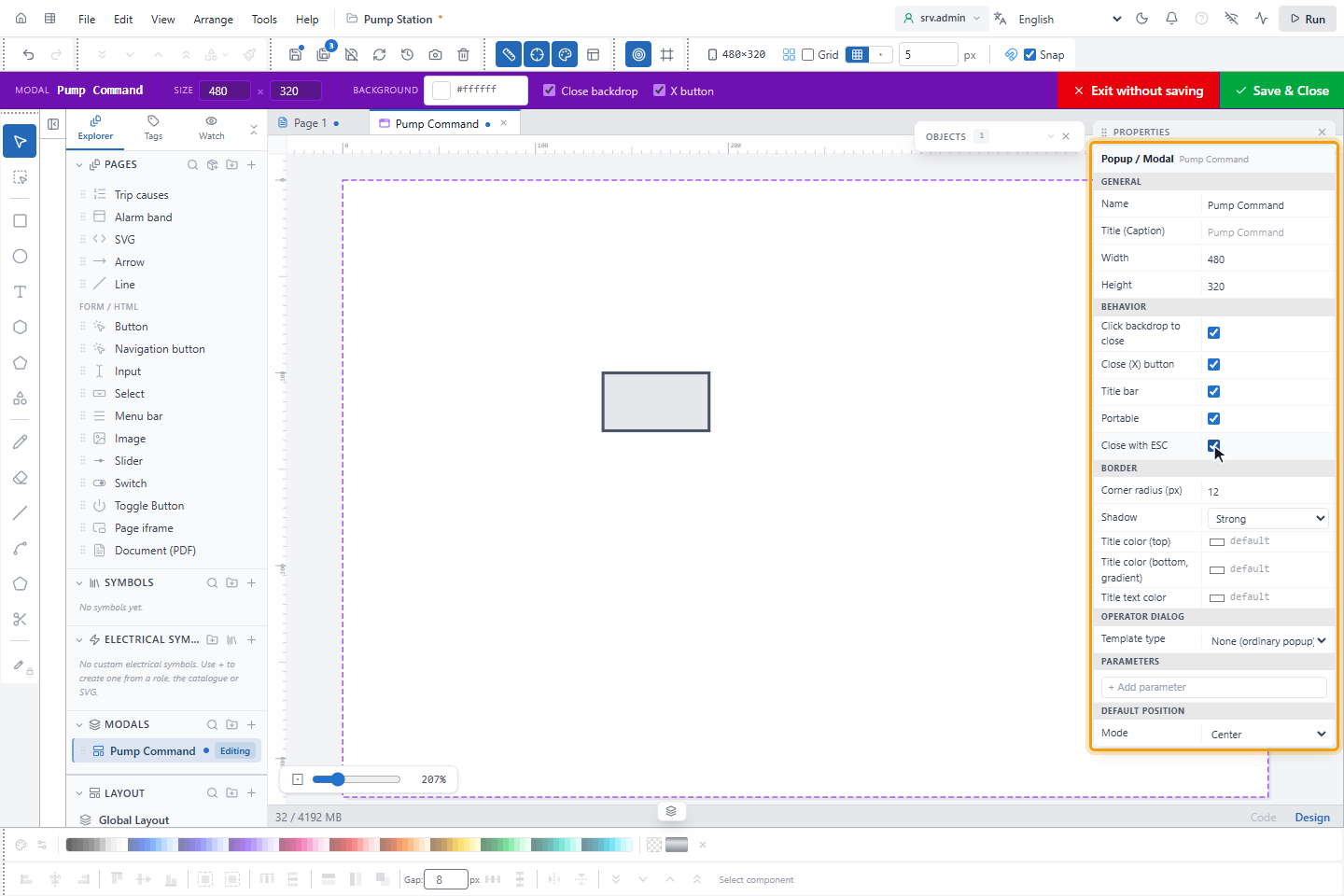
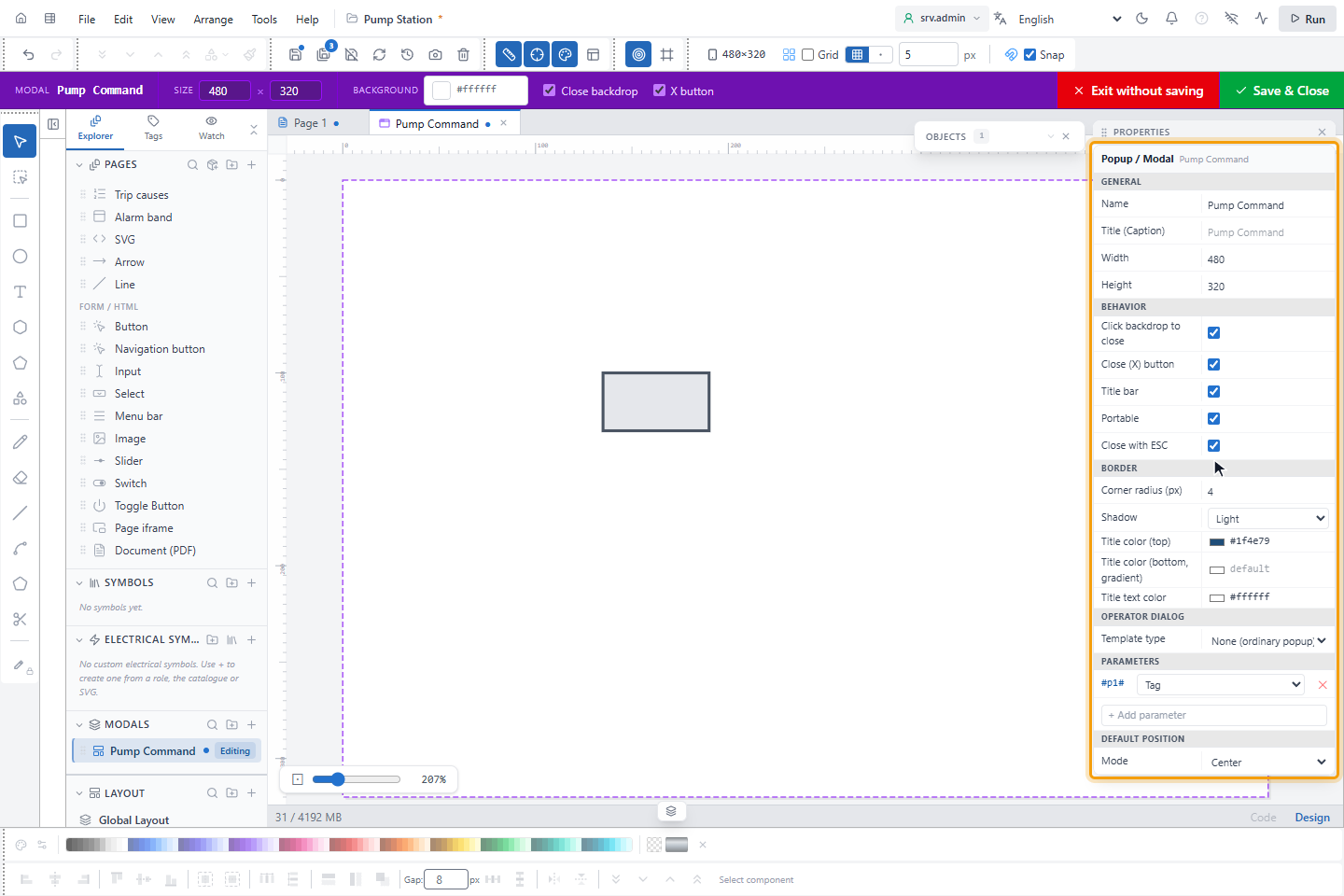
With nothing selected, the PROPERTIES panel shows the popup. Under GENERAL, Title (Caption) is the text in the title bar; the name is used when it is empty. Under BEHAVIOR:
| Setting | Default | Meaning |
|---|---|---|
| Click backdrop to close | on | A click outside the popup closes it. Whether the page behind is dimmed is a setting of the station: Settings › Popups and dialogs › Dim the background on the home page, off by default. |
| Close (X) button | on | Shows a close button. |
| Title bar | off | Shows a title bar with the caption. |
| Portable | on | The operator can move the popup by dragging its title bar. Without Title bar, the operator drags the popup by its background and decorative objects; buttons, input boxes and labels with a click action keep working. |
| Close with ESC | on | Esc closes the popup. |
4. Style the frame (optional)
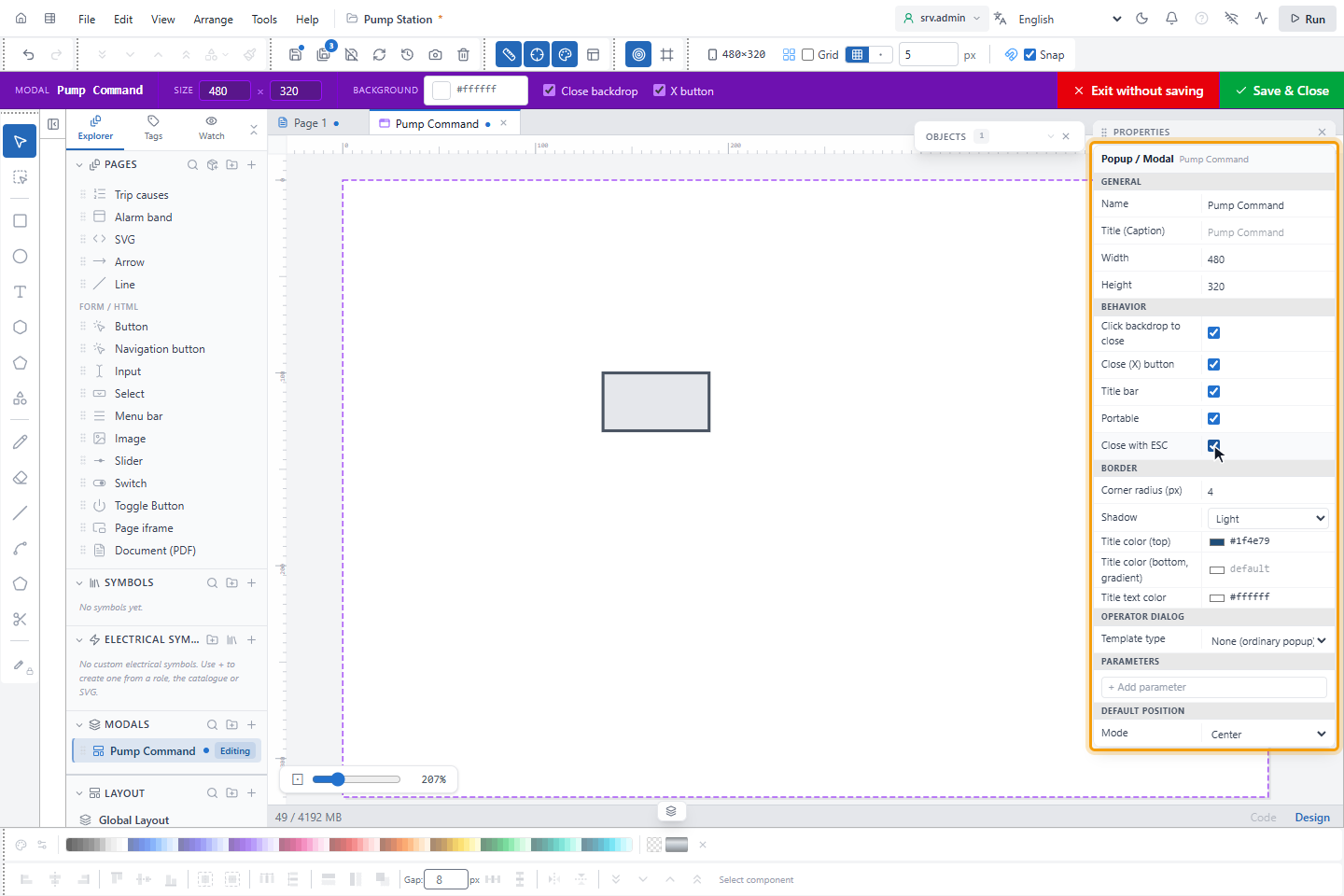
Under BORDER:
| Setting | Default | Meaning |
|---|---|---|
| Corner radius (px) | 12 | 0 to 64 |
| Shadow | Strong | Strong, Light or None |
| Title color (top) | empty | Fill of the title bar |
| Title color (bottom, gradient) | empty | With a top color, the title bar gets a vertical gradient |
| Title text color | empty | Color of the title text |
The color fields take a color from the color box or typed text. Clear the text to go back to the default: a dark grey title bar with white text. If you set only Title text color, the title bar has no fill.
5. Add parameters (optional)
Under PARAMETERS, type a name in + Add parameter, for example p1, press Enter and choose the type:
Tag, Text, Number or Color. Inside the popup, write #p1# wherever the value should go, for example
#p1#.speed in a signal binding. Use letters, digits and _ in parameter names. The
signal picker writes these paths for you.
6. Choose where the popup opens
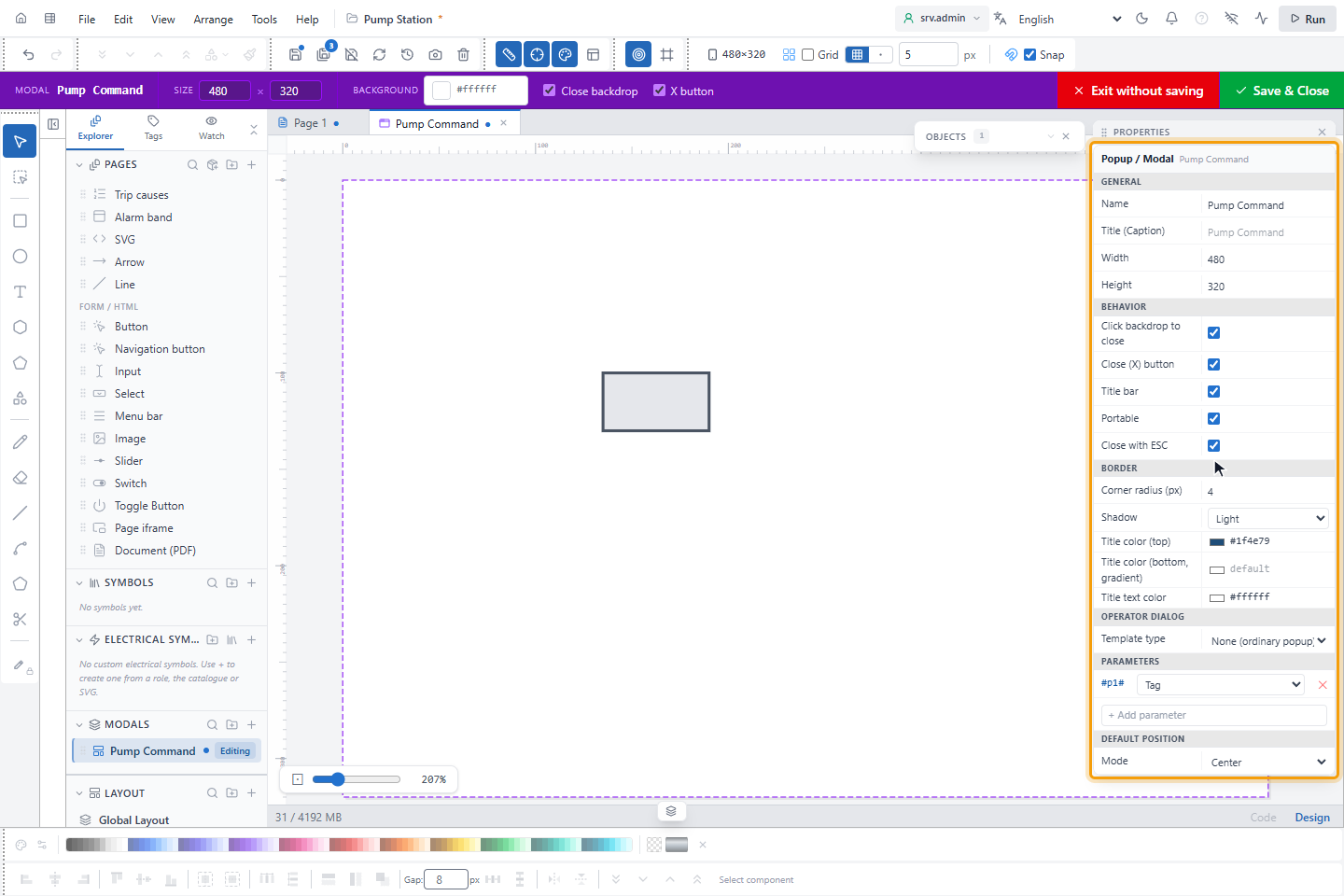
DEFAULT POSITION sets where the popup appears:
- Center: in the middle of the screen (default).
- By clicked object or By clicked point: next to the object or the point that was clicked. The 3 × 3 Corner grid chooses on which side. The default cell, bottom right, opens the popup to the right of and below the object or point; the middle cell centres it there. Offset X / Y moves it further away.
- Fixed (x,y): at a fixed place on the screen.
The popup is always kept inside the screen, 8 px from its edges. By clicked object and By clicked point need a click. A popup opened without one, for example from a script, uses the x and y it was given, or else the middle of the screen. Click Save & Close when you are done.
7. Open it from a button
Select the object that opens the popup and open the Events tab in PROPERTIES. In onClick (Modal), choose the popup. A row appears for each parameter; type the value for this object, for example the signal path of the pump.
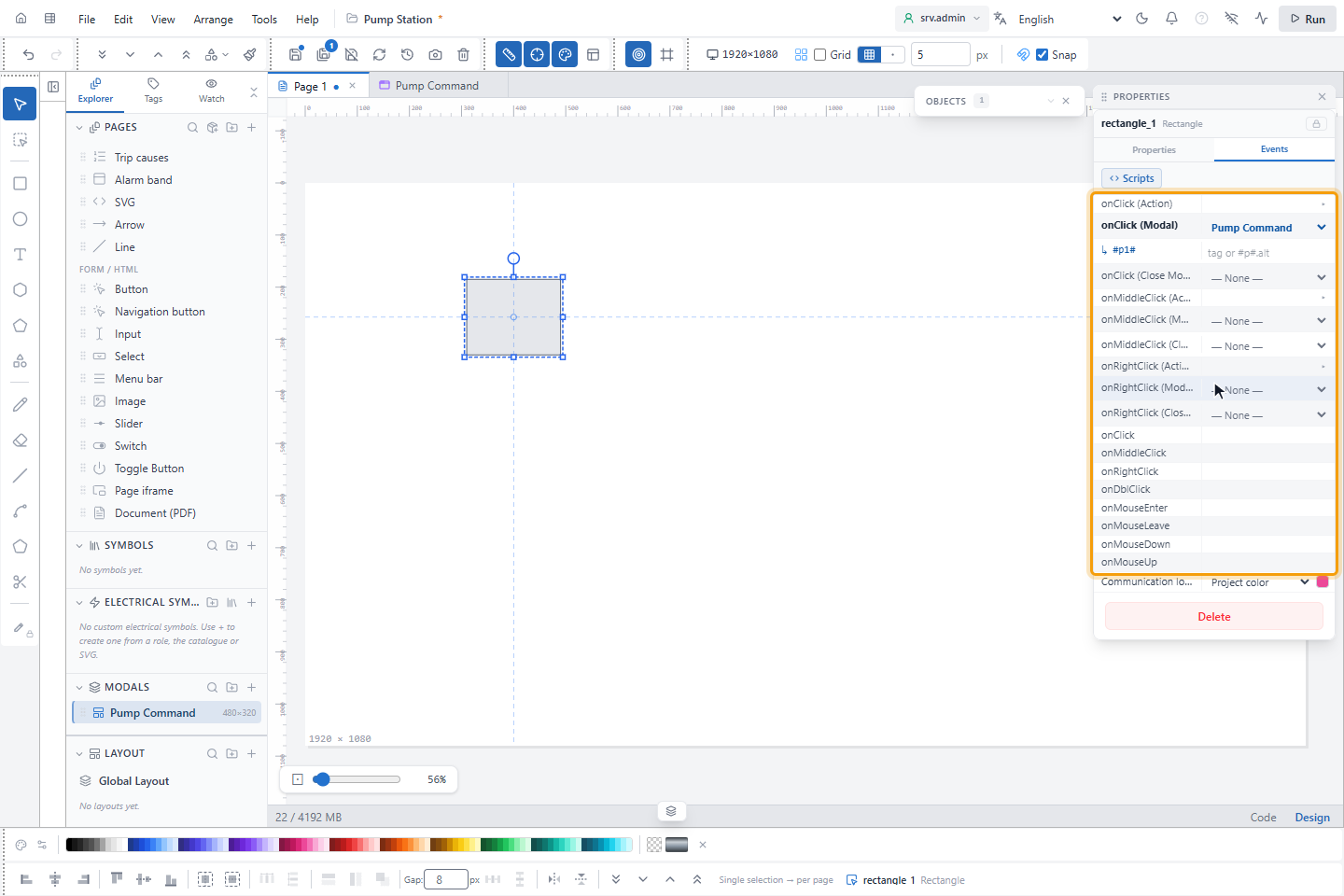
For more control, use the Open Popup action instead; there you can also choose the position for this button. See Click actions. onClick (Close Modal) closes a popup with a click. So does a Close Popup action on a button inside the popup: without Close all it closes the top popup, which is the popup of the button.
8. Try it in a test run
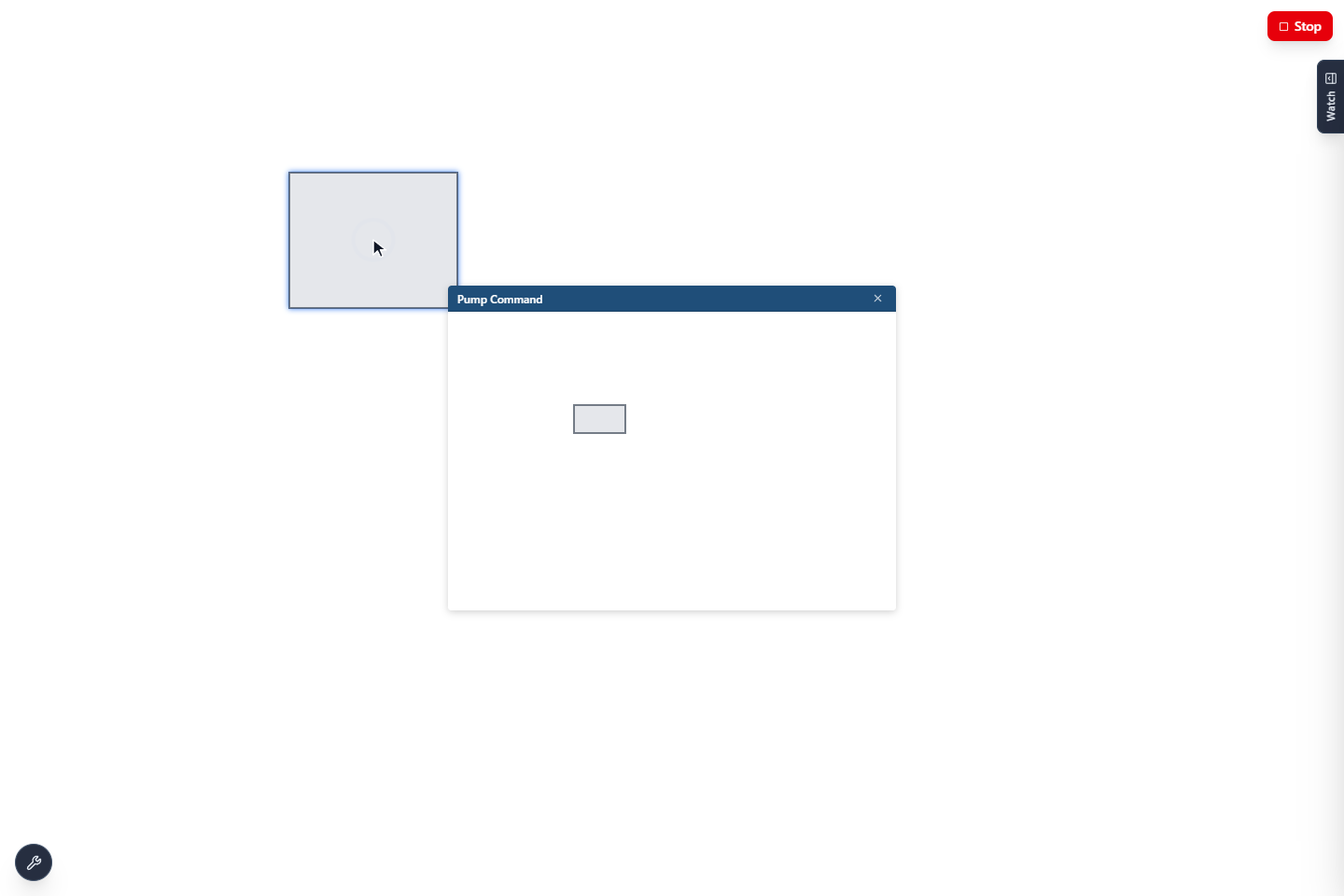
Click Run and click the object: the popup opens. Close it with its × button. In the editor's test run, Esc closes the popup and ends the test run at the same time; on the runtime screen it closes only the popup.
Result
A click on the object opens the popup with this object's parameter values.
How popups behave on the runtime screen
- Clicking the same object again does not open a second copy; the open one comes to the front. Another object opens its own copy, so several popups can be open, stacked.
- An open popup receives the values of its own signals. When it closes, they are no longer requested.
UI.setandUI.getin an event script of a popup object look for the name among the objects of that popup first, then on the page.
Input boxes in a popup
An input box in a command popup can show the current value and work with the keyboard alone. Select the input box and set these fields; Input lists all its properties.
| Field | What it does |
|---|---|
| Initial value signal | Shows the value of this signal in the box when the popup opens. It can be a parameter such as #p1#. It is only read; the operator's entry goes to Bound Tag. |
| Initial value format | The number format of that value, such as %0.1f. Only the number part counts: with %0.0f kW the box shows 125 without the unit. |
| Select all on focus | Selects the text when the box gets the focus, so that typing replaces it. |
| Focus on open | Puts the cursor in this box when the popup opens. |
| Click on Enter (object name) | Enter clicks the object of that name in the same popup, for example the OK button, in the same way as the mouse. It works on the runtime screen and in a test run. |
| Text alignment | left, center or right. A number box aligned to center has no spin buttons. |
How the initial value behaves:
- The box stays empty until the value arrives, and also when the value is not a number.
- It does not overwrite what the operator has already typed.
- A number box always uses
.as the decimal separator; a text box uses the decimal separator of the project.%dcuts off the decimals in a number box. - The initial value is not a command. If the operator leaves the box unchanged, nothing is written to the signal.
An event script can also fill the box once with UI.set("Setpoint", "value", 50); see
Client script API. The operator can type over that value, and when the popup closes it is
gone, so the initial value shows again the next time.