Import a screen package
A screen package is a zip file or a folder with pages, parameterised symbols, popups, layouts and the images they use, prepared outside the project. Importing it adds these items to the open project without overwriting anything.
A screen package is not a project package. To import a whole project, a backup or a project package .zip, drag it onto
the project list of the home page; see
Import a project package from the home page.
Before you begin
- The project is open in the screen editor. See Open a project.
- You have the package: a zip file or a folder with a
manifest.jsonfile at its top level or in a single top folder.
Steps
1. Open the import window
In the left panel of the screen editor, click the package icon (Import package…) in the PAGES header, next to the search icon.
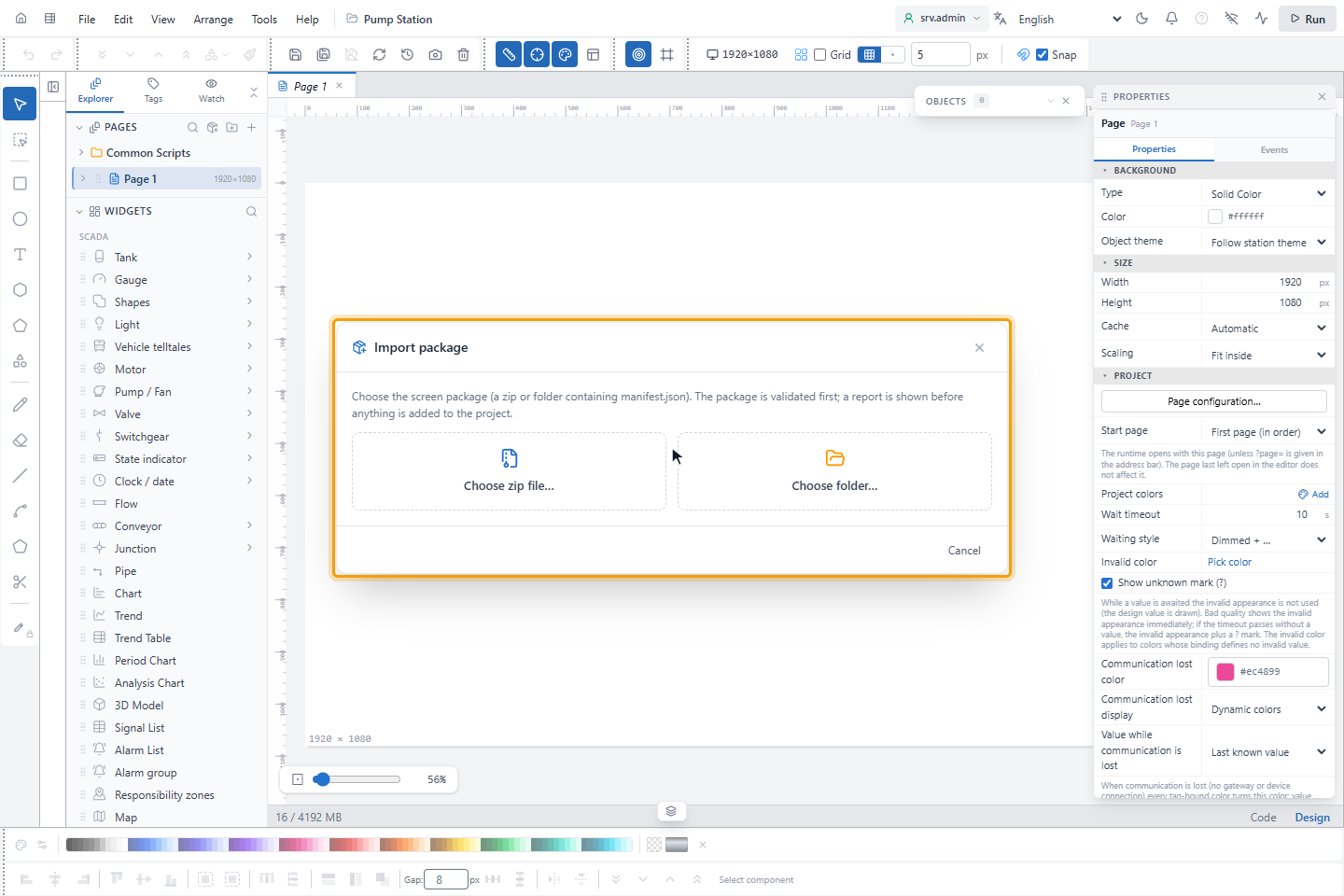
The Import package window opens.
2. Choose the package
Click Choose zip file… or Choose folder… and select the package. This page uses a sample package with two pages, a pump symbol and a pump command popup.
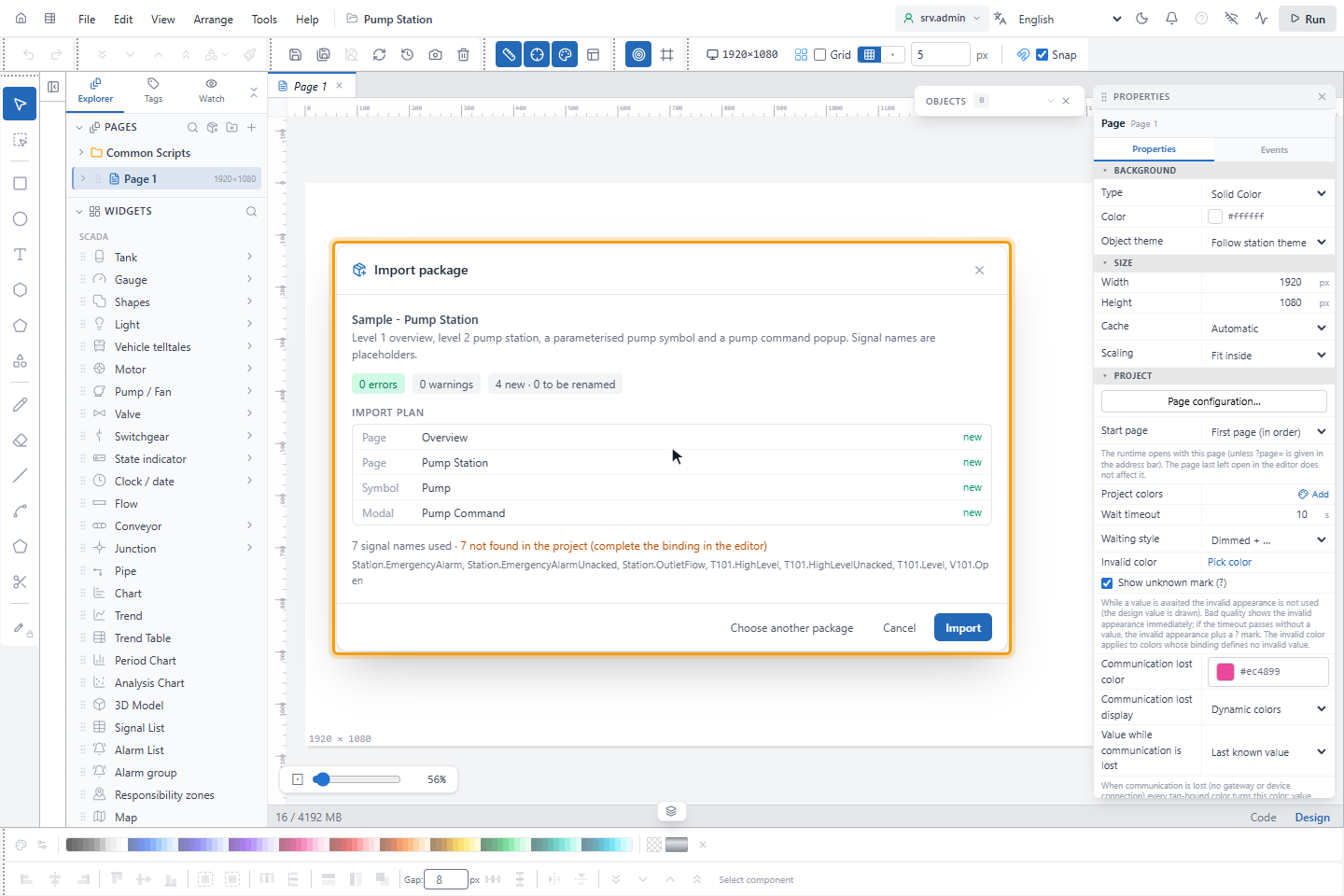
YTCC checks the package before it adds anything and shows a report:
- errors and warnings: with an error, the package cannot be imported. With warnings it can, but the button becomes Import anyway so that you confirm them.
- IMPORT PLAN: every item with new, or with its new name if it has to be renamed.
- The signal names the package uses. Signals that the project does not have are listed; you bind them later in the editor.
3. Import the package
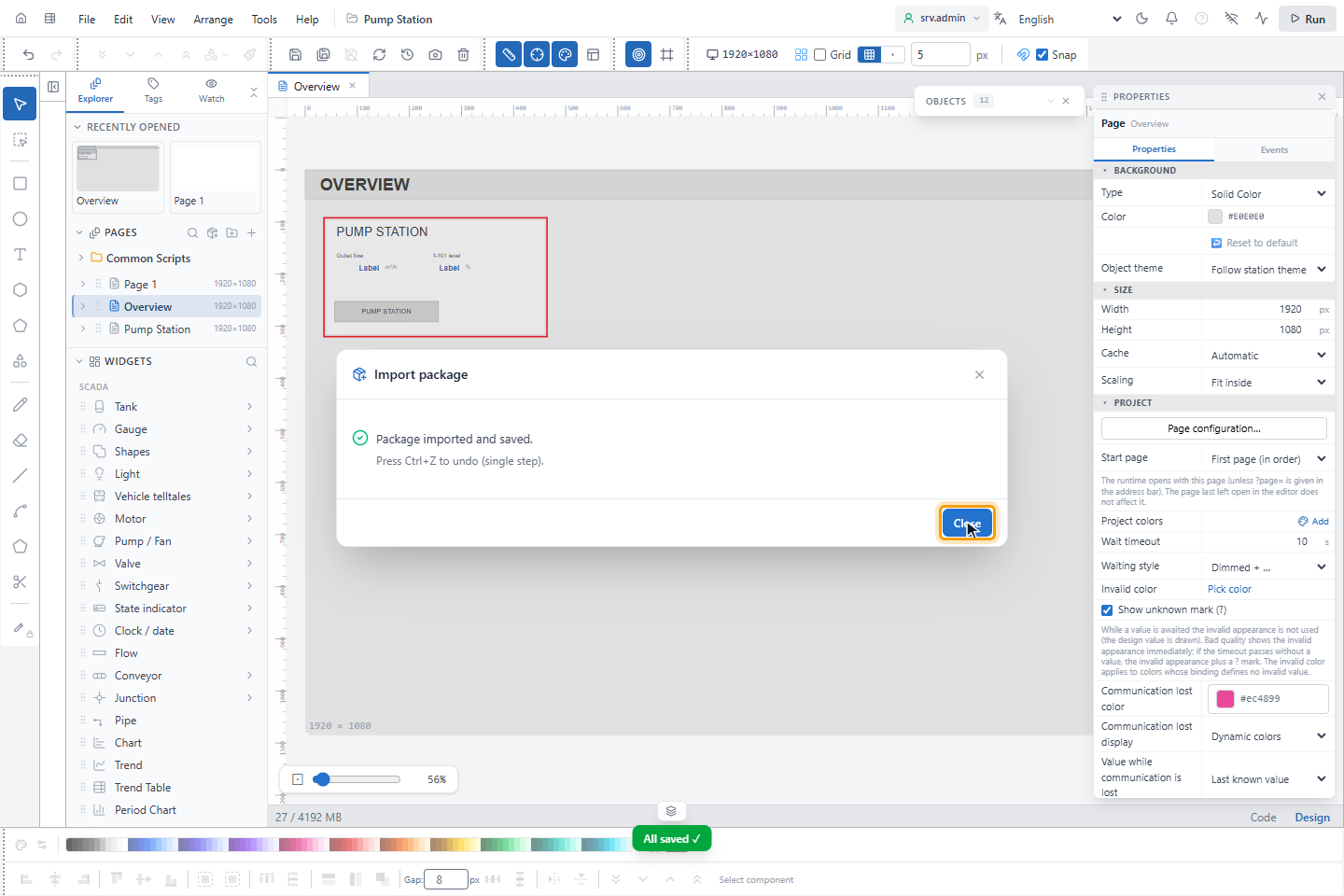
Click Import. YTCC uploads the images, adds the items at the end of the project's lists, saves the project and opens the first imported page. The window reports Package imported and saved. Click Close.
4. Remove the imported items (optional)
If you do not want to keep the imported items:
- Right-click each imported page in the PAGES list, choose Delete and confirm.
- Save with Save All (Ctrl+Shift+S).
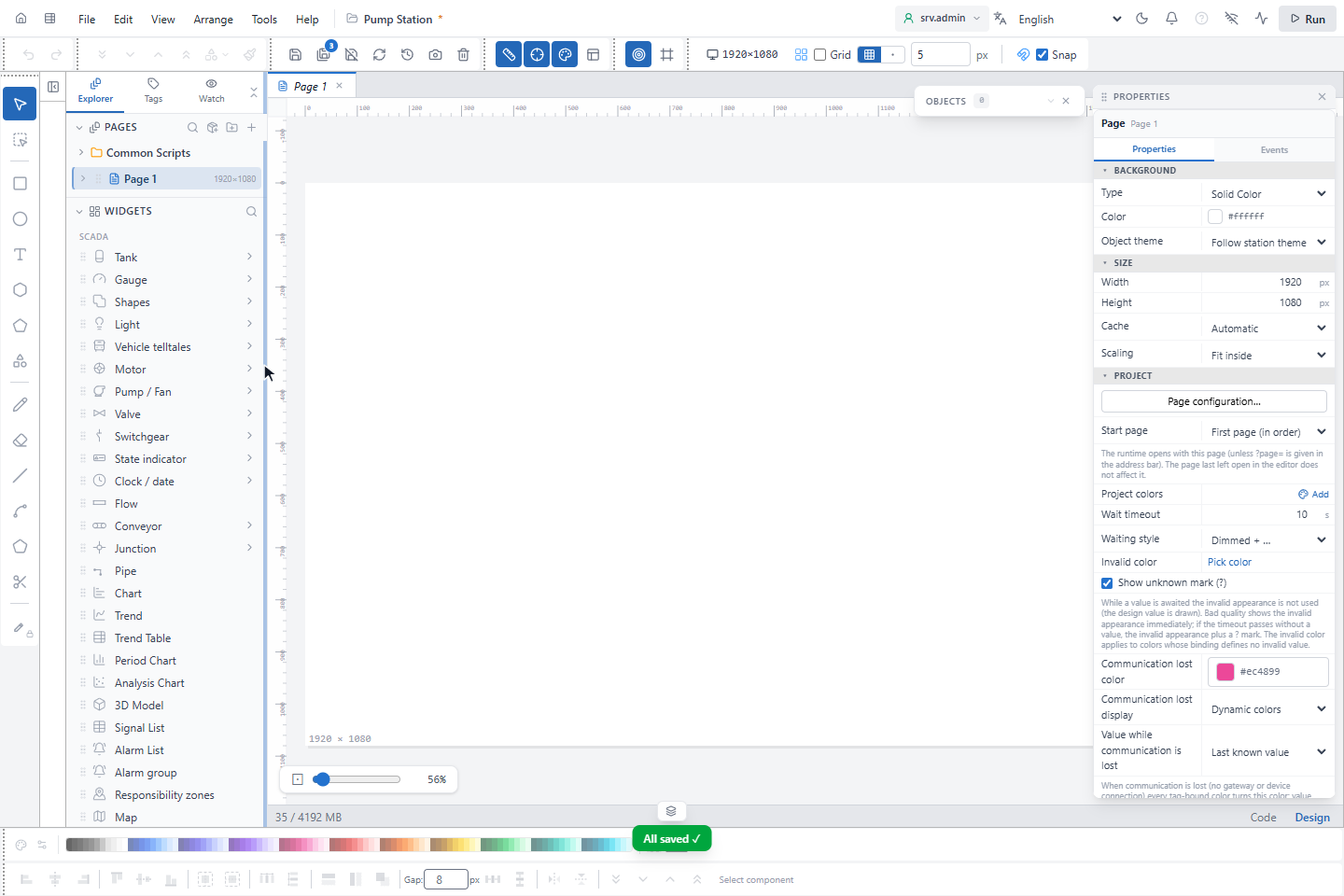
Result
The pages, symbols, popups and layouts of the package are in the project, and the first imported page is open.
Name conflicts
Importing never overwrites an existing item. If the project already has an item with the same ID or the same name, the
imported item gets a new one: sym_pump becomes sym_pump_2, and Pump Command becomes Pump Command 2. Names that
differ only in letter case are treated as the same. References inside the package, such as symbol instances, popup
openings, page navigation and page layouts, are updated to the new names.
If the package names a start page and the project has none, the imported page becomes the project's start page.
Limits
| Limit | Value |
|---|---|
| Total package size | 200 MB |
| Size of one file | 25 MB |
| Zip format | Uncompressed or DEFLATE |
| Image types | png, jpg/jpeg, gif, webp, svg, bmp, ico |
Zip entries with .. or absolute paths, unusual compression ratios and damaged files are rejected.