Review audit logs
When something has to be explained, "who changed the alarm limit" or "who signed in at night", the answer is in one of the four audit records; see Audit logs for what each one holds.
Before you begin
- The project is open in the configuration editor as root. While the server has the root account, only root opens the configuration editor and the user audit log; see Root, the system administrator.
Steps
1. Read the user audit log
In the activity bar, click Users, then Audit log in the tree. The User audit log lists sign-ins, failed sign-ins, password changes, user and profile changes and policy changes, newest first, with Time, Event, User, Target and Address (the client address).
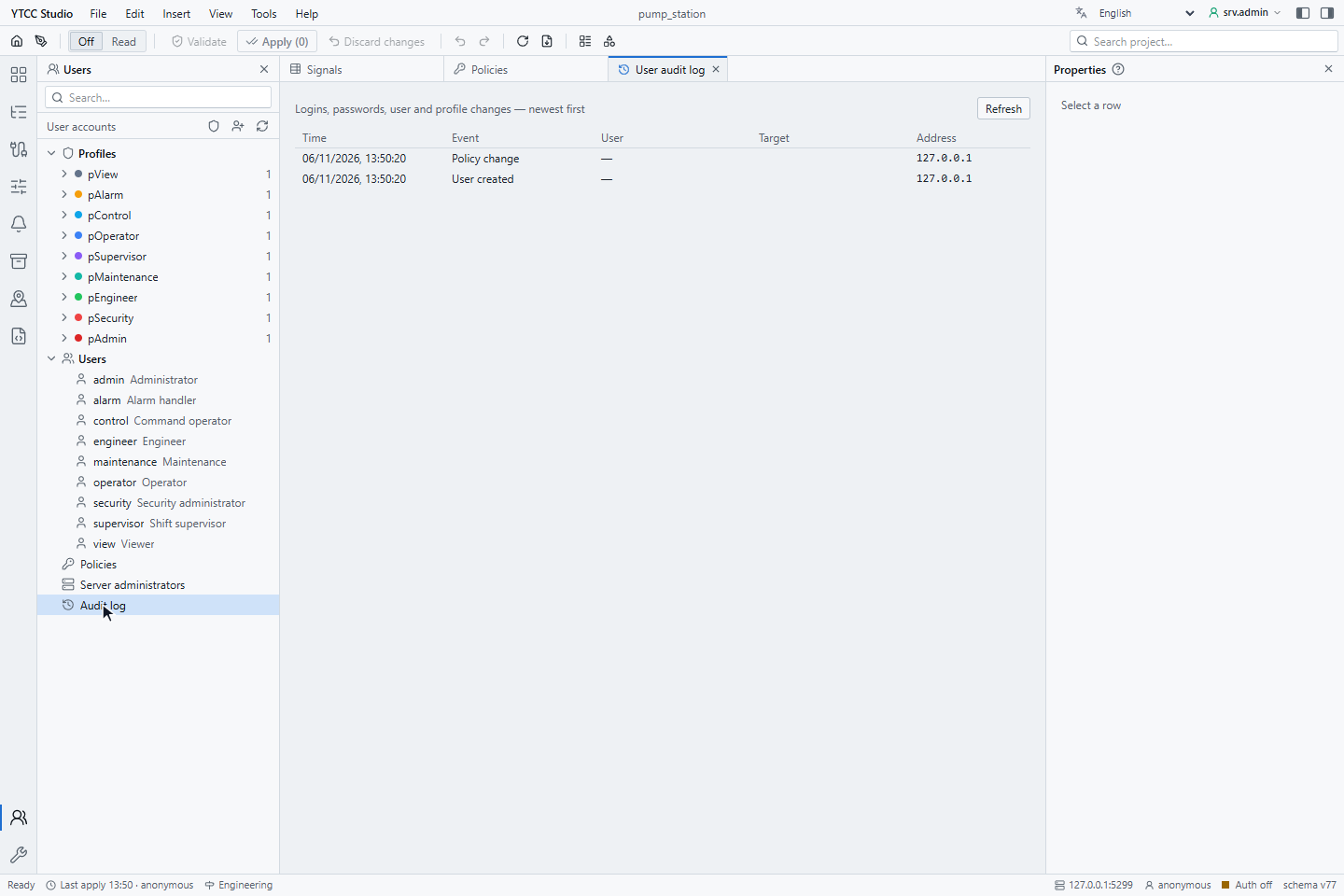
Load more… reads older entries, Refresh the newest. For a longer analysis, take the log file from the data folder of the server.
2. Read the configuration audit
In the activity bar, click Tools, then Audit. Each applied change is one row: time, user, where it was made (grid, form, import …), the number of records added (+), changed (~) and deleted (−), the comment and the drivers affected. Type a user name in the filter to see only that user's changes.
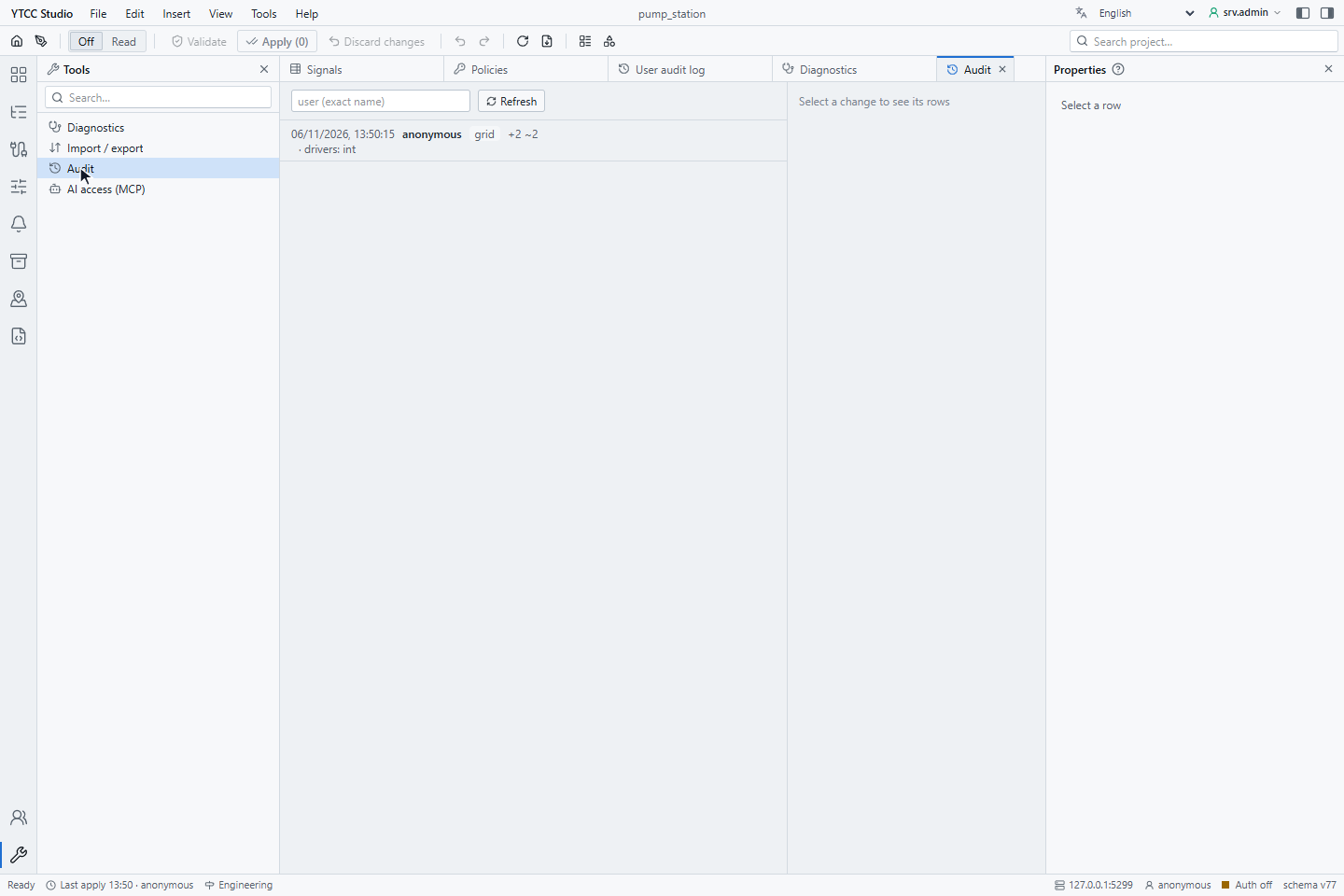
3. See the details of a change
Click a change. The right side lists every record it touched, as Added, Changed or Deleted with the table and key, for example Added · Internal tags · Tank1_Level, and each changed field as old → new.
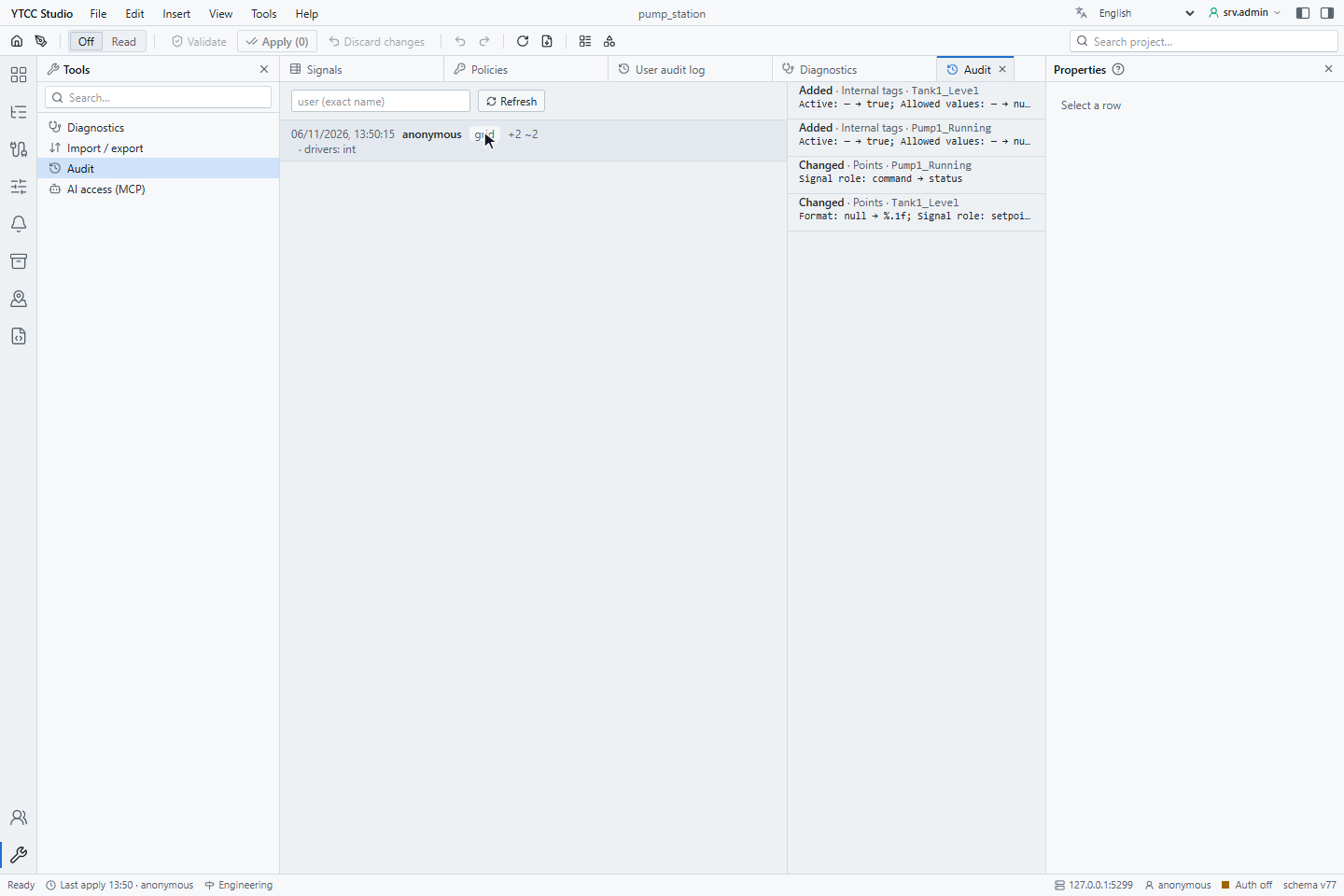
The history of a single signal is also on the Audit history tab of its detail view.
Operator actions and commands
- Event list. Operator actions (pages opened, sign-ins, confirmations, area control, interlock overrides, tags and notes), alarms and commands are in the Event list object of the run screen; filter by Type Operator and by User. See What the event list records.
- Command log. Every command with its value, user, result and reason is in the Command log object of the run screen; filter by signal, user and time range, and export with Download Excel.
Result
You know who made the change, when, from where and what exactly changed.