Select and move objects
This page shows how to select objects on the canvas and move them, by hand or to an exact position.
Before you begin
- The page is open in the screen editor and has objects on it. See A tour of the screen editor.
- The Select tool is active. Press Esc to return to it from another tool.
Steps
1. Select objects
Click an object to select it. Hold Shift and click another object to add it to the selection; Shift-click a selected object to take it out again. The status bar at the bottom right shows how many objects are selected.
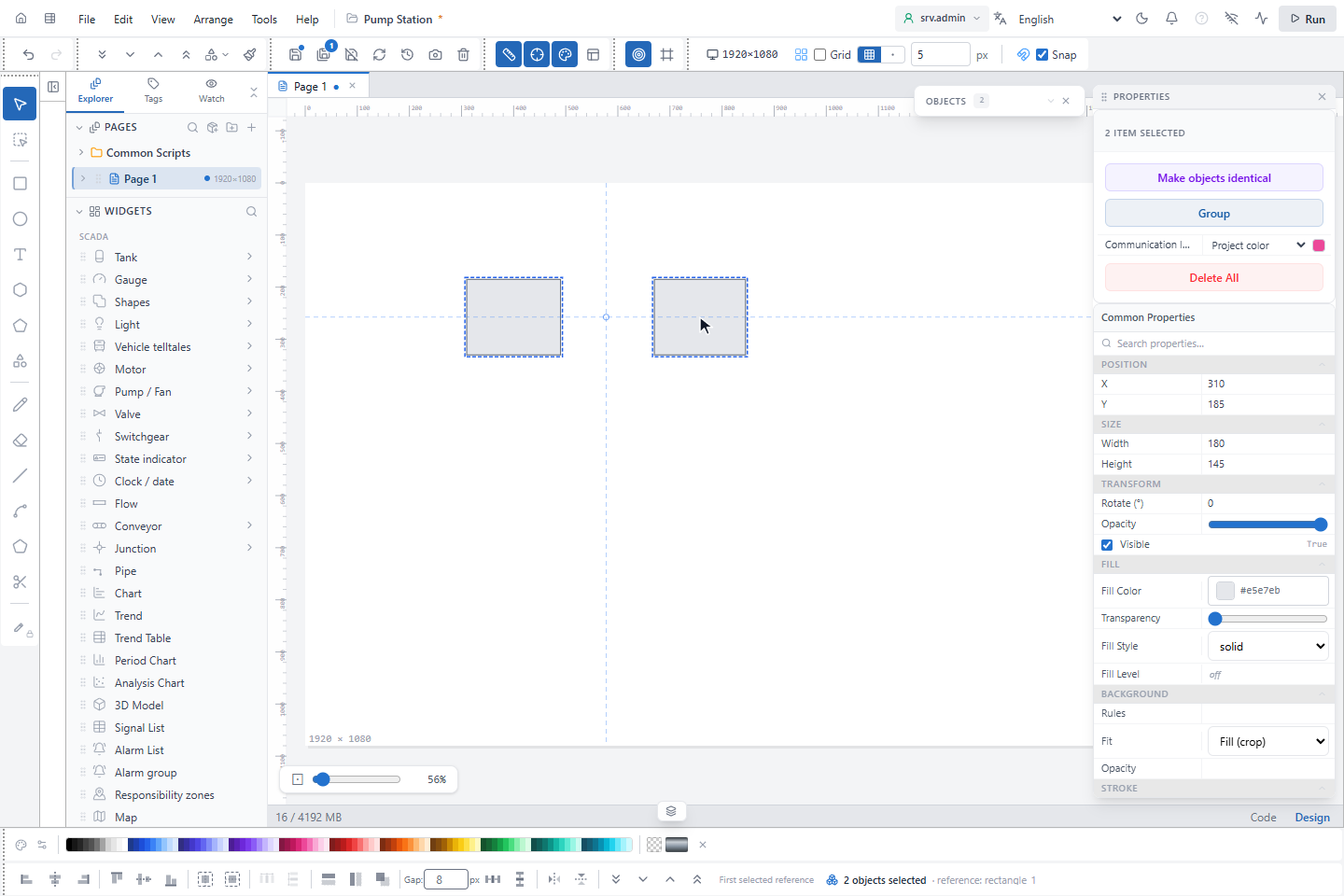
Clicking an object of a group selects the whole group. Locked objects and objects on a hidden layer cannot be selected.
2. Select with a selection box
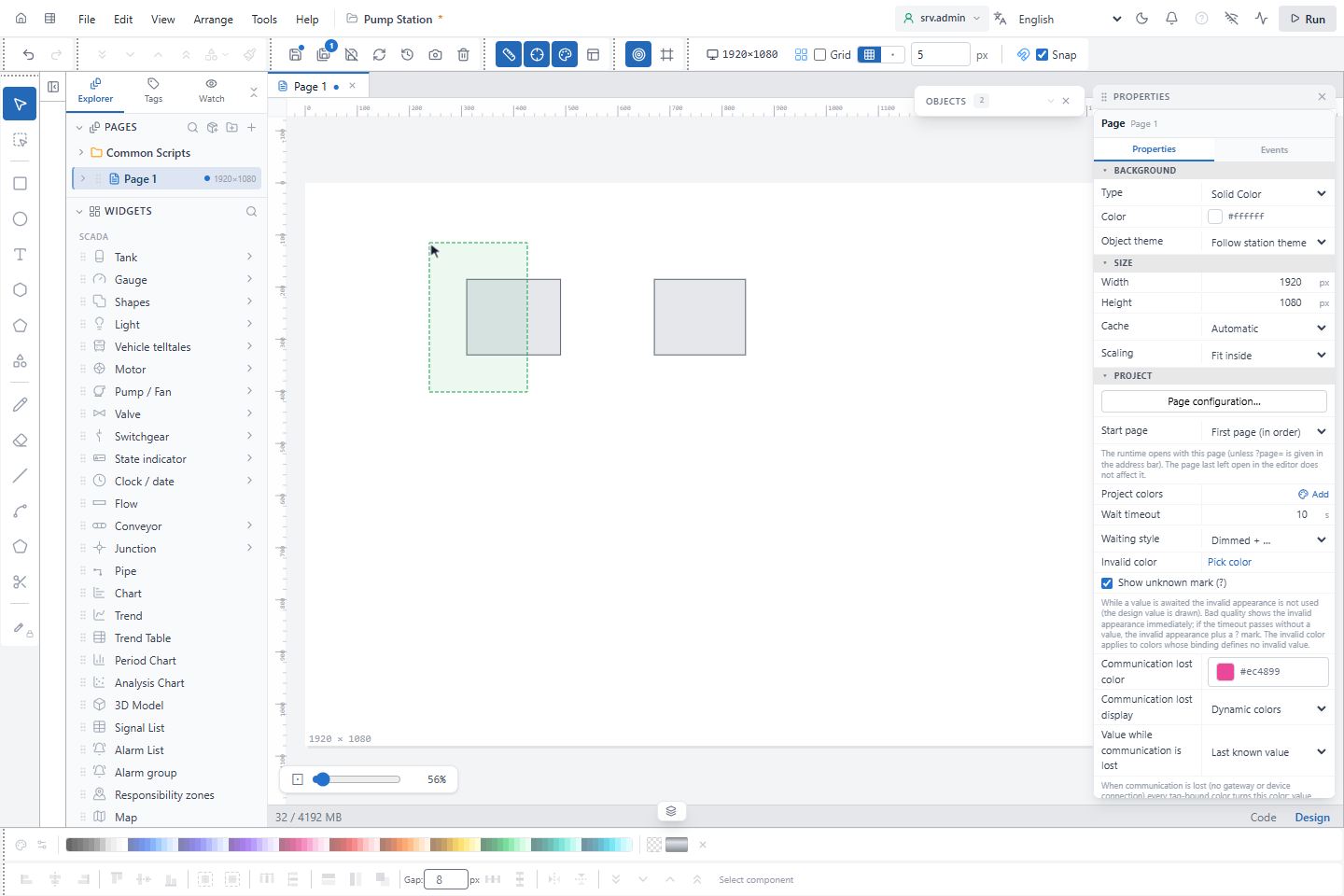
Drag on an empty part of the canvas to draw a selection box. The direction matters:
- Left to right: only objects that are completely inside the box are selected.
- Right to left: every object the box touches is selected.
The box replaces the current selection. Hold Shift or Ctrl while you drag to add the objects to the selection instead.
When the page has a large background object, for example a panel that covers the page, a drag on it would move the panel. Use Area select in the Drawing tools toolbar, next to Select: while it is on, a drag anywhere on the canvas draws a selection box and never moves objects. Shift or Ctrl with a click adds or removes the object under the pointer. The tool stays on until you press Esc or click it again.
Press Ctrl+A to select all objects of the open page, and Esc or a click on an empty part of the canvas to clear the selection.
3. Move with the arrow keys
Drag the selection with the mouse, or use the arrow keys:
| Keys | Snap off | Snap on |
|---|---|---|
| Arrow key | 1 px | 1 px |
| Shift+arrow key | 10 px | to the next grid line |
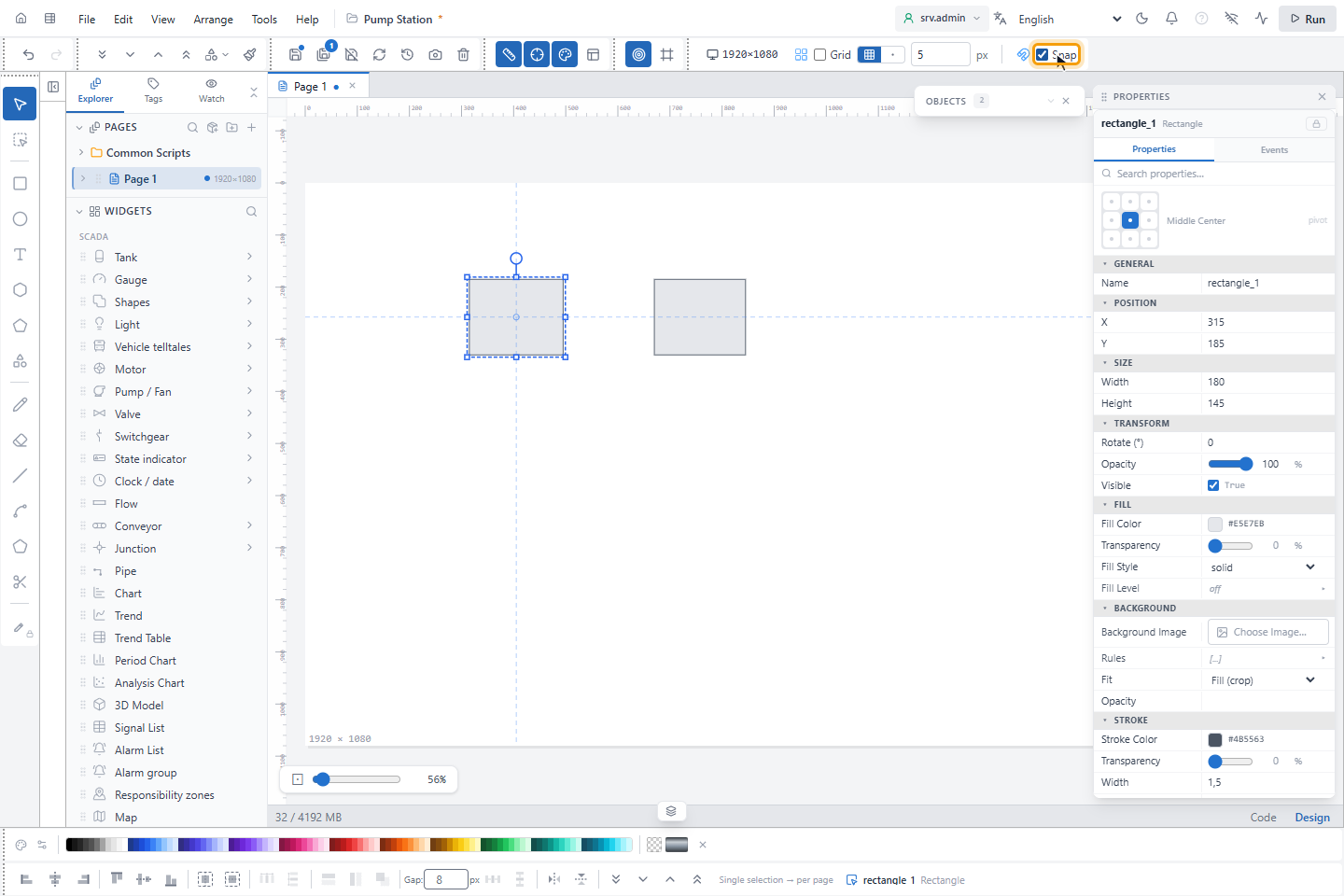
Snap is in the toolbar next to the grid spacing. Arrow key presses that follow each other quickly are undone together with one Ctrl+Z.
4. Lock the movement to one axis (optional)
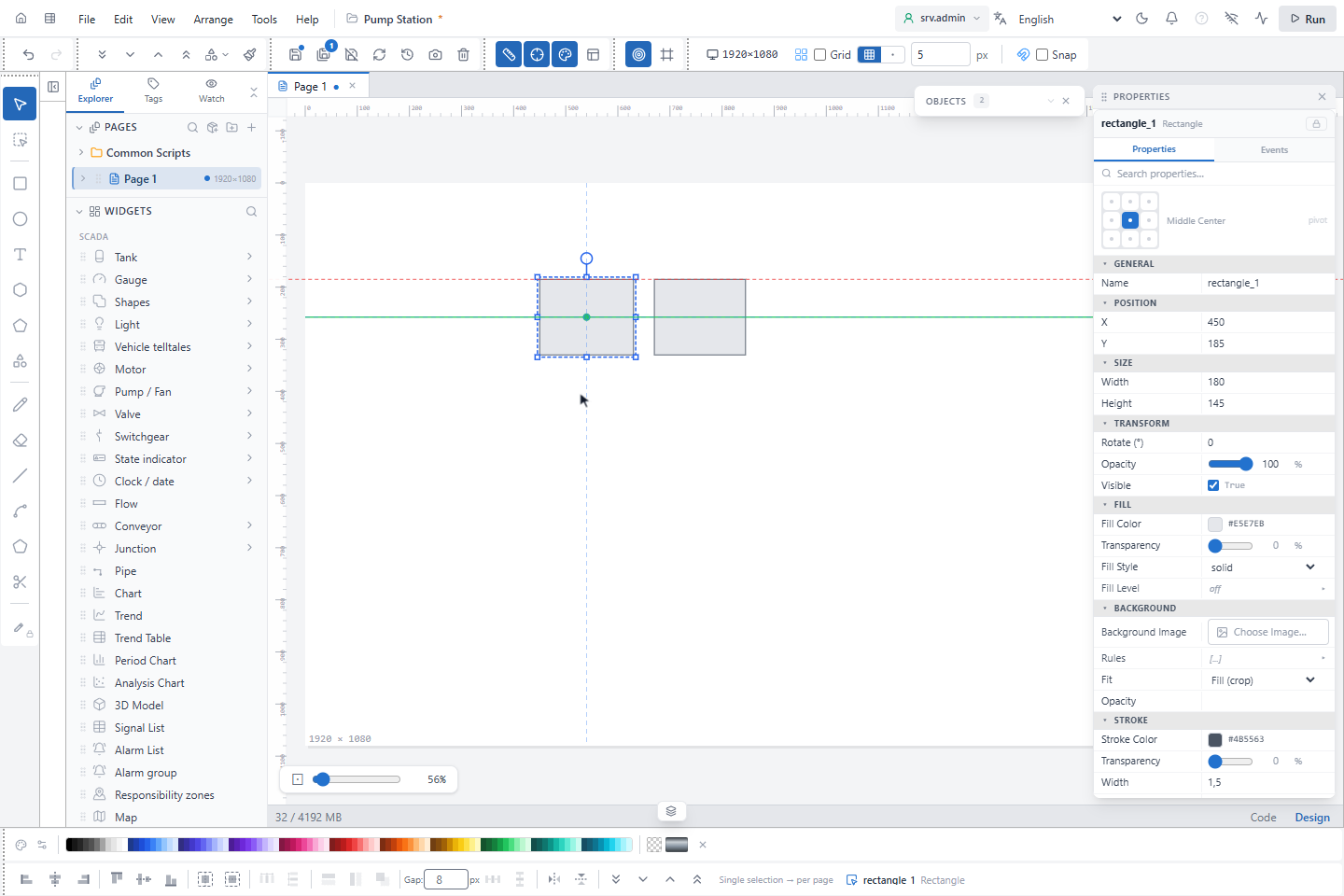
With an object selected, press X to allow only horizontal movement, or Y for vertical movement. A green line through the selection shows the lock. The same key also opens a small box for typing the X or Y value; press Esc to close the box and keep the lock. Press the key again to turn the lock off. The lock also ends when nothing is selected.
5. Type the position (optional)
To place an object exactly, select it and type the values in X and Y under POSITION in the PROPERTIES panel, then press Enter.
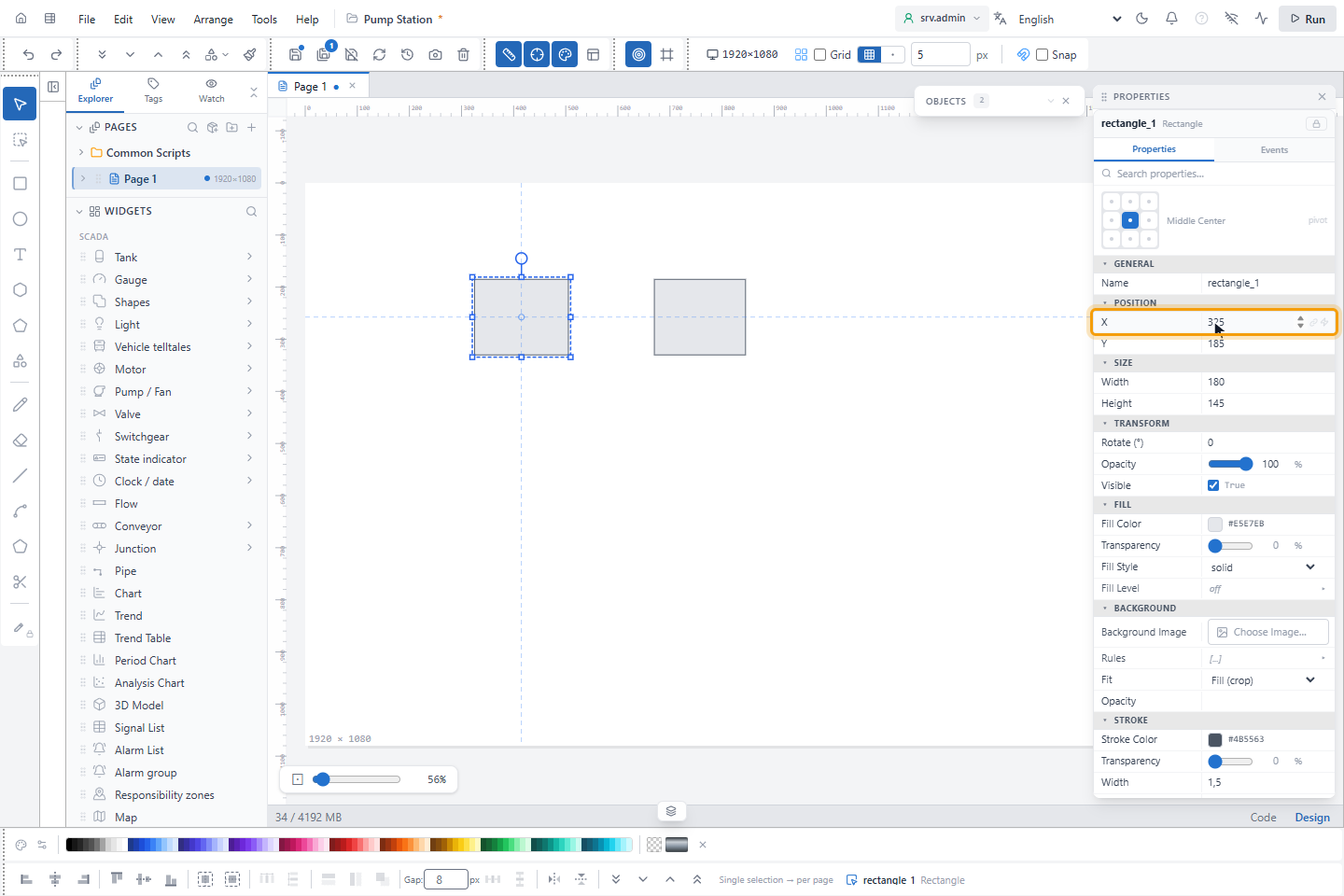
Result
The objects are where you want them.
Resize and rotate
A selected object has eight handles for resizing and a round handle above it for rotating. Hold Shift while you drag a corner handle to keep the proportions, and while you rotate to turn in 15° steps.