Command box and MOVE
For exact work the keyboard is faster than the mouse. While objects are selected, typing a letter opens the command box at the cursor: you name a property and type its value. MOVE moves the selection from a base point to a target point, which can snap to points of other objects or be typed as a displacement.
Before you begin
- An object is selected on the page and the Select tool is active.
Steps
1. Open the command box
Type a letter. Some letters go straight to a property:
| Letter | Property |
|---|---|
| W, H | Width, height |
| R | Rotation |
| C | The main color, for example the fill |
| X, Y | Position |
| M | MOVE (below) |
Any other letter opens the list of properties starting with it. Enter or Ctrl+K opens the full list; type to search it. P, E, L and T keep their tool meaning.
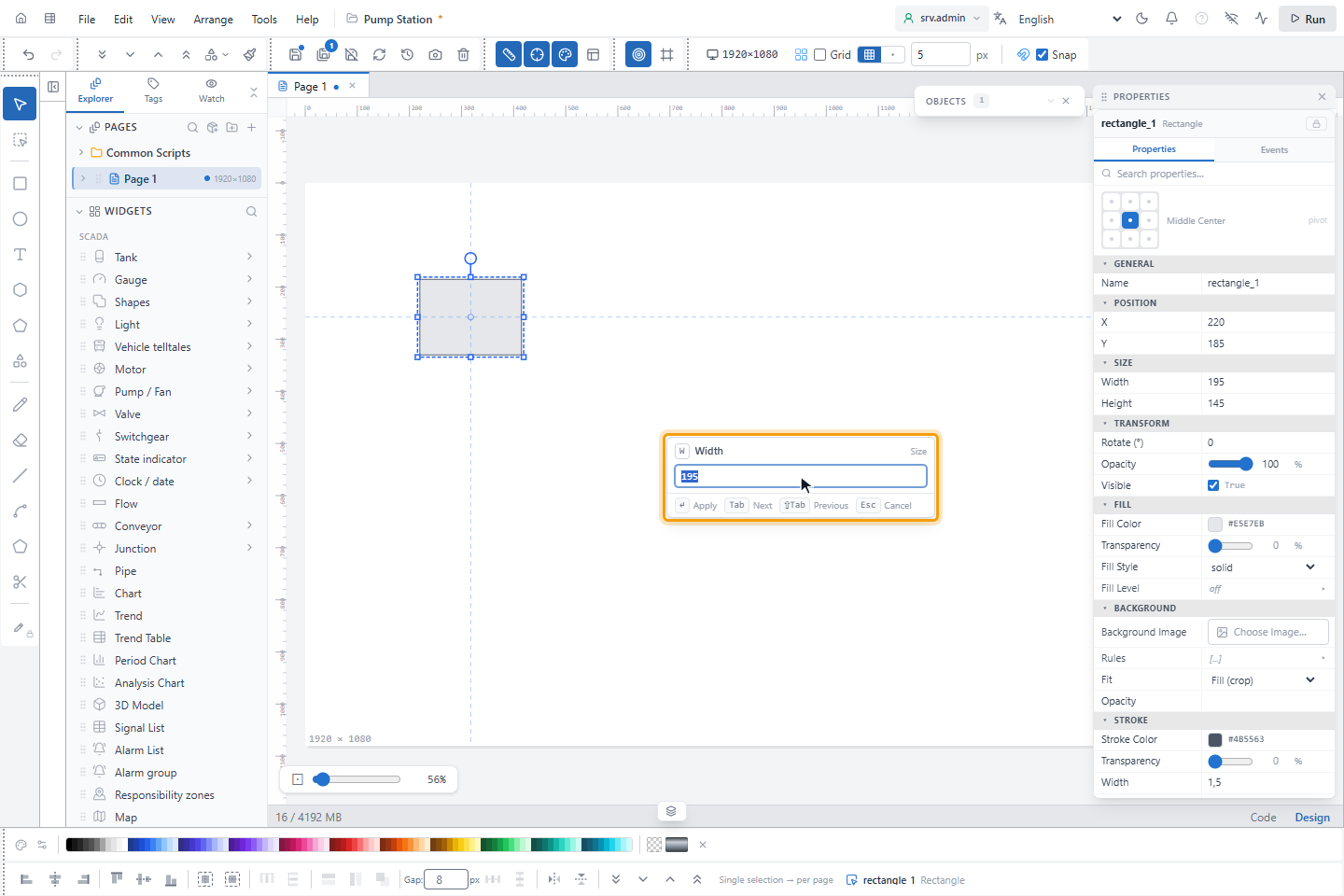
2. Enter a value
Type the value, here 300, and press Enter to apply it. Tab applies the value and goes to the next property, Shift+Tab to the previous one, Esc cancels.
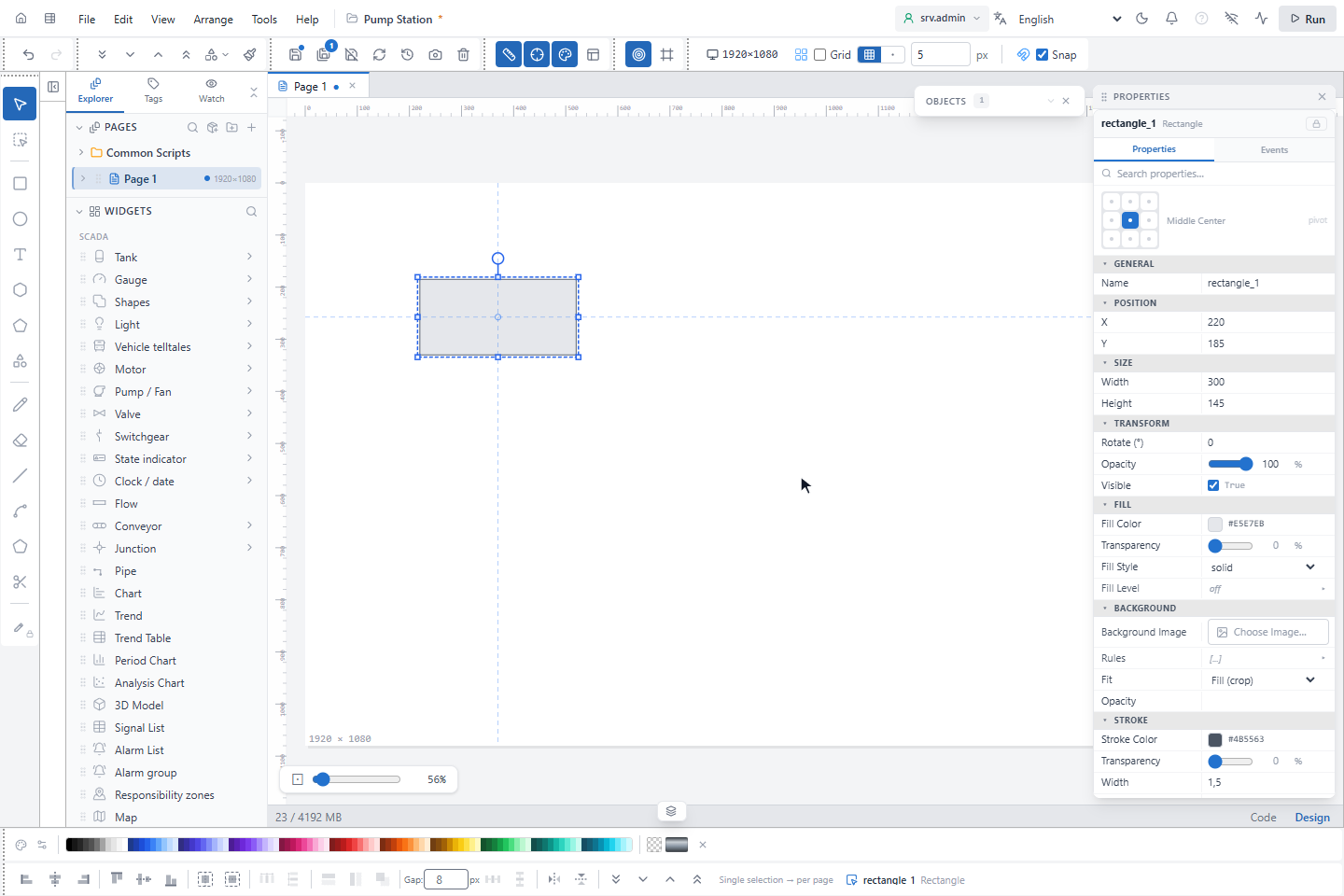
Numbers accept a comma or a point; sizes must be greater than 0. Colors accept #RGB, #RRGGBB, rgb(), hsl(),
transparent or the name of a project color. Properties such as signal bindings open in the Properties panel.
3. Start MOVE and pick the base point
Press M. The prompt MOVE at the bottom asks: Specify base point · dx,dy displacement · #x,y moves the top-left corner to that point. Move the cursor near a point of an object: YTCC snaps to it and names it, here Endpoint. Click to fix the base point.
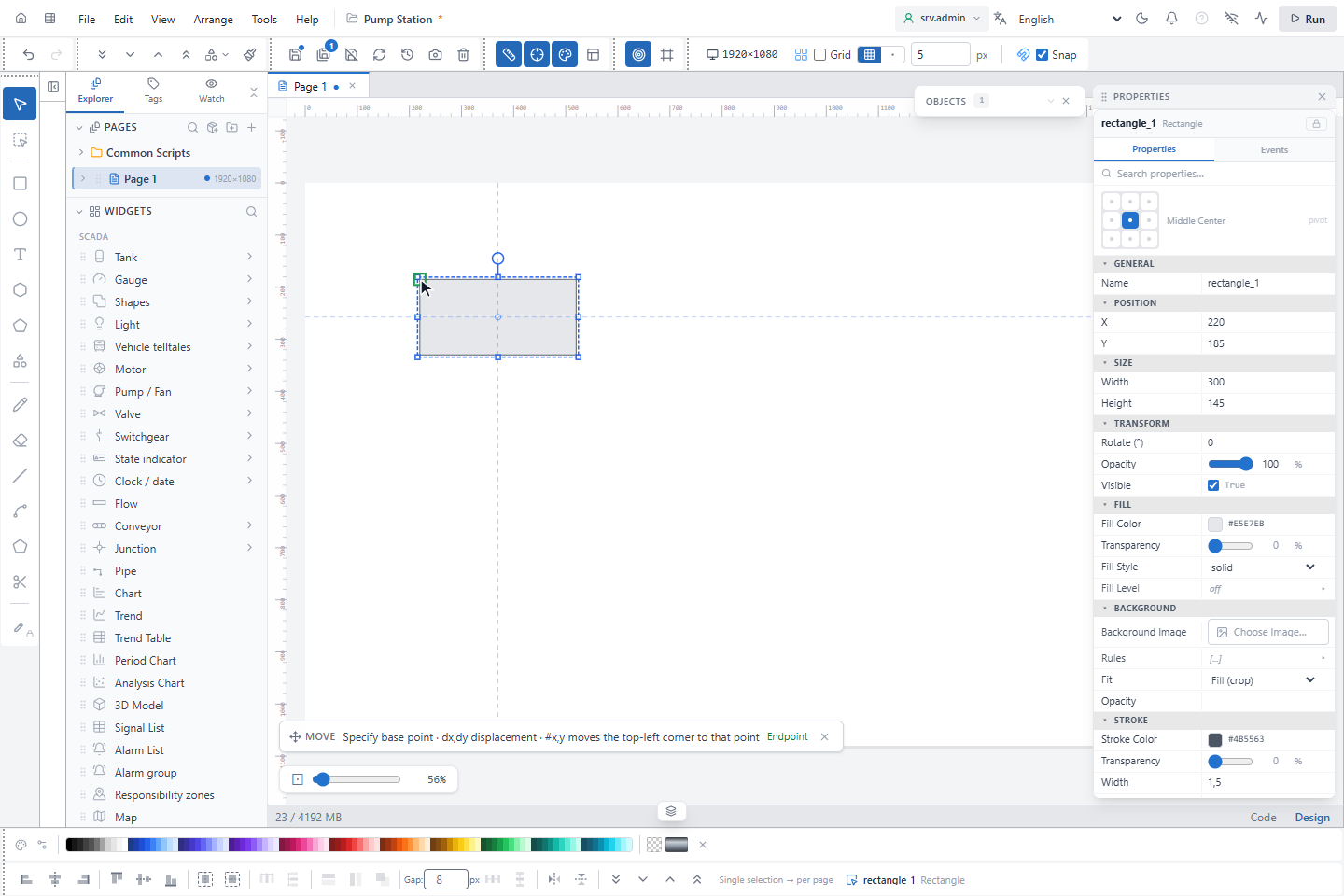
| Snap | Points | Marker |
|---|---|---|
| Endpoint | Corners of boxes, points and ends of lines, pipes and wires | Square |
| Midpoint | Middle of edges and segments | Triangle |
| Center | Centre of a box | Circle |
| Connection port | Connections of equipment and electrical symbols | Diamond |
4. Pick the target or type the displacement
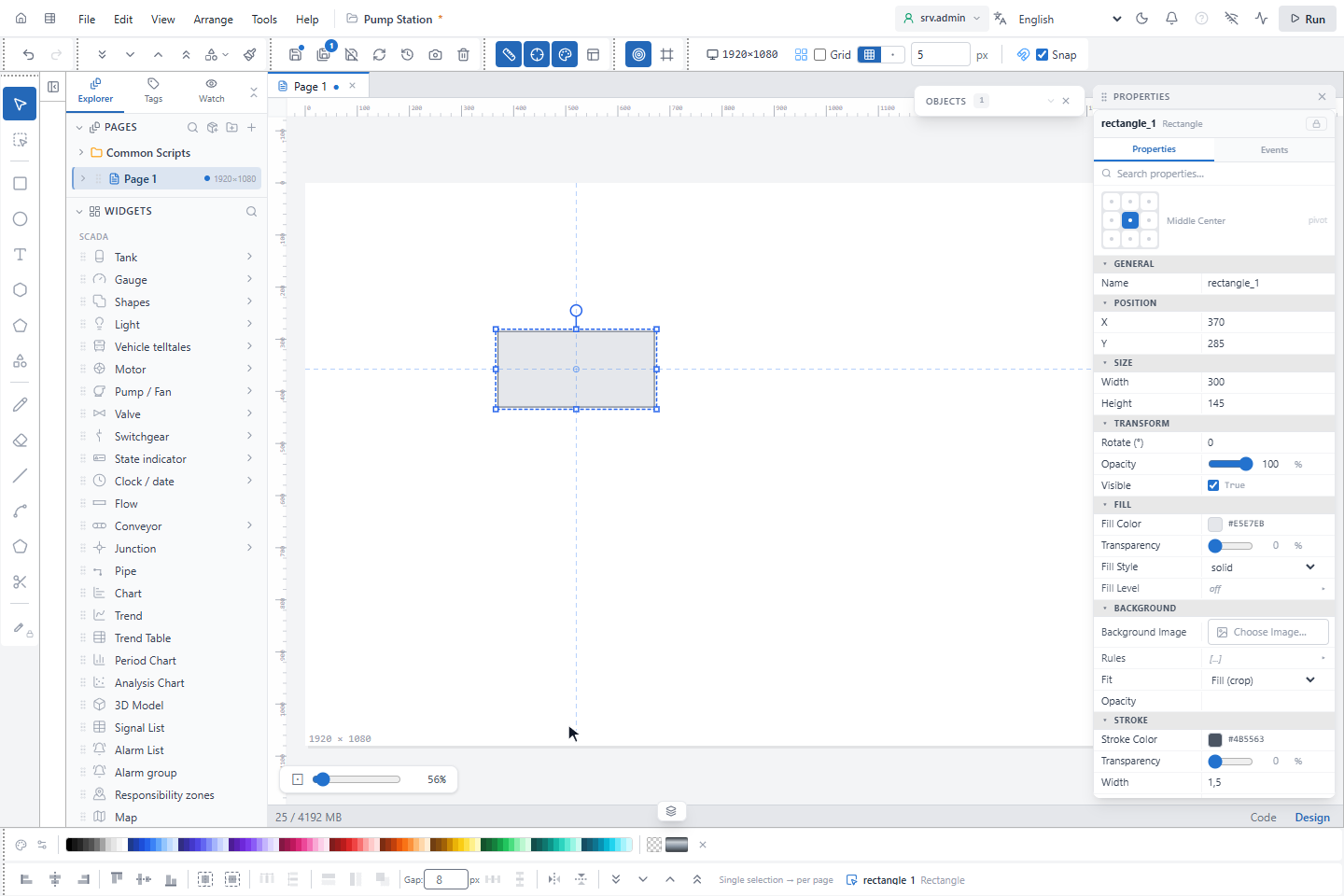
Click the target point, which can snap in the same way, or type the displacement, here 150,100, and press Enter. The selection moves by the difference, as one undo step. Shift keeps the move horizontal or vertical; Esc ends MOVE.
| Input | Meaning |
|---|---|
dx,dy or @dx,dy | Move by dx and dy |
| A single number (target point) | Move this distance in the direction of the cursor |
#x,y at the base point | Move the top-left corner of the selection to x, y, for example #0,0 |
#x,y at the target point | Move the base point to x, y |
Good to know
- Snap to Objects in the toolbar is a different help: while you drag or resize, it shows red guide lines at the edges and centres of other objects. MOVE always snaps to points, whatever that setting.
- With several objects selected, the command box changes the property of all of them.