Start, stop and restart a project
A project runs as a whole: starting it starts its drivers, the alarm service, the historian and the other project services, and stopping it stops them all. While a project is stopped, its drivers do not communicate with the field devices, no values are collected and no commands can be sent.
Before you begin
- With authentication on, starting and stopping needs a root sign-in, or a project user with the System stop permission. Otherwise the home page refuses the action. Each start and stop is written to the event list as Project start or Project stop, with the user and the computer.
Steps
1. Start the project
On the home page, right-click the project and choose Start. The window Start project? says that the project will be started and that its drivers connect to the field devices. Click Start.
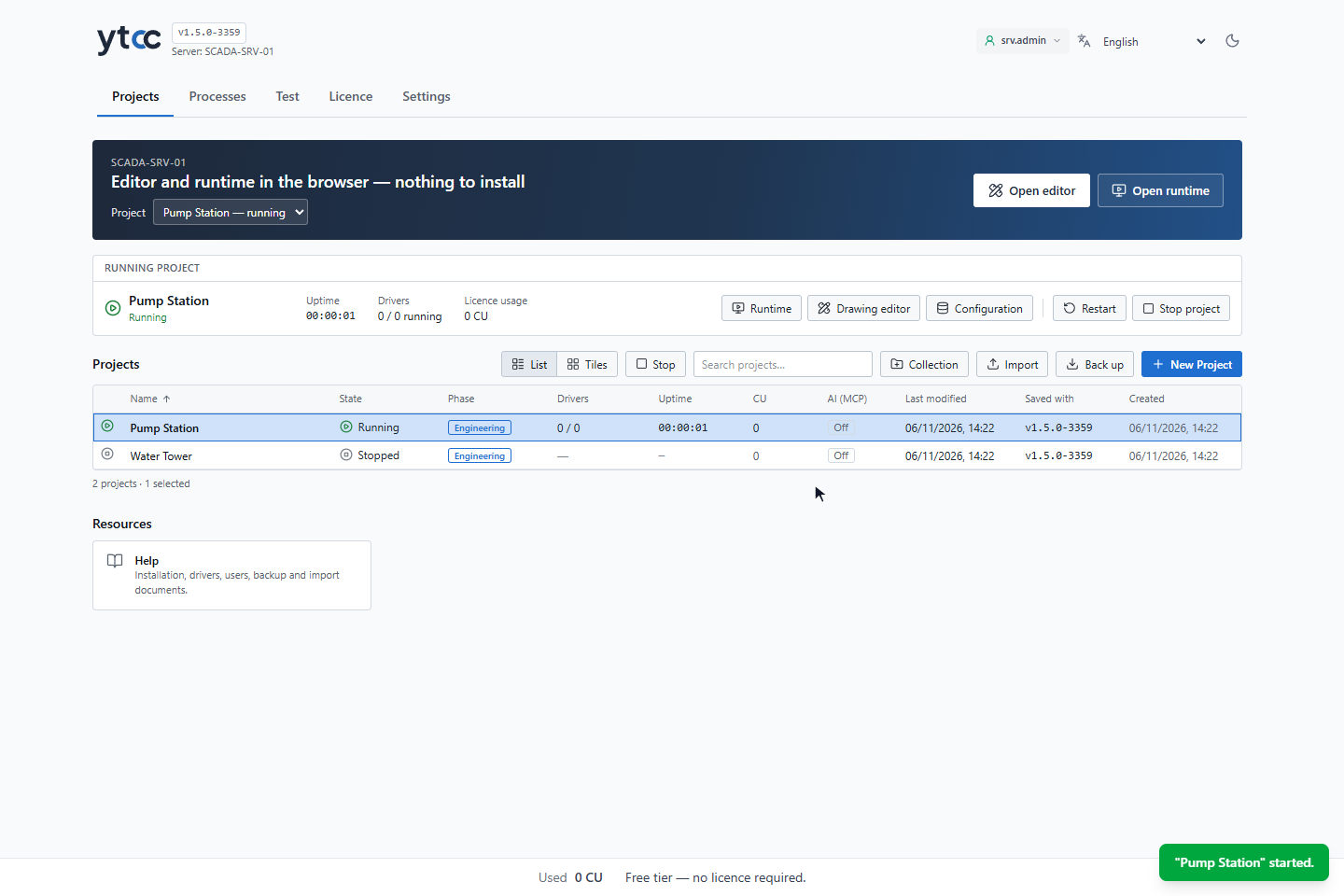
The State column changes to Running, and a message says "Pump Station" started. The Running project panel above the list shows the uptime, the drivers that run and the licence usage, with buttons for the runtime screen, the editors, Restart and Stop project. The Start / Stop button next to List and Tiles acts on the selected project.
Opening a project in the screen editor does not start it; Start is the only way from the home page. See Open a project.
2. Start another project (optional)
Only one project runs on the computer at a time, in whichever YTCC version line is installed. This is a fixed rule, not a setting.
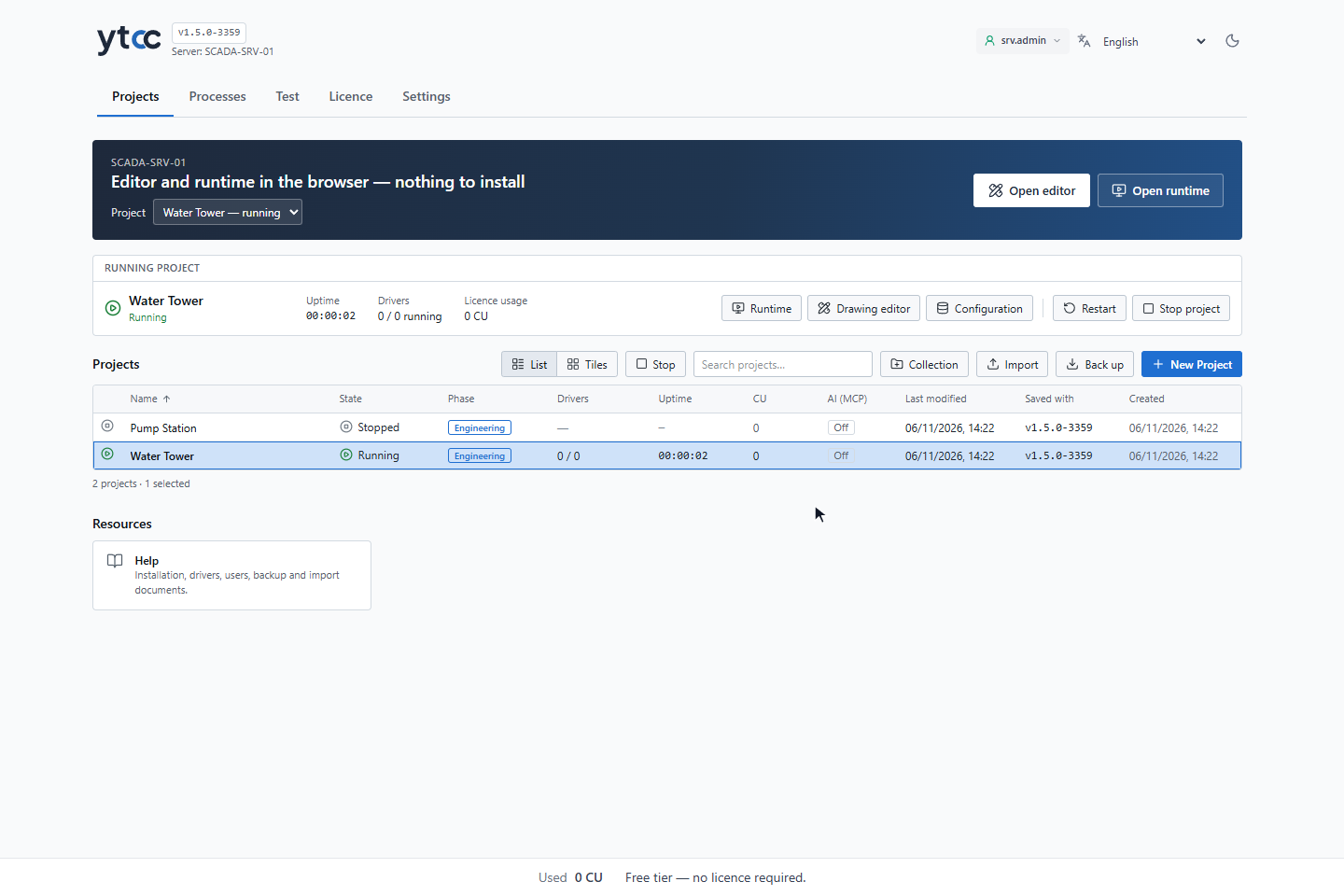
While a project runs, the Start project? window of another project adds a note that the running project will be stopped, for example "Pump Station" will be stopped: only one project can run at a time in this version. Its communication with field devices stops., and shows Start as a warning. When you click Start, YTCC first stops the running project, then starts the chosen one. Field communication of the first project stops before the second one connects.
When the other project runs in another YTCC version line on this computer, the home page cannot stop it: the start is refused with a message that names the version, the running project and the command that stops it. Nothing is stopped. Stop that project in its own version first. See One project per computer.
3. Restart the project
Right-click the running project and choose Restart. The window Restart project? warns that communication with field devices is interrupted for a few seconds and that commands are not sent during that time. Click Restart.
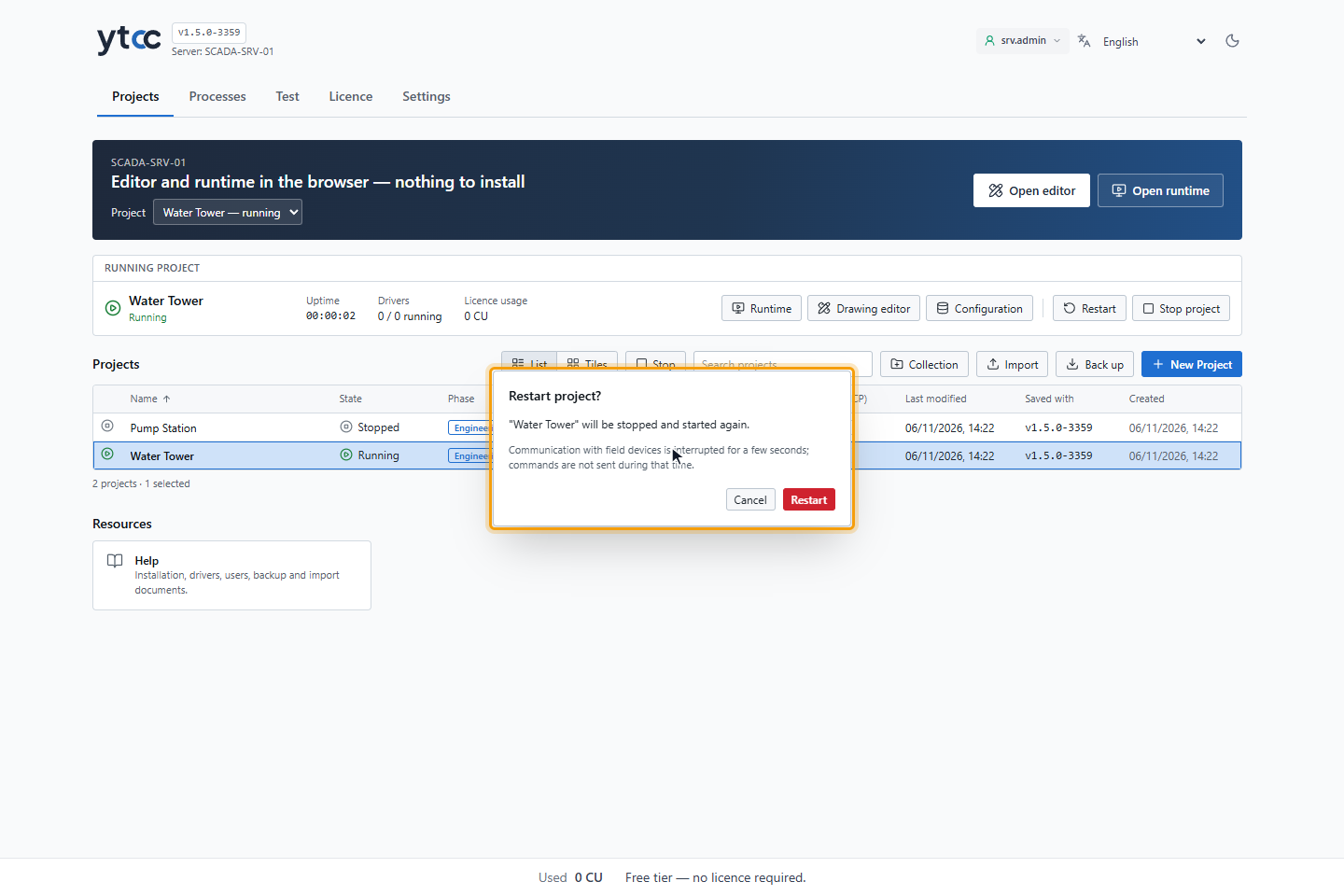
A message says "Water Tower" restarted. If the project stops but cannot start again, the message says that it was stopped but not started, with the reason; the project is then stopped.
4. Stop the project
Right-click the running project and choose Stop, or click Stop project in the Running project panel. The window Stop project? warns that communication with field devices stops: no data is collected, no commands can be sent and alarms are not monitored. Click Stop.
Result
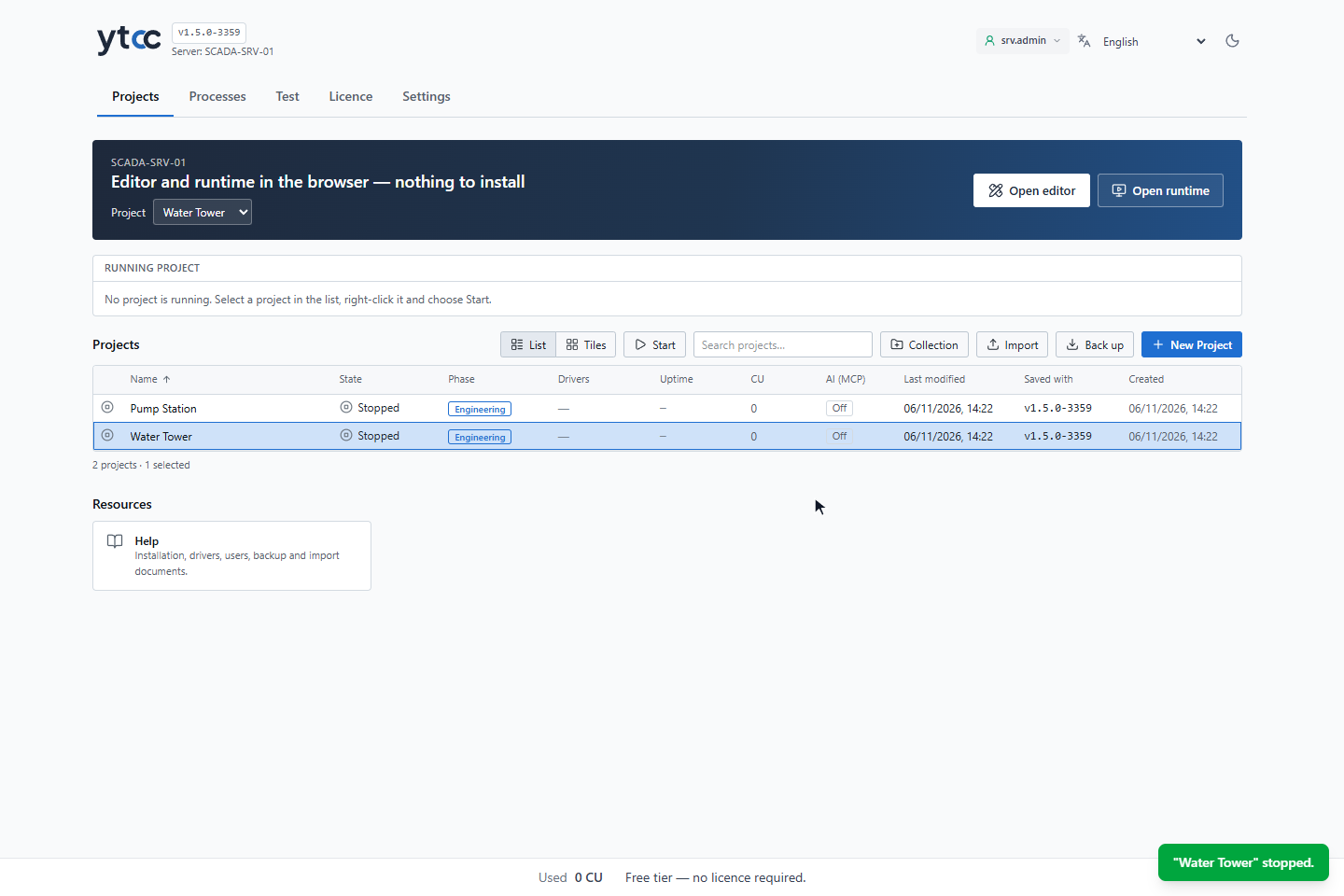
The project is stopped. Its configuration, screens and history are kept, and it can be started again at any time.
A project you stopped stays stopped: when the YTCC service starts again, for example after Windows restarts, it does not start by itself. A project that was running starts again, also after the service was stopped, Windows was shut down or YTCC stopped unexpectedly. Only Start and Stop change this. Closing the runtime tab does not.
If the server does not answer
The home page waits at most 90 seconds for a start or a stop. If the server has not answered by then, the row does not stay at Stopping or Starting: a message says that the server did not answer and that the state of the project is unknown. Check the list and try again.
A stop always ends with a result. If YTCC cannot find which project to stop, for example because PostgreSQL does not answer, the stop reports an error instead of success; nothing is left half stopped without a message. A stop that comes while the same project is still starting cancels the start. Every stop request is written to the process manager's log.
When the project runs in another version
Several YTCC versions can be installed on one computer, but a project can run in only one of them at a time. If the project is already running in another version, Start opens Project is running in another version. It names the version, the installation folder, the process number and since when it runs, and offers:
| Situation | What you can do |
|---|---|
| You are a server administrator, or sign-in is not used on the server | Stop it there and start here…, then Stop and start. YTCC asks the other version to stop the project and waits. Communication is interrupted for a few seconds. |
| The other version does not stop in time | The project is not started here. Close it in the other version, then click Ask again. |
| The project runs on another computer | It cannot be stopped from here. Stop it there first. |
| It runs in an older YTCC installation | Stop it there first. |
| Another project runs in another version line | The start is refused with a message, not with this window. Stop that project first. |
If the previous version is already stopping, a message says Waiting for the previous version to stop; the project will start by itself within a number of seconds.