Open the interface and choose the language
This page shows where the YTCC interface opens and how to switch its language. The interface is available in 13 languages; English is the default.
Before you begin
- YTCC is installed and running on the server.
- You are working on the server itself. The interface address below works only in a browser on that computer.
- The first-run setup is complete. On a new server the interface opens the First-run setup window instead of the home page until it is done. See First start and server administrators.
Steps
1. Open the interface
On the YTCC server, open a browser and go to http://127.0.0.1:8773.
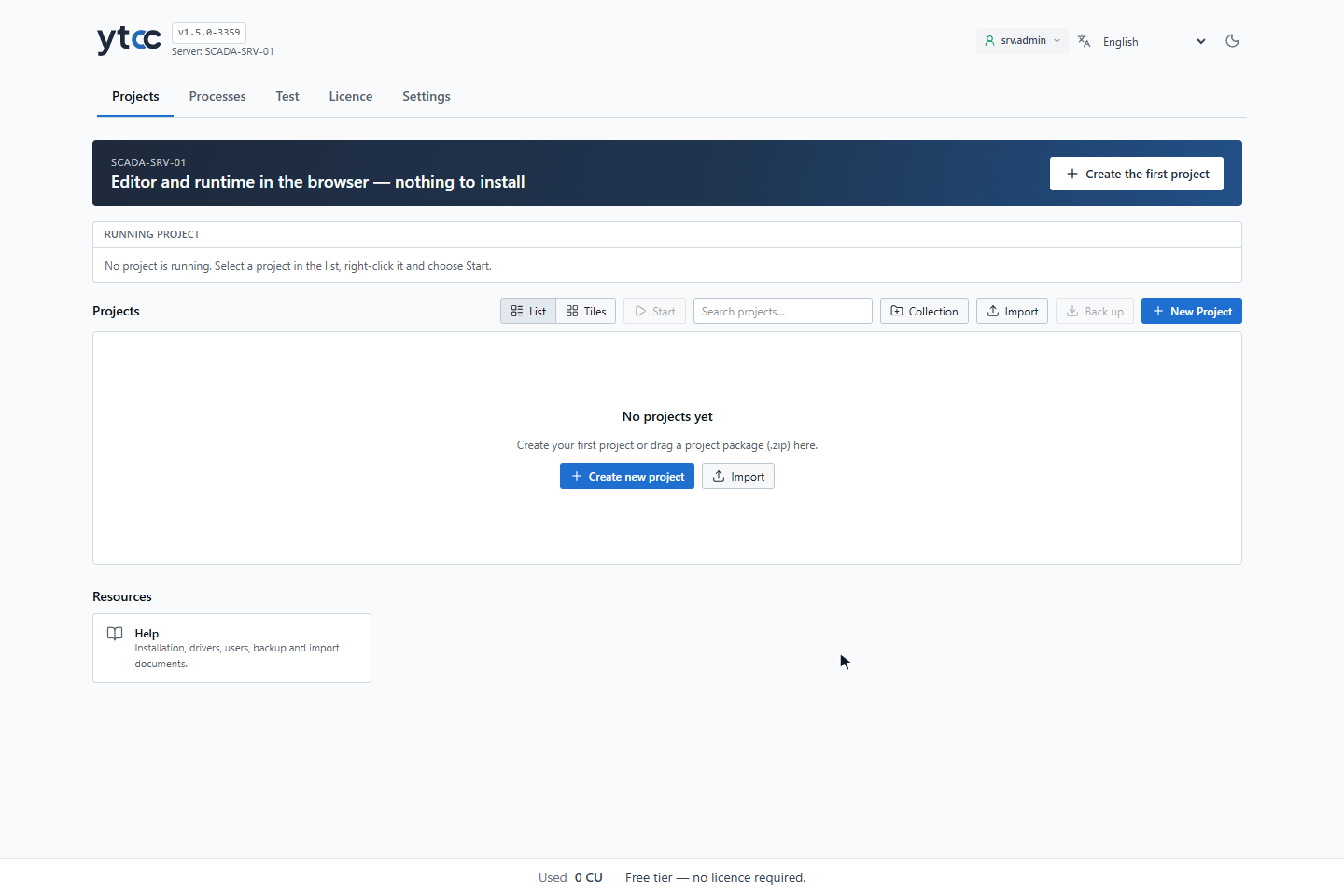
The home page opens on the Projects tab. The first time you open it, the interface is in English.
While the server has no projects, the Quick start window may open over the home page and ask How would you like to start? This is asked only once. For these tutorials, click Start empty. If a Login Required window opens with Sign in as the server administrator to save your choice., sign in as root, the account created in the first-run setup. The choices are explained in First start and server administrators.
2. Open the Settings tab
Click Settings in the tab row at the top of the home page.
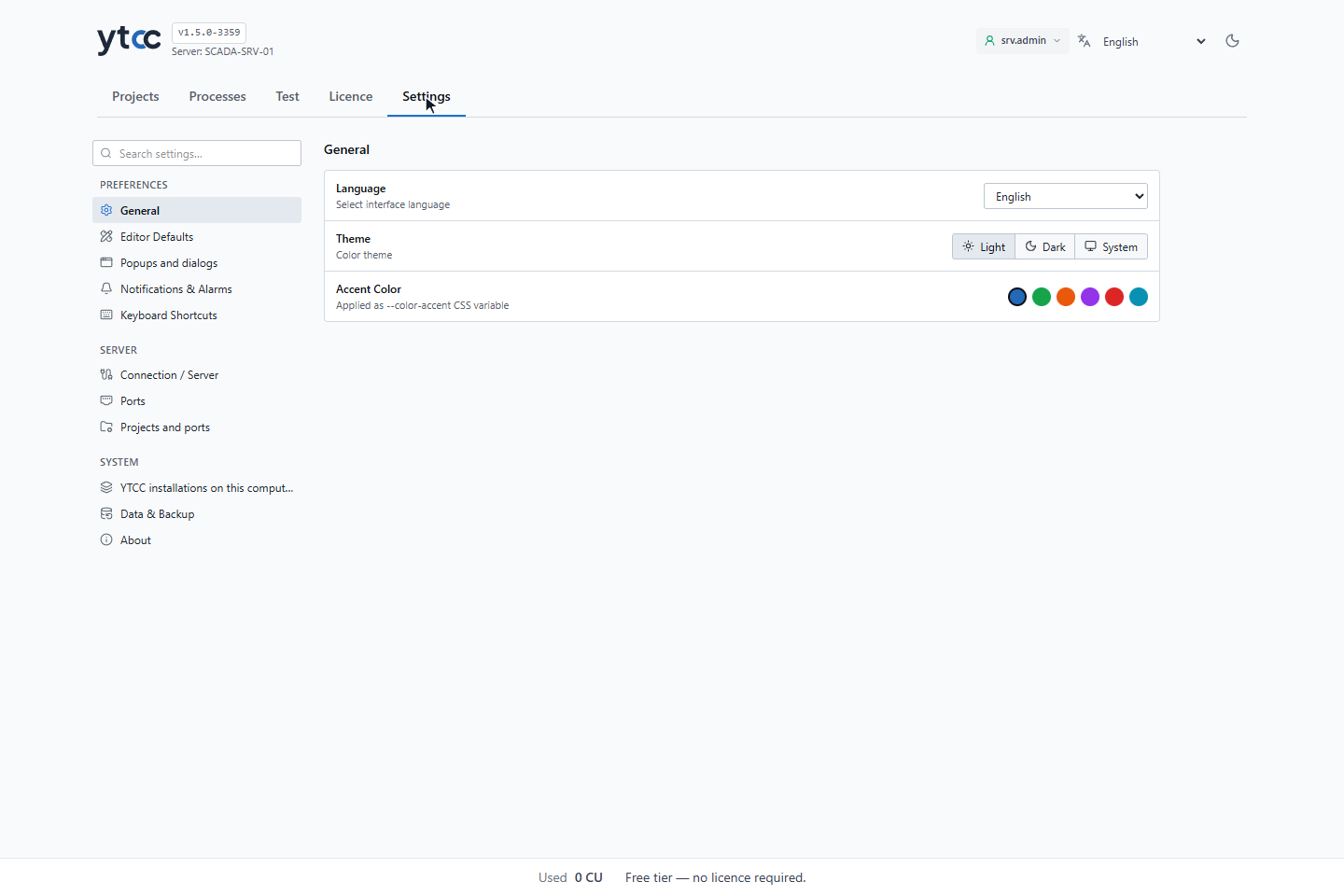
The Settings page opens. The General section is at the top.
3. Choose the interface language
In the General section, select a language in the Language list: Azərbaycan, Deutsch, English, Español, Français, Italiano, Português (Brasil), Türkçe, Русский, हिन्दी, 日本語, 简体中文 or 한국어.
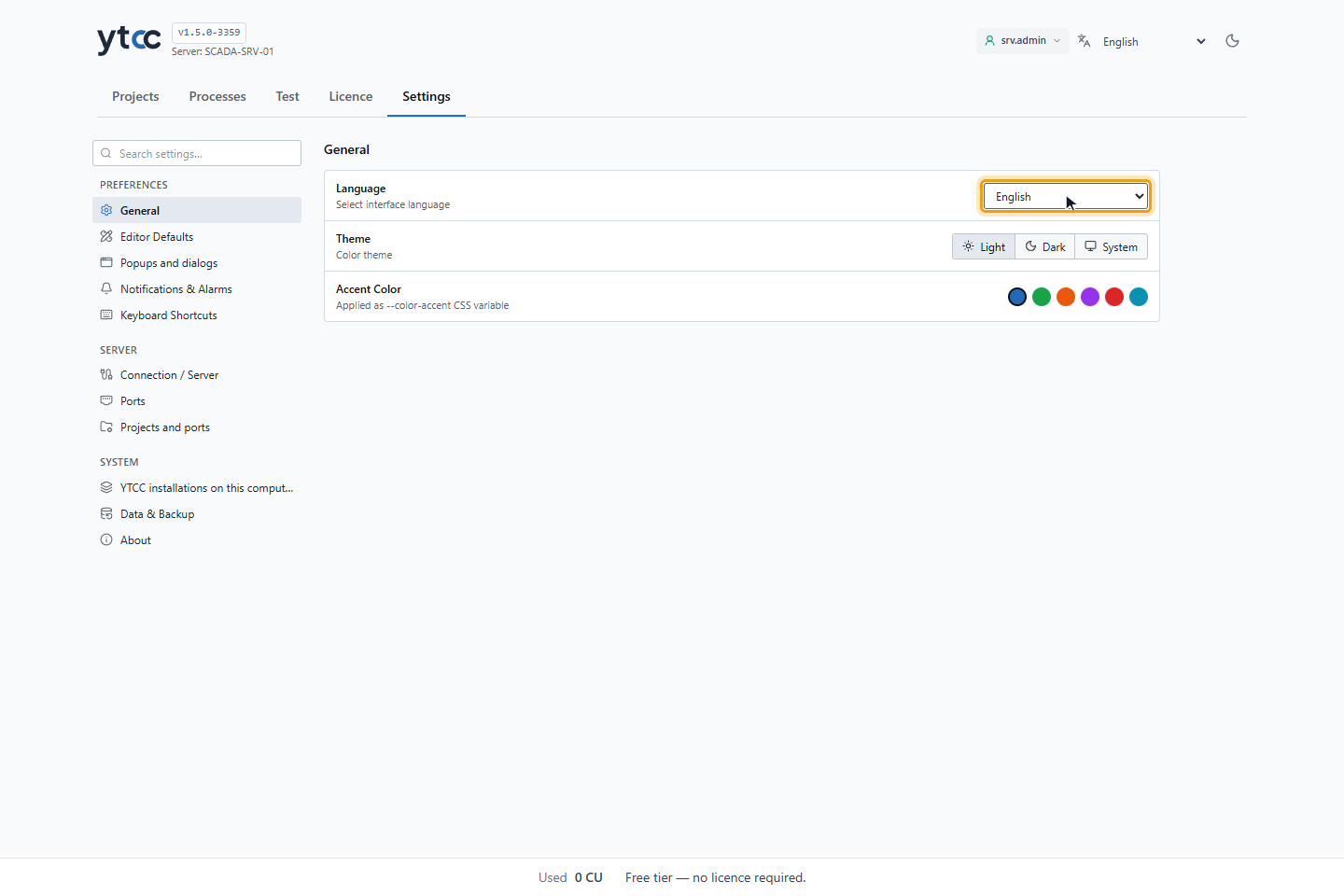
The interface switches language as soon as you select it. There is no save button. The choice is stored in this browser only, so another browser or another computer keeps its own setting. Dates and numbers are shown in the format of the chosen language.
The same choice is in the language list at the top right of the home page, in the toolbar of the screen editor and in the title bar of the configuration editor.
Result
The tab names at the top of the home page are in the language you chose: Projects, Processes, Test, Licence and Settings in English. Test is shown only while root is signed in, and without root Settings shows only the personal settings of this browser; see Root, the system administrator.