Archive tables and assignments
History is organised in archive tables: each table says how values are recorded (on change or periodically) and how long they are kept. Assignments say which signals go into which table. For the background, see How history is recorded.
Before you begin
- The project is open in the configuration editor. Changing the history settings needs Configuration editing.
Steps
1. Look at the archive tables
In the activity bar, click Historian and then Archive tables. A new project has hist_values for measured values
and hist_events for events.
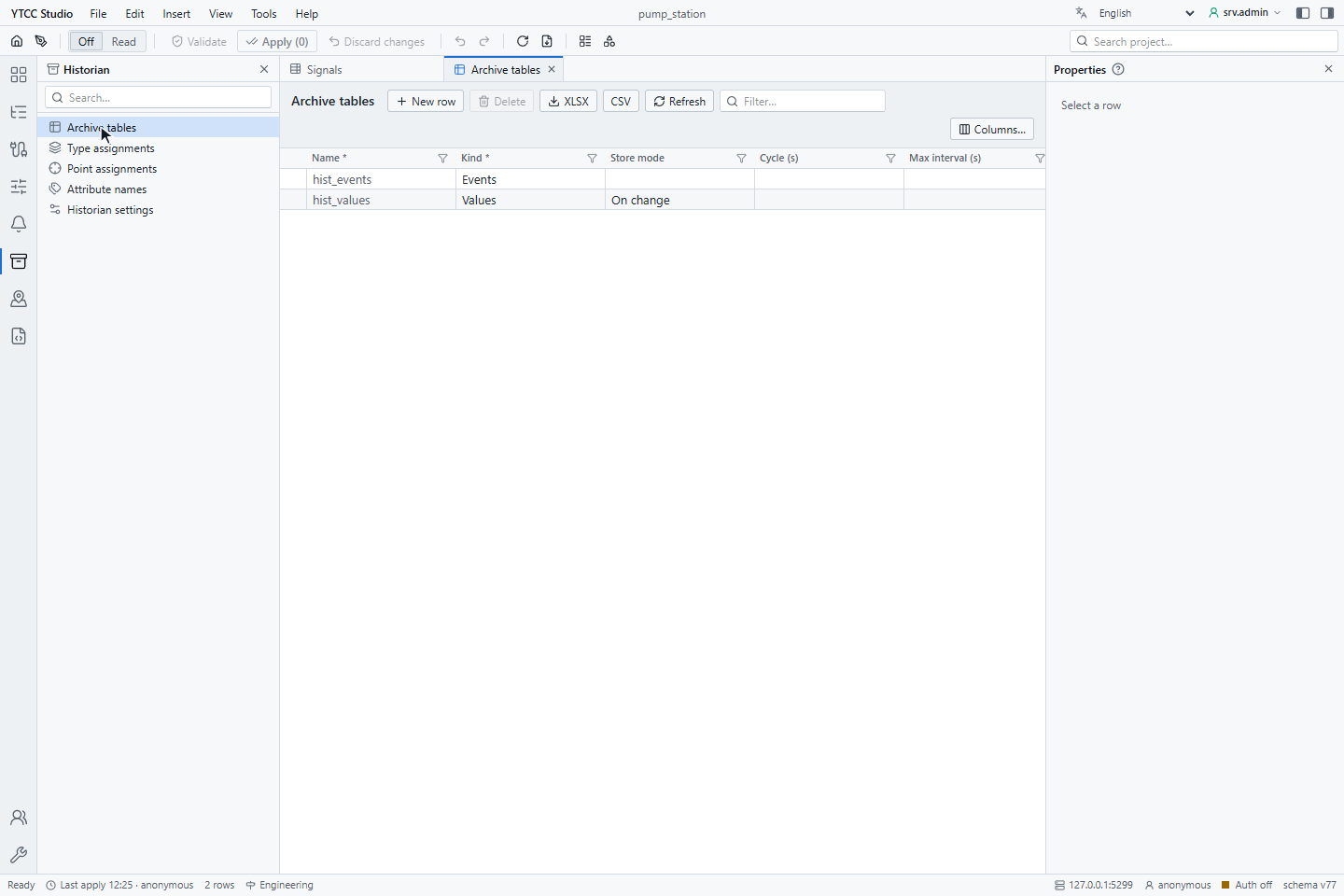
| Column | Meaning |
|---|---|
| Name | hist_ followed by lower-case letters, digits and _ |
| Kind | Values or Events |
| Store mode | On change or Periodic (values tables) |
| Cycle (s) | Period of a periodic table |
| Max interval (s), Min interval (ms) | Repeat an unchanged value after this time; hold back faster changes |
| Columns, Aspects | What is stored with each value |
| Max days, Max (GB) | Retention: the oldest days are removed beyond these limits |
| Protect days | The last days that are never removed for size |
| Active | The table records |
Add a table with New row, for example hist_energy with Periodic, Cycle (s) 60 and Max days 3650 for
energy counters. Apply the change as usual.
2. Assign signal types
Type assignments records every instance of a signal type in a table, optionally only one Element of the type (empty: the whole type), with its own Deadband abs or Deadband (%).
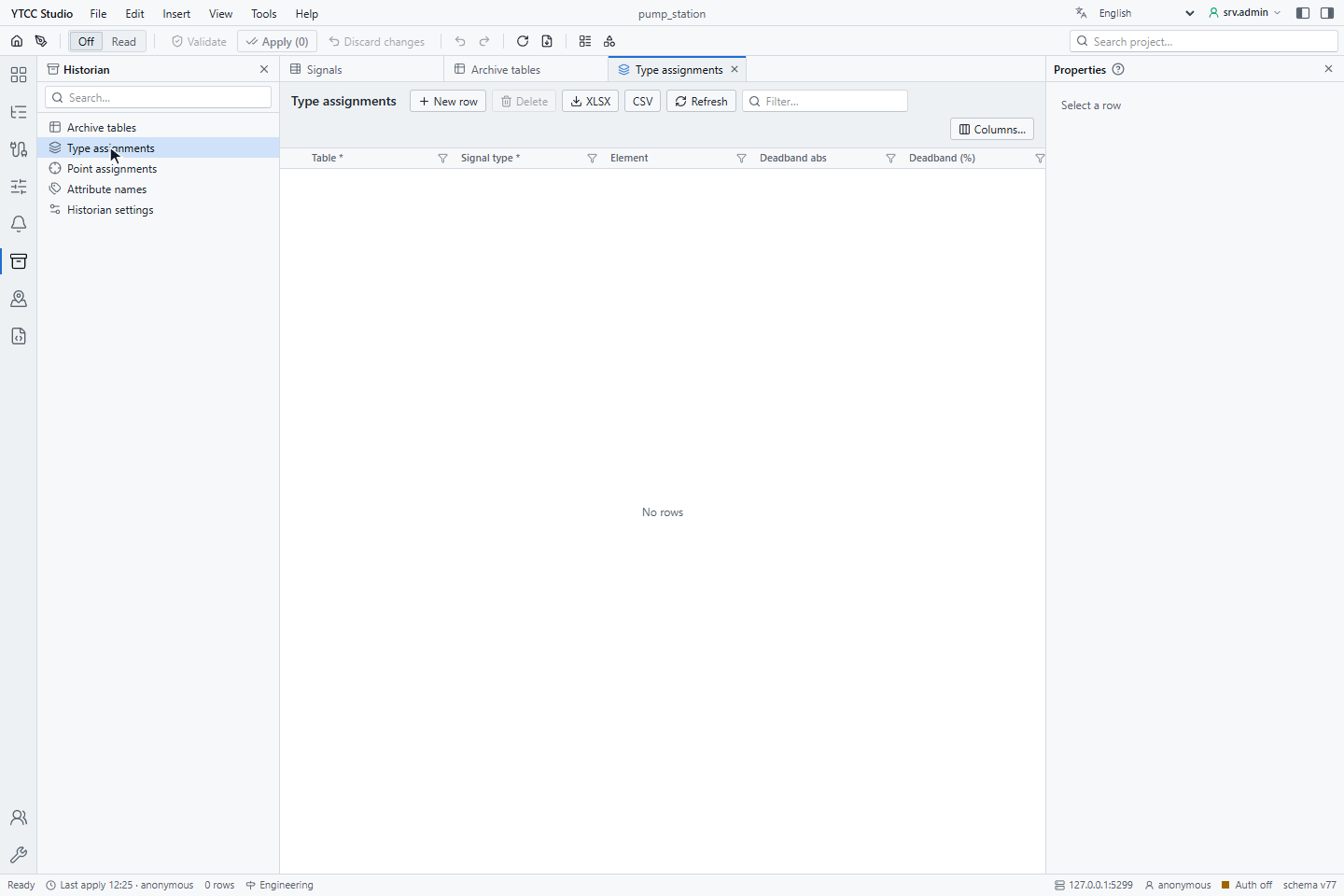
An assignment for an element wins over one for the whole type. Point assignments do the same for single signals by Path; Include no there removes a signal from its type's table.
3. Set the archive of a single signal
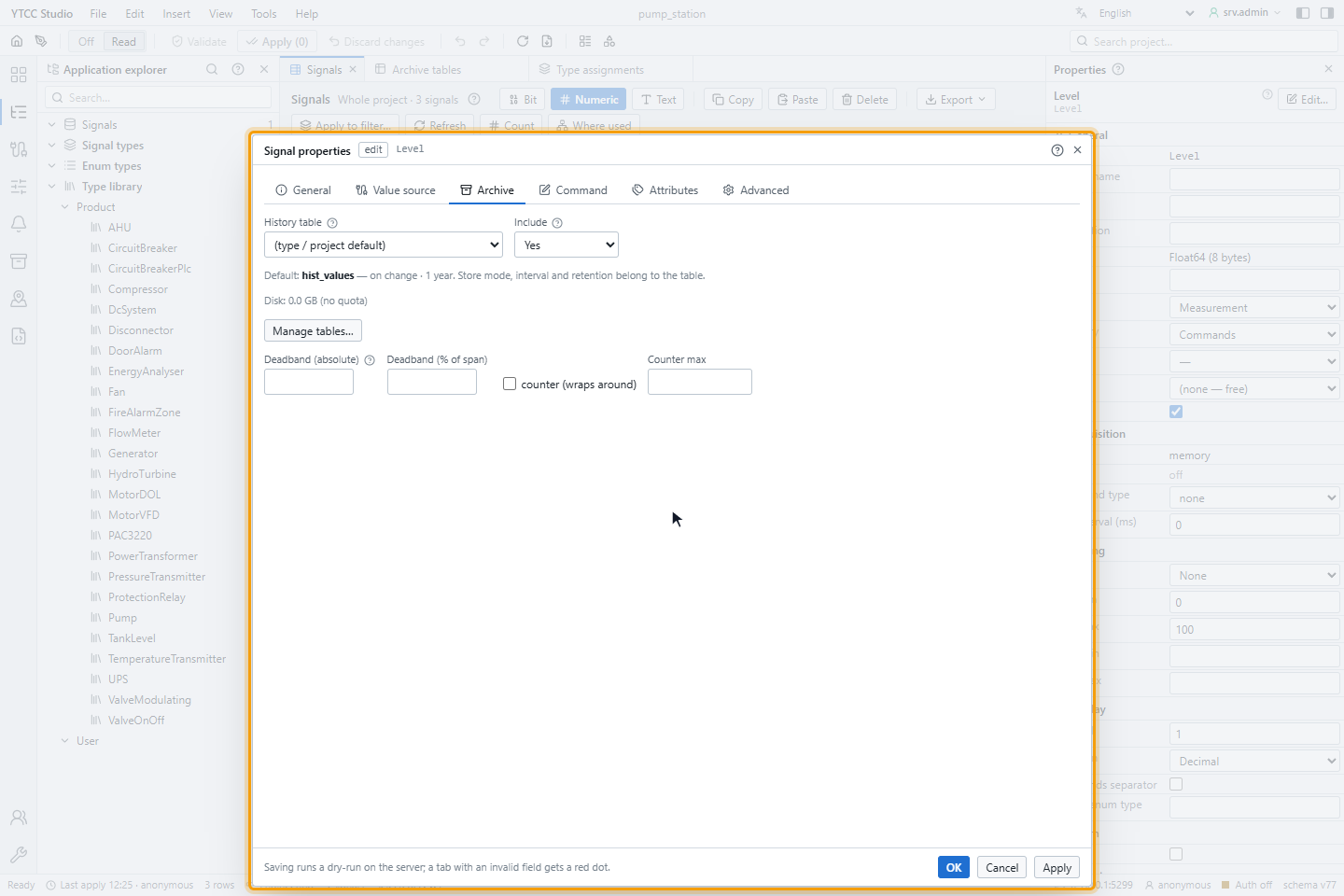
Open the signal, tick Archive on the General tab and open the Archive tab:
| Field | Meaning |
|---|---|
| History table | The table; (type / project default) uses the type's assignment or the project default (hist_values for measured values, hist_events for on/off and enumerated signals) |
| Include | Inherit (type), Yes or No |
| Deadband (absolute), Deadband (% of span) | A change smaller than this is not recorded; empty uses the type's setting |
| counter (wraps around), Counter max | For counters that restart at a maximum |
On/off and enumerated signals are stored on every change. Manage tables… goes to the archive tables.
4. Plan the capacity
Click Tools › Archive tables…. The planner lists each table with its number of signals, Retention (days), Quota (GB), current Size, Growth / day over the last seven days, the size At retention, when the quota is reached and the state. Change retention days and quotas there, click Stage N changes, then apply.
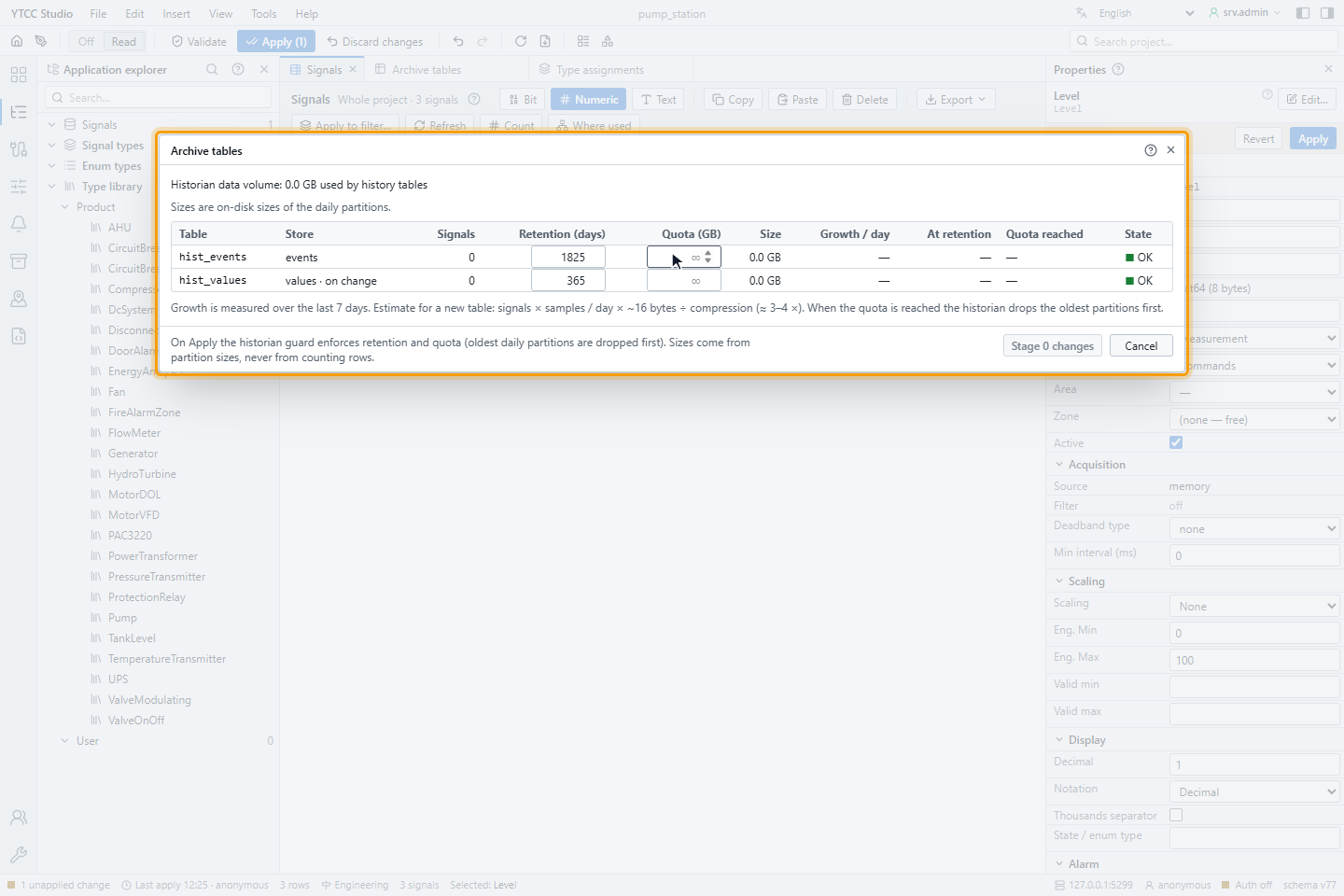
The planner needs the project to be running; otherwise it says that the data volume is unavailable.
5. Check the historian settings
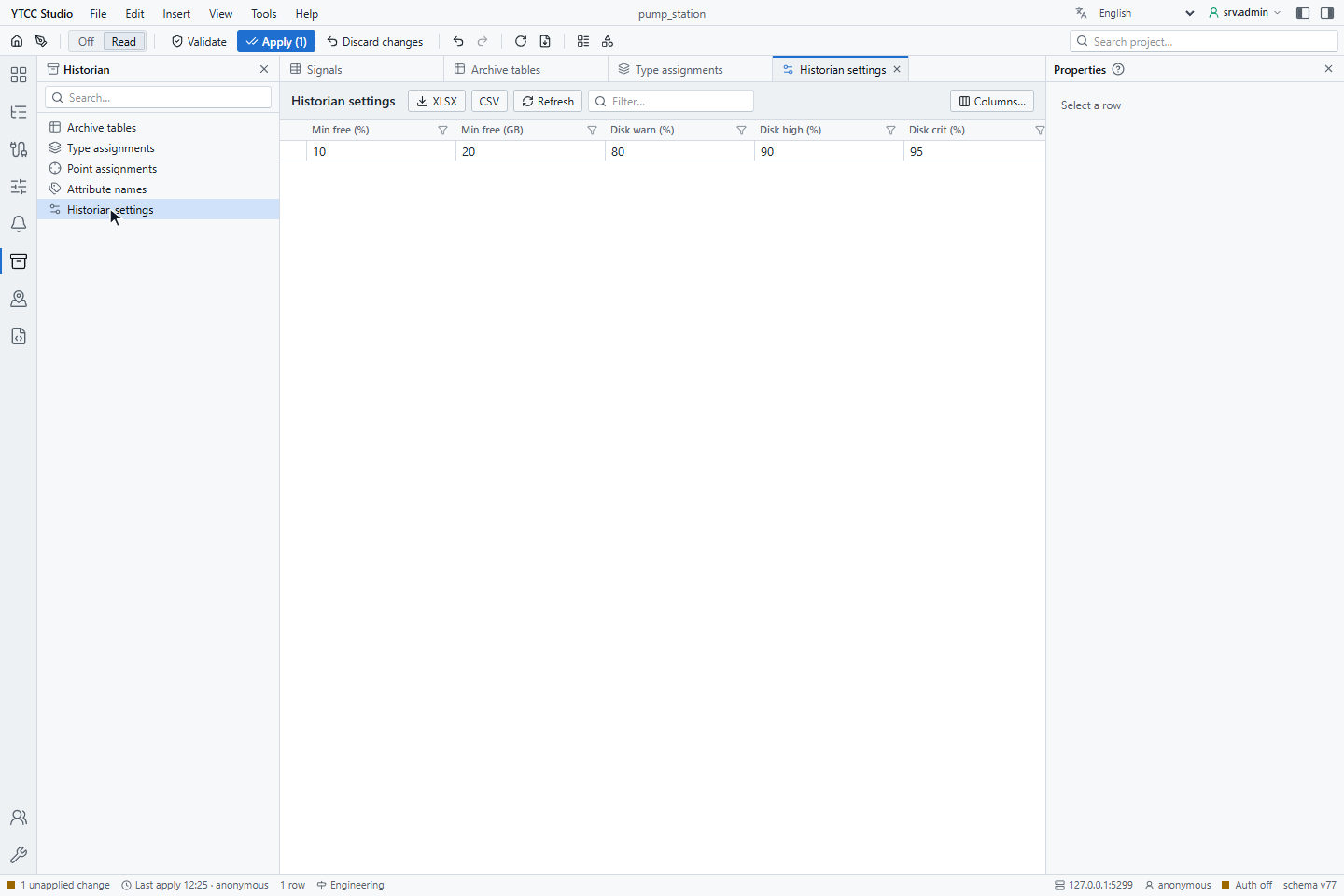
Historian settings holds the settings of the whole project:
| Setting | Default | Meaning |
|---|---|---|
| Min free (%), Min free (GB) | 10, 20 | Free space below the smaller of the two starts the cleanup |
| Disk warn (%), Disk high (%), Disk crit (%) | 80, 90, 95 | Disk alarm levels; at the critical level value recording pauses |
| Watch paths | — | Further disks to watch |
| Default events table | hist_events | Table for events |
| Reserve file (GB) | 2 | Space kept free for emergencies |
| History enabled | on | Off: nothing is recorded, and an alarm says so |
| Playback enabled | on | Allows replaying the history |
Result
The assigned signals are recorded in their tables from the next value on. Check the growth in the planner after a few days and adjust retention and quotas.