Pages and page properties
A project is made of pages. This page shows how to add a page, set its properties and manage it in the PAGES list.
Before you begin
- The project is open in the screen editor. See A tour of the screen editor.
Steps
1. Add a page
Click Add (+) in the PAGES header. A name box opens with New Page in it. Type the name and press Enter. The new page is empty and opens on the canvas. The name follows the rules in Object names.
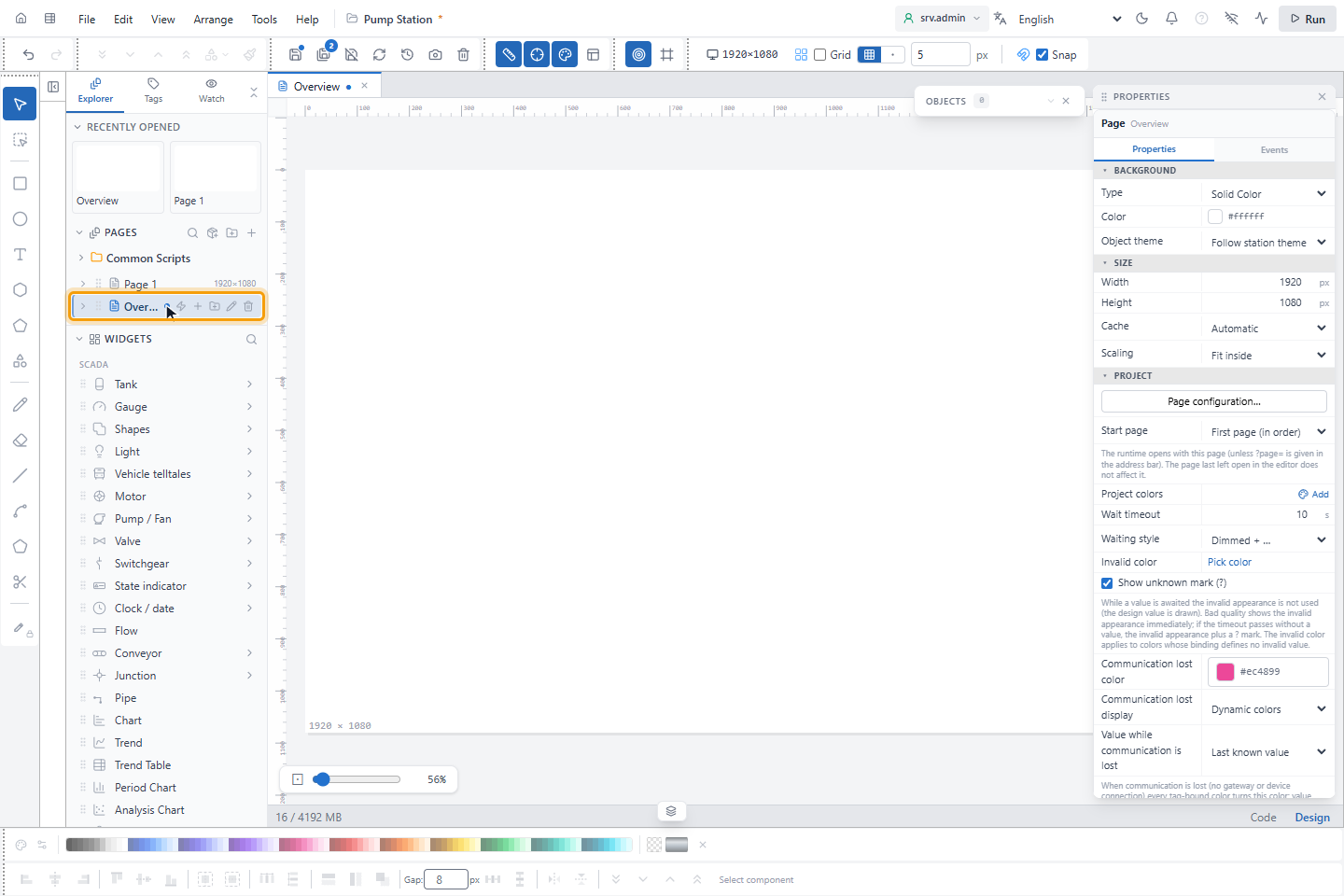
2. Set the background
Click an empty part of the canvas so that nothing is selected; the PROPERTIES panel then shows the page. Under BACKGROUND, choose the Type:
- Solid Color: one Color. This is the default (white).
- Linear Gradient: Start Color, End Color and the Angle of the gradient.
- Radial Gradient: Start Color and End Color, from the centre outwards.
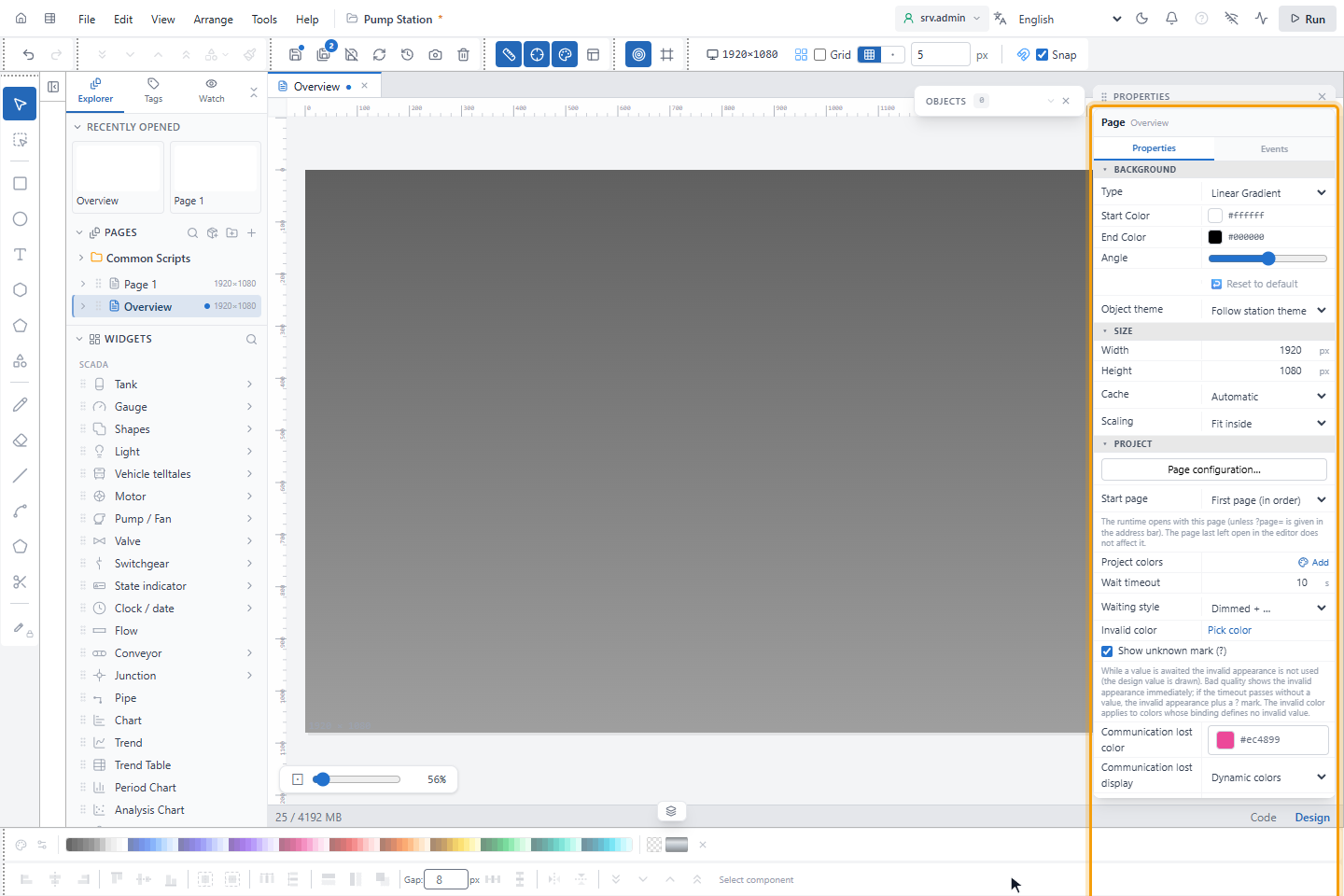
↩ Reset to default appears when the background is not plain white and puts it back. On a page with a dark background, set Object theme to Dark theme so that the table, list and chart objects of the page match it; see Page and project settings.
3. Set the size and the cache
Under SIZE, type the Width (100–7680 px) and Height (100–4320 px) of the page. New pages are 1920 × 1080.
Cache decides what the runtime screen does with the page after the operator leaves it:
| Option | Meaning |
|---|---|
| Automatic (default) | The page is kept for a while and dropped when memory is needed. |
| Never (drop when hidden) | The page is dropped as soon as it is hidden; half-filled forms are not kept. |
| Always in memory | The page is kept even after the timeout. |
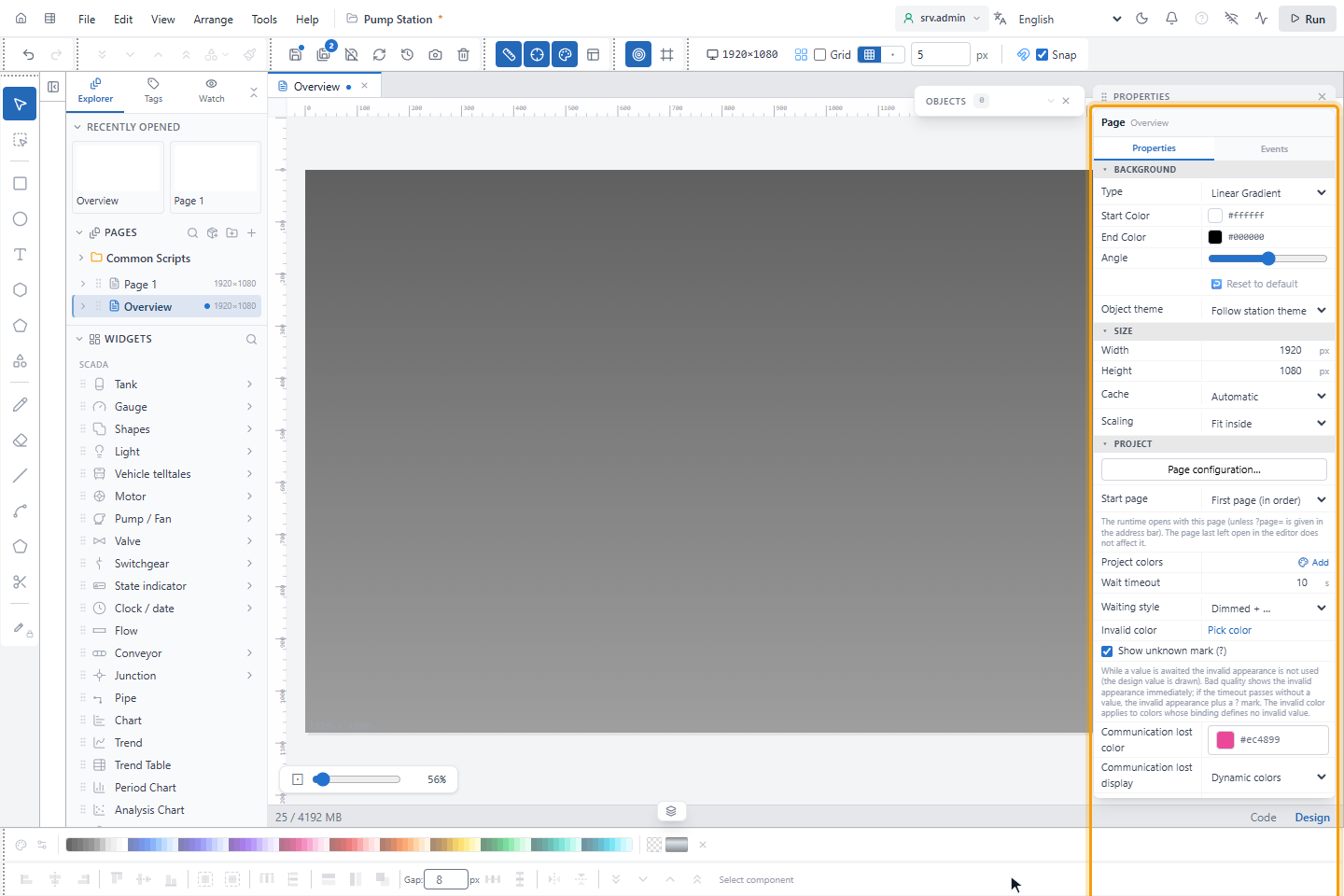
Scaling, below Cache, sets how the runtime screen fits the page into its window:
| Option | Meaning |
|---|---|
| Fit inside (default) | The aspect ratio is kept; the page is enlarged or shrunk to the window. |
| Shrink only | When the window is larger than the page, the page is shown at 1:1 in the centre; when it is smaller, the page shrinks with its aspect ratio kept. |
| 1:1 (scroll) | Actual size, with scroll bars when the page is larger than the window. |
| Stretch | The page fills the window; the aspect ratio is not kept. |
When the window has another aspect ratio than the page, bands appear around the page. They take the Color you choose for a solid background; with a gradient they are nearly black.
4. Choose the start page
Under PROJECT, Start page sets the page that the runtime screen opens with. The default is First page (in order), the first page of the PAGES list.
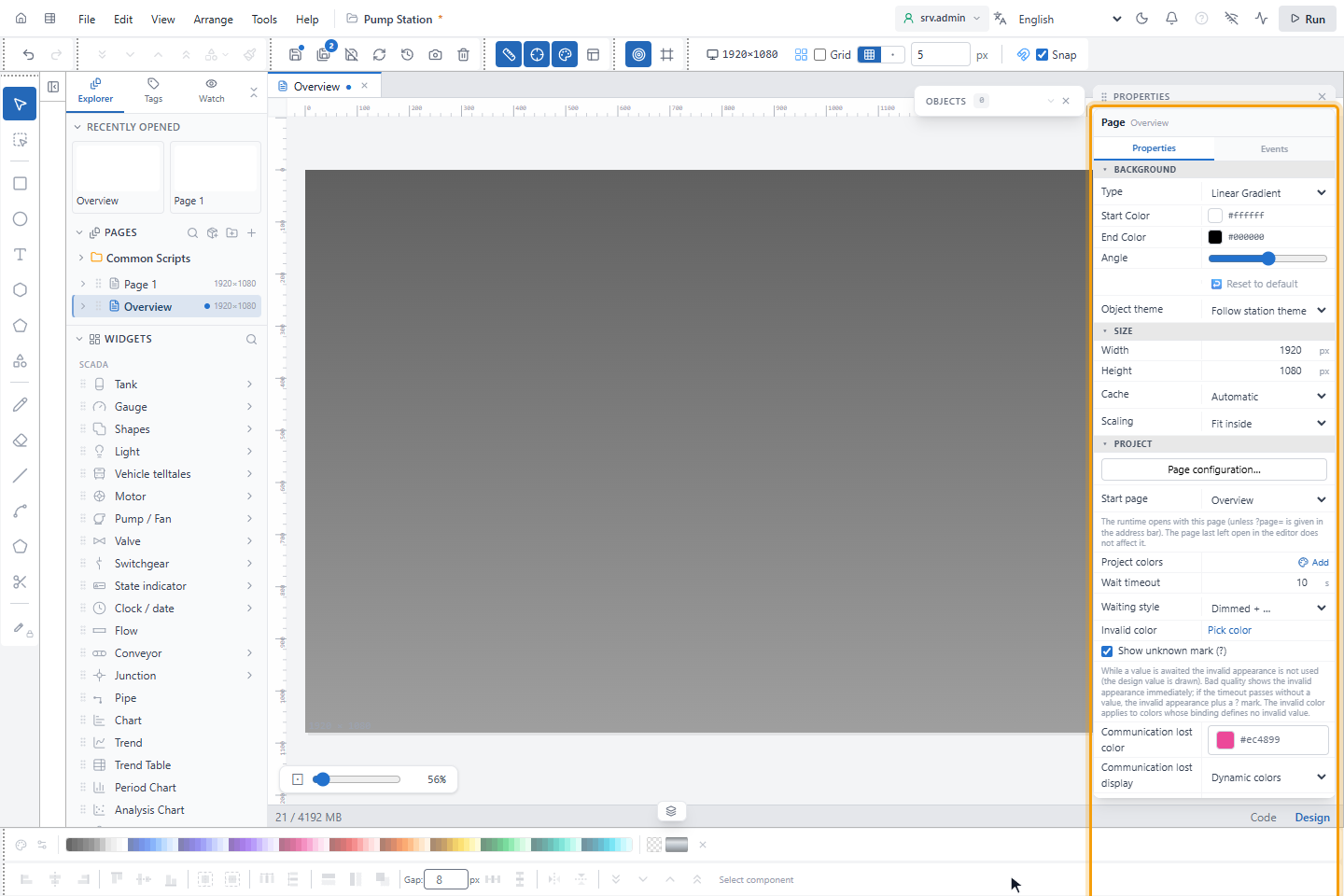
The runtime screen decides which page to open in this order:
- The page given in the address as
?page=<page id>or?page=<page address>, if it exists. Page addresses are set in Page configuration and navigation. - The Start page, if it still exists.
- The first page of the list.
The page that was last open in the editor does not count.
5. Use the page menu
Right-click a page in PAGES for its menu: Rename, Duplicate, Save this page (only on the open page), Create tablet version, Create mobile version and Delete.
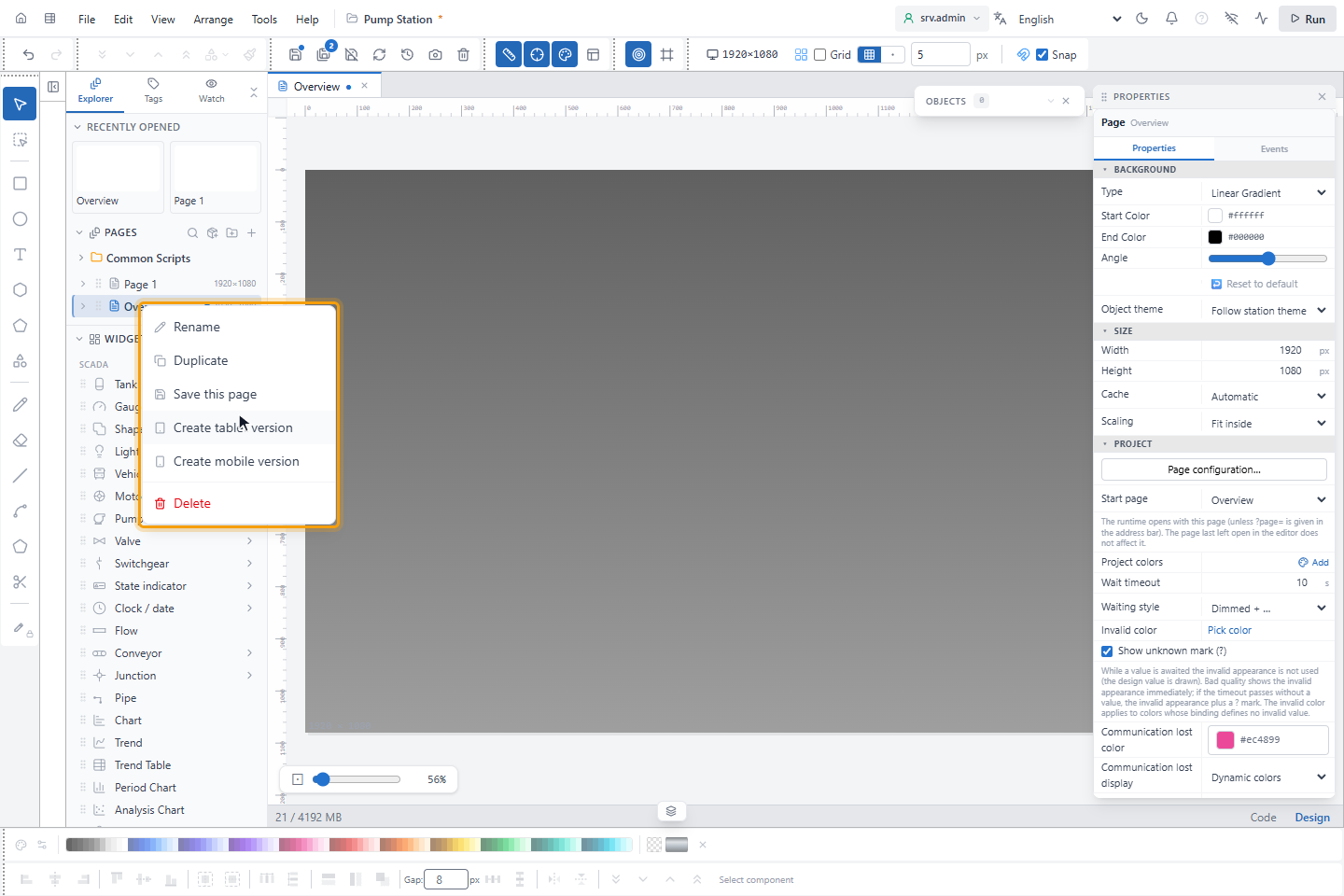
- Duplicate makes an independent copy called
<name> (copy)under the original. - Create tablet version and Create mobile version copy the page at 1024 × 768 (tablet) or 390 × 844 (mobile) and
name the copy
<name> (Tablet)or<name> (Mobile). Each version can be made once per page. The Navigate to Page action opens the version for the window size when one exists; Start page and the?page=address open the page you name. - Delete asks for confirmation. A project always keeps at least one page, so the last page cannot be deleted.
To change the order of the pages, drag a page by its handle. New folder in the PAGES header groups pages into folders.
Result
The page has the background, size, cache and start-page settings you chose.
Other page settings
- FONT: Font Family for the page. Use on all pages makes it the project font.
- Layout: Page Layout chooses which layout the page shows. The group appears when the project has layouts.
- Access: Login Required allows only logged-in users, optionally only some roles, to open the page. The group appears when users and logins are enabled for the project. The check is made by the screen in the browser, so do not use it to keep information secret; see Permission model.
- The grid settings (Grid, spacing, Snap) in the toolbar also belong to the open page.