Find, replace and rename signals
Names change: a tank is renumbered, a naming rule is introduced. Find and replace changes the names, display names, descriptions, aliases or units of many signals at once. Before anything is changed it lists every match and shows which screens, scripts and signals refer to the renamed signals. The old names keep working until you remove them.
Before you begin
- The configuration editor is open on the Signals view.
Steps
1. Find and preview
Press Ctrl+H or choose Edit › Find and replace…. Enter the text to Find and to Replace with, here Level and Lvl, and choose:
| Field | Options |
|---|---|
| Look in | Signal name, Display name, Description, Alias, Unit or All of these |
| Scope | Selected (N), Current folder or Whole project |
| Options | Match case, Whole word, Regular expression (\1, \2 … in the replacement refer to groups) |
The list below shows each match with Signal, Field, Current and New, here 6 matches in 6 signals. Untick a row to leave it out. Rows that cannot change are grey, for example name comes from type for elements of a signal type.
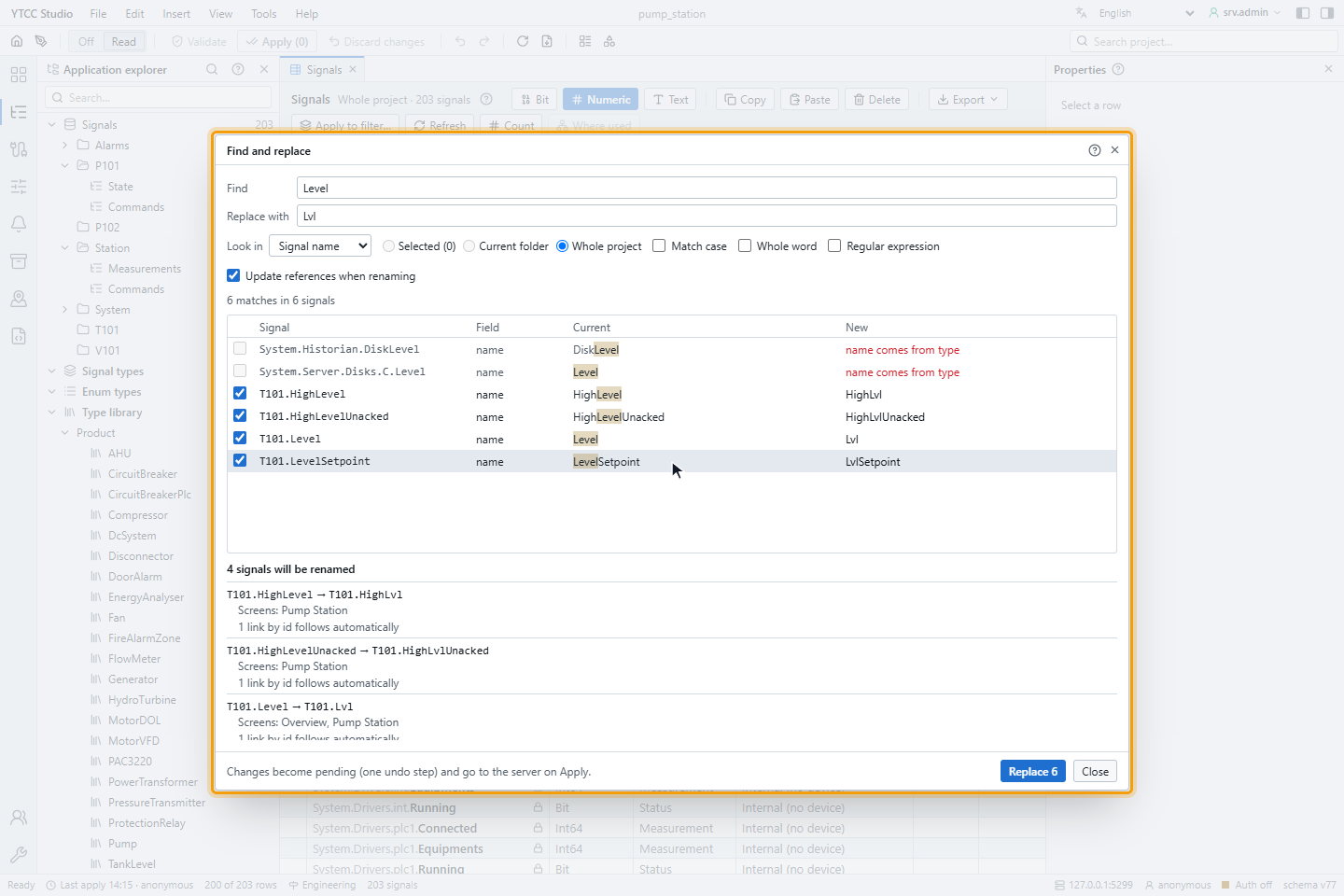
For names only the last part of the path is matched, so a folder named Level is not changed.
2. Check the impact
When names change, the window lists for each renamed signal where it is used: Screens, Scripts and other signals, for example internal expressions, and the links that follow by id automatically. Here 4 signals will be renamed, and T101.Level is used on the screens Overview and Pump Station.
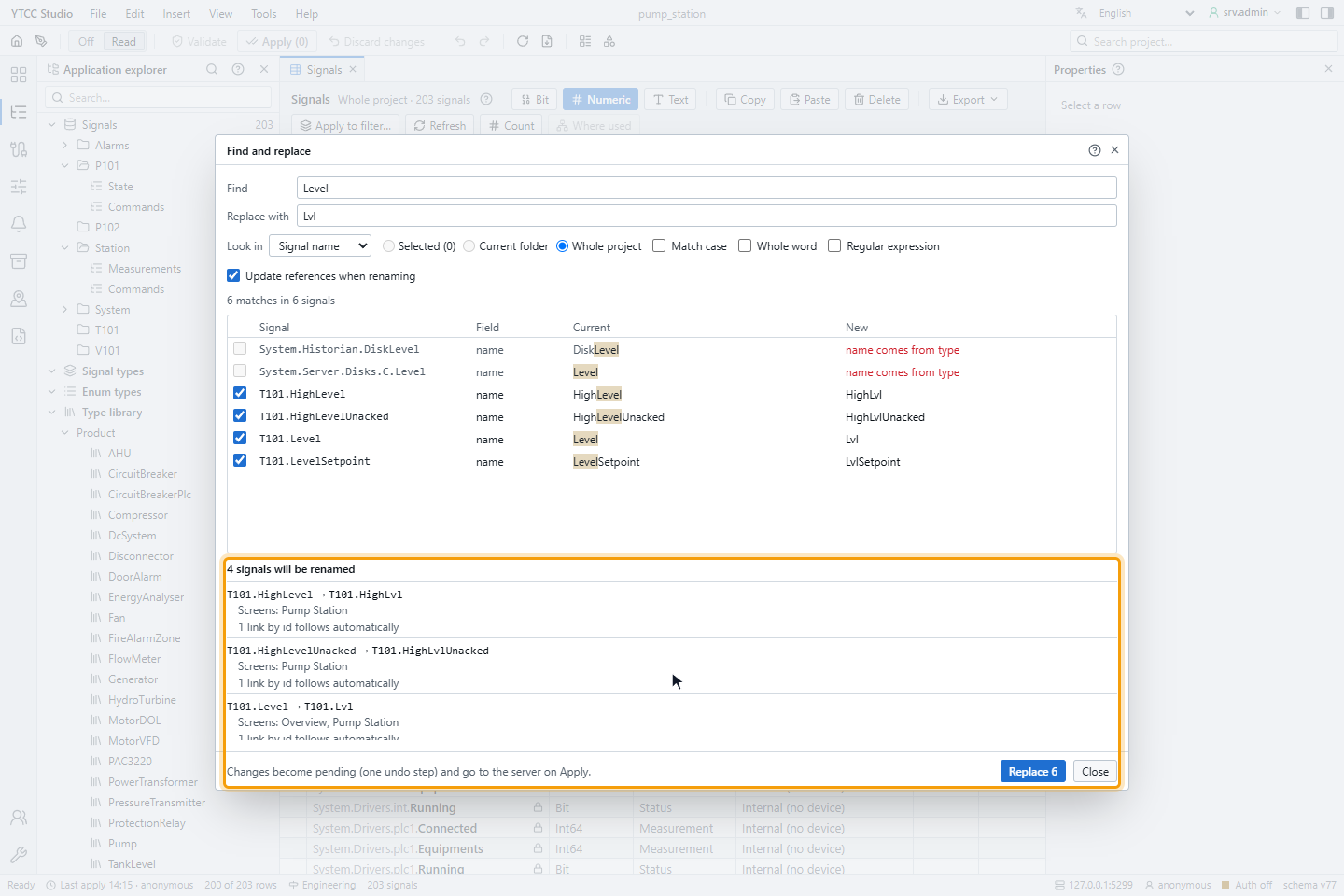
Update references when renaming (on by default) updates the references with the rename. Without it, a warning says that the references will point to a signal that no longer exists.
3. Replace and apply
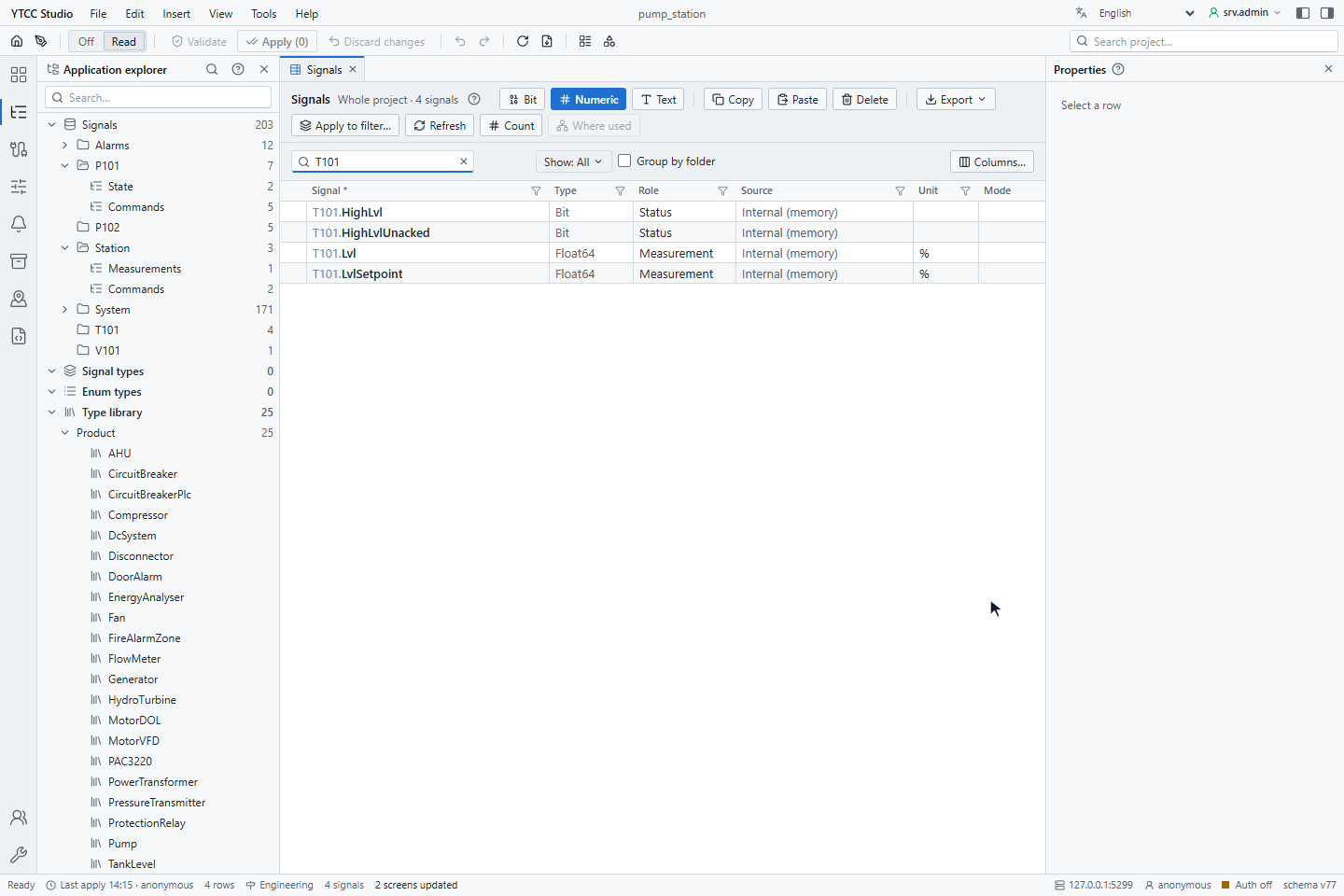
Click Replace N. The changes become pending as one undo step; apply the configuration to save them; see Validate and apply.
Old names keep working
After a rename the old name becomes an alias of the new one. Screens, scripts and interfaces that still use the old name keep working, and the old name cannot be given to another signal while the alias exists. Aliases do not expire: remove them under Tools › Diagnostics › Old names still in use when nothing uses them any more; see Diagnostics and audit.
Rename a single signal
Select a signal and press F2 (or Rename in the row menu). The status bar says how many references are updated on Apply; Details opens the impact with the server scripts that contain the name: exact name texts are ticked and replaced in the same apply; texts that are put together while the script runs are listed as "may reference — not changed" and only work through the alias.
Good to know
- A selection or scope of more than 10 000 changes is applied on the server instead (Replace all N on the server…), only for display name, description, alias and unit.
- Undo (Ctrl+Z) reverts the whole replacement as long as it is not applied.