Live data in the configuration editor
While the project runs, the signal list of the configuration editor can show the live value, quality and mode of the visible signals. The live data switch in the toolbar decides whether it does and whether you may change the running project from the editor, for example the run mode of signals.
| Position | Effect |
|---|---|
| Off | No live values; the value and quality columns stay empty |
| Read (default) | Live values of the visible rows are shown; live writes are off |
| Read-Write | Live values plus live writes: run mode, manual values and commands, each with a confirmation |
Before you begin
- The configuration editor is open on the Signals view. Live values need a running project.
Steps
1. Watch live values
Set the switch to Read. The Value, Quality and Mode columns show the live state of the rows you see, here the outlet flow in m³/h with Good. Only the visible rows are followed, so scrolling through a large project does not load the server.
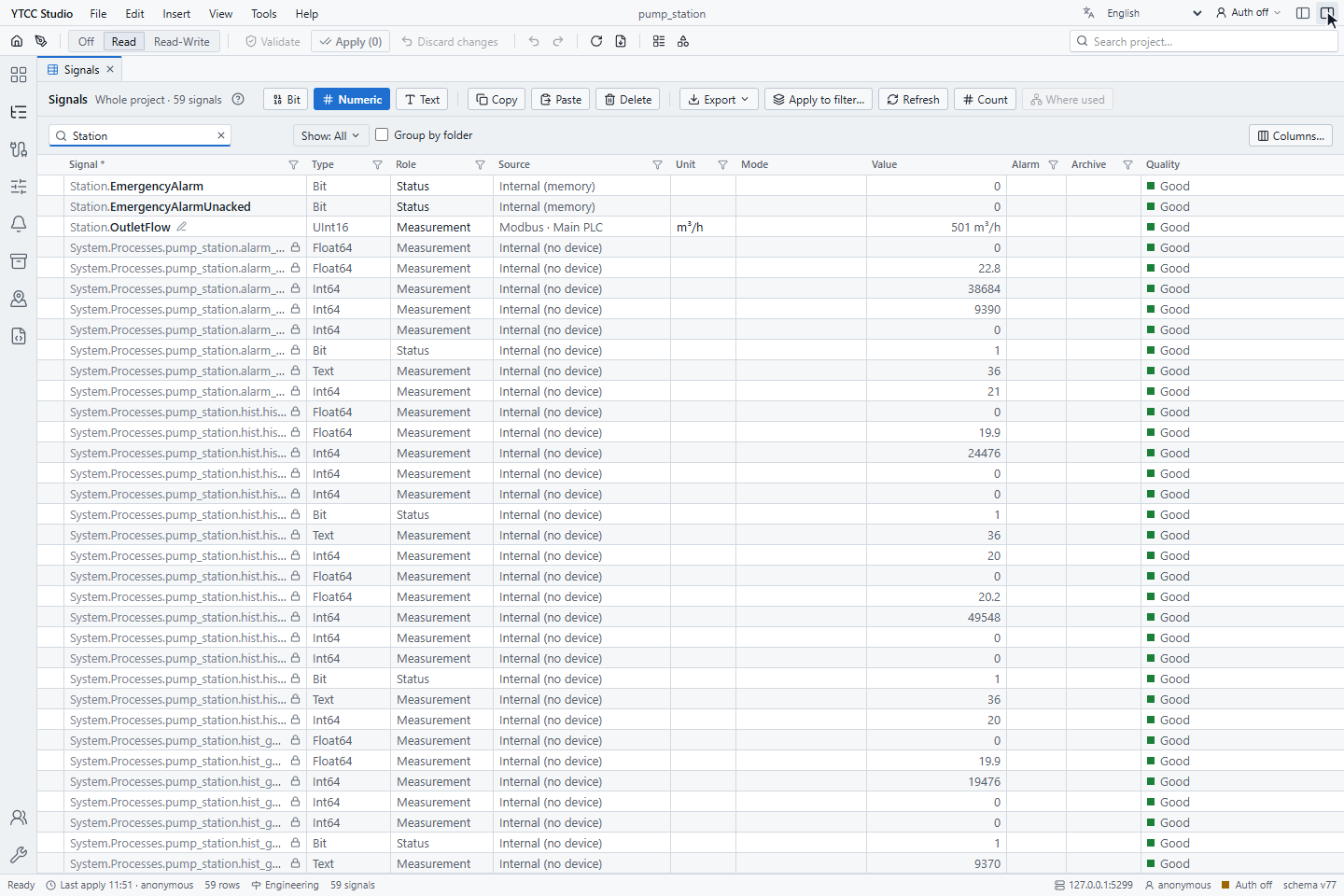
If the project is not running, the status bar shows Live values off — project is not running; live values start by themselves when the project starts.
2. Switch to Read-Write
Set the switch to Read-Write when you need to change the running project, for example to set the run mode of signals. The switch turns amber and the status bar shows Live: read-write. Each live write still asks for confirmation.
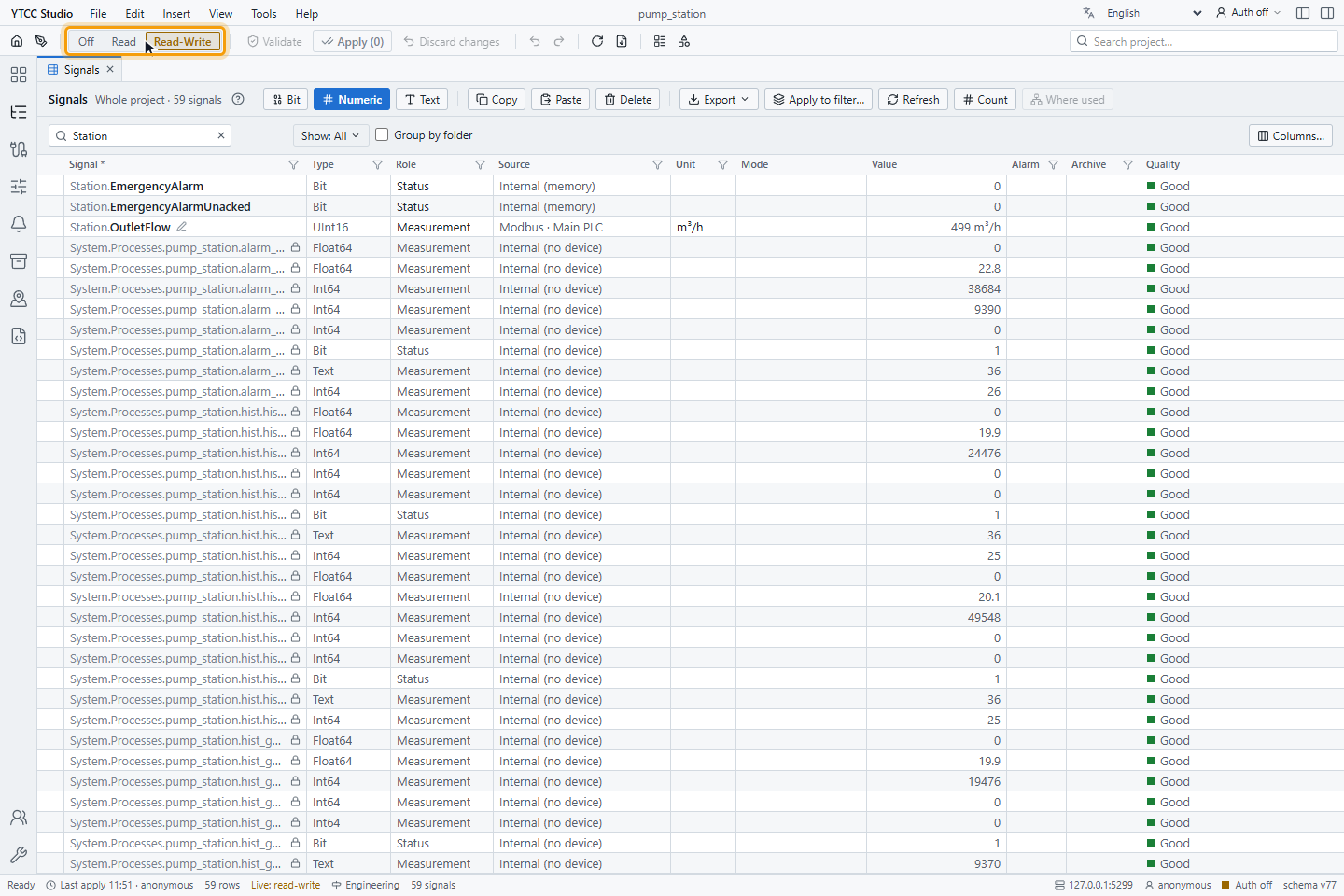
Only users whose profile allows Signal run mode or Tag Write can choose Read-Write. Set the switch back to Read when you are done; it does not return by itself.
3. Set the start mode
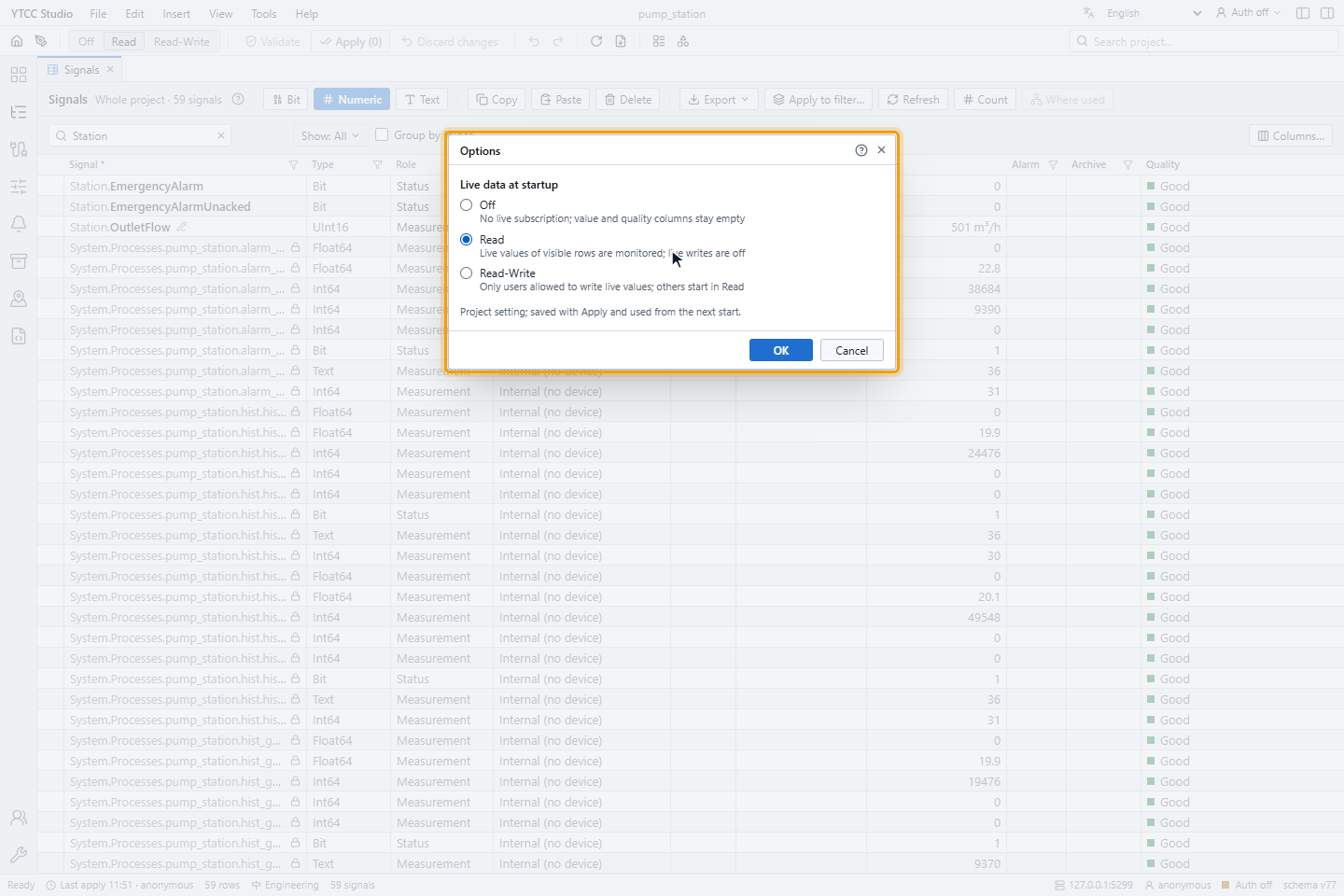
Choose Tools › Options…. Live data at startup sets the position of the switch when the editor opens: Off, Read or Read-Write. Read-Write applies only to users allowed to write live values; others start in Read. The setting belongs to the project, is saved with Apply and is used from the next start.
Good to know
- Ctrl+Shift+L switches between Off and Read; from Read-Write it returns to Read. The View › Live data menu has all three positions.
- In Read the status bar shows nothing about live data; Off shows Live off.