The widget palette
The Widgets section of the explorer holds every object you can place on a page. Click an entry and draw on the page, or drag it onto the canvas. Entries with › open a menu of variants first.
Before you begin
- A page is open in the screen editor.
Steps
1. Look at the groups
The palette has two groups:
| Group | Entries |
|---|---|
| SCADA | Tank ›, Gauge ›, Shapes ›, Electrification ›, Electrical wire, Electrical simulation, Light ›, Vehicle telltales ›, Motor ›, Pump / Fan ›, Valve ›, Switchgear ›, State indicator ›, Clock / date ›, Flow, Conveyor ›, Junction ›, Pipe, Chart, Trend, Trend Table, Period Chart, Analysis Chart, 3D Model, Signal List, Alarm List, Alarm group, Responsibility zones, Map, Alarm strip, Command Log, Event List, Trip causes, Alarm band, SVG, Arrow, Line |
| Form / HTML | Button, Navigation button, Input, Select, Menu bar, Image, Slider, Switch, Toggle Button, Page iframe, Document (PDF) |
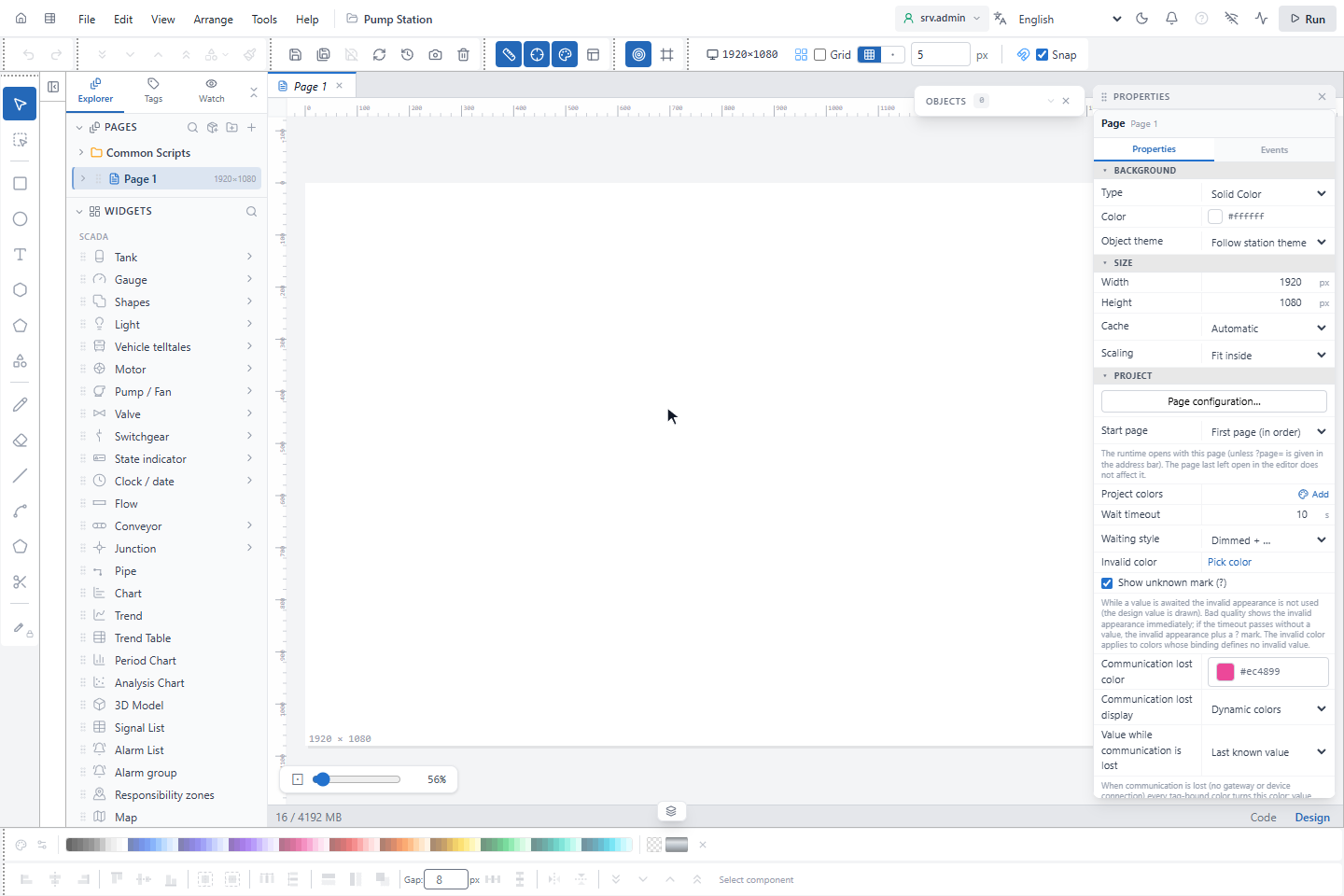
Drag an entry by its handle to change the order within a group; the order is kept in your browser.
2. Search the palette
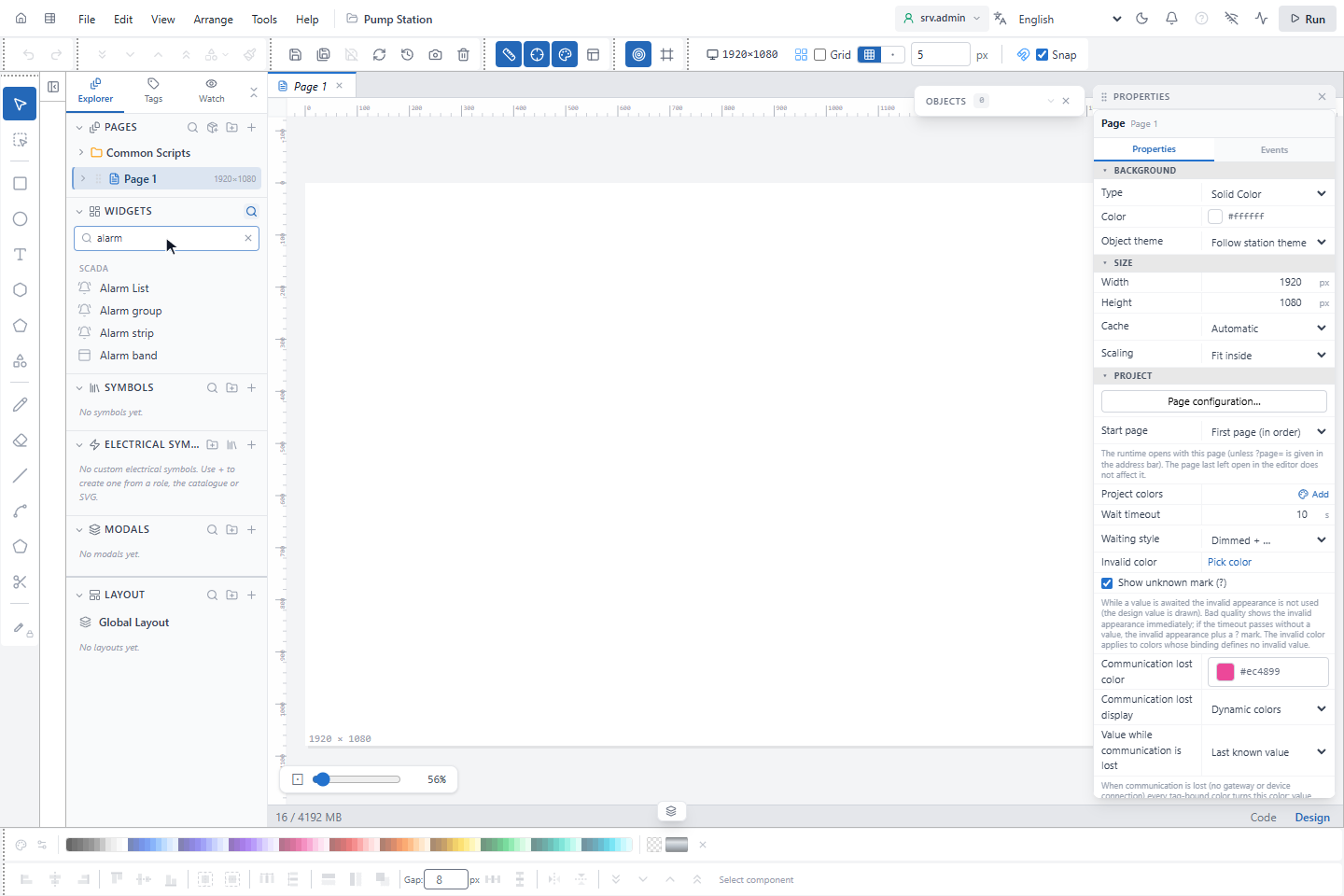
Click the magnifier of the section and type, here alarm: only matching entries stay. Esc closes the search.
3. Pick a variant
Click an entry with ›, here Valve. The menu shows its variants; click one to draw it, or drag it onto the page. The menu stays open until you close it with ×.
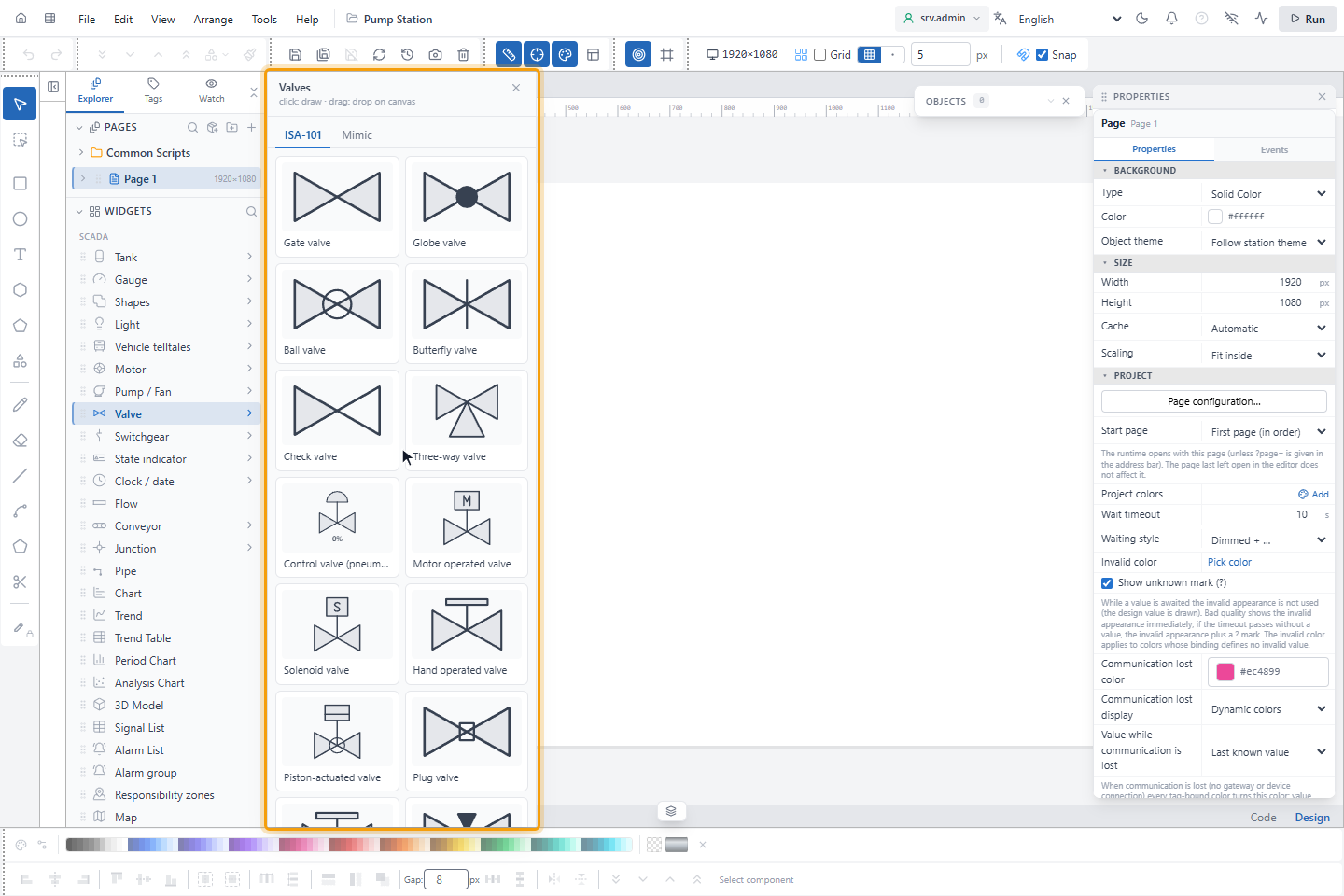
Tanks, motors, pumps and fans, valves, switchgear, conveyors and junctions have the tabs ISA-101 (simple) and Mimic (realistic). The menu opens on the style of the project (Equipment appearance style in the page properties); an object taken from the other tab keeps that style. A tab lists only the variants that have their own drawing in that style, so a tab can show fewer entries than the table below.
| Entry | Variants |
|---|---|
| Tank | Vertical (dished heads), Dome roof, Cone roof (storage), Floating roof, Jacketed vessel, Horizontal (dished heads), Buried (underground), Cone bottom (silo), Spherical, Open basin, Clarifier, IBC container, Classic |
| Gauge | Classic dial, Dial with zones, Speedometer, Half dial, Half arc, ¾ arc, rings, segmented ring and arc, Minimal dial, horizontal and vertical bars, moving analog scales |
| Light | Pilot light, Square indicator, LED, Status dot (ISA-101), Ring LED, Illuminated push button, Beacon, Rotating beacon, Light bulb, Floodlight / luminaire, Classic |
| Motor | Simple (ISA-101), IEC 60617, IEC 60617 single-phase (1~), IEC 60617 DC (=), Generator (G 3~), Gear motor, Servomotor, Motor with drive (VFD), Explosion-proof motor (Ex), Flange motor (B5), Vertical motor (V1), Bladed, Classic |
| Pump / Fan | Centrifugal pump, Pump (general), Gear pump, Progressive cavity pump, Reciprocating pump, Diaphragm (metering) pump, Peristaltic pump, Submersible pump, Vacuum pump, Compressor, Reciprocating compressor, Screw compressor, Fan, Axial (duct) fan, Blower, Agitator, Rotary feeder (airlock) |
| Valve | Gate valve, Globe valve, Ball valve, Butterfly valve, Check valve, Three-way valve, Control valve (pneumatic), Motor operated valve, Solenoid valve, Hand operated valve, Piston-actuated valve, Plug valve, Diaphragm valve, Needle valve, Angle valve, Angle control valve, Safety relief valve (PSV), Motorized damper |
| Switchgear | Circuit breaker (square), Circuit breaker (IEC), Disconnector, Load break switch, Earthing switch |
| State indicator | Multi-state, Mode indicator |
| Clock / date | Digital clock, Date and time, Date, Analog dial |
| Conveyor | Belt, Cleated belt, Roller, Chain, Slat, Bucket, Screw, Vibrating, Classic |
| Junction | Straight (2-way), Elbow (2-way), Tee (3-way), Wye (3-way), Intersect (4-way) |
4. Open the shape library
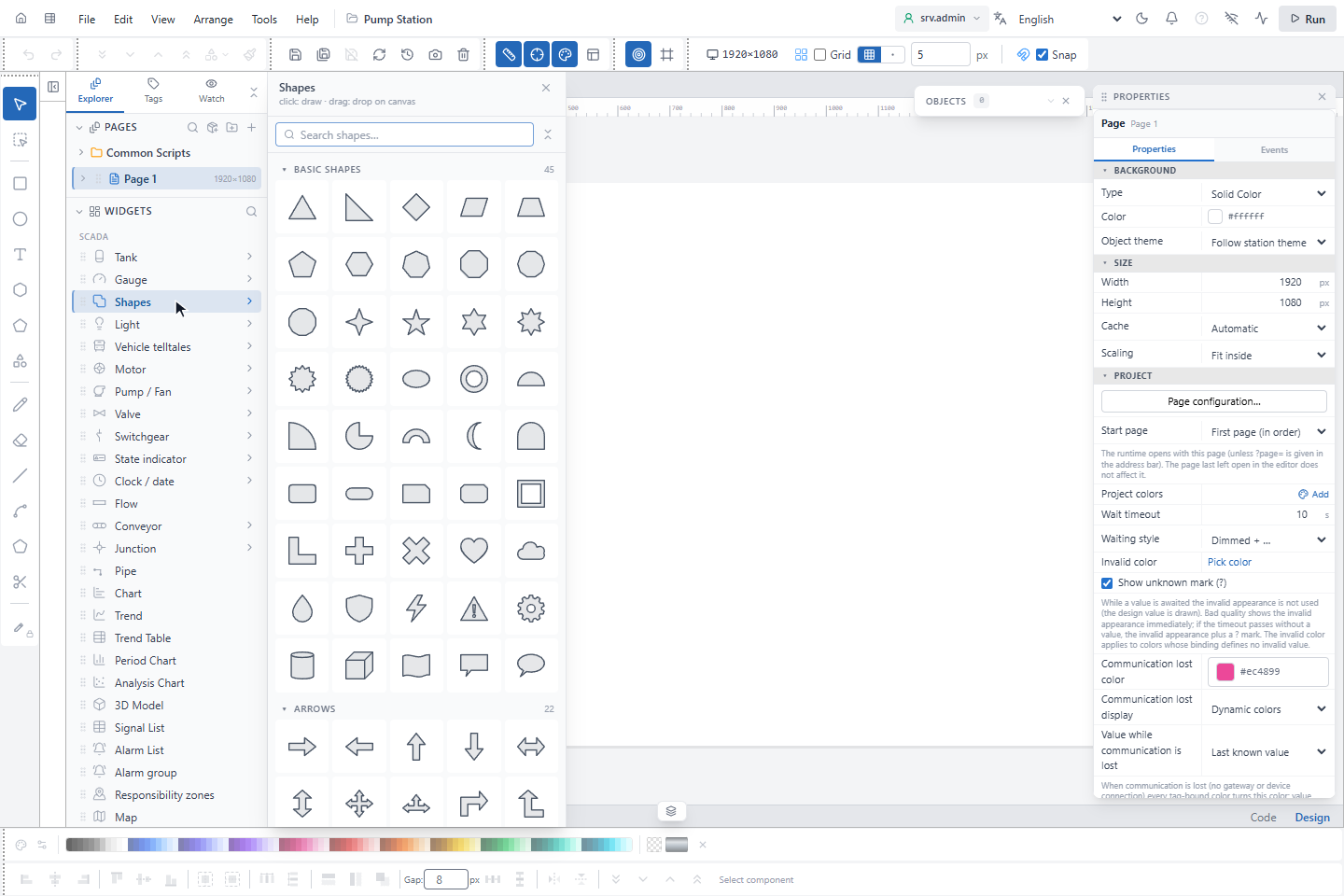
Click Shapes (or More shapes… on the tool rail). The library has 16 categories with more than 350 shapes; search by name or open a category.
| Categories | |
|---|---|
| Basic shapes (45), Arrows (22), Tanks and vessels (21), Pumps, compressors, fans (19) | Valves (18), Piping (27), Heat transfer (13), Separation and mixing (16) |
| Material handling (20), Instrumentation (ISA-5.1) (28), Power system (single line) (32), Circuit elements and logic (37) | Energy and power plants (19), HVAC and building (19), Facilities and structures (22), Flowchart (31) |
5. Place a Toggle Button
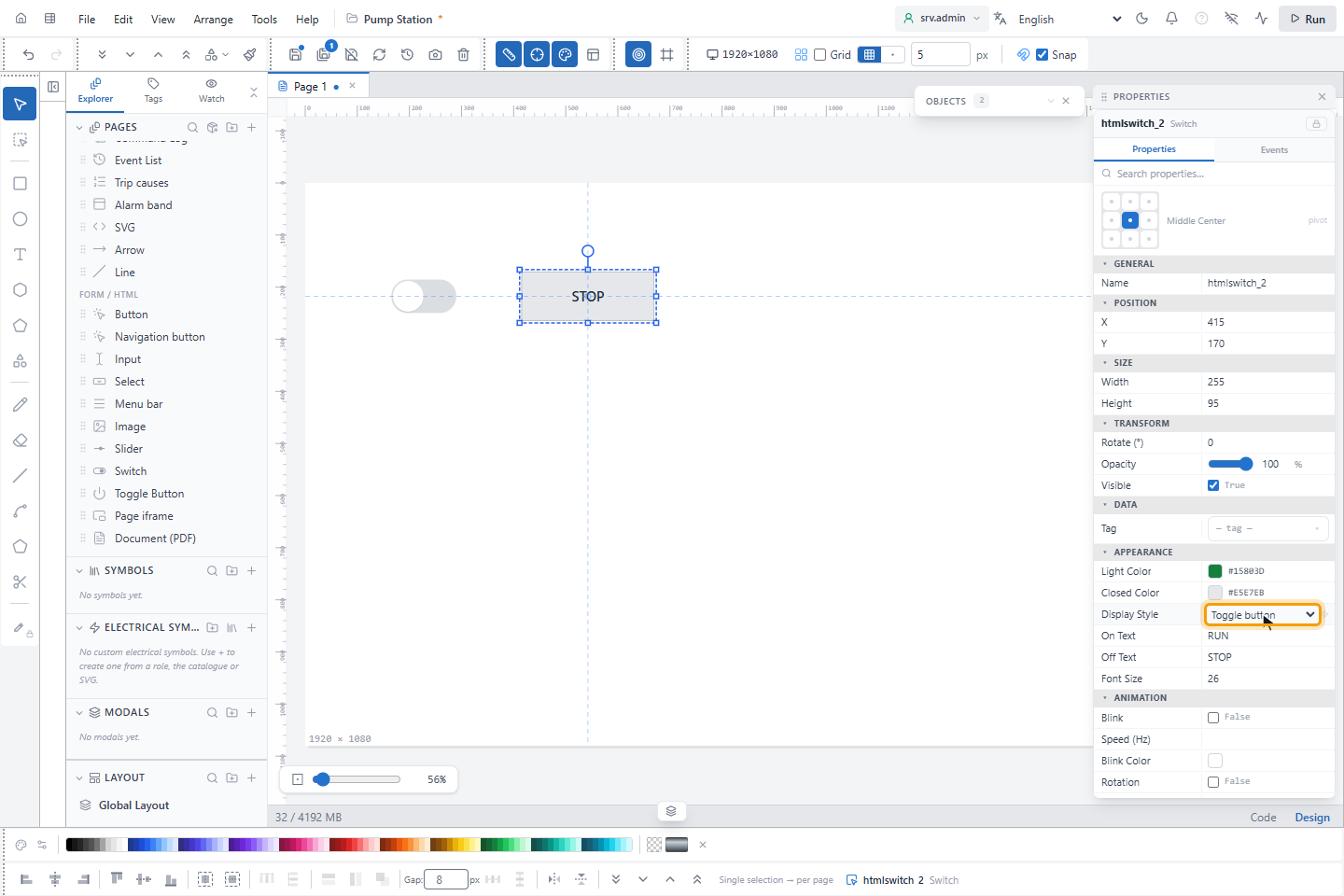
Toggle Button in the Form / HTML group is a Switch drawn as a button. Click it and draw on the page, then bind Tag to an on/off signal. On Text and Off Text set what the button says (ON and OFF by default), Font Size the size of the text, Light Color and Closed Color its colors when on and off. In the editor the button shows its off state.
Display Style changes the same object between Slide switch and Toggle button, so a switch that is already on a page can become a button. How the button works on the runtime screen: Use a Toggle Button. All settings: Switch.
Good to know
- Navigation button is a button that already has the action to open a page; see Click actions.
- Electrical symbols are under Electrification; see Symbols and wires. Electrification, Electrical wire and Electrical simulation are shown only when Modules › Electrification is ticked under PROJECT in the page properties. A new project has it off.
- Trend and Trend Table are described in Trend and Trend Table objects. Period Chart and Analysis Chart are described in Period and analysis charts.