Draw shapes and lines
The Drawing tools toolbar, at the left edge of the screen editor in the default profile, holds the drawing tools (see Menus, toolbars and interface profiles). Each tool creates one object; after drawing, the editor returns to Select (Esc) unless Continuous drawing (the lock at the end of the toolbar) is on.
| Tool | How you draw | Object |
|---|---|---|
| Rectangle, Circle, Text / Label, Hexagon, Pentagon, More shapes… | Drag, or click two corners | rectangle_1, circle_1, label_1 … |
| Line (L) | Drag, or click the start and the end | Line |
| Polyline, Polygon | Click each point; double-click or Enter finishes | Polyline, Polygon |
| Pen (P) | Draw freehand while you hold the mouse button | Pencil |
| Eraser (E) | Drag over pen strokes | Deletes whole strokes |
| Pipe (palette) | Click each point; double-click or Enter finishes | Pipe |
| Trim (T then R) | Cut lines at intersections | Changed lines |
Before you begin
- A page is open in the screen editor; see Tour of the screen editor.
Steps
1. Draw a box shape
Choose Rectangle and drag on the page, or click one corner and then the opposite corner. Hold Shift to keep the sides equal, here a square. The object gets the name of its type and a number, here rectangle_1.
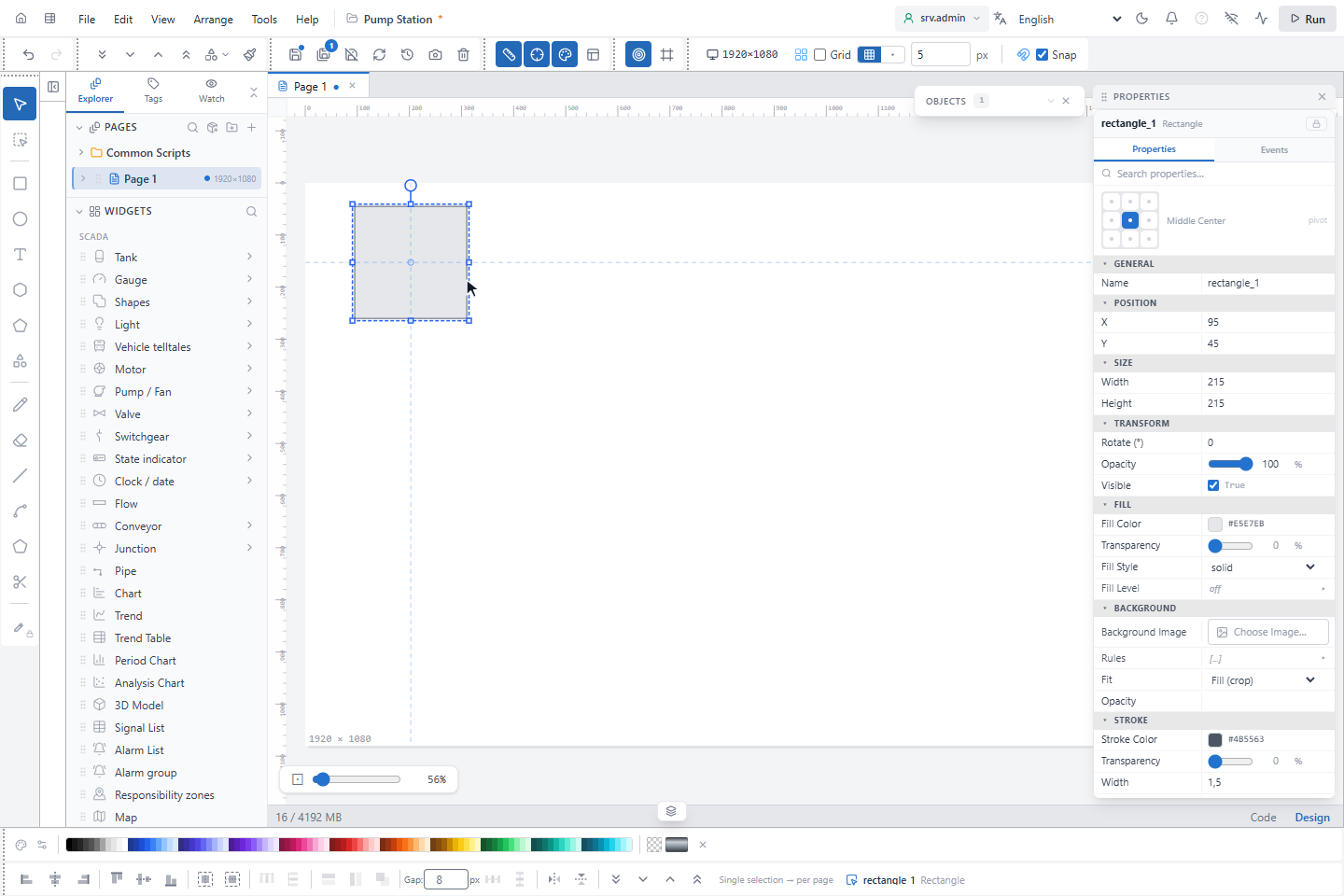
A single click without moving places the object in its default size. With Snap on, corners snap to the grid. Press Esc once to drop a half-drawn box, twice to leave the tool.
2. Draw a line
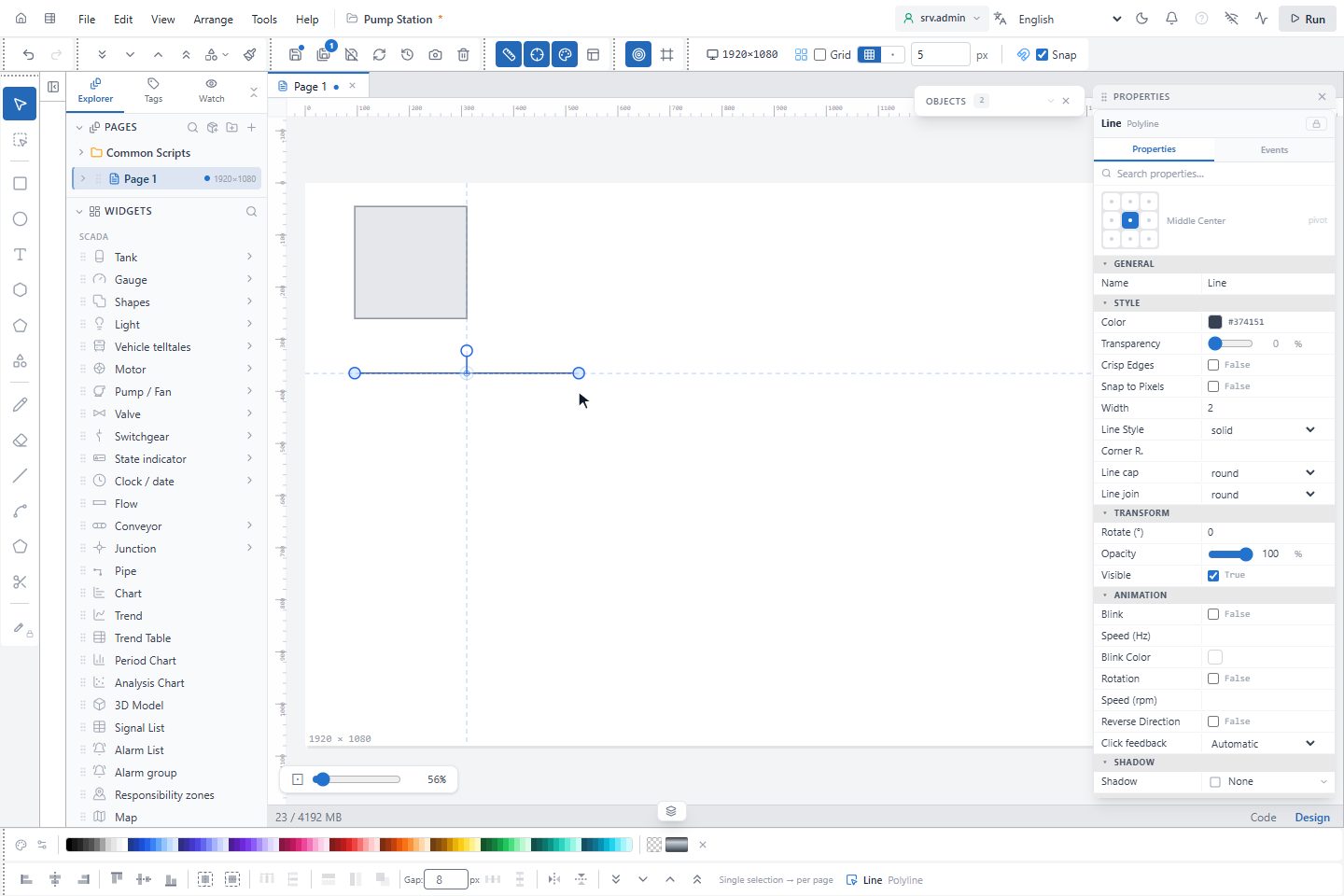
Choose Line (L) and drag, or click the start and then the end. Hold Ctrl for horizontal or vertical lines, Shift for steps of 45°.
3. Draw a polyline and a polygon
Choose Polyline, click each point, and finish with a double-click or Enter. Polygon works the same and closes when you click the first point again; it is highlighted in green when you are close enough. Ctrl and Shift constrain the segment from the last point; Esc cancels.
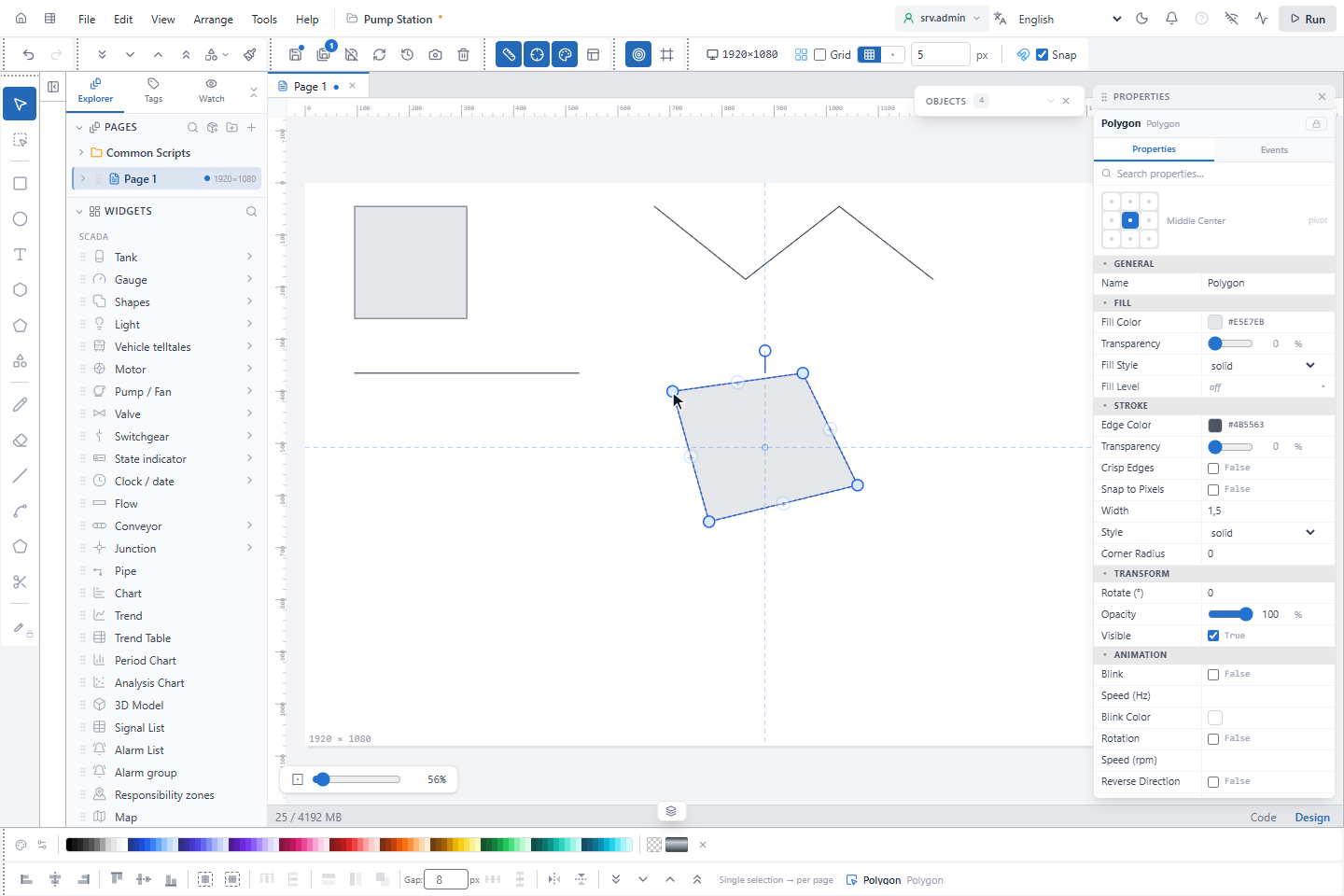
To change a selected polyline or polygon, drag a blue point, click the + in the middle of a segment to add a point, or double-click a point (or press Delete) to remove it.
4. Draw with the pen
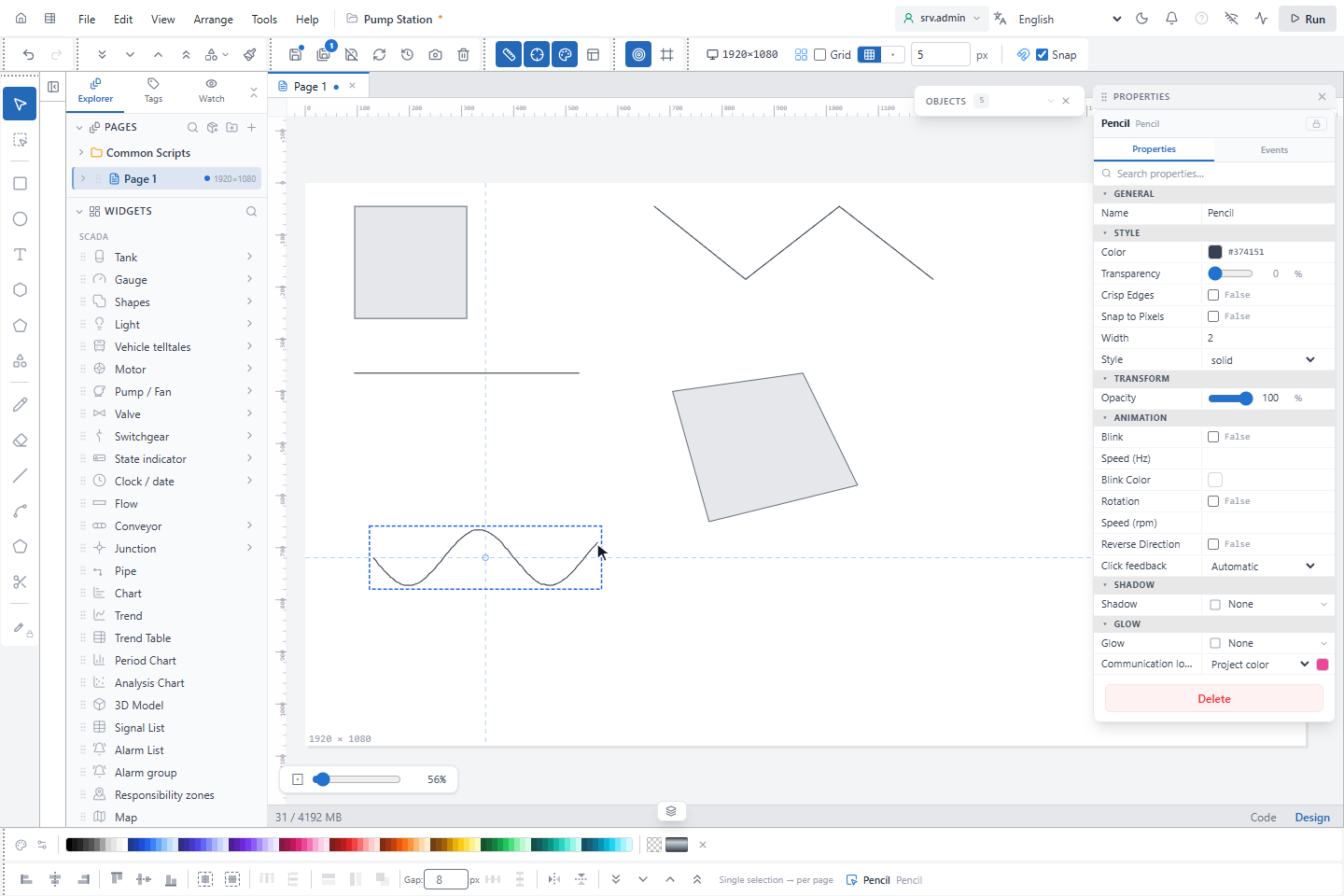
Choose Pen (P) and draw while you hold the mouse button. The Tool options toolbar shows the color and Pen Width (1 to 30 px). Eraser (E) removes whole pen strokes that you drag over; its Eraser Size is 4 to 60 px. The eraser removes only pen drawings.
Pipes and trimming
- Pipe is in the Widgets palette, not in Drawing tools. Draw it like a polyline; its ends snap to the connections of equipment, to junctions and to other pipes.
- Trim (T then R within a second) cuts lines where they cross. The prompt at the bottom asks for the cutting edges and then for the parts to remove; Shift extends a line to an edge instead.
Good to know
- You can also drag a tool from Drawing tools onto the page; the object is placed in its default size.
- For exact sizes and positions, use the command box; see Command box and MOVE.