Alarm classes and groups
An alert class gives an alarm its priority and its default acknowledge mode. An alarm group collects alarms by rules, for example all alarms of an area or all alarms from high priority up, so that a screen can show and acknowledge them together. Both are set up in the Alarms work area of the configuration editor (Alt+5).
Before you begin
- For the area rule on this page, the areas
plant/pumpsandplant/tanksexist; see Alarm areas.
Steps
1. Add alert classes
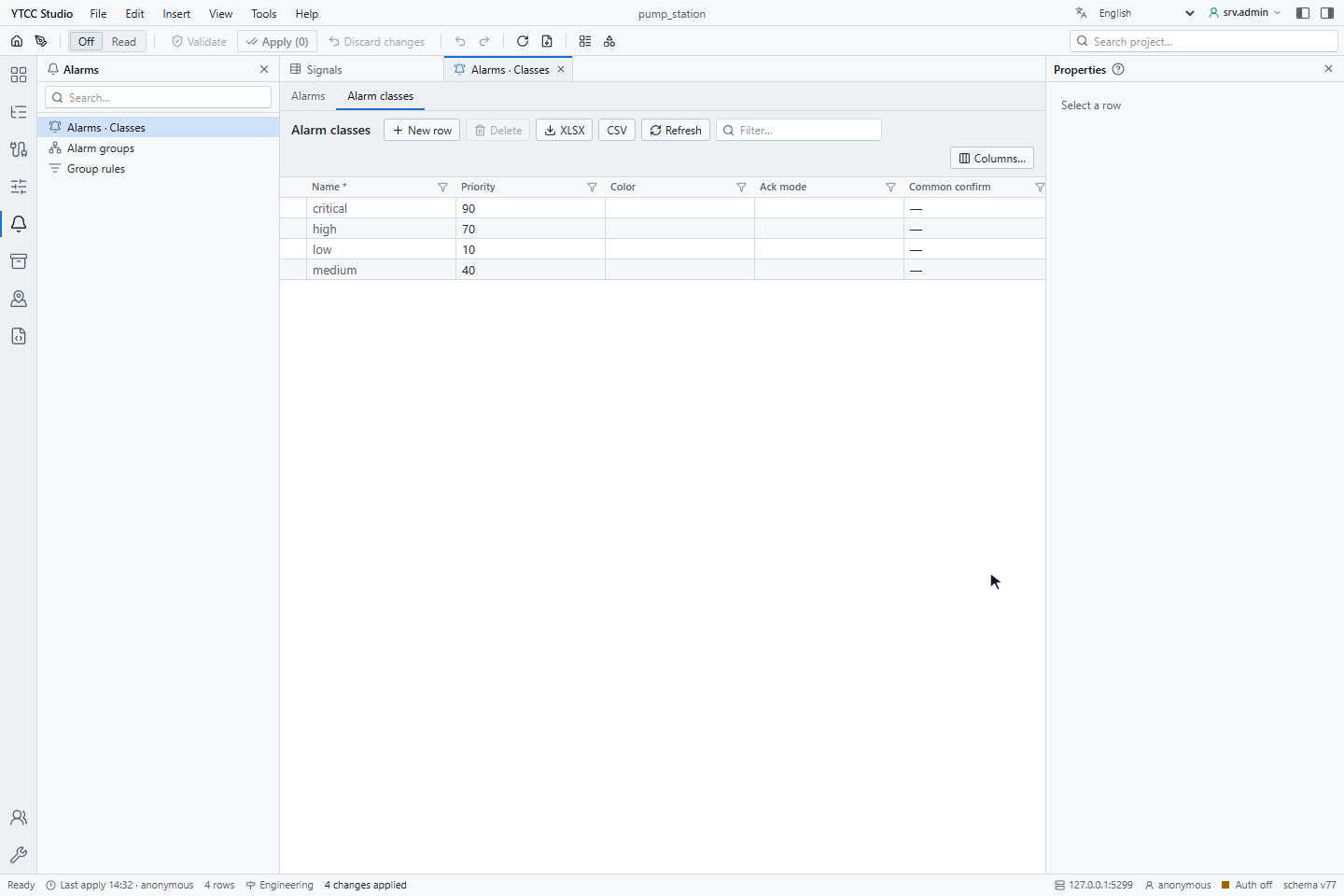
Open Alarms · Classes and the Alarm classes tab. Click New row, type the Name and click Add. Then
select a cell of the row, press F2 and fill in Priority. Here the classes are critical 90, high 70,
medium 40 and low 10. Apply the change.
| Column | Values |
|---|---|
| Name | The class name, shown in the alarm definitions |
| Priority | 0–255; a larger number is more urgent. 80 and above is Critical, 60–79 High, 20–59 Medium and below 20 Low |
| Color | A color for the class |
| Ack mode | none, came, pair or deletes (see Acknowledge modes); empty is came |
| Common confirm | On or off |
A class is chosen for each alarm level in Alert class of the signal's Alarm tab (see Define alarms). An acknowledge mode set on the alarm itself overrides the class. When a numeric signal's levels have different classes, the alarm takes the most urgent one; a level without its own class uses the class of the alarm.
2. Add alarm groups
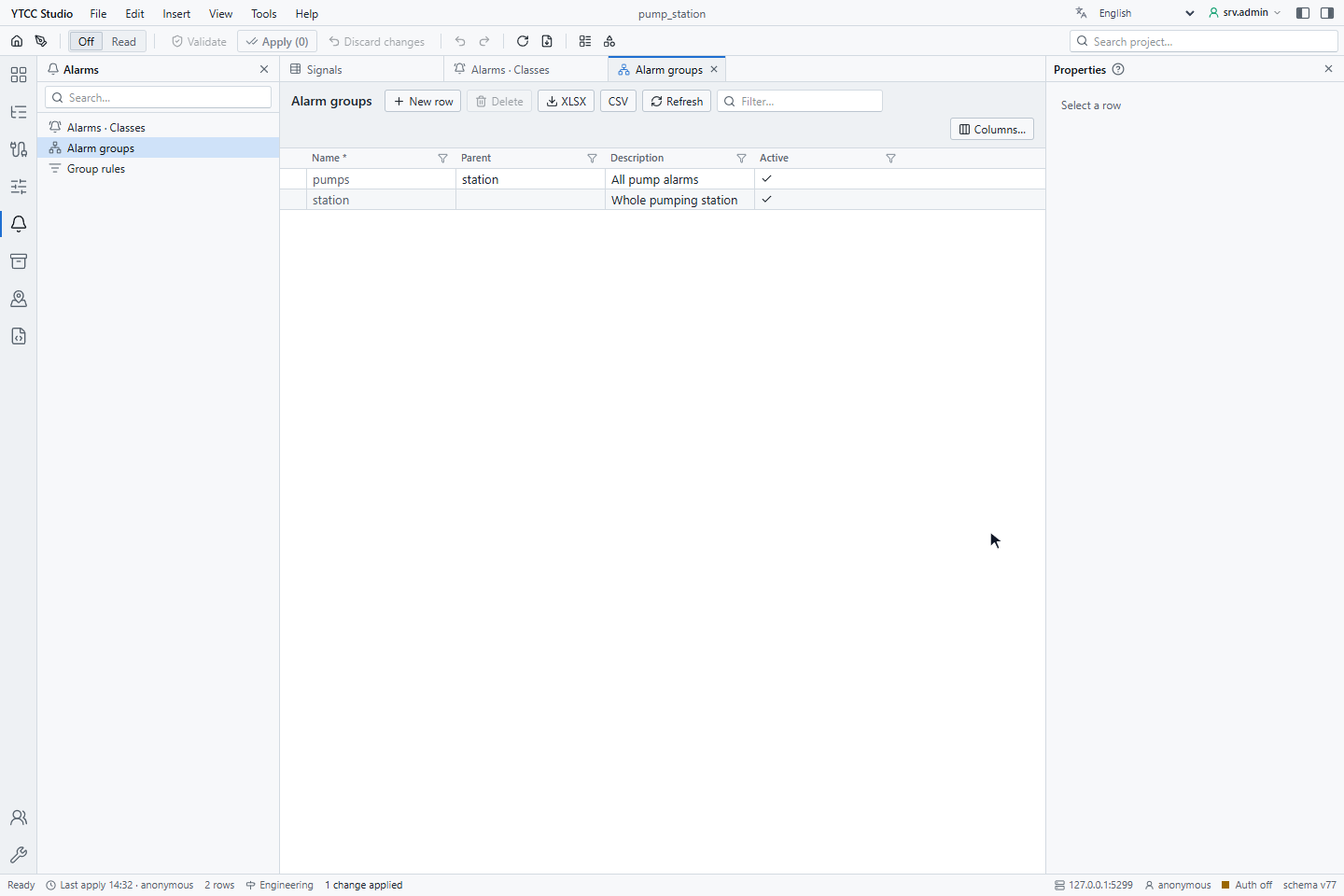
Open Alarm groups. Click New row, fill in Name, Parent and Description and click Add. Here the
group station contains the sub-group pumps. Apply the change.
A group name may contain letters, digits and _, with up to 64 characters. Active is on for a new group; a group
that is not active is ignored.
3. Add group rules
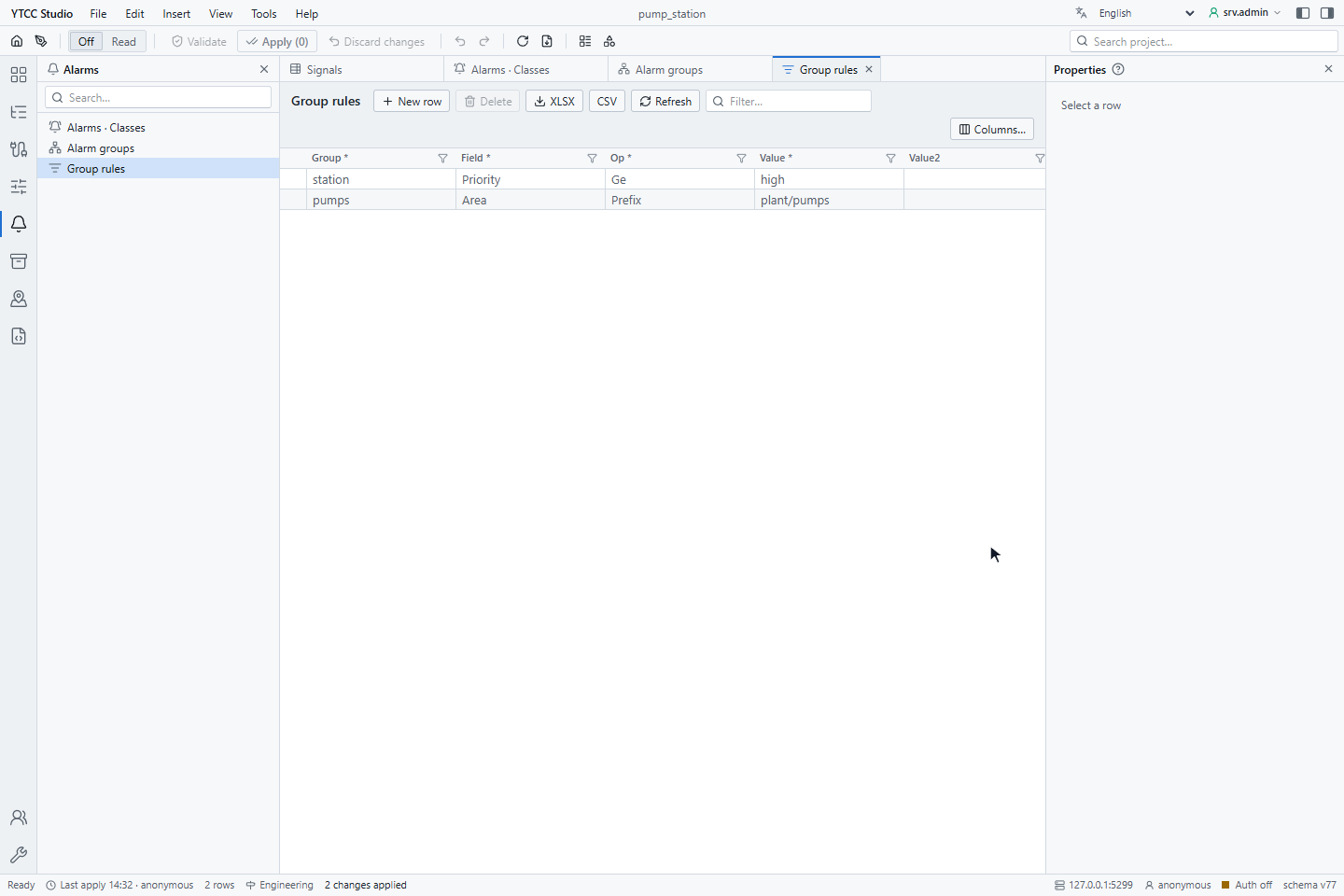
Open Group rules. Click New row, choose the Group, the Field and the operator Op, type the Value
and click Add. Here pumps collects the alarms of the area plant/pumps and its sub-areas, and station every
alarm from High priority up. Apply the change.
| Field | Compares |
|---|---|
area | The area path of the signal |
path | The signal path |
priority | The priority: low, medium, high, critical or 0–3 |
alarm_class | The name of the alert class |
signal_type | The signal type of the signal |
attr_t01–attr_t16, attr_b01–attr_b16 | The text and on/off attributes of the signal |
| Op | Matches when the value |
|---|---|
eq, ne | is, or is not, the given value |
in | is one of a comma-separated list |
prefix, contains | starts with, or contains, the given text |
range | lies between Value and Value2, both included |
gt, ge, lt, le | is greater than, at least, less than or at most the given number |
- Texts are compared without regard to case. When both sides are numbers, they are compared as numbers.
- All rules of a group must match. To collect alarms that match one rule or another, make a sub-group for each rule: a group also contains the alarms of its sub-groups.
- A group without rules contains only the alarms of its sub-groups.
- An empty attribute matches only
ne.
Acknowledge a group
Put an Alarm group object on a screen and turn on Acknowledge group button. On the runtime screen the button acknowledges every unacknowledged alarm of the group with one click; it needs the right to acknowledge alarms. See Put alarm objects on a screen.
Alarm counters
YTCC keeps counter signals for the whole project, for each area and for each group. They are read-only system signals, updated within a quarter of a second, and can be bound on screens and used in scripts like any signal.
| Scope | Signals |
|---|---|
| Project | Alarms.Summary.<counter> |
| Area | Alarms.Areas.<area>.<counter>; a sub-area under .Sub.<name> |
| Group | Alarms.Groups.<group>.<counter>; a sub-group under .Sub.<name> |
| Counter | Counts |
|---|---|
Active | Alarms that have come and not gone |
Unacked | Alarms awaiting acknowledgement, active or gone |
Acked | Active acknowledged alarms |
ReturnedUnacked | Gone alarms awaiting acknowledgement |
Open | Active plus ReturnedUnacked |
Shelved | Shelved alarms |
Critical, High, Medium, Low | Active alarms of each priority |
HighestPriority | The highest priority among the active alarms: 0 none, 1 low, 2 medium, 3 high, 4 critical |
HasUnacked | On while an alarm awaits acknowledgement |
Shelved alarms count only in Shelved; alarms that are out of service or suppressed are not counted. In the signal
names, letters outside a–z are converted, for example Ü to u, and other characters become _.
Good to know
priorityin a group rule uses 0–3 (0 low), while the counterHighestPriorityuses 0–4 (0 none).- Changes to groups and rules reach the counters at the latest one minute after they are applied.