3D Model object
The 3D Model object shows a 3D model of a machine or a plant section on a screen. Its parts move with live signals: an impeller turns with the speed, a valve stem rises with the opening, a lamp turns red on an alarm, a level float rides up and down. The model is an ordinary glTF file; its parts are bound to signals by their names, so the bindings stay valid when the model file is replaced by a new version with the same part names.
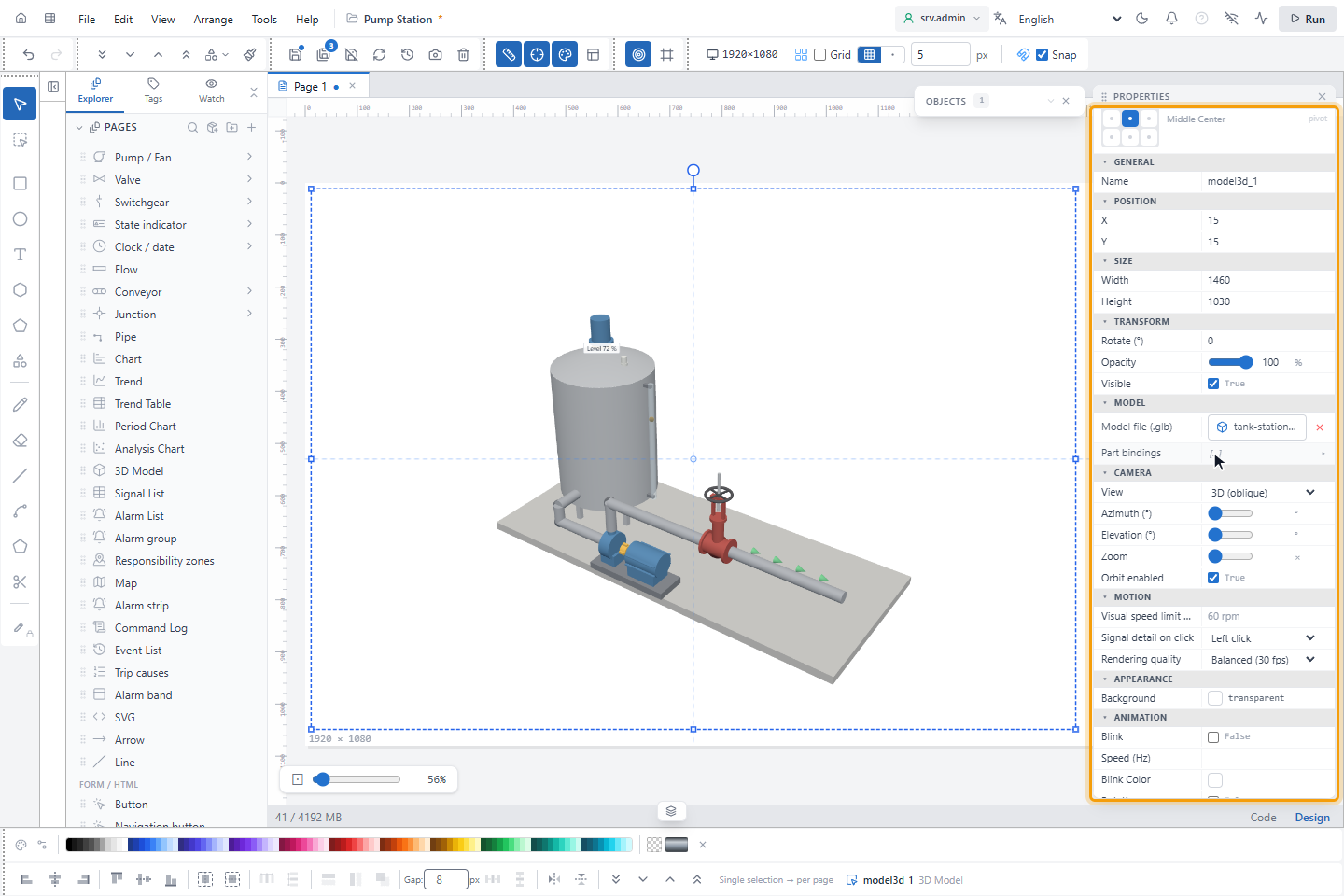
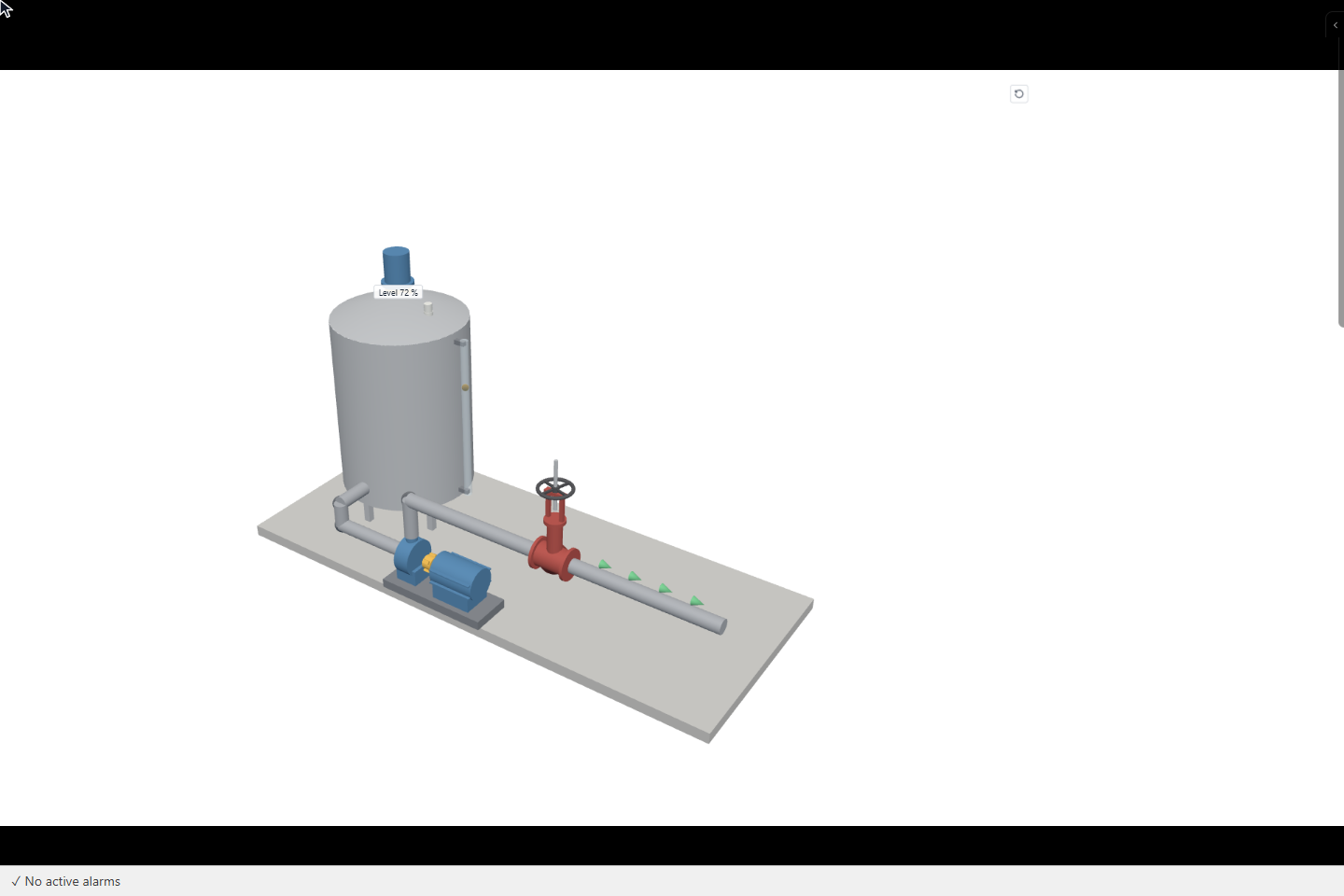
The pictures use a sample tank station made for these docs: a tank with a mixer and a sight glass, a pump, a gate valve and an outlet pipe with flow arrows.
Before you begin
- A page is open in the screen editor and the signals to bind exist.
- The model is a glTF 2.0 binary file (
.glb) of at most 25 MB. Most 3D and CAD programs export it. Export the model with uncompressed geometry and with PNG or JPEG textures. - Every part that moves is a separate object with a unique name in the modelling program, for example
Valve_Handwheel. Parts without a name get names such asmesh_12when the file is read; those are hidden in the part list. - Each moving part has its origin (pivot) on its axis: an impeller on its shaft, a door or a flap on its hinge line. Rotations turn a part around its own origin and along its own X, Y or Z axis, and an offset moves it along its own axis. A wrong origin is corrected in the model, not in YTCC.
- Parts that move together are nested: a wheel under its steering axle turns with the wheel speed and swings with the axle at the same time.
- The model uses the glTF convention: Y up, units in metres. Offset positions are in model units.
Steps
1. Place a 3D Model object
Click 3D Model in the SCADA group of the palette and draw the object on the page; placed with a single click, it is 640 × 420. Until a file is loaded it shows No 3D model selected: upload a .glb file in Properties.
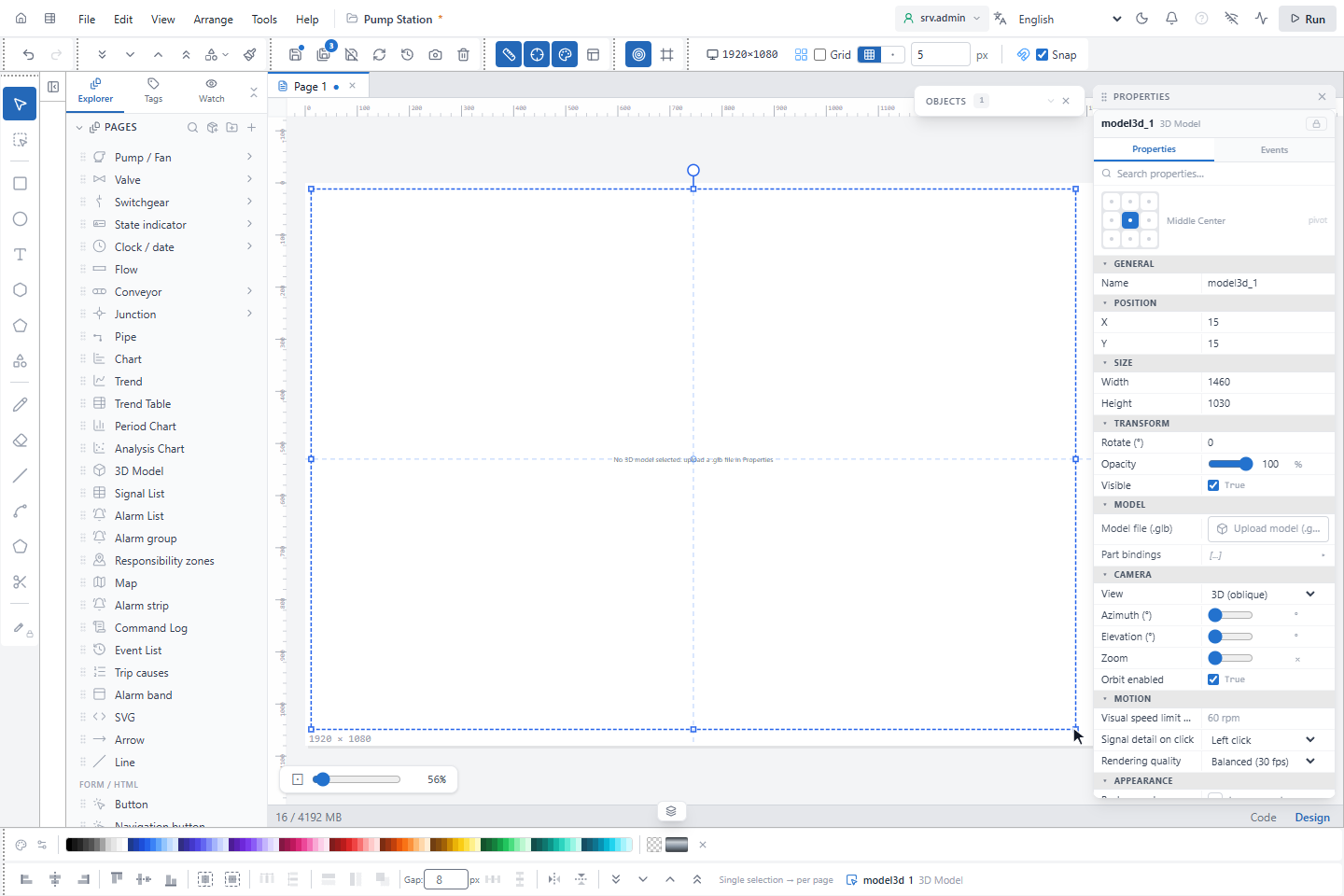
2. Upload the model file
In the Model group of the properties, click Upload model (.glb)… in Model file (.glb) and choose the file. The file goes into the files of the project and into its backups. The server checks the content: a file that is not a glTF 2.0 binary file is refused, whatever its extension.
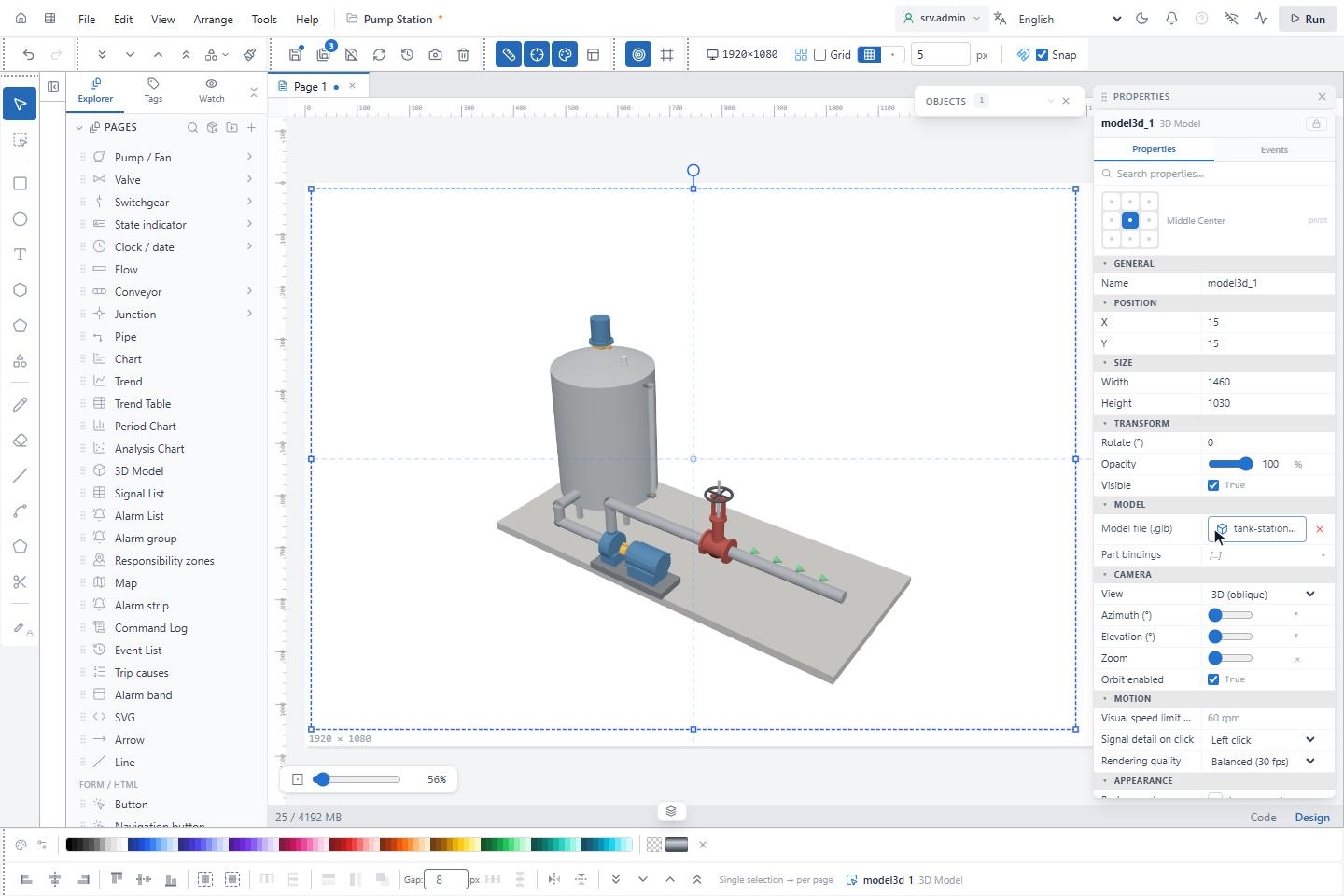
3. Find the parts
Click Part bindings to open it. The part list shows the named parts of the model as a tree, with a search box and the number of parts; a blue badge shows how many bindings a part has. Also show unnamed sub-parts adds the parts named by the loader.
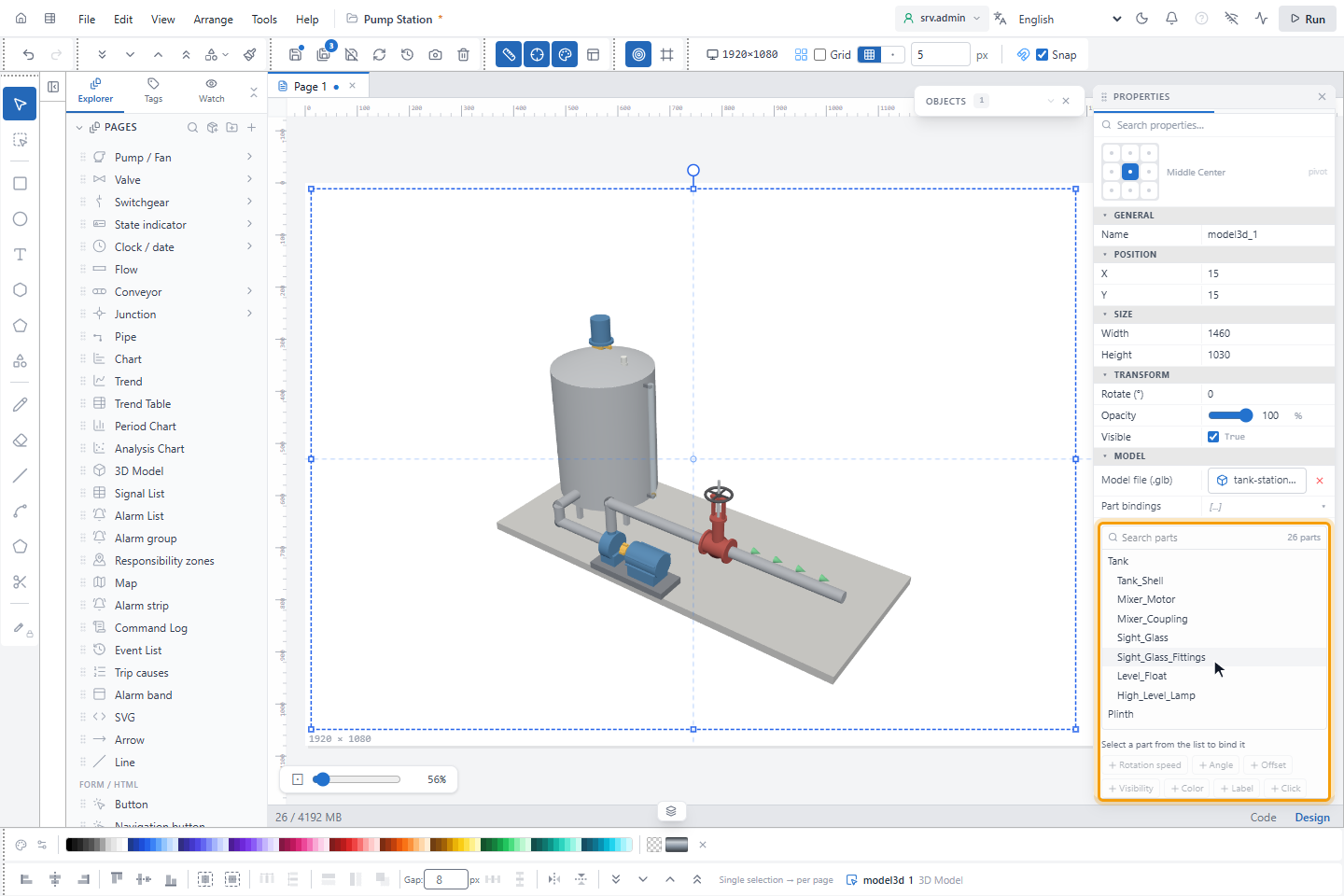
4. Bind parts to signals
Click a part in the list and then a type button. A binding card with preset values is added; type the signal in Signal or pick it with … in the signal picker.
| Type | What the part does | Settings |
|---|---|---|
| Rotation speed | Turns continuously by the value in rpm × Factor; stops when there is no value | Axis, Factor, Reverse direction |
| Angle | Stands at an angle: Value Min / Max is mapped to Angle (°) Min / Max | Axis, Smooth, Reverse direction |
| Offset | Moves along its axis: Value Min / Max is mapped to Position Min / Max | Axis, Smooth, Reverse direction |
| Visibility | Visible while the Condition is true, or hidden with Hide while the condition is true | Condition, Threshold |
| Color | Painted in Color while the Condition is true, in its own color otherwise | Condition, Threshold, Color, Blinking |
| Label | Writes the value above the part | Format, for example Level %.0f %%; Appearance, Size, Show |
| Click | Runs actions when the part or its label is clicked, for example opens a popup; it has no Signal | Button, the action list |
Here the handwheel of the valve turns three times (0–1080°) and its stem rises 0.12 m while V101.Position goes
from 0 to 100 %; the level float moves 1.4 m with T101.Level; the pump coupling turns with P101.Speed; the flow
arrows are visible while Station.OutletFlow is above 0; the lamp on the roof turns red with T101.HighLevel; and the
tank shows its level as a label.
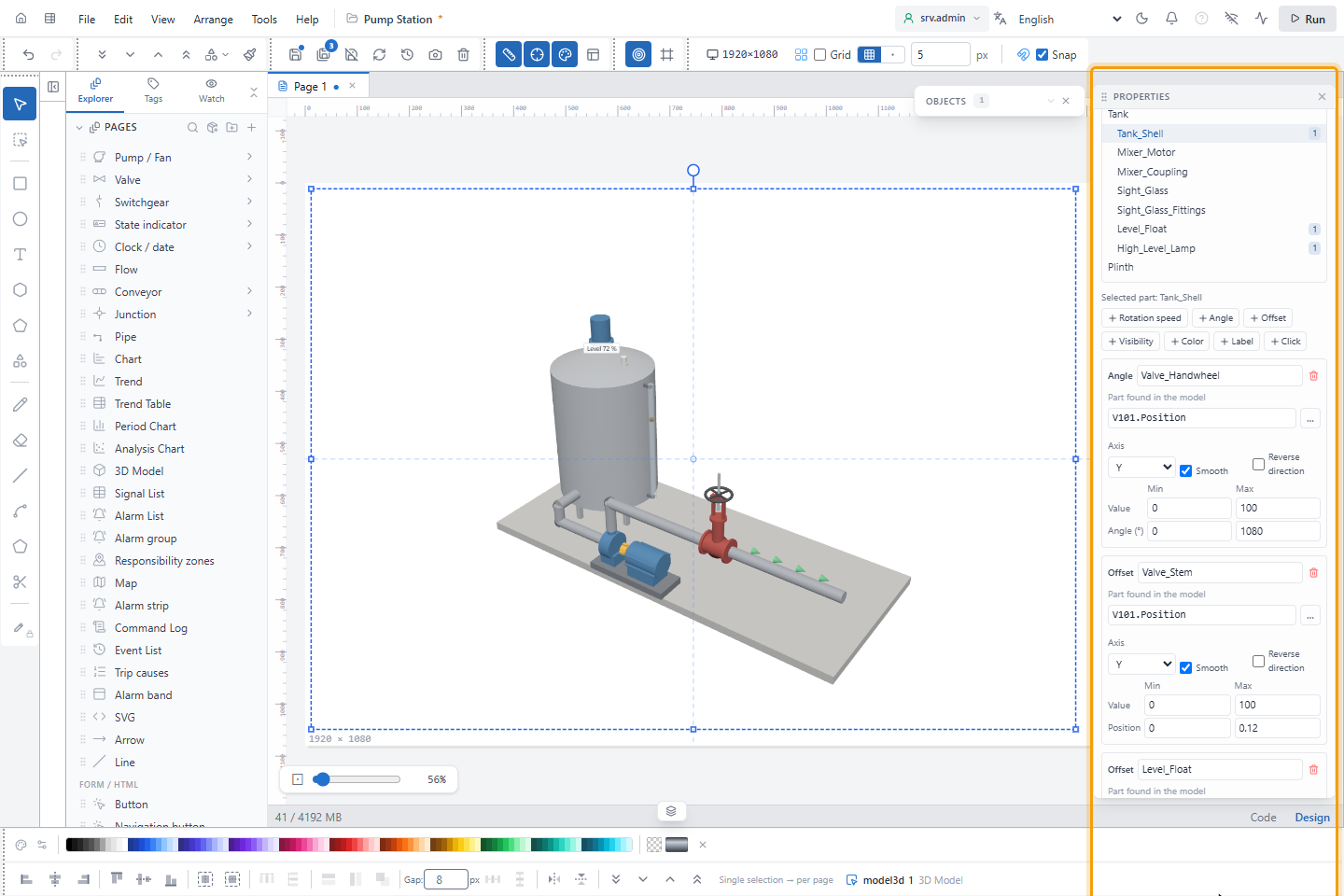
- Part also takes a pattern:
*stands for any text,?for one character and|separates several names.Flow_Arrow_*binds all four arrows with one card, andPart_A|Label_Abinds two parts. The whole name has to match, with the same upper and lower case. Under the part, the card shows how many parts match, Part found in the model or No part with this name in the model. - In Signal,
{node}is replaced by the name of each matching part:Needle_0?with the signalTurbine.{node}bindsNeedle_03toTurbine.Needle_03. In a popup or a symbol, parameters such as#p1#work too. - Moves are always computed from the position in the model file; they do not add up when values are missed or the
page is opened again. Without a value an angle or offset stays in the model position and a label shows
…. - Several moves on one part combine. Several Visibility cards on one part must all be true; of several Color cards the last true one wins.
- Condition also has between, with Threshold and Upper threshold; the value has to lie strictly between them.
- A Color card paints a copy of the material of the part; other parts and other 3D objects with the same material keep their color. On a textured material the color is multiplied by the texture. Blinking alternates Color with Off color at the blink rate of the project.
- A Format without a number code such as
%.1fwrites a fixed text without the value, and%%writes%. - Appearance of a label is Pill, Box or Circle. Size multiplies the text, the padding and the diameter of the circle: 1 is normal, 10 is the most. Show is Always or a condition on the value, and Hide while the condition is true reverses it. Face, Text color and Edge have their own colors or Automatic.
- A Click card reacts to the Button you choose, on the part, on the parts below it and on its label. The action list is the one of the click actions. A popup opened this way has its own window per part. On the runtime screen the pointer changes over such a part.
- Smooth makes angles and offsets glide to a new value instead of jumping.
5. Set the camera and the quality
| Property | Setting |
|---|---|
| View | 3D (oblique), Top, Front, Side or Manual (angles) with Azimuth (°) and Elevation (°) |
| Zoom | 1: the model just fits the object; from 0.3 to 5 |
| Orbit enabled | Operators can turn and zoom the model; a Reset view button appears at the top right |
| Visual speed limit (rpm) | A part never turns faster than this on the screen; 60 rpm when empty |
| Signal detail on click | The button that opens the details of the signal of a part: Left click, Right click or Off. With Right click, the left button only turns the model and the browser menu does not open |
| Rendering quality | Balanced (30 fps), High (60 fps) or Low (20 fps) |
| Background (in the Appearance group) | Transparent or a color |
A part turning at the real speed of a pump would look still or turning backwards on a screen that draws 30 frames per
second. The visual speed limit avoids this; show the real speed with a Label card. Factor converts a unit as
well: a wheel speed from a vehicle speed in km/h is speed × 1000 / 60 / (2π × radius), a factor of 6.98 for a
radius of 0.38 m, and a factor of 0.1 shows the motion ten times slower.
In the editor the parts do not turn and angles and offsets do not glide; the object is drawn only when a value changes, so the editor stays fluent. Watch the motion on the runtime screen or in a test run.
6. Watch the model on the runtime screen
On the runtime screen the bound parts move with the live values, and labels follow their parts when the model is turned.
7. Click a part for its signal details
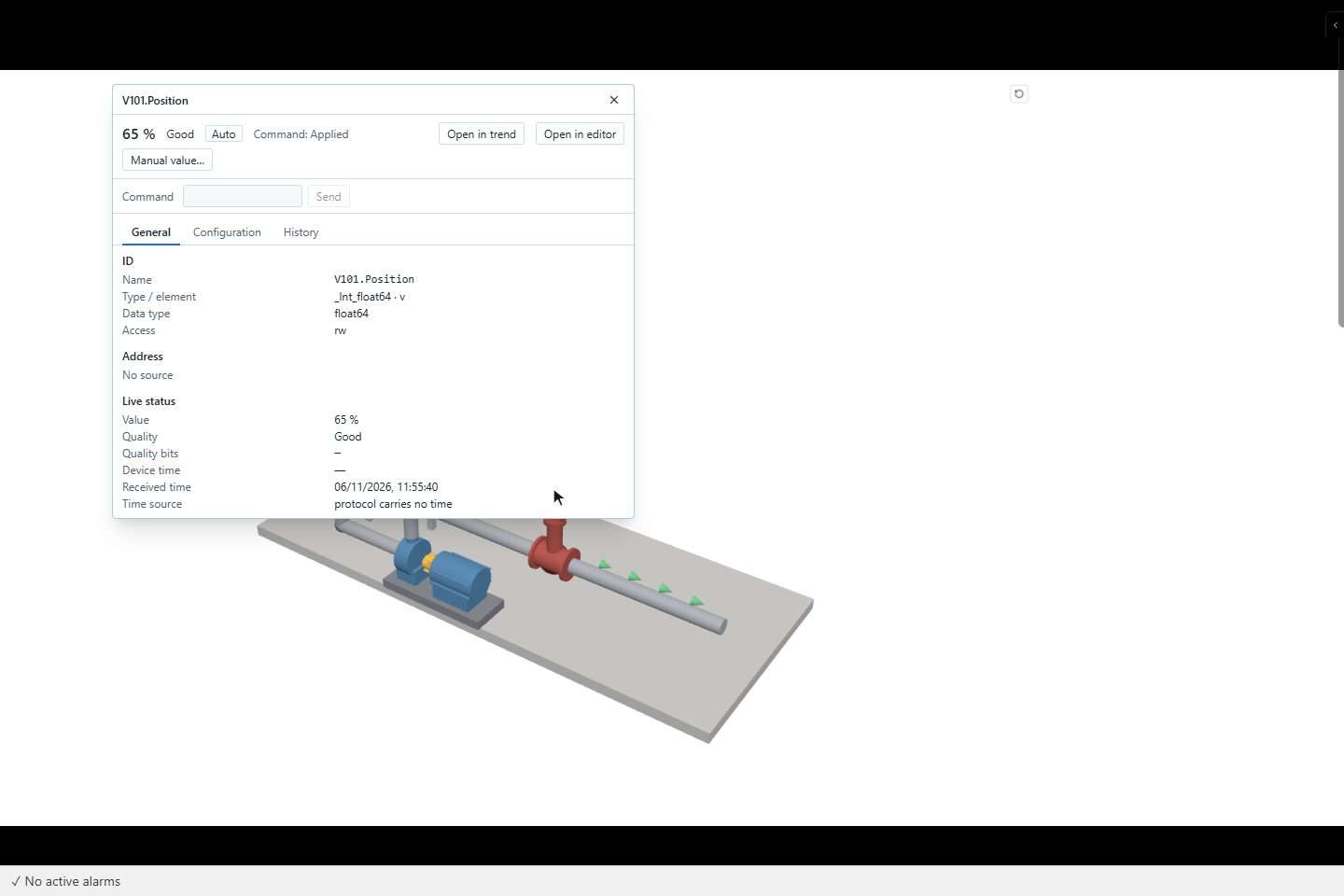
With Signal detail on click on Left click, clicking a bound part opens the signal details of its first bound signal. A click on a part without bindings uses the nearest bound part above it in the tree. A label opens the details of its own signal with the same button. When the part has a Click card for that button, its actions run instead.
What operators can do
| Action | Result |
|---|---|
| Drag | Turns the model, when Orbit enabled is on. A drag of more than 4 pixels is not a click |
| Mouse wheel | Zooms, when Orbit enabled is on |
| Reset view | Back to the camera set in the editor |
| Click a part or a label | Runs the actions of its Click card for that button. Otherwise opens the signal details, when Signal detail on click is set to that button and the project allows the signal details panel on screens |
Good to know
- The object draws only when something changes: a value, a running motion or the camera. It stops drawing while it is outside the visible area, while the browser tab is hidden and while its page is in the page cache.
- When a model opens on the runtime screen, parts that do not move by themselves are merged per material, so the number of parts does not slow the drawing. Transparent parts are not merged; use few of them.
- Balanced (30 fps) suits most screens. High (60 fps) doubles the load on the graphics card. Try Low (20 fps) first on a weak graphics card or with many 3D objects on a page; it also turns off edge smoothing. While the camera is dragged, the object is drawn at full speed.
- A browser opens a limited number of 3D drawing surfaces per page (16 in Edge and Chrome); use a few large 3D objects rather than many small ones.
- The light is fixed (sky and sun); lights in the model file are added.
- Status texts: Loading 3D model…, 3D model could not be loaded and This browser cannot draw 3D (WebGL is off).
- All properties: 3D Model.