Write an expression
When a direct, bit, value or text mapping is not enough, the Advanced tab of the Tag Binding window computes the property with an expression. The expression runs in the browser for every change of the signals it reads. The functions are listed in Screen expression functions.
Before you begin
- A page with an object is open in the screen editor; here a rectangle.
- The signal exists; here the numeric signal
Tank_Level.
Steps
1. Open the Advanced tab
Hover over the property, here Fill Color, click Bind to tag, choose the signal in the Signal picker and click Bind. Click Edit mapping below the row, then Advanced. The tab shows an editor with an example below it.
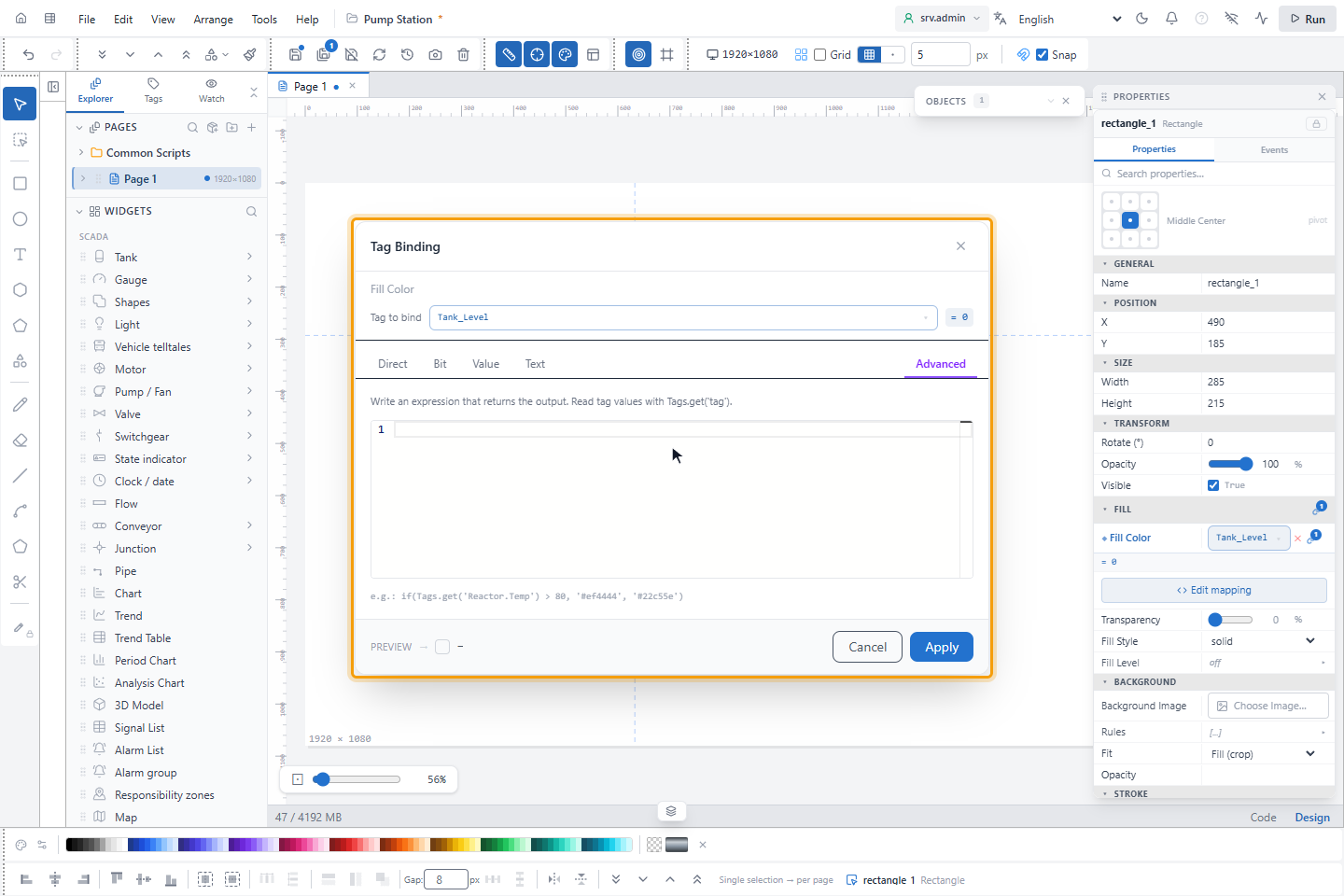
The signal under Tag to bind is required and can be used in the expression as value. Other signals are read with
Tags.get('name').
2. Use the suggestions
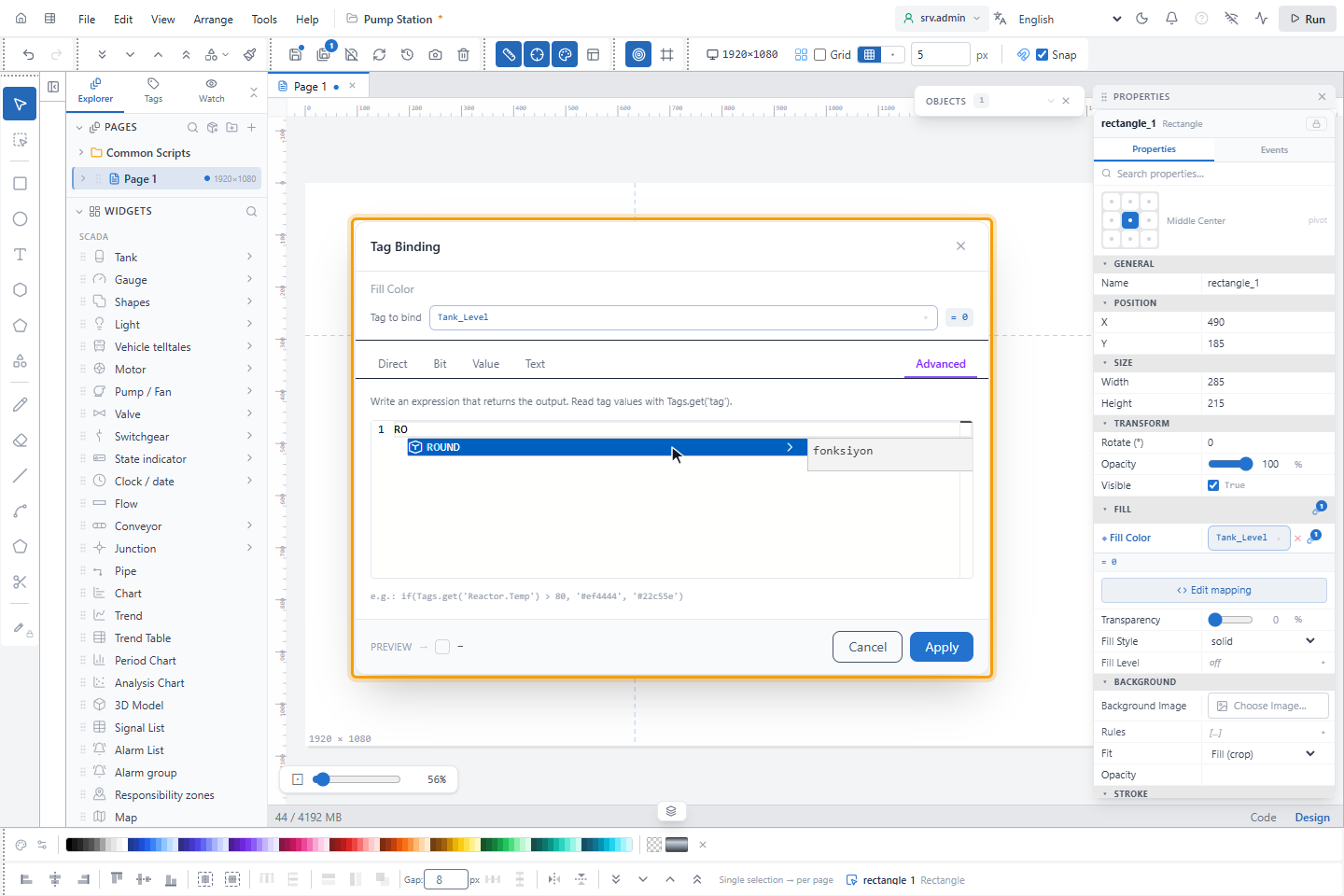
Start typing: the editor suggests the functions and keywords that match, here ROUND for RO. Ctrl+
Space opens the suggestions at any point.
3. Write the formula and check the preview
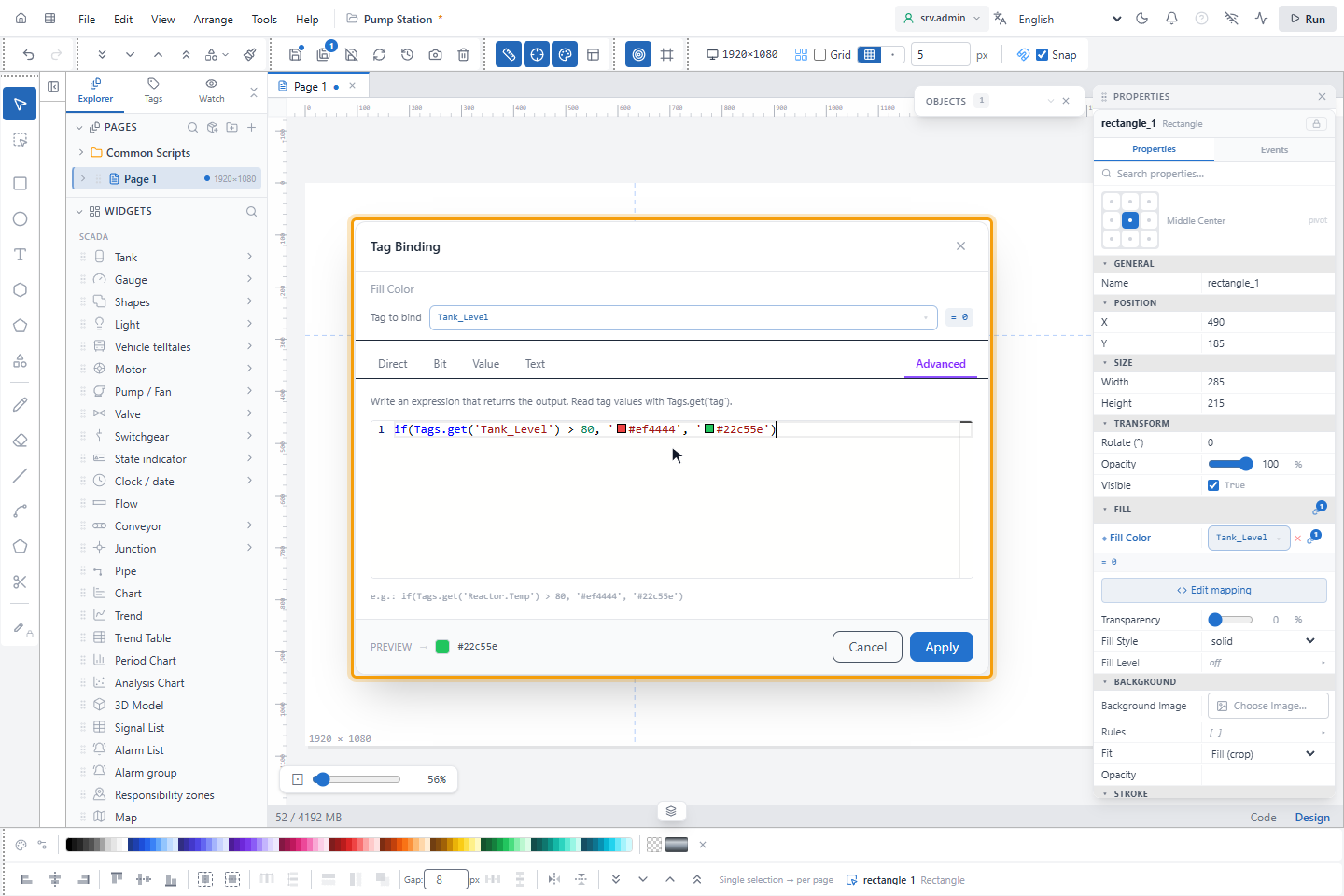
Write the expression, here:
if(Tags.get('Tank_Level') > 80, '#ef4444', '#22c55e')
Preview at the bottom shows the result with the current values; for a color it also shows the color. Here the level is 0, so the result is green.
4. Apply the binding
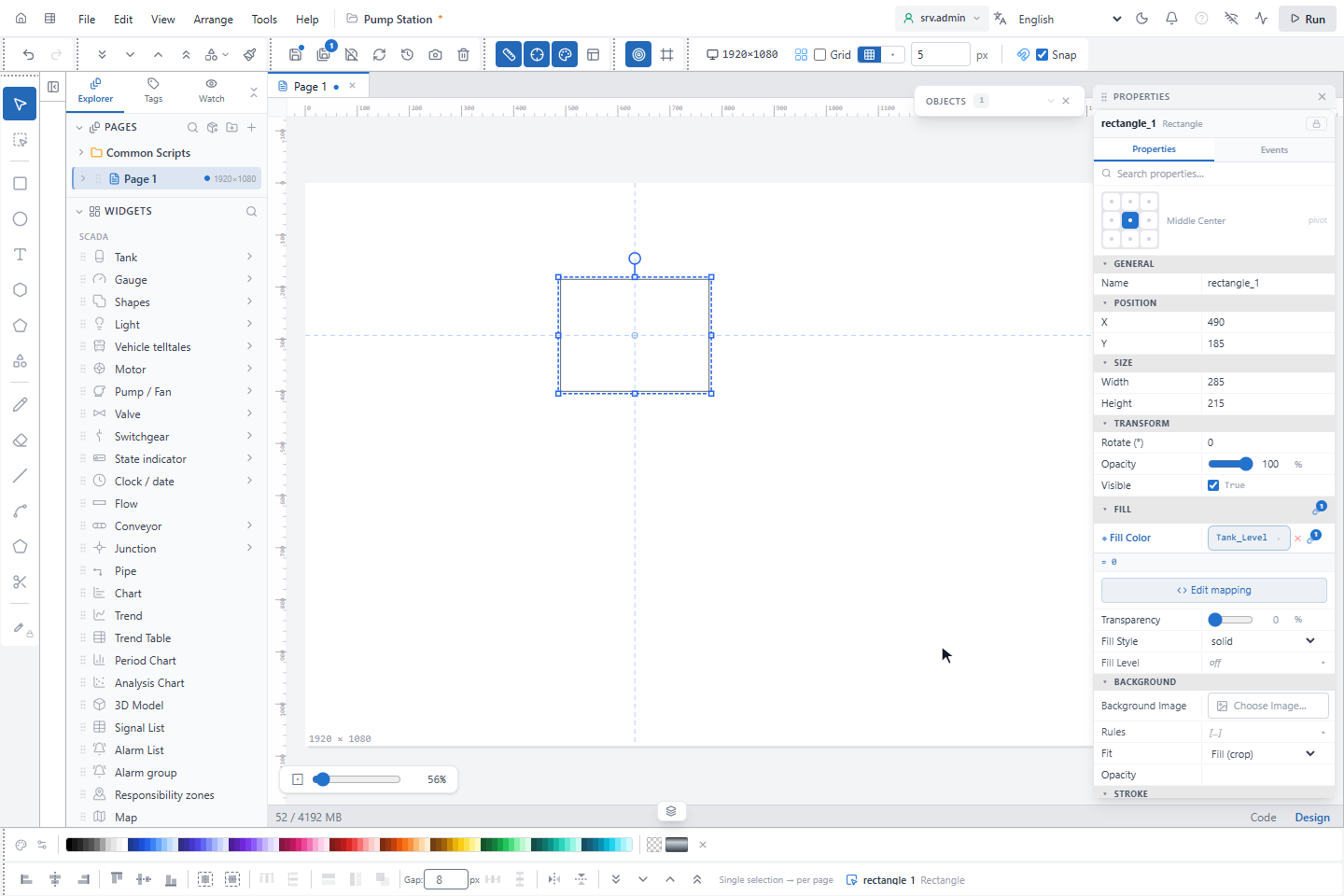
Click Apply. The property row shows the bound signal.
What the result must be
The expression result is used as it is; it is not converted.
| Property | Return |
|---|---|
| Color | A color text such as '#ef4444' |
| Visible, on/off properties | true or false |
| Number | A number |
| Text | A text |
When a value is missing
- When the expression returns nothing (a signal has no value, a division by zero, an unknown function), the property keeps its design value.
- While the first value of a signal is still awaited, the design value is shown.
- For symbol properties the tab also has If no match (default) and Unavailable / Bad: the second is used when the bound signal has no usable value.
Good to know
- Screen expressions are not the formulas of expression signals; those run on the server and have their own syntax (see Expression syntax of internal signals).
- Both branches of
ifare calculated; the result is taken from one of them. - Old if/then rule lists open on the Advanced tab as nested
if(…). - To scale a raw value, for example a 4–20 mA input shown as 0–10 bar, use
MAP(value, 4, 20, 0, 10); wrap it inCLAMPto keep the result inside the range. - Check the Preview after each change: an expression with a mistake, such as a missing bracket, returns nothing.