Undo, save and restore
The screen editor keeps your changes in the browser until you save them. Each open tab (page, popup, symbol) has its own undo history, and the server keeps backups of the last saves.
| Keys | Action |
|---|---|
| Ctrl+Z | Undo |
| Ctrl+Y, Ctrl+Shift+Z | Redo |
| Ctrl+S | Save the active tab |
| Ctrl+Shift+S | Save all |
Before you begin
- A page is open in the screen editor.
Steps
1. Save
A blue dot on a tab and on Save shows unsaved changes; the tooltip names what is saved, here Save: "Page 1" (Ctrl+S). Press Ctrl+S; afterwards the tooltip ends with — no changes. Save All (Ctrl+Shift+S) lists and saves all unsaved tabs.
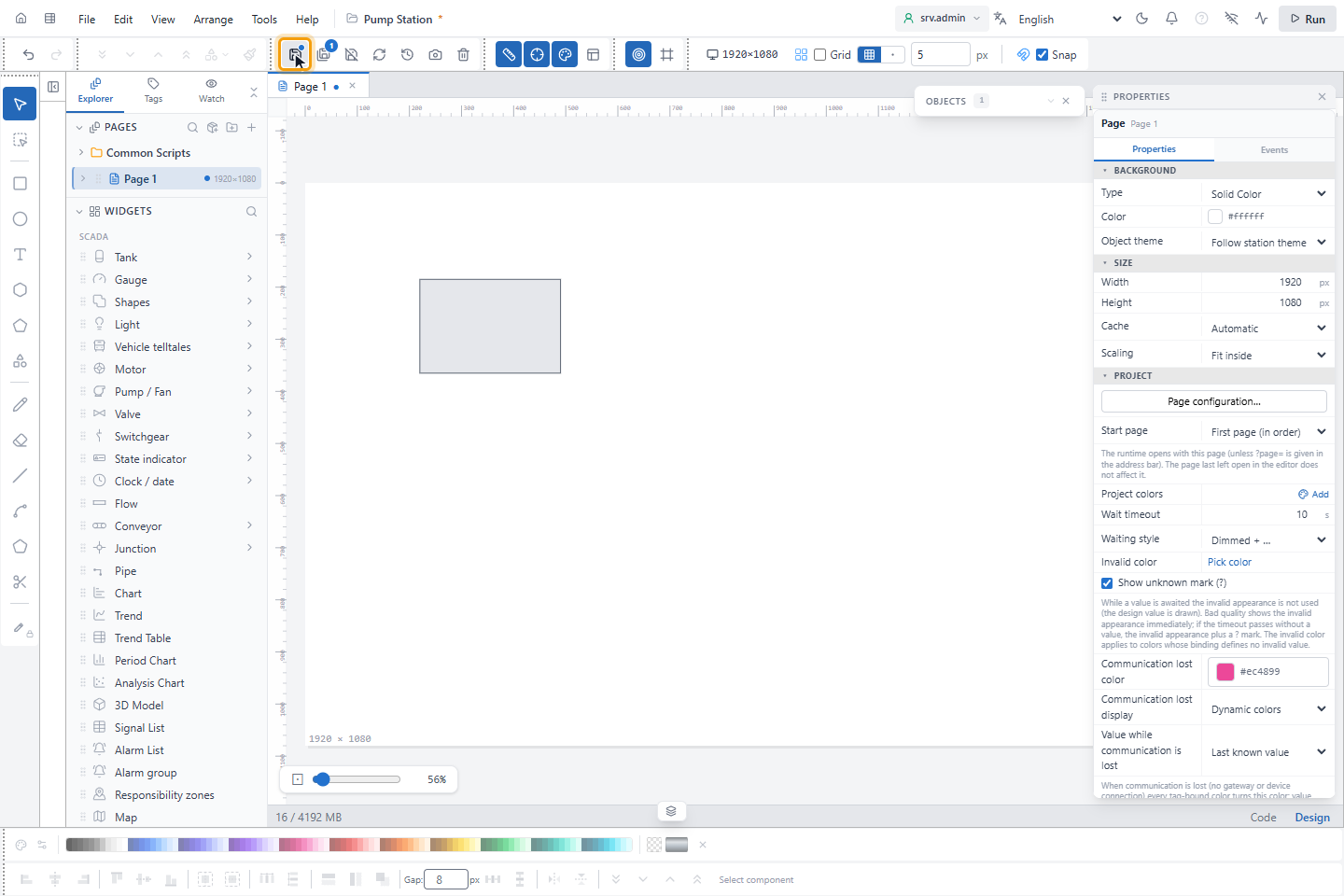
Closing a tab with unsaved changes asks Don't save or Save & Close; closing the browser warns as well.
2. Discard changes
Discard Changes in the toolbar returns the listed tabs to their last saved state. Undo (Ctrl+Z) brings the discarded changes back.
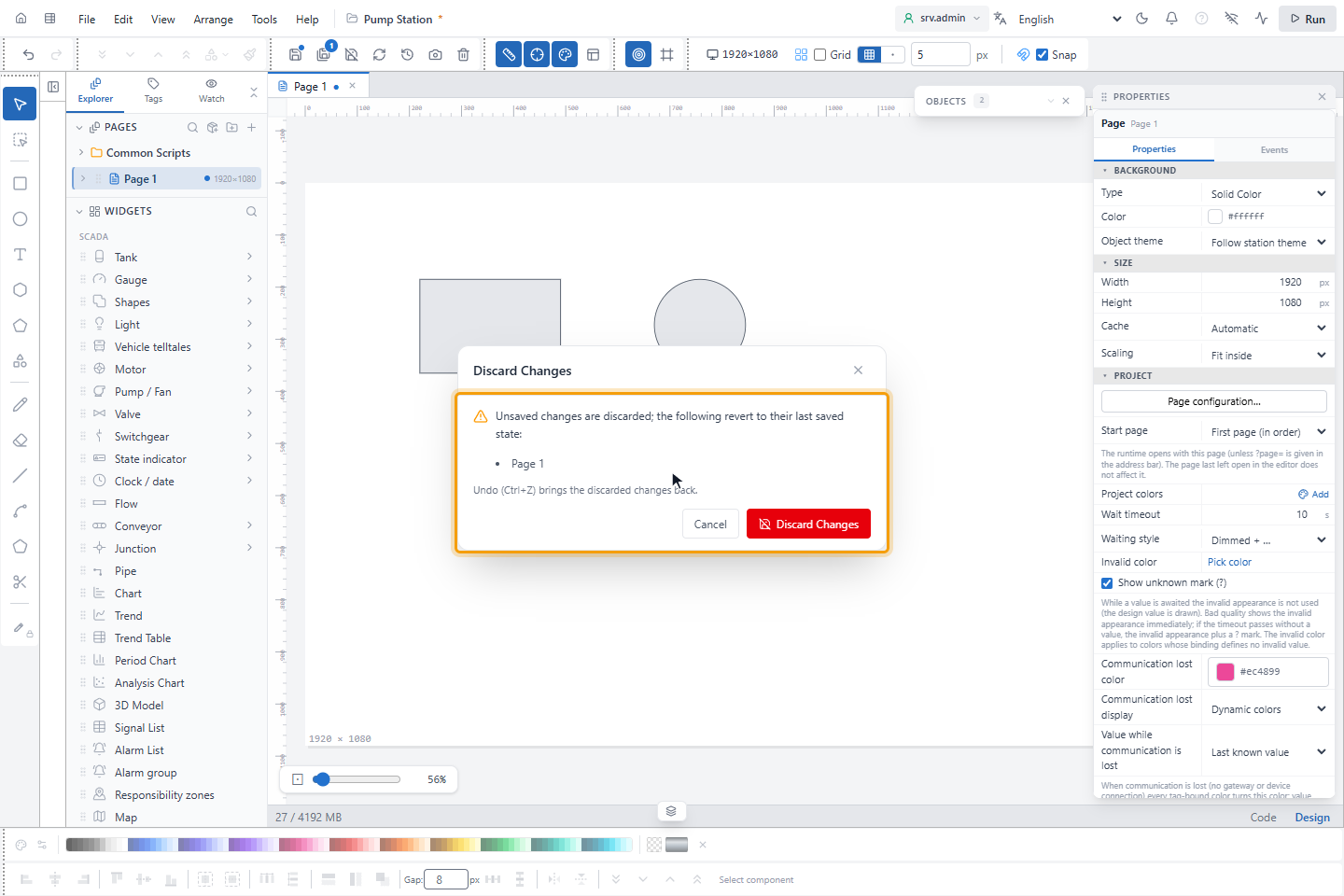
Refresh loads the latest version of the project from the server; with unsaved changes it first asks whether to save them or discard them.
3. Restore a backup
Backups (restore) lists the backups of the last 10 saves with date, time and size; the newest is marked NEWEST. Restore brings a backup back; the current state is backed up first.
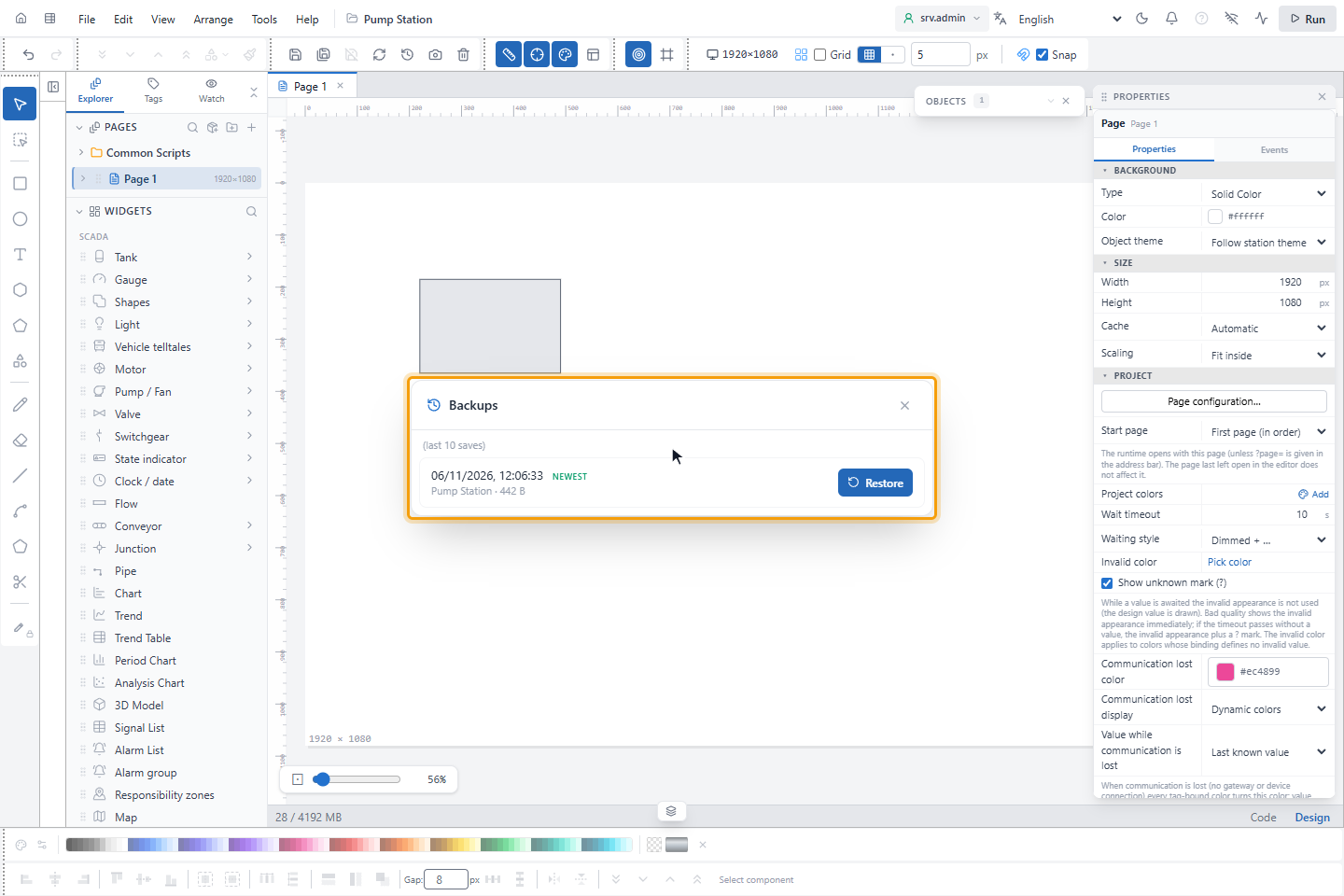
Backups made before an AI assistant first changed the project are marked before AI and kept apart from the regular backups. For backups of the whole server see Back up and restore.
When the project changes while you edit it
When another user, another browser tab or the AI access (MCP) changes the open project, the editor updates the changed item by itself. If you have unsaved changes on that item, it is not overwritten: an amber bar says, for example, operator changed 'Overview'. You have unsaved changes here. The bar names AI when the AI access made the change and Another session when the user is not known. Refresh takes the server version; your local changes on the item are discarded. Later closes the bar; you are asked again when you save, in Save Conflict.
An open runtime screen of the project takes the saved changes by itself, without reloading the page: pages, symbols, layouts and the display settings of the runtime screen, whether they were saved in the editor, by another user or by the AI access.
When someone else changed the project
If the project was changed on the server while you were editing, saving opens Save Conflict: Take server version discards your local changes, Keep mine overwrites the server changes. The overwritten version is backed up and can be restored with Backups (restore).
Good to know
- The undo history holds 100 steps by default; the limit is set on the home page under Settings (10 to 500).