Port table
Ports YTCC listens on
| Port | Service | Listens on | Key in Settings › Ports |
|---|---|---|---|
| 4222 | Message bus (NATS) | 127.0.0.1 | nats |
| 5000 | Process manager control port | 127.0.0.1 | manager |
| 8090 | Alarm service, started with a project | 127.0.0.1 | alarm |
| 8770 | Live data server (gateway) | all interfaces (0.0.0.0) | gateway |
| 8771 | Project server | 127.0.0.1 | projects |
| 8772 | Project bridge | 127.0.0.1 | bridge |
| 8773 | Web interface | 127.0.0.1; see Open the interface from other computers | ui_web |
| 8774 | AI access (MCP) | 127.0.0.1 | mcp |
PostgreSQL uses port 5432. It is installed separately and YTCC connects to it.
UDP port 8775 answers the server search of the YTCC desktop application on the local network. It is off by default and is turned on in the settings file of the installation; when on, it answers with the server name, the interface port and the version, never with projects, users or signals.
YTCC checks each of these ports when it starts. If a port is in use, it stops with an error that names the port. The setup program checks them before installing and suggests a free port block when they clash; see Install with the setup program.
Steps
Changing the ports needs a root sign-in on the home page.
1. Open the port settings
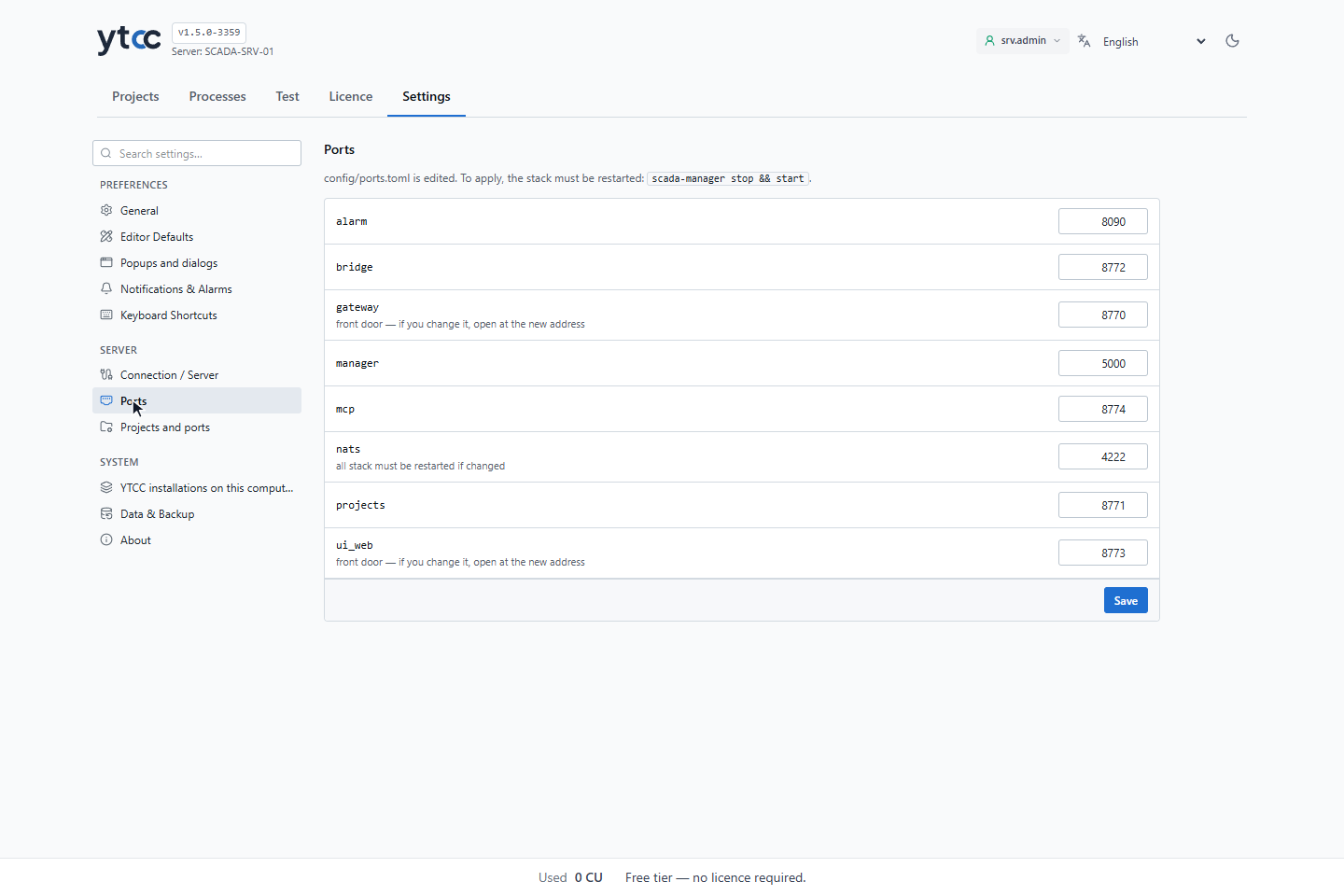
On the home page, click Settings and, under Server, Ports. The section lists the ports of this installation with their key. The ports of the web interface and the live data server are marked as front-door ports: after you change one, open the interface at the new address. The port of the message bus is marked as needing a restart of the whole YTCC.
2. Change a port
Type the new number in the field of the port. Next to the field, YTCC shows whether the port is free on this computer. Click Save. The section confirms that the port is saved.
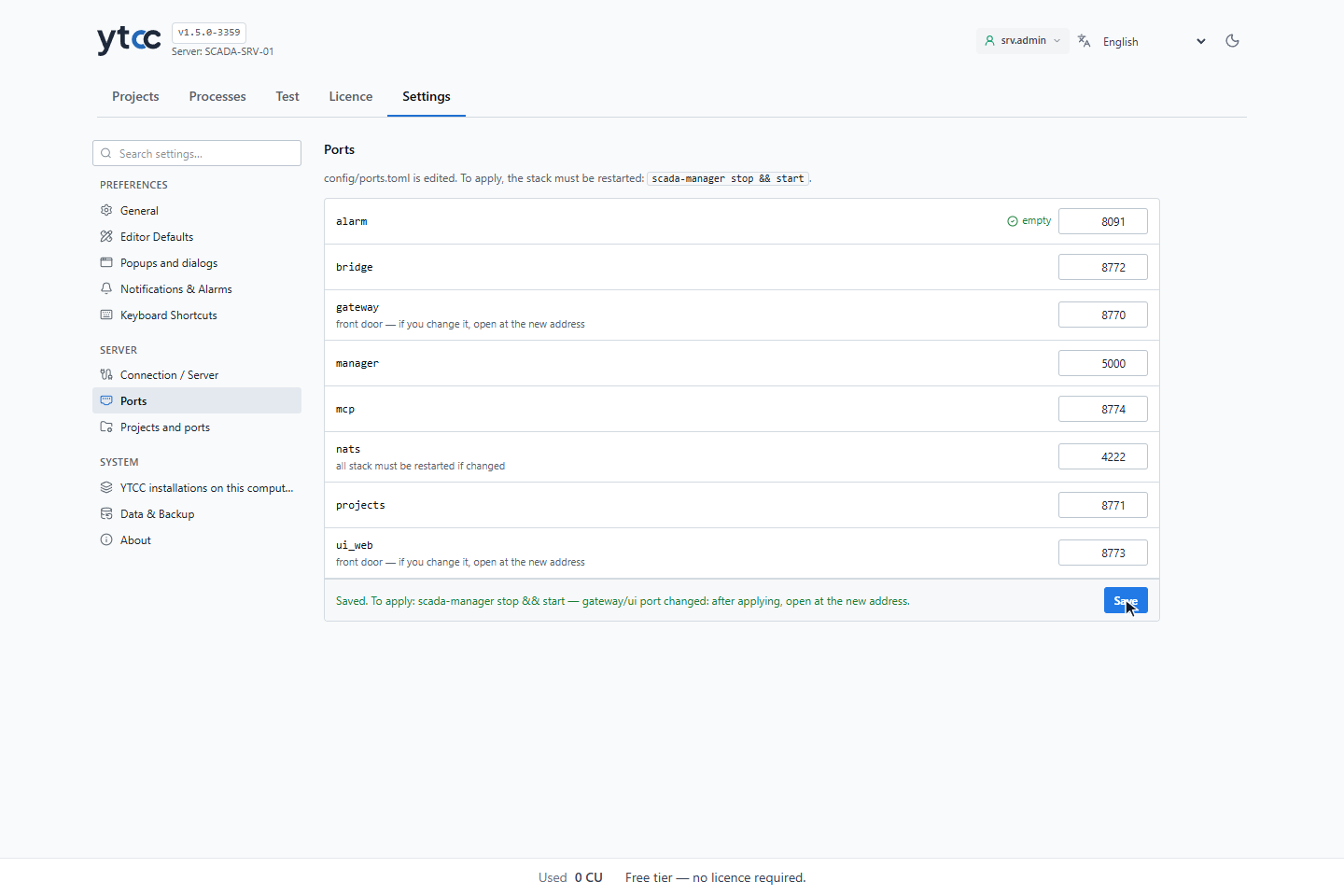
The new port applies when YTCC starts again: restart the YTCC service in Services (see The YTCC service). When you changed the port of the web interface or of the live data server, open the interface at the new address afterwards; the desktop shortcuts keep the port of the installation, so type the new address in the browser. Update firewall rules that depend on the port.
3. Give a project its own ports (optional)
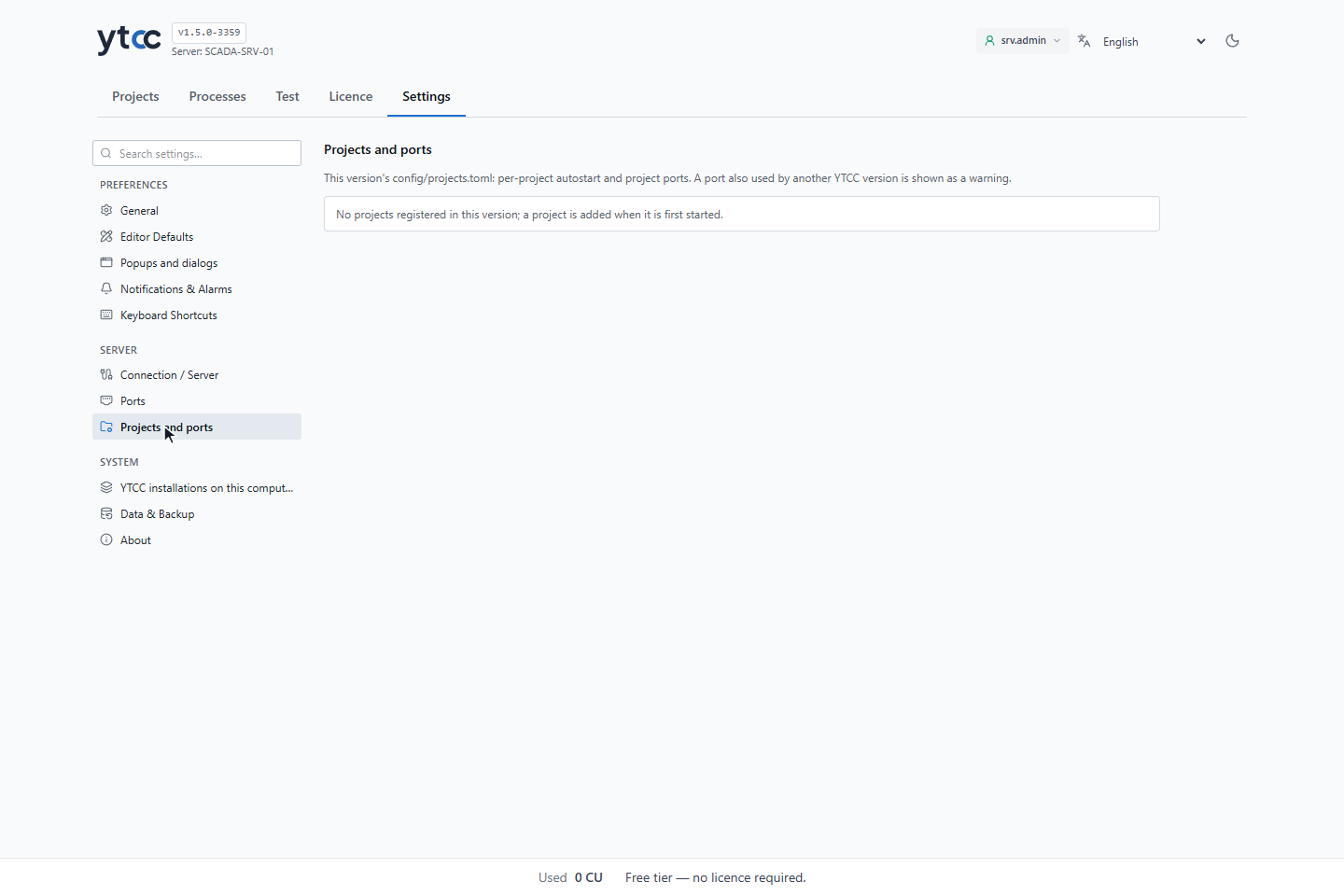
Click Projects and ports under Server. A project enters the table when it is first started under this
installation; until then the section says No projects registered in this version; a project is added when it is
first started. The table lists the projects with Autostart and
the ports of each project: always alarm, and gateway and nats when a project has them. A project with its own ports runs with its own message bus and
gateway; a project with empty fields uses the shared ones of the installation. A port that another YTCC installation
also uses is marked with a warning sign. Click Save; project ports apply when the project is started again.
See Application settings for Autostart.
Ports drivers connect to
Drivers connect to field devices. These are the default device ports; each device can use its own.
| Port | Protocol |
|---|---|
| 102 | Siemens S7 (ISO-on-TCP), IEC 61850 MMS |
| 161 (UDP) | SNMP |
| 502 | Modbus TCP |
| 1883 | MQTT client |
| 2404 | IEC 60870-5-104 |
| 4840 | OPC UA client |
| 19999 | DNP3 over TLS |
| 20000 | DNP3 |
| 44818 | EtherNet/IP |
| 47808 (UDP) | BACnet/IP |
| 48898 | Beckhoff ADS |
IEC 60870-5-101 over TCP has no standard port; each RTU uses its own.
Ports drivers listen on
Some driver roles accept connections from devices. These ports are opened only when such a driver runs in a project:
| Port | Driver role |
|---|---|
| 162 (UDP) | SNMP trap receiver |
| 1883 | MQTT broker |
| 4840 | OPC UA server |
| 20000 / 19999 | DNP3 in listening mode (TCP / TLS) |
| 47808 (UDP) | BACnet/IP local socket |