Give a signal a test value
The Test tab sends a value with a quality to a signal of a running project, as if a driver had read it. Screens, alarms, scripts and history see it like a field value. Use it to try screens and alarms before the field devices are connected; for other ways see Training and trial without the field.
Before you begin
- The project runs.
- The server allows test injection. It is off by default. A server administrator turns it on with
test_inject = truein the gateway configuration (config/gateway.toml) or with the environment variableYTCC_TEST_INJECT=onforscada-manager, then restarts the stack. Keep it off on a plant. - You are signed in as root. The Test tab is shown only while root is signed in on the home page.
Steps
1. Open the Test tab
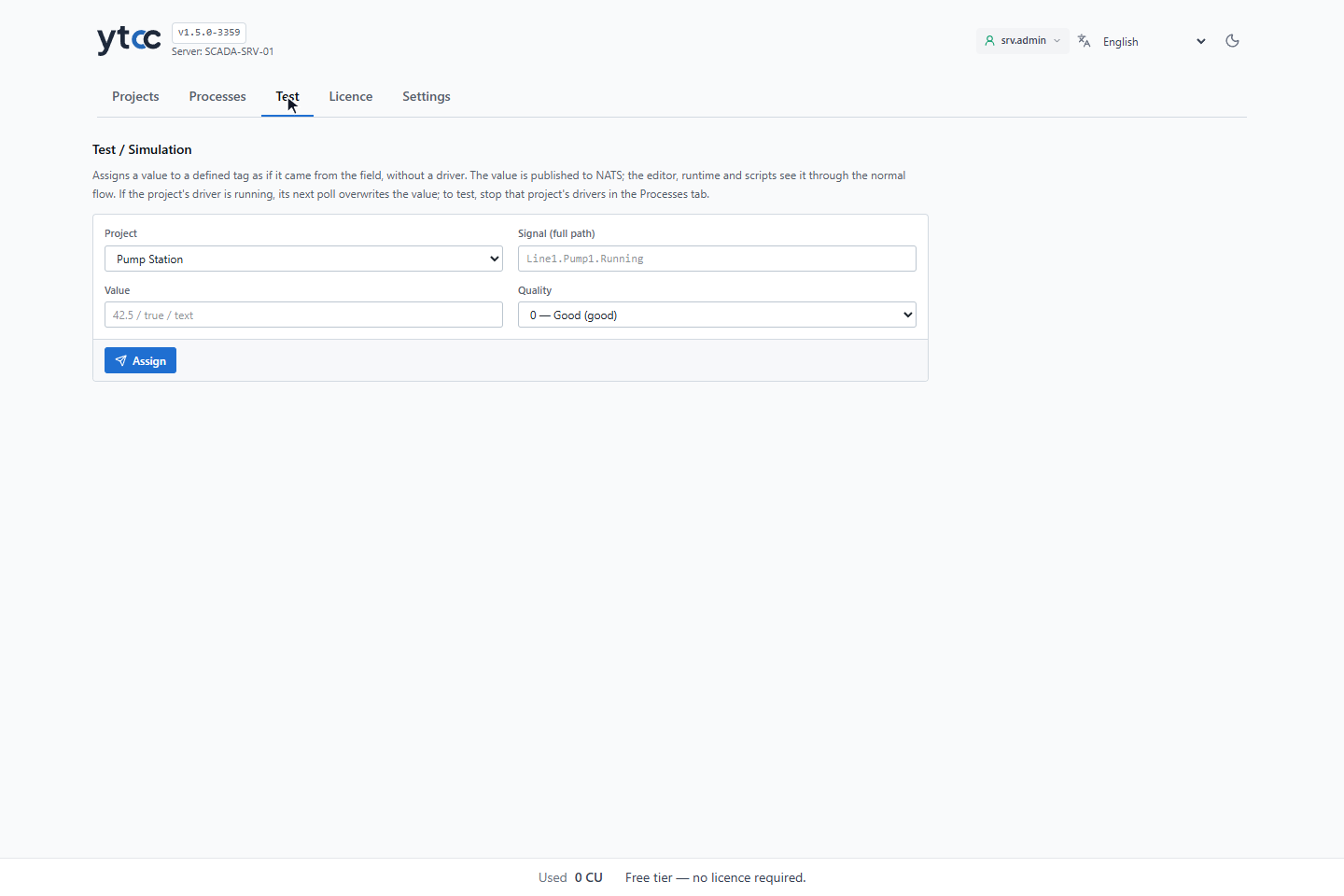
On the home page, click Test. Choose the Project.
2. Give a signal a value
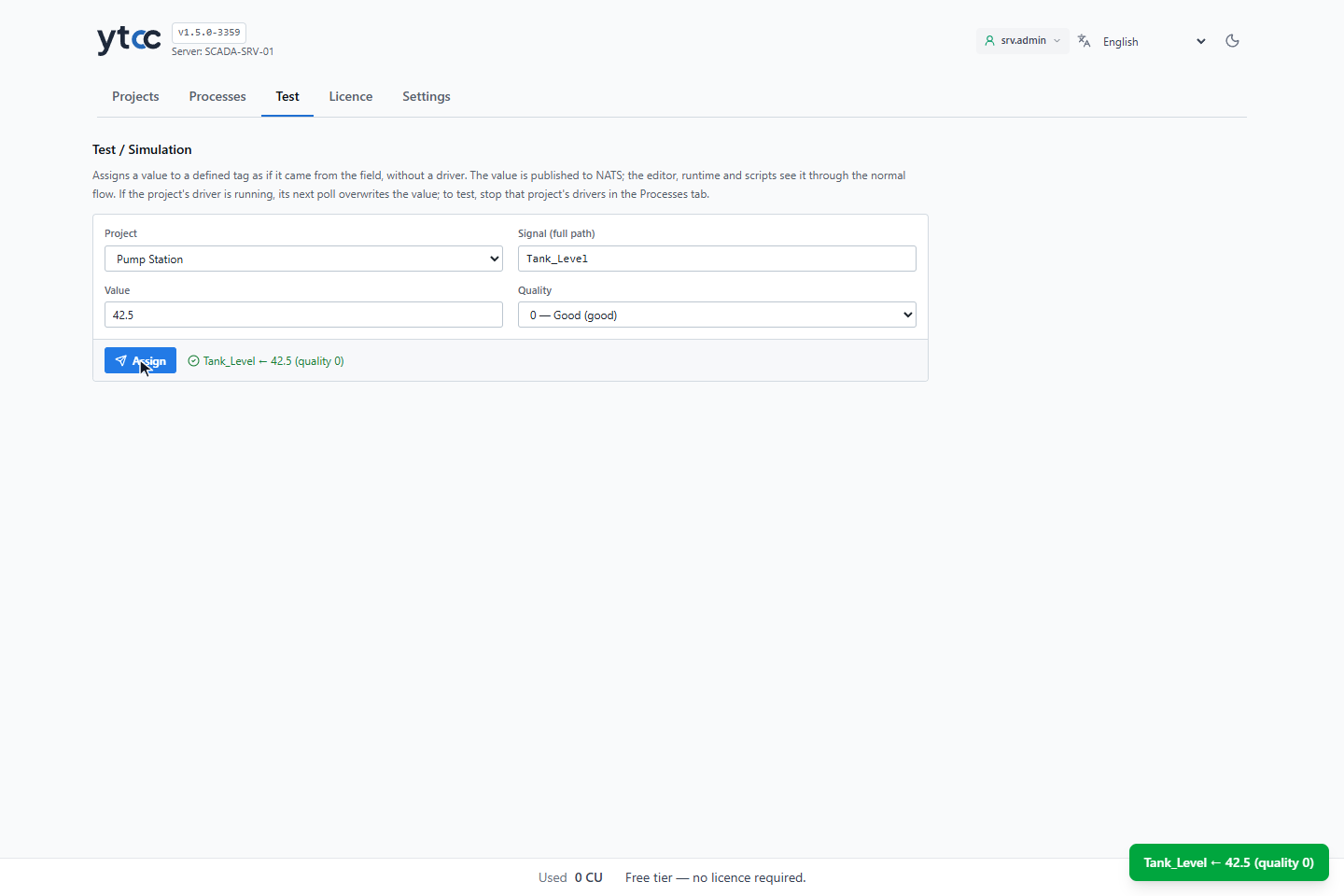
In Signal (full path) type the full path of the signal, here Tank_Level, in Value 42.5, leave Quality at
0 — Good (good) and click Assign (or press Enter in Value). The message under the button
confirms the value and the quality.
Value takes true and false for on/off signals, a number, or any other text.
3. Give a bad quality
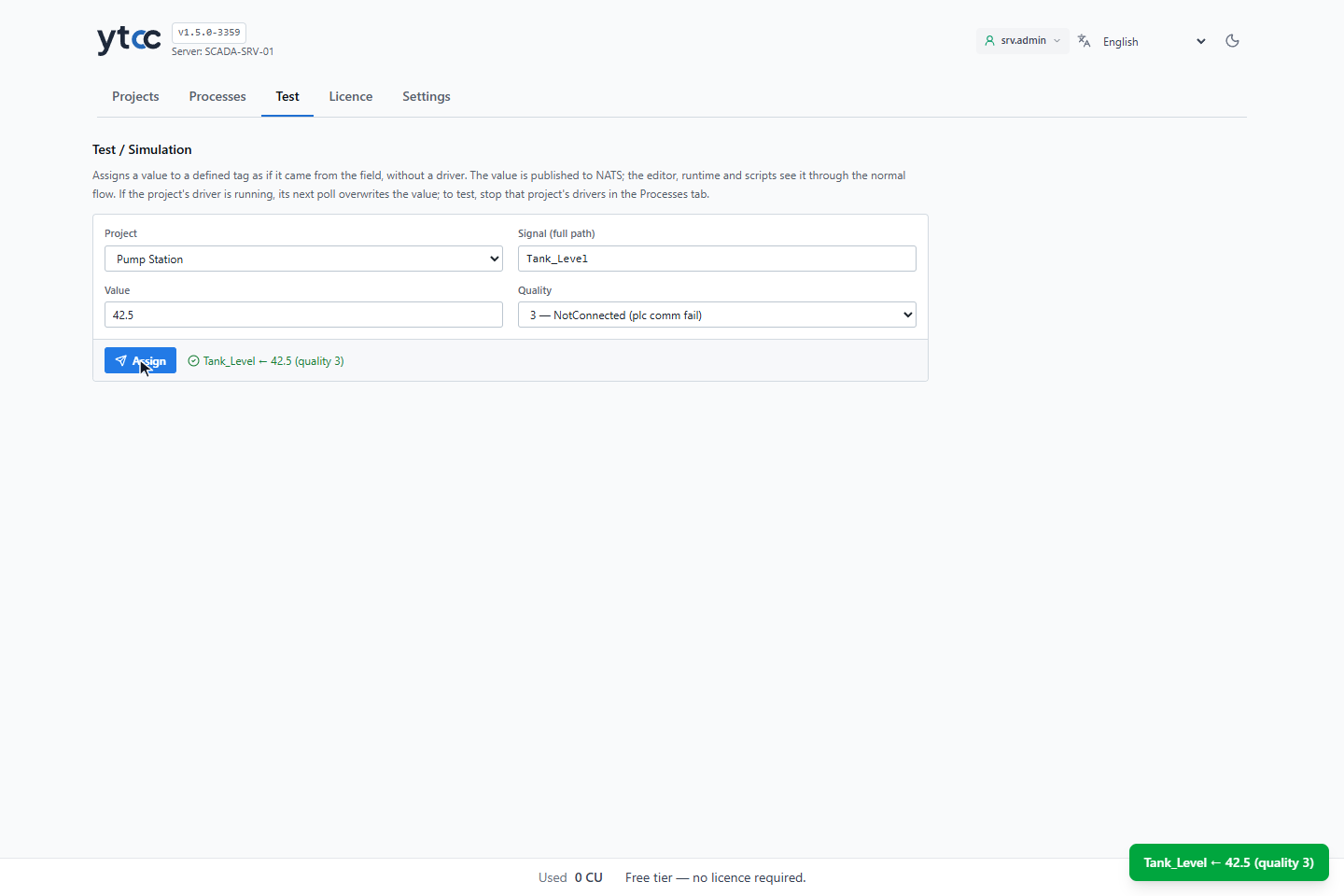
Choose another Quality and click Assign again, here 3 — NotConnected (plc comm fail). Screens show the signal as without communication.
| Quality | Shown as |
|---|---|
| 0 — Good | A normal value |
| 1 — Uncertain, 2 — Bad / invalid | Signal failure |
| 3 — NotConnected | No communication |
| 5 — Substituted / manuel | Manual value |
Good to know
A driver that reads the signal overwrites the test value at its next read. To keep a test value, stop the project's drivers in Processes or use a signal without a driver.