Profiles and users
A user signs in with a user name and password and can be a member of several profiles. A profile is a set of permissions; the user may do what any of their profiles allows. This page shows how to manage both in the configuration editor. For the permissions themselves, see Permissions and default profiles.
Before you begin
- Authentication is on and you are signed in as root. While the server has the root account, only root manages the users of a project; project users cannot open the configuration editor, even with User management in a profile. See Root, the system administrator and Turn on authentication. While authentication is off, anyone can manage users without signing in.
Changes on these forms are saved to the server as soon as you click Save or Create. They are not part of the configuration's Apply. An unsaved form is kept when you switch tabs; YTCC asks before you close it.
Steps
1. Find your way in the tree
In the configuration editor, click Users in the activity bar. The User accounts tree has:
- Profiles, each with its number of members. Click › to list the members under the profile.
- Users, all users by name. A disabled user is greyed and marked disabled.
- Policies, Server administrators and Audit log.
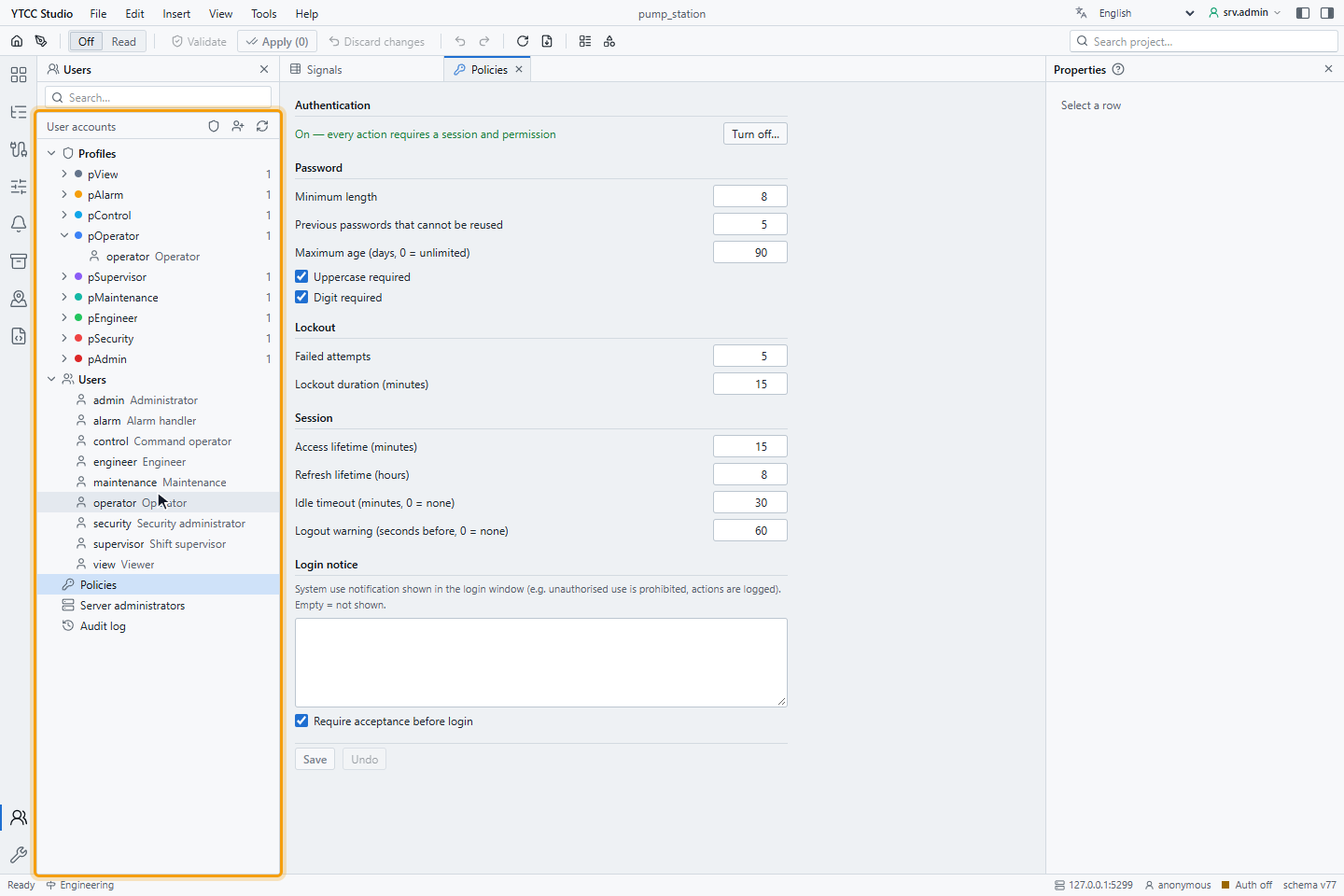
The buttons at the top create a new profile and a new user and refresh the tree. The search box finds users by user name or full name and profiles by name.
2. Add a user to a profile
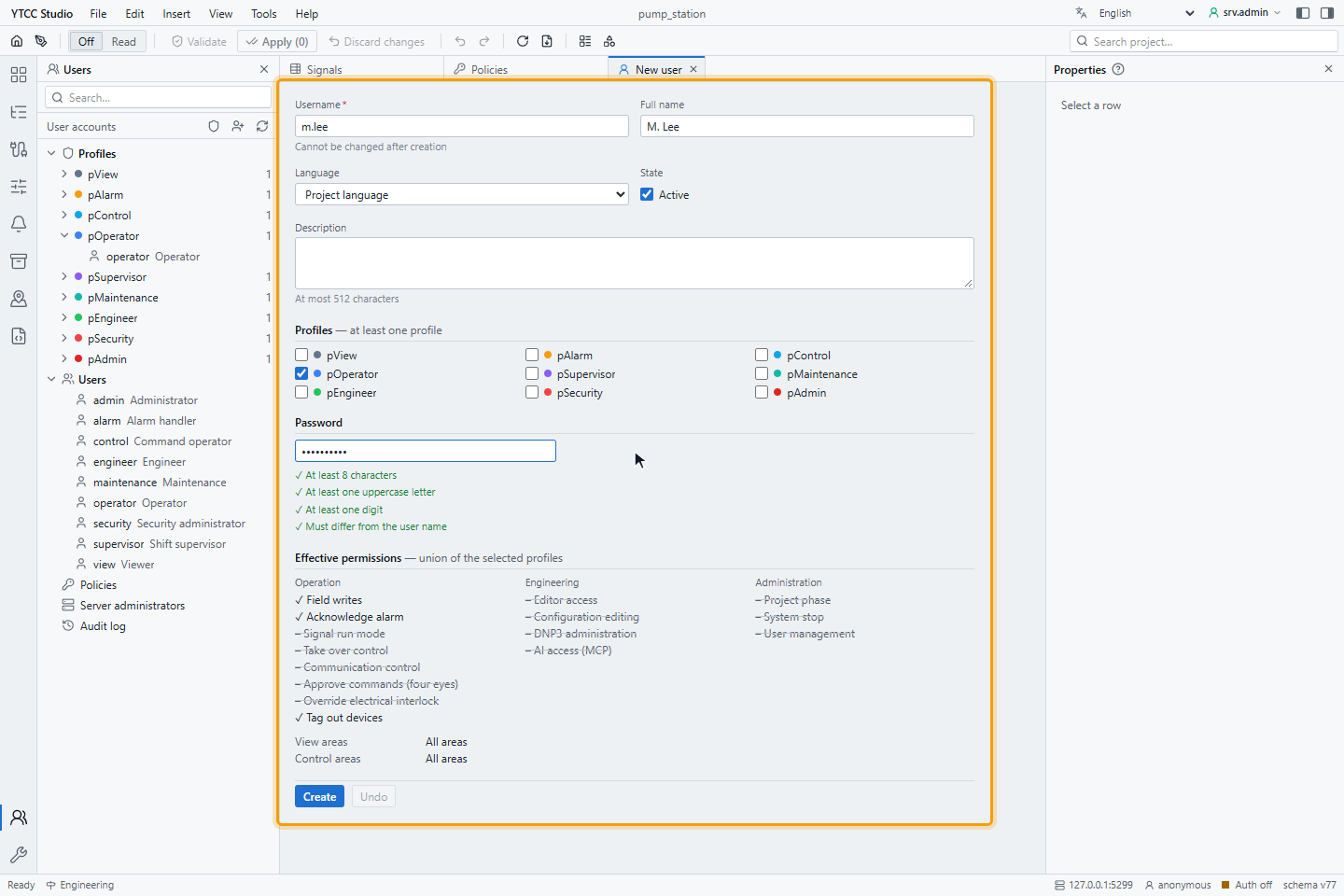
Right-click a profile and choose New user in this profile. The user form opens with that profile ticked. Fill in:
| Field | Notes |
|---|---|
| Username | Required. It cannot be changed after creation, because the audit records refer to it. |
| Full name | Up to 128 characters. |
| Language | The language of the runtime screen while the user is signed in. Project language uses the project's. A signed-in user can also change it from the session menu of the runtime screen, which saves it in the profile. |
| State | Active lets the user sign in. |
| Description | Up to 512 characters. |
| Profiles | At least one; otherwise the form shows Select at least one profile. |
| Password | The rules of the password policy are listed under the box and turn green as they are met. |
Effective permissions shows the permissions of all ticked profiles together, with View areas and Control areas. Point at a permission to see which profile grants it, for example Granted by profile: pOperator, or Not granted by any profile. Click Create.
3. Add a user to another profile
Drag the user in the tree onto another profile. The window Add to profile? says, for example, "m.lee" will be added to profile "pSupervisor". Other profiles stay unchanged. Click Add.
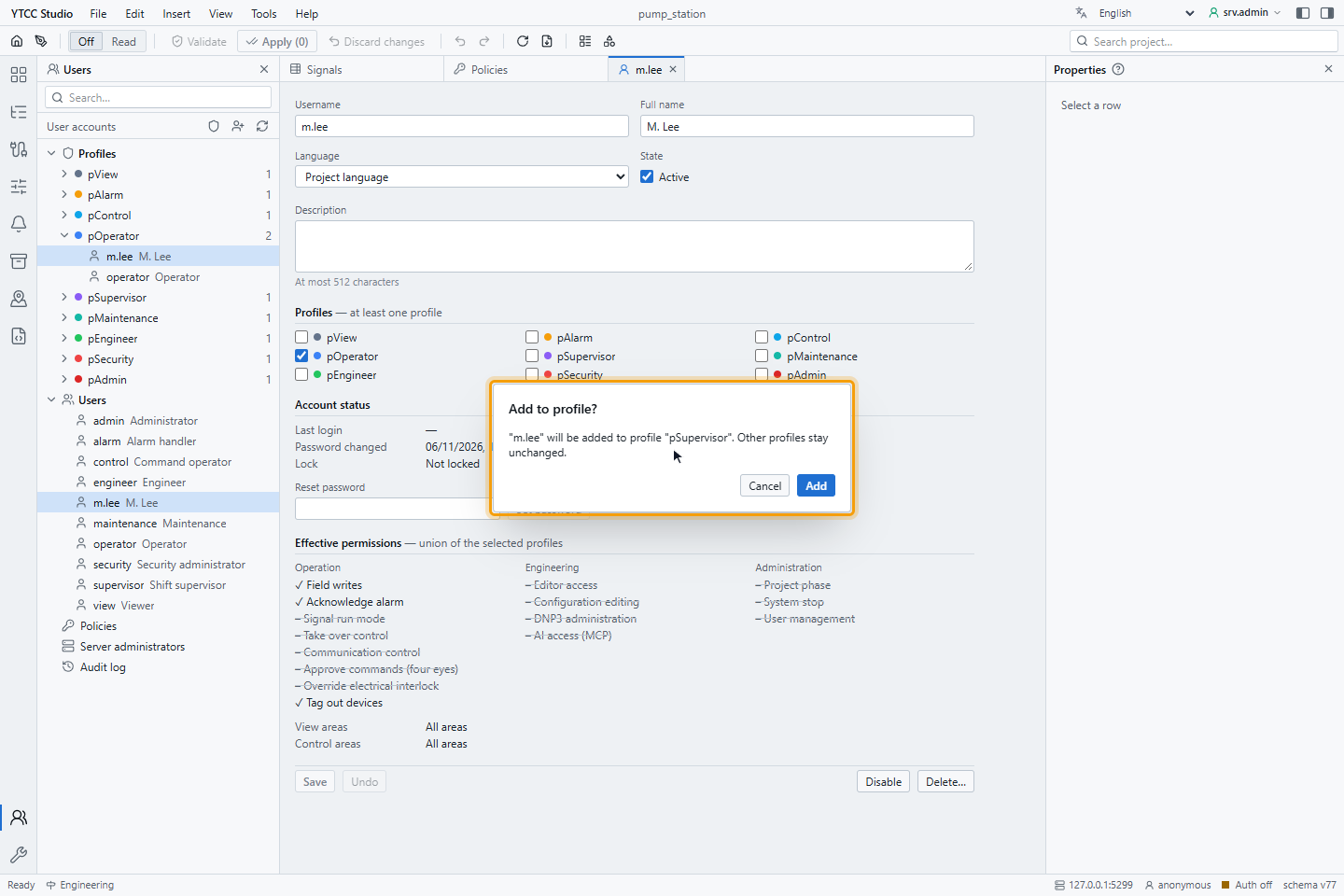
Dragging adds the profile; it does not move the user. To take a profile away, clear it in the user form or remove the user in the profile's Members table.
4. Edit a profile
Click a profile in the tree. The profile form has:
- Profile name, Color and Description.
- Permissions, in the groups Operation, Engineering and Administration, each with a short explanation. Ticking User management shows a warning: it is administrator equivalent, because members can assign any profile. The Engineering permissions, Project phase and User management belong to root; see Permissions and default profiles.
- Responsibility zones, with View and Control: the zones whose signals the members may see and control. All means every zone.
- Members, with Add… to add users and Remove on each row to remove the user from the profile.
Click Save to store the profile.
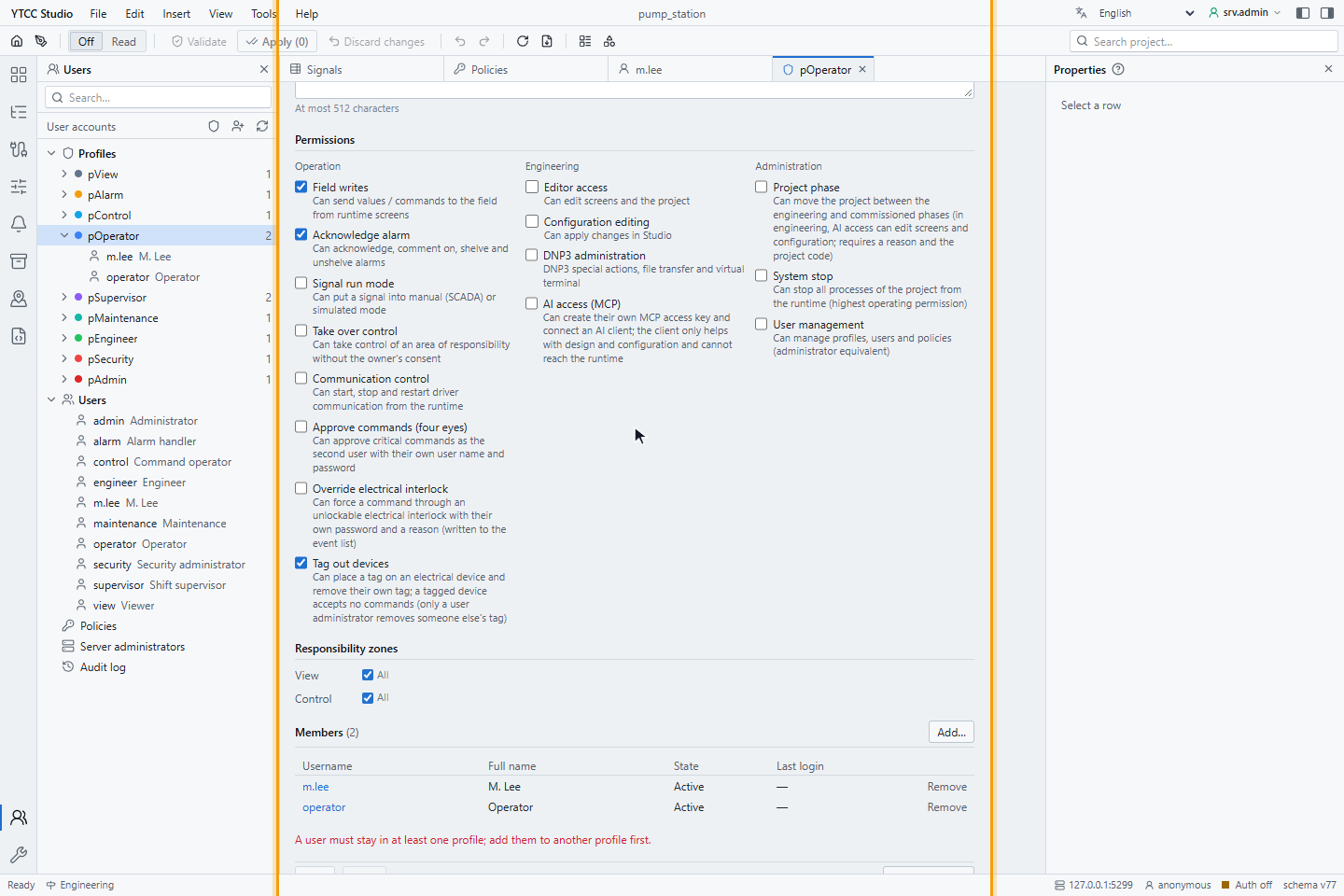
A user must stay in at least one profile. Removing operator from its only profile shows A user must stay in at least
one profile; add them to another profile first. A profile that still has members cannot be deleted with Delete
profile…; remove its members first.
5. Disable or delete a user
Open the user and click Disable. The user can no longer sign in, but the account and its history are kept; Enable reverses it. Delete… opens Delete user?; Delete permanently removes the account, and the user's name is kept in the audit records. For an enabled user the window also suggests disabling instead.
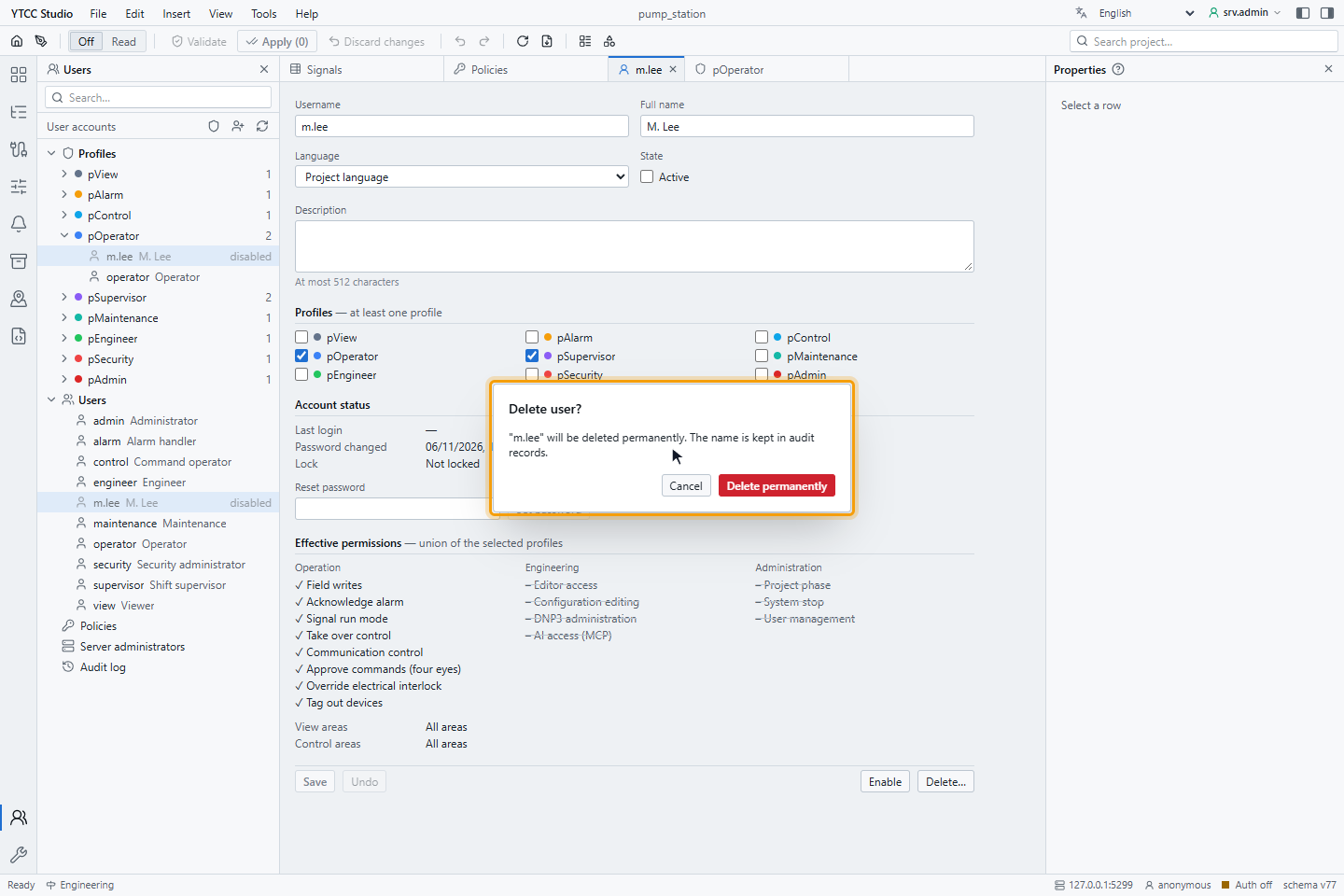
For an existing user the form also shows Account status: Last login, when the Password changed and how old it is, and Lock. A locked account shows Locked until a time and an Unlock link. Root is not in the list; its password is changed on the home page (see Change the root password).
6. Keep an administrator
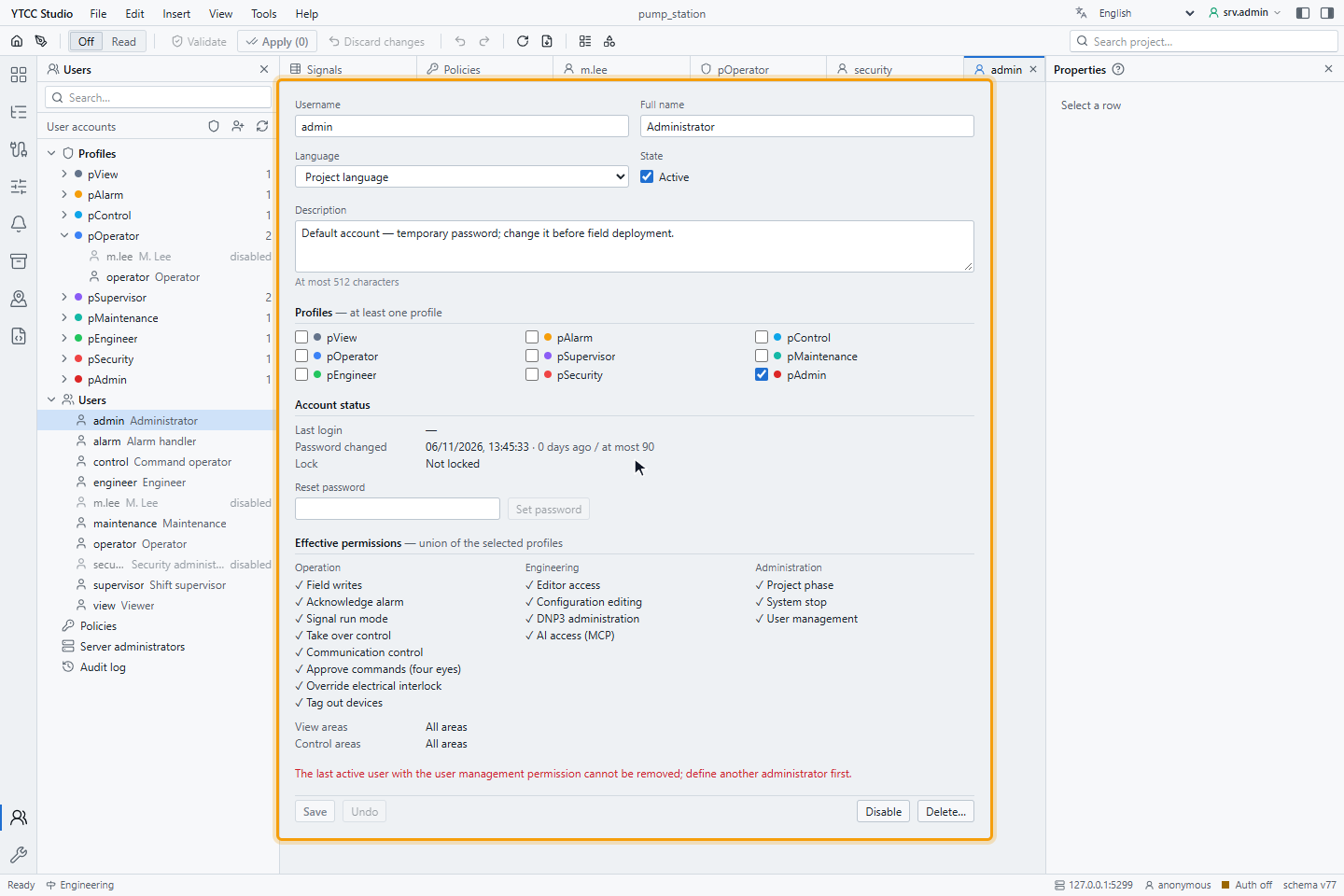
YTCC keeps at least one enabled user with User management. It refuses to disable or delete that user, to take away
their last profile with the permission, or to remove the permission from the profile they depend on. With security
disabled, disabling admin shows The last active user with the user management permission cannot be removed; define
another administrator first.
Result
The users have the profiles they need, unused accounts are disabled, and at least one administrator remains.