Object appearance
The look of an object is set in its properties: Fill, Stroke, Corners, Shadow and Glow, and for text the Font group. The color strip and Format Painter copy colors and styles quickly (see Copy, paste and format).
Before you begin
- A page with a shape is open in the screen editor; here a rectangle.
Steps
1. Fill with a gradient
Select the shape and set Fill Style to linear-gradient (or radial-gradient). Click the Gradient row to open the gradient editor and click a swatch under Ready, here Steel.
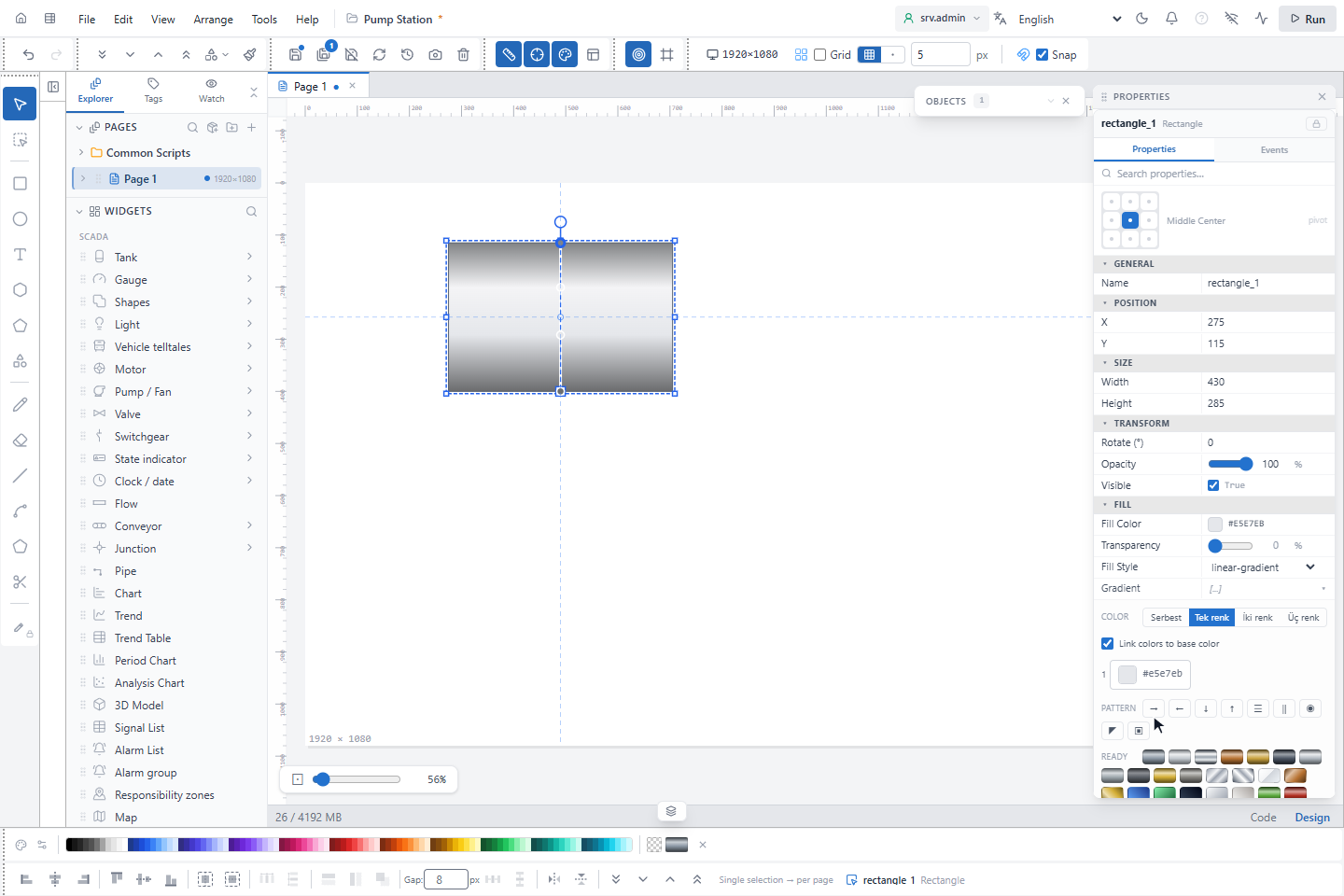
In the gradient editor:
- Click the bar to add a stop, drag a handle to move it, and set its color, Position and Opacity. A gradient has at least two stops.
- The color modes derive the stops from one, two or three base colors with a tone; base colors can follow a signal.
- The pattern buttons set the direction: left to right, top to bottom, mirrored bands, from the centre, from a corner.
- Ready has metal, panel, liquid, pipe (DIN 2403, ASME A13.1, BS 1710, ISO 14726) and lamp gradients.
- Gradient Angle turns a linear gradient (0 = top to bottom, 90 = left to right); it can be bound to a signal.
Fill Style also has the patterns hatch, cross-hatch and dots with their own color, angle and spacing. Transparency in the Fill group affects only the fill; Opacity affects the whole object.
2. Add a shadow
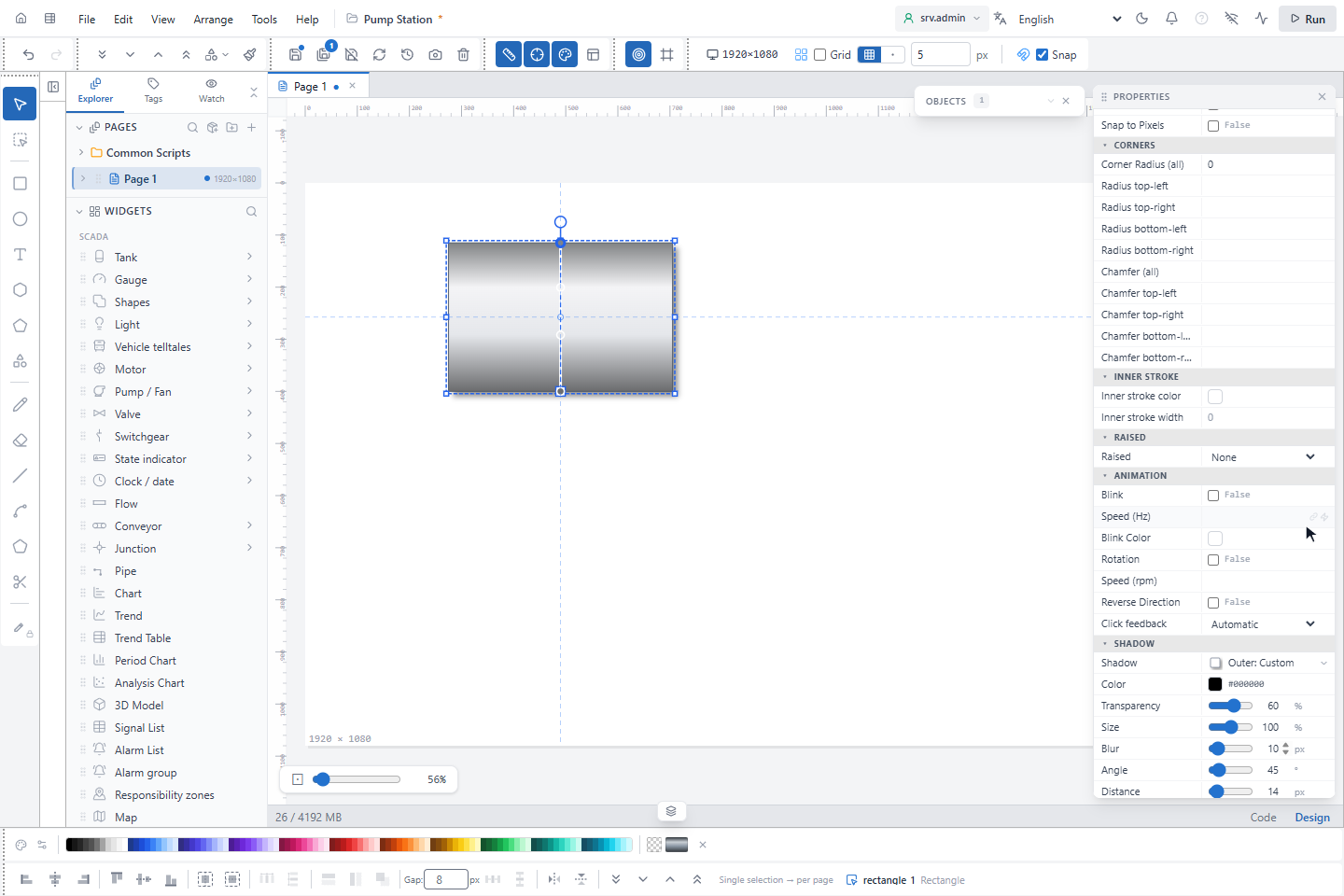
Click the Shadow row: the gallery shows No shadow, nine Outer and nine Inner shadows. Pick one, here the outer shadow at the bottom right, and adjust Color, Transparency, Size, Blur, Angle and Distance.
3. Add a glow
The Glow row opens a gallery of six colors in four sizes. Color, Size and Transparency set it exactly.
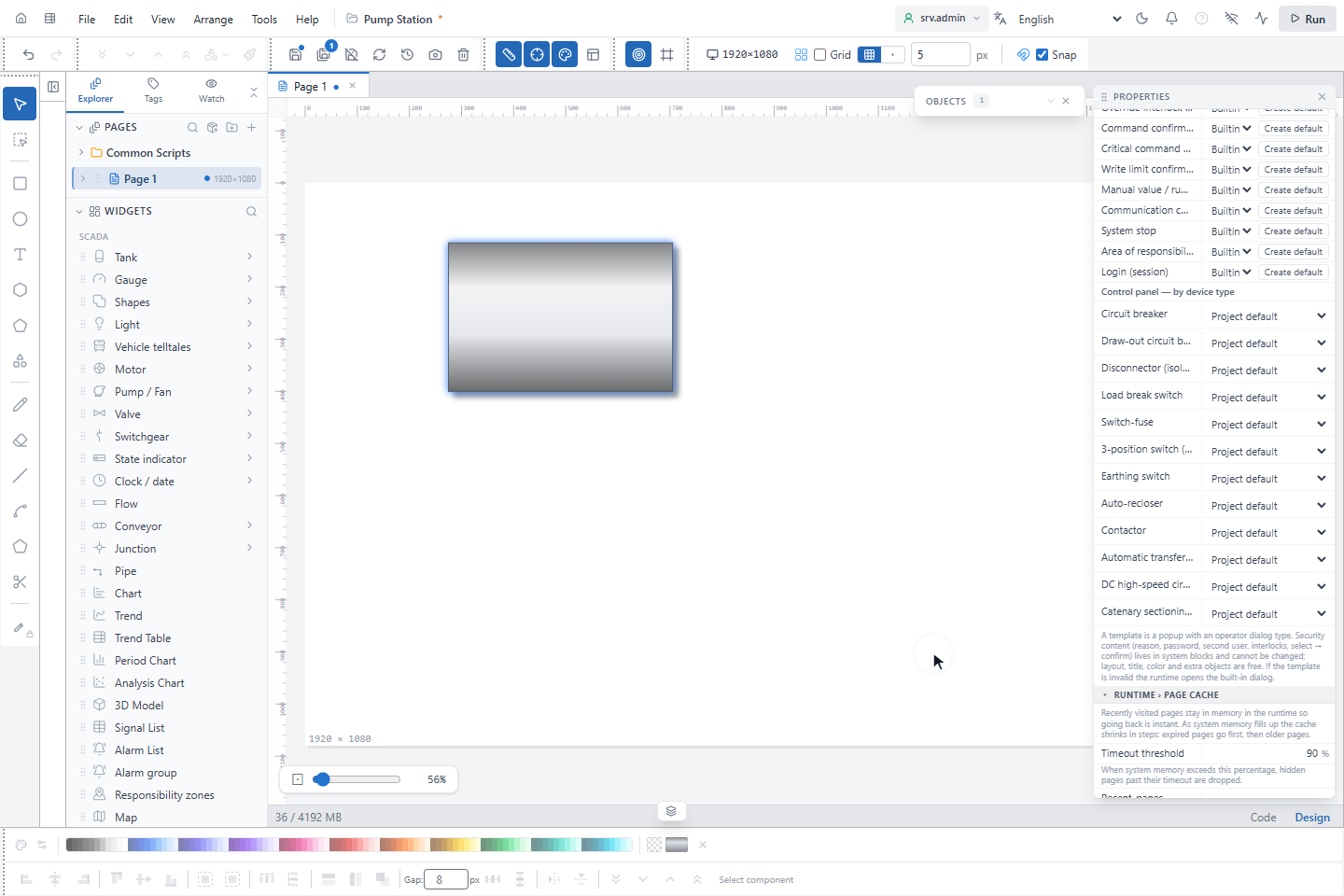
Shadow and glow exist on shapes, equipment, buttons, images, symbols, pipes, charts and most other objects.
4. Format text
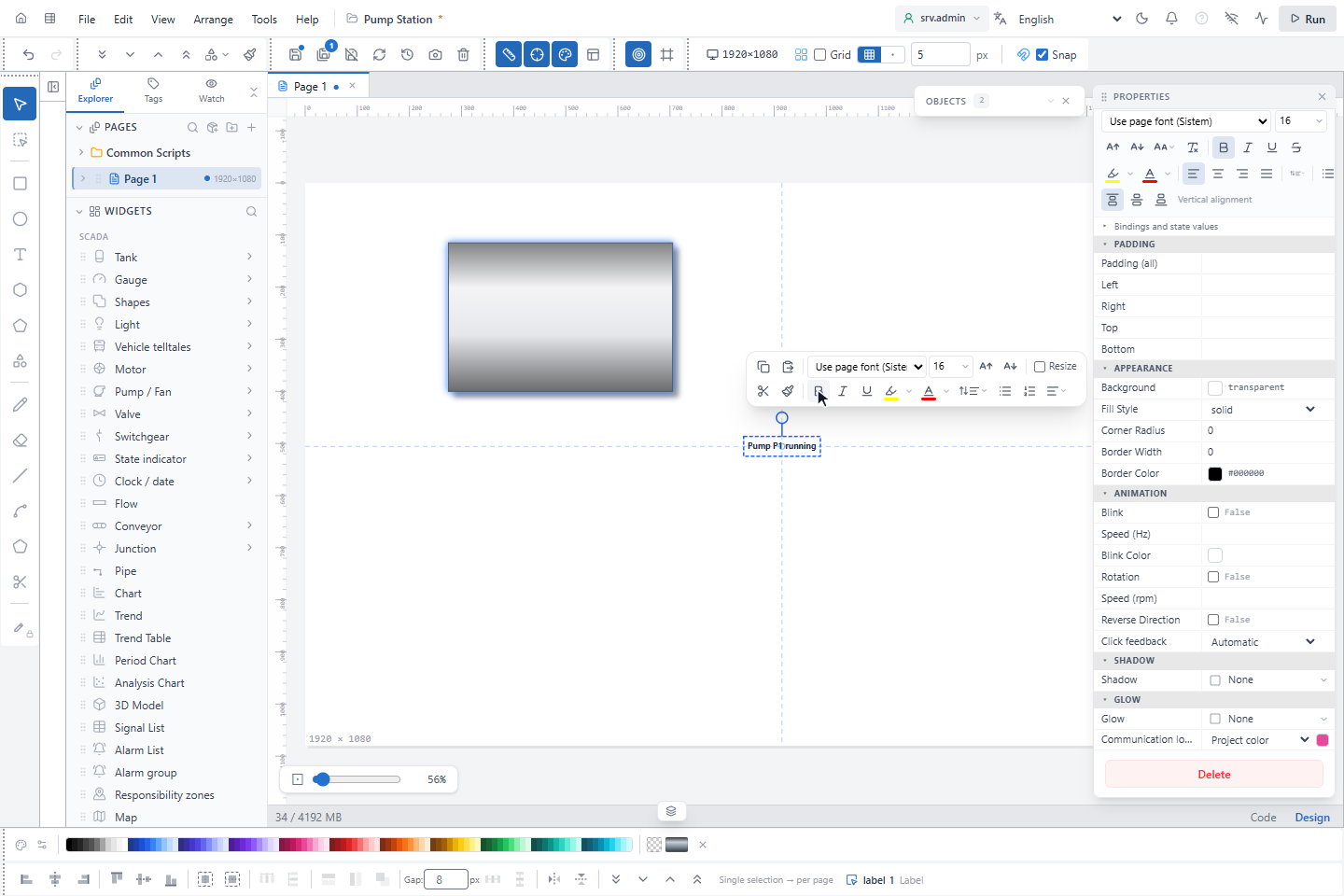
Select a text label: the text mini toolbar opens above it with font, size, grow and shrink, Bold, Italic, Underline, highlight and font color, line spacing, lists and alignment. The same controls are in the Font group of the properties, with strikethrough, case and vertical alignment.
Other appearance settings
| Group | Settings |
|---|---|
| Stroke | Stroke Color, Transparency, Width, Style (solid, dashed, dotted), Crisp Edges, Snap to Pixels |
| Corners | Corner Radius (all) or per corner, Chamfer (all) or per corner; a chamfered corner is not rounded |
| Inner Stroke | Inner stroke color, Inner stroke width |
| Raised | None, raised or sunken edge with a width and light and dark edge colors |
Text roles
A text role gives texts of the same kind, for example titles, labels or values, the same size, font, weight and color. The roles come from the project's design standard, which an AI assistant sets up through AI access (see Screens prepared with AI); the editor reads them and checks for changes every 30 seconds. Without a role table, Text role does not appear.
- Text role in the Font group lists the roles, each with its size, and (none). Choosing a role applies its size, font, weight and color to the selected objects, as one undo step. Fields bound to a signal, fields the object does not have and locked objects are left as they are. (none) removes the role and keeps the current look.
- When you change the look of an object by hand, it keeps its role and an amber mark appears next to Text role. Its tooltip lists the differences, for example Differs from role: size 14 ≠ 16.
- When objects of the open page, symbol, popup or layout differ from their role, for example after the role table changed, the button Apply roles (N objects differ from their role) appears. It applies the table again to all objects there that have a role, as one undo step.
- An object whose role is no longer in the table shows the role as not in table.
Good to know
- New shapes start in neutral grey (fill #E5E7EB, stroke #4B5563); saturated colors are kept for states.
- Effects scale with the zoom; a small shadow can be hard to see at low zoom.