Rename, copy and delete a project
A project's name also decides its identity and the name of its database. That is why renaming and copying a project are more than a change of label, and why a running project is stopped first.
Before you begin
| Action | Permission |
|---|---|
| Rename, delete | Root sign-in on the home page. The commands are shown in the project menu only while root is signed in. |
| Copy | Root sign-in on the home page |
See Root, the system administrator.
Steps
1. Rename a project
Right-click the project and choose Rename, or select it and press F2. The window Rename Project says that renaming also renames the project's database, that open sessions are closed and users sign in again, and that a running project is stopped first. Type the New name and click Rename.
If the project is running, the window lists its running processes and says The project is running. It will be stopped to continue; drivers stop collecting data. Click Stop and continue.
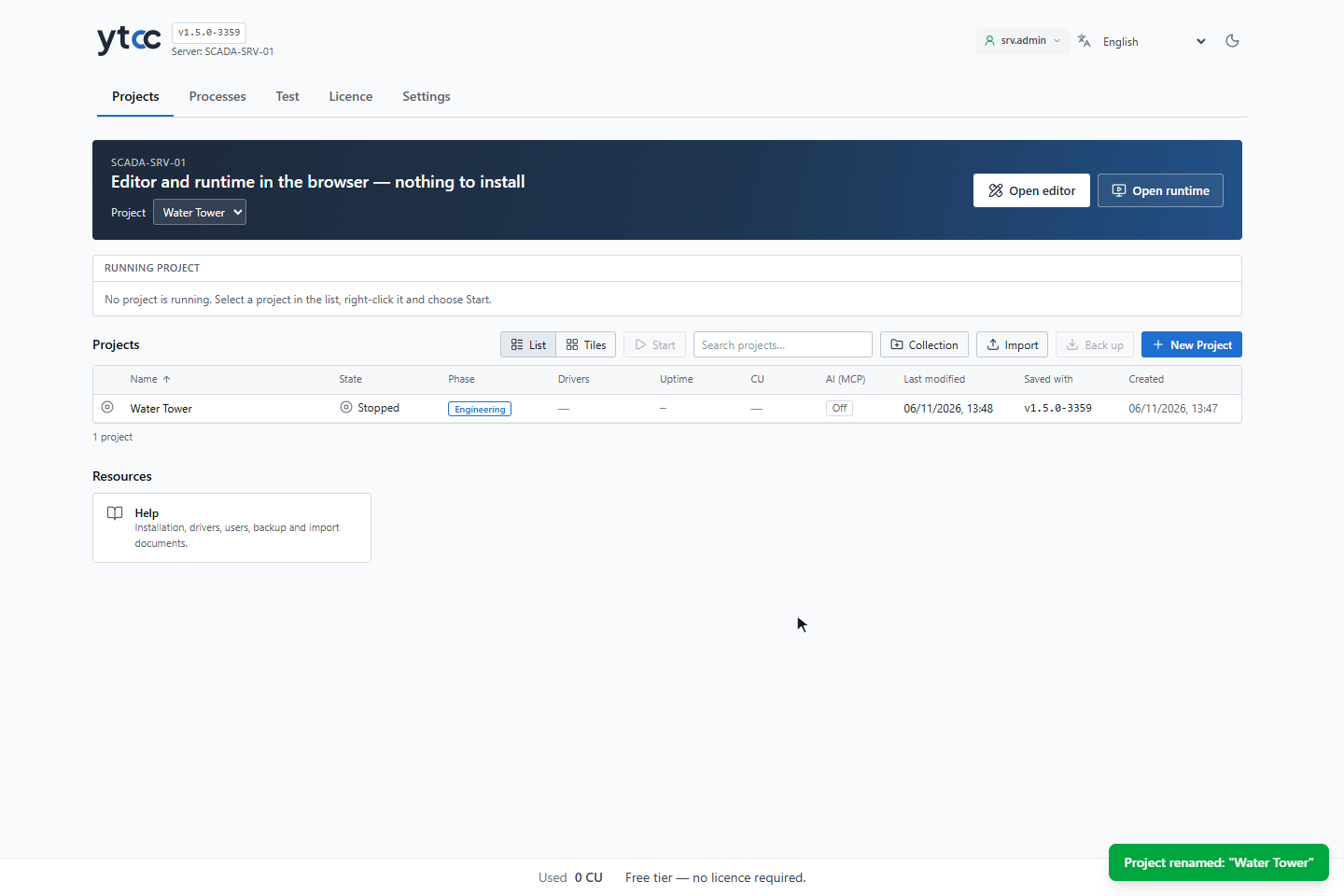
A message says Project renamed: "Water Tower". The project stays stopped; start it again when you are ready.
The alarm history moves to the new name with the project. If it cannot be moved, for example because the history
database is not reachable, a second message Alarm history was not moved … says so; the old alarm records then stay
under the project's old identifier, for example pump_station.
2. Copy a project
Right-click the project and choose Copy. The window Copy Project proposes the name with copy added, for
example Water Tower copy. Change the Name of the copy if you like and click Copy.
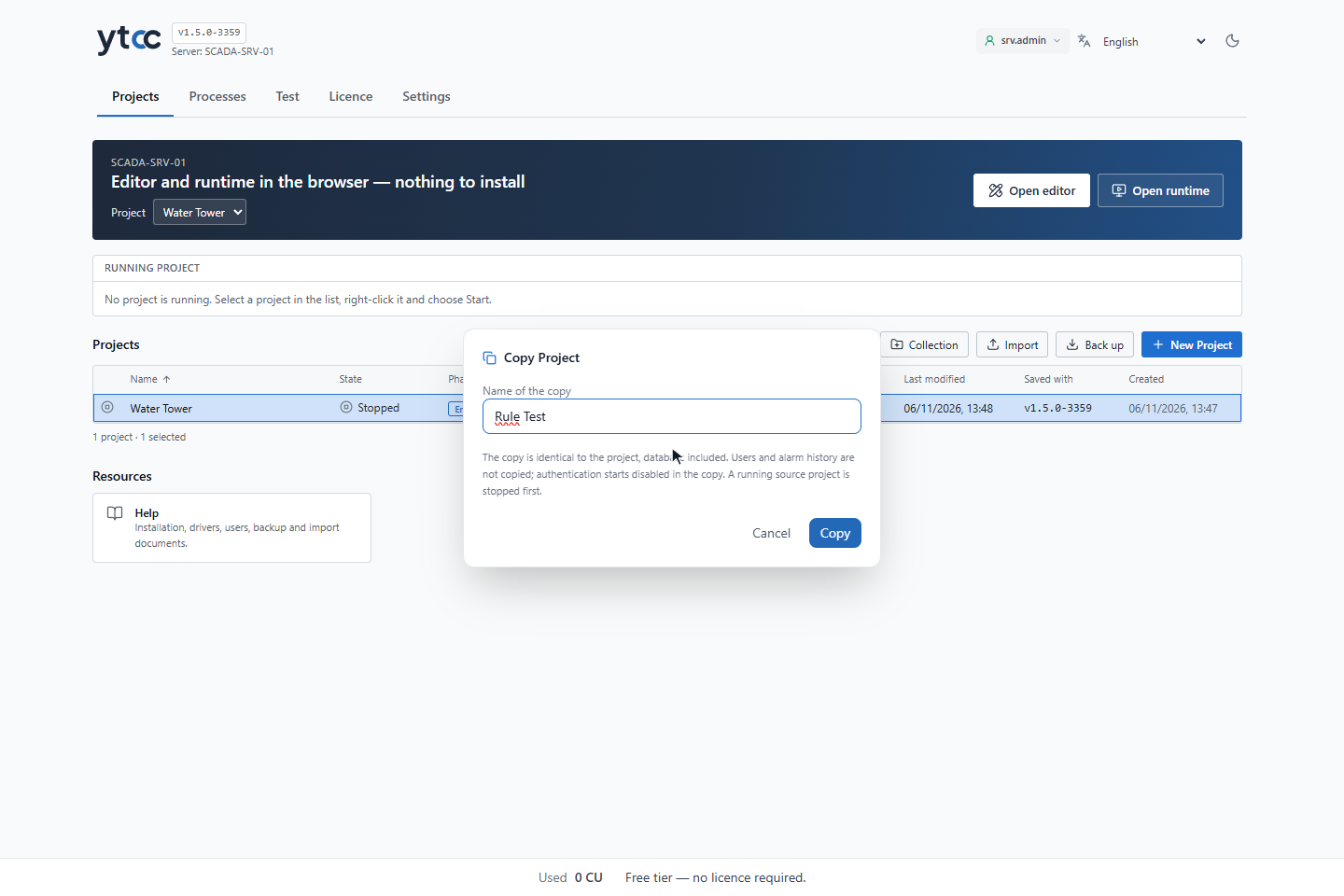
The copy is an exact copy of the project, its database included, with these differences:
- Users and the alarm history are not copied.
- Authentication is off in the copy. Turn it on before the copy controls a plant; see Turn on authentication.
- A running source project is stopped first, as for a rename.
A message says Project copied: "Rule Test".
3. A running project cannot be deleted
Select a running project and press Delete. YTCC refuses with A running project cannot be deleted; stop it first: Rule Test. Stop the project first; see Start, stop and restart a project.
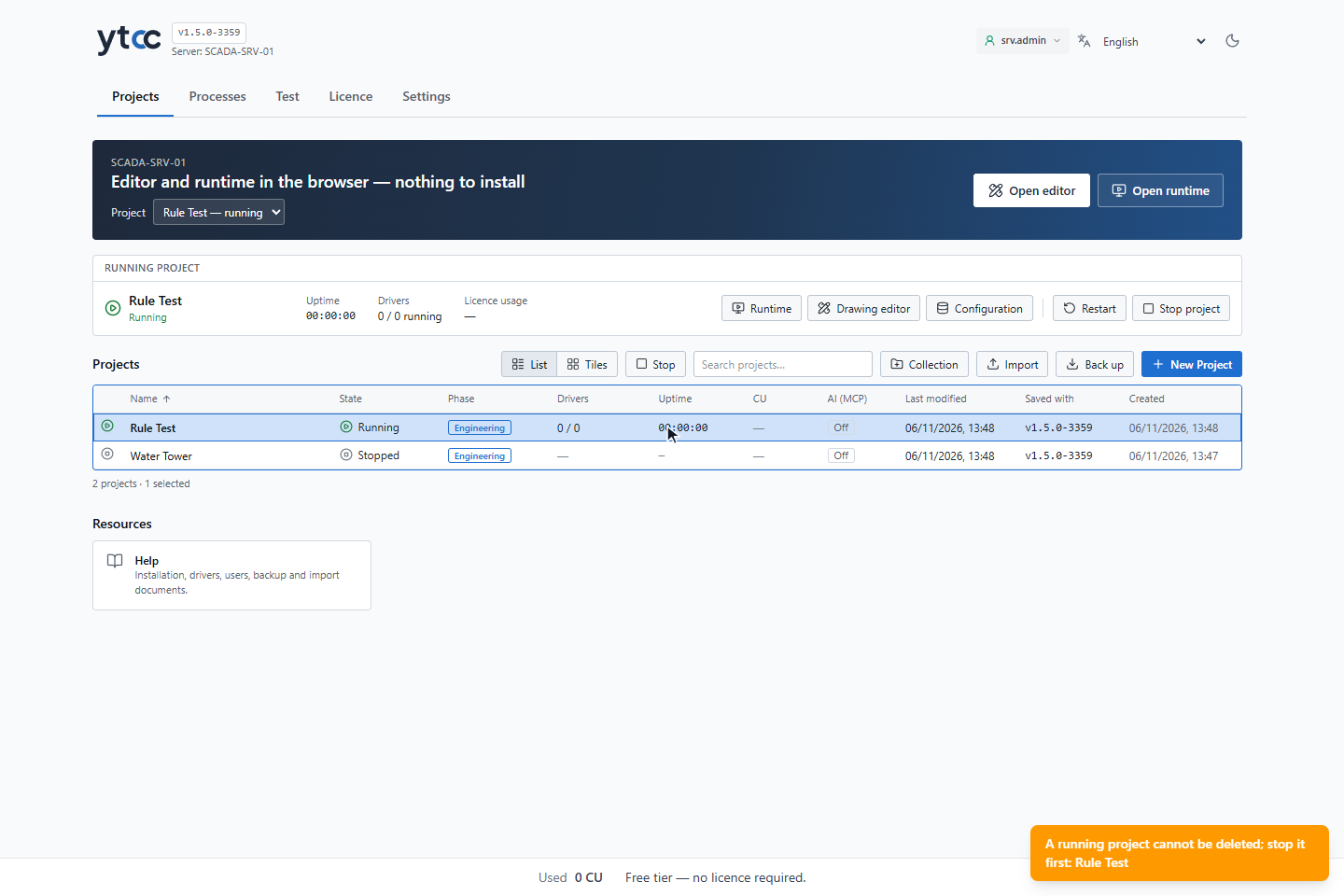
If the home page cannot read the running state of the projects, it does not delete either, and says so.
4. Delete a project
Right-click the stopped project and choose Delete, or select it and press Delete. Confirm with Delete in the window Delete project?. To delete several projects, select them with Ctrl and click, then use Delete; the window then says The selected projects will be deleted permanently.
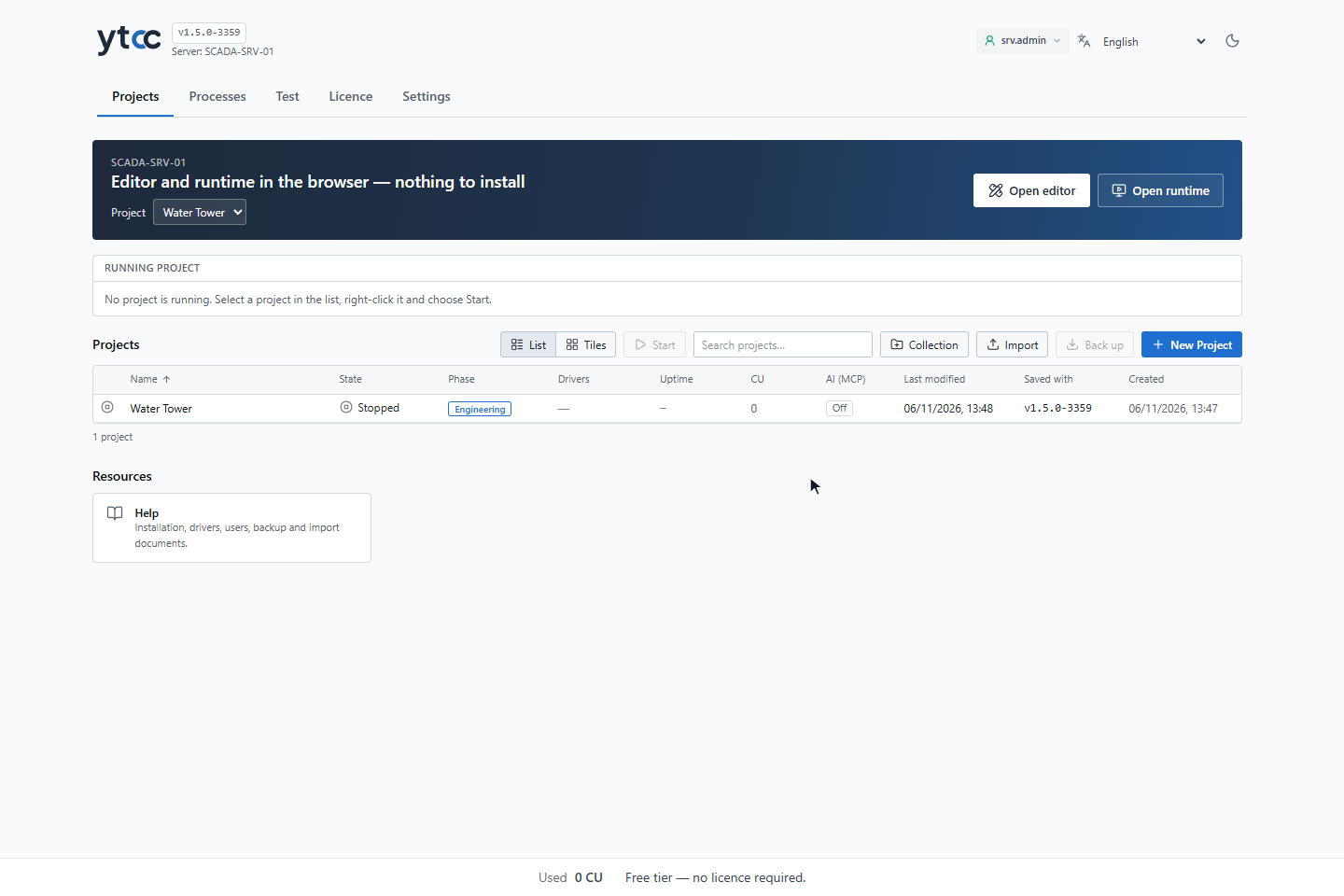
Deleting removes the project and its configuration database. The project's history database is kept.
Deleting a project with authentication on also deletes its users and their profiles. Take a backup first if you may need the project or its accounts again; see Backup and restore.
Result
The project has a new name, a copy, or has been deleted.