Use the type library
The type library holds signal types that are not part of a project. The Product library contains the 25 types that come with YTCC, from circuit breakers to UPS; see Product signal types. The User library holds the types you save yourself, so you can reuse them in other projects.
Before you begin
- The configuration editor of the project is open.
Steps
1. Open the type library
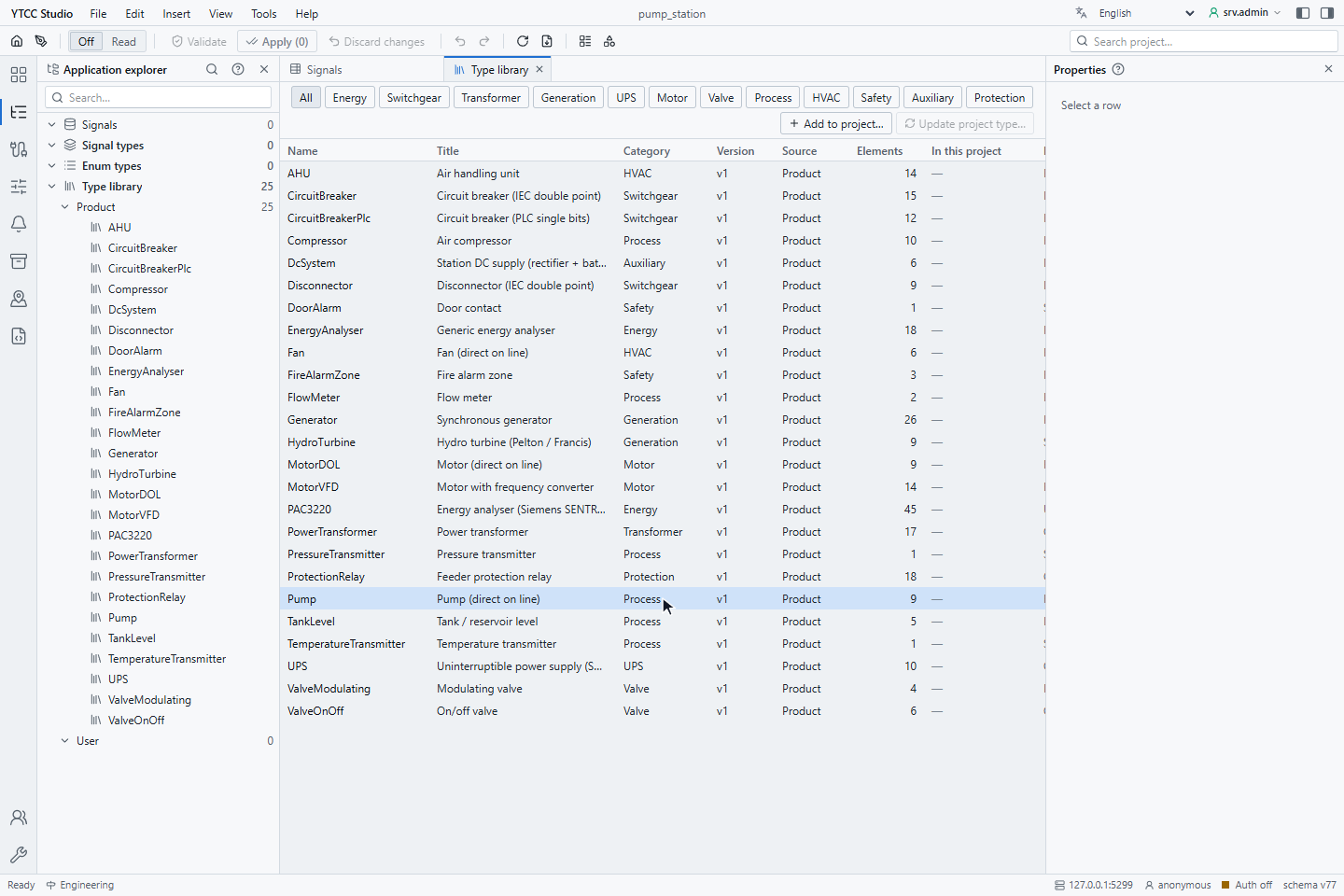
Choose Tools › Type library…, or open Type library › Product in the Application explorer. The list shows each type with its Name, Title, Category, Version, Source, number of Elements, its status In this project and the Description. The chips above the list filter by category. Select a row to see its elements, parameters and enum types in a panel to the right of the list.
2. Add a type to the project
Select the type, here Pump, and click Add to project…. In the window Add from library, the As name field sets the name of the type in the project. The window lists what will be created: elements, enum types, address templates and alarm classes, here 9 elements, one enum type and 45 address templates. Click Add.
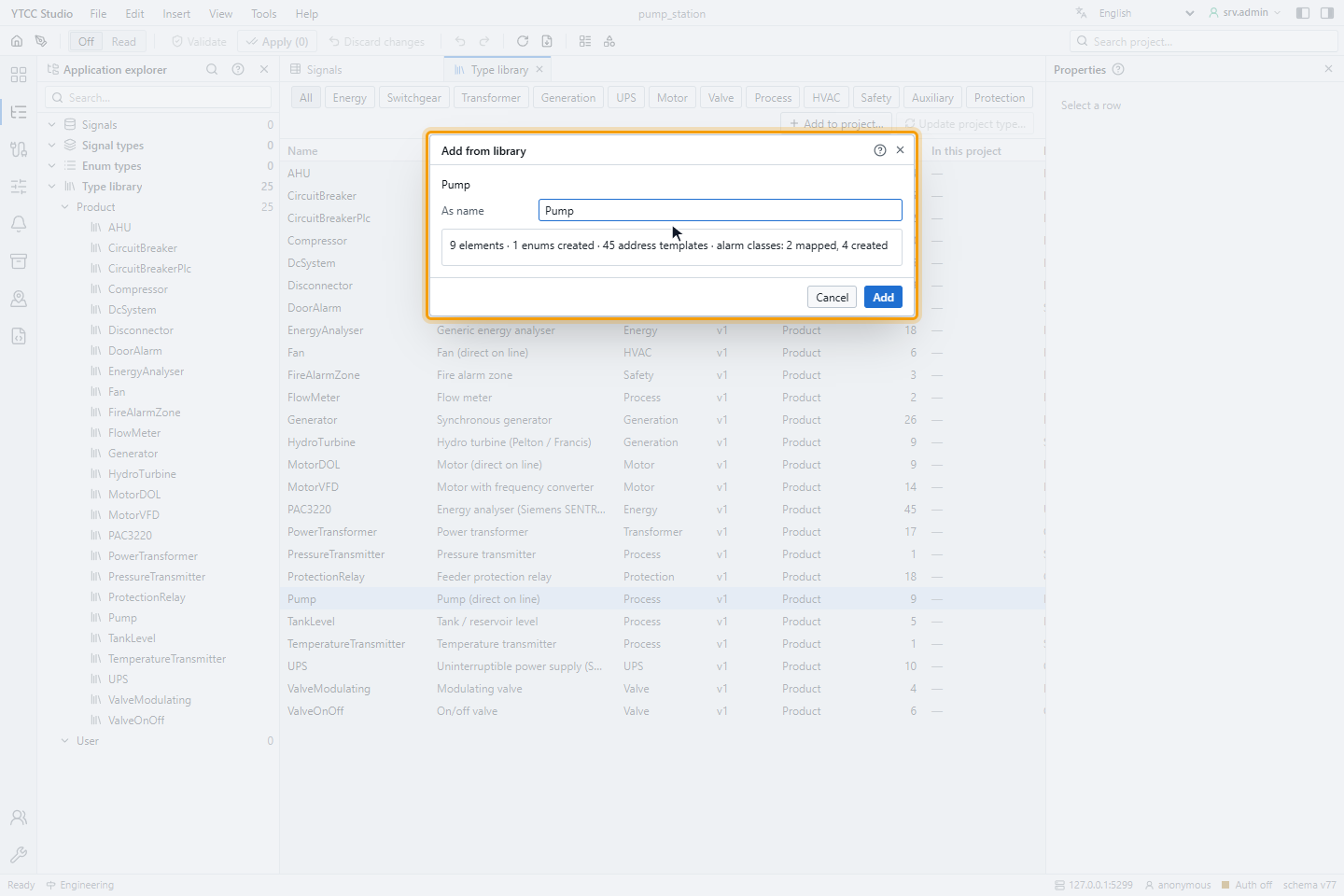
If a type of that name already exists, choose another name. Enum types and alarm classes that already exist are reused.
3. Apply and check the status
Apply the configuration; see Validate and apply. The type appears under Signal types, and the library shows its status in the project:
| In this project | Meaning |
|---|---|
| — | The type is not in the project |
| current | The project type is the same version as the library type |
| vn available | The library has a newer version |
| modified | The project type was changed after it was added |
| missing | The project type refers to a library type that no longer exists |
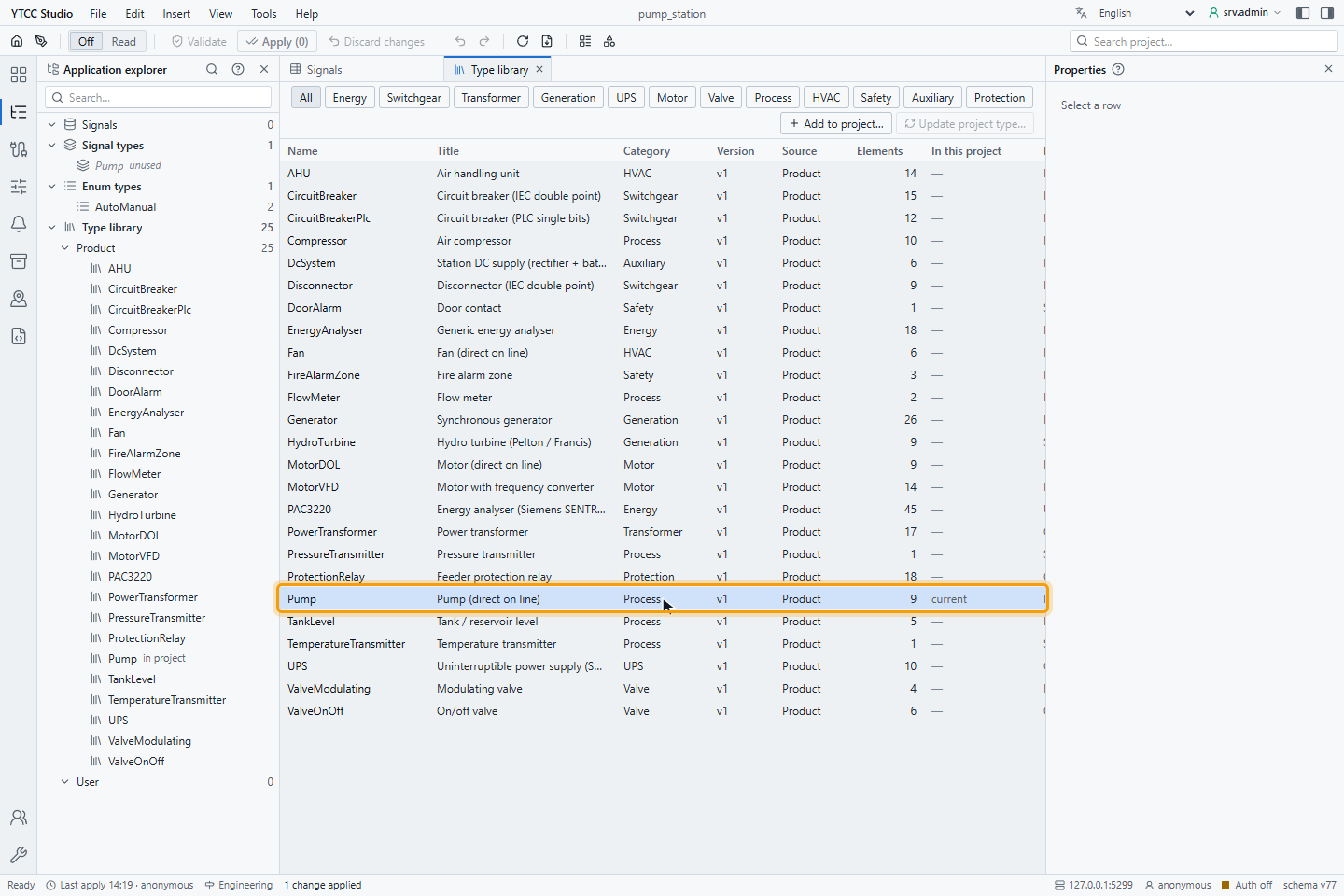
Then create instances from the type; see Signal types and instances.
Update a type from the library
When the status is vn available, choose Update project type… (or Update from library… on the type page). The window lists each element with add, change, removed in library — kept or local only and its field changes. If the project type was changed, tick Overwrite local type changes. Click Update and apply. Elements removed in the library stay in the project; afterwards YTCC offers to pass the changes on to the instances.
Link an existing type
Link to project type… connects a type that is already in the project, for example one created earlier by hand, to the library type of the same kind. The window shows the differences; after linking, newer library versions are offered as updates.
Save your own type to the user library
In the type list (Tools › Signal types…), Save to library… in the menu of a type saves it to the User library with a Library name, Title, Category and Description. Saving again under the same name raises the version by one, and projects using it then show vn available. Delete from user library removes it; types in projects stay, with the status missing.
The product library cannot be changed. The user library is stored in the data folder of the server and is shared by all projects on that server.