Export and import project data
Export All Projects downloads the screen data of every project in one .scada.json file: pages, symbols, popups,
layouts and project settings, and the collections of the home page. Import Project creates a new project from each
project in such a file. Use it to move screens between computers or to keep a copy of the screen design.
The file holds screen data and is not a backup. To save or move a whole project, use a backup; see Back up and restore.
Before you begin
- Creating projects needs a server administrator session; see First start.
- A project with user login can only be exported when you are signed in to it in this browser tab.
Steps
1. Export all projects
On the home page, open Settings and, under Data & Backup, click Download next to Export All Projects.
The browser saves scada-backup-<date>.scada.json.
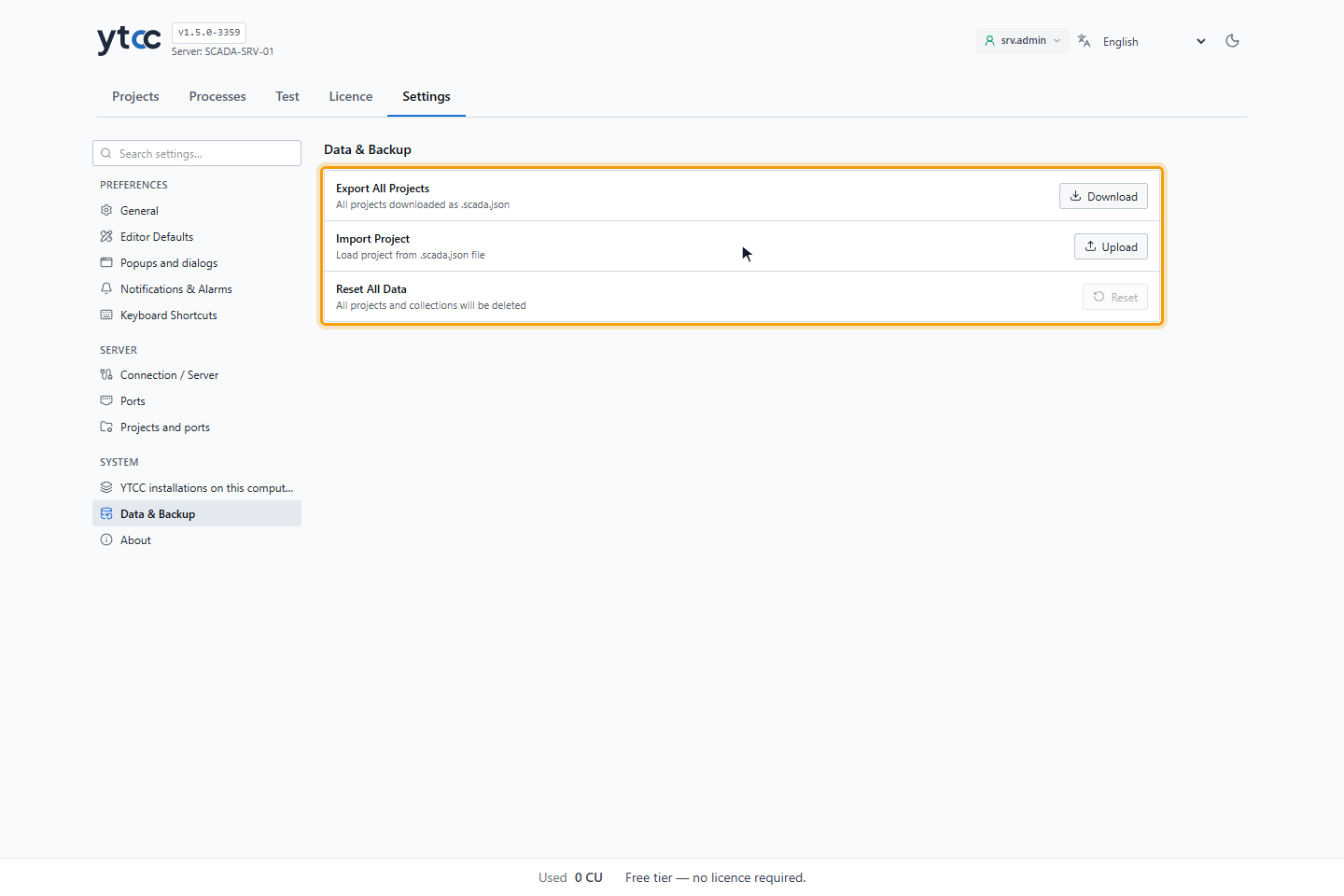
Projects with user login that this tab has no session for are skipped; the section says how many.
2. Import a project file
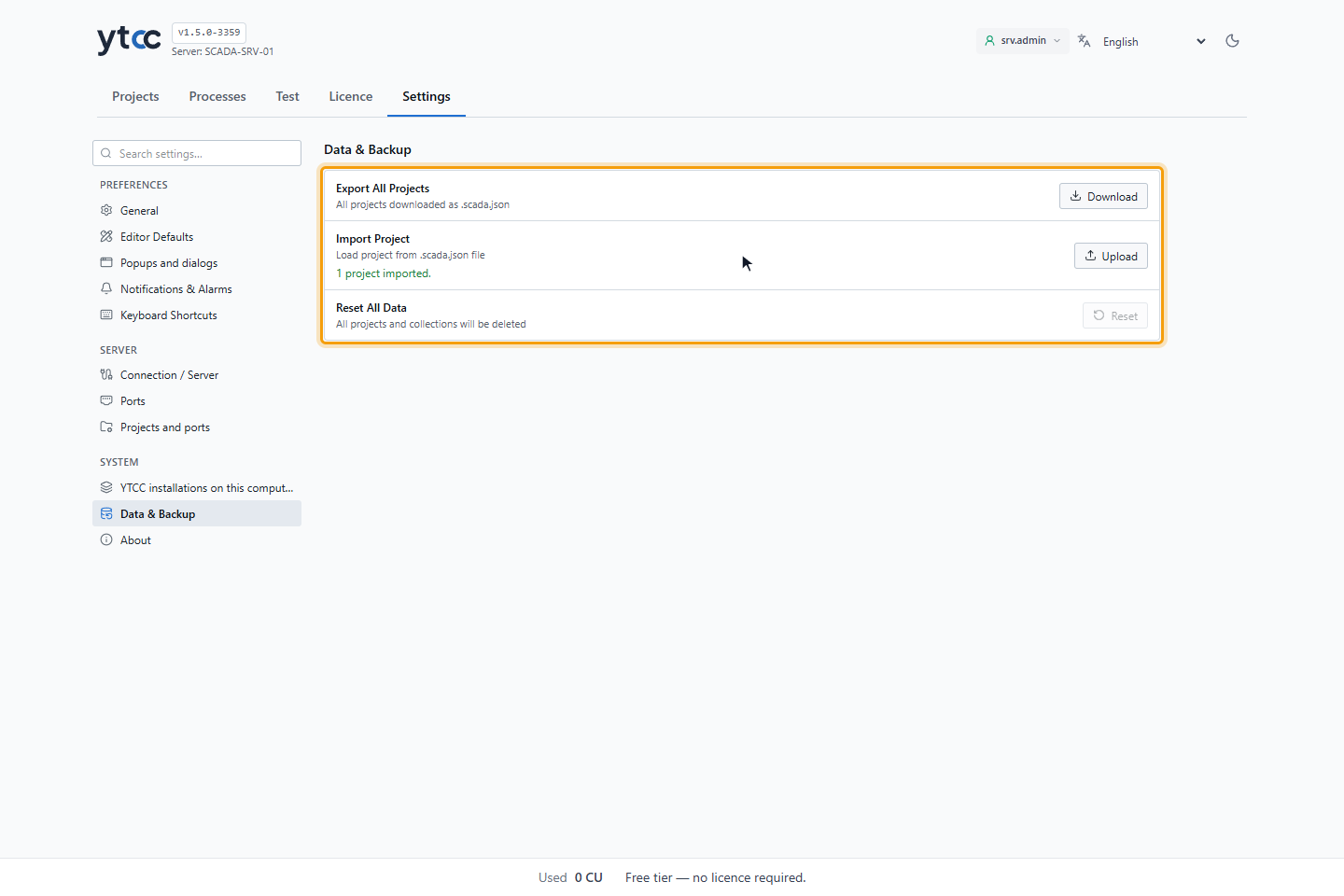
Click Upload next to Import Project and choose a .scada.json file. Each project in the file becomes a new
project named after the original with (imported); the section reports how many projects were imported.
Good to know
- An import never replaces an existing project.
- Bindings to signal names stay in the screens and take effect when signals with those names exist.