Diagnostics and audit
Diagnostics scans the configuration for points without a source, invalid parameters, outdated templates and other problems that the validation of a single change does not see. The Audit lists every applied change with who made it, when and what changed.
Before you begin
- The configuration editor of the project is open.
Steps
1. Run a check
Choose Tools › Diagnostics. The left list shows each check with its severity (error, warning or information). Click Scan next to a check. The right side shows the progress, scanned and found with their counts, and the findings; click a finding to open the signal, binding, alarm or driver it concerns.
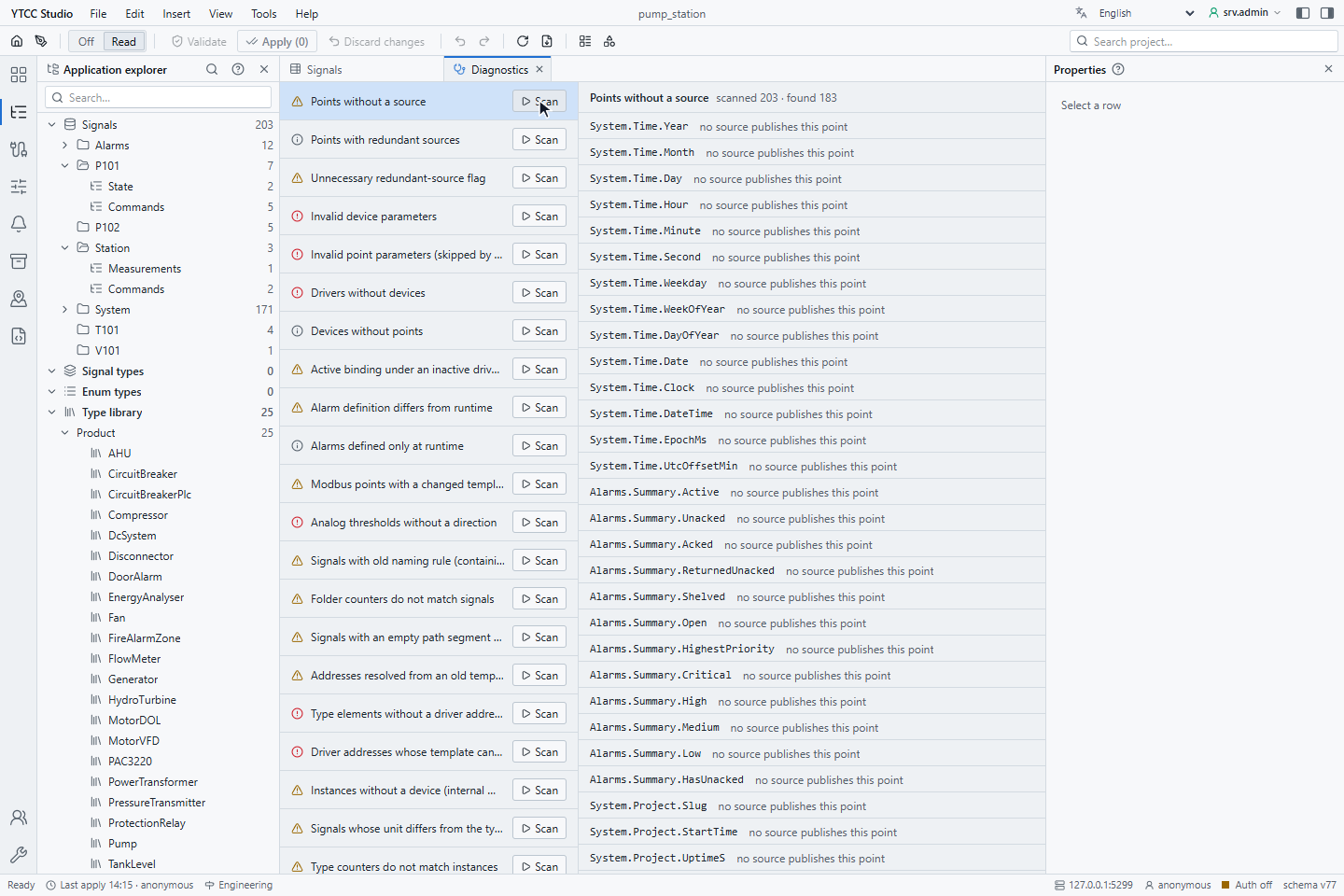
For checks that YTCC can correct, Fix becomes available after a complete scan with findings. It shows the changes first and corrects all findings, also those beyond the first 10 000 shown.
| Check | Severity | Fix |
|---|---|---|
| Points without a source | Warning | — |
| Points with redundant sources | Information | — |
| Unnecessary redundant-source flag | Warning | Clears the flag |
| Invalid device parameters | Error | — |
| Invalid point parameters (skipped by driver) | Error | — |
| Drivers without devices | Error | — |
| Devices without points | Information | — |
| Active binding under an inactive driver/device | Warning | Deactivates the bindings |
| Alarm definition differs from runtime | Warning | Recalculates the alarm definitions |
| Alarms defined only at runtime | Information | Takes them into the configuration |
| Modbus points with a changed template | Warning | Resolves the addresses again |
| Analog thresholds without a direction | Error | — |
| Signals with old naming rule (containing '-') | Warning | — |
| Folder counters do not match signals | Warning | Rebuilds the counters |
| Signals with an empty path segment (not shown in the folder tree) | Warning | — |
| Addresses resolved from an old template | Warning | Resolves the addresses again |
| Type elements without a driver address template | Error | — |
| Driver addresses whose template cannot be resolved | Error | — |
| Instances without a device (internal memory) | Warning | — |
| Signals whose unit differs from the type | Warning | — |
| Type counters do not match instances | Warning | Rebuilds the counters |
| Alarm levels from type and local are out of order | Warning | — |
| Explicit read period on binding (use a scan class) | Warning | Moves the period to the scan class of the signal |
| Write role not among user roles | Warning | — |
2. Remove old names
At the end of the list, Old names still in use shows the aliases that renames left behind: Old name, New name, how often it was used (Uses, Last used) and how many scripts refer to it (Script refs). Here the four names changed by the rename on Find, replace and rename signals are listed.
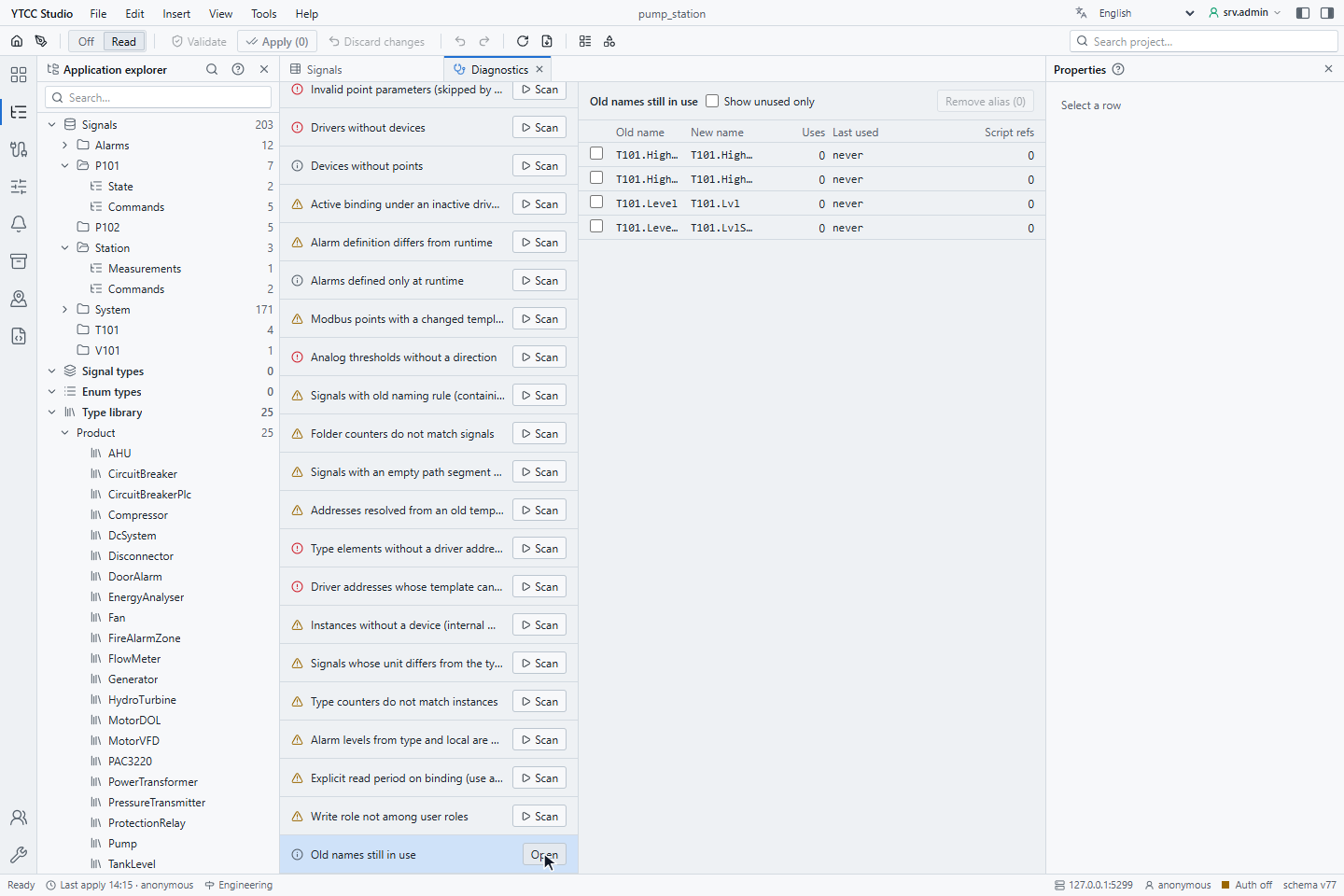
Tick the aliases that are no longer needed and click Remove alias (N), then apply. If something still refers to an old name, YTCC asks first. Show unused only lists aliases not used for 30 days.
3. Review the audit
Choose Tools › Audit. The left side lists the applied changes, newest first, with date and time, user, source (grid, form, bulk, import, diagnostic fix, AI …), the numbers of added, changed and deleted rows, the comment and the affected drivers. Click a change to see its rows on the right, with the changed fields as before → after. Each row names the operation, the table and the key, for example Changed · Signals (list) · T101.HighLevel with Full path: T101.HighLevel → T101.HighLvl.
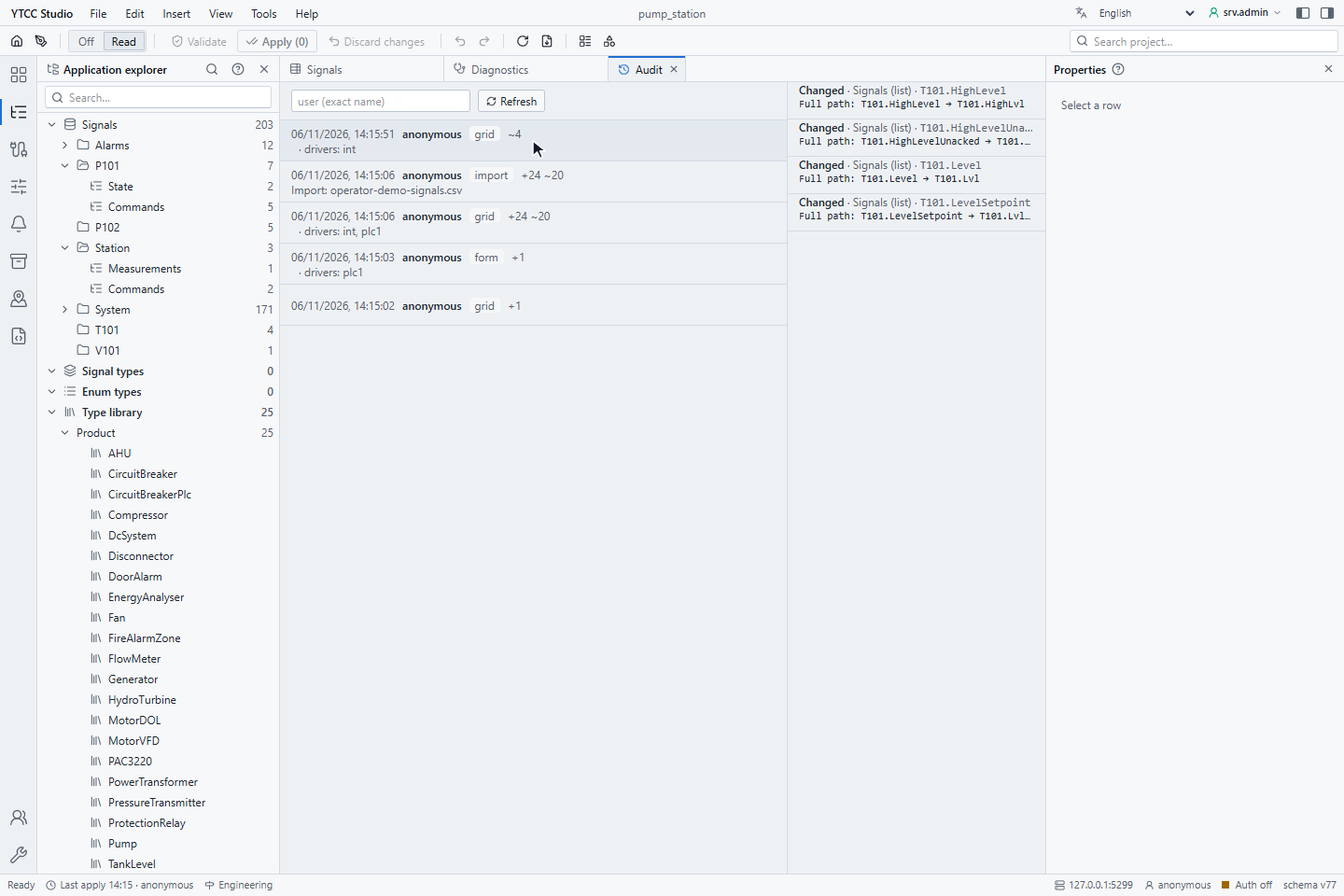
Enter a user name in the filter field and press Enter to see the changes of one user. The history of a single signal is on the Audit history tab of the signal.
Good to know
- Changes and their audit rows are written in the same step: a change that is not applied leaves no trace.
- A bulk change is recorded as one entry with the filter and the number of rows.