Client scripts
Client scripts add logic to a screen that animations and click actions cannot express: a welcome message when a page opens, a value refreshed periodically, a confirmation before a button sends a command. They run in the browser while the page is open; see Which script runs where.
Before you begin
- The project is open in the screen editor with the page that gets the scripts. Editing scripts needs Editor access.
Steps
1. Open the Code view
Click Code at the bottom right of the editor (or press F12; Design goes back). The Code view shows the
script that is open, its File Name, the Script Check button and Save. It opens with project_main.js.
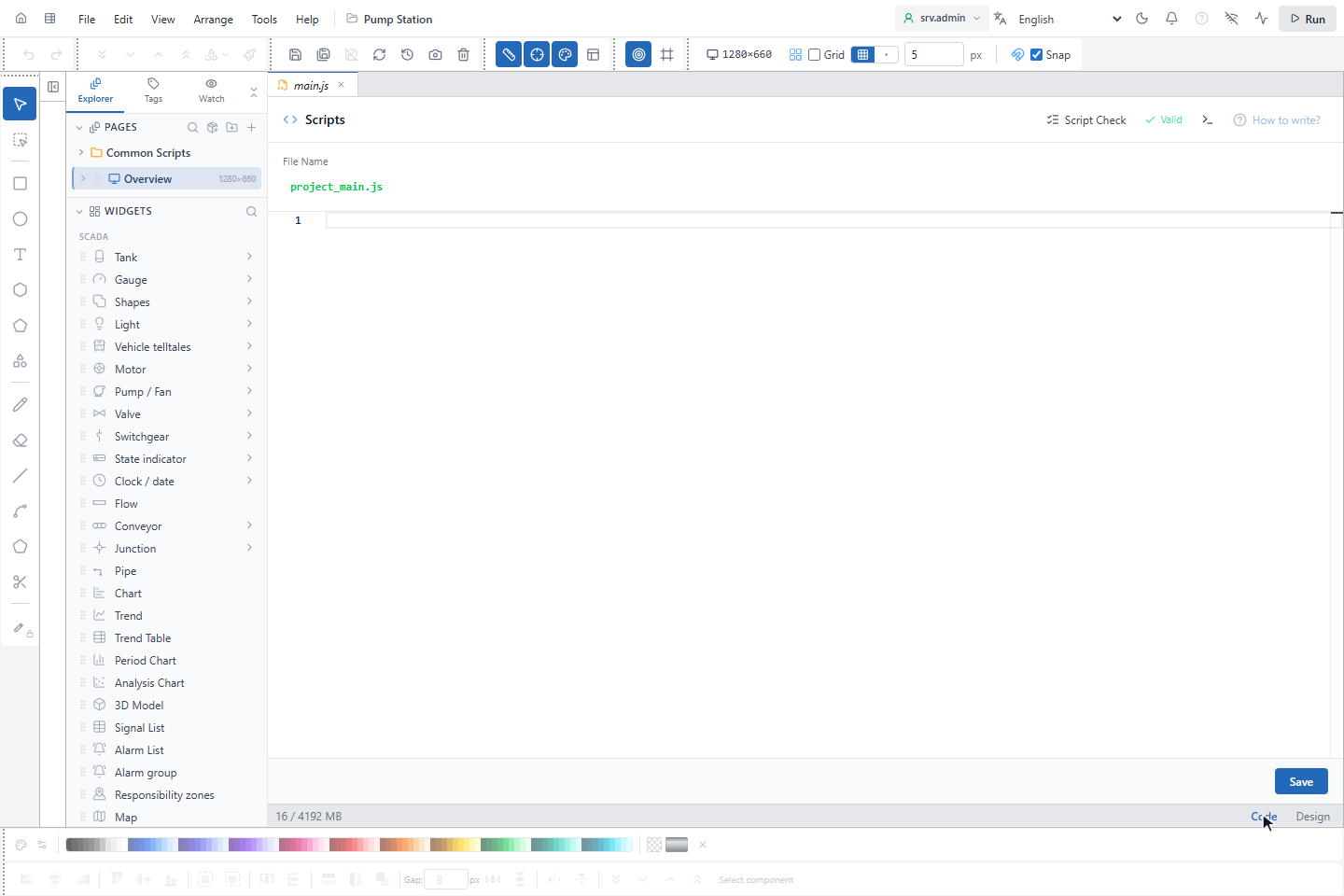
How to write? opens the built-in script documentation with examples.
2. Know the script files
In the Explorer under PAGES, the folder Common Scripts holds project_main.js and the shared library files. Each
page has its own scripts under the page row.
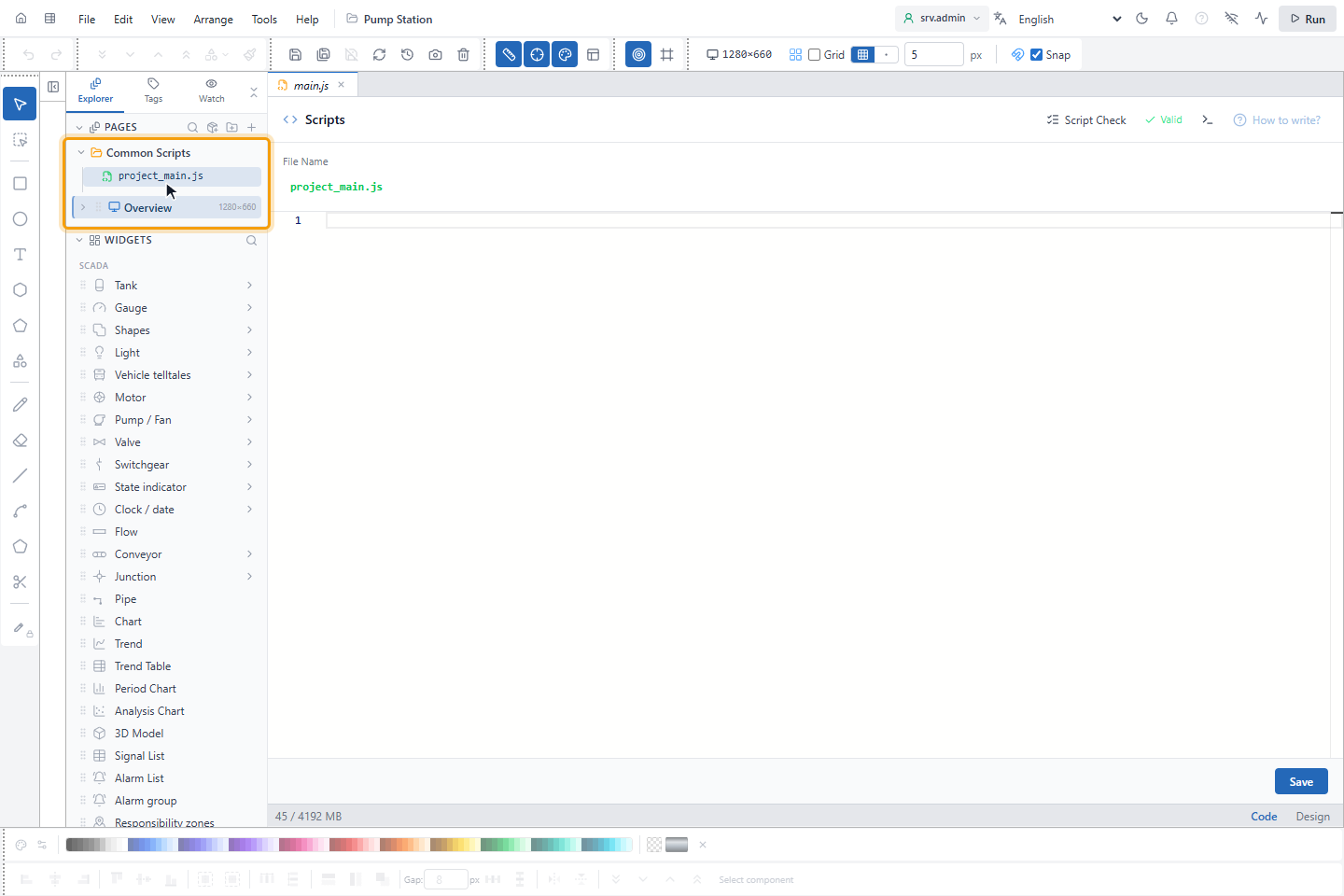
| File | Runs |
|---|---|
project_main.js | Is put in front of every script of the project; event handlers live here |
<page>_main.js | When the page opens |
<page>_global.js | Is put in front of the scripts of that page |
| Trigger scripts | At their trigger: when the page opens or closes, periodically, when a signal changes |
| Libraries | Are loaded with import; libraries in Common Scripts are available on every page |
3. Add a trigger script
Hover the page row and click Add trigger script (⚡). Give the script a name, choose the Trigger and write the code:
UI.toast("Welcome, " + User.name, "info");
UI.set("Status", "text", "Page opened at " + new Date().toLocaleTimeString());
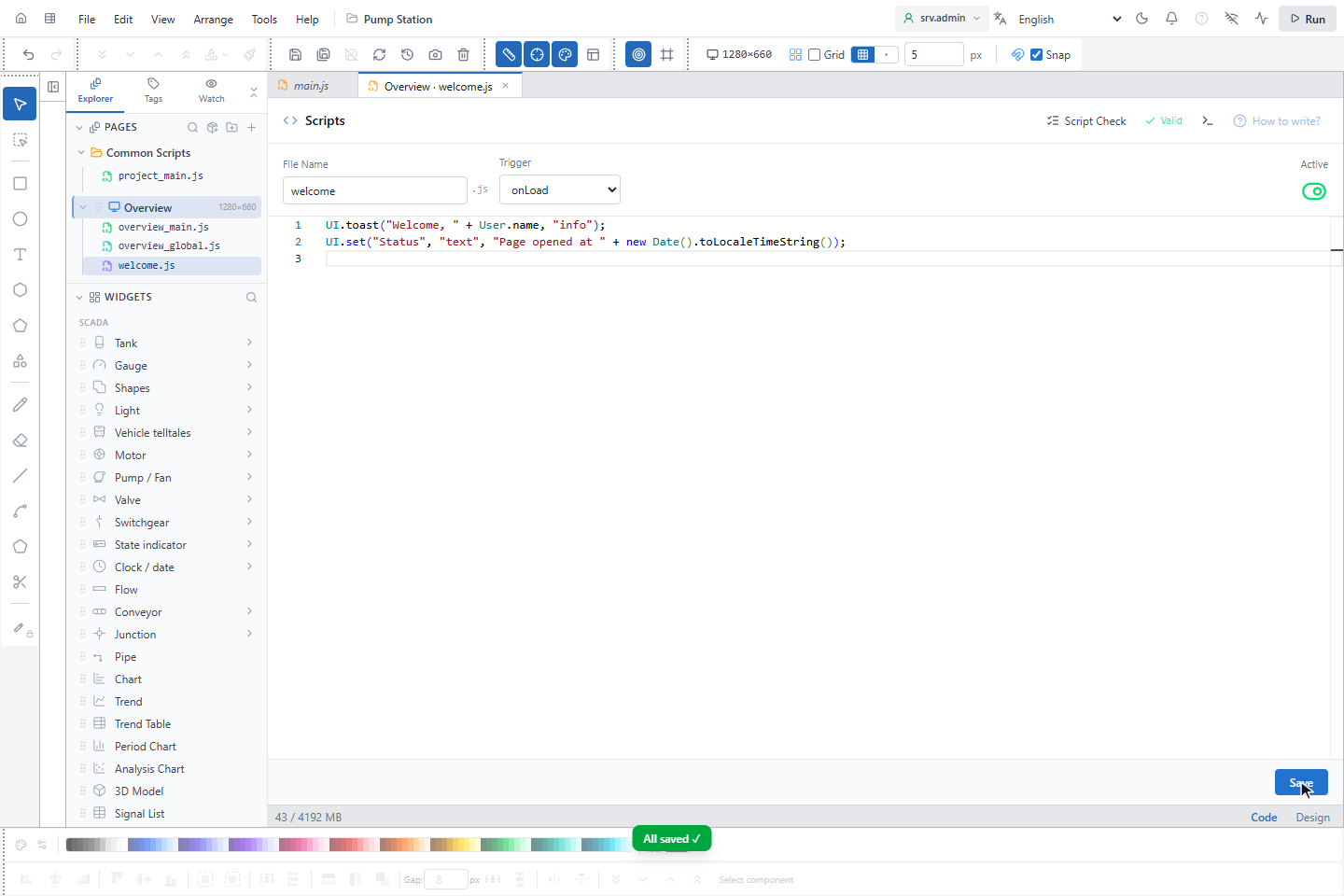
| Trigger | Runs |
|---|---|
onLoad | Once when the page opens |
onUnload | Once when the page is left |
| Periodic | Every Interval (ms), at least 500 |
| Tag Change | When the signal in Tag Name changes |
Active switches the script on and off. Click Save. The + button (Add library) on the page row or on Common Scripts adds a library file whose functions other scripts import.
4. Add an event handler
Click Design, select the object, for example a button, and open the Events tab of PROPERTIES. Every event the object offers has a row; for clicks there is also an Action row for a click action without a script.
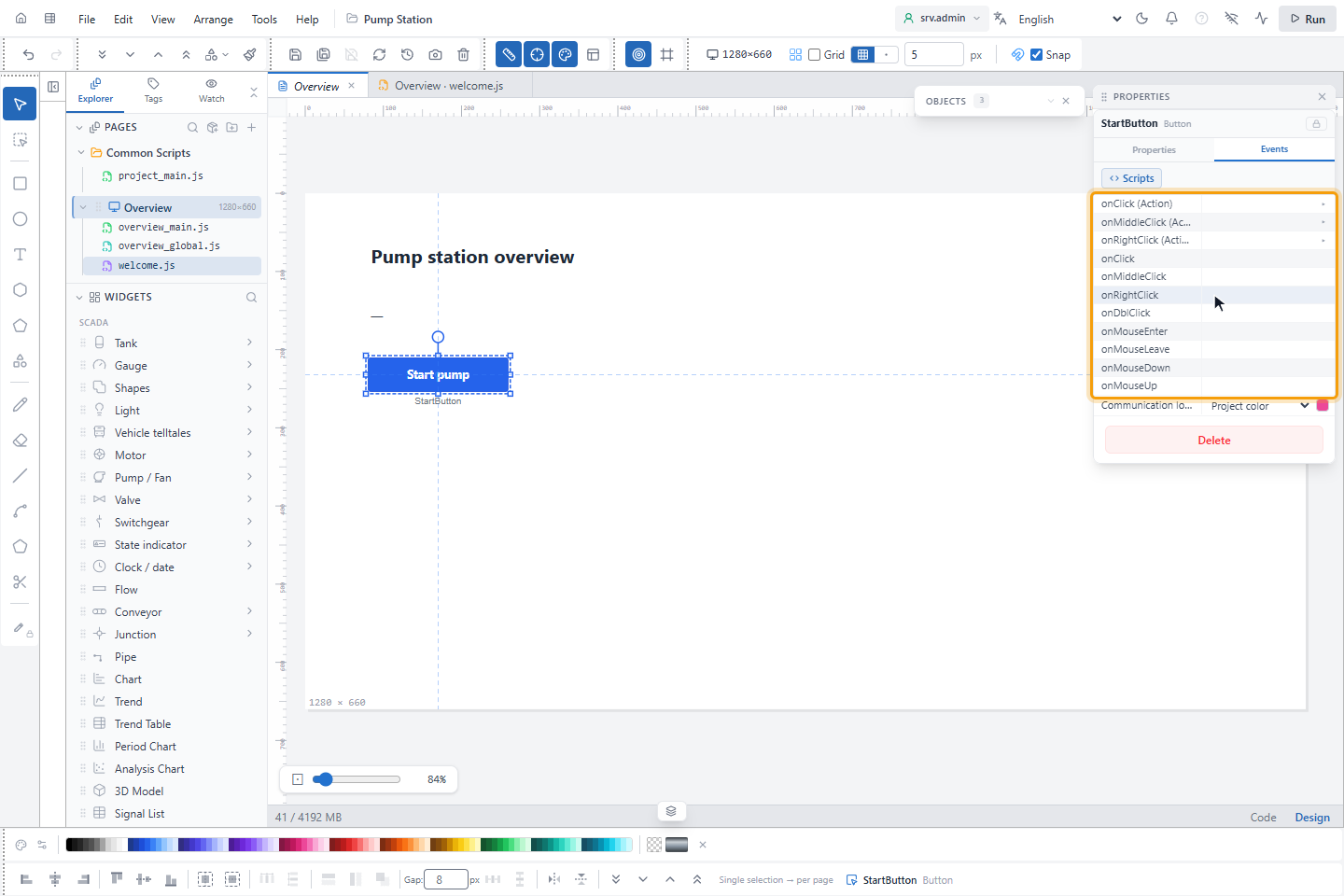
Double-click the row of the event, for example onClick. YTCC creates a handler named after the page, the object and
the event, Overview_StartButton_onClick, in project_main.js and opens it. The green dot of the row switches the handler
on and off; ✕ removes it. For all events, see Object and page events.
5. Write the handler
Write what should happen, for example a confirmation before a message:
async function Overview_StartButton_onClick(event) {
  if (await UI.confirm("Start pump P101?")) {
    UI.toast("Start pressed by " + User.name, "success");
  }
}
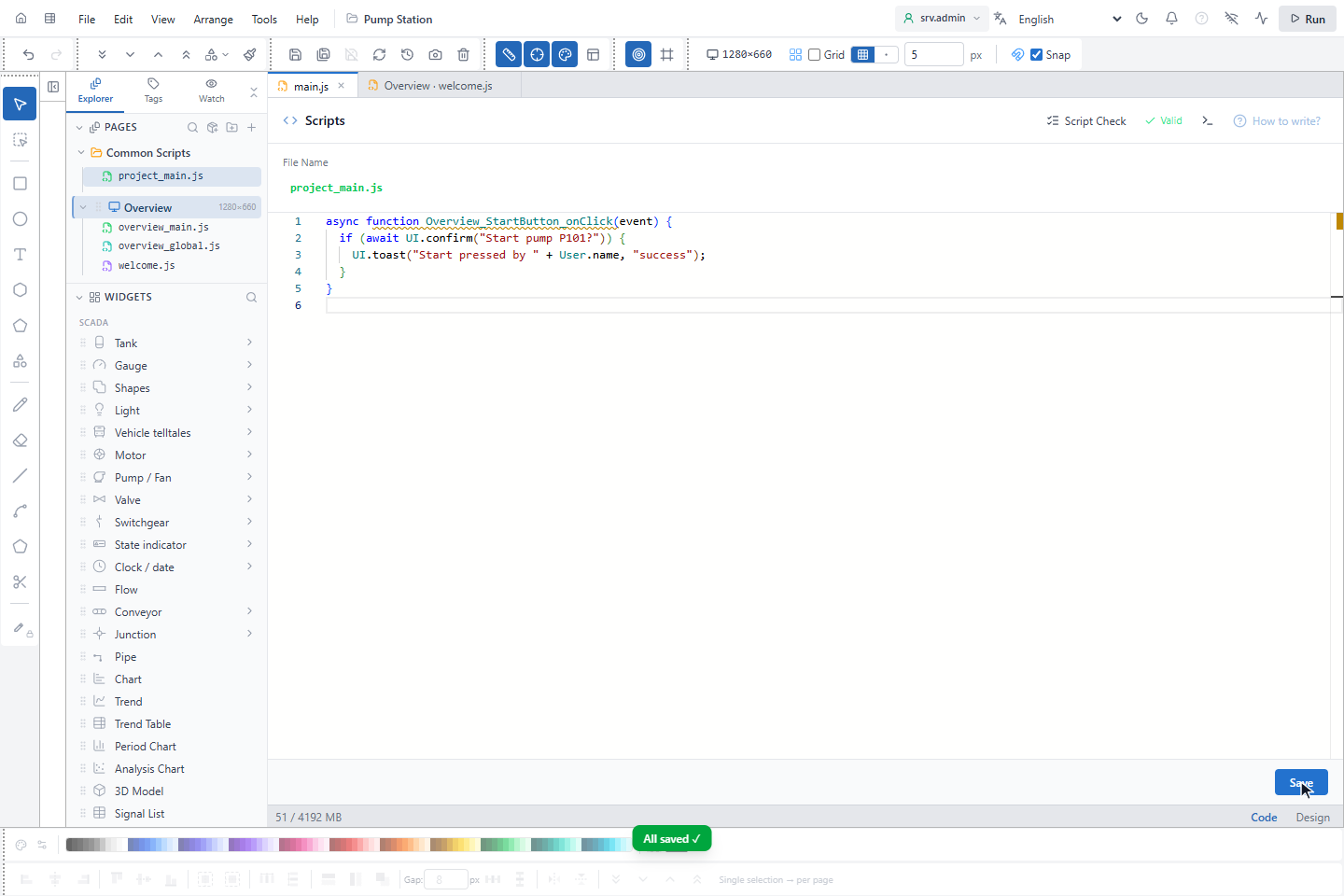
The editor completes the script functions and signal names as you type; see Client script API. If you rename the object later, a warning reminds you that the handler name is old.
6. Check the scripts
Click Script Check. Valid means no problems; otherwise the number of issues opens a list: syntax errors, names that are not defined, functions defined twice, a handler that no longer exists. Click a row to jump to the script.
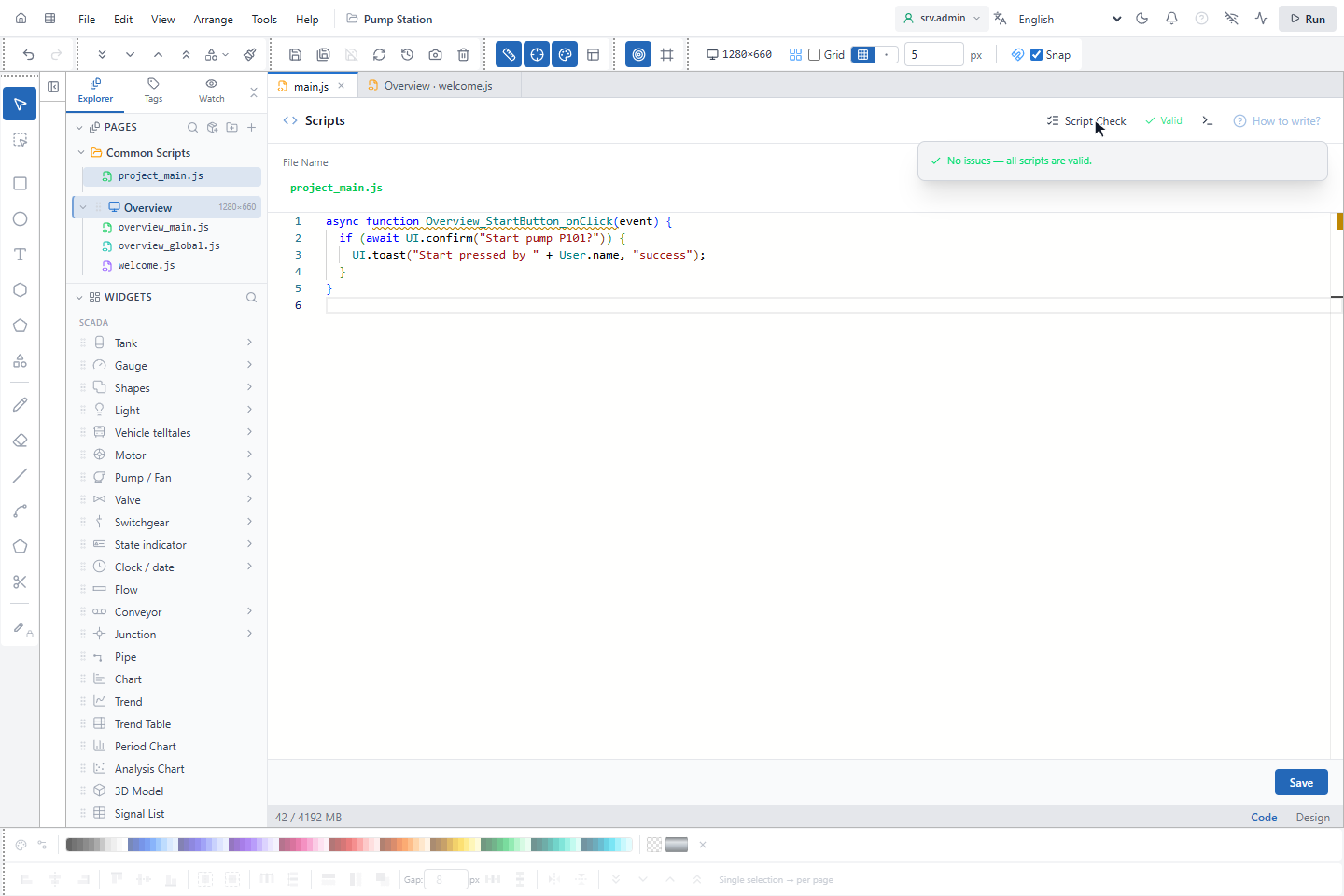
Save the project (Ctrl+S).
7. Run the page
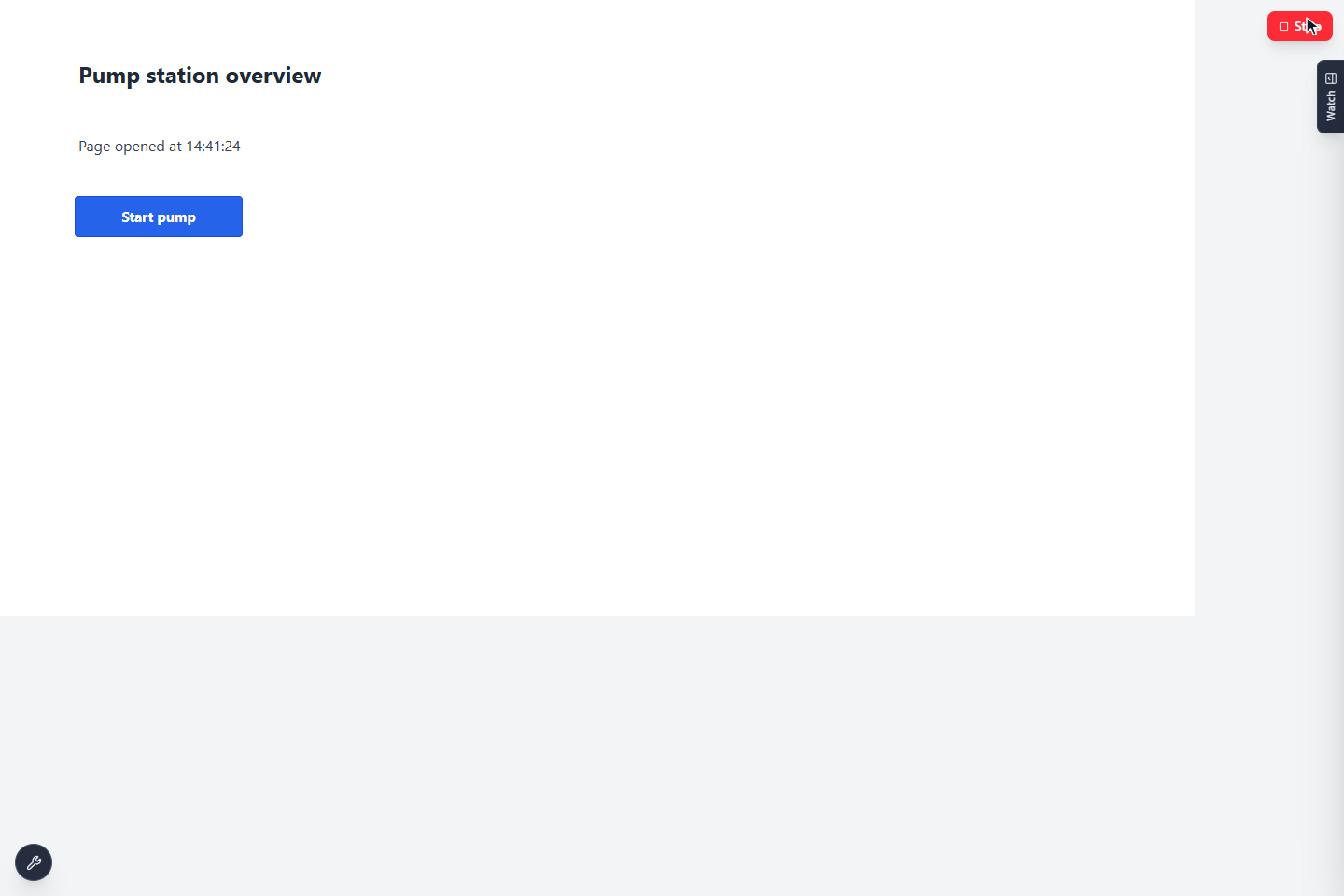
Click Run. The page runs with live values and its scripts: here the trigger script has written the time into the status text.
Debugging
Log.info(...)andconsole.log(...)write to the browser console (F12 in the browser) with the prefix[Script]. Errors of page scripts also appear in the runtime log of the Code view (the terminal button next to Script Check).- A script that runs longer than 5 seconds causes a warning; it is not stopped. Avoid endless loops; use Periodic instead.
- An error in one script does not stop the others.
- Screen changes made by scripts (
UI.set,self) and the triggers are cleared when the page is left. Timers you start yourself withsetTimeoutorsetIntervalare not; clear them in anonUnloadscript.