Screenshot and PDF
The camera button saves what you see as an image: the page in the screen editor, or the live page with its open popups on the runtime screen. Ctrl+P opens the same panel instead of the browser's print window.
Before you begin
- A page is open in the screen editor or on the runtime screen.
Steps
1. Open the screenshot panel
Click the camera (Screenshot (PNG / PDF) · Ctrl+P) in the toolbar of the editor, or in the controls on the right of the runtime screen. The Screenshot panel opens.
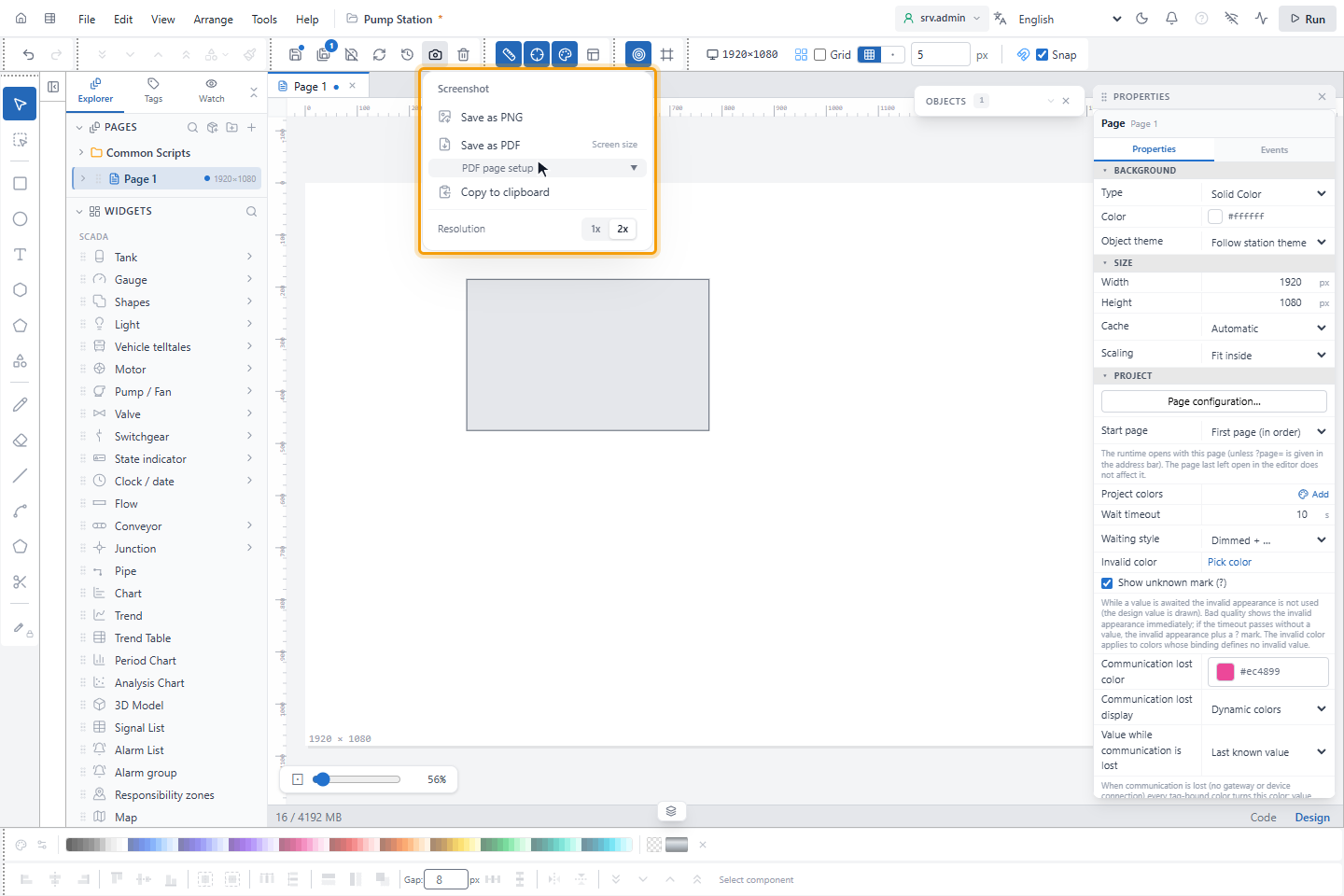
| Item | Effect |
|---|---|
| Save as PNG | Saves a PNG file |
| Save as PDF | Saves a PDF file; the size is shown on the right |
| Copy to clipboard | Copies a PNG, over a secure connection (https or this computer) only |
| Resolution | 1x or 2x (default) |
2. Set up the PDF page
Open PDF page setup:
| Setting | Values |
|---|---|
| Paper size | Screen size (default), A4, A3, A2, Letter |
| Orientation | Automatic, Portrait, Landscape |
| Scale | Fit to page, Actual size |
| Margins | None, Narrow, Normal |
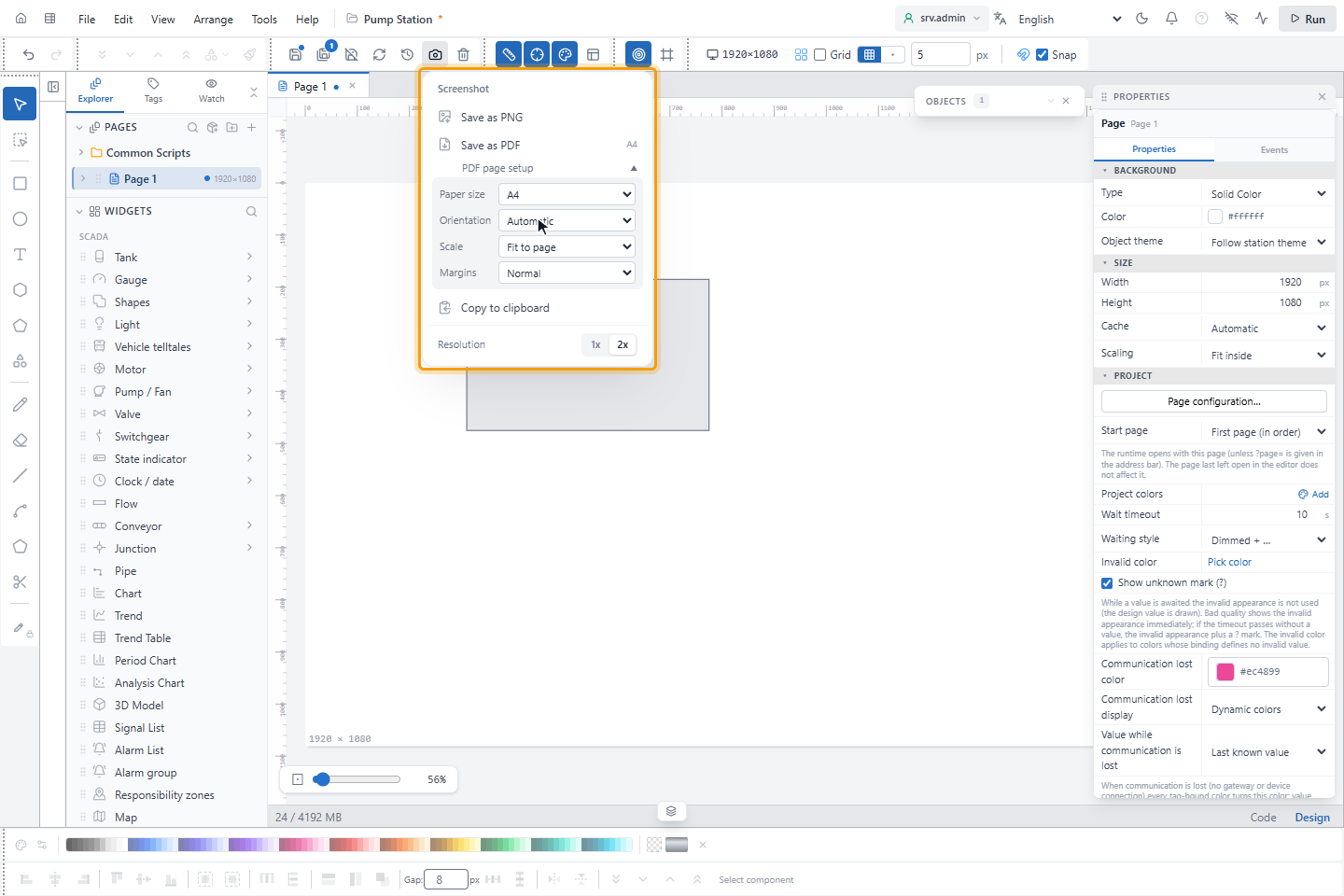
Orientation, Scale and Margins apply to paper sizes; with Screen size the PDF is as large as the page. With margins the PDF has a caption with the page name and the date. The settings are remembered in this browser.
3. Save the image
Click Save as PNG (or Save as PDF). While the image is prepared the panel shows the progress and Cancel; then Saved: with the file name, and the panel closes.
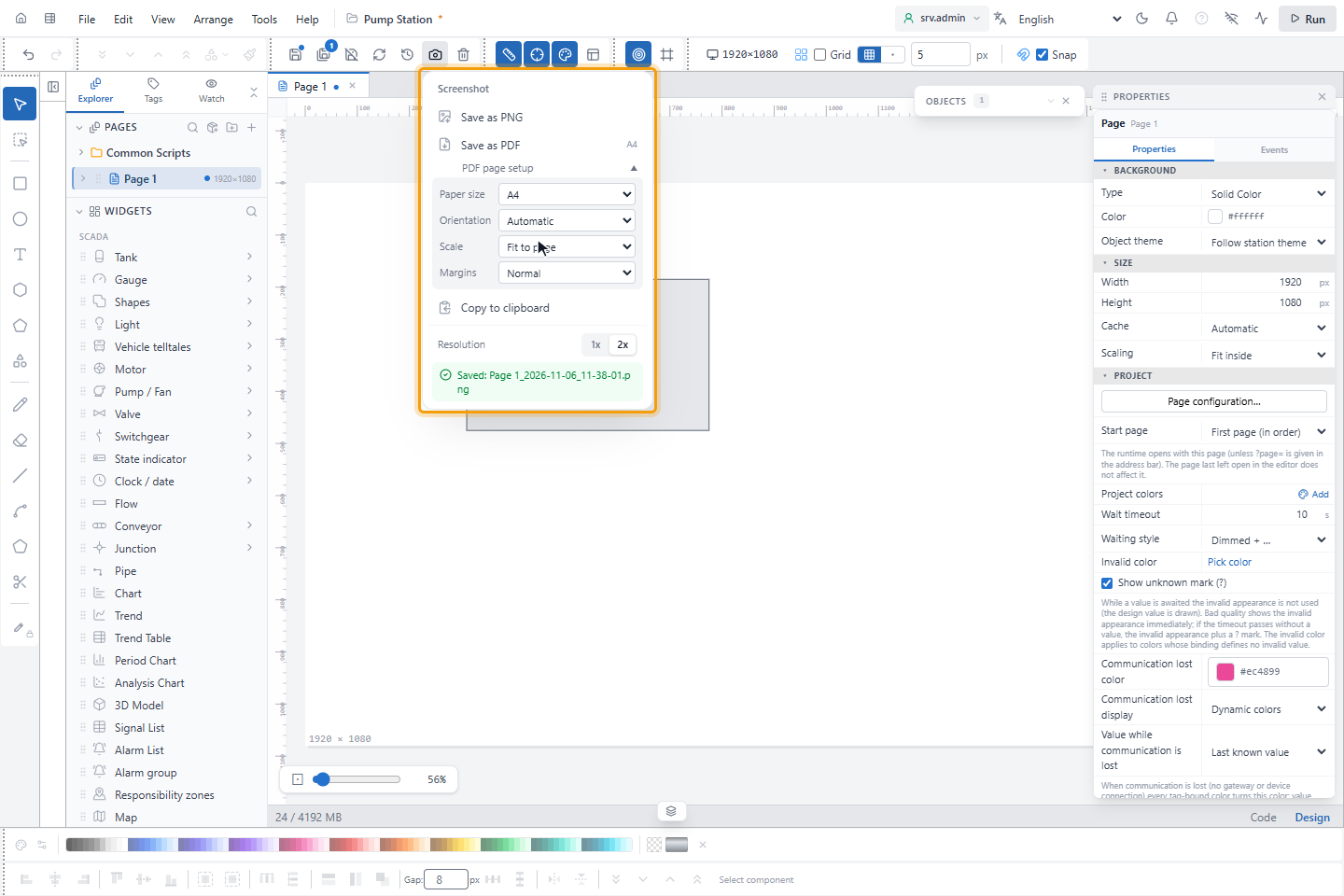
The file is named after the page, popup or layout with the date and time, for example Page 1_2026-10-22_22-29-50.png.
What the image contains
| Where | Contains |
|---|---|
| Screen editor | The page with its layouts, without grid, selection and guides; while you edit a popup, layout or symbol, that one |
| Runtime screen | The page as shown, with its live values and the open popups at their positions |
The editor's camera is off during a test run.
Good to know
- The PDF holds the image of the page.
- Very large pages are saved at a lower resolution, with the note Resolution reduced because the page is large; when the browser cannot make the image, choose 1x and try again.
- Images that cannot be loaded are drawn blank, with a note on how many.
- Ctrl+P is left to the browser while you type in a field or a dialog is open.