The home page
The home page is where you manage the projects on the server. This page walks through its parts.
Before you begin
- The YTCC interface is open. See Open the interface and choose the language.
- The examples use two projects,
Pump StationandWater Tower. See Create your first project.
Steps
1. Find the tabs
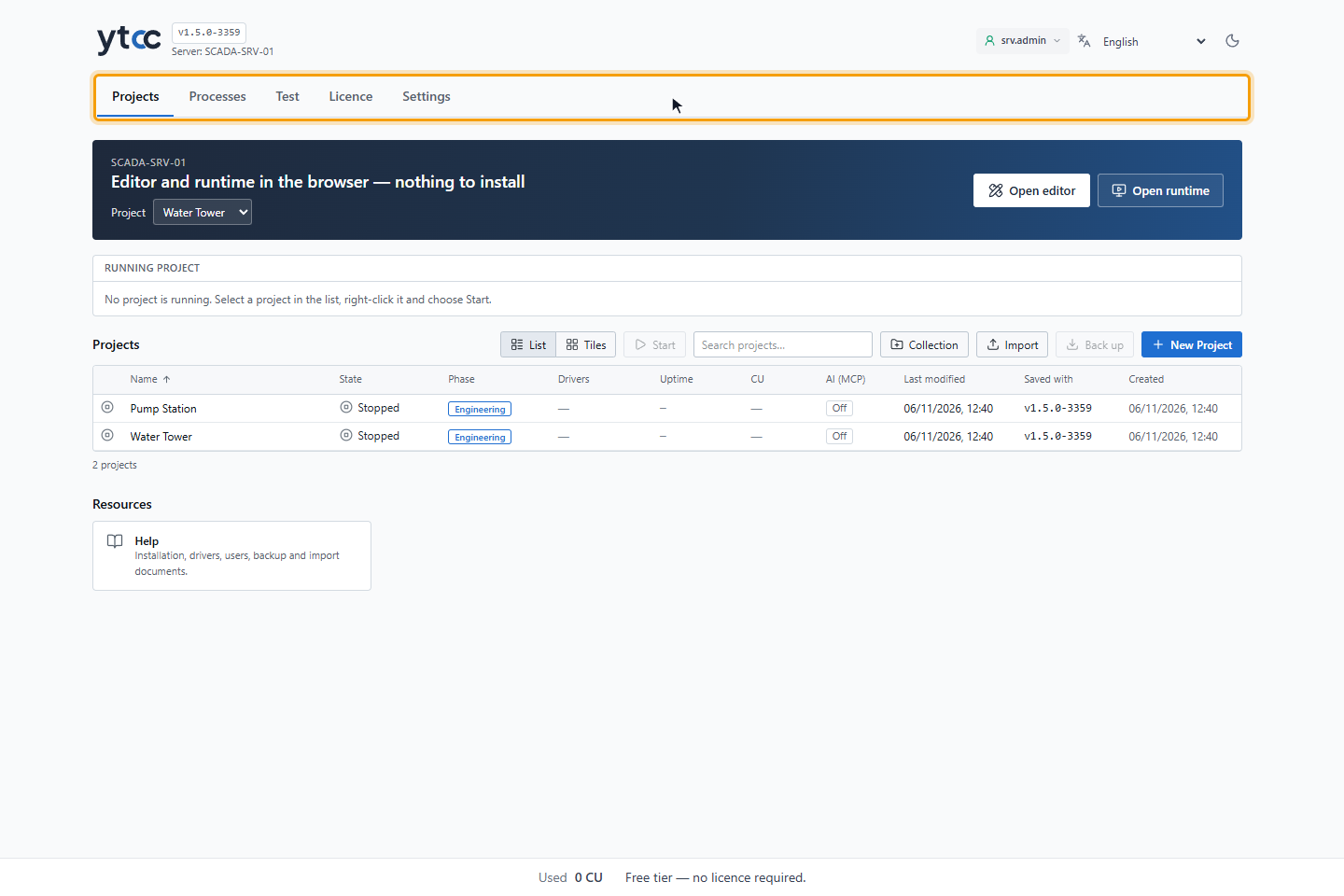
The header shows YTCC with the running YTCC version next to it, and below it Server: followed by the server's name. The tabs under the header are Projects, Processes, Test, Licence and Settings. The home page opens on Projects. Processes lists the YTCC processes (see Manage the YTCC processes), Licence shows the licence state, the calculator and the usage, and holds the licence actions (see Licence and Capacity Unit), and Settings holds the application settings, such as the interface language (see Application settings).
At the top right are the session button, the language list and the theme button. The session button shows whether root is signed in, here Not signed in. Click it to Login, Exit or Switch user, and, while root is signed in, to Change password. Design and server actions on the home page need the root sign-in; without it the home page shows only what project users may do (see Without a root sign-in). The Test tab also appears only while root is signed in.
2. Switch between the list and the tiles
Click Tiles to see the projects as cards, and List to go back to the table. The home page remembers your choice in this browser. The list shows the state, the phase (Engineering, Commissioned, or — when none is known), the drivers, the uptime, the CU of the project, its AI access, when the project was last changed, which YTCC version saved it and when it was created. Click Name, State, Phase, Last modified, Saved with or Created to sort by that column.
The CU column is the project's own licence usage (power tags and protocol families). For a running project it is counted in the licence total; for a stopped project it is shown dimmed and is added to the total when the project starts. It shows — when the project could not be measured. See Licence and Capacity Unit.
The AI (MCP) column shows On or Off for the AI access of the project. Click it to turn the access on or off. This needs the root sign-in; without it the sign-in window opens first. The window Pump Station: turn on AI access? says that AI clients with a key can read and edit the project's design and signal definitions but cannot send field commands or start or stop the project; turning access off keeps the keys, and they work again when access is turned back on. The change is written to the audit log, as in the editor; see Turn AI access on and create a key.
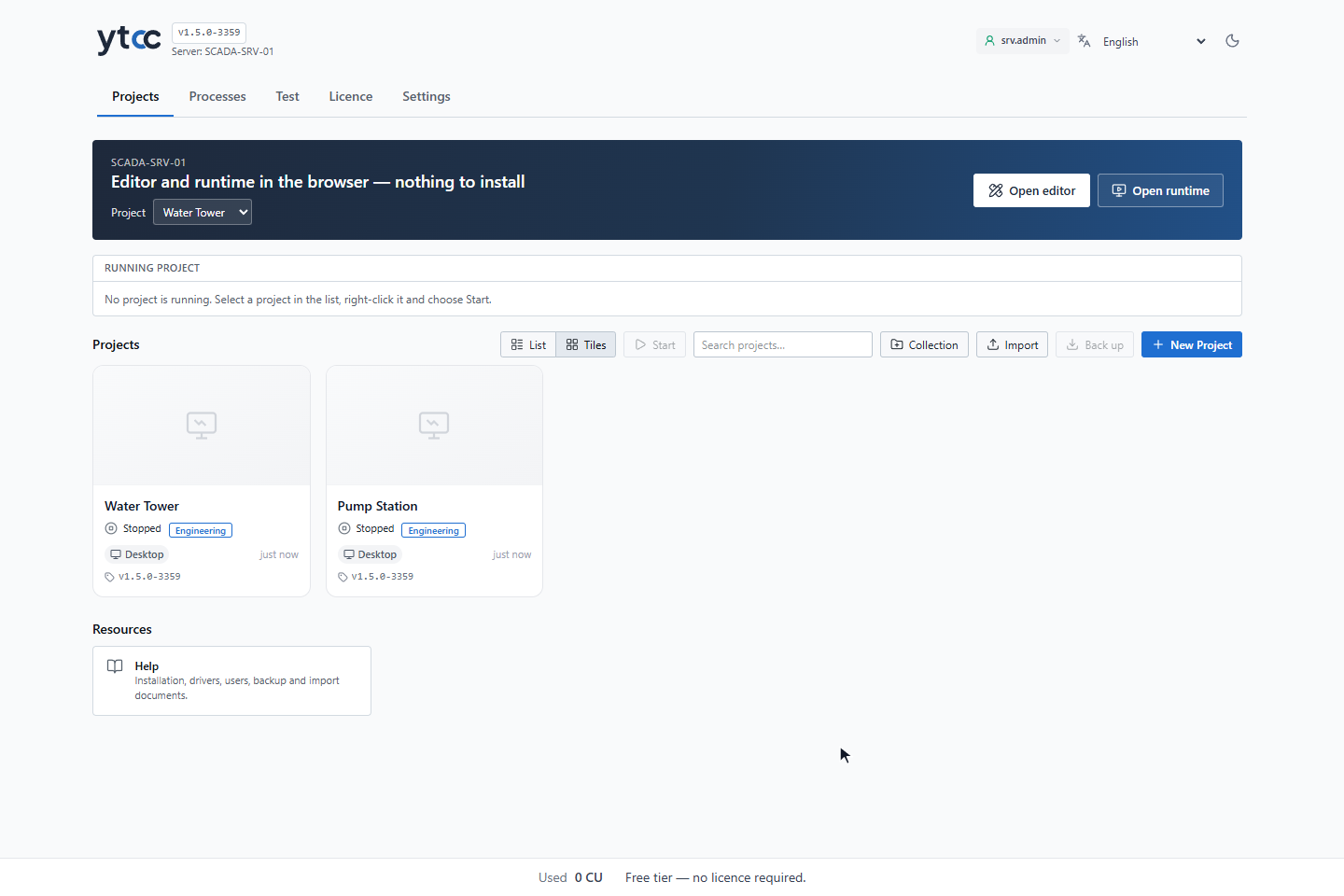
Each card shows the project's name, its state and its priority device.
To find a project, type in Search projects… in the toolbar. The search looks in the name, the title, the description and the ID of each project, ignores letter case, and shows the projects that contain all the words you type. The line under the list then shows, for example, 2 / 5 projects.
3. Read the running project panel
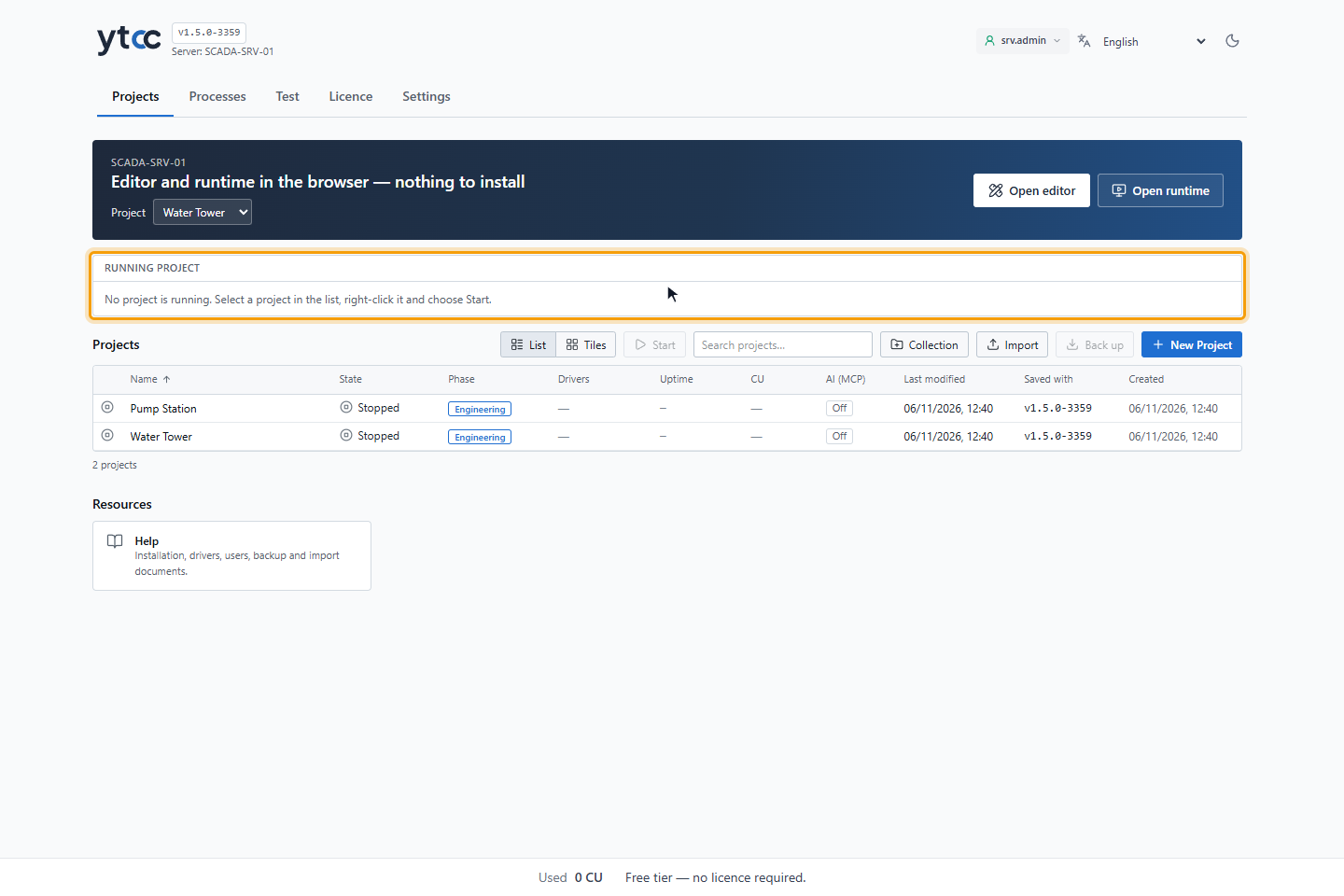
The RUNNING PROJECT panel above the list shows the project that runs on the server. When several projects run, it is called RUNNING PROJECTS and has a row for each. A row shows:
| Field | Meaning |
|---|---|
| Uptime | How long the project has been running. |
| Drivers | How many of the project's drivers run, for example 3 / 3 running, and how many failed. |
| Licence usage | The project's CU: its power tags and protocol families. |
The buttons of the row are Runtime, Drawing editor, Configuration, Restart and Stop project. When no project runs, the panel says so. When the process manager cannot be reached, it says that the run status is unknown.
4. Group projects in a collection (optional)
If you skip this step, all projects stay in one list.
Click Collection, choose a color, type a name in Collection name and click Create. To put a project into the collection, right-click it, choose Move to collection… and then the collection.
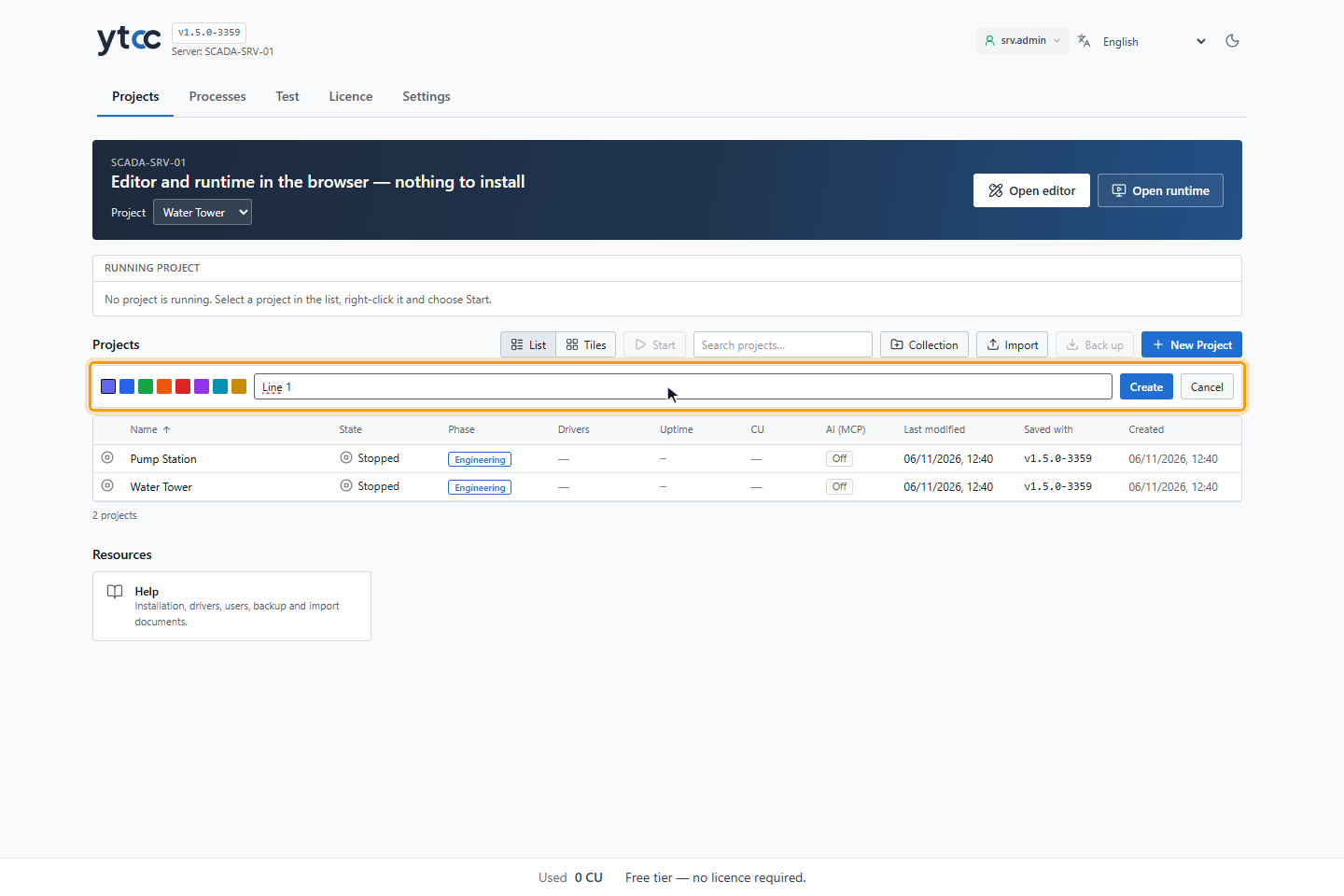
While there are collections, the list shows each collection with its number of projects, and the projects that are in no collection under Uncategorized. The collection's menu has Rename and Delete Collection. Deleting a collection does not delete its projects; they move to Uncategorized.
5. Use the project menu
Right-click a project to open its menu: Open (screen editor), Configuration editor, Runtime, Start, Stop, Restart, Rename, Copy, Back up…, Import…, Move to collection…, Project phase… and Delete. Enter opens the selected project, F2 renames it and Delete deletes it. Project phase… opens the phase window: a user with the permission types the project code and a reason to change the phase. Back up… saves the project to a zip file and downloads it, and Import… restores a backup of this project; see Back up a project from the home page. When the project database needs a schema upgrade, the menu also has Upgrade…; see Upgrade a project from the home page.
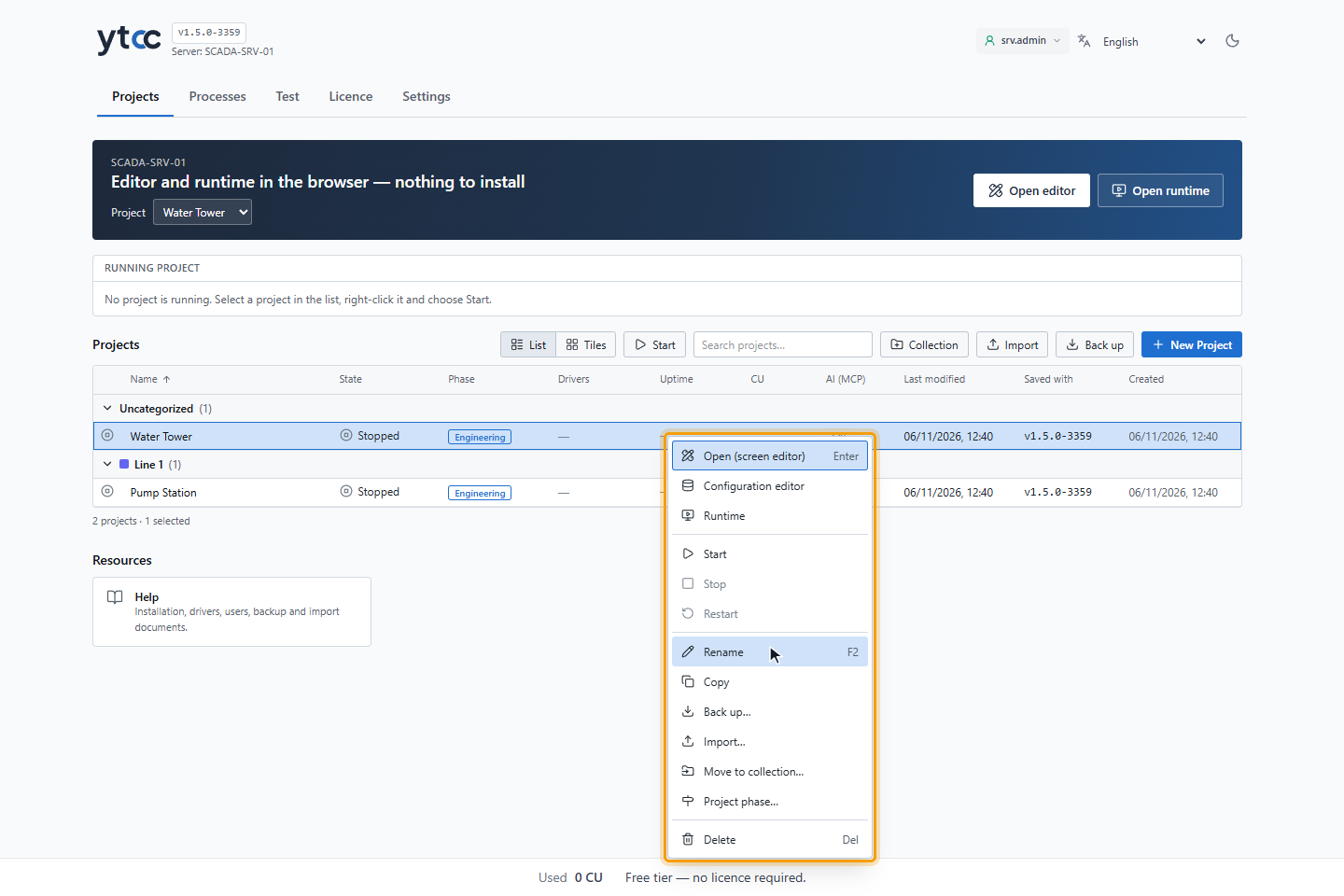
To select several projects, hold Ctrl and click them. For a selection of several projects, the menu offers only Move to collection… and Delete.
Result
You can switch between the list and the tiles, see which project is running, group projects into collections and reach every project action from the project menu.
Without a root sign-in
While root is not signed in in this browser, the home page shows only what project users may do:
- The project menu has only Runtime, Start, Stop and Restart, and only for one project at a time.
- The band shows Open runtime but not Open editor or Create the first project.
- The running project panel shows Runtime, Restart and Stop project, without Drawing editor and Configuration.
- The toolbar has no Collection, Import, Back up or New Project, and the collection menu does not open.
- The Test tab is hidden, and Settings shows only the personal settings of this browser.
- Licence actions on the Licence tab are disabled, with Sign in as a server administrator. and a Sign in button next to it.
- The Processes tab shows Sign in as a server administrator to see the processes. and a Sign in button instead of the list.
In a project with user login, starting and stopping asks for a sign-in of a project user with System stop; the sign-in window also has the link Sign in as root (system administrator). See Root, the system administrator.
The editor and runtime band
The dark band at the top of the Projects tab opens the editor and the runtime screen of one project in the browser; nothing has to be installed on the computer. Choose the project in Project. The band preselects the running project, or the most recently changed project when none runs.
- Open editor opens the project in the screen editor. It does not start the project and does not stop another running project; see Open a project.
- Open runtime opens the runtime screen in a new browser tab. If the project is not running, the runtime screen shows no live values; start the project first.
When the server has no project yet, the band shows Create the first project instead.
Toolbar
Above the list, next to List and Tiles:
| Button | What it does |
|---|---|
| Start / Stop | Starts or stops the selected project. Select one project first. |
| Search projects… | Filters the list and the tiles. |
| Collection | Opens the form for a new collection. |
| Import | Imports a project package or backup (.zip). You can also drag the file onto the project list. See Import a project package from the home page. |
| Back up | Backs up the selected projects and downloads one file per project. Disabled while no project is selected. See Back up a project from the home page. |
| New Project | Opens the new project form. |
Upgrade a project from the home page
When a project database has an older schema than the installed YTCC, the State column shows the orange badge Upgrade needed; its tooltip gives the schema numbers, for example Database schema 72 → 73. Right-click › Upgrade… (automatic backup first). A project whose database was upgraded by a newer YTCC version shows the red badge Newer version: it cannot be opened in this version and is not upgraded.
- Stop the project. Upgrade… is disabled while it runs, with The project is running: stop it first, then upgrade.
- Right-click the project and choose Upgrade….
- The window Upgrade …? says that the database is upgraded to the schema of this version, that a full backup is taken first, and that the upgraded project cannot be opened in the older YTCC version. Click Back up and upgrade.
When you start a project whose database is older on the home page, the project does not start and the window of step 3 opens directly.
YTCC takes a full backup in backups › exports of the data folder, upgrades the database only if the backup
succeeded, and downloads the backup. A message names the old and new schema and the backup file. The upgrade is
written to the audit log of the server account (project_upgrade). Upgrading needs the server administrator account.
The setup program does the same for every project when it upgrades YTCC; see Databases and schema upgrade.
Resources
Under the project list, Resources has cards that open product documents in a window:
- Help: the installation, driver, user, backup and import documents installed with YTCC, and their release notes. The documents open in the interface language when the installation has them in it; otherwise in English, and in Turkish when there is no English text. YTCC includes them in Turkish, English and Azerbaijani. The window follows the interface language: an open document is loaded again when you change the language. The list shows the language code of a document in another language.
- Editor help site: short explanations and video clips for the editor features. The card appears only when the installation provides the site.
Licence strip
At the bottom of every home page tab, a strip shows the licence state of the server: Used and, with a licence, Licensed, Remaining, the used percentage and the licence owner. In the free tier it says Free tier — no licence required. It is refreshed every 30 seconds, every 10 seconds on the Licence tab, and at once when a project starts or stops. It turns amber at 90 % of the licence and red during an overrun, on an unlicensed server and with an unverified licence. It cannot be closed and blocks nothing. Click the licence owner in the strip to open the Licence tab. See Licence and Capacity Unit.