List objects
List objects show many signals, events or commands in one table on a screen. The editor draws only their frame; the data appears when the page runs. The alarm objects (Alarm List, Alarm group, Alarm strip, Alarm band, Trip causes) are described in Put alarm objects on a screen.
Before you begin
- A page is open in the screen editor.
- The project has signals; for live values it is running.
Steps
1. Place a signal list and set its scope
Click Signal List in the palette and draw the list. In the Scope group:
- Areas: type an area path such as
site/line1and click Add, or pick it with Tree. Empty means all areas; sub-areas are included. - Path patterns: type a pattern and click Add, here
Tank*.*stands for any text and?for one character; capital and small letters count. Empty means all signals.
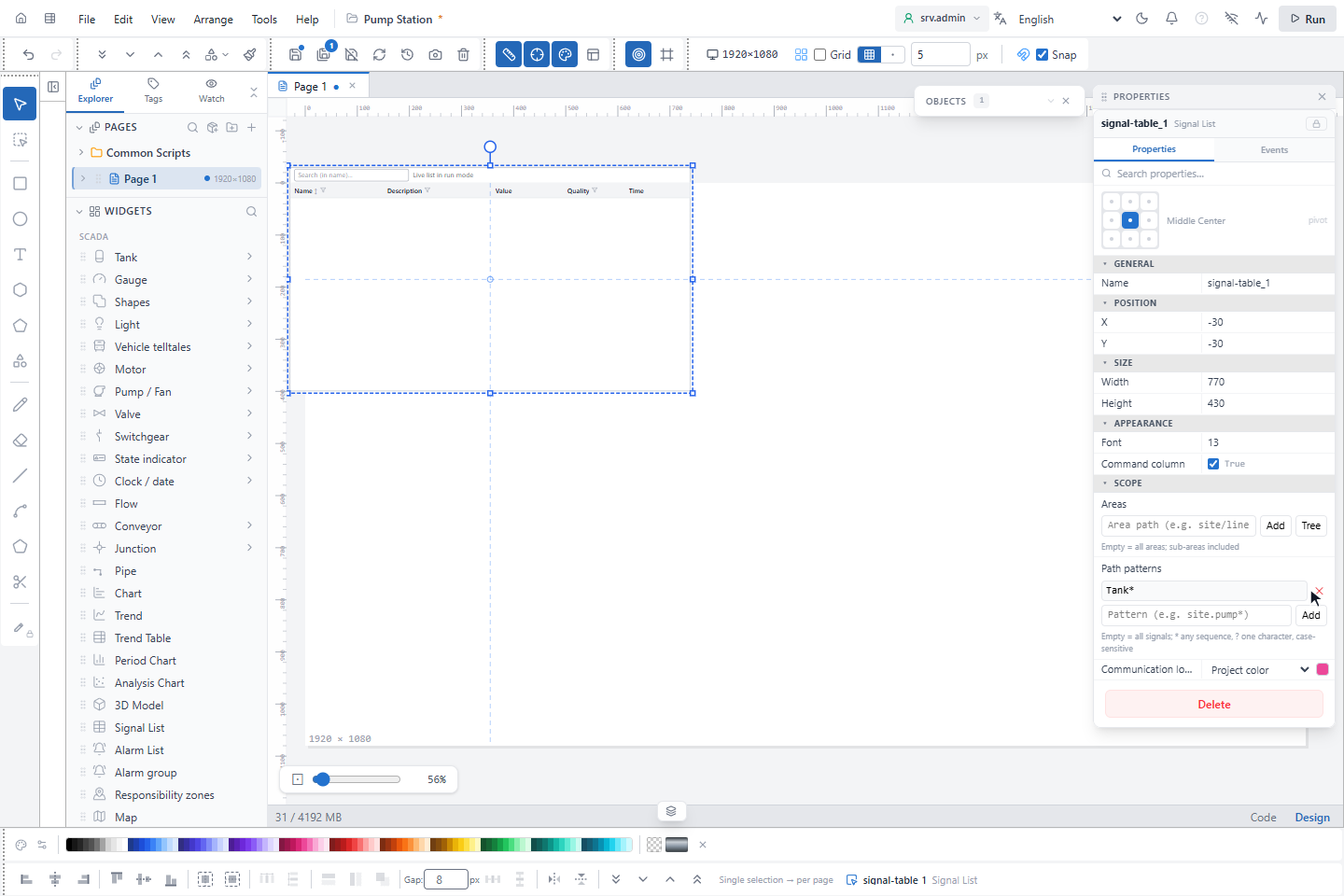
A signal must match both properties; within one list any entry is enough. Command column (on by default) adds a column with a value box and Send for writable signals. Font sets the text size and, with it, the row height.
2. Place an event list
Click Event List and draw the list. Its Scope group chooses the kinds of events: Signal events, Alarm, Command, System, Operator and Page transitions (page transitions need Operator). All are on by default. Event table chooses another archive table; empty is the default event table.
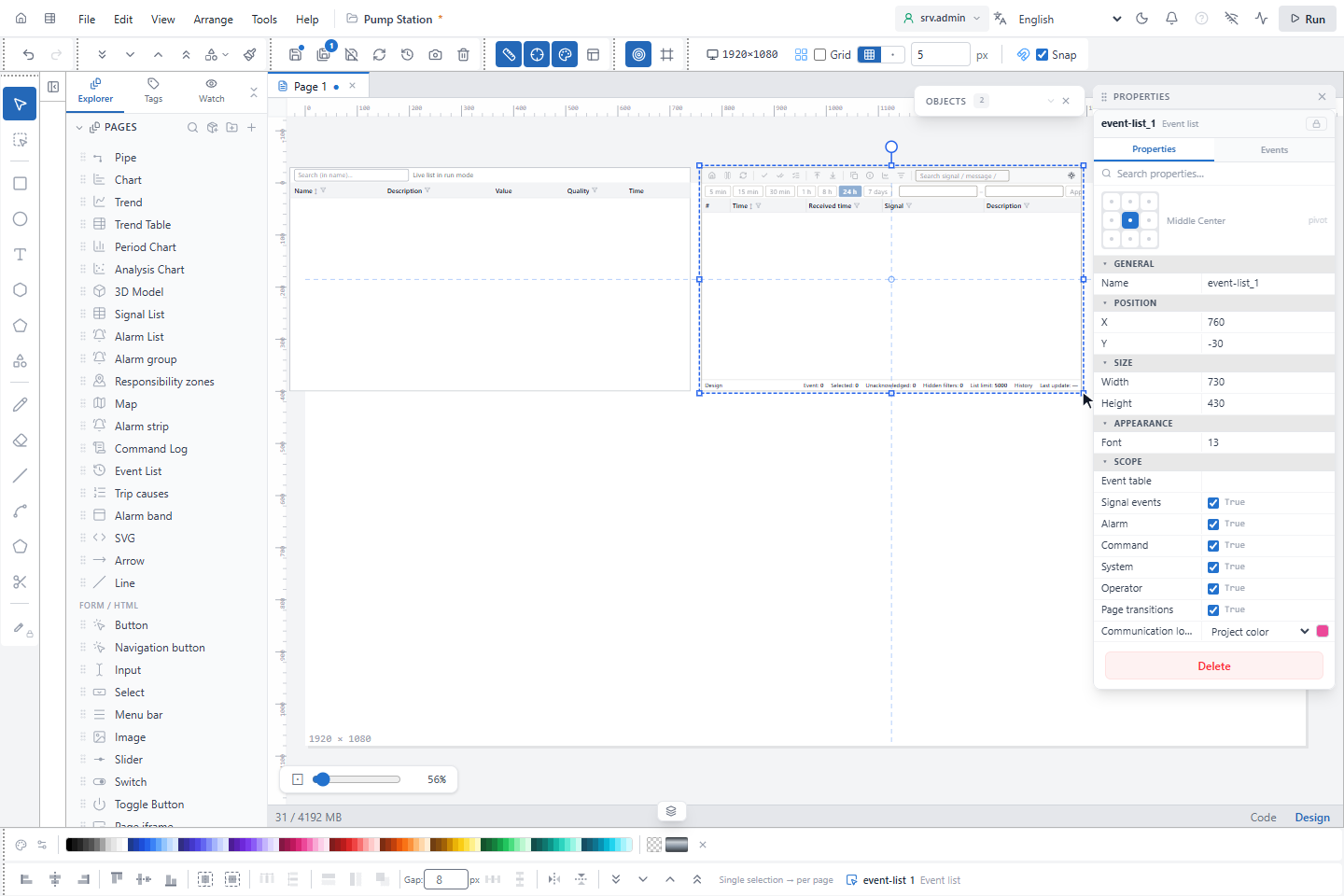
Which areas an operator sees comes from the responsibility zones of the user, not from a setting of the list. For how operators read, filter and acknowledge in the list, see Use the event list.
3. Place a command log and the responsibility zones
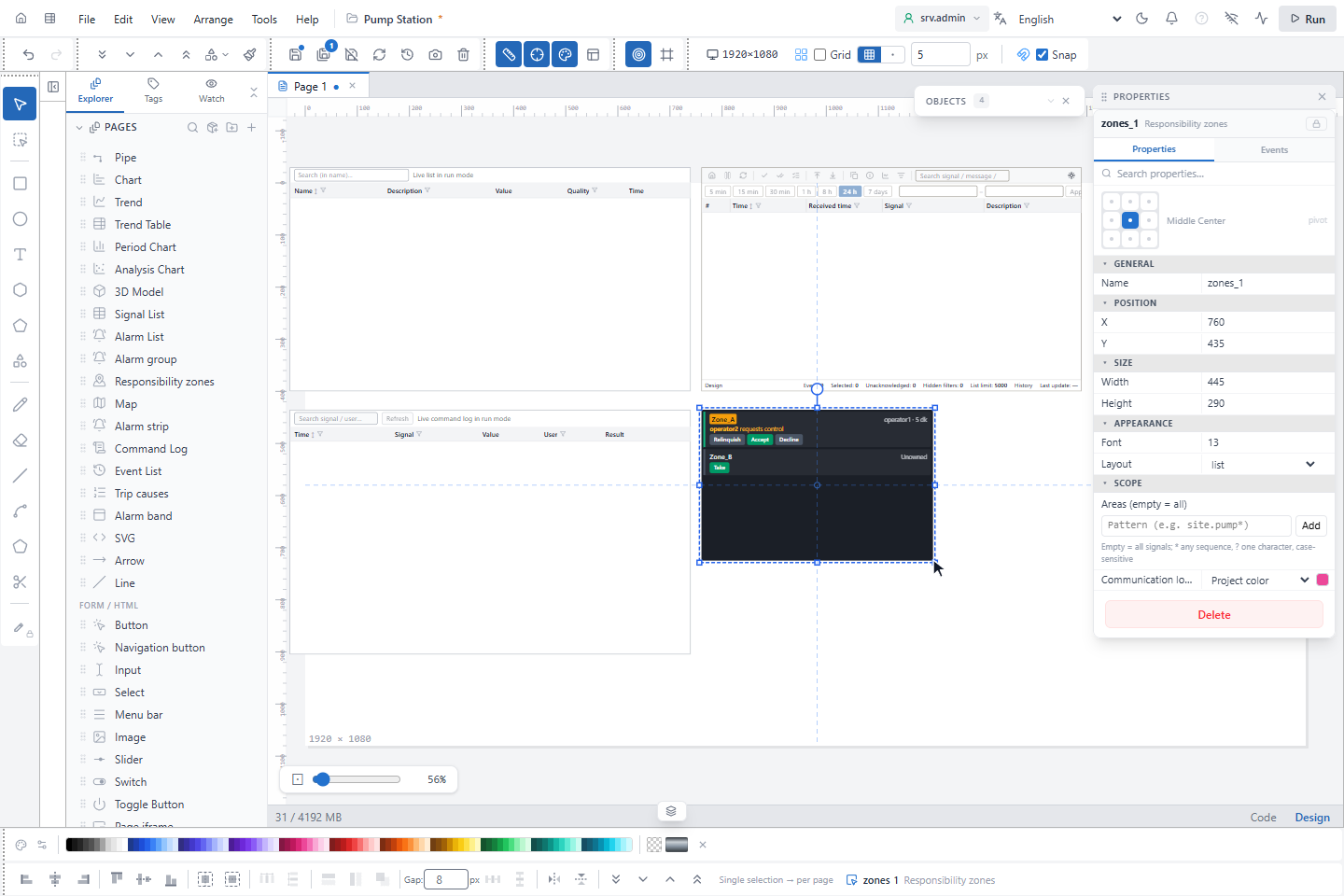
Command Log lists the commands sent from the runtime screen, with Areas and Path patterns like the
signal list; the area of a command is the area of its signal. Responsibility zones lists the zones of the project
with their owner and the buttons to take and hand over control; Areas (empty = all) takes exact zone names and
Layout is list or compact (without descriptions).
4. Try the lists
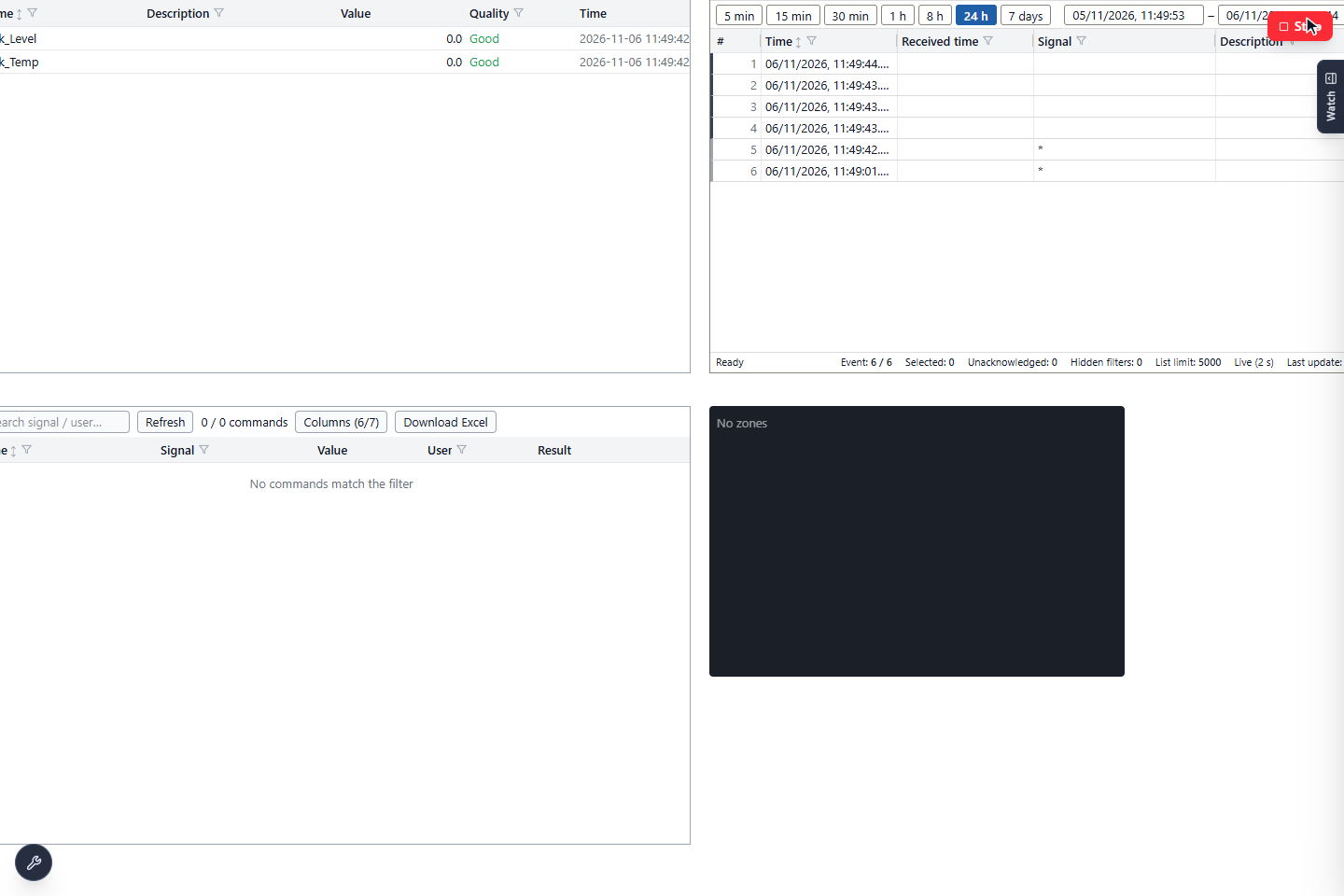
Click Run. The lists fill with live data: here the signal list shows the two signals that match Tank* out of
all signals of the project.
What operators can do
| List | Search | Sort | Load | Refresh |
|---|---|---|---|---|
| Signal List | Name | Name | Scrolls through any number of signals | Live values |
| Event List | Signal, message, state | Time | 200 rows at a time, Load more, up to 5,000 | Every 2 s while the newest are shown |
| Command Log | Signal, user | Time | 100 rows at a time, Load more, up to 5,000 | Refresh |
All three have a funnel per column for filters, Columns to show and hide columns, a counter of filtered and total rows and Download Excel for the visible columns. The Event List also has a time bar, built-in and saved views, and acknowledge buttons. Columns, filters, sorting and search are remembered per user and per list. Double-clicking a row opens the signal details (see Signal details).
The Responsibility zones object shows Take, Relinquish, Request, Force take, Accept and Decline depending on the rights of the user; see Responsibility zones.
Good to know
- Filtering, sorting and paging run on the server, so the lists stay fast with a very large number of signals; only the visible rows receive live values.
- A list scope that names an area that does not exist shows Unknown area.
- A Command Log whose scope covers more than 10,000 writable signals reports that the area is too wide.