Turn on sign-in and set up accounts
Until user login is turned on, anyone who can open YTCC works with full rights and changes are recorded as anonymous. In this tutorial you work as root: you turn on user login for the project, replace the shared default administrator with your own account, prepare the operator's account and sign in as the operator on the runtime screen.
Before you begin
- The project from the previous tutorials, with a tank on the first page. See Your first screen.
- The project is running.
- You are signed in as root on the home page. User login in a project does not change who designs and administers: root does, and the project's accounts only operate. See Permission model.
Steps
1. Open the policies
Open the project in the configuration editor from the home page; it uses your root session. In the activity bar on the left, click Users, then Policies in the tree. Under Authentication the state is Off — screens and Studio open without a session.
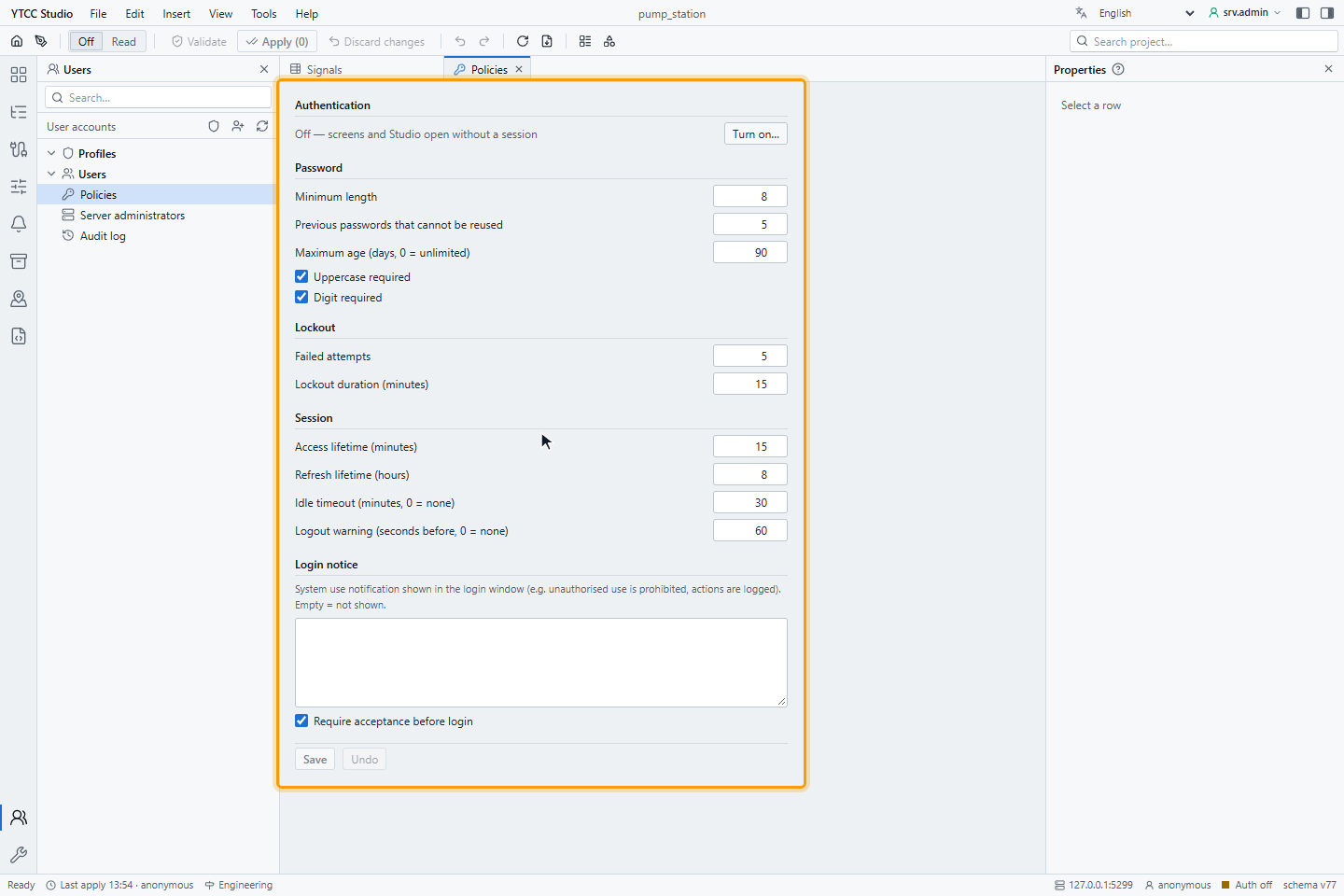
The same tab holds the password, lockout and session rules. Their defaults are explained in Password and lockout policy and Sessions.
2. Turn on authentication
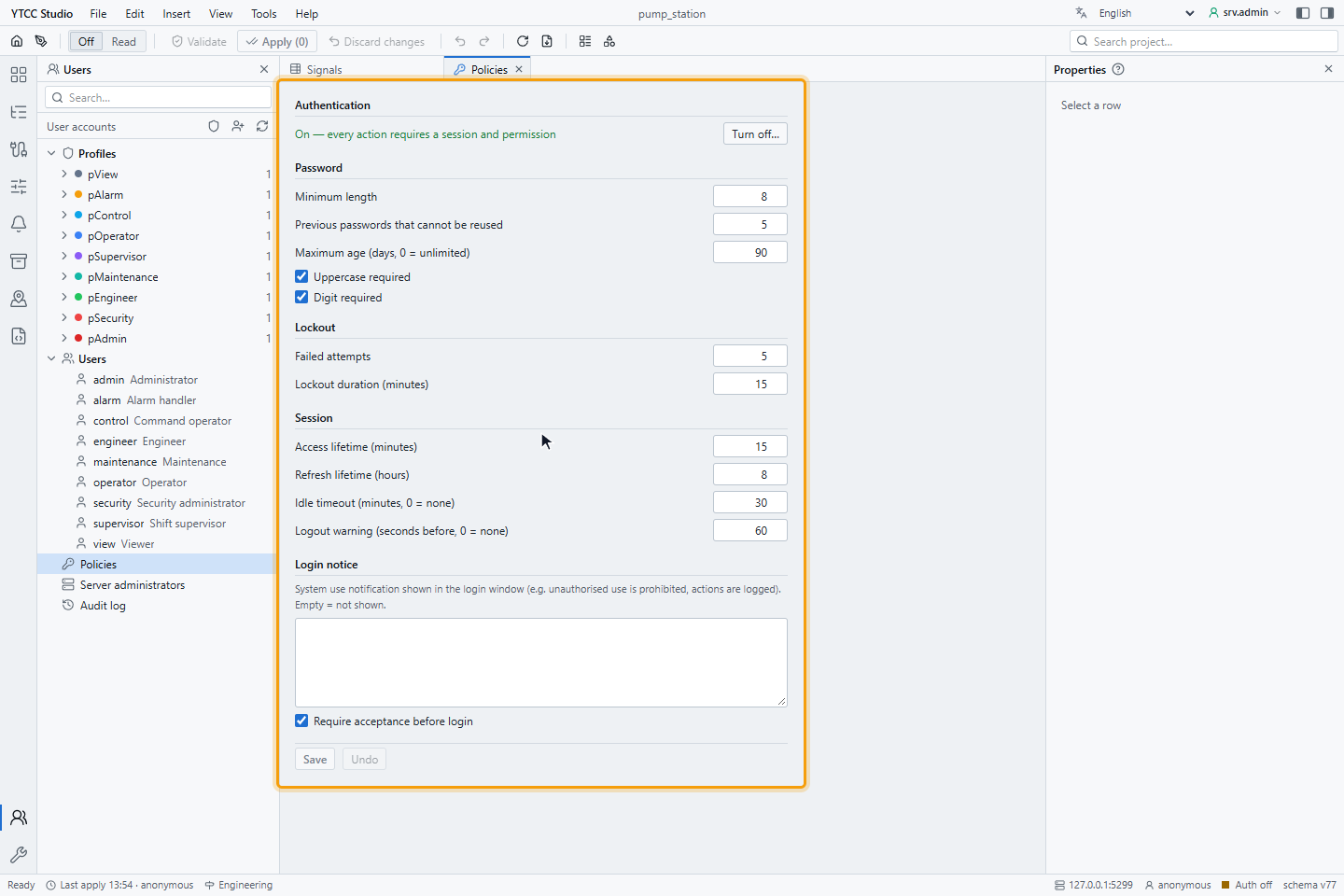
Click Turn on…. The window Turn on authentication? says that every action will require a session and permission. Click Turn on.
YTCC adds the nine default profiles and one account for each of them, from view to admin. The password of each
account is the same as its user name. The editor does not ask for a sign-in: you keep working as root.
3. Check the default accounts
The state now reads On — every action requires a session and permission. The tree lists the nine profiles, each with one member, and the nine users.
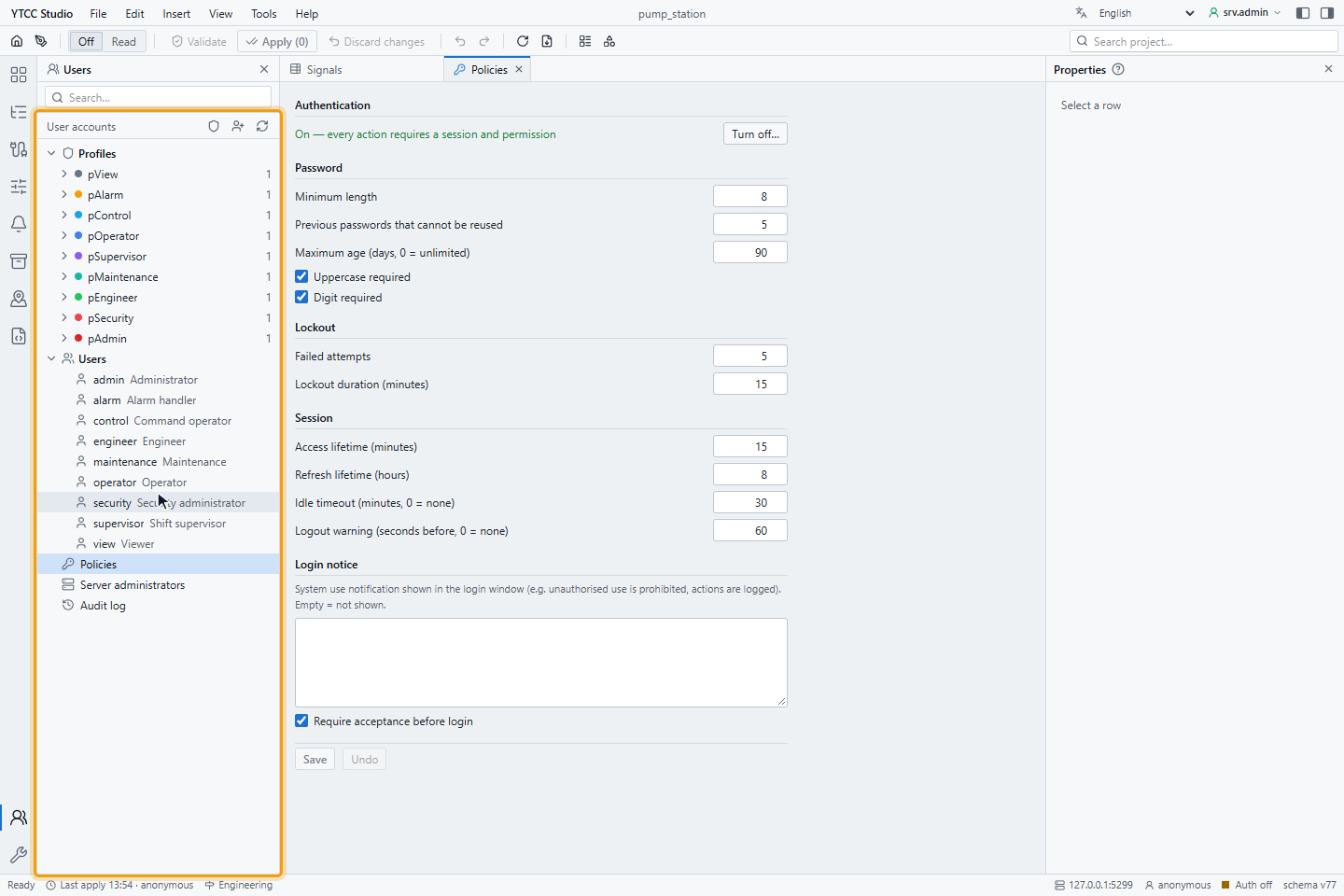
These accounts belong to this project only. They sign in to operate the project; designing and user management stay with root.
4. Create your own account
Everyone knows the admin password, and a shared account does not show who did what. Create a personal account for
the person who operates the project, here yourself:
- Click New user (the person icon with a plus) at the top of the tree.
- Enter a Username, for example
j.smith. It cannot be changed after creation. - Enter your Full name.
- Under Profiles, tick pAdmin.
- Enter a Password. The rules below the box turn green as they are met: At least 8 characters, At least one uppercase letter, At least one digit and Must differ from the user name.
- Click Create.
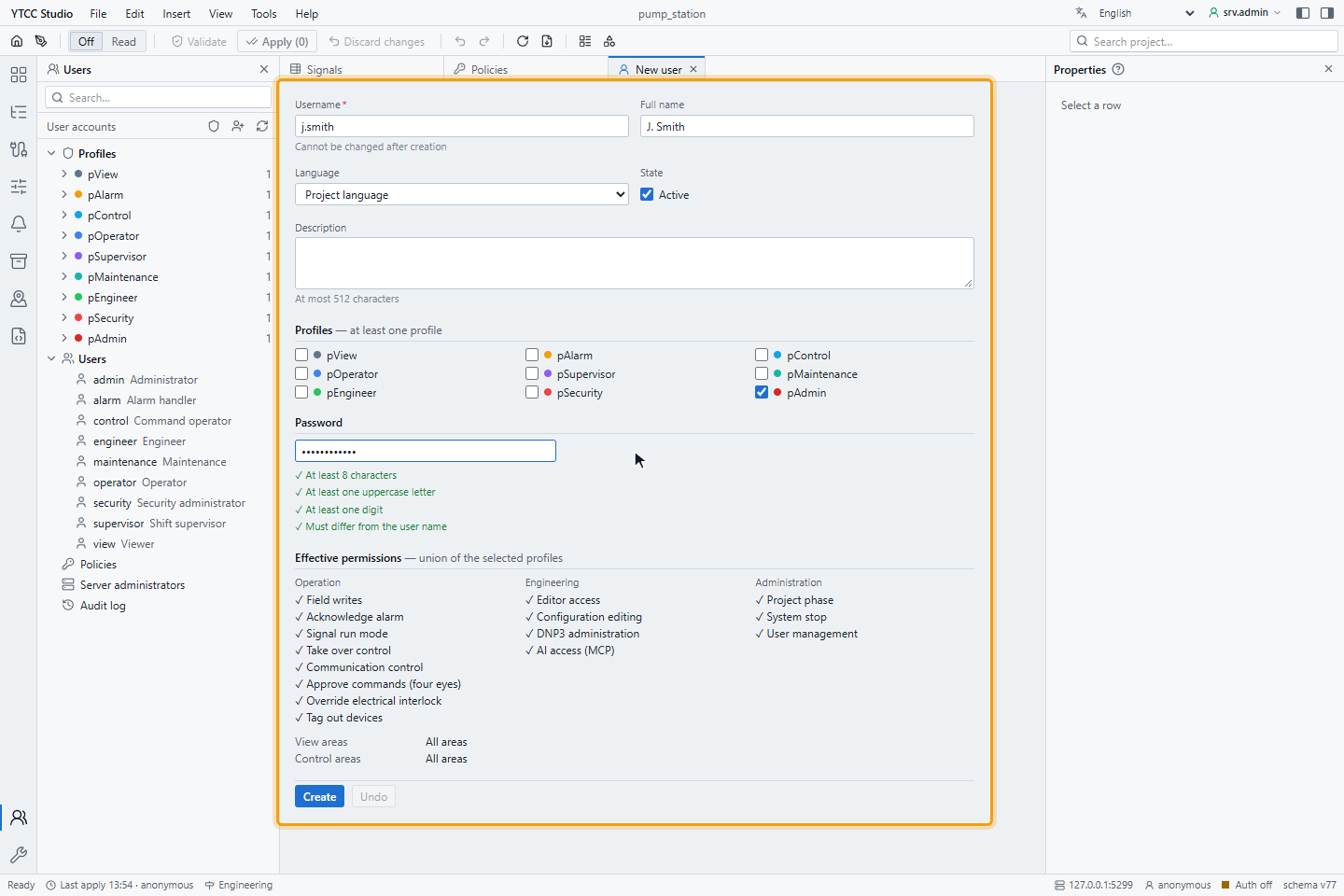
Effective permissions shows the permissions of all its profiles together. On the runtime screen the account may use the operating permissions and System stop; the design permissions stay with root.
5. Check the server administrators
Click Server administrators in the tree. Creating projects and the other server actions stay with root, so there is nothing to set here.
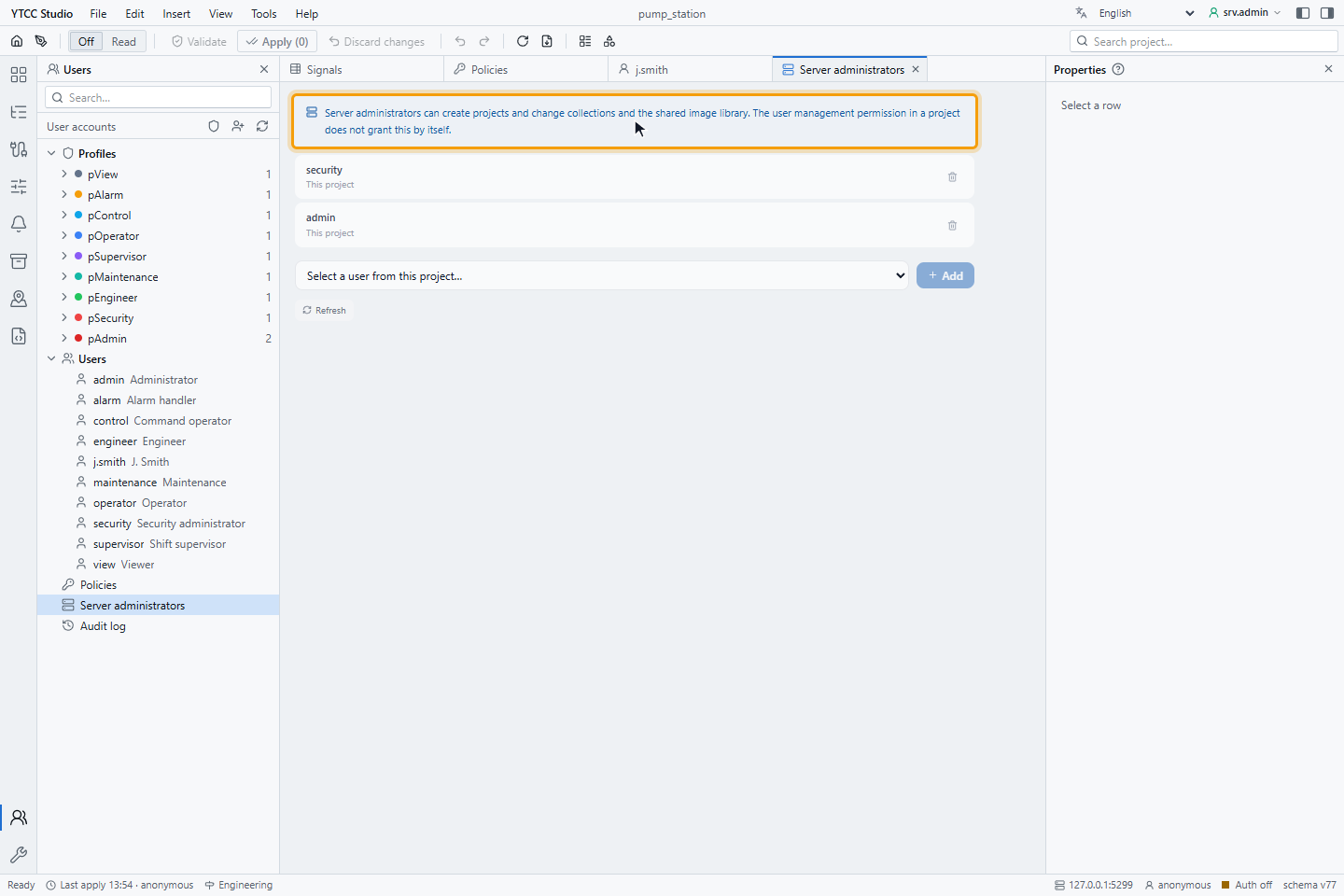
A server upgraded from an earlier version also has a root account; see Upgraded servers.
6. Set the operator's language
Click operator in the tree. Set Language to English and click Save.
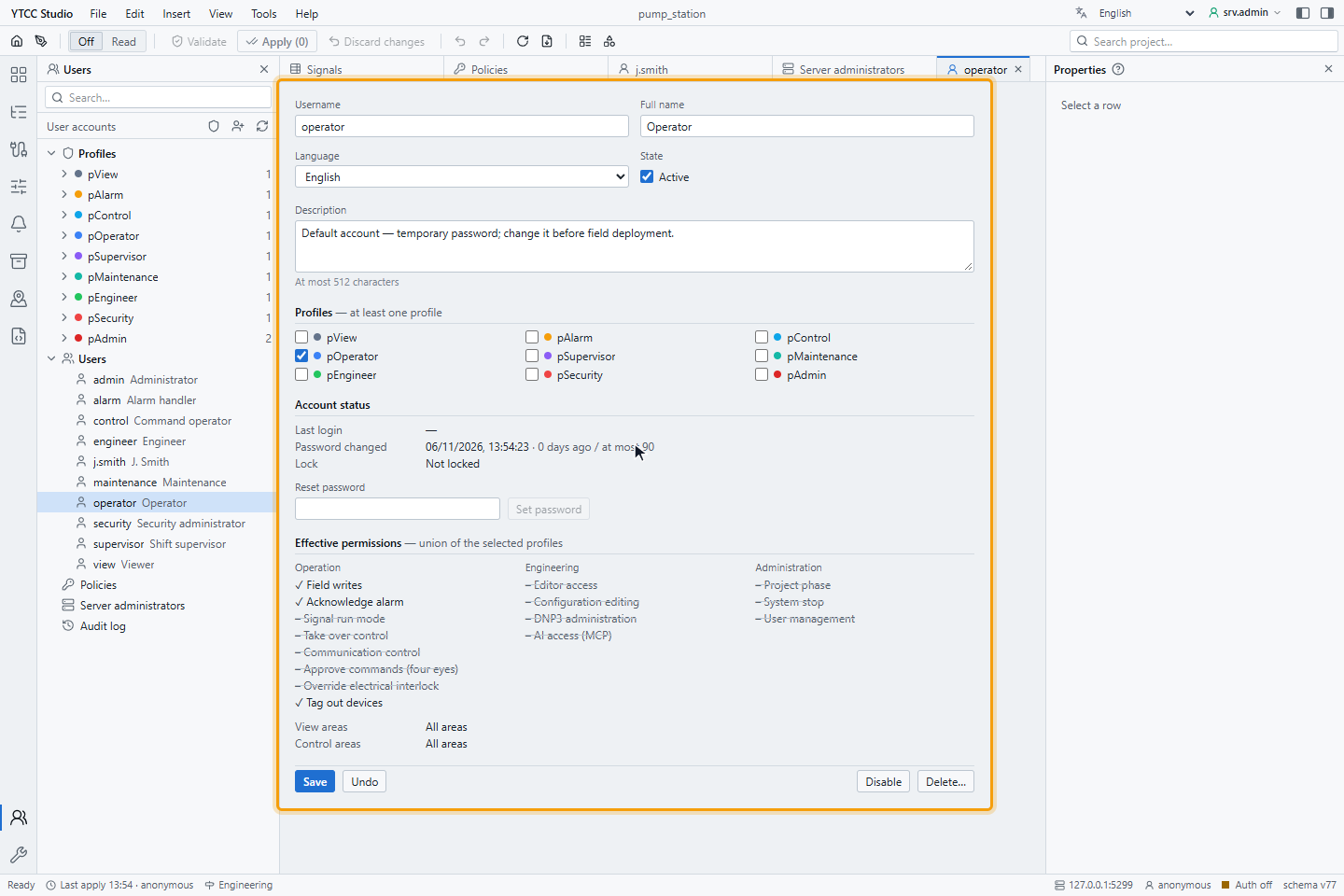
The language decides the language of the runtime screen while this user is signed in. Project language uses the project's language.
7. Disable the accounts you do not use
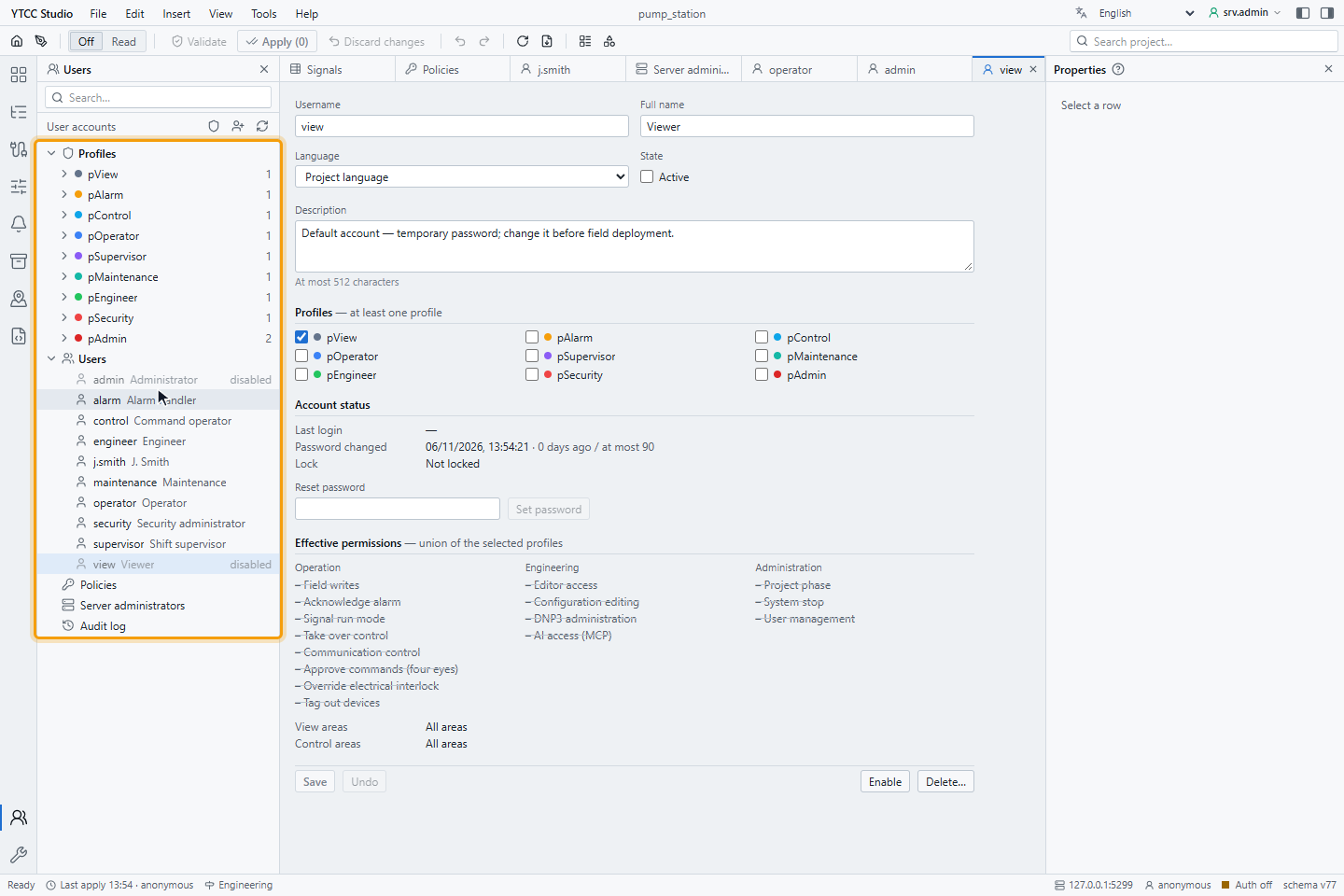
You are signed in as root, not with a project account, so you can disable any default account. Click each default
account you do not need, for example admin and view, and click Disable. A disabled
account keeps its history but cannot sign in. The tree marks it disabled.
8. Sign in as the operator
Open the runtime screen: on the home page, right-click the project and choose Runtime. The runtime screen opens with
your root session. Open the session menu on the control rail at the right edge and click Switch user. This ends the
root session in every tab of this browser, and the sign-in window opens. Sign in as operator with the password operator. To keep root signed in, open the runtime screen in another browser
instead.
The screen opens in English and shows the tank with the value of Level_Setpoint.
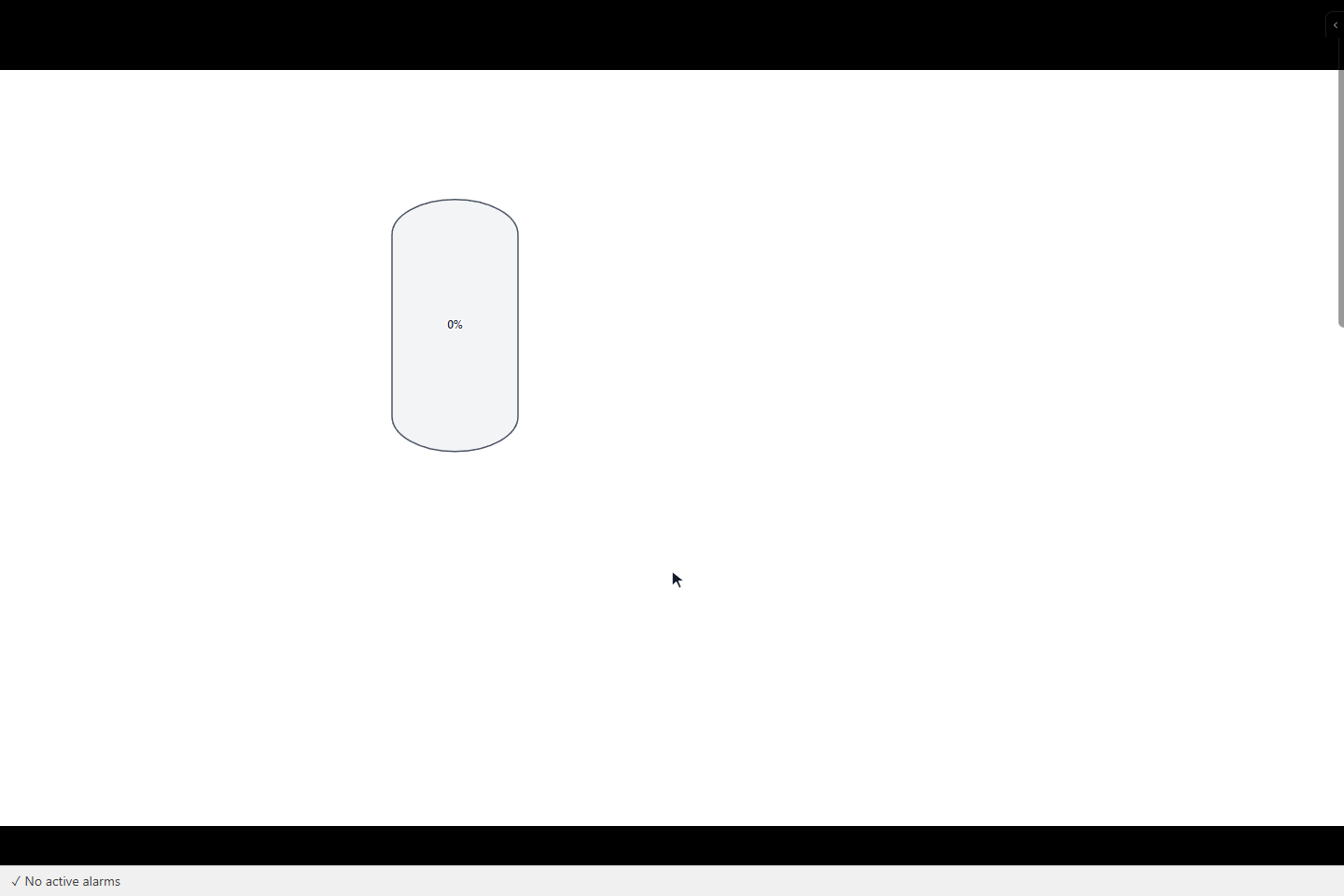
The sign-in window of the runtime screen follows the language of the runtime screen: the user's profile, the language chosen in this browser, the project's Operator language, then English. In English it reads Login Required, Username, Password and Sign In.
Result
The project requires sign-in. Root designs and administers, you operate with your own account and the shared admin
account is disabled. Every change and command is now recorded with the name of the user who made it.
Next steps
- Profiles and users explains the profile form, members and the rules that keep an administrator.
- Permissions and default profiles lists what each profile is allowed to do.