Server scripts
A server script is a small TypeScript program that runs on the server, with or without a screen open: it reacts to signal changes, alarms, conditions or a schedule, writes results to internal signals and, when allowed, sends commands. Each active script runs in its own process, so a failing script does not affect the others, the drivers or the gateway. For the difference to screen scripts, see Which script runs where.
Before you begin
- The project is open in the configuration editor, and your user has Editor access.
- The internal signals the script writes to exist; here a numeric internal signal
CheckCount.
Steps
1. Open the server scripts
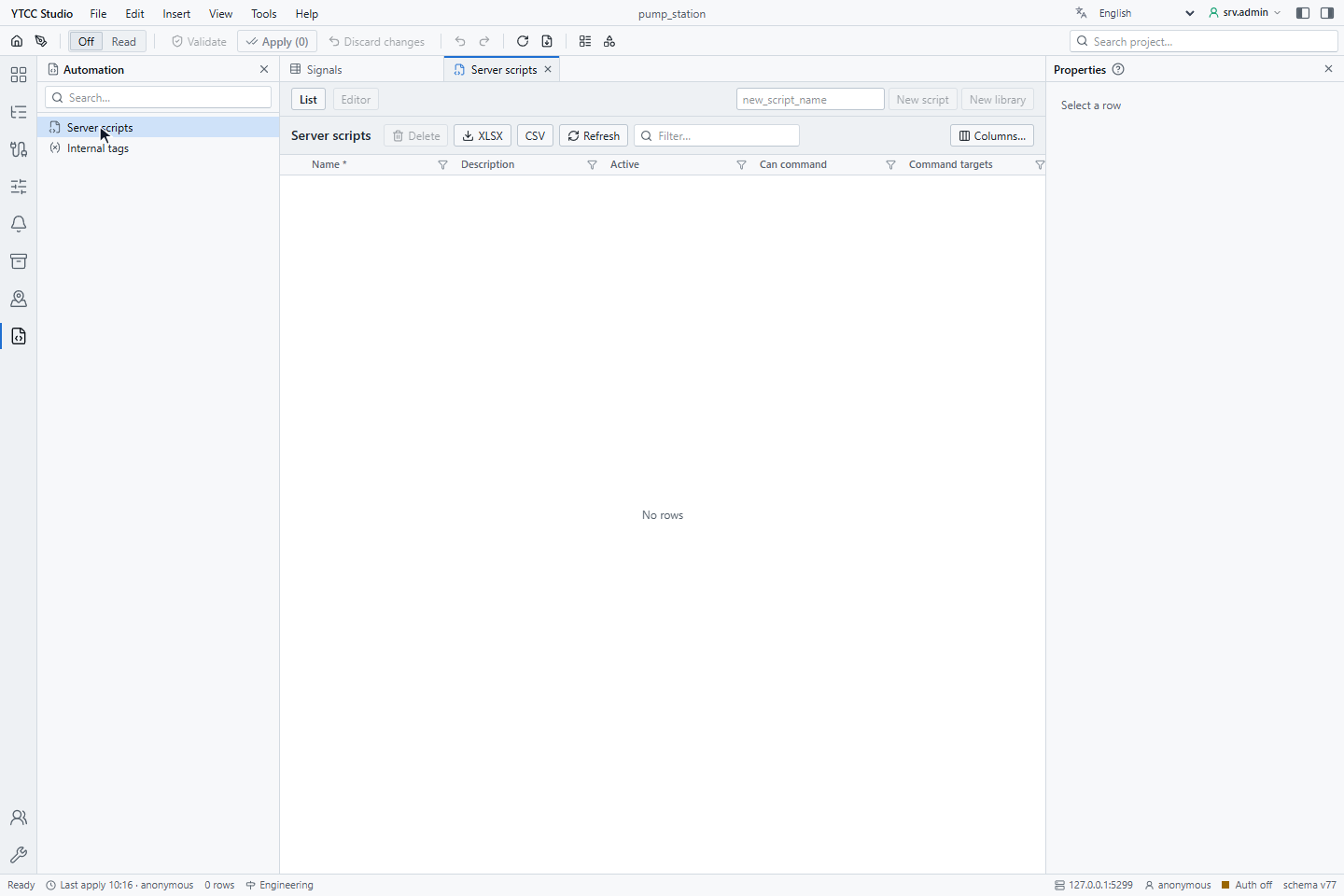
In the activity bar, click Automation and then Server scripts. The list shows every script with Name, Description, Active, Can command, Command targets and, further right, the limits and Kind (script or library).
2. Create a script
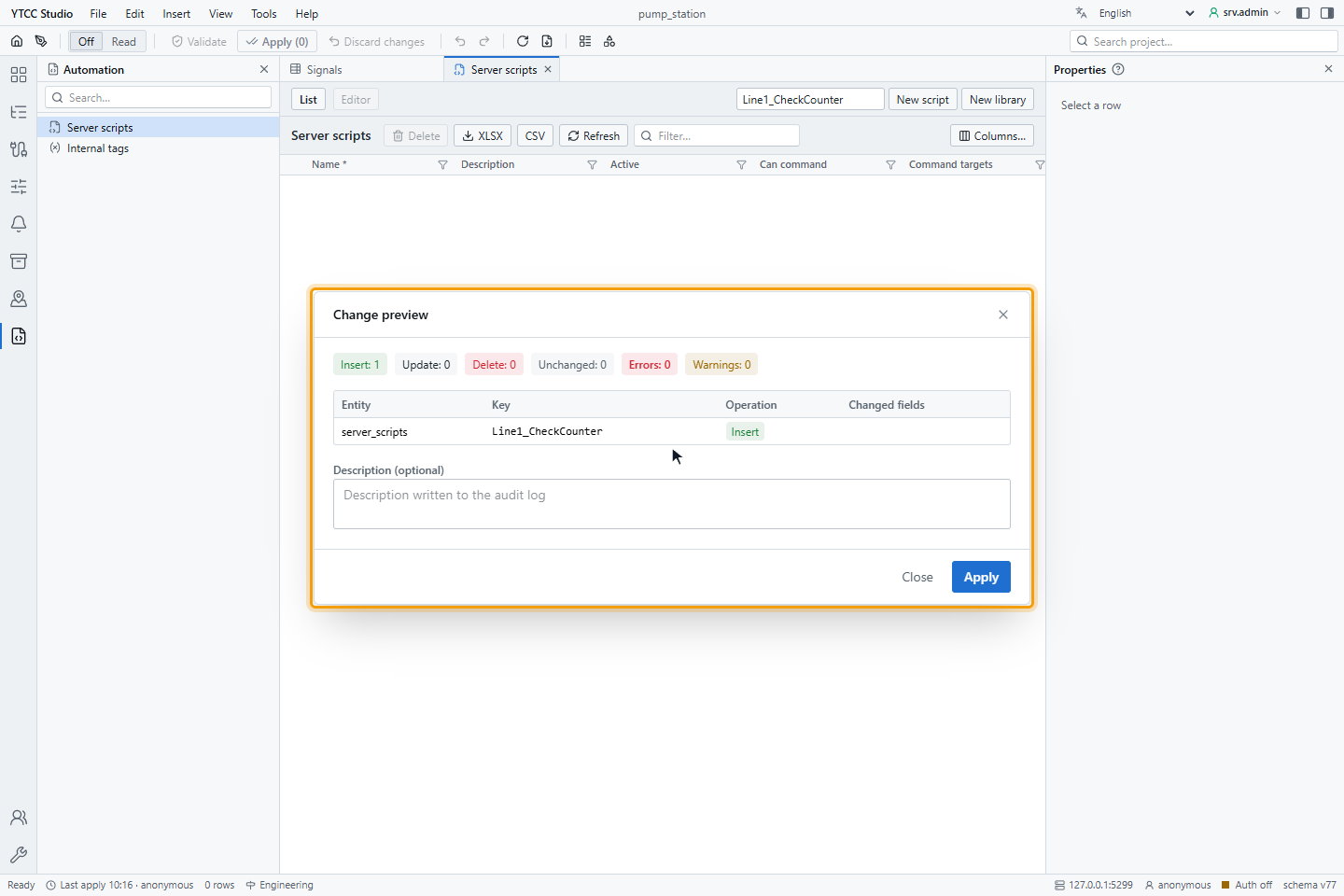
Type a name in new_script_name (letters, digits and _, up to 64 characters) and click New script. The change
preview opens; click Apply. The new script is inactive and starts with a template.
New library creates a shared library instead; see Server script API.
3. Write the source
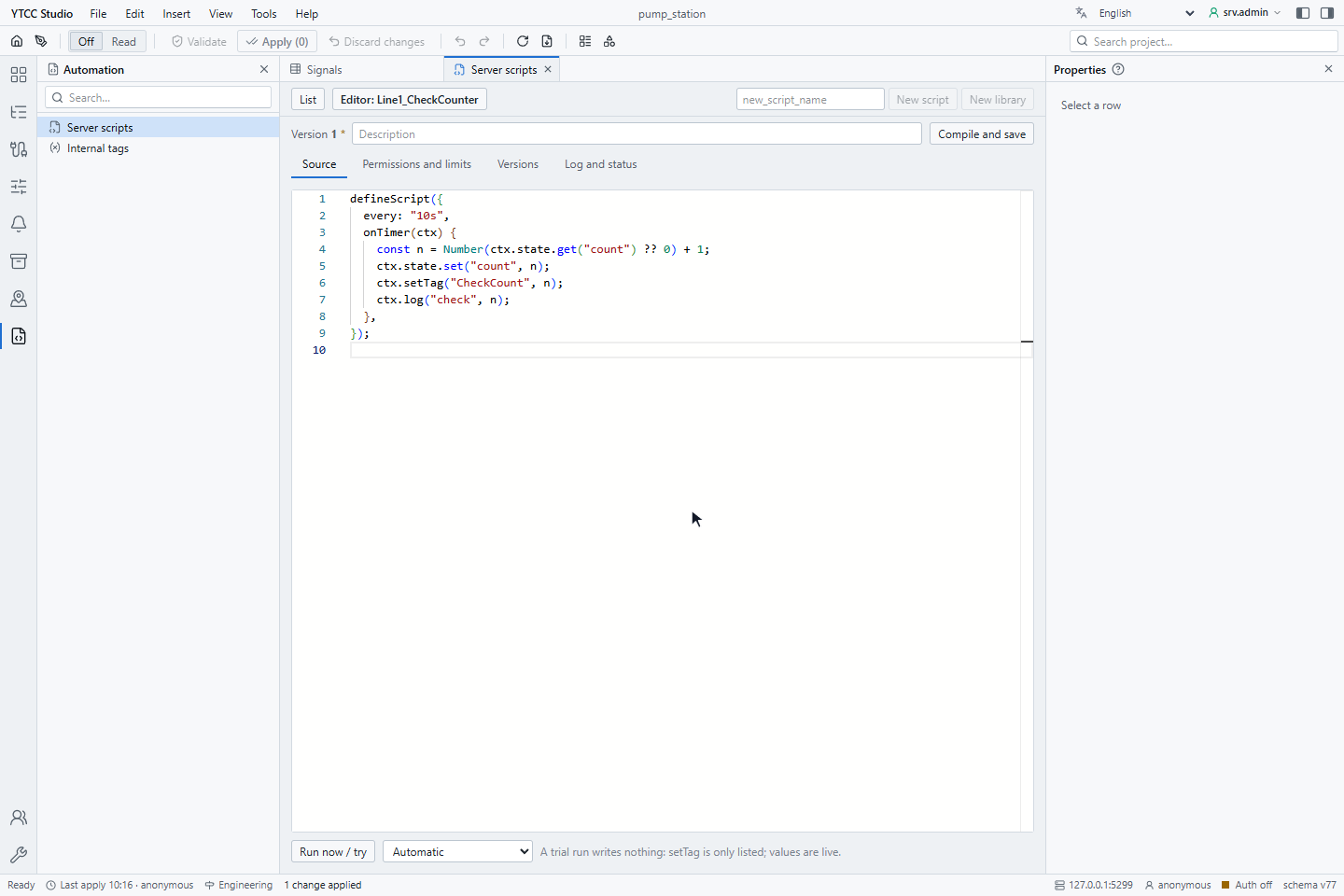
On Source, write the script. The editor completes defineScript, ctx and the signal paths inside quotes:
defineScript({
  every: "10s",
  onTimer(ctx) {
    const n = Number(ctx.state.get("count") ?? 0) + 1;
    ctx.state.set("count", n);
    ctx.setTag("CheckCount", n);
    ctx.log("check", n);
  },
});
For all triggers and functions, see Server script API.
4. Try the script
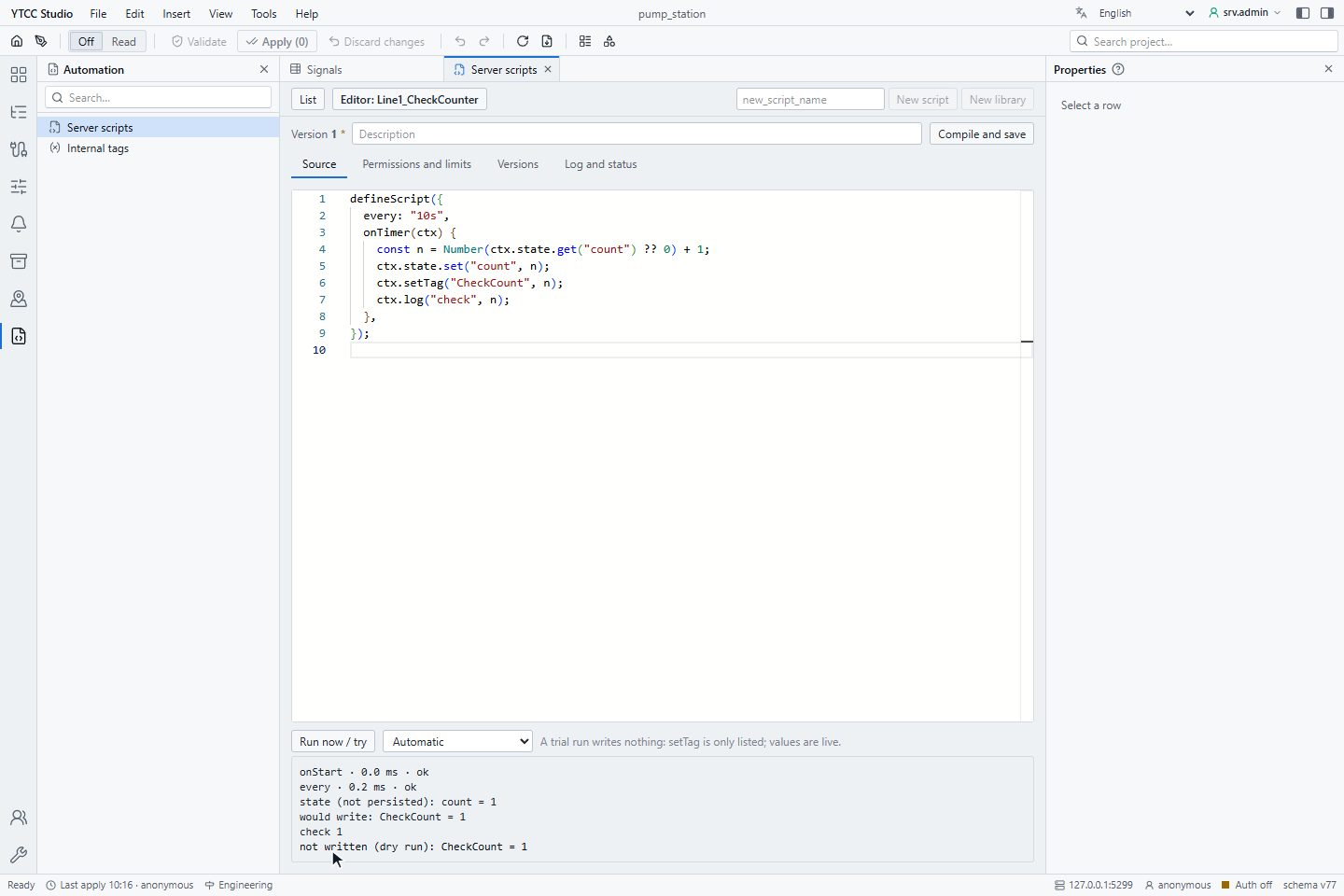
Click Run now / try. The code in the editor, even unsaved, is run once in a separate process on the server: first
onStart, then the trigger chosen in the list (Automatic takes the first handler the script has: onTimer,
onSchedule, onChange, onAlarm, onWhen). Nothing is written: each setTag is listed as not written (dry run),
state changes are not kept, and ctx.dryRun is true. Reads use the real current values.
A trial may use up to 256 MB, 10 seconds per handler and 30 seconds in total; at most four trials run on the server at the same time.
5. Set the permissions and limits
On Permissions and limits, switch Active on. The other fields:
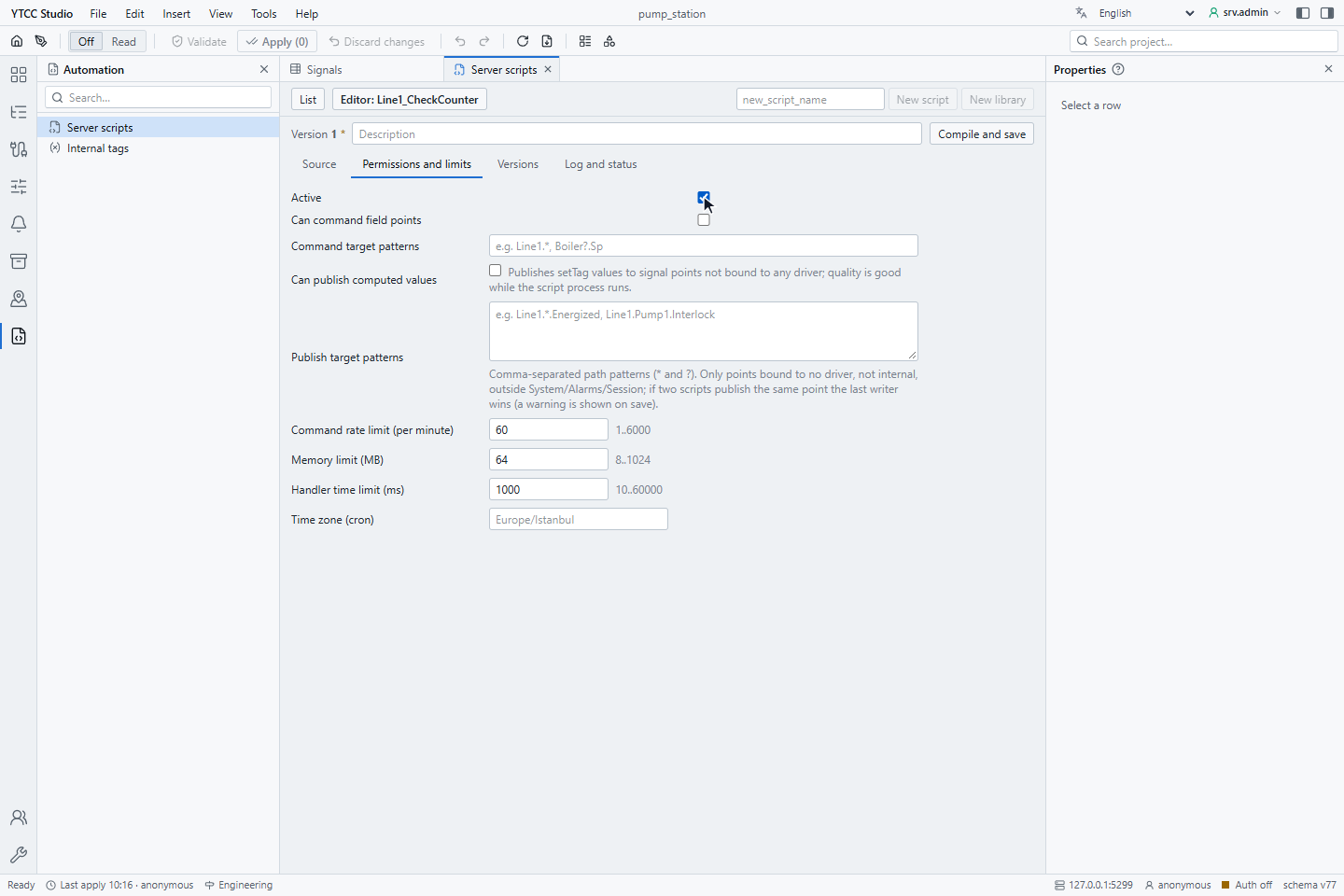
| Field | Default | Meaning |
|---|---|---|
| Active | off | The script runs |
| Can command field points | off | The script may send commands to signals of drivers |
| Command target patterns | — | Paths it may command, comma-separated, with * and ?, for example Line1.*, Boiler?.Sp; at least one is required with the permission |
| Can publish computed values | off | The script may publish values to signal points not bound to any driver |
| Publish target patterns | — | Paths it may publish to |
| Command rate limit (per minute) | 60 | 1–6000 |
| Memory limit (MB) | 64 | 8–1024 |
| Handler time limit (ms) | 1000 | 10–60000 |
| Time zone (cron) | server time | For at schedules, for example Europe/Istanbul |
Writing to internal memory signals needs no permission. Keep the command targets as narrow as possible: * alone allows
every writable point of a driver, except the command points of electrical devices. Only users with Editor access can change these
fields; changes are written to the audit log.
6. Compile and save
Click Compile and save. The TypeScript is checked first: if it has errors, the list TypeScript errors: not saved appears, each line jumps to the error, and nothing is saved. Otherwise the change preview shows what changes; click Apply.
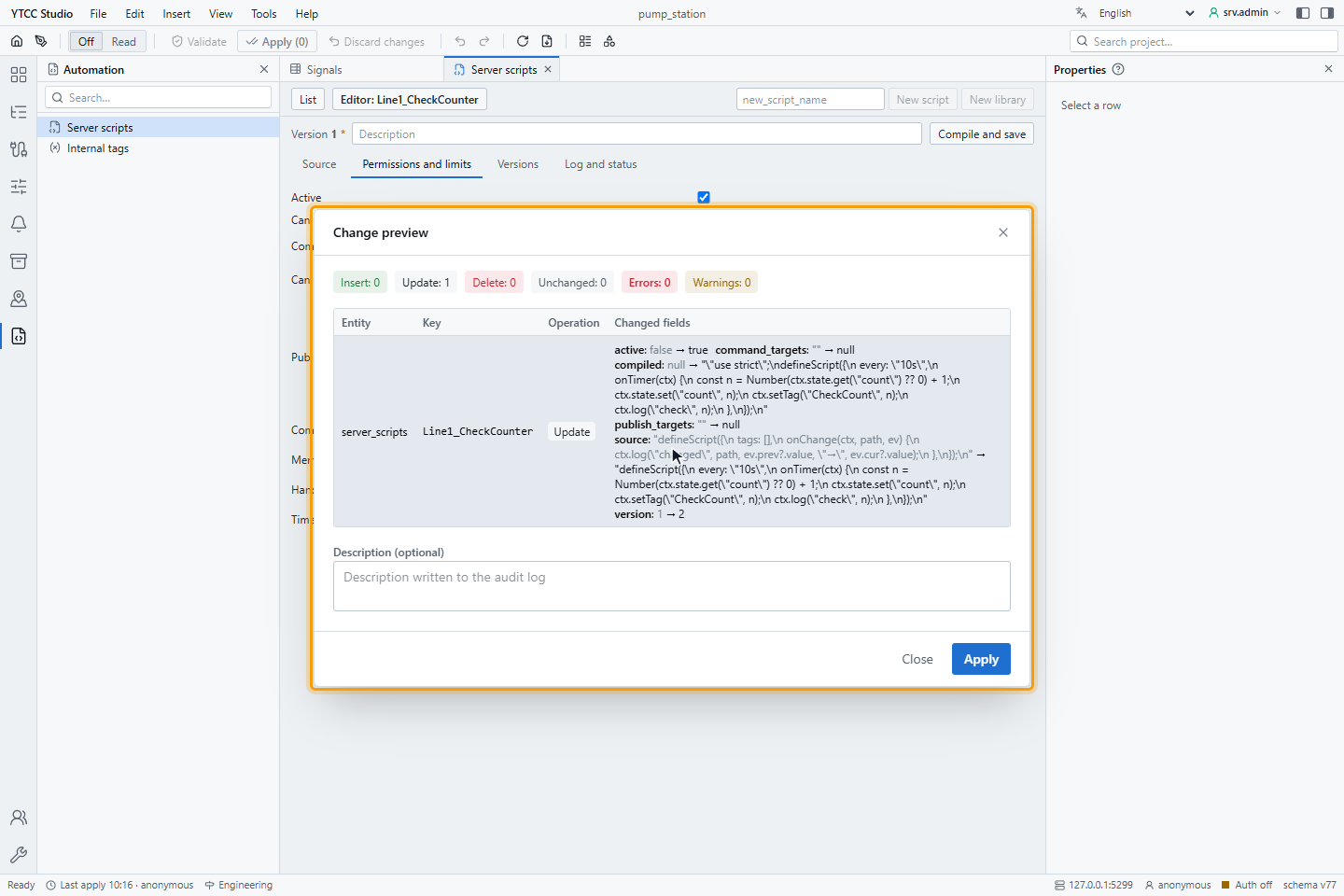
Each save is a new version; a running script loads it by itself. On Versions, select an older version to compare it with the current source line by line; Restore puts it back into the editor (save it to make it a new version).
7. Follow the log
Open Log and status. The log shows the lines of ctx.log, warnings and errors; Follow tail keeps the newest line in view.
The status row shows Running, Quarantined, Version, Runs, Errors, Last run, Last error,
Avg (ms), Commands, Rejected, Published and Skipped.
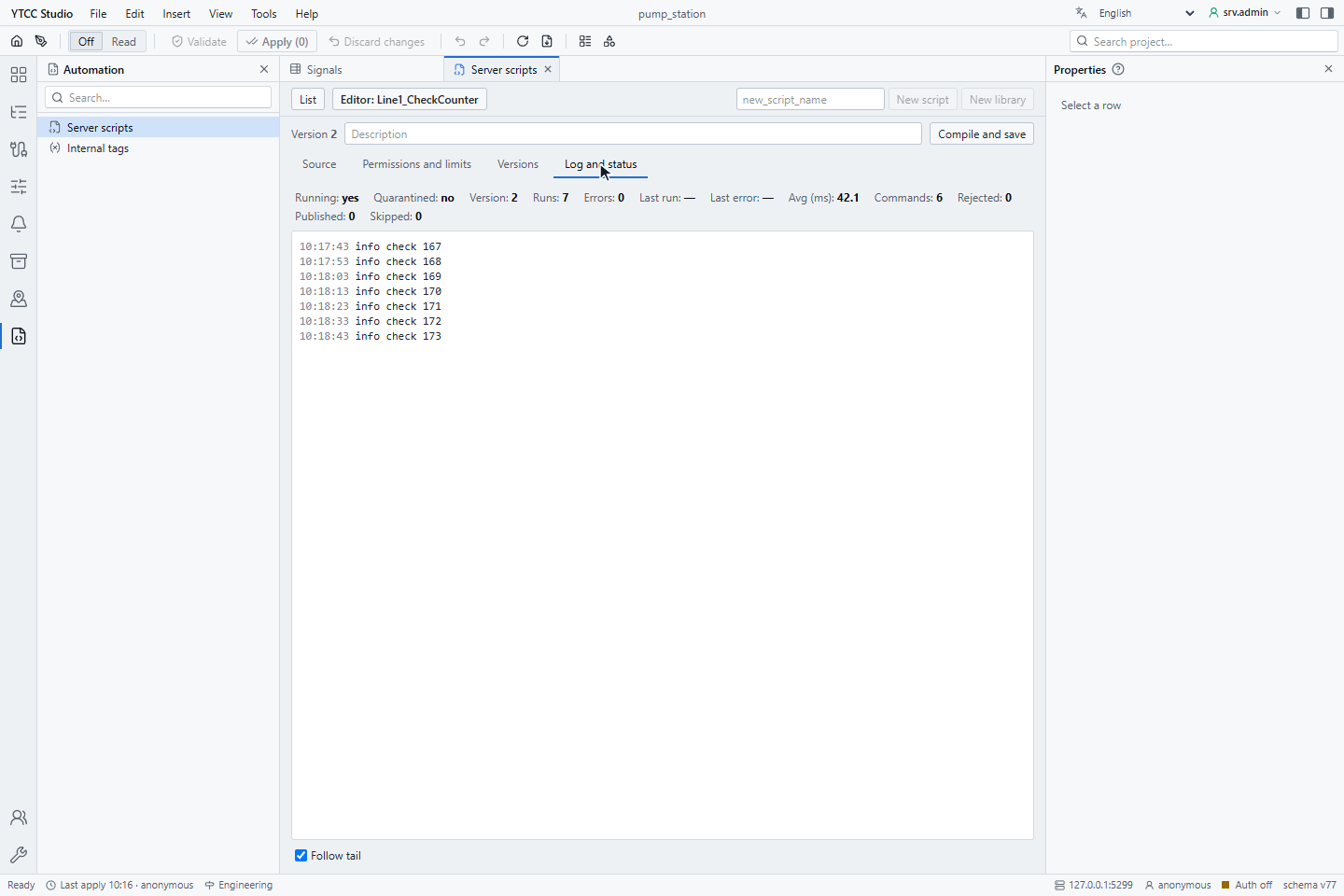
The gateway keeps the last 500 log lines of each script. The same status values are available as signals
System.Scripts.<name>.* for screens, alarms and the history.
Result
The script runs on the server and keeps its state (ctx.state) across restarts. Every command it sends is in the
command log as script:<name> with the trigger and the version.
Good to know
- Quarantine. If a script's process fails five times within five minutes, the script is quarantined: it waits and a
system alarm
script_<name>with priority high is raised. Fix the script and save it again to end the quarantine. - Limits. A handler that runs longer than its time limit is cut off and counts as an error; a script over its memory limit is restarted. See Limits.
- Many scripts at once. To load or back up scripts as files, see Import and export server scripts.
- Examples. See Server script examples.