Define responsibility zones
Responsibility zones divide the signals of a project into areas that profiles may view or control, optionally with one operator controlling an area at a time. For how they work, see Responsibility zones.
Before you begin
- The project is open in the configuration editor as root. Changing zones and profiles belongs to root; see Root, the system administrator.
- The signals exist.
Steps
1. Define the zones
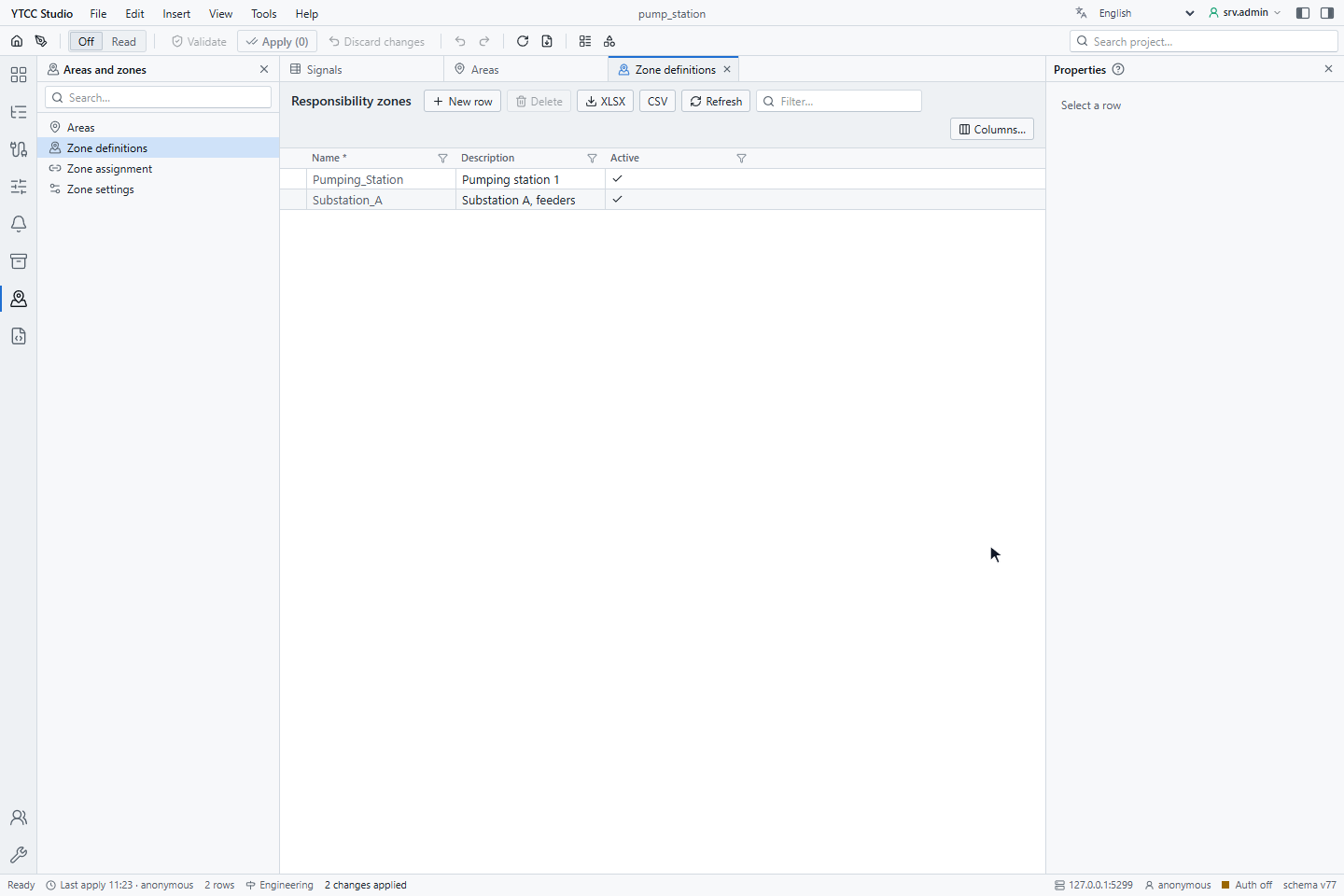
In the activity bar, click Areas and zones and then Zone definitions. Add a row for each zone with New row: a
Name of letters, digits and _ (up to 64 characters), for example Substation_A, and a Description. Apply the
changes.
Areas in the same activity are the alarm areas, a different, hierarchical grouping for the alarm lists.
2. Assign the signals
Zone assignment lists every signal with its Zone. Click the Zone cell of a signal, press F2, type the name of the zone and press Enter. Here FeederA_Current and FeederB_Current go to Substation_A and Pump1_Flow to Pumping_Station. To change several rows at once, filter the list first. Then apply the changes.
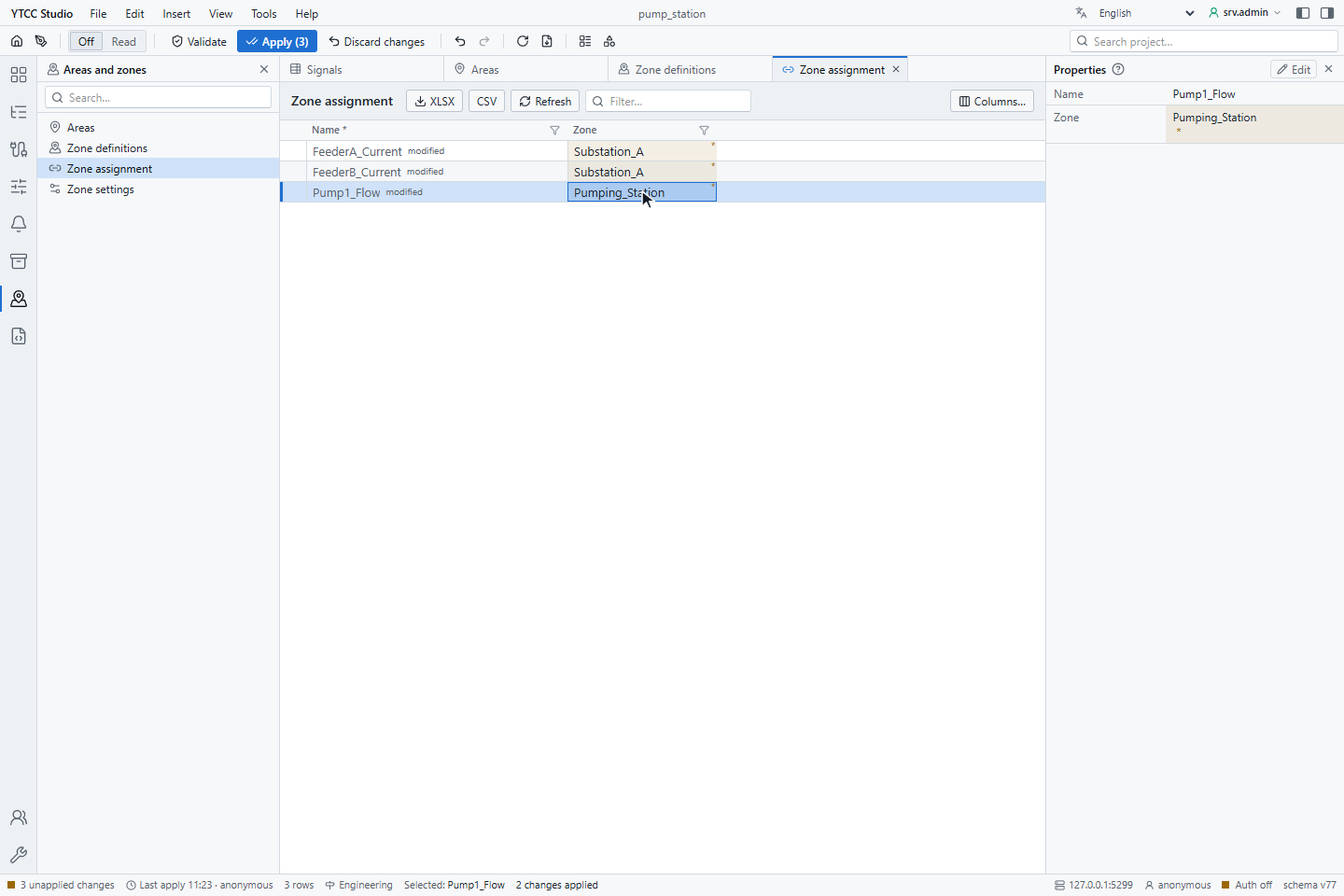
A single signal can also be assigned on the General tab of its signal window, field zone. A signal without a zone stays free.
3. Choose exclusive control
Zone settings has one row for the project:
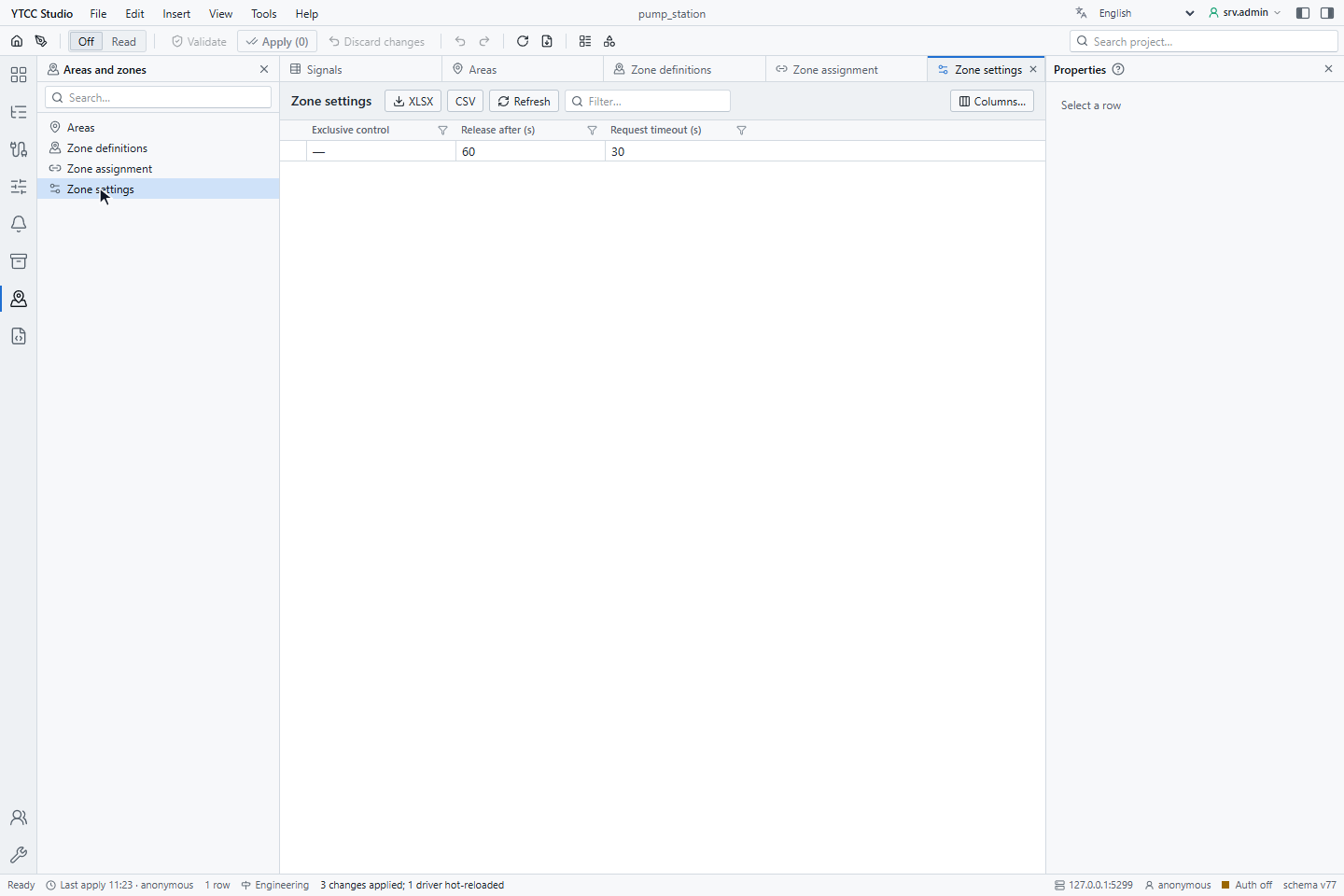
| Setting | Default | Range | Meaning |
|---|---|---|---|
| Exclusive control | off | — | Only the owner of a zone may control it |
| Release after (s) | 60 | 5–3600 | A zone is released this long after its owner's session ends |
| Request timeout (s) | 30 | 5–600 | An unanswered control request drops after this time |
Without exclusive control, zones only limit who may control which signals.
4. Give the profiles their zone rights
In the Users activity, open a profile. Under Responsibility zones, choose for View and for Control either All or the zones the profile may see and control.
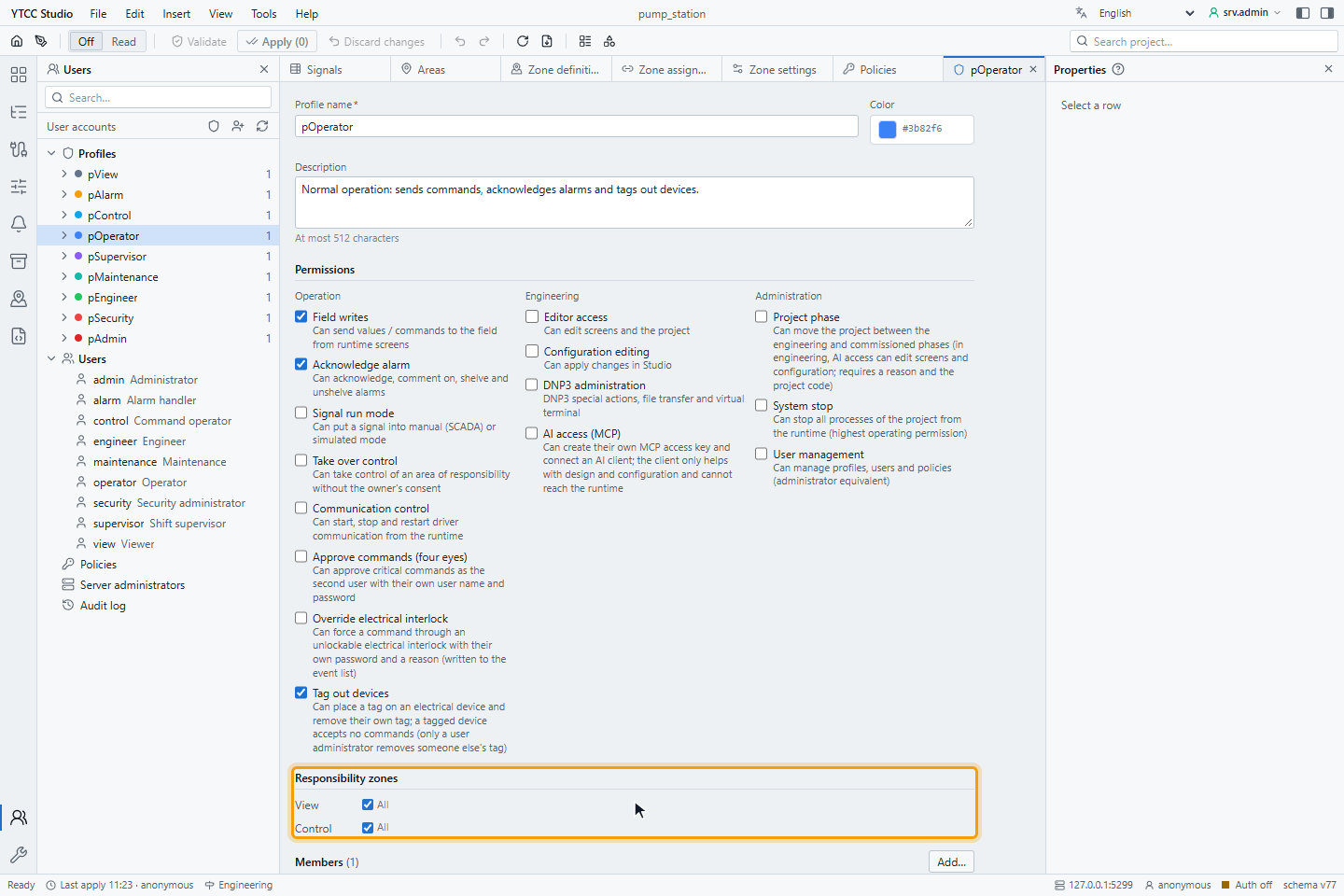
To let shift supervisors take a zone from another operator, give their profile the permission Take over control.
Result
From the next command on, the server refuses commands to zoned signals from users without control rights, and, with exclusive control on, from users who do not own the zone. The run screen shows the Responsibility zones button.