Click actions
A click action is a step that runs when the operator clicks an object on the runtime screen, for example opening a page or writing a value to a signal. You add actions in a list; no script is needed.
Before you begin
- The page is open in the screen editor and has the object that should react to the click. See A tour of the screen editor.
Steps
1. Open the Events tab
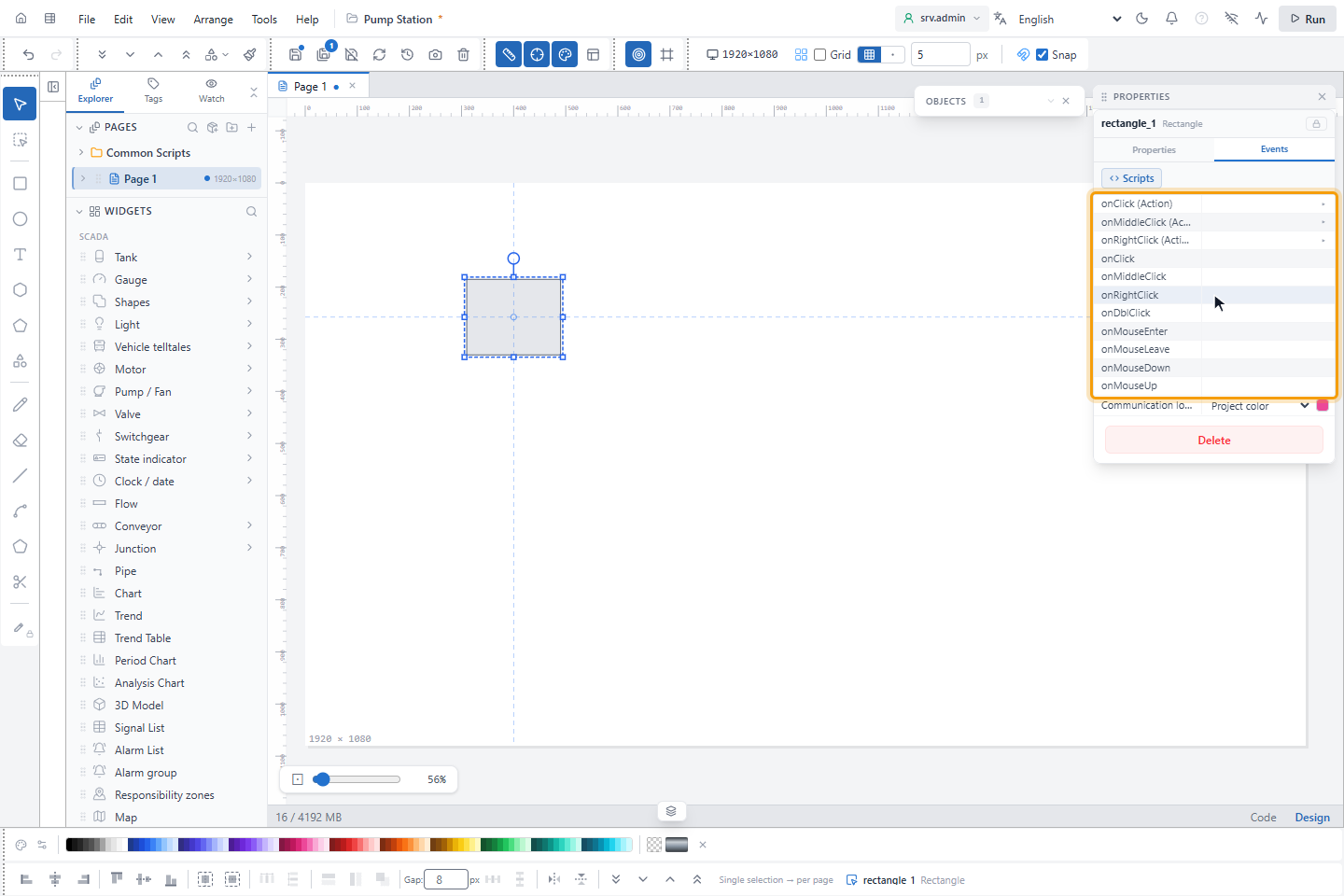
Select the object and open the Events tab in PROPERTIES. There is one action list for each mouse button: onClick (Action) for the left button, onMiddleClick (Action) for the middle button and onRightClick (Action) for the right button. A list that has actions shows how many, for example 1 action.
2. Add an action
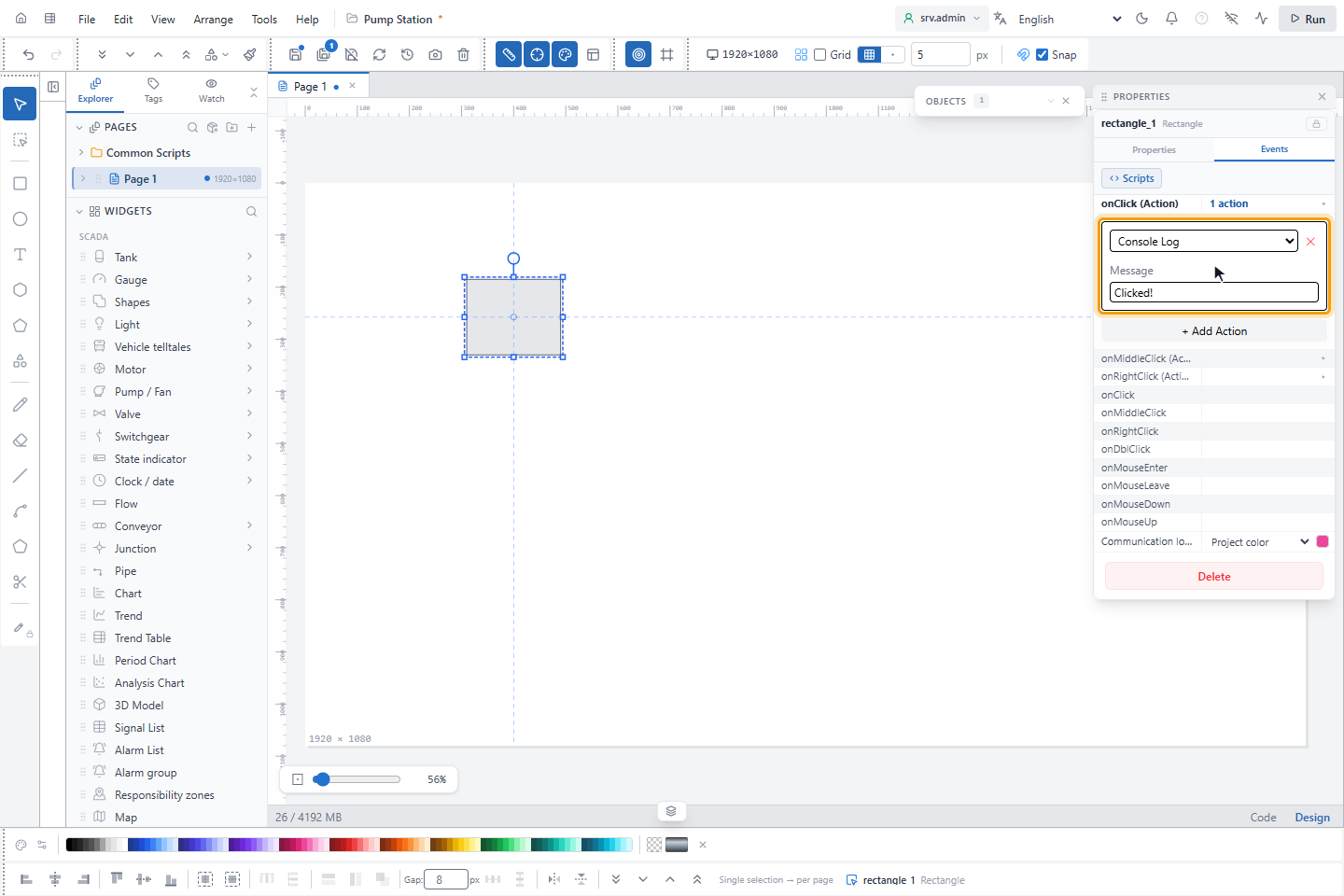
Click onClick (Action) to open its list and click + Add Action. A new action is always a Console Log with
the message Clicked!; choose the action type in its list. Changing the type resets its settings. The ✕ button
removes the action.
The action types are:
| Action | What it does |
|---|---|
| Write Tag | Writes a value to a signal. |
| Toggle Tag (boolean) | Switches an on/off signal to the other state. |
| Confirm Dialog | Asks the operator first; see the next step. |
| Console Log | Writes a message to the browser console; useful while testing. |
| Navigate to Page | Opens another page. |
| Open popup | Opens a popup with parameter values and a position. |
| Close Popup | Closes the top popup, or all popups. |
| Signal Detail | Opens the signal detail panel for a signal. |
| Communication Control | Starts, stops or restarts a driver. |
| Open Trend | Opens the trend screen with the given signals or a shared trend profile. |
| Chart Signal Selection | Turns the signal selection for chart windows on or off. |
| Open Chart Template | Opens a saved chart template by its name. |
| System Stop | Stops the whole system, after confirmation. |
| Map View | Moves a map to a saved view. |
3. Ask for confirmation first (optional)
Choose Confirm Dialog and type the question in Message. Put the actions that must wait for the answer in its Then run: list, with the + Add Action button inside it. They run only when the operator clicks Yes.
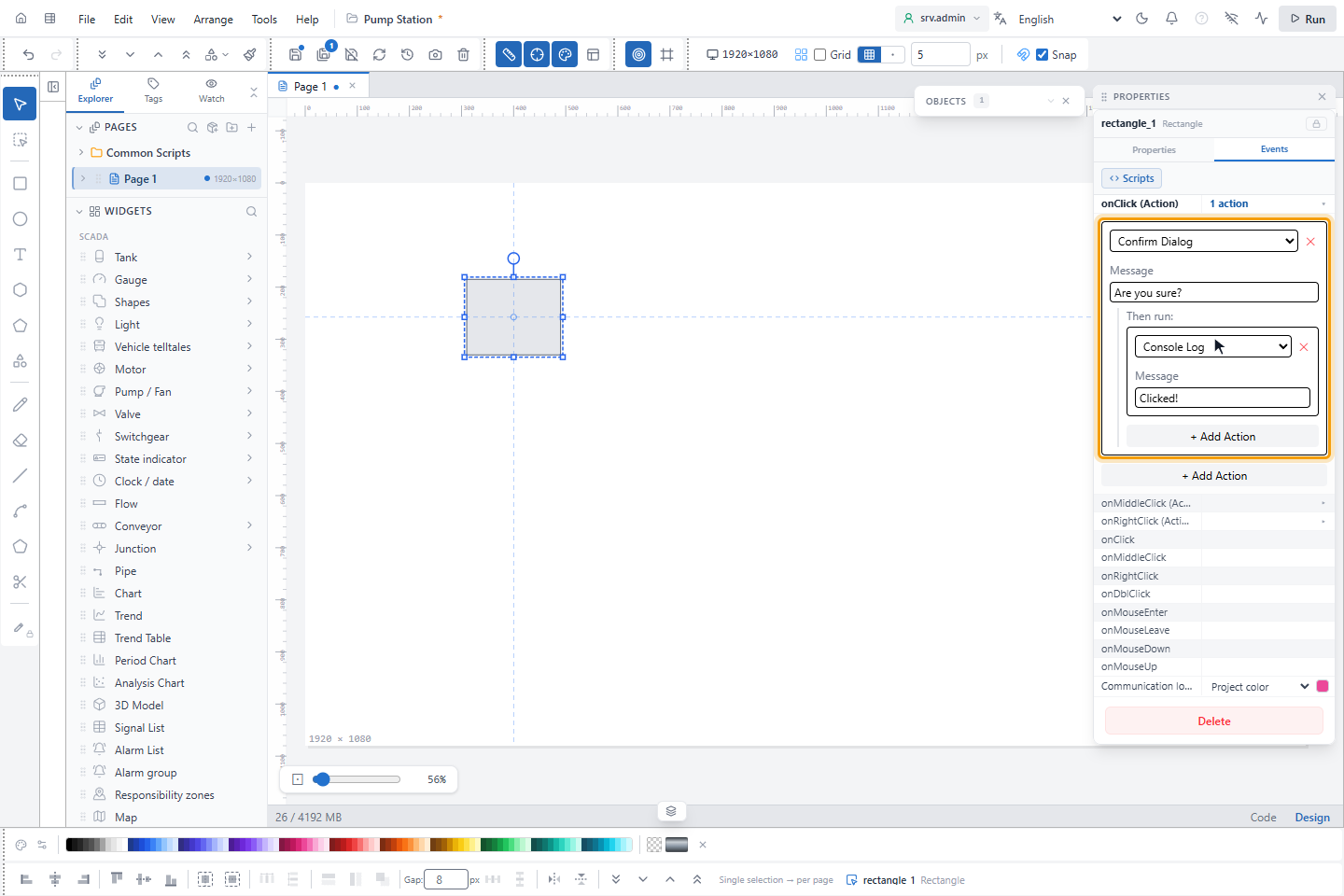
Only the actions inside Then run: wait for the answer. Actions below the Confirm Dialog in the outer list run also when the operator clicks Cancel.
A Write Tag inside Then run: is not asked about a second time.
4. Try it in a test run
Click Run and click the object. The actions run from top to bottom; if one fails, the next one still runs. Press Esc to return to the editor.
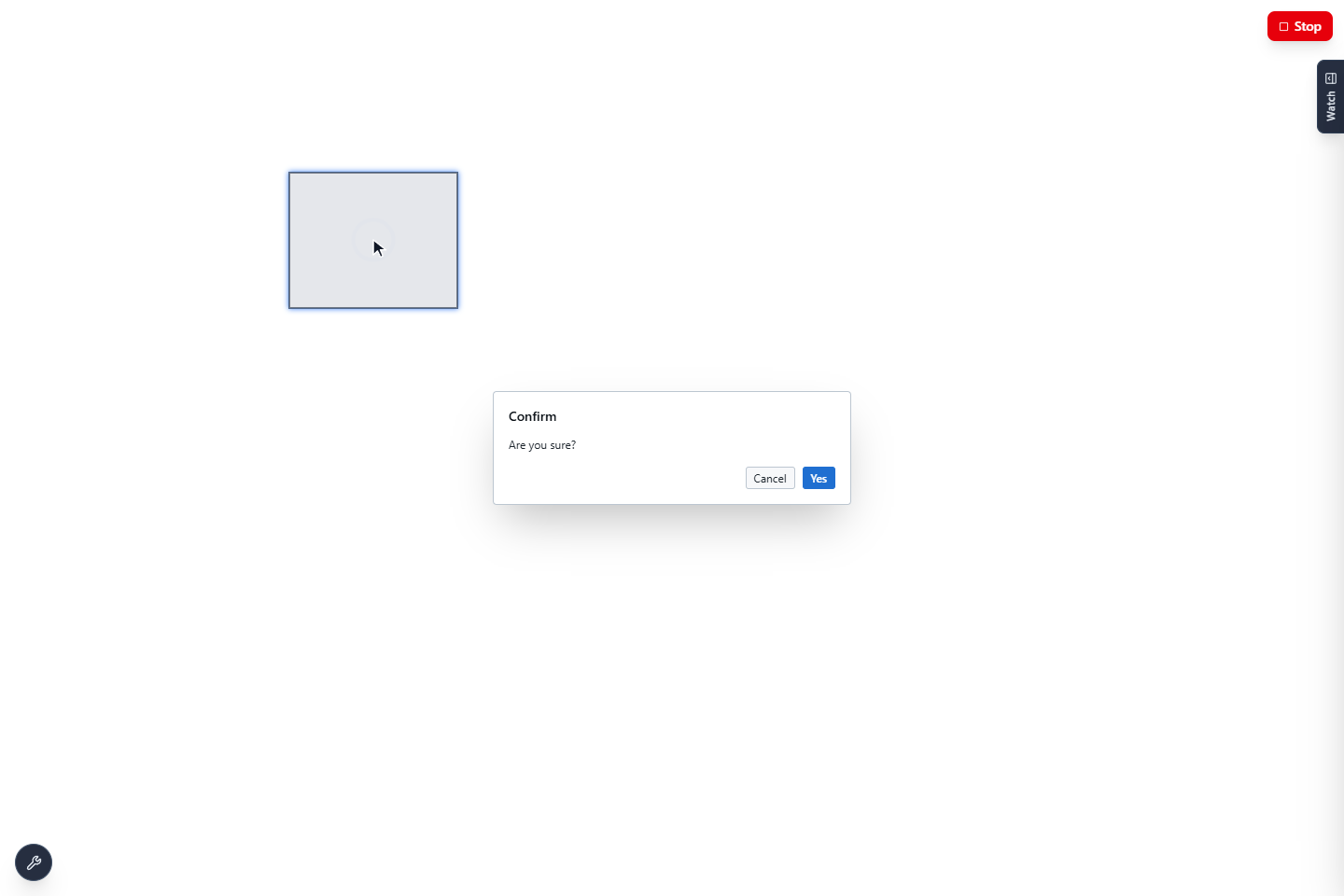
Actions run only in a test run and on the runtime screen. In the editor a click only selects the object. Write Tag, Toggle Tag (boolean), Signal Detail, Communication Control, Open Trend and System Stop need the running YTCC system; the other actions also work without it.
Result
A click on the object runs the actions of its list.
Good to know
- A Navigation button without a target page shows the warning No target page selected: the button does nothing in run mode. Pick a page in the Events tab. in PROPERTIES.
- A right click on an object that has no right-click actions but shows a signal opens the signal menu of the runtime screen. Ctrl+right click opens the signal menu also when there are right-click actions.
- For a popup, the onClick (Modal) row is a shortcut to Open Popup; see Popups.